TradeCalc Pro MT5 — Universal Risk Calculator for Any Symbol and Account Type

This article provides a detailed overview of TradeCalc Pro MT5 — a universal set of 6 professional trading calculators for MetaTrader 5 with interactive chart lines. The tool is designed solely for analytical calculations and risk modeling, without executing actual trades. You will learn how to instantly calculate position size, required margin, pip value, swap, and net profit for any asset classes and account types (including netting and hedging), using visual planning with draggable Entry/TP/SL lines.
Contents
1. Introduction
When planning every trade, a trader faces many calculations: position size, margin, pip value, swap, potential profit, and risk. Standard MetaTrader 5 tools do not provide all these calculations in one place, and manual calculations take time and are prone to errors.
TradeCalc Pro MT5 solves this problem by combining six professional calculators in a single compact interface with interactive chart lines. The application is designed solely for analytical calculations and modeling — it does not execute trades or open real orders.
TradeCalc Pro MT5 includes six calculators:
- TRADE — instant calculation of position size with flexible money management modes (fixed lot, risk in % of equity, risk in % of balance, risk in deposit currency, lots per 1k). Interactive Entry/TP/SL lines allow you to visually plan trades directly on the chart.
- ACCOUNT — real-time monitor of account margin metrics: margin level, free margin, used margin, deposit utilization rate (Margin Load), and Margin Call/Stop Out thresholds. The simulation mode allows you to safely model different balance and equity scenarios.
- POINTS — pip, point, and tick value with a customizable user multiplier (1, 10, 100, 1000, 10000, 100000). The selected multiplier is automatically applied in the TRADE tab.
- MARGIN — margin calculator for planned trades, taking into account hedging and netting rules. Select the direction Buy / Sell, enter the volume and calculation price — the utility will show the isolated order margin, the actually added margin to the current portfolio, leverage, and the projected margin level after opening.
- SWAP — calculation of swap costs for long (Buy) and short (Sell) positions for a selected holding period. Shows the daily and cumulative swap in the account currency, the better side for trading, and information about the broker's swap mode.
- PROFIT — calculation of potential profit or loss from the opening price to the closing price, taking swap into account. Select the direction Buy / Sell, enter prices or use the price change in points mode (Profit in Points), and specify the holding period. The utility will output trade profit, swap, net profit (Net Profit), and the percentage ratio of swap to trading result.
The application is built on a custom graphical engine with an intuitive user interface (GUI):
- Dark and light themes — switch the color design of all interface elements in one click.
- Interactive lines — draggable graphical Entry/TP/SL lines for quick and clear planning of order parameters directly on the chart.
- High-quality graphics — smooth rendering of all controls with rounded forms.
- DPI-aware scaling — the interface adapts correctly, maintaining high sharpness on screens with any resolution.
- Automatic saving — all user parameters are saved and restored between terminal restarts.
In this article, I will show all features of TradeCalc Pro MT5 in detail and tell you how to use it for effective trade planning and precise margin risk management.
2. Application Overview
The TradeCalc Pro MT5 application consists of a main window with navigation tabs for six calculators. All tools share a unified design style and work in synergy: the selected symbol and position volume are instantly synchronized between tabs, and the configured pip multiplier from POINTS is automatically applied in TRADE calculations. Let us examine each calculator in detail.
2.1. Main Window
When TradeCalc Pro MT5 is launched, a control panel with navigation elements for switching between calculators appears on the chart: TRADE, ACCOUNT, POINTS, MARGIN, SWAP, and PROFIT. For maximum convenience, navigation is implemented in two ways: via quick direct access buttons and a compact dropdown list.
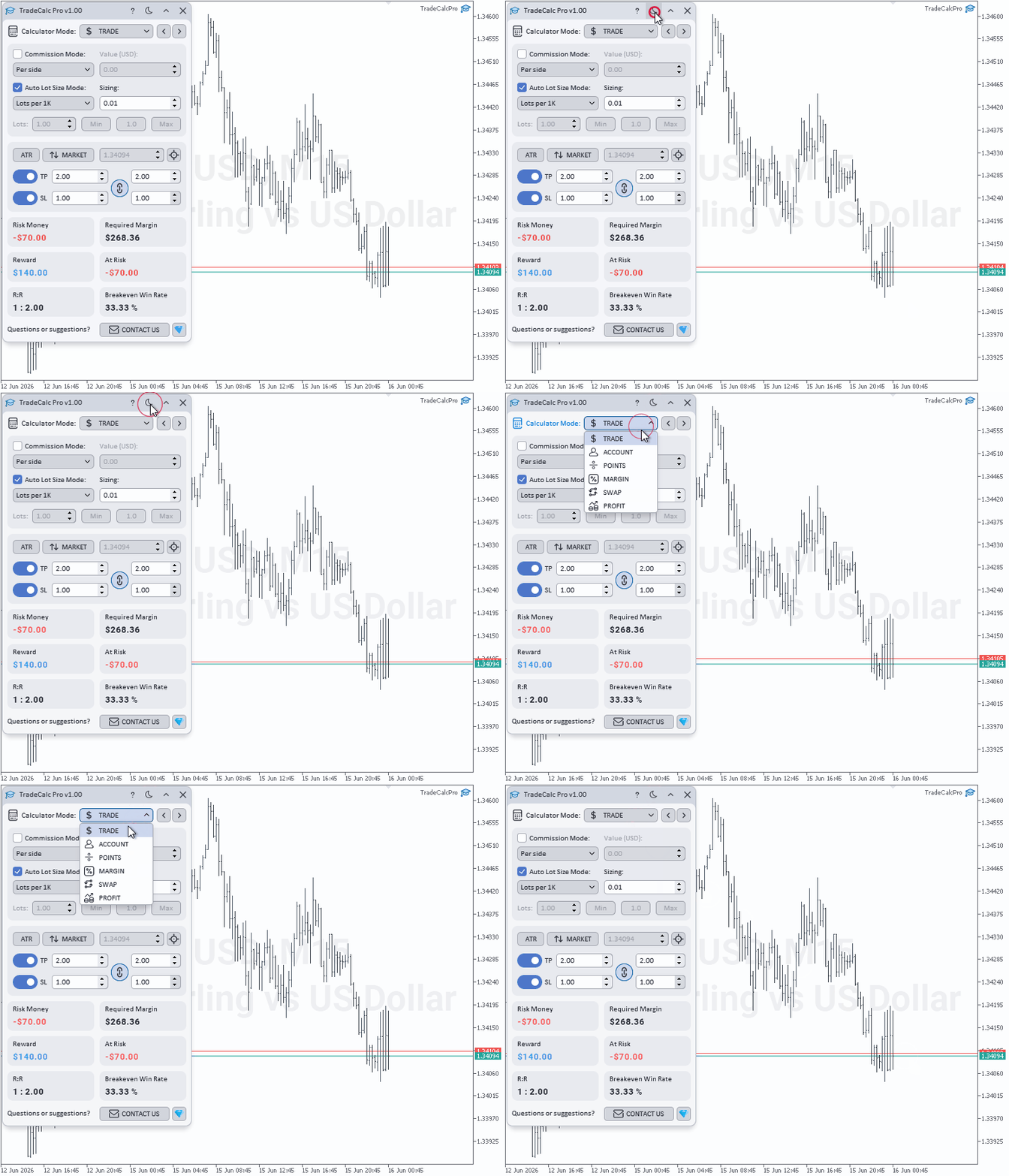
GIF animation of switching between light and dark themes of the TradeCalc Pro MT5 interface
2.2. TRADE Calculator
The TRADE calculator is the main analytical tool of the utility, designed for instant calculation of position size and visual planning of trades using interactive lines on the chart.
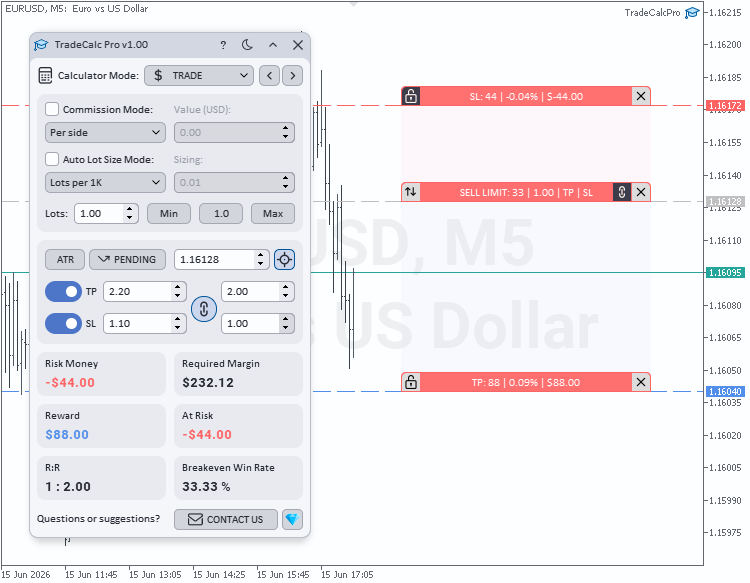
TRADE calculator with interactive lines on the chart
Interface Elements:
- Commission Mode — trading cost accounting switch. Activates the inclusion of broker commission in risk and automatic position volume calculation. The dropdown list allows selecting one of 3 modes: "per side" (commission for entry and exit separately), "per round turn" (fixed cost of the entire trade cycle), or "fixed amount per trade" (flat rate per order regardless of volume).
- Commission Value — input field for the broker commission amount in the account currency for the selected mode.
- Auto Lot Size Mode — automatic position volume calculation mode switch. The dropdown list sets the money management method: fixed volume of lots per 1000 balance units, fixed risk amount in deposit currency, dynamic risk in % of equity (Equity), or fixed risk in % of balance (Balance). When the option is disabled, the position volume is set manually in the Lots field below.
- Sizing — input field for risk parameters for automatic calculation. Based on these data, the utility instantly calculates and updates the value in the Lots field.
- Lots — planned position volume in lots, used when automatic calculation is disabled. The value is global and synchronized between all tabs of the utility.
- Minimum Lots / 1.0 Lots / Maximum Lots — quick input buttons to automatically set the minimum, standard (1.0), and maximum broker-allowed position volume for the current symbol.
- Pips Mode / ATR Mode — switch of the distance calculation method to take profit and stop loss levels. Allows setting the TP/SL distance either in user pips or in ATR (Average True Range) indicator values of the current timeframe.
- Market Entry / Pending Entry — execution type switch. In market entry mode (Market), the calculated price strictly follows the current Ask/Bid quotes; in pending order mode (Pending), the entry price is fixed and can be customized by the user.
- Entry Price — calculated entry price. Used for configuring trade parameters, positioning lines on the chart, and calculating all risk metrics. In Market mode, it automatically tracks the current Ask or Bid price (depending on the direction); in Pending mode, it is edited manually.
- Entry Lines — switch for displaying interactive graphical Entry/TP/SL lines. The lines can be freely dragged with the mouse for clear visual modeling of order parameters. This feature is intended solely for calculations and does not open real trades in the terminal.
- TP / SL — independent switches (checkboxes) to activate Take Profit and Stop Loss levels for including them in mathematical calculations and displaying them on the chart.
- Take Profit / Stop Loss — input fields for distances to target levels. Measured in user pips (taking into account the multiplier from the POINTS tab) or in ATR values, depending on the selected mode.
- Link R:R — switch of dynamic relation between Take Profit and Stop Loss. When this option is activated, the TP and SL distances are rigidly linked based on a specified risk/reward ratio. Dragging any of the lines on the chart automatically moves the second line to maintain the proportion.
- R:TP Ratio / R:SL Ratio — input and display fields for the mathematical risk-to-reward ratio. When the link is enabled, the risk distance (R:SL) is fixed as 1, and the target profit (R:TP) automatically follows the value set by the user.
Trade summary metrics in the lower part of the panel:
- Risk Money — risk amount to stop loss at the current volume and entry price (includes commission under the selected mode). Displayed when SL is enabled.
- Required Margin — required margin (collateral) size to open an order at the specified volume and entry price.
- Reward — potential net profit in the account currency when the take profit price is reached.
- At Risk — potential net loss in the account currency when the stop loss is triggered.
- R:R — mathematical risk/reward ratio. Displayed in the classical 1 : N format.
- Breakeven Win Rate — minimum required percentage of winning trades to work at breakeven at this R:R ratio. Excludes swap and commission.
2.3. ACCOUNT Calculator
The ACCOUNT calculator is designed for monitoring account margin metrics in real time and simulating various deposit load scenarios. The Free Margin and Margin Level values are automatically highlighted: yellow when the Margin Call level is reached, and red when the Stop Out level is reached or exceeded.
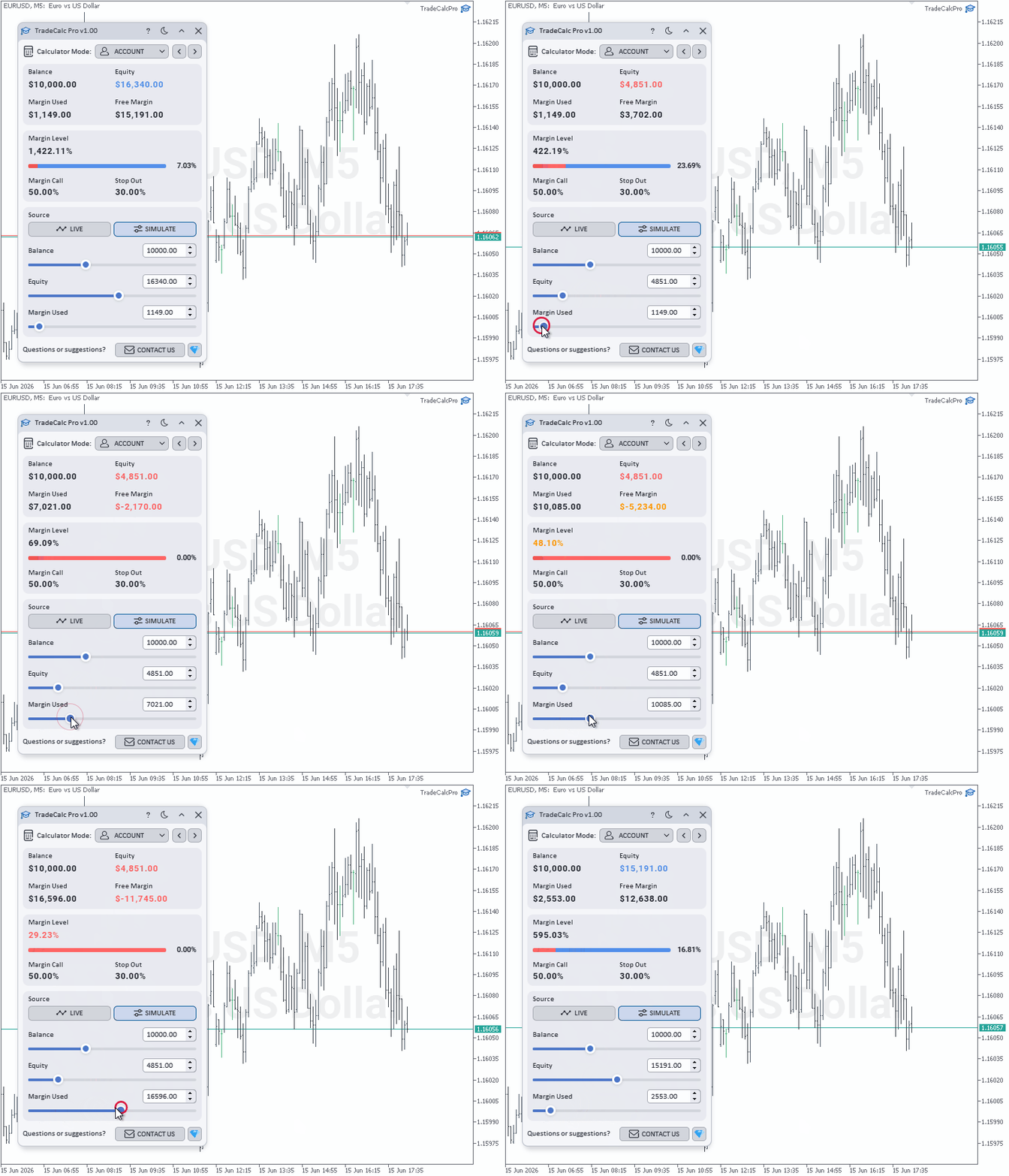
GIF animation of highlighting Free Margin and Margin Level when Margin Call and Stop Out levels are reached in the ACCOUNT calculator
Calculator elements:
- Balance — current account balance without taking into account floating profit or loss on open positions.
- Equity — current funds on the account taking into account the floating financial result of open positions.
- Margin Used — collateral (margin) locked by the broker to maintain current open positions.
- Free Margin — free margin available for opening new orders or withdrawing from the account.
- Margin Level — margin level (percentage ratio of Equity to Margin Used), serving as a safety buffer of the account; a decrease in the indicator points to an increase in margin risks.
- Margin Load — deposit load level, implemented as a two-color stack chart. Displays the degree of capital utilization: the red scale indicates the share of utilized margin, the blue scale indicates the share of available funds (Free Margin).
- Margin Call — notification threshold set by the broker, signaling a critical reduction in free margin.
- Stop Out — margin level set by the broker at which positions are forced to close to prevent a negative balance on the account.
- LIVE / SIMULATE — mode switch: LIVE displays the actual state of the account (updated by ticks), SIMULATE switches the panel to simulation mode for manual parameter modeling without affecting the real account.
- Balance / Equity / Margin Used — interactive sliders active in SIMULATE mode for stress testing account parameters and manually changing values.
2.4. POINTS Calculator
The POINTS calculator is designed for calculating point, pip, and tick values for a specified position volume, as well as configuring a custom point multiplier.
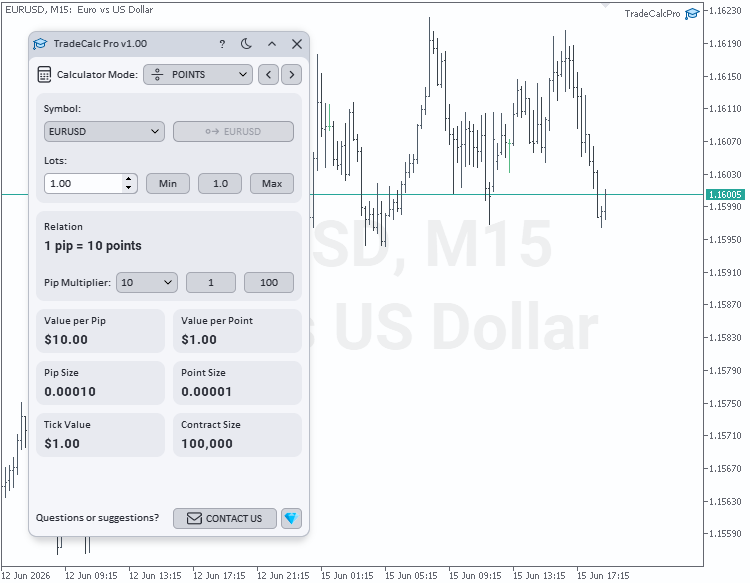
POINTS calculator
Calculator elements:
- Symbol — trading instrument selection for analysis. Global across all panel tabs; switching the symbol inside the panel does not change the active chart of the terminal.
- Chart Symbol — synchronization button that sets the symbol of the current chart in all calculators of the panel. Does not change the terminal chart.
- Lots — position volume in lots, synchronized between all tabs of the utility.
- Minimum Lots / 1.0 Lots / Maximum Lots — quick input buttons to set the minimum, standard (1.0), and maximum broker-allowed position volume.
- Pip Multiplier — point coefficient (multiplier) determining how many standard points (Points) make up one user pip (Pip). The value is synchronized with the TRADE tab.
- Lower Multiplier / Higher Multiplier — buttons for cyclic switching to the previous or next multiplier value from a predefined list.
- Relation — visual representation of the ratio: shows what price change in standard points (Points) is equal to one user pip (Pip) at the current multiplier (for example, 1 Pip = 10 Points).
- Value per Pip — financial result (expressed in the deposit currency) when the instrument price changes by one user pip (Pip) for the specified position volume.
- Value per Point — financial result in deposit currency when the price changes by one standard point (Point) for the specified position volume.
- Pip Size — price expression (size) of one user pip on the current symbol.
- Point Size — size of one standard point (the minimum price change unit specified in the instrument specifications).
- Tick Value — value of one tick (the minimum price change step in the market) in the deposit currency for the specified position volume.
- Contract Size — contract size determining the number of base asset units in one standard lot for the selected instrument.
2.5. MARGIN Calculator
The MARGIN calculator is designed for precise calculation of margin requirements (collateral) for planned trades, taking into account leverage, as well as hedging and netting rules of the trading account.
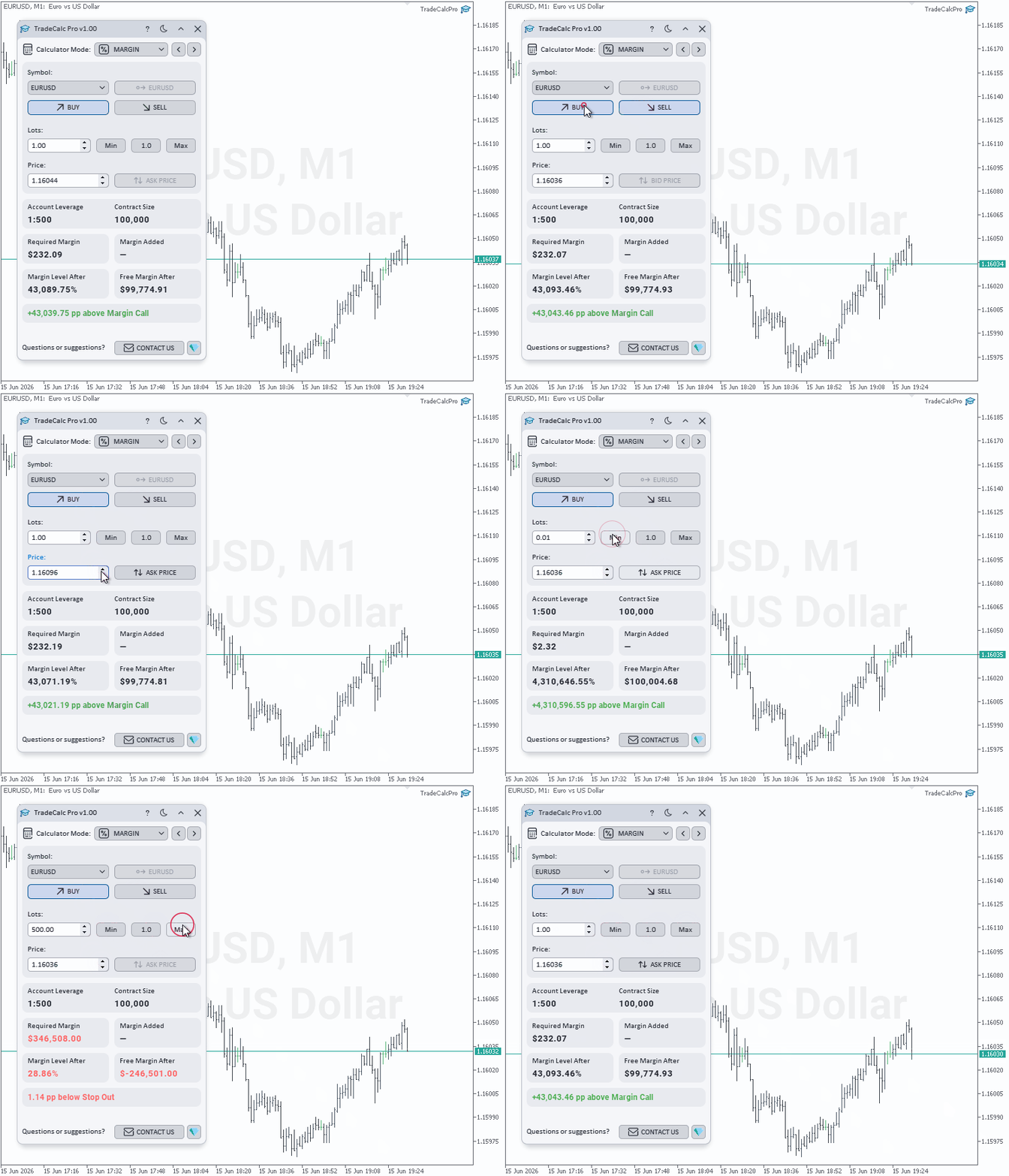
MARGIN calculator
Calculator elements:
- Symbol — trading instrument selection for analysis. The value is global across all tabs of the utility.
- Chart Symbol — synchronization button that sets the symbol of the current chart in all calculators of the panel.
- Side — trade direction switch (Buy / Sell). When Buy is selected, the calculator uses the Ask price; when Sell is selected, it uses the Bid price. The price in the input field updates automatically when the side is switched.
- Lots — planned position volume in lots, synchronized between all tabs.
- Minimum Lots / 1.0 Lots / Maximum Lots — quick input buttons to set the minimum, standard (1.0), and maximum broker-allowed position volume.
- Price — calculated entry price for modeling a trade. The Ask/Bid buttons allow you to instantly reset the value to the current market price.
- Account Leverage — current leverage configured on the trader's account.
- Contract Size — contract size (the number of base asset units in one standard lot for the selected instrument).
- Required Margin — isolated (standalone) margin for this order at the specified volume and price, calculated without taking into account the current portfolio state, open opposite positions, or netting rules.
- Margin Added — actual change in the account margin after the trade is executed (the difference between the projected total portfolio margin and the current used margin). This metric clearly demonstrates how hedging (locking) or netting rules reduce or increase the real deposit load. If the value matches Required Margin, the field is automatically hidden.
- Margin Level After — projected margin level (Margin Level) after potential position opening. Allows you to evaluate account stability before market entry. Highlights in orange when the indicator drops to the Margin Call level and in red when reaching or breaching the Stop Out level.
- Free Margin After — projected free margin volume after executing the trade. The indicator can take negative values if the collateral exceeds available funds; in this case, the value is highlighted in red, signaling that opening the position is impossible.
- Distance to Margin Call / Stop Out — account safety margin, expressed in percentage points (pp), with three-color status indication. In the safe zone, the field is highlighted in green and shows the distance to the Margin Call level; in the intermediate zone (yellow) — distance to Stop Out; in case of a critical drop below the forced liquidation level (when opening new orders is blocked), the field is colored in red, displaying the depth of the drawdown.
2.6. SWAP Calculator
The SWAP calculator is designed for forecasting expenses or credit profit when carrying open positions overnight, taking into account the selected trade holding period and triple swap days.
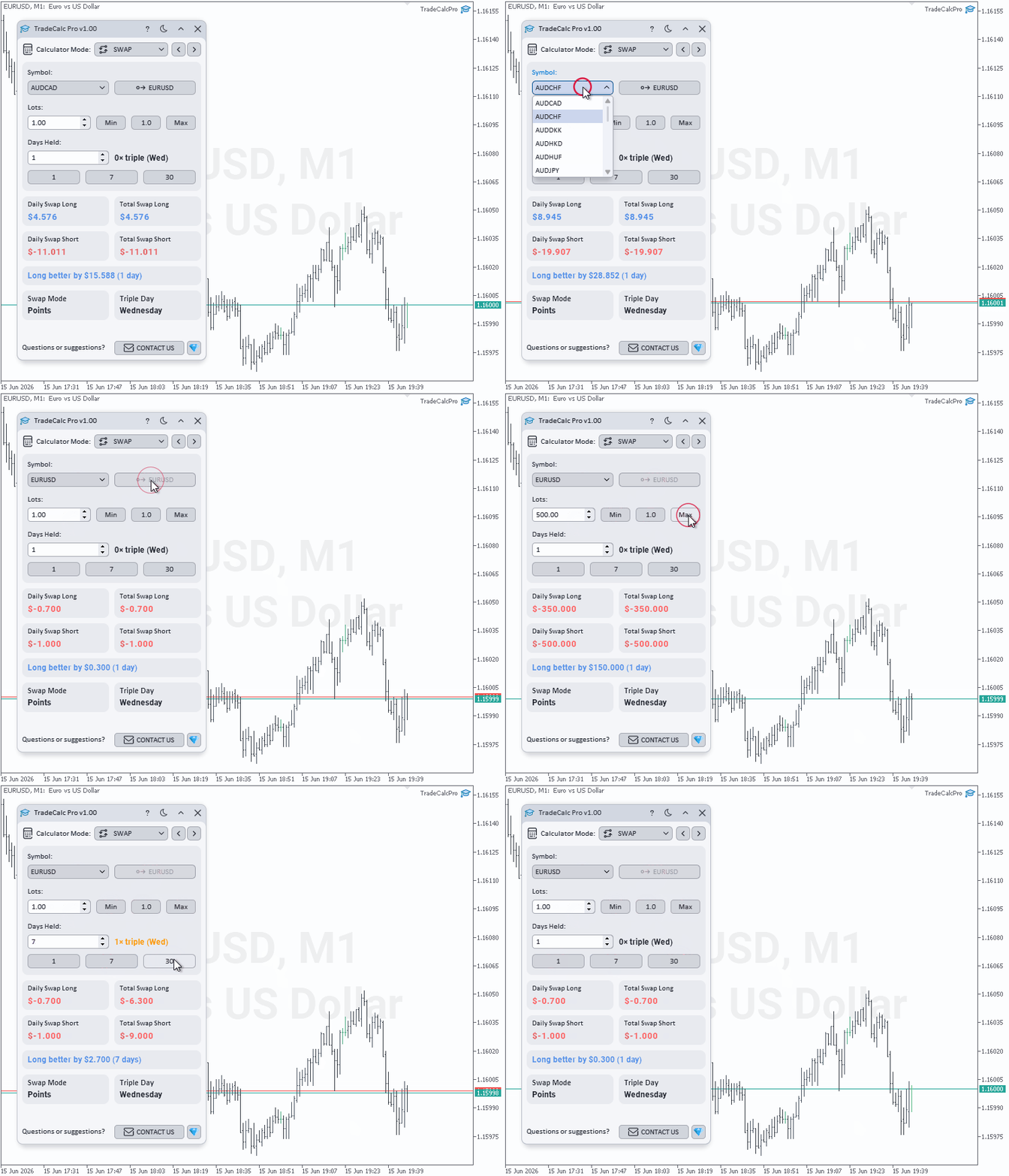
SWAP calculator
Calculator elements:
- Symbol — trading instrument selection for analysis. The value is global across all tabs of the utility.
- Chart Symbol — synchronization button that sets the symbol of the current chart in all calculators of the panel.
- Lots — planned position volume in lots, synchronized between all tabs.
- Minimum Lots / 1.0 Lots / Maximum Lots — quick input buttons to set the minimum, standard (1.0), and maximum broker-allowed position volume.
- Days Held — planned position holding period (number of overnight transfers). The utility automatically includes triple swap days in the overall calculation.
- 1 Day / 7 Days / 30 Days — quick input buttons to instantly set standard investment periods (1 day, 7 days, 30 days).
- Triple Nights in Period — informational field showing how many times during the selected holding period the position will hit the triple swap day configured by a specific broker.
- Total Swap Long — total swap amount in the deposit currency for a long position (Buy) for the entire specified holding period, including automatic triple swap calculation on corresponding days.
- Daily Swap Long — base cost or credit (accrual) of swap for a standard transfer of a long position (Buy) at the selected volume.
- Total Swap Short — total swap amount in the deposit currency for a short position (Sell) for the entire specified holding period, including automatic triple swap calculation on corresponding days.
- Daily Swap Short — base cost or credit (accrual) of swap for a standard transfer of a short position (Sell) at the selected volume.
- Better Swap Side — analytical comparison of directions. Shows which side (long or short) has a more favorable (or least costly) total swap for the selected period, and outputs the exact difference in the deposit currency.
- Swap Mode — swap calculation method set by the broker in the specifications of this symbol (in points, base currency, margin currency, or in annual interest).
- Triple Day — the day of the week on which the broker charges triple swap (compensation for weekends). The calculator automatically uses this setting for precise expense modeling.
2.7. PROFIT Calculator
The PROFIT calculator is designed for calculating potential profit or loss of a planned trade from a specified opening price to a closing price, with automatic accounting of accrued or deducted swap.
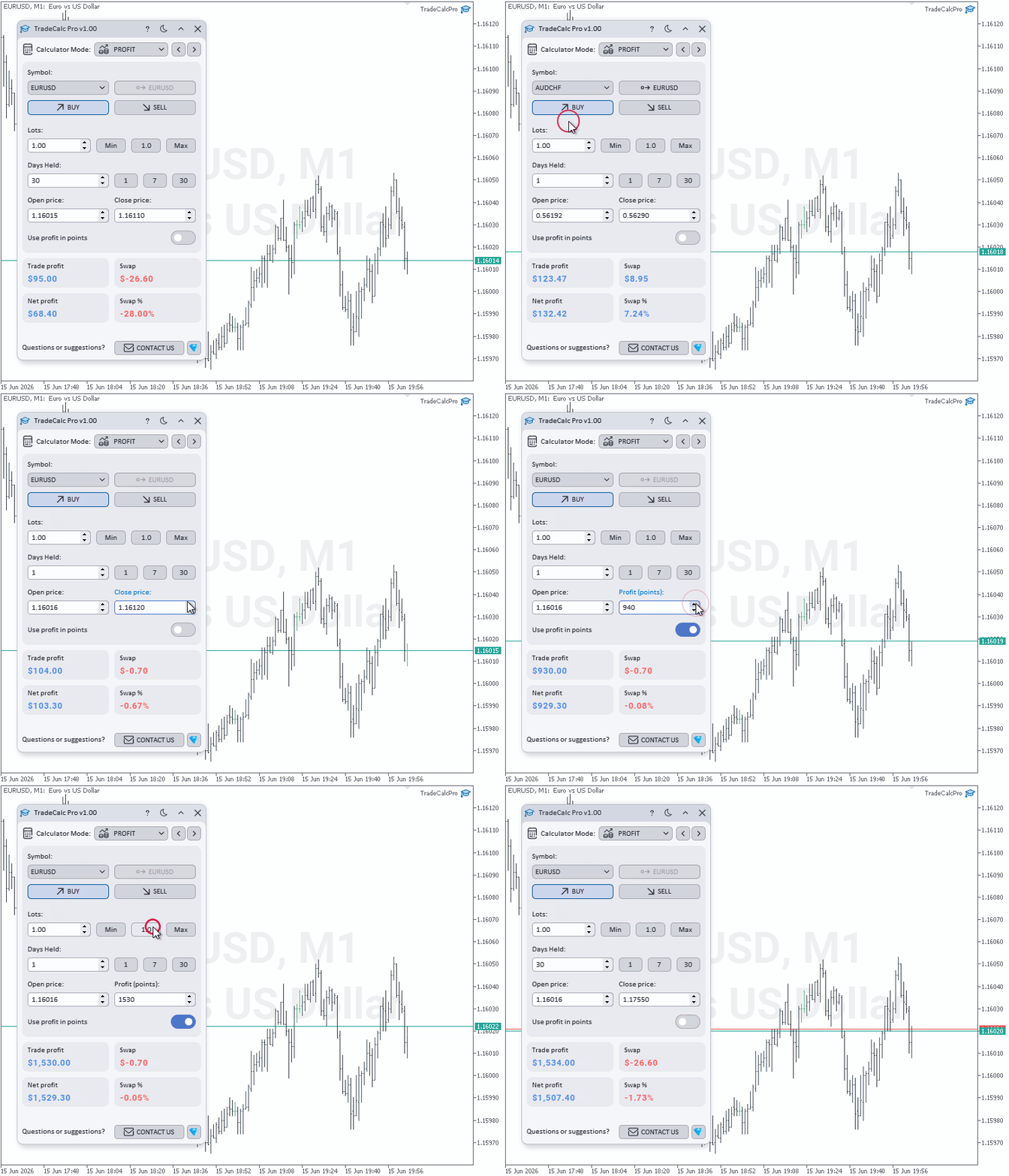
PROFIT calculator
Calculator elements:
- Symbol — trading instrument selection for analysis. The value is global across all tabs of the utility.
- Chart Symbol — synchronization button that sets the symbol of the current chart in all calculators of the panel.
- Buy / Sell — trade direction selection: Buy — for a long position (purchase simulation), Sell — for a short position (sale simulation).
- Lots — planned position volume in lots, synchronized between all tabs.
- Minimum Lots / 1.0 Lots / Maximum Lots — quick input buttons to set the minimum, standard (1.0), and maximum broker-allowed position volume.
- Days Held — planned position holding period (number of overnight transfers). Used for accurate inclusion of swap in the final financial result, taking into account triple accrual days.
- 1 Day / 7 Days / 30 Days — quick input buttons to instantly set standard trade holding periods (1 day, 7 days, 30 days).
- Open Price — calculated trade opening price. By default, it is automatically set to the current market price: Ask (for Buy) or Bid (for Sell) when switching the direction or symbol.
- Close Price / Profit in Points — closing price (market exit) or target profit expressed in standard points (if the Use Profit in Points option is active).
- Use Profit in Points — input mode switch. Allows setting the closing price not as an absolute price value, but as a planned price change in points from the opening level.
- Trade Profit — intermediate trade financial result (profit or loss), calculated strictly as the difference between the opening and closing prices for the specified volume, before taking swap into account.
- Swap — total swap in the deposit currency for the entire selected position holding period, calculated taking into account triple swap days of a specific broker.
- Net Profit — final (net) financial result of the trade, calculated as the sum of trading profit (Trade Profit) and accrued/deducted swap. Shows the real efficiency of holding a position during the selected period.
3. How to Use the Tool?
Below is the recommended workflow for TradeCalc Pro MT5 — from installation to practical use of interactive chart lines.
3.1. Installation and Launch
The application is available in the MQL5 Market: TradeCalc Pro MT5. After downloading, TradeCalc Pro MT5 automatically appears in the terminal navigator: Navigator → Expert Advisors → Market. Drag TradeCalc Pro MT5 onto the chart of the desired symbol or double-click it. The main application window will appear on the chart, ready to use.
3.2. Basic Workflow
- Launch TradeCalc Pro MT5 on the chart of the symbol you want to use for planning trades.
- The trading symbol is automatically taken from the current chart. If necessary, change it through the Symbol dropdown list or adjust the Lots field on any tab — changes are instantly synchronized with all calculators.
- Switch to the TRADE tab to calculate the position size. Choose the automatic calculation mode (Auto Lot Size Mode) or enter the volume manually.
- Set the stop loss and take profit in pips or ATR values. The final trade metrics in the lower part of the panel will update instantly.
- Enable Entry Lines for visual planning on the chart. Drag the Entry/TP/SL lines to precisely adjust price levels.
- Use other calculators for additional computations: ACCOUNT for margin monitoring, POINTS for pip value, MARGIN for planned trade margin, SWAP for swap analysis, PROFIT for net profit calculation.
3.3. Using Interactive Lines
Interactive Entry/TP/SL lines are a powerful analytical tool for visual modeling of order parameters directly on the terminal's price chart.
- On the TRADE tab, enable the Entry Lines switch.
- Three functional lines will appear on the chart: Entry (entry price), TP (take profit), and SL (stop loss).
- Drag the lines with the mouse to the desired price levels. The TP and SL parameter fields on the TRADE tab will update automatically.
- Trade summary metrics (Risk Money, Reward, At Risk, R:R, Breakeven Win Rate) are recalculated in real time during any movement of the lines.
- When the Link R:R link is enabled, dragging one line automatically moves the second one to strictly preserve the specified risk/reward ratio.
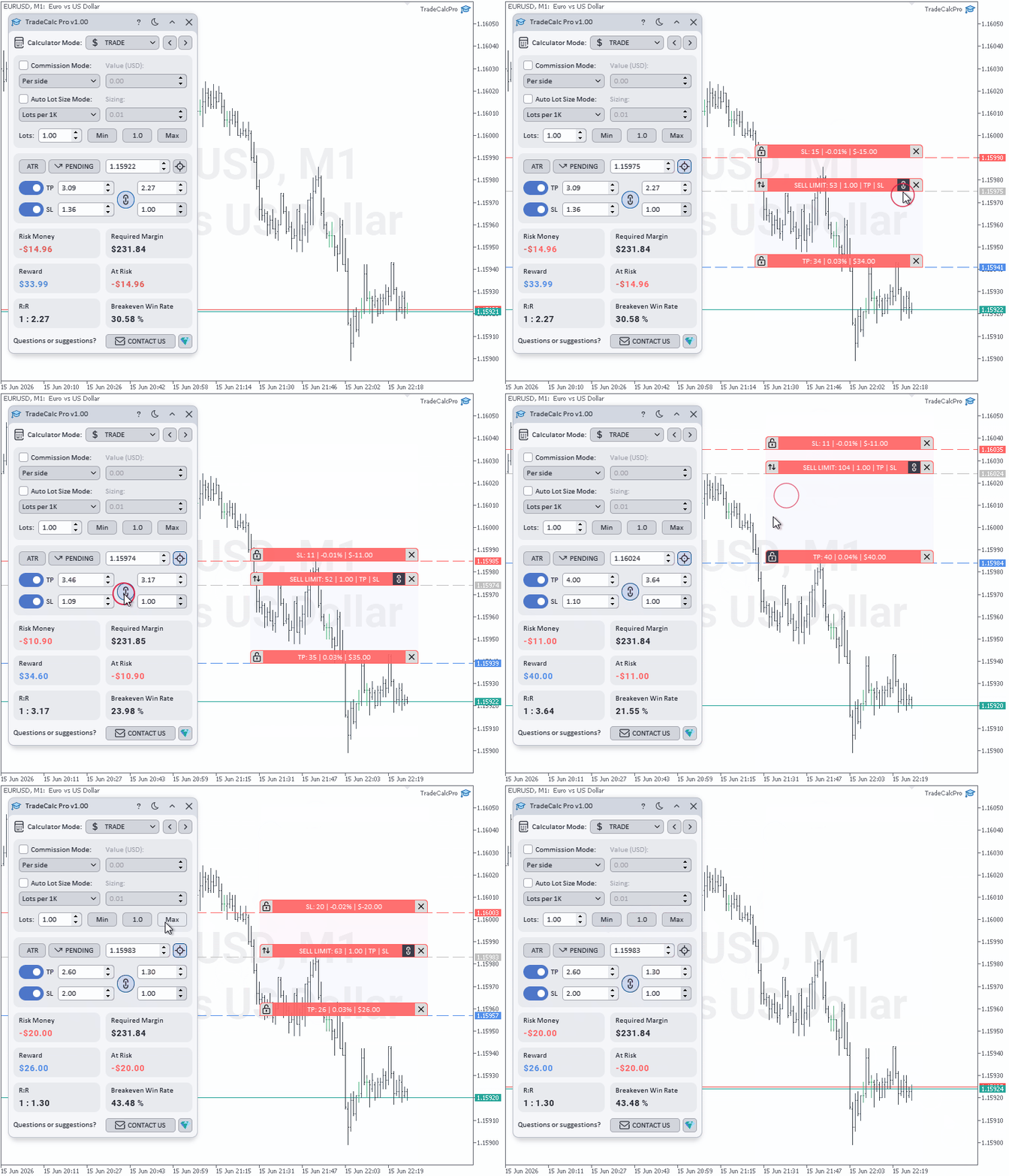
Interactive Entry/TP/SL lines on the chart
Reminder: Interactive graphical lines are intended solely for analytical calculations and trade scenario simulations. They perform an informational function, do not generate trading orders, and do not execute real operations on your account.
4. Practical Examples
Below are three scenarios that demonstrate typical trade planning tasks in TradeCalc Pro MT5.
4.1. Calculating Position Size with Risk
You want to open a trade with a risk of 2% of equity and a stop loss of 50 points.
- Launch TradeCalc Pro MT5 on the trading symbol's chart.
- Switch to the TRADE tab.
- Enable Auto Lot Size Mode and select the Risk % of Equity mode.
- In the Sizing field, enter 2 (risk of 2% of equity).
- In the Stop Loss field, enter 50 points.
- The Risk Money KPI indicator will show the risk amount in the account currency, and the Lots field will display the calculated position size.
- Enable Entry Lines and drag the SL line to the desired level for visual verification.
4.2. Checking Margin Before Opening
You want to check in advance whether there are enough free funds in your trading account to safely open a position with a volume of 1.0 lot.
- Launch TradeCalc Pro MT5 on the trading instrument's chart.
- Switch to the MARGIN tab.
- Select the trade direction by switching the toggle to the Buy or Sell position.
- Set the planned position volume to 1.0 lot.
- Press the Ask/Bid button to automatically set the current market price as the calculation price.
- The final Required Margin and Margin Level After indicators will instantly display the required collateral size and the projected account margin level immediately after potential position opening.
- If the Margin Level After field highlights in orange or red, this signals excessive load on the deposit. In this case, it is recommended to reduce the position volume in lots to comply with risk management rules.
4.3. Analyzing Swap for Holding a Position
You plan to hold a position for 7 days and want to evaluate in advance how overnight transfer costs will affect the final financial result.
- Launch TradeCalc Pro MT5 on the trading instrument's chart.
- Switch to the SWAP tab.
- Set the planned position volume.
- Press the 7 Days button to instantly set the holding period.
- The Total Swap Long and Total Swap Short indicators will display the total swap amount in the account currency for 7 days for long and short positions respectively, including triple swap charges.
- The Better Swap Side information field will automatically suggest which trading direction is more profitable (or least costly) and output the exact difference.
- For comprehensive modeling of net profit taking into account these costs, switch to the PROFIT tab, specify the same holding period, and enter the calculated entry and exit prices.
5. Conclusion
TradeCalc Pro MT5 is a professional universal set of trading calculators that combines all necessary computations for planning trades in a single compact interface. Interactive chart lines, instant parameter synchronization between tabs, and automatic saving of all settings make working with the tool fast, accurate, and convenient.
The application is intended solely for analytical calculations and modeling — it does not execute trades or open real orders. It is important to understand this: TradeCalc Pro MT5 helps plan your position parameters perfectly, but it does not trade for you.
If you have questions about the utility or suggestions for improving its functionality, you can contact me directly: write to me in MQL5 private messages. Your ideas and constructive feedback help develop and improve the product.