
Gold Anvil Breakout User Guide
Gold Anvil Breakout is a rule-based Expert Advisor made for Gold / XAUUSD.
The EA uses 8 internal breakout strategies. The internal strategy settings are already built into the EA, so the user does not need to adjust the strategy logic manually.
The user controls the symbol, enabled strategies, lot sizing, daily loss protection, news filter, and basic trade settings.
Basic Setup
Attach Gold Anvil Breakout to your broker's Gold / XAUUSD chart.
The EA trades the current chart symbol.
The EA can be attached to any timeframe.
The chart timeframe does not need to match the internal strategy timeframes because the EA uses its own built-in strategy settings.
A hedging account is required. Netting accounts are not supported.
Panel Settings
Show Panel
This turns the chart panel on or off.
Use true to show the EA panel on the chart.
Use false to hide the panel.
The panel is only for display. It shows information such as strategy status, lot sizing, closed profit/loss, and trade counts. It does not control the EA.
Update Panel In Tester
This controls whether the panel updates during strategy tester runs.
Use true if you want the panel to update during backtests.
Use false if you want faster backtesting.
Strategy Settings
Gold Anvil Breakout includes 8 internal breakout strategies.
Each strategy has its own built-in timeframe, breakout behavior, stop loss, take profit, and order logic.
The user can turn each strategy on or off.
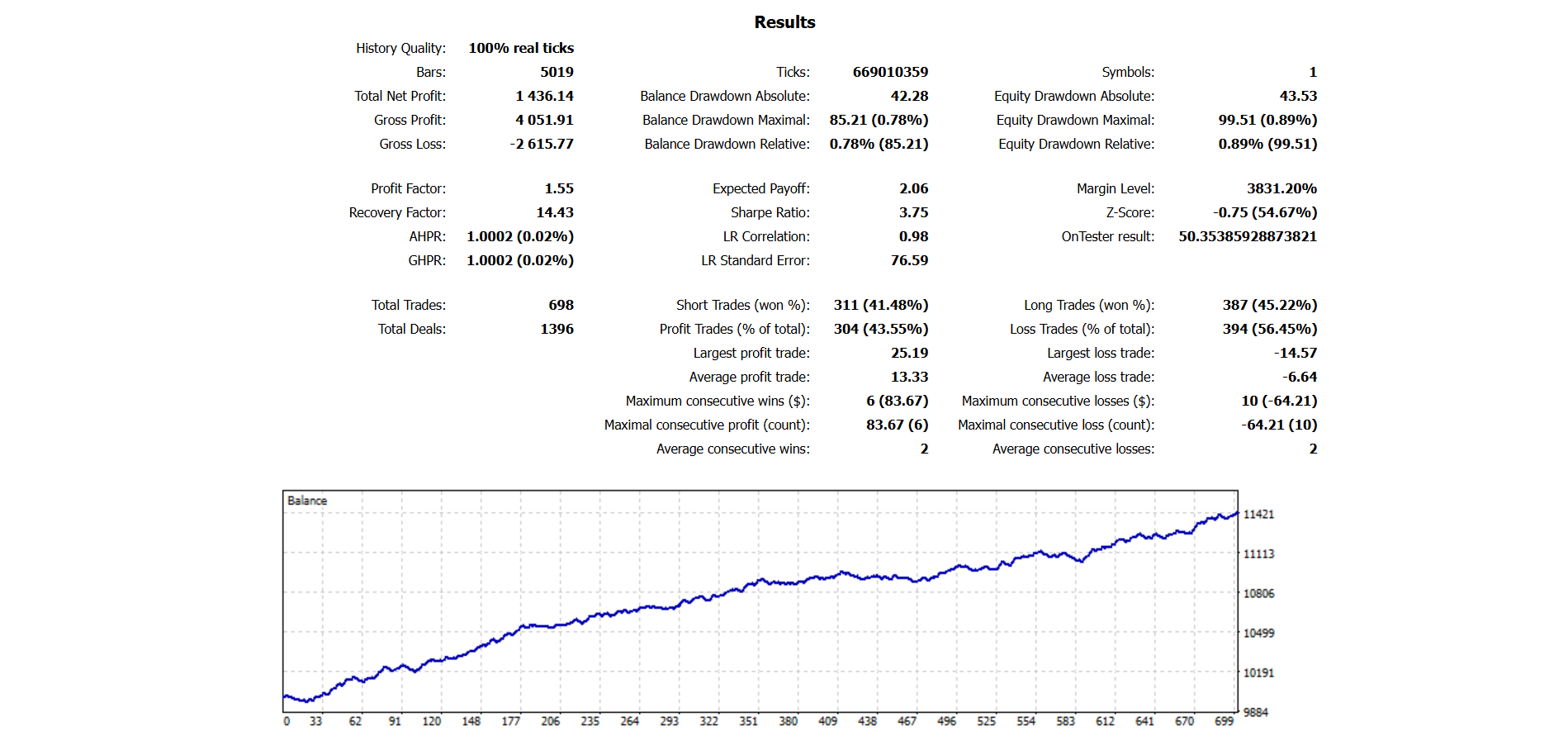
Backtest note:
The backtest screenshots shown for each individual strategy were tested using a fixed 0.01 lot size and Every Tick based on real ticks testing mode.
Enable Strategy 01
Turns strategy 1 on or off.
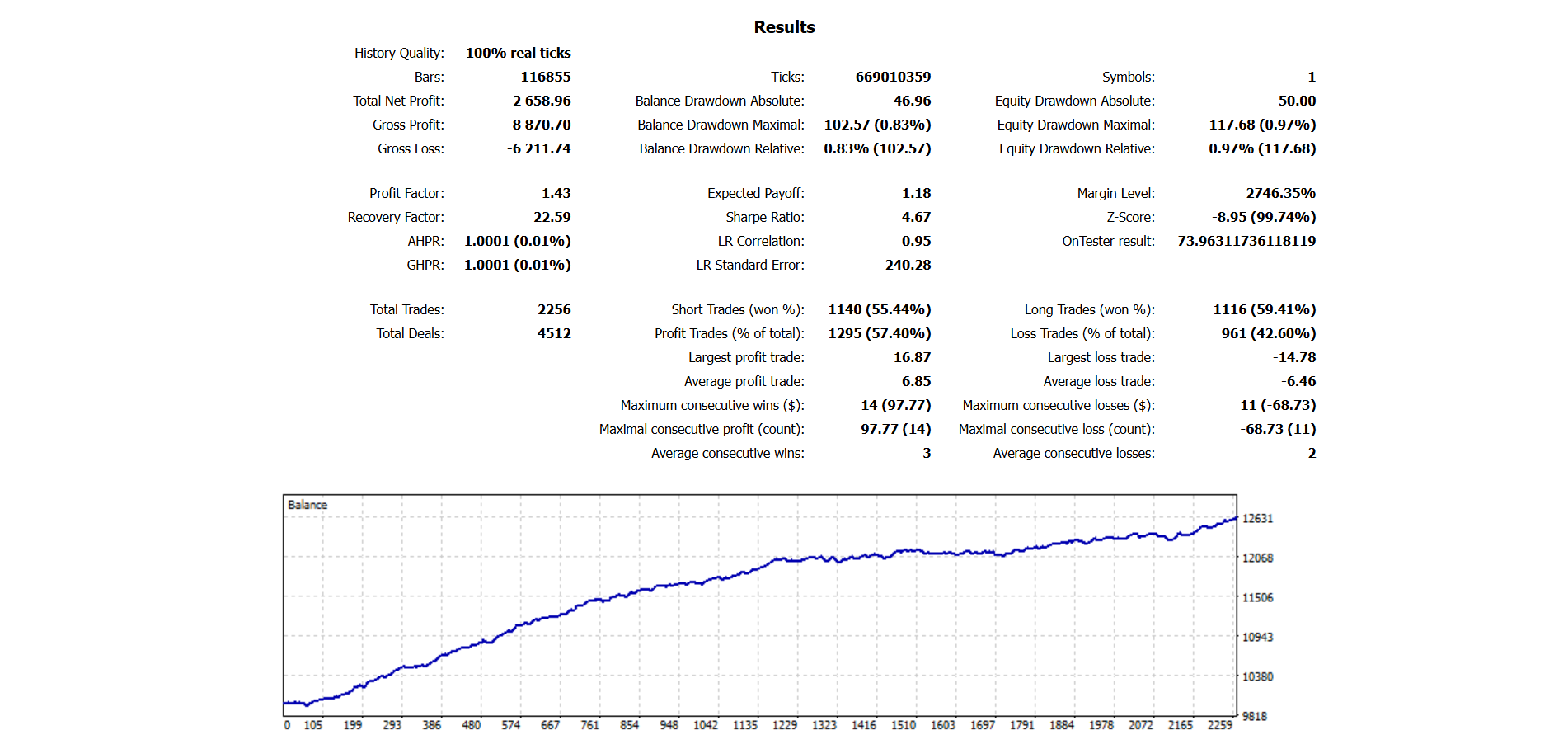
Enable Strategy 02
Turns strategy 2 on or off.
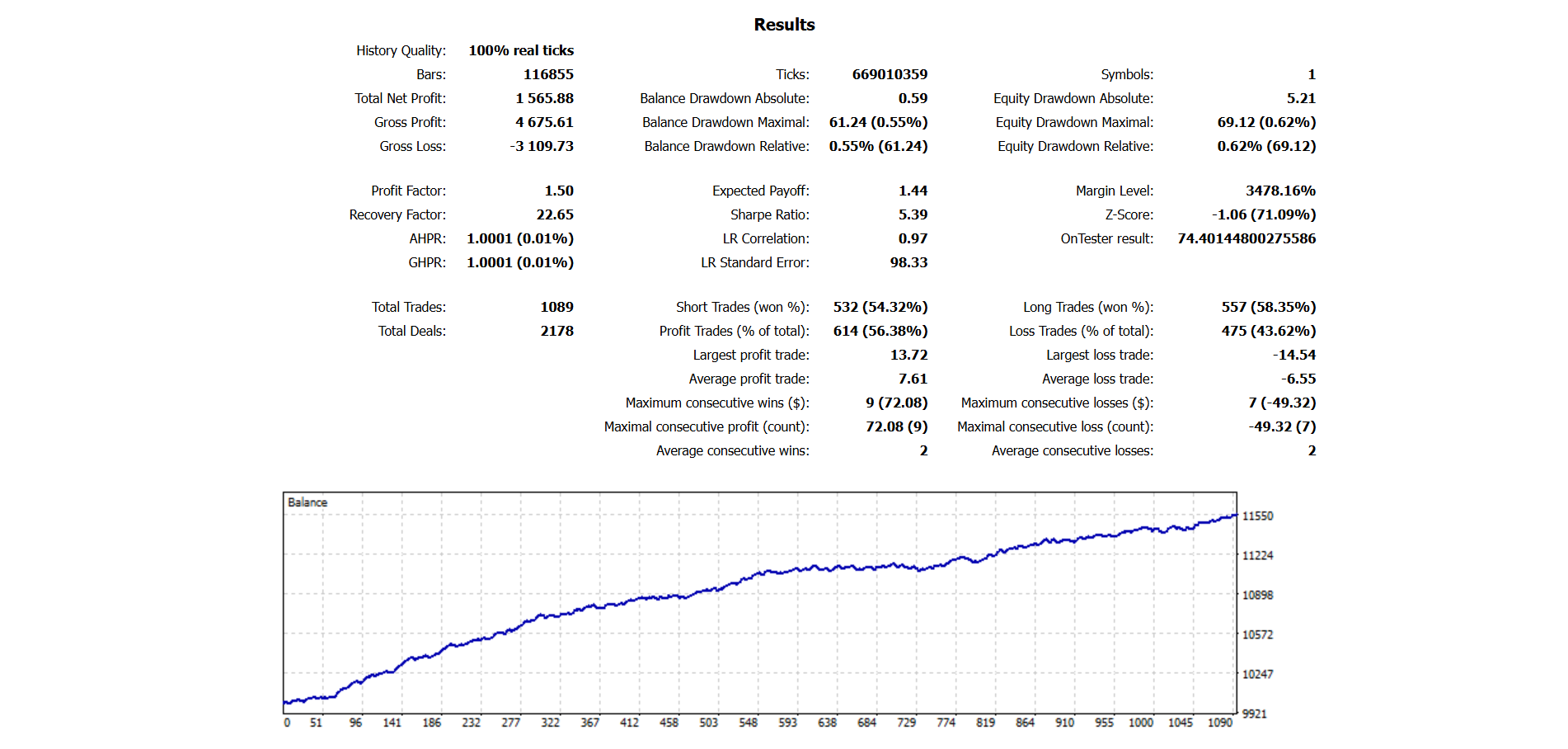
Enable Strategy 03
Turns strategy 3 on or off.
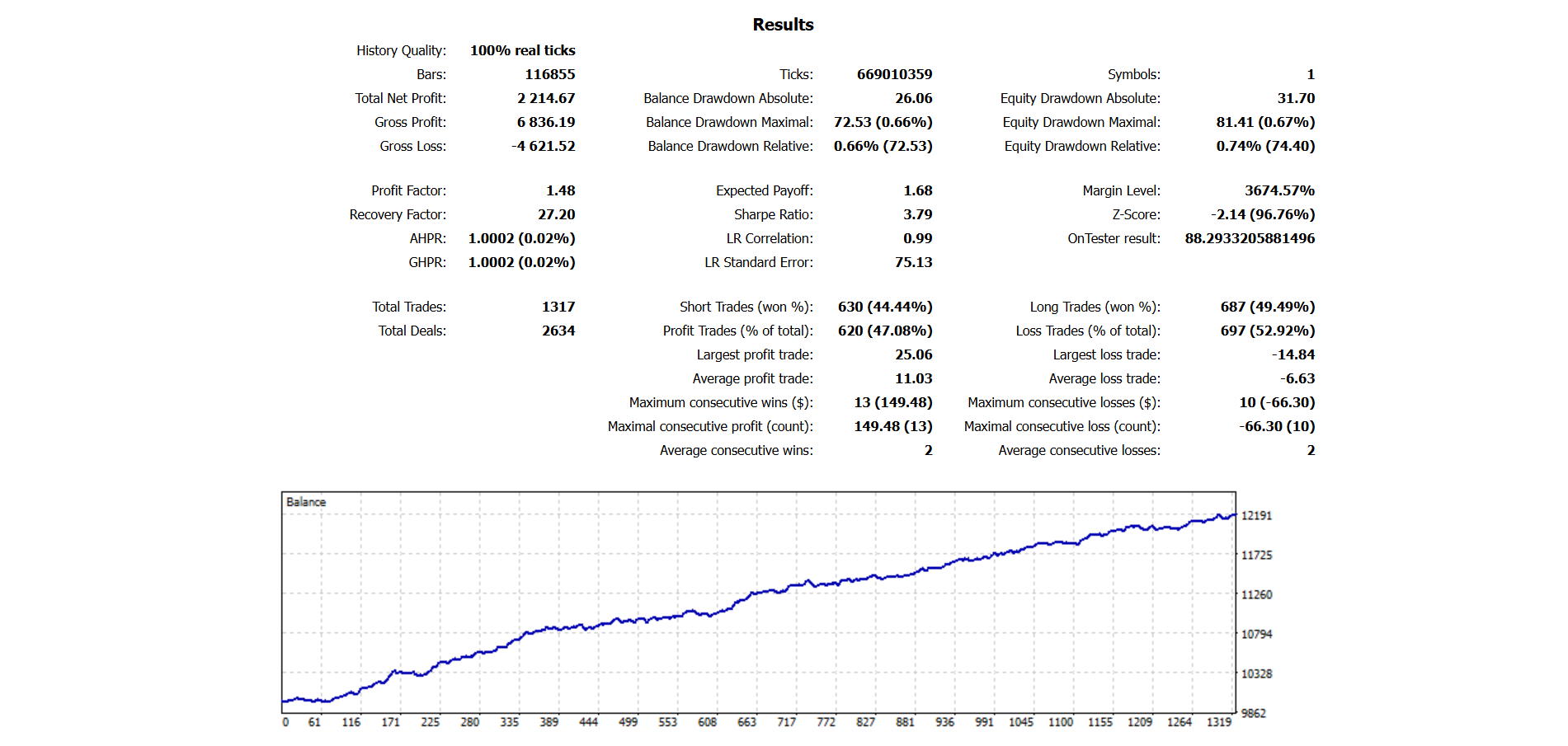
Enable Strategy 04
Turns strategy 4 on or off.
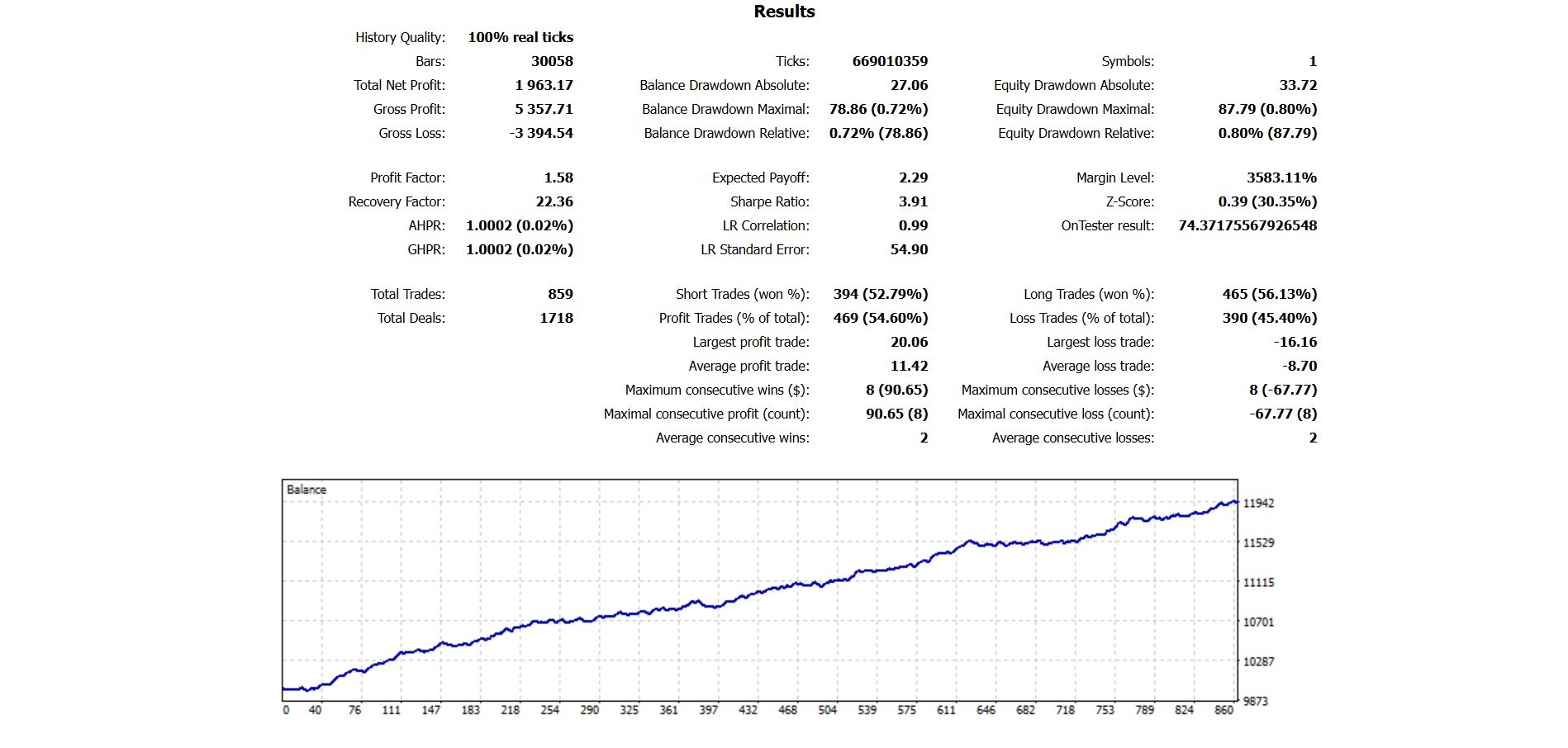
Enable Strategy 05
Turns strategy 5 on or off.
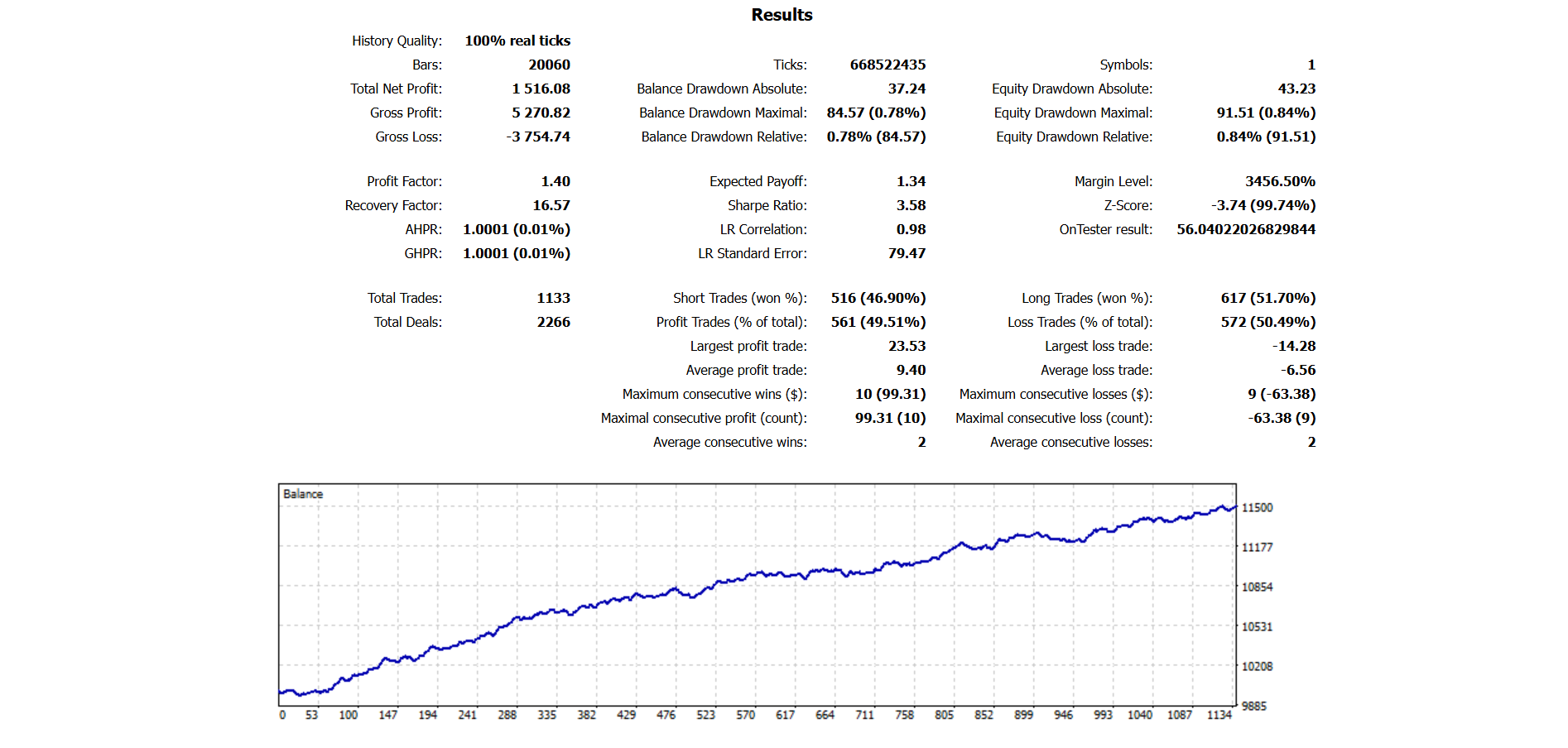
Enable Strategy 06
Turns strategy 6 on or off.
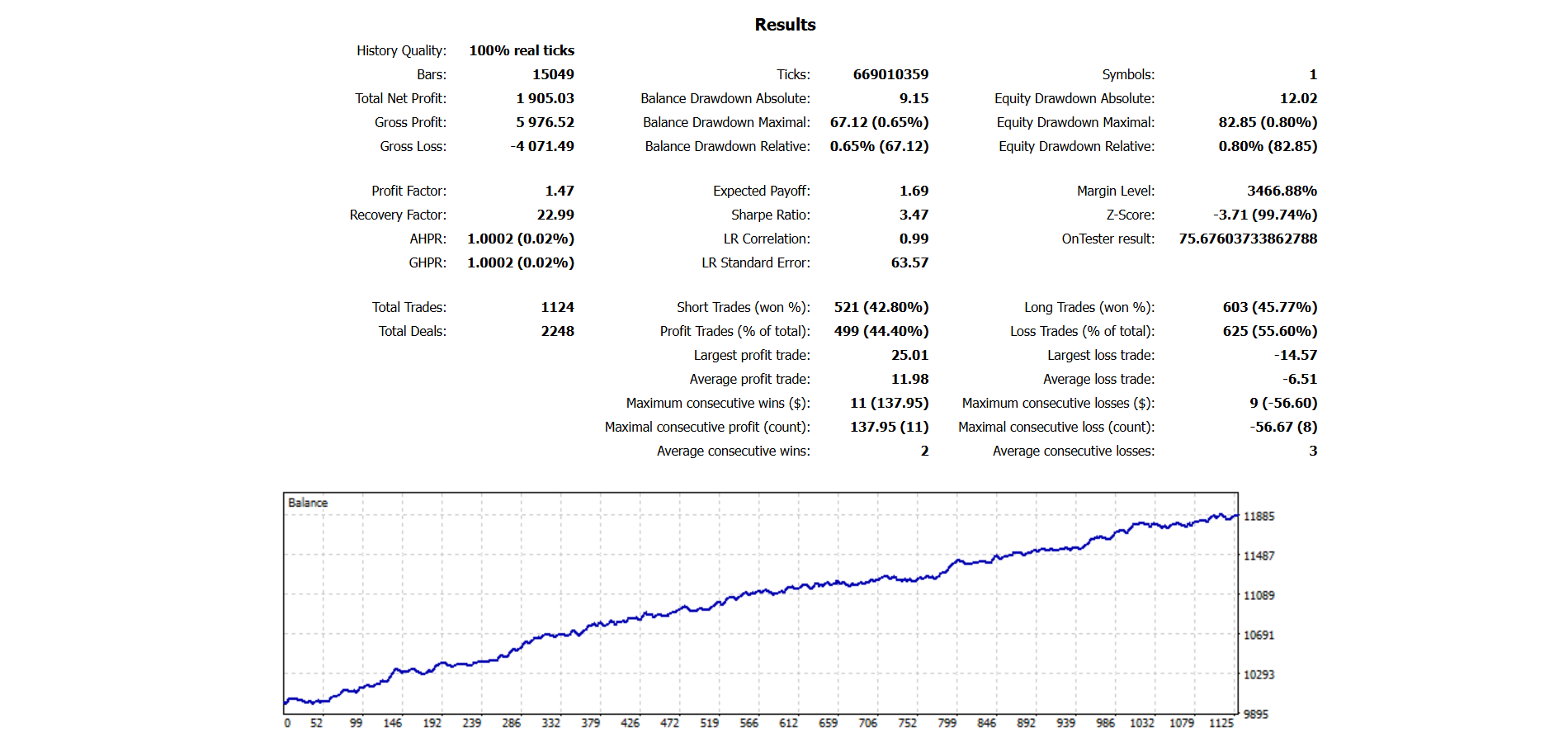
Enable Strategy 07
Turns strategy 7 on or off.
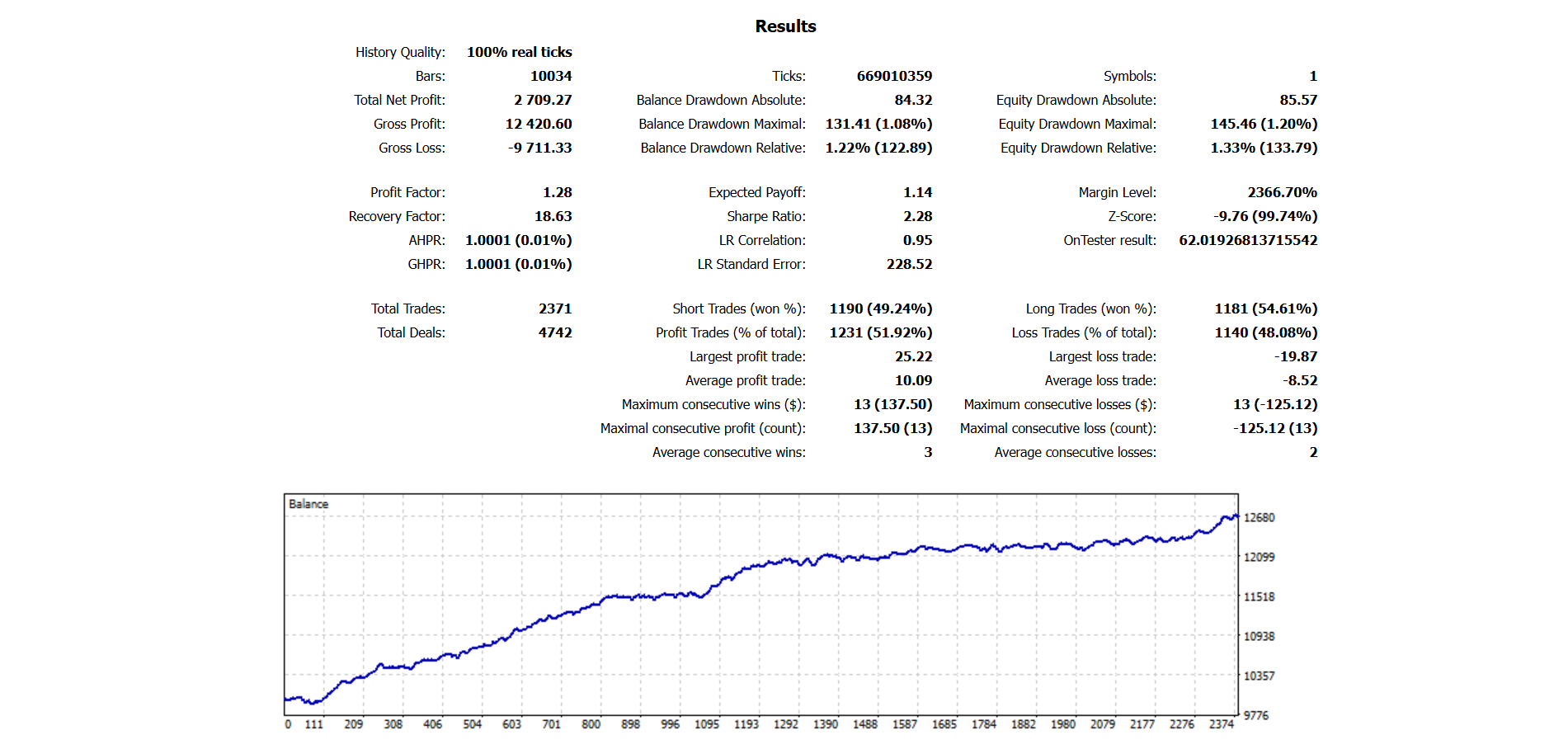
Enable Strategy 08
Turns strategy 8 on or off.
The strategies are designed to work together. They are not all looking for the same exact trade. They use different breakout behavior so the EA is not dependent on one single setup.
Risk Management
Lot Sizing Mode
This controls how the EA calculates lot size.
There are two lot sizing modes:
Fixed Lot
Max Account Drawdown %
Fixed Lot Mode
Fixed Lot Size
This input is used when Lot Sizing Mode is set to Fixed Lot.
The EA uses the lot size entered by the user.
Example:
0.01
This means each trade uses 0.01 lot, unless the broker minimum lot, maximum lot, or lot step requires adjustment.
Fixed lot mode is simple. The lot size does not increase or decrease based on account balance.
Max Account Drawdown % Mode
Max Account Drawdown %
This input is used when Lot Sizing Mode is set to Max Account Drawdown %.
The EA calculates lot size based on the selected drawdown target.
Example:
10
This means the EA calculates lot sizes around a 10% account drawdown target.
Manual Account Balance
This input is used with drawdown-based lot sizing.
If Manual Account Balance is set to 0, the EA uses the real account balance.
If Manual Account Balance is set above 0, the EA uses that number instead of the real account balance when calculating lot size.
Example:
Real account balance: $10,000
Manual Account Balance: $5,000
The EA will calculate lot size as if the account balance is $5,000.
This is useful when the user wants the EA to trade more conservatively or wants to use a fixed balance number for risk calculation.
Aggressive Lot Scaling
This optional setting keeps the prior accepted lot size for recovery and can exceed the Max-DD calculated lot after account drawdown.
Global Safety
Account Min Equity Stop can stop EA trading if account equity falls below the selected value.
Account Max Equity Stop can stop EA trading if account equity rises above the selected value.
Max Daily Drawdown limits the allowed daily equity drawdown. If set to 0, this protection is disabled.
Daily Drawdown Reset Hour sets the broker-time hour used for the daily drawdown reset.
Max Randomization Pips for Entry and Exit can add controlled randomization to entry and exit prices.
News Filter
Enable News Filter
This turns the news filter on or off.
Use true to enable the news filter.
Use false to disable it.
The news filter uses the MQL5 Economic Calendar during live trading.
The news filter is disabled during strategy tester and optimizer runs, so live calendar filtering is not used in backtests or optimizations.
News Currencies
This tells the EA which currencies to watch for news.
For gold trading, USD news is usually the main one.
Example:
USD
If using more than one currency, separate them with commas.
Example:
USD,EUR,GBP
News Keywords
This tells the EA which news events to watch.
The EA checks calendar event names for the selected keywords.
Example:
CPI,FOMC,NFP,Payrolls,Interest Rate
The EA will look for news events that contain those words.
Auto Detect Symbol Currency
This allows the EA to try detecting the related currency from the trading symbol.
For gold, users can still manually enter USD in News Currencies.
Include High Impact News
This tells the EA whether to include high impact news events.
Use true to include high impact news.
Use false to ignore them.
Block Trading Before News
This controls whether the EA blocks new trades before selected news events.
Use true to block new trades before news.
Use false to allow normal trading before news.
Minutes Before News
This sets how many minutes before news the EA should stop opening new trades.
Example:
60
This means the EA blocks new trades 60 minutes before selected news events.
Block Trading After News
This controls whether the EA blocks new trades after selected news events.
Use true to block new trades after news.
Use false to allow normal trading after news.
Minutes After News
This sets how many minutes after news the EA should wait before opening new trades again.
Example:
30
This means the EA waits 30 minutes after selected news events before opening new trades again.
Open Trades During News
This controls what the EA does with open trades during news.
Options:
Keep all trades
The EA does not close open trades during news.
Close profitable trades
The EA closes managed trades that are in profit during news.
Close all trades
The EA closes all managed open trades during news.
This setting only applies to trades managed by the EA.
Trade Settings
Set TP/SL After Entry
This controls when the EA sets stop loss and take profit.
Use false to place stop loss and take profit with the pending order.
Use true to let the EA set stop loss and take profit after the trade opens.
Some brokers may handle pending orders differently, so this option gives flexibility.
Magic Number Base
This is the base magic number used by the EA.
The EA uses magic numbers to identify and manage its own trades.
Each internal strategy uses a magic number based on the base magic number and the strategy number.
Only change this if you are running multiple copies of the EA and need separate trade tracking.
COMMENT
This is the trade comment shown on the EA's orders.
The comment helps identify trades opened by the EA.
You can leave this as the default unless you want a different order comment.
Important Notes
Gold Anvil Breakout requires a hedging account.
The EA manages its own orders using magic numbers.
The EA uses pending buy stop and sell stop orders.
Each strategy uses fixed stop loss and take profit settings.
The EA does not use martingale recovery.
The EA does not use grid recovery.
The news filter does not work in the strategy tester because the live MQL5 Calendar is not used during testing.
No EA can guarantee profit. Test carefully before trading live.


![[EURUSD]: Weekly Liquidity Activation Points (LAP), October 12-16, 2026](https://c.mql5.com/6/1035/splash-preview-777305.png "[EURUSD]: Weekly Liquidity Activation Points (LAP), October 12-16, 2026")
![[Nasdaq]: Weekly Liquidity Activation Points (LAP), October 12-16, 2026](https://c.mql5.com/6/1035/splash-preview-777311.png "[Nasdaq]: Weekly Liquidity Activation Points (LAP), October 12-16, 2026")