Overview
Signalator Notify MT4 / MT5 is an Expert Advisor for monitoring MetaTrader activity and sending notifications about important trading events.
It can notify about trade opens, trade closes, partial closes, pending order activity, stop loss / take profit changes, profit targets, connection status, price watch events, and external indicator signals.
The MT5 version can also send direct Telegram messages through the user's own Telegram bot.
This guide explains the main setup steps, Telegram configuration, and how Signalator Notify can be used together with Signalator Entry Trigger or other compatible signal tools.
Products covered by this guide
Signalator Notify MT5:
Signalator Notify MT4:
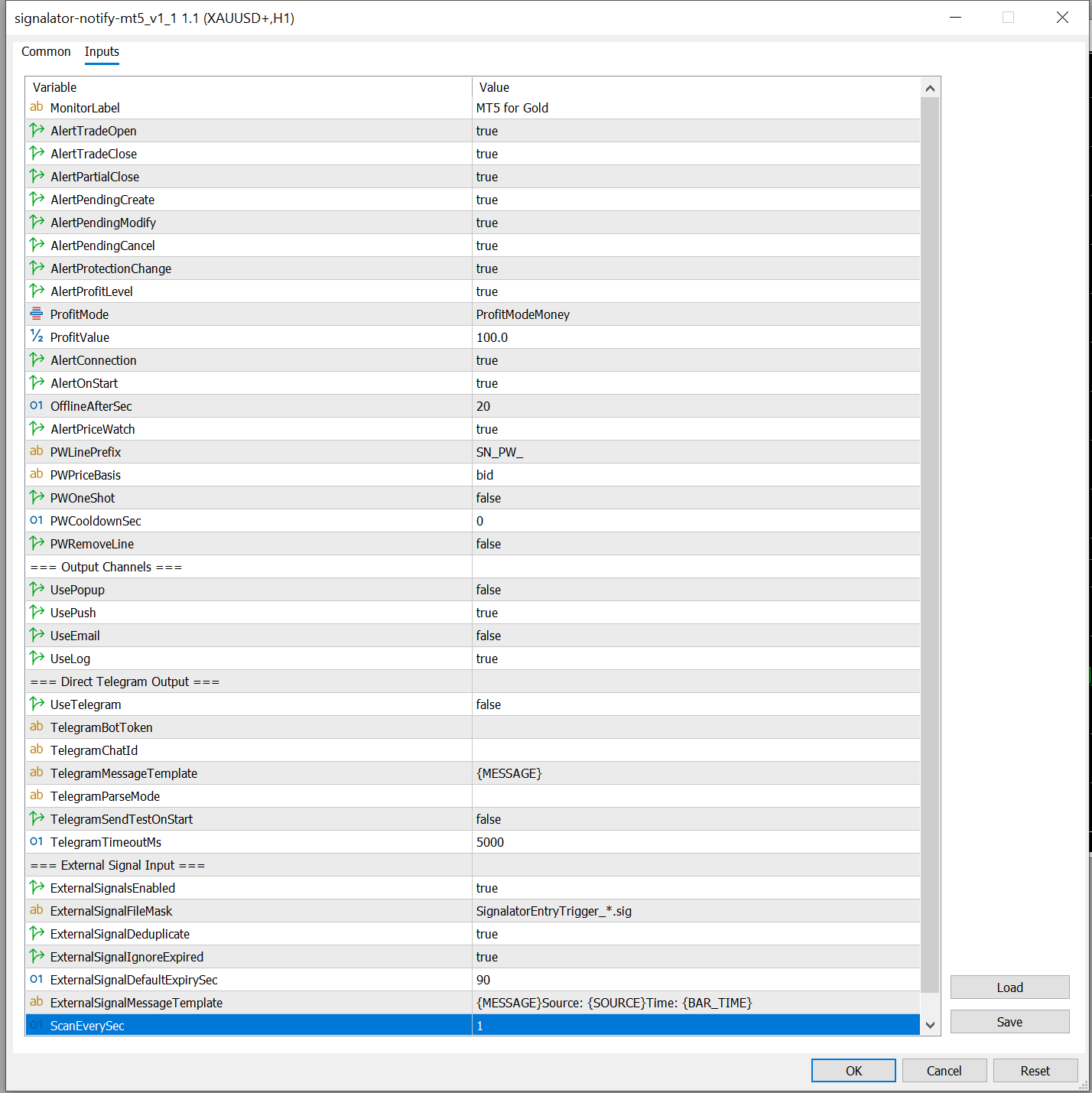
Main notification types
Signalator Notify can monitor and report several types of MetaTrader events:
- Trade opened
- Trade closed
- Trade partially closed
- Pending order created
- Pending order modified
- Pending order cancelled
- Stop loss or take profit updated
- Profit level reached
- Connection / offline status
- Price watch events
- External signal input from compatible indicators
The exact events can be enabled or disabled in the EA inputs.
Output channels
Signalator Notify (MT4 / MT5) supports several output channels.
The basic MetaTrader outputs are:
- Terminal log
- Popup alert
- MetaTrader mobile push notification
- Email
- Direct Telegram output
- External signal input from local signal files
Telegram is optional. The EA can work without Telegram.
Telegram setup
Signalator Notify uses direct Telegram Bot API output. This means the EA sends messages directly to Telegram using the bot token and chat ID entered by the user.
No Signalator account is required for direct Telegram delivery.
Step 1 — Create a Telegram bot
Open Telegram and use BotFather to create a new bot.
After creating the bot, BotFather will give you a bot token.
The token usually looks like this:
```text
123456789:ABCdefYourBotTokenHere
```
Enter only the token itself in the EA input.
Correct:
```text
123456789:ABCdefYourBotTokenHere
```
Incorrect:
```text
bot123456789:ABCdefYourBotTokenHere
```
The EA adds the word `bot` automatically when it builds the Telegram API request.
Telegram EA inputs
In Signalator Notify, find the section:
```text
=== Direct Telegram Output ===
```
The main inputs are:
```text
UseTelegram
TelegramBotToken
TelegramChatId
TelegramMessageTemplate
TelegramParseMode
TelegramSendTestOnStart
TelegramTimeoutMs
```
Recommended first setup:
```text
UseTelegram = true
TelegramBotToken = your bot token without "bot"
TelegramChatId = your chat ID
TelegramMessageTemplate = {MESSAGE}
TelegramParseMode =
TelegramSendTestOnStart = true
TelegramTimeoutMs = 5000
```
`TelegramSendTestOnStart` is useful during setup. When enabled, the EA sends a test message after it starts. After the test is successful, it can be turned off.
MetaTrader WebRequest setup
Telegram delivery requires WebRequest permission in MetaTrader.
Open:
```text
Tools → Options → Expert Advisors
```
Enable:
```text
Allow WebRequest for listed URL
```
Add this URL:
```text
```
After adding the URL, restart the EA or reload it on the chart.
If this step is missed, Telegram messages will not be sent.
Telegram message template
The default Telegram template can be simple:
```text
{MESSAGE}
```
This sends the standard message generated by Signalator Notify.
You can also customise the template. For example:
```text
[{LABEL}] {TITLE}
{MESSAGE}
```
or:
```text
{TITLE}
{MESSAGE}
```
The available content depends on the event type.
For most users, `{MESSAGE}` is the safest option.
Example Telegram result
When configured correctly, Telegram messages can look like this:
```text
[MT5 for Gold] Trade Opened
XAUUSD+ SELL 0.10 | Open 4526.82 | SL 0 | TP 0 | #188671051
```
```text
[MT5 for Gold] Protection Updated
SL updated on XAUUSD+ | SL 4530.00 | TP 0 | #188671051
```
```text
[MT5 for Gold] Trade Closed
XAUUSD+ BUY 0.10 | Result +2.15 | #188671051
```
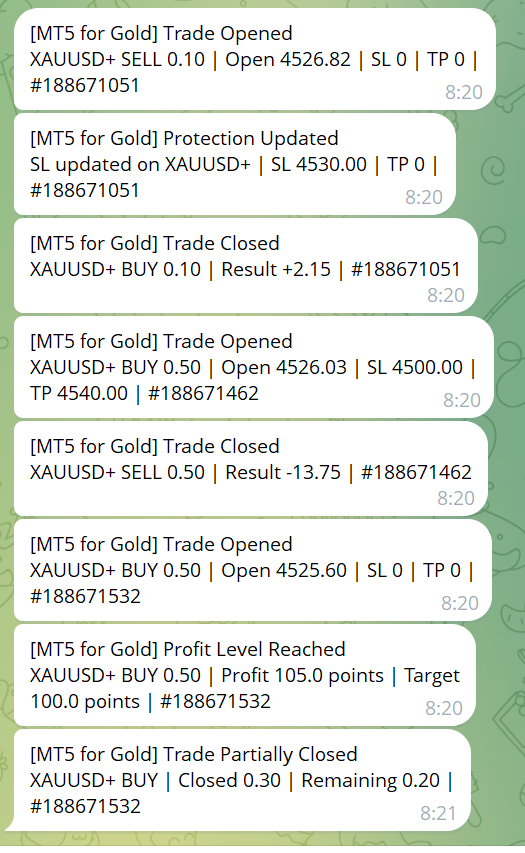
These messages are generated automatically from MetaTrader trade activity.
External signal input
Signalator Notify can also receive compatible external signals from another local tool, such as Signalator Entry Trigger.
This is useful when an indicator detects a signal, but an EA is needed to send it to Telegram.
The architecture is:
```text
Signalator Entry Trigger indicator
→ writes local signal file
→ Signalator Notify EA reads the signal
→ Signalator Notify sends Telegram message
```
This keeps the indicator clean and allows the EA to handle Telegram delivery.
External signal settings
Find the section:
```text
=== External Signal Input ===
```
Main inputs:
```text
ExternalSignalsEnabled
ExternalSignalFileMask
ExternalSignalDeduplicate
ExternalSignalIgnoreExpired
ExternalSignalDefaultExpirySec
ExternalSignalMessageTemplate
ScanEverySec
```
Recommended first setup:
```text
ExternalSignalsEnabled = true
ExternalSignalFileMask = SignalatorEntryTrigger_*.sig
ExternalSignalDeduplicate = true
ExternalSignalIgnoreExpired = true
ExternalSignalDefaultExpirySec = 90
ExternalSignalMessageTemplate = {MESSAGE}
ScanEverySec = 1
```
`ExternalSignalDeduplicate` prevents the same signal from being sent repeatedly.
`ExternalSignalIgnoreExpired` prevents old signal files from being sent after they are no longer relevant.
Using with Signalator Entry Trigger
Attach Signalator Entry Trigger to the chart where you want signals to be generated.
Attach Signalator Notify EA to a chart in the same terminal.
In Signalator Entry Trigger, keep payload or latest signal output enabled.
In Signalator Notify, enable external signal input and Telegram output.
The indicator creates the signal. The Notify EA delivers it.
This is useful because MetaTrader indicators cannot use WebRequest directly, while Expert Advisors can.
Input parameters and what they mean
This section explains the main Signalator Notify inputs. Some names may differ slightly between MT4 and MT5 versions, but the general logic is the same.
Account and identification
MonitorLabel
Custom label shown at the beginning of notifications.
Example:
MT5 for Gold
Main VPS
Prop account 1
Use it when you want to clearly identify which terminal, account, chart, or strategy produced the alert.
Trade event alerts
AlertTradeOpen
Enables alerts when a new trade position is opened.
AlertTradeClose
Enables alerts when a trade position is fully closed.
AlertPartialClose
Enables alerts when part of a position is closed.
AlertPendingCreate
Enables alerts when a pending order is created.
AlertPendingModify
Enables alerts when a pending order is modified.
AlertPendingCancel
Enables alerts when a pending order is cancelled, deleted, or removed.
AlertProtectionChange
Enables alerts when Stop Loss or Take Profit values are changed.
Profit milestone alerts
AlertProfitLevel
Enables profit milestone notifications.
ProfitMode
Defines how the profit target is measured.
Example:
Money mode can alert when a position or monitored trade reaches a selected money profit.
Points mode can alert when the selected profit target is reached in points.
ProfitValue
Defines the target value for the selected profit alert mode.
Example:
If ProfitMode uses points and ProfitValue is 100, the EA can notify when the monitored trade reaches 100 points of profit.
Connection health alerts
AlertConnection
Enables alerts when the terminal connection is lost or restored.
AlertOnStart
Sends a startup message when the utility begins running.
This is useful to confirm that the EA is active after terminal restart, VPS restart, or chart reload.
OfflineAfterSec
Defines how long the terminal must remain disconnected before an offline alert is sent.
Example:
If OfflineAfterSec is 20, the EA waits about 20 seconds before sending a connection lost message.
Price watch options
AlertPriceWatch
Enables monitoring of specially named horizontal lines on the chart.
PWLinePrefix
Defines the base prefix used for price-watch lines.
Default example:
SN_PW_
PWPriceBasis
Defines which price is used to evaluate price-watch line conditions.
Common values:
bid
ask
PWOneShot
If enabled, each price-watch line triggers only once.
PWCooldownSec
Defines how long the same price-watch condition must wait before it can trigger again.
Example:
If PWCooldownSec is 60, the same line will not send repeated alerts more often than once per 60 seconds.
PWRemoveLine
If enabled, the triggered price-watch line is removed automatically after the alert is sent.
Output channels
UsePopup
Enables MetaTrader popup alerts inside the terminal.
This is useful when you are watching the terminal, but it is less useful for unattended VPS monitoring.
UsePush
Enables MetaTrader mobile push notifications.
This requires MetaTrader push notification setup in terminal settings.
UseEmail
Enables MetaTrader email notifications.
This requires email setup in terminal settings.
UseLog
Writes detected events to the terminal Experts log.
This is useful for checking what the EA detected and for troubleshooting.
Direct Telegram output
UseTelegram
Enables direct Telegram output.
When enabled, Signalator Notify sends messages directly to Telegram through the user’s own Telegram bot.
TelegramBotToken
Your Telegram bot token.
Enter the token only, without the word “bot”.
Correct:
123456789:ABCdefYourBotTokenHere
Incorrect:
bot123456789:ABCdefYourBotTokenHere
TelegramChatId
Your Telegram chat ID.
The bot must be able to send messages to this chat.
TelegramMessageTemplate
Defines the Telegram message format.
Recommended default:
{MESSAGE}
This sends the normal message generated by Signalator Notify.
TelegramParseMode
Optional Telegram parse mode.
For simple setup, leave it empty.
TelegramSendTestOnStart
Sends a test Telegram message when the EA starts.
This is useful during first setup. After the test works, you can turn it off to avoid repeated startup test messages.
TelegramTimeoutMs
Defines the Telegram request timeout in milliseconds.
Default example:
5000
This means the EA waits up to 5 seconds for the Telegram request.
External signal input
ExternalSignalsEnabled
Enables reading compatible external signal files from local indicators or signal tools.
ExternalSignalFileMask
Defines which signal files should be scanned.
Example:
SignalatorEntryTrigger_*.sig
ExternalSignalDeduplicate
Prevents the same external signal from being sent repeatedly.
This should normally stay enabled.
ExternalSignalIgnoreExpired
Ignores old signal files after their expiry time.
This helps prevent old signals from being sent after terminal restart or delayed file scanning.
ExternalSignalDefaultExpirySec
Default expiry time for external signals when the signal file does not provide its own expiry value.
Example:
90
ExternalSignalMessageTemplate
Defines how external signal messages are formatted.
Recommended default:
{MESSAGE}
ScanEverySec
Defines how often the utility checks for events and external signals.
Example:
1
A value of 1 means the EA checks approximately once per second.
Recommended first setup
For normal monitoring:
AlertTradeOpen = true
AlertTradeClose = true
AlertPartialClose = true
AlertPendingCreate = true
AlertPendingModify = true
AlertPendingCancel = true
AlertProtectionChange = true
AlertProfitLevel = true
AlertConnection = true
AlertPriceWatch = true
UseLog = true
For Telegram setup:
UseTelegram = true
TelegramBotToken = your token without “bot”
TelegramChatId = your chat ID
TelegramMessageTemplate = {MESSAGE}
TelegramSendTestOnStart = true
After the test message is received, TelegramSendTestOnStart can be changed back to false.
For external indicator signal delivery:
ExternalSignalsEnabled = true
ExternalSignalFileMask = SignalatorEntryTrigger_*.sig
ExternalSignalDeduplicate = true
ExternalSignalIgnoreExpired = true
ExternalSignalDefaultExpirySec = 90
ExternalSignalMessageTemplate = {MESSAGE}
ScanEverySec = 1
Common setup checklist
Before testing Telegram output, check the following:
```text
UseTelegram = true
TelegramBotToken is entered without "bot"
TelegramChatId is entered
https://api.telegram.org is added to allowed WebRequest URLs
AutoTrading is enabled
TelegramSendTestOnStart = true for first test
```
Before testing external indicator signals, check:
```text
ExternalSignalsEnabled = true
ExternalSignalFileMask matches the signal file name
ExternalSignalDeduplicate = true
ExternalSignalIgnoreExpired = true
Signalator Entry Trigger output is enabled
Both tools are running in the same terminal
```
Troubleshooting
No Telegram message is received
Check that `UseTelegram` is enabled.
Check that the bot token does not include the word `bot`.
Check that the chat ID is correct.
Check that this URL is allowed in MetaTrader WebRequest settings:
```text
```
Check the Experts and Journal tabs for error messages.
Test message works, but trade messages do not appear
Check that the relevant event type is enabled.
For example:
```text
AlertTradeOpen = true
AlertTradeClose = true
AlertProtectionChange = true
AlertProfitLevel = true
```
Also make sure the EA is attached to the correct account and chart.
External indicator signals do not appear
Check that the indicator is writing signal files.
Check that the file mask matches the generated file name.
Example:
```text
SignalatorEntryTrigger_*.sig
```
Check that old expired signals are not being ignored because their expiry time has already passed.
During testing, you can temporarily increase:
```text
ExternalSignalDefaultExpirySec = 300
```
Duplicate Telegram messages appear
Enable deduplication:
```text
ExternalSignalDeduplicate = true
```
For trade events, also check that the EA is not attached multiple times to several charts in the same terminal with the same notification settings.
Security note
Do not share your real Telegram bot token publicly.
If your bot token was exposed, regenerate it in BotFather and update the EA input.
The bot token gives access to sending messages through your bot.
Notes
Telegram output is optional.
The EA can still be used with MetaTrader push, email, popup alerts, log output, and external signal routing.
For Telegram use, the user must configure their own Telegram bot token and chat ID, and allow Telegram API WebRequest in MetaTrader.