Magnet Wall Indicator — User Manual: Setup, Configuration, and Trading

Introduction
This manual is the operating guide for Magnet Wall Indicator on MetaTrader 4 and MetaTrader 5. It covers installation, every input parameter, signal interpretation, three example trading strategies, alert configuration, and troubleshooting. Read it end-to-end the first time you install the indicator; afterwards, use the table of contents and parameter reference as a lookup resource.
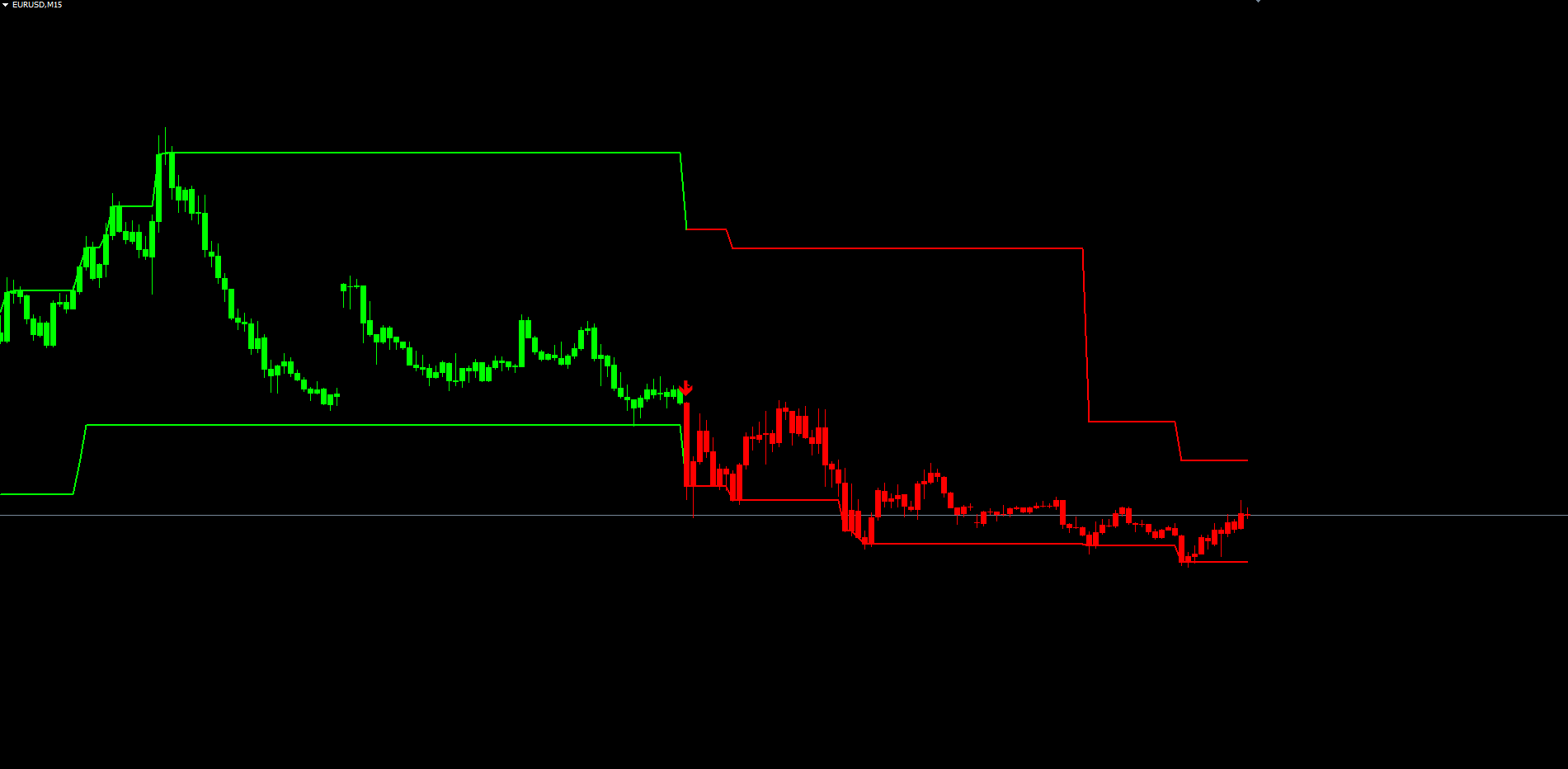
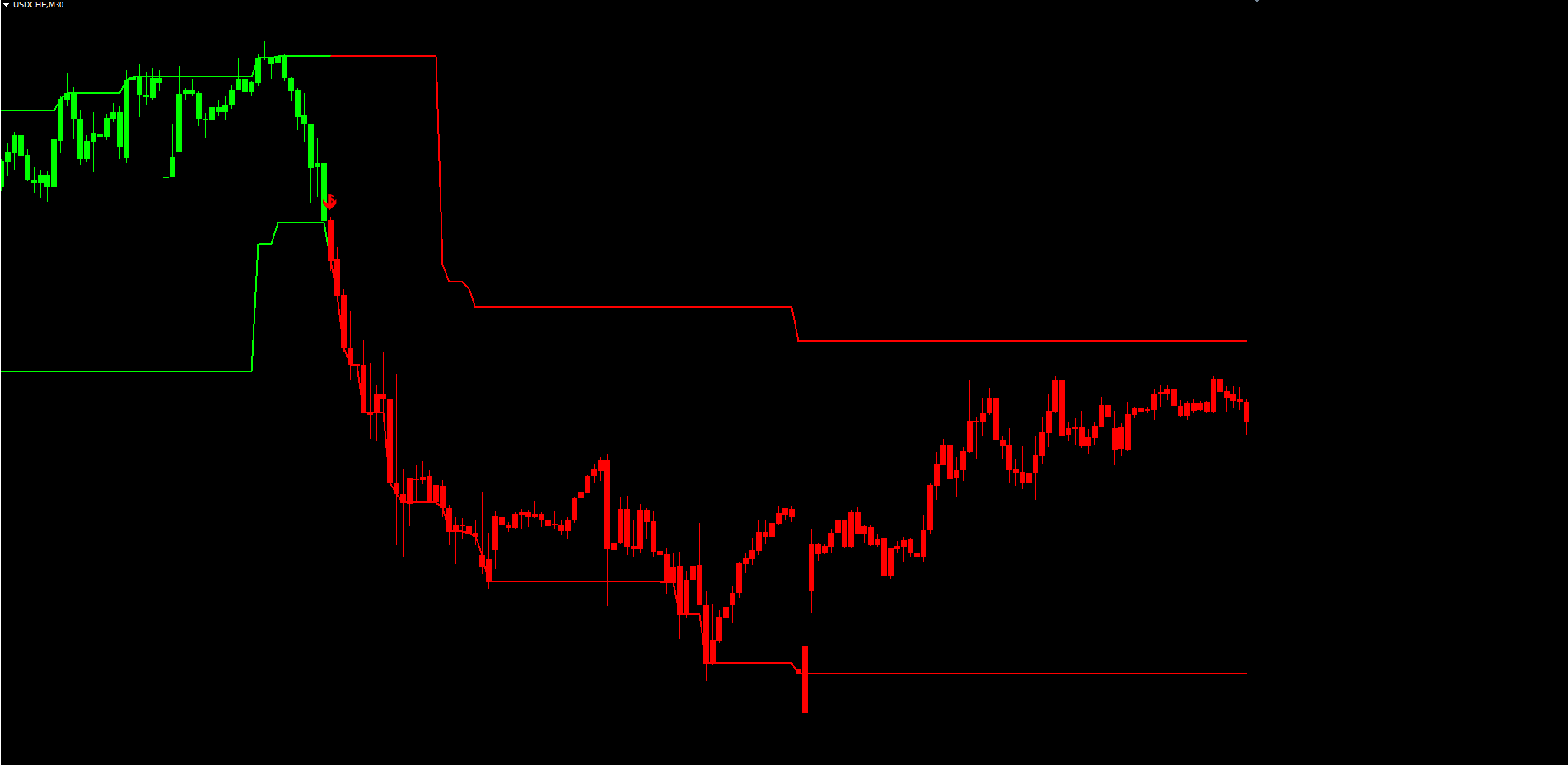
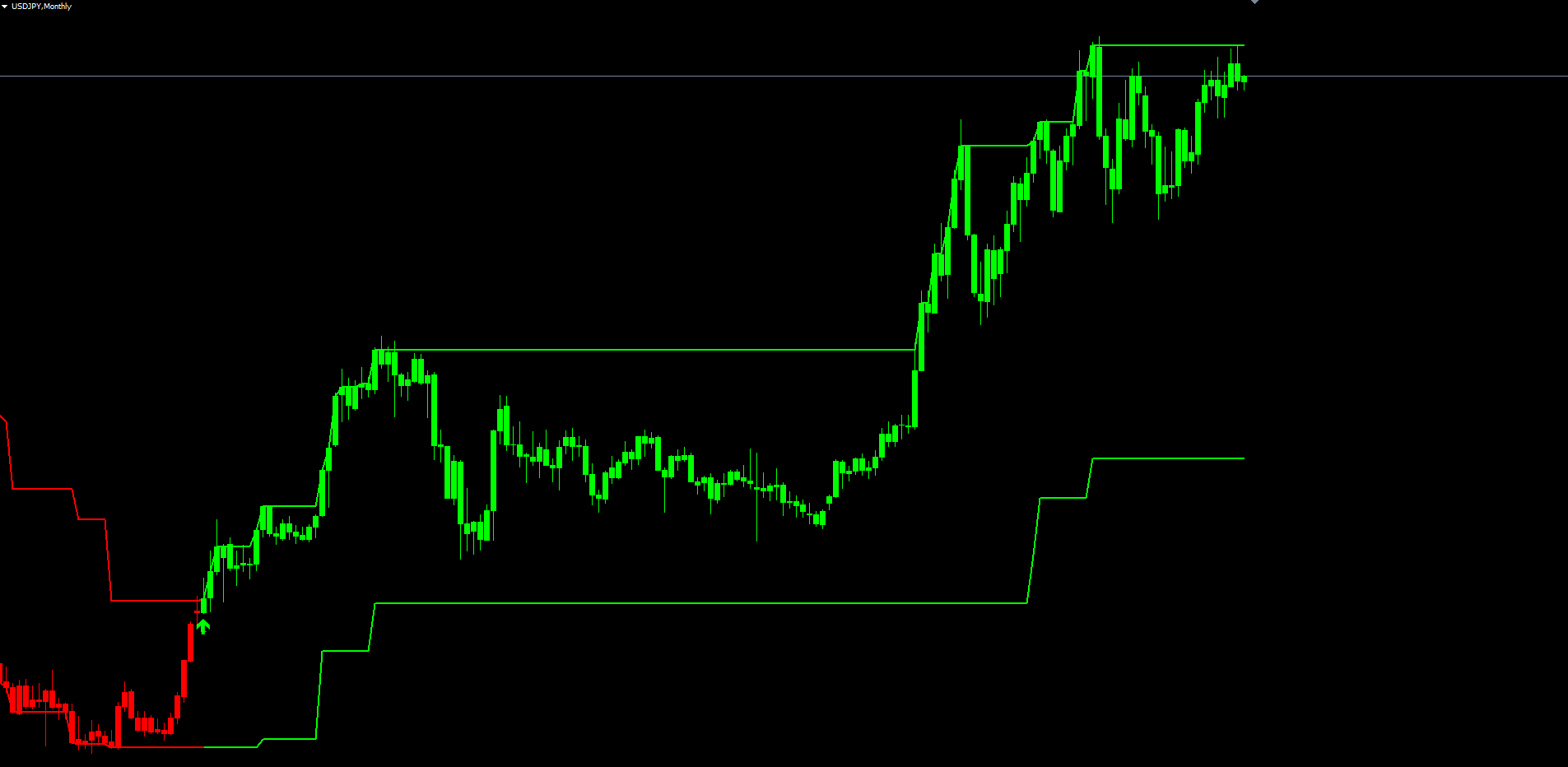
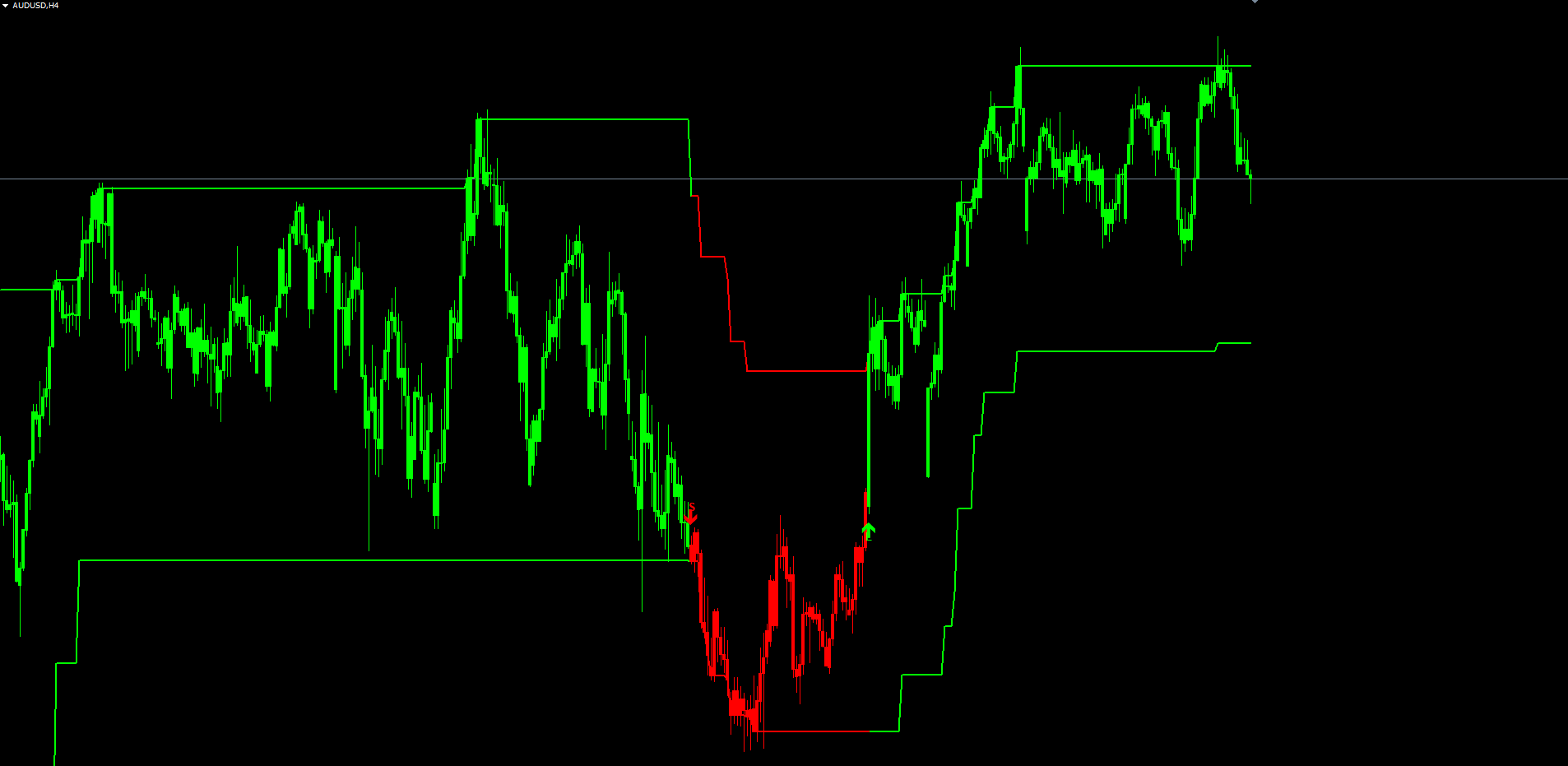
The indicator is a no-repaint ATR-driven trend-band system. Two adaptive bands — the upper and lower "magnetic walls" — are plotted above and below price. When price closes outside one of the walls, the indicator flips its trend reading and plots a buy or sell signal at the bar's low or high. Bars and bands recolor on every flip; "L" / "S" text labels and colored arrows mark every signal-change bar; and a complete alert package fires through popup, push notification, email, or sound channels.
Indicator at a glance:
- ATR-driven trend bands using the asymmetric breakout-anchor algorithm (not standard Supertrend)
- Wilder ATR (matches Pine ta.atr exactly)
- Two color-coded bands that flip on every trend change
- Optional bar coloring across the active-trend leg
- "L" / "S" text labels at every signal change
- Buy / Sell arrows (Wingdings up / down) at every signal change
- 4 alert events × 4 delivery channels = 16 total alert paths
- 100% identical visual + internal logic between MT4 and MT5
- No-repaint architecture
- Works on all symbols and all timeframes
Indicator Overview
When the indicator is attached to a chart, it draws six things:
- Upper band line — the upper magnetic wall, recolored on every trend change.
- Lower band line — the lower magnetic wall, recolored on every trend change.
- Colored candles — each bar in the active-trend leg painted in ColorUp or ColorDown (toggleable).
- "L" / "S" text labels — placed on every bar where the trend reverses (toggleable).
- Buy / Sell arrows — Wingdings up / down arrows at every reversal bar (toggleable).
- Alerts — popup, push, email, and sound notifications on every signal event (each toggleable).
The default settings work out-of-the-box on H1 and H4 charts of major forex pairs. Lower timeframes (M5, M15) and exotic instruments may need parameter adjustment — see Configuration Examples below.
Where to Get the Indicator
Download the indicator:
- MetaTrader 5: Magnet Wall MT5
- MetaTrader 4: Magnet Wall MT4
Each product page has a free Demo button that lets you test the indicator on any chart in the MetaTrader Strategy Tester before purchasing. The full version is delivered as a precompiled .ex4 / .ex5 binary that auto-installs into your terminal once the purchase is confirmed.
Installation Guide
Installing from the MQL5.com Market (recommended)
- Click the Buy (or Demo) button on the MQL5.com product page.
- The MetaTrader terminal automatically downloads and installs the indicator.
- Open the Navigator panel ( Ctrl + N in MT4 / MT5).
- Expand Indicators > Market.
- Find Magnet Wall Indicator in the list.
- Drag it onto any chart.
Installing from source (for self-compilation)
If you have the .mq4 / .mq5 source file:
MT4:
- Open MetaEditor ( F4 from the MT4 terminal).
- File > Open Data Folder shows the terminal data folder; navigate to MQL4/Indicators/ .
- Copy Magnet_Wall_Indicator.mq4 into that folder.
- Back in MetaEditor, open the file and press F7 to compile. Expected: zero errors, zero warnings.
- In the terminal Navigator, right-click Indicators and choose Refresh. The indicator appears under Custom Indicators.
- Drag onto a chart.
MT5: identical procedure with MQL5/Indicators/ and Magnet_Wall_Indicator.mq5 .
First Attach
When you first drag the indicator onto a chart, the Inputs dialog appears. Click OK to accept the defaults — they are tuned for H1 forex on major pairs. The indicator immediately scans the chart's history, plots all historical signals, and begins tracking new bars as they close.
If the chart shows only the bands but no labels or arrows, scroll back through history — signal markers are placed on every historical reversal bar, not just the latest one. If you do not see any signal at all, the chart may not yet have produced a reversal since the indicator's first valid ATR bar; wait for the next flip.
Reading the Signal
Trend Reading
The trend at any moment is determined by the color of the bands and (if ColorBars = true ) the bars. Green = uptrend, red = downtrend. Both bands are always the same color — they recolor in lockstep.
The midline (upperband + lowerband) / 2 is the underlying trend reference, but the trader does not need to look at it directly. The bands' color and bar coloring give the same information visually.
Signal-Change Bars
A signal change is a bar on which the trend direction reversed. Two visual markers appear on every signal-change bar:
- Buy signal (down → up reversal): green up-arrow at the bar's low; "L" label below the arrow further from the bar
- Sell signal (up → down reversal): red down-arrow at the bar's high; "S" label above the arrow further from the bar
The arrow is closer to the bar and uses Wingdings character 233 (up) or 234 (down). The label is offset further from the bar so the arrow and label do not overlap. Both markers are anchored to bar time — they remain locked to their original bar even as new bars form on the chart.
How Often Signals Fire
With default settings on H1 forex, expect 2–5 signals per week per pair. M15 produces 5–10 per day on volatile pairs; D1 produces 1–2 per month. Frequency scales inversely with the timeframe and directly with Multiplier — wider multiplier means fewer signals, narrower multiplier means more.
What Signals Do NOT Mean
A buy / sell signal is a trend reversal marker — it is not a guarantee of a profitable trade. The indicator says "the trend has now flipped"; whether that flip leads to a sustained move or fades into a counter-flip within a few bars depends on market conditions outside the indicator's reading. The recommended workflow combines Magnet Wall's trend reading with a separate entry-timing tool — see Trading Strategies below.
Input Parameters
Bands
| Parameter | Default | Description |
|---|---|---|
| Source | PRICE_CLOSE | Price source for band calculation. Selectable from the standard ENUM_APPLIED_PRICE list (Close, Open, High, Low, HL2, HLC3, HLCC4) |
| AtrLen | 5 | Wilder ATR period — number of bars for ATR smoothing |
| Multiplier | 7.6 | ATR multiplier — wider value produces wider bands and fewer flips |
UI
| Parameter | Default | Description |
|---|---|---|
| ColorBars | true | Paint candles in the active-trend color (Pine barcolor() equivalent) |
| ShowLabels | true | Show "L" / "S" text labels on every signal-change bar |
| ShowArrows | true | Show buy / sell arrows on every signal-change bar |
| ColorUp | clrLime | Up-trend color — bands, bars, label text |
| ColorDown | clrRed | Down-trend color — bands, bars, label text |
| ArrowBuyColor | clrLime | Buy-arrow color (independent of ColorUp ) |
| ArrowSellColor | clrRed | Sell-arrow color (independent of ColorDown ) |
| ArrowSize | 2 | Arrow size (1 to 5) |
| LabelFontSize | 10 | Font size for the L / S text labels |
Alerts
| Parameter | Default | Description |
|---|---|---|
| AlertPopup | true | Show MetaTrader's built-in popup dialog |
| AlertPush | false | Send push notification (MetaQuotes ID required in Tools > Options > Notifications) |
| AlertEmail | false | Send email (SMTP credentials required in Tools > Options > Email) |
| AlertSound | false | Play sound file specified by AlertSoundFile |
| AlertSoundFile | alert.wav | Sound file — must be present in the terminal's Sounds folder. Built-in: alert.wav, alert2.wav, news.wav, ok.wav, expert.wav, email.wav, etc. |
| AlertOnBuy | true | Fire alert on buy (Long) signal |
| AlertOnSell | true | Fire alert on sell (Short) signal |
| AlertOnTrendUp | false | Fire alert on every up-trend midline flip (more frequent than buy signals) |
| AlertOnTrendDown | false | Fire alert on every down-trend midline flip |
Trading Strategies
The indicator is designed as the trend-direction component of a complete trading system. Below are three reference strategies — pick one that matches your timeframe and trading style, then adapt as you gain experience.
Strategy A — Higher-Timeframe Bias + Lower-Timeframe Entry
This is the classic top-down workflow.
- Open two charts of the same pair: a higher timeframe (H4 or D1) and a lower timeframe (M15 or H1).
- Attach Magnet Wall to the higher timeframe with default settings. The trend color on the latest closed bar is your bias.
- Switch to the lower timeframe. Attach Magnet Wall there too.
- Only take trades in the direction of the higher-timeframe bias. When the H4 is green, ignore every red signal on M15 — those are counter-trend retracements. When the H4 is red, ignore every green signal on M15.
- Enter on the next aligned signal on the lower timeframe.
Stop-loss: place a few pips beyond the most recent swing high (for shorts) or swing low (for longs). For H1 entries on EURUSD, 30–50 pips is typical.
Take-profit: exit at the next opposite signal on the lower timeframe, or at a fixed risk-reward (1:2 or 1:3) — whichever comes first.
Strategy B — Trend Continuation Pyramiding
Use this when a trend has already been established and you want to add to it on retracements.
- Identify a strong trend on your trading timeframe (the bands have been the same color for at least 20 bars).
- Wait for price to retrace toward the trend-side wall — the lower wall in an uptrend, the upper wall in a downtrend.
- Enter when price touches the wall and shows a reversal candle (hammer, engulfing, or pinbar in the trend direction).
- The retracement is not an opposite signal — the bands are still the same color, no "L" / "S" label fires, and no arrow plots. The indicator's trend reading remains intact.
- Repeat on each subsequent retracement-to-wall during the same trend.
Stop-loss: beyond the swing low (uptrend) or swing high (downtrend) created by the retracement.
Take-profit: trail the stop to break-even after price advances 1× ATR, then to subsequent swing highs / lows. Exit fully when the indicator flips.
This strategy can produce 3–8 entries per single trend leg on H1, dramatically increasing the trader's exposure to long sustained moves.
Strategy C — Reversal-Catch Entry
For traders who specifically want to catch trend reversals at the moment they fire.
- Configure tighter bands: Multiplier = 5.0 (instead of 7.6).
- Wait for an "L" or "S" signal on your trading timeframe.
- Enter at market on the open of the next bar after the signal. The signal bar itself is already closed; entering on its close is fine, but waiting one bar reduces noise from the signal bar's volatility.
- Stop-loss: beyond the high of the sell-signal bar (for shorts) or below the low of the buy-signal bar (for longs).
- Take-profit: at 1:2 or 1:3 risk-reward, or at the opposite signal — whichever comes first.
This strategy is the highest-frequency of the three but also the lowest-quality on average — many signals fade as the market resumes the prior trend. It works best when combined with a higher-timeframe bias filter (Strategy A), so reversal entries are only taken in the direction of the higher-timeframe trend.
Configuration Examples
Default — H1 to H4 swing trading
The Pine Script defaults. Suitable for major forex on H1 or H4. 2–5 signals per week per pair on H1, 1–3 per week on H4.
| Setting | Value |
|---|---|
| AtrLen | 5 |
| Multiplier | 7.6 |
| Source | PRICE_CLOSE |
| ColorBars | true |
| ShowLabels | true |
| ShowArrows | true |
| AlertOnBuy | true |
| AlertOnSell | true |
Tight — scalping on M5 / M15
Narrow bands, frequent signals. Suitable for liquid forex pairs and active session hours (London / NY overlap).
| Setting | Value |
|---|---|
| AtrLen | 5 |
| Multiplier | 4.0 |
| Source | PRICE_CLOSE |
| ColorBars | true |
| ArrowSize | 1 |
| AlertOnBuy | true |
| AlertOnSell | true |
Wide — daily / weekly position trading
Only major structural shifts survive. Signal frequency drops to 1–3 per month on most pairs. Use trend-flip alerts ( AlertOnTrendUp , AlertOnTrendDown ) for early-warning notifications between full reversal signals.
| Setting | Value |
|---|---|
| AtrLen | 5 |
| Multiplier | 12.0 |
| Source | PRICE_CLOSE |
| ColorBars | true |
| AlertOnTrendUp | true |
| AlertOnTrendDown | true |
Volatile instruments — crypto and indices
Cryptocurrency, indices, and high-volatility commodities benefit from a longer ATR period to smooth out micro-volatility while keeping band-distance proportional to typical range.
| Setting | Value |
|---|---|
| AtrLen | 14 |
| Multiplier | 7.6 |
| Source | PRICE_CLOSE |
Alert Configuration
The alert system has two layers: event toggles (which events fire alerts) and delivery toggles (where alerts are delivered). For an alert to fire, both an event toggle (e.g., AlertOnBuy ) AND at least one delivery toggle (e.g., AlertPopup ) must be enabled.
Setting Up Push Notifications
- Install the MetaTrader mobile app on your phone (iOS or Android).
- In the mobile app, open Settings > Messages and copy your MetaQuotes ID.
- In the desktop terminal, open Tools > Options > Notifications.
- Enable Enable Push Notifications, paste the MetaQuotes ID, and click Test. You should receive a test notification within 5 seconds.
- In the indicator's input dialog, set AlertPush = true and enable the events you want to receive ( AlertOnBuy , AlertOnSell , etc.).
Setting Up Email Alerts
- In the desktop terminal, open Tools > Options > Email.
- Enable Enable Email and configure your SMTP credentials (server, port, login, password). Most ISPs and free webmail providers (Gmail, Outlook) support SMTP — you may need to generate an app-specific password rather than using your main password.
- Click Test to send a test email to yourself.
- In the indicator's input dialog, set AlertEmail = true .
Setting Up Sound Alerts
The default sound file alert.wav ships with every MetaTrader installation. To use a different sound:
- Place a .wav file in <Terminal Data Folder>\Sounds\ .
- Set AlertSoundFile = your_filename.wav in the indicator inputs.
- Set AlertSound = true .
The MetaTrader-bundled sound files include alert.wav , alert2.wav , news.wav , ok.wav , expert.wav , email.wav , tick.wav , timeout.wav , and wait.wav .
Trend-Flip vs Buy / Sell Alerts
The four event toggles divide naturally into two pairs:
- Buy / Sell signals ( AlertOnBuy , AlertOnSell ) fire on the bars where the L / S labels and arrows plot — these are the actionable trade signals.
- Trend-flip events ( AlertOnTrendUp , AlertOnTrendDown ) fire on every bar where the midline direction changes, including bars between consecutive Buy/Sell signals where the trend made a brief reversal-and-resumption. They are higher-frequency than Buy/Sell and useful for traders who want to monitor the indicator continuously without watching the chart.
Most traders enable only AlertOnBuy and AlertOnSell and leave the trend-flip alerts disabled. Enable trend-flip alerts only if you specifically want a higher-frequency feed.
Troubleshooting
Bands or arrows do not appear after attaching
Check that Multiplier is positive and AtrLen is at least 2. The chart needs at least 50 bars of history for the indicator to compute valid ATR — on a freshly opened chart with little history, scroll back to load more bars or wait for new bars to form. Confirm in Tools > Options > Charts that Show OHLC is enabled and that the chart's Show ask line is not obscuring the indicator output.
Bars are not colored
Set ColorBars = true in the Inputs tab. The colored candles are drawn as overlays on top of the chart's own candles using paired histogram buffers. If the chart shows the bands recoloring but the bars do not, check ColorBars first.
If the colors look reversed (red during what you think is an uptrend, etc.), swap ColorUp and ColorDown — your color preferences may differ from the defaults.
Arrows are missing on signal-change bars
Confirm ShowArrows = true . Arrows are placed at low − 0.1 × ATR(30) (buy) or high + 0.1 × ATR(30) (sell). On highly compressed or zoomed-out charts, the arrows may sit very close to the bar — increase ArrowSize from 2 to 3 or 4 for better visibility.
If arrows are completely absent from the chart even on bars you can clearly identify as reversals, recompile the indicator from source and reattach it. The most common cause is a broker terminal that has cached an older version of the indicator.
No popup / email / push notification when the trend flips
Each delivery channel needs its own toggle ( AlertPopup , AlertPush , AlertEmail , AlertSound ) and the corresponding event toggle ( AlertOnBuy , AlertOnSell , AlertOnTrendUp , AlertOnTrendDown ). If you enabled AlertPush = true but left AlertOnBuy = false , no buy push fires.
For push and email, also verify the terminal-level configuration in Tools > Options. The MetaTrader test buttons in those panels confirm the channel is working before you attribute silence to the indicator.
MT4 and MT5 show different signals
Expected for the first ~50 bars of history (the ATR warmup region). After that, MT4 and MT5 should produce identical bands, bars, labels, and arrows bar-for-bar. If you see persistent disagreement after the 50-bar warmup, recompile both versions from source and reattach.
Alerts spammed when the indicator was attached
The indicator is designed not to spam alerts on initial load — alerts only fire when prev_calculated > 0 AND shift == 1 . If you are seeing spam, the most likely cause is that the indicator was reattached repeatedly (each reattach is one "fresh" alert per active signal). Detach all duplicate copies and leave only one.
Download the indicator:
- MetaTrader 5: Magnet Wall MT5
- MetaTrader 4: Magnet Wall MT4
CONTACT & SUPPORT
- Email: info@forexobroker.com
- Questions: Use the Comments section on the product page or send a private message
- Bug Reports: Please include your broker name, account type, and a screenshot
-
✅ All MQL Tools: https://www.mql5.com/en/users/forexobroker/ ✅
--------------------------------------------------------------------------------------------------------------
🏦 **Broker I use**: https://icmarkets.com/?camp=55869
🏦 **Broker For EU Traders I use 1**: https://www.ictrading.com?camp=91414
🏦 **Broker I use 2**: https://one.exnessonelink.com/boarding/sign-up/a/c_thuv62ocfq
💻 **VPS**: https://chocoping.com/processing/aff.php?aff=738
💼 **Companies I use for getting funded**:
Fundednext: https://fundednext.com/?fpr=kestutis39
The5ers: https://www.the5ers.com/?afmc=16kl
FTMO: https://trader.ftmo.com/?affiliates=nRAyOhmFRnEnFdOpdLeh
Risk Disclaimer
Trading foreign exchange and CFDs on margin carries a high level of risk and may not be suitable for all investors. You may sustain a loss exceeding your initial investment. Trend Quorum is a technical analysis tool and does not guarantee profitable trades. Past performance is not indicative of future results. The authors accept no liability for any loss arising from use of the indicator. By using Trend Quorum you acknowledge sole responsibility for your trading decisions.