

Version: 1.3
Platform: MetaTrader 5
Product type: Expert Advisor
1. Overview
Trendline PRO is a chart execution assistant for discretionary MT5 traders.
You place a line on the chart, choose what the line should do, then the EA watches price. When price reaches or crosses the line, Trendline PRO can open a trade, close a trade, or send an alert.
Main functions:
- Buy and Sell trendline entries
- Touch-cross and closed-candle breakout triggers
- OCO entry pairs
- TP and SL zones drawn directly on the chart
- Auto Breakeven per entry line
- Trailing Stop per entry line
- Full or partial close lines
- Alert lines
- Line persistence after chart reloads and template saves
- Hedging and netting account support
Important: Trendline PRO is an execution tool. It does not predict market direction. All trading decisions, line placement, lot size, risk, and account exposure remain the trader's responsibility.
2. Installation
- Open MetaTrader 5.
- Install or copy FXTT-Trendline-PRO.ex5 into the terminal MQL5/Experts folder.
- Restart MT5 or refresh the Navigator.
- Drag the EA onto a chart.
- Enable Algo Trading in MT5.
- Check the EA inputs before live use.
If Allow trade orders is disabled, the EA can still draw lines and send alerts, but it will not open or close trades.
3. EA Inputs
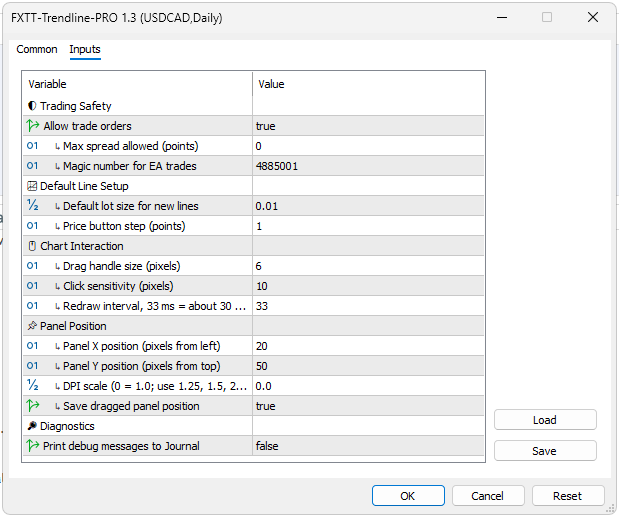
Trading Safety
- Allow trade orders
Default: true
Enables or disables all order open/close actions. - Max spread allowed (points)
Default: 0
Blocks new entries when spread is above this value. 0 means no spread limit. - Magic number for EA trades
Default: 4885001
Used to identify EA-managed positions. Use different magic numbers when running several instances.
Default Line Setup
- Default lot size for new lines
Default: 0.01
Starting volume for new entry and close lines. - Price button step (points)
Default: 1
Price change applied by the small up/down price buttons on a selected line.
Chart Interaction
- Drag handle size (pixels)
Default: 6
Size of line and zone drag handles. - Click sensitivity (pixels)
Default: 10
Mouse hit area for selecting lines and handles. Increase this on high-DPI or touch devices. - Redraw interval, 33 ms = about 30 FPS
Default: 33
Controls chart redraw speed while dragging.
Panel Position
- Panel X position
Default: 20
Horizontal panel position in pixels from the left chart edge. - Panel Y position
Default: 50
Vertical panel position in pixels from the top chart edge. - DPI scale
Default: 0.0
0.0 uses normal scaling. Use values such as 1.25, 1.5, or 2.0 if panel or handles are too small. - Save dragged panel position
Default: true
Saves the panel position after you move it.
Diagnostics
- Print debug messages to Journal
Default: false
Prints detailed internal messages for troubleshooting.
4. Floating Panel
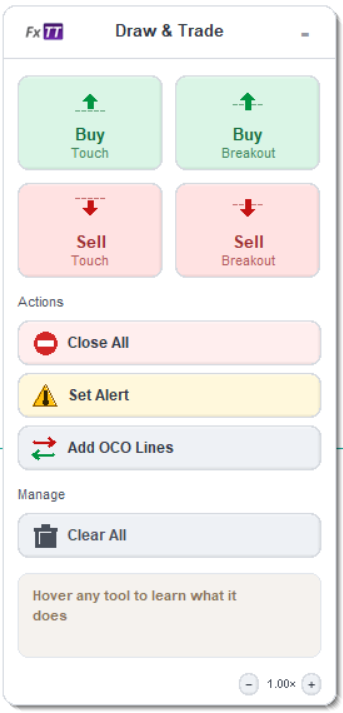
The floating panel creates new lines. Drag the panel title area to move it.
Panel buttons:
- Buy Line
Creates a Buy entry line. - Buy BO
Creates a Buy breakout line. It triggers after a candle opens below the line and closes above it. - Sell Line
Creates a Sell entry line. - Sell BO
Creates a Sell breakout line. It triggers after a candle opens above the line and closes below it. - Close All
Creates a close line. It closes matching open positions when crossed. - Set Alert
Creates an alert line. It sends an MT5 alert when crossed. - OCO
Creates a linked Buy/Sell entry pair. When one line triggers, the other line is disabled. - Clear All
Removes all lines from the chart.
New lines appear near the center of the visible chart. Move them after creation.
5. Line Types
Buy and Sell Entry Lines

Entry lines open market orders when the execution price reaches the line:
- Buy entries use Ask.
- Sell entries use Bid.
Touch-cross entry lines can trigger when price crosses the line in either direction allowed by the line state.
Breakout Lines
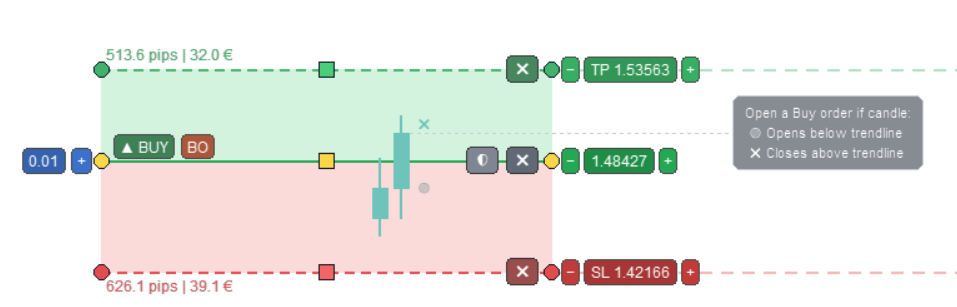
Breakout lines wait for a completed candle body.
- Buy breakout: candle opens below the line and closes above it.
- Sell breakout: candle opens above the line and closes below it.
Breakout lines do not trigger from older candles that crossed before the line was created or edited.
Close Lines

Close lines close matching positions on the current symbol.
- Volume All: close all matching positions.
- Specific volume: close up to that lot amount.
On hedging accounts, partial close attempts to restore previous SL/TP after the partial close. On netting accounts, SL/TP restore is skipped because broker counter-order behavior is broker-dependent.
Alert Lines

Alert lines send an MT5 chart alert and print the alert message to the Journal. They do not open or close orders.
OCO Lines
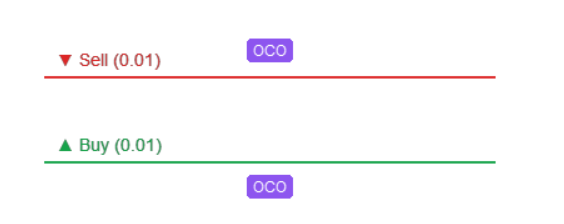
The OCO button creates two linked lines:
- Buy entry below current mid-price
- Sell entry above current mid-price
When one OCO entry opens an order, the other line is marked disabled and cannot fire. If you delete one line in an unresolved OCO pair, its peer is also deleted.
6. Working With Lines
Select a Line
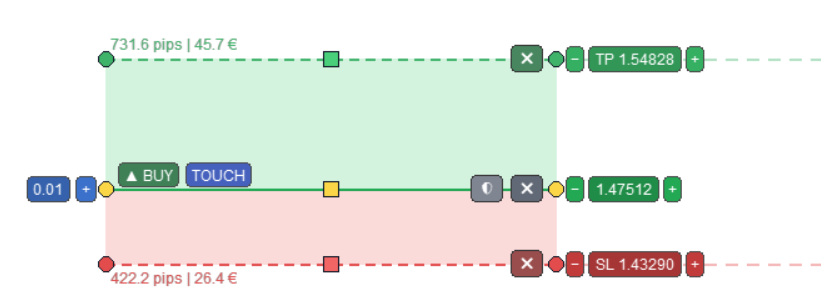
Click a line body, handle, or TP/SL zone. The active line shows handles and action buttons.
Click empty chart space to clear selection.
Move a Line
Drag the middle square handle to move the whole line.
Hold Shift while dragging the middle handle to move the line in time only.
Move an Endpoint
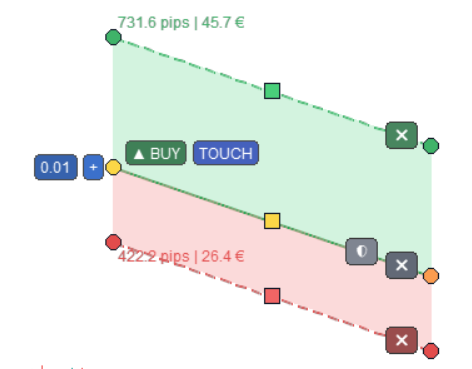
Drag a round endpoint handle to change time and price.
Hold Shift while dragging an endpoint to keep the line horizontal.
Change Side or Trigger
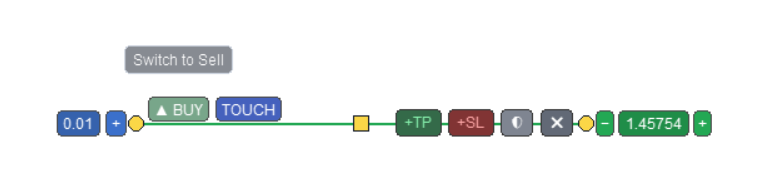
Some selected line labels/buttons allow cycling side or trigger state directly on the line. Use them before the line triggers.
Triggered lines are locked from side/trigger changes.
7. TP and SL Zones
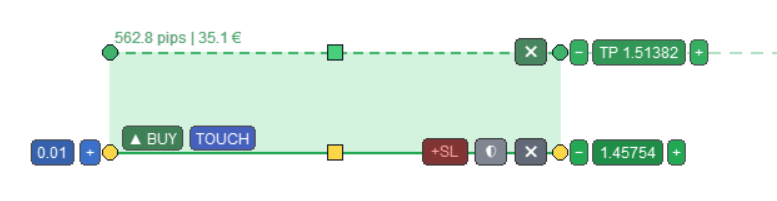
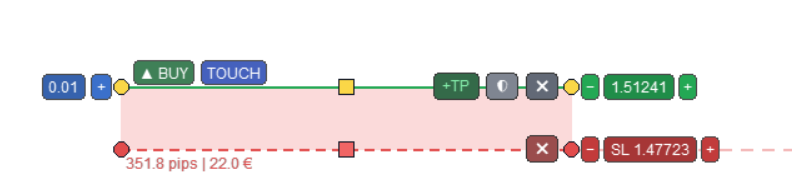
Entry lines can have TP and SL zones.
- Click +TP to enable a Take Profit zone.
- Click +SL to enable a Stop Loss zone.
- Click the zone delete button to remove the zone.
- Drag the outer middle square handle to resize a zone.
- Drag an outer endpoint square handle to slope a zone.
- Use the small price up/down buttons to adjust line, TP, or SL price by Price button step (points).
Zone labels show distance and estimated money value. Values are estimates from current symbol tick value, volume, and distance.
Trailing Stop and SL zone are mutually exclusive in the UI. Enabling Trailing Stop disables the SL zone.
8. Volume
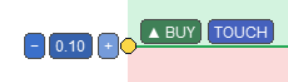
Each entry or close line has a volume badge.
- Click + to increase volume.
- Click - to decrease volume.
- Entry line volume is normalized to the symbol minimum, maximum, and step.
- Close line volume can be All or a specific lot amount.
9. Protection Panel
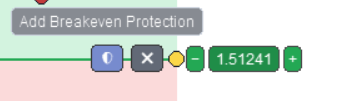
For an entry line, click the shield button near the selected line to open the protection panel.
The protection panel contains:
- Auto Breakeven checkbox
- Auto Breakeven trigger pips
- Auto Breakeven lock-in pips
- Trailing Stop checkbox
- Trailing Stop distance pips
Auto Breakeven
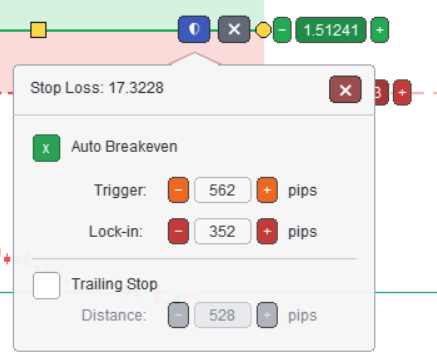
Auto Breakeven moves SL after price reaches the trigger distance from the opened position price.
- Trigger pips: profit distance needed before protection activates.
- Lock-in pips: how many pips beyond entry the SL should move.
For Buy positions, SL moves above entry by the lock-in value.
For Sell positions, SL moves below entry by the lock-in value.
The trigger must stay above the lock-in distance. The EA also respects spread, stop level, and freeze level constraints.
Trailing Stop
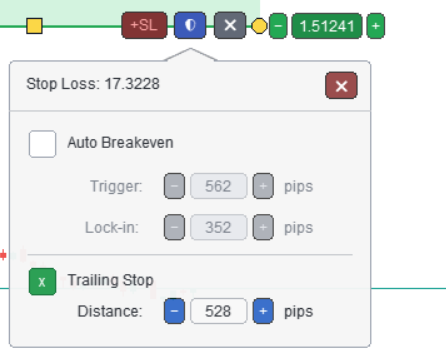
Trailing Stop moves SL as price moves in profit.
The panel exposes the trailing distance in pips. The EA only tightens risk; it does not move SL farther away from price.
When Trailing Stop is enabled, the visual SL zone is disabled to avoid conflicting stop instructions.
10. Order Safety
Before opening entries, Trendline PRO checks:
- Trading permission from Allow trade orders
- Current spread against Max spread allowed (points)
- Symbol volume min/max/step
- Available margin through OrderCalcMargin()
- Broker stop level and freeze level when applying SL/TP or protection
Orders use the configured magic number and an internal line comment.
11. Account Modes
Hedging Accounts
On hedging accounts, each position is independent. Trendline PRO matches entry positions by symbol, side, magic number, and line comment when possible.
Netting Accounts
On netting accounts, MT5 keeps one net position per symbol. Brokers can overwrite comment or magic after counter-orders. For protection tracking, Trendline PRO matches by symbol and side.
If an entry may net against an existing opposite-side position, the EA prints a warning in the Journal and continues. This allows intentional reduce/flip workflows while making the risk visible.
12. Persistence and Templates
Trendline PRO saves lines automatically after line edits and panel actions.
Persistence uses:
- Terminal GlobalVariables for fast reload in the same terminal.
- Hidden native chart objects for chart templates and Strategy Tester visual mode.
On startup, the EA first restores from chart objects. If none are found, it restores from GlobalVariables.
13. Strategy Tester
Trendline PRO can be used in Strategy Tester visual mode.
Recommended workflow:
- Place lines on a live chart.
- Save the chart as a template.
- Open Strategy Tester.
- Enable visual mode.
- Load the saved template.
- Run the test.
Non-visual optimization runs do not provide normal chart interaction. Interactive setup requires visual mode.
14. Keyboard Shortcuts
- Delete: delete the selected active line.
- T: toggle TP zone on the selected entry line.
- S: toggle SL zone on the selected entry line.
15. Common Workflows
Breakout With OCO
Click OCO, move the Buy and Sell lines around the consolidation area, configure volume and optional TP/protection, then let the first triggered side disable the other line.
Risk-Defined Entry
Create a Buy or Sell entry line, enable TP and/or SL zones, set volume, then place the line at the intended execution level.
Auto Breakeven Protection
Create an entry line, open the shield panel, enable Auto Breakeven, then set trigger and lock-in pips.
Trailing Protection
Create an entry line, open the shield panel, enable Trailing Stop, then set distance pips.
Partial Close
Create a close line, set a specific volume, and place it at the target level. Create another close line with All if you want to close the remaining position later.
Alert Only
Set Allow trade orders to false, then use alert lines. The EA will not send trade orders while this input is disabled.
16. Troubleshooting
Lines do not open trades
Check:
- MT5 Algo Trading is enabled.
- Allow trade orders is true.
- Spread is not above the configured limit.
- Symbol allows trading.
- Account has enough free margin.
- Journal has no broker rejection message.
Clicks are hard to hit
Increase Click sensitivity (pixels) and/or DPI scale.
Panel or handles are too small
Set DPI scale to 1.25, 1.5, or 2.0.
Protection did not move SL
Check:
- Position still exists.
- Auto Breakeven or Trailing Stop is enabled.
- Price reached the trigger/distance.
- Broker stop level or freeze level did not block SL modification.
- Journal has no modify rejection message.
18. Risk Notice
Trading Forex, CFDs, futures, and other leveraged products involves risk. Trendline PRO automates execution based on user-defined chart lines. It does not guarantee profit and cannot prevent losses from slippage, spread changes, broker rejection, disconnections, wrong settings, or market gaps. Test on a demo account before live trading.
Find the Trendline PRO here




