

This is the second part of the complete user manual for iMManager.
Go to the iMManager for MetaTrader 5 product page.
In this section, you will learn the core concepts of the system, including:
- Market vs Pending Execution
- Managing Open Positions
- Managing Pending Orders
- Symbol Switch Manager
- Daily Risk Guard
- Trading Statistics Dashboard
- Closed Positions / History
- One Click Trading and Confirmations
- Important Notes
- Hotkeys Reference
Go to the iMManager for MetaTrader 5 — User Manual (Part 1).
5. Market vs Pending Execution
iMManager provides two execution modes:
- Market Execution
- Pending Order
You can switch between them using the selection buttons in the panel.
5.1. Market Execution Mode
In this mode:
- The zone is aligned with the current market price.
- Buy and Sell buttons are active.
- Spread is monitored in real time.
- Spread Filter (SF) protects against high volatility.
If the current spread exceeds your SF value:
- Buy/Sell buttons are automatically disabled.
- Trade execution is blocked.
This prevents entering trades during unstable conditions.
Market Execution mode with live spread protection. 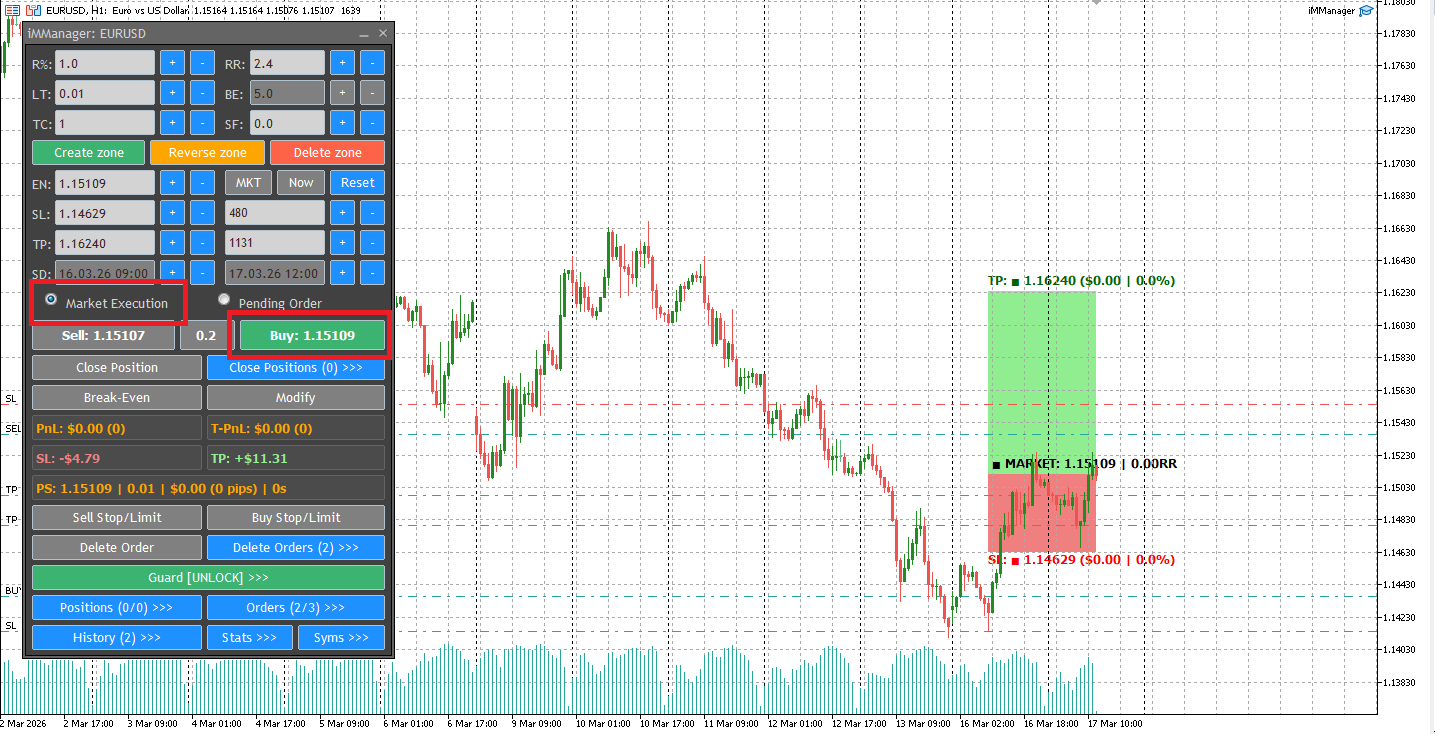
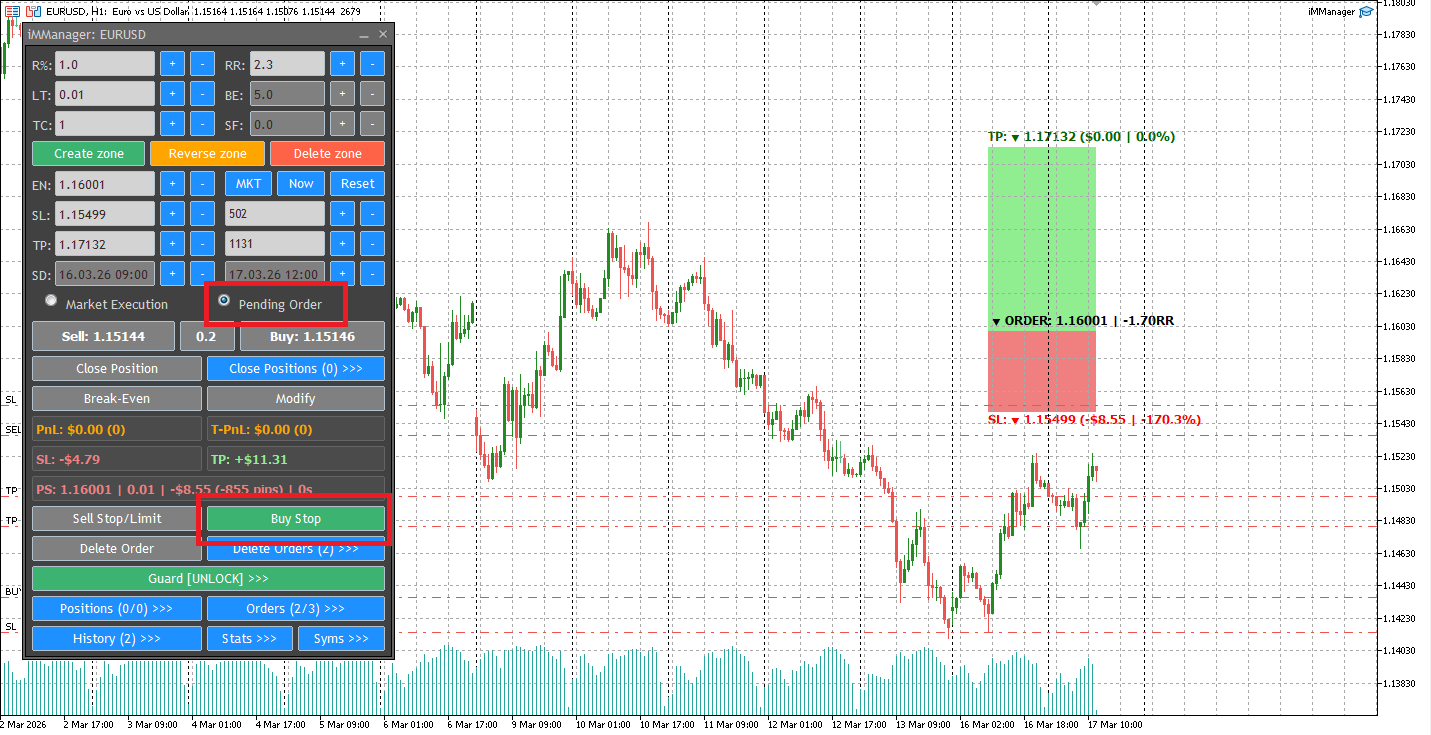
5.2. Pending Order Mode
In Pending mode:- You can move the zone anywhere on the chart.
- iMManager automatically determines whether the order should be:
- Stop
- Limit
You simply click:
- Buy Stop/Limit
- Sell Stop/Limit
The EA handles the correct order type automatically.
Pending Order mode with automatic order type detection.
5.3. Smart Pending → Market Switch
iMManager includes intelligent behavior:
If you preview a pending order and then move the zone across the current market price:
- Modify becomes disabled.
- Buy/Sell (Market) becomes active.
- If you execute by market:
- The pending order is automatically deleted.
This prevents conflicting orders and keeps execution clean.
6. Managing Open Positions
You can manage trades from:
- The main panel
- The Open Positions dialog
- Using hotkeys
6.1. Open Positions Panel
The Open Positions dialog shows:
- Live list of all open trades
- Symbol filtering
- Mini progress bars
- Duration
- Risk %
- Remaining pips
You can:
- Preview selected position
- Close selected position
- Close all filtered positions
Double-click to preview instantly. 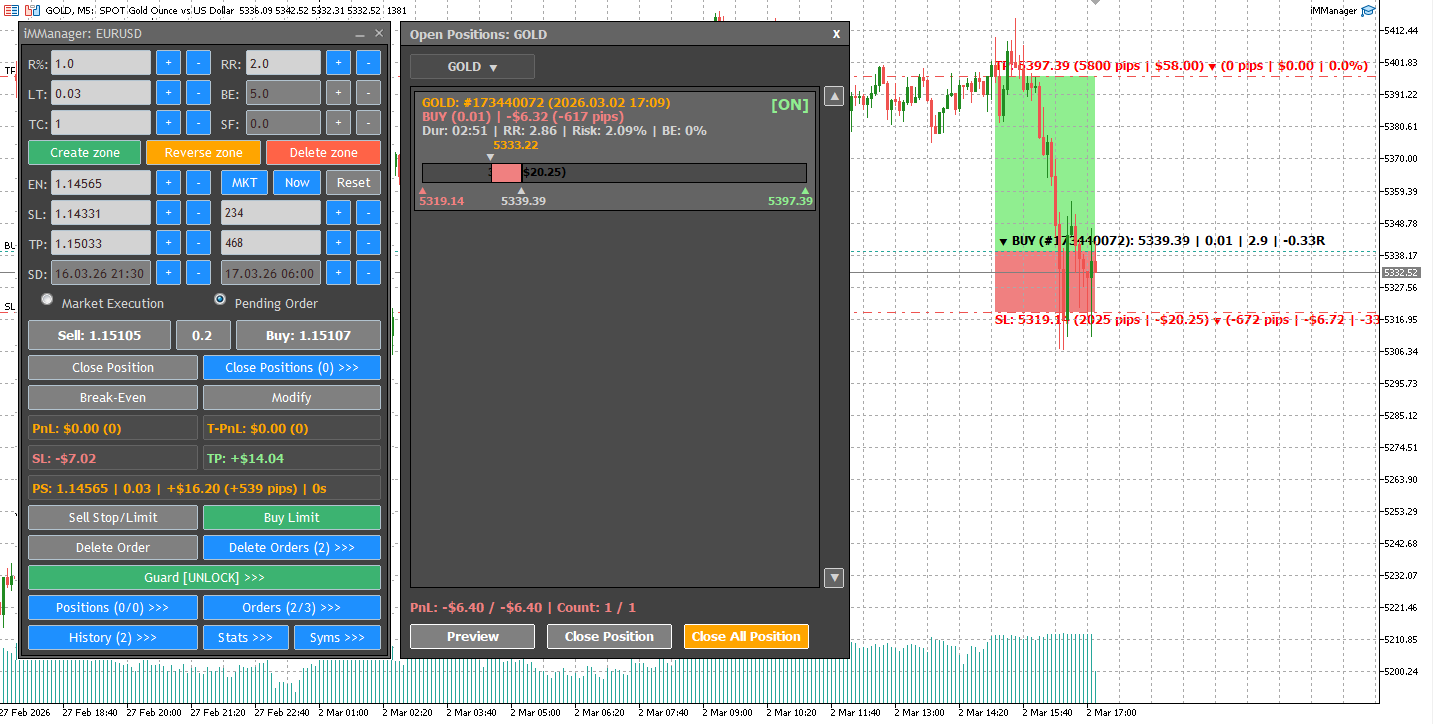
6.2. Previewing a Position
When previewing:
- The zone moves to the position’s exact location.
- All parameters load into the EA:
- Risk
- Lots
- RR
- BE
- TC
- SF
You can then:
- Modify SL/TP
- Move stop manually
- Activate Break-Even
- Close position
Deleting the zone does NOT close the position.
You can re-preview it anytime from the list.
6.3. Cross-Symbol Preview (Advanced Feature)
If you are on EURUSD chart and preview a GOLD position:
- iMManager searches for the GOLD chart.
- If EA is attached → it automatically switches and loads preview.
- If chart is not open or EA not attached → a message appears.
This allows centralized management of multi-symbol trading.
7. Managing Pending Orders
The Pending Orders dialog works similarly to Open Positions.
You can:
- Filter by symbol
- Preview selected order
- Delete selected order
- Delete all filtered orders
- Double-click to preview
Pending Orders panel with live monitoring and full control. 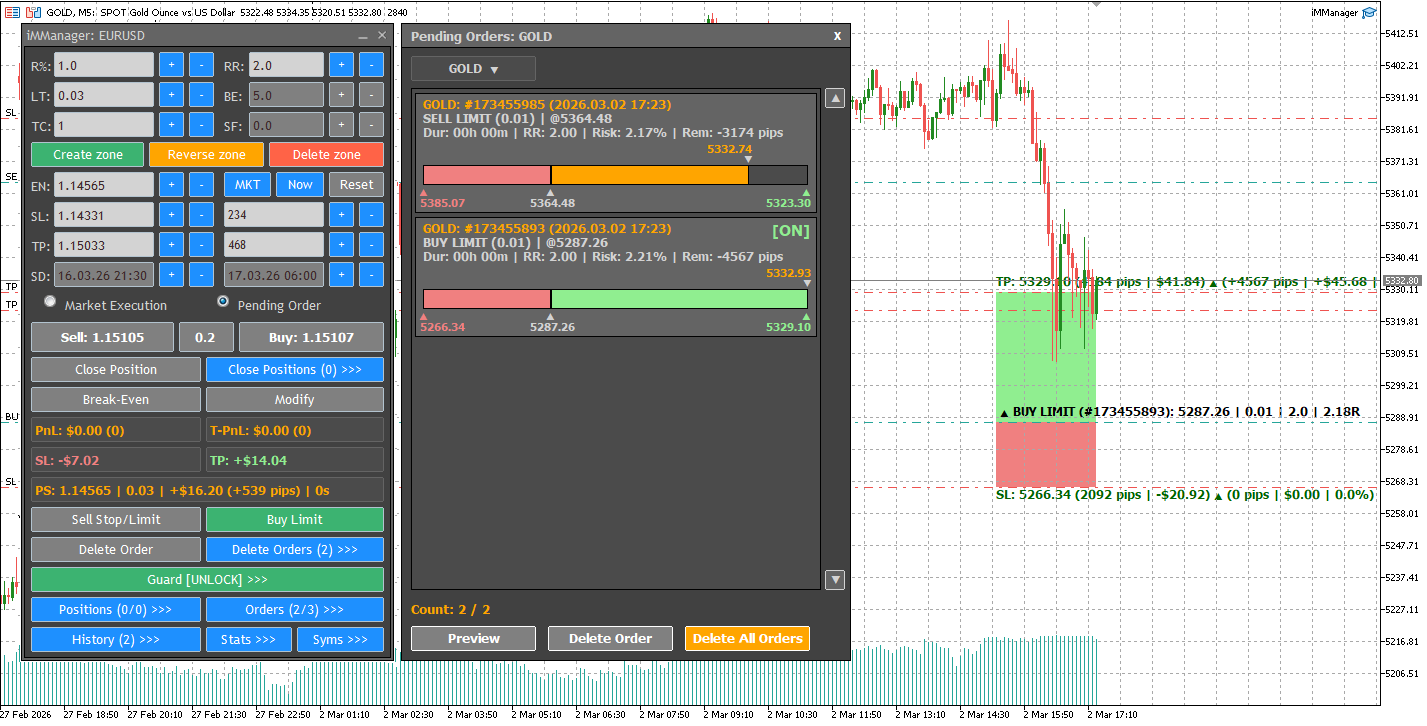
When previewing a pending order:
- Zone loads with Entry, SL, TP.
- You can modify or delete.
- If zone crosses market → modify disabled and market execution enabled.
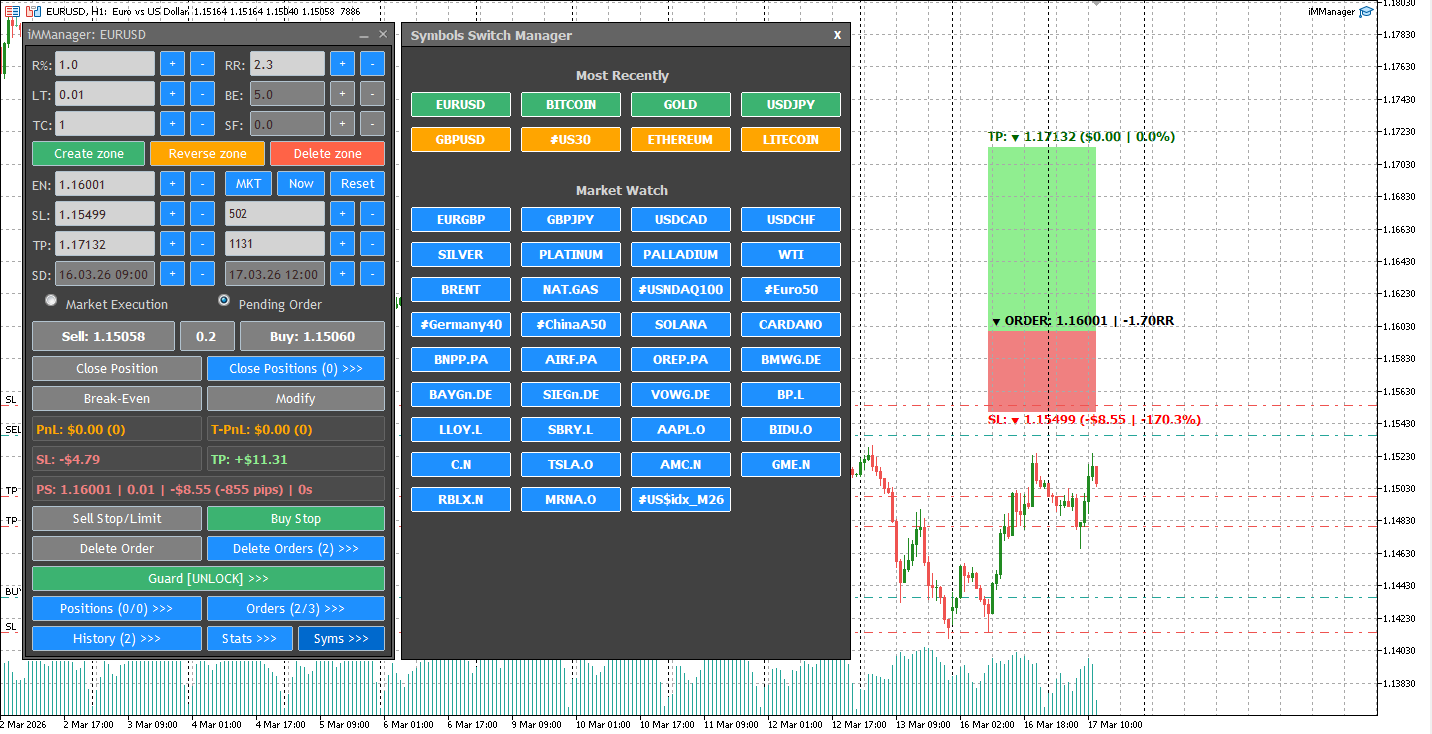
8. Symbol Switch Manager
The Symbol Switch Manager allows you to efficiently work with multiple trading instruments from a single chart.
Instead of manually opening and switching between charts, you can instantly change the active symbol directly from the iMManager panel.
Key features:
- Switch between symbols in one click
- Automatically update the chart to the selected symbol
- Load and display corresponding trading zones
- Access and manage positions and orders for each symbol
- Maintain full synchronization with the risk engine and statistics
This feature enables fast navigation, centralized control, and efficient multi-symbol workflow, making it easier to manage multiple trades without leaving your main workspace.
The Symbol Switcher Manager.
9. Daily Risk Guard
The Daily Risk Guard is designed to protect your account from overtrading and excessive daily losses.
It allows you to define:
- Maximum Daily Risk (%)
- Maximum Daily Trades
Both settings can be configured independently.
If set to 0, that limit is disabled.
9.1. How Daily Risk Is Calculated
Daily Risk includes:
- Closed trades (today)
- Floating PnL (current open positions)
- Calculated per symbol
This ensures protection even while trades are still running.
9.2. How Trade Count Is Calculated
Daily trade count includes:
- Closed trades
- Open trades
This prevents excessive scaling during one session.
9.3. What Happens When Guard Locks
When Daily Guard limit is reached:
- Guard status changes to LOCKED
- All execution buttons are disabled
- No new trades can be opened
If a position is opened directly from MT5 (bypassing the panel):
- iMManager immediately closes it
- A warning message is displayed
This guarantees that risk rules cannot be bypassed. 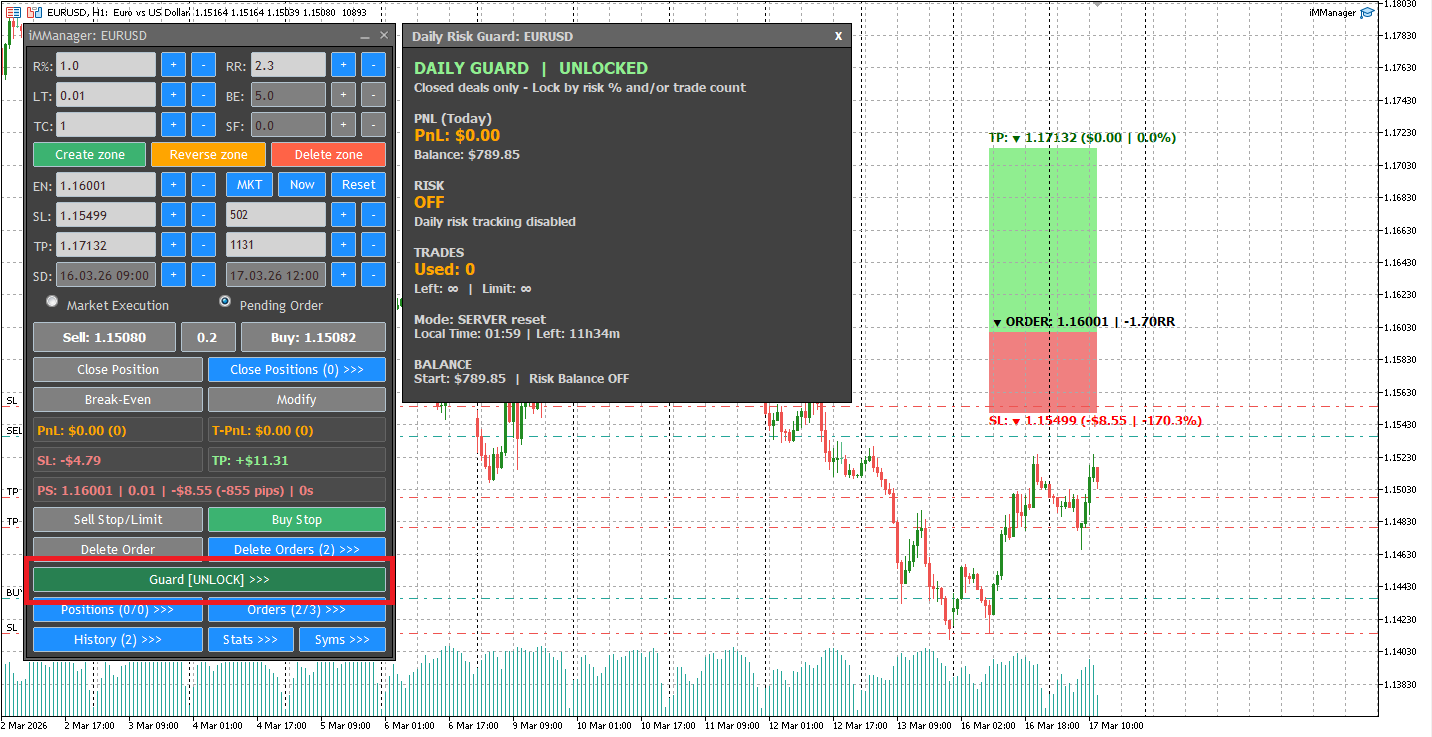
9.4. Reset Mode
Daily reset can use:
- Server time (recommended)
- Local time
This can be configured in settings.
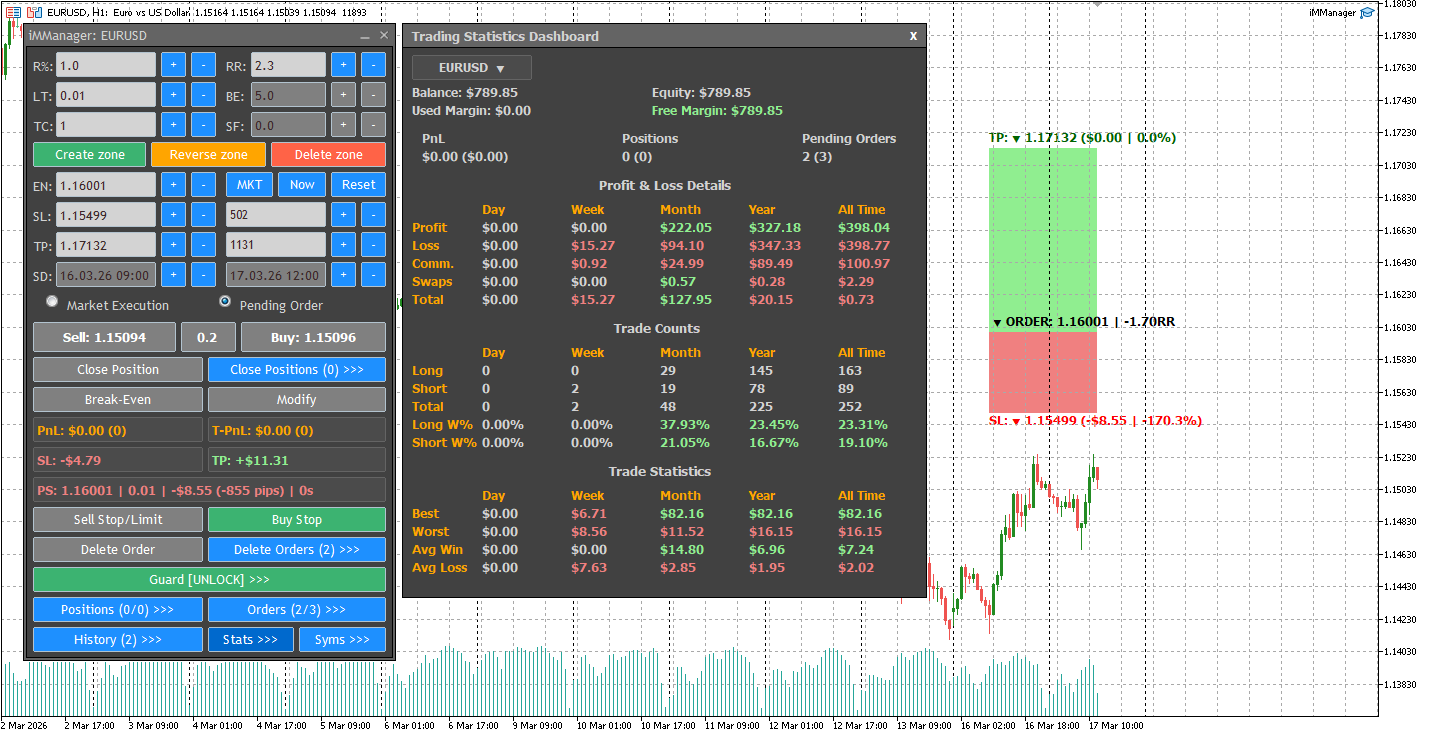
10. Trading Statistics Dashboard
The Statistics Dashboard provides full trading analytics.
It displays:
- Balance
- Equity
- Free Margin
- Open Positions
- Pending Orders
10.1. Profit and Loss Breakdown
Shows PnL statistics for:
- Day
- Week
- Month
- Year
- All Time
Includes:
- Profit
- Loss
- Commission
- Swaps
- Total
10.2. Trade Counts
Shows:
- Long trades
- Short trades
- Total trades
- Win %
- Short Win %
10.3. Trade Performance
Displays:
- Best trade
- Worst trade
- Average win
- Average loss
Full trading analytics and performance breakdown.
11. Closed Positions / History
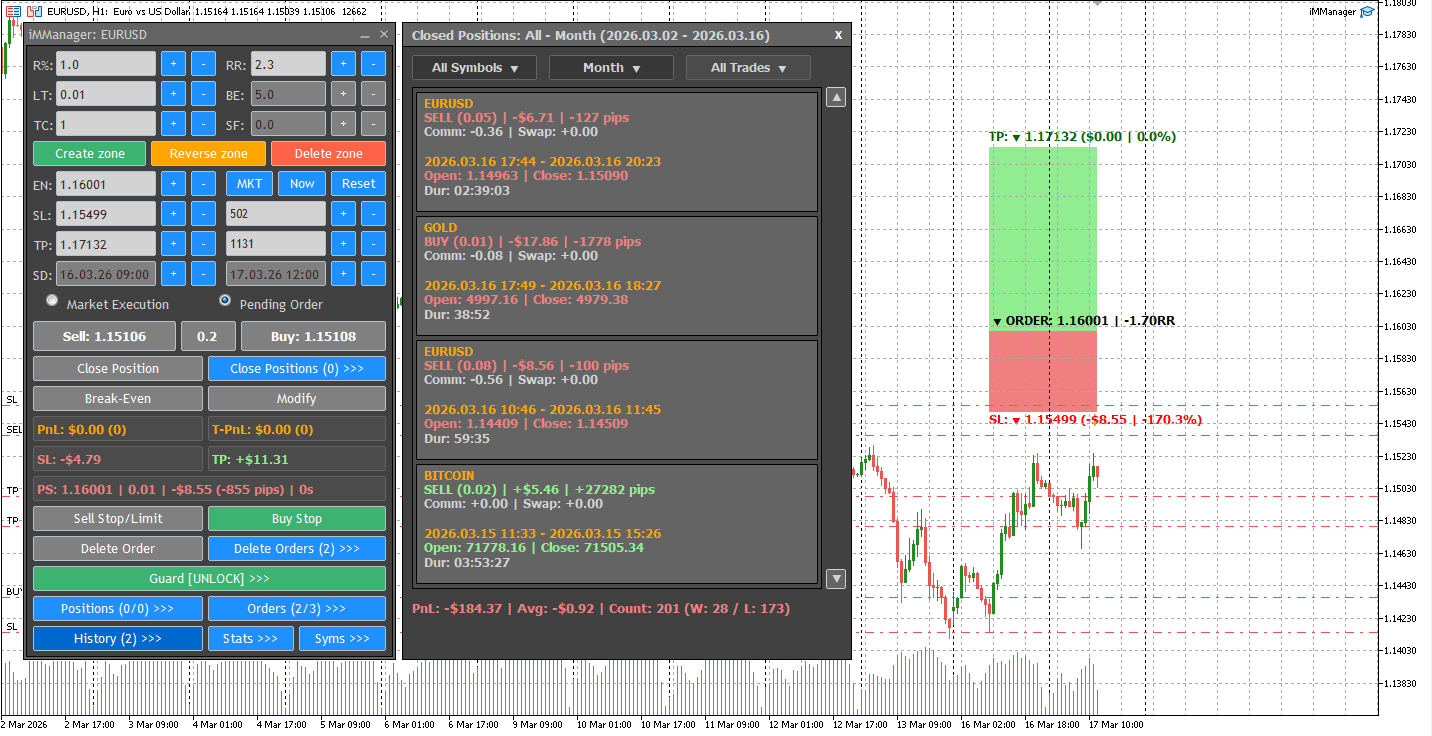
The Closed Positions panel allows you to review completed trades.
You can filter by:
- Symbol
- Period (Day / Week / Month / Year / All)
- Trade type (All / Win / Loss)
At the bottom, a summary line shows:
- Total PnL
- Average PnL
- Trade count
- Win / Loss counts
Closed trade history with filtering and summary statistics.
12. One Click Trading and Confirmations
iMManager supports two execution styles:
One Click = ON- Orders execute immediately.
- Confirmation dialog appears before:
- Opening
- Closing
- Modifying
- Deleting
This prevents accidental execution.
13. Important Notes
- Deleting zone does NOT close positions.
- Positions remain independent when TC > 1.
- Spread Filter applies only to Market Execution.
- Daily Guard applies per symbol.
Cross-symbol preview automatically switches charts if possible.
14. Hotkeys Reference
iMManager supports keyboard shortcuts for fast execution and zone control.
Zone Management
- CTRL + Shift + Z → Create Zone
- ESC → Cancel / Reset current action
- CTRL + Shift + R → Reverse Zone
- X → Delete Zone
- A → Reset Zone
Zone Alignment
- CTRL + Shift + 1 → Align Zone to Market Price
- CTRL + Shift + 2 → Align Zone to Current Date
Price Control
- ↑ / ↓ → Move entire zone up/down
- CTRL + ↑ / ↓ → Adjust Stop Loss
- Shift + ↑ / ↓ → Adjust Take Profit
Time Control
- CTRL + ← / → → Move left edge of zone
- Shift + ← / → → Move right edge of zone
Trade Execution
- CTRL + Shift + B → Execute Market Trade
- CTRL + Shift + E → Execute Pending Order
- M → Modify current position
Position Management
- Q → Close selected position
- CTRL + Shift + W → Close all positions
Pending Orders
- L → Delete selected pending order
- K → Delete all pending orders
Panel Access
- CTRL + Shift + S → Open Statistics
- H → Open History
- CTRL + Shift + O → Open Positions
- CTRL + Shift + P → Open Pending Orders
Mode Switching
- CTRL + Shift + [ → Market Order Mode
- CTRL + Shift + ] → Pending Order Mode
Risk Tools
- CTRL + Shift + F → Activate Break-Even
Go to the iMManager for MetaTrader 5 product page.
Go to the iMManager for MetaTrader 5 — User Manual (Part 1).




