

This is the first part of the complete user manual for iMManager.
Go to the iMManager for MetaTrader 5 product page.
In this section, you will learn the core concepts of the system, including:
- Introduction
- Quick Start Guide
- Execution modes
- Main panel functionality
Understanding these fundamentals is essential before moving to advanced features.
Go to the iMManager for MetaTrader 5 — User Manual (Part 2).
1. IntroductioniMManager is a professional trading and risk management system for MetaTrader 5.
iMManager is not limited to trading using price fields; it also allows you to define complete trading plans directly on the chart in a visual way.
- Entrance
- Stop loss
- Take profit
- Time range
- Risk%
- Risk/Reward
- Number of transactions (multiple transactions)
- Protection Daily protection
All content is synchronized in real time:
- Visual Trading Zone
- Risk Engine
- Vacant positions
- Orders pending processing
- Statistical data
- Daily risk control
iMManager also offers multi-asset trading management capabilities, allowing you to control and monitor trading across different assets from a single chart.
With the built-in location and order management panel, you have complete control:
- Vacant positions
- Orders pending processing
- Closed trades (historical records)
All operations, such as modifying stop-loss/take-profit orders, closing positions, or previewing positions in a zoneformat, can be performed directly through the interface.
iMManager is designed for traders who want to meet the following needs:
- Structured trade planning
- Visual risk control
- Multi-entry scaling
- Multi-symbol transaction management
- Comprehensive position and order control
- Execute securely; confirmation or one-click execution is available.
- Complete post-trade analysis
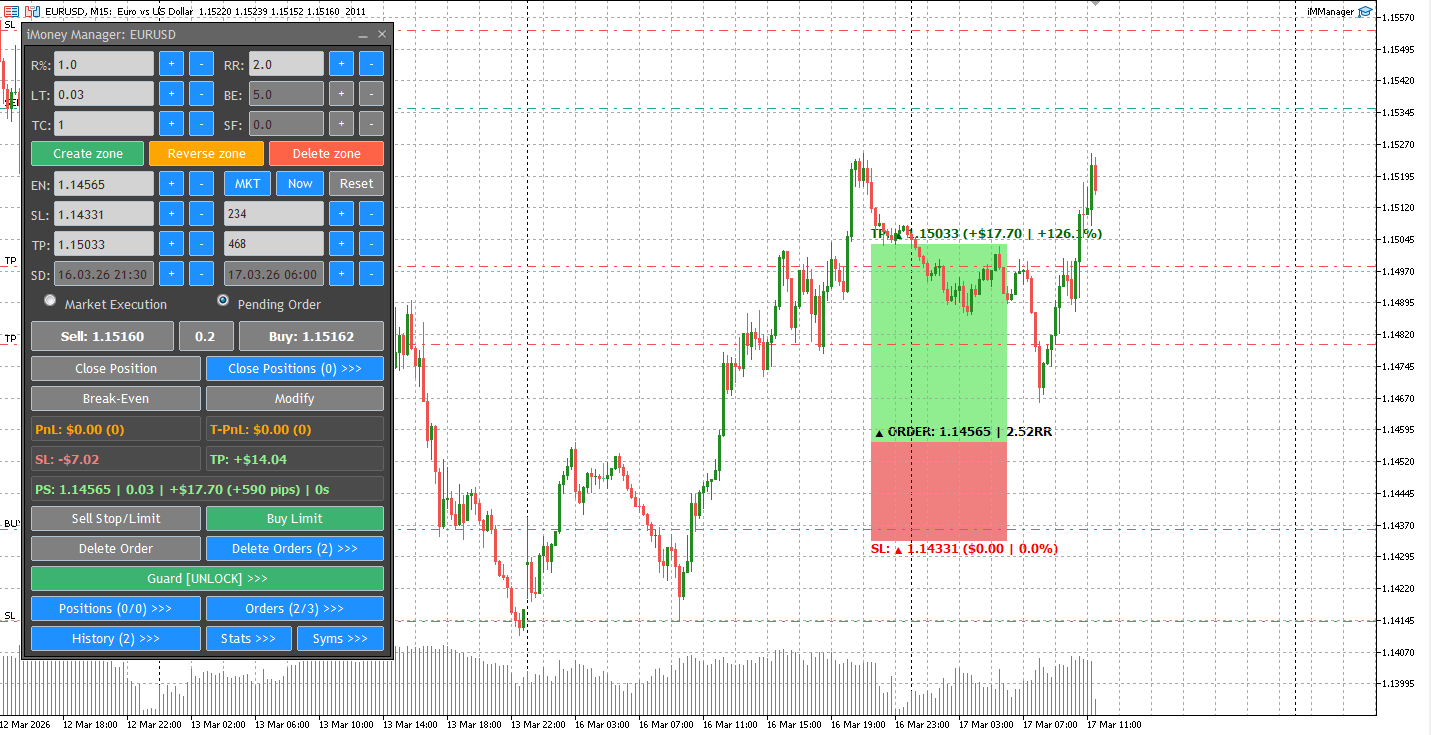
This section describes how to use iMManager to open a position and execute your first trade.
2.1. Creating a Trading Zone
- Click to create a zone
- You can define it by dragging on the chart:
- Entrance
- Stop loss
- Take profit
- Time range
When you move a zone, iMManager automatically recalculates:
- risk%
- batch
- Risk/Reward Ratio
All calculations are based on:
- Account Balance
- Entry point → Stop loss distance
- Number of transactions (TC)
Create a new trading area on the chart. 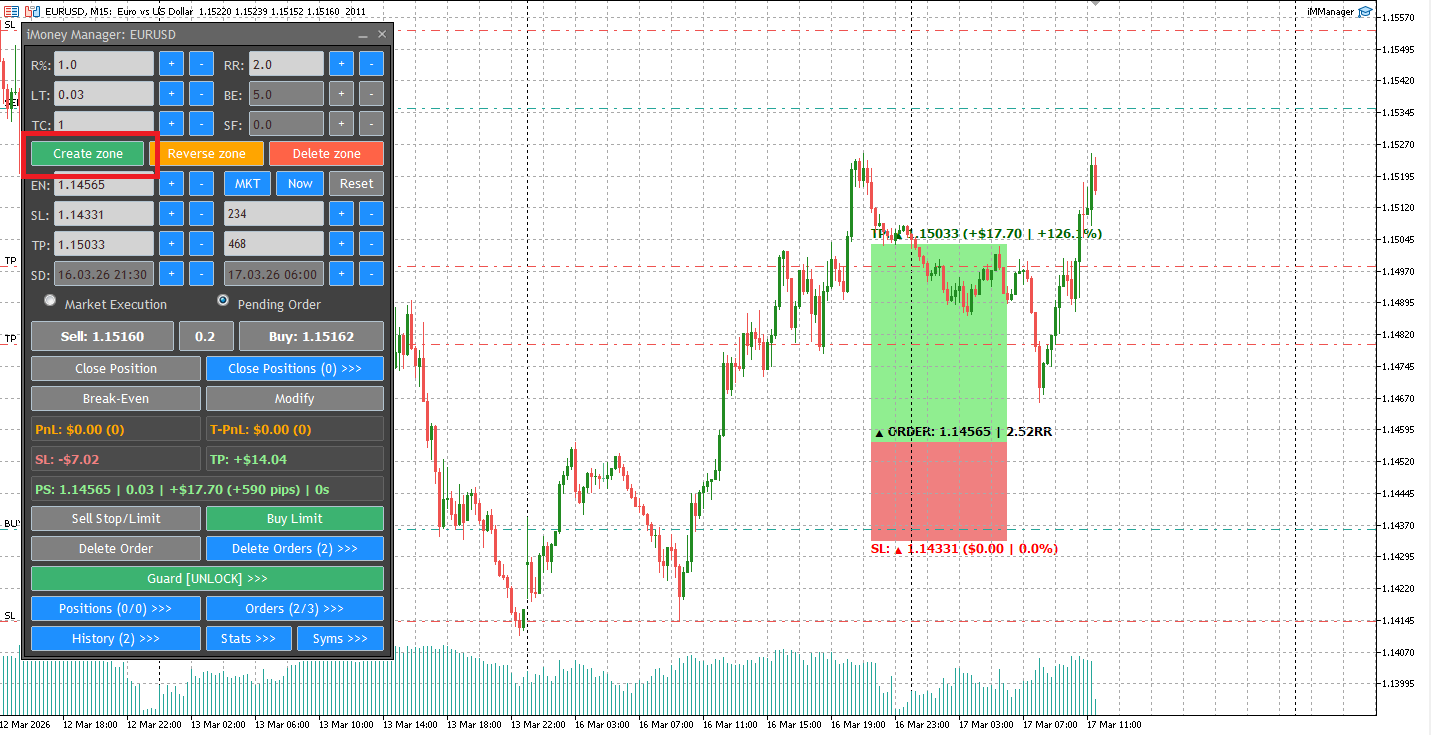
2.2. Select Execution Mode
You have two modes:
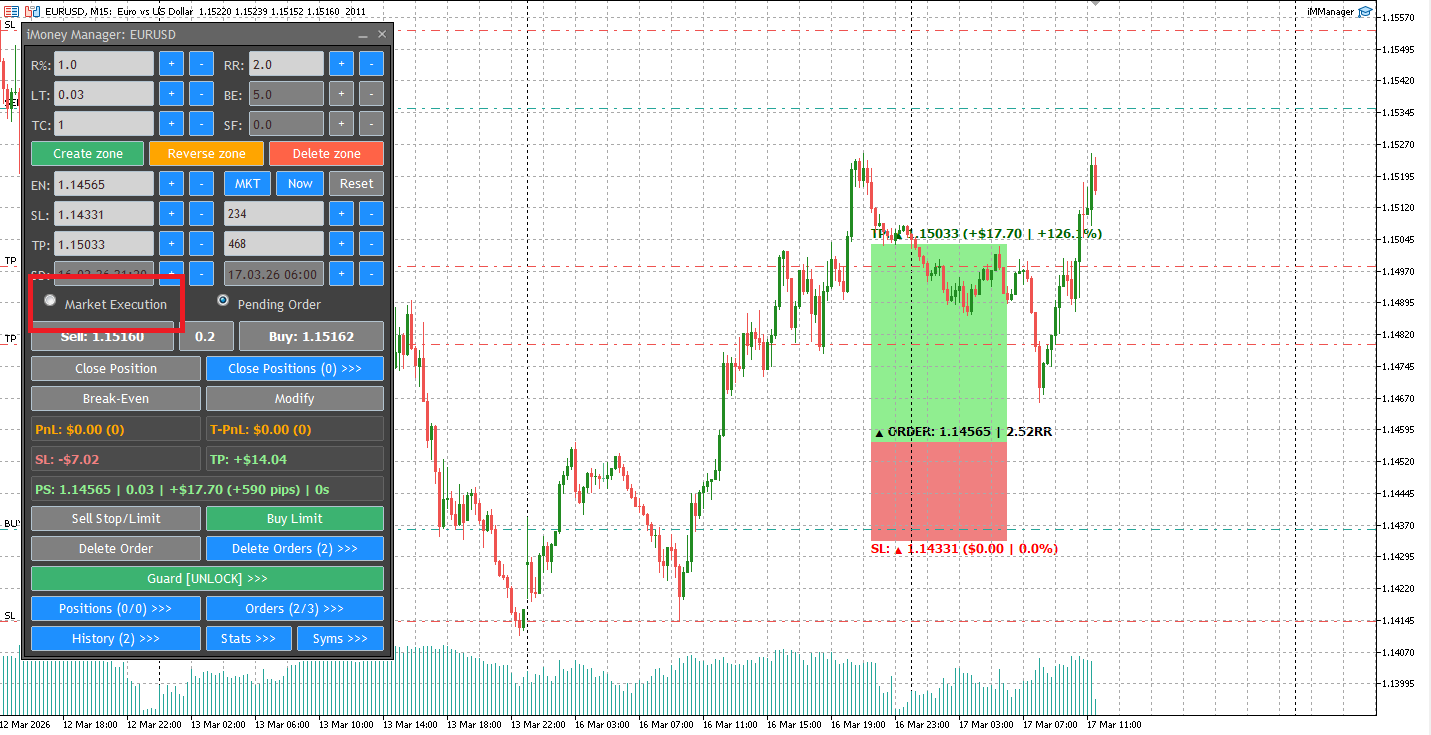
Market Execution:
- The price in this area is consistent with the current market price.
- The buy/sell button is activated.
- Spread filters can protect against high volatility risk.
- The area can be placed anywhere.
- EA automatically detects stop-loss or limit order types.
- Set a buy stop/limit order or a sell stop/limit order.
Market execution model, real-time monitoring of spreads.
The pending order mode features automatic stop-loss/limit order detection. 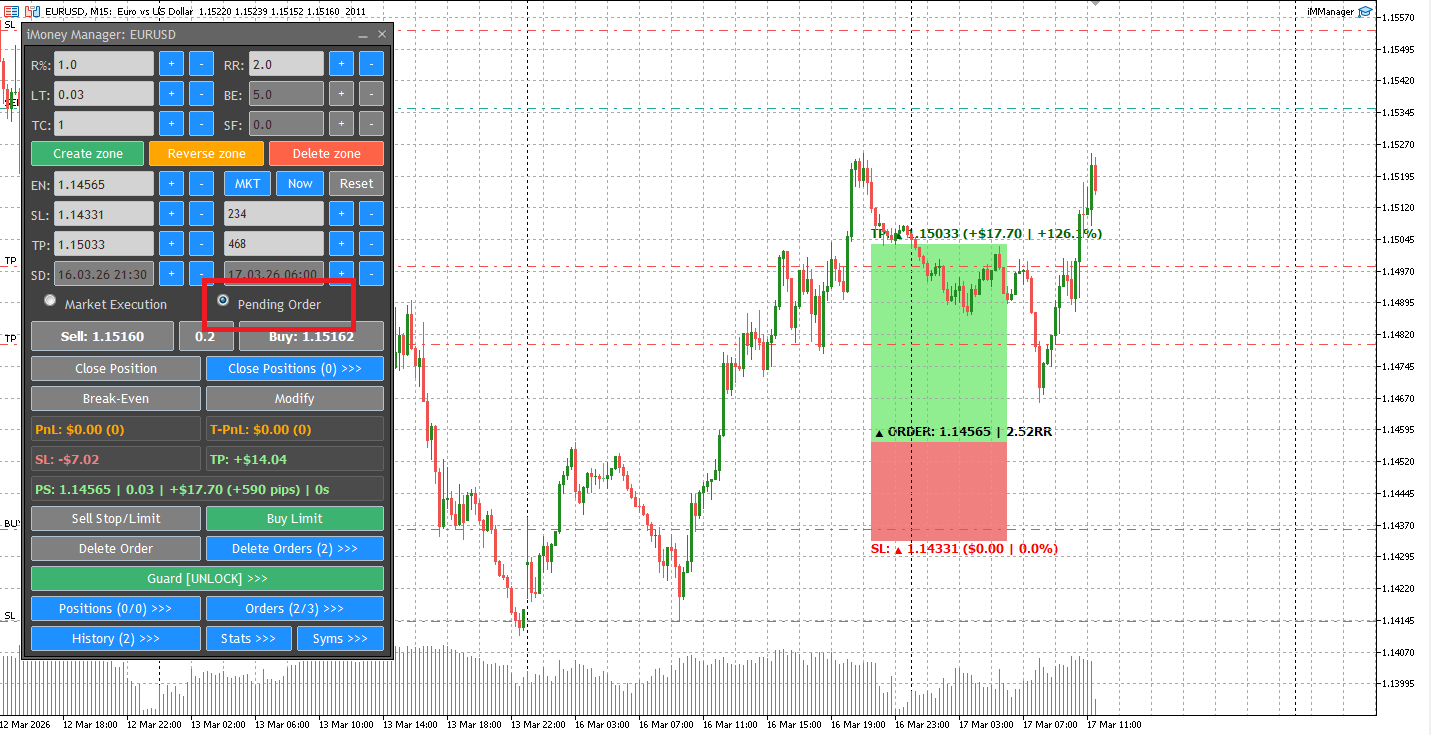
2.3. Execute the transaction
If "One-Click Transaction" is enabled:
- The order will be executed immediately.
If "One-Click Transaction" is turned off:
- A confirmation dialog box appears.
If the spread exceeds your spread filter (SF) value:
- The buy/sell buttons have been automatically disabled.
2.4. Monitoring and Management
After execution, you can:
- Preview location as area
- Modify SL/TP
- Manually move the stop point
- Activate break-even point
- Closing a single position
- Close all selected positions.
All management tasks can be completed:
- From the main panel
- From the "Location" dialog box
- From the main panel
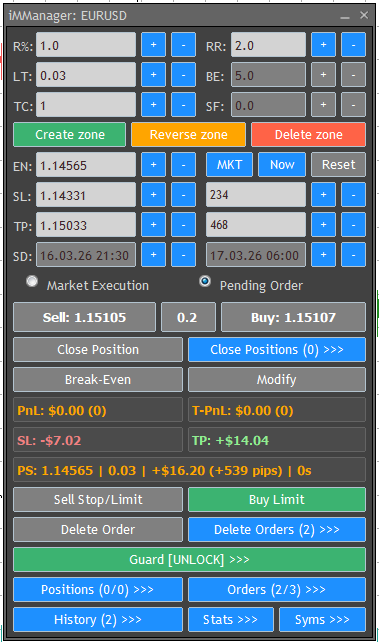
This section explains every field and control in the main iMManager panel.
iMManager main control panel.
3.1 Risk and Position Parameters
Risk (%)
Defines how much of your Account Balance you are willing to risk.
- Changing Risk% automatically recalculates Lot size.
- Risk is calculated using:
- Entry → Stop Loss distance
- Trade Count (TC)
- Account Balance
Risk always reflects the total exposure of all entries combined.
Lots
Defines position size.
- Changing Lots automatically recalculates Risk %.
- Fully synchronized with zone geometry.
- Works for both Market and Pending modes.
RR (Risk/Reward)
Defines target reward relative to risk.
- Adjusting RR automatically moves Take Profit.
- Zone updates instantly.
BE (Break-Even %)
Break-Even threshold expressed as a profit percentage.
Example:
- BE = 5%
- When current profit reaches 5%,
- Break-Even button activates.
- Clicking it redraws zone with safe stop.
You may also manually move Stop Loss to BE.
The BE value recalculates automatically.
TC (Trade Count)
Defines how many independent positions to open.
Example:
- TC = 3 → 3 separate orders.
- Risk and profit values are scaled accordingly.
Positions are independent and not linked.
SF (Spread Filter)
Maximum allowed spread (in pips) for Market Execution.
- Spread updates live between Buy/Sell buttons.
- If spread exceeds SF value:
- Buy/Sell buttons are disabled.
- Execution is blocked.
This protects against volatile market conditions.
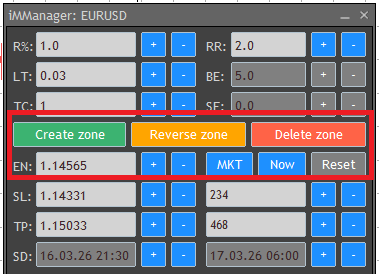
3.2 Zone Control Buttons
Create zone
Creates a new trading zone.
Reverse zone
Flips Buy ↔ Sell by reversing SL and TP around Entry.
Delete zone
Removes the visual zone only.
Open positions remain active.
Reset zone
If no preview active:
- Restores original zone geometry.
If preview active:
- Restores original position/order parameters (Risk, Lots, RR, BE, TC, SF).
MKT zone
Moves Entry to current market price while keeping SL/TP structure.
Now zone
Moves zone to current chart time.
Zone management controls.
3.3 Price and Time Fields
These fields allow precise manual control:
- EN — Entry price
- SL — Stop Loss
- TP — Take Profit
- SD — Start Date/Time
- ED — End Date/Time
All values are editable.
Any change updates:
- Risk %
- Lot size
- RR
- Monetary values
- Pips calculation
3.4 Execution Mode Section
Two modes available:
- Market Execution
- Pending Order
Market mode aligns zone with live price.
Pending mode allows free placement.
3.5 Position Management Buttons
These become active when previewing a position or after execution.
- Close Position
- Break-Even
- Modify
- Sell Stop/Limit
- Buy Stop/Limit
- Delete Pending Order
All actions respect:
- One Click mode
- Confirmation dialogs (if enabled)
3.6 Live Information Panel (Bottom Section)
Real-time trade metrics and risk information.
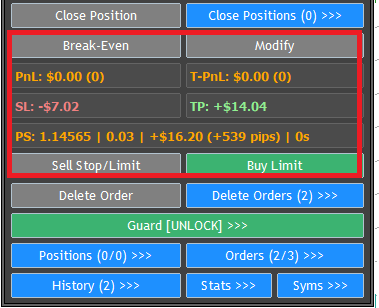
This section shows:
Symbol PnL
Live PnL for current symbol.
Total PnL
Combined PnL for all symbols.
SL / TP Monetary Values
Displays:
- SL in $
- SL in pips
- TP in $
- TP in pips
- Scaled by TC
PS Line (Position Summary)
Displays:
- Entry price
- Lots
- Risk %
- Pips
- Timer / duration
All values update live.
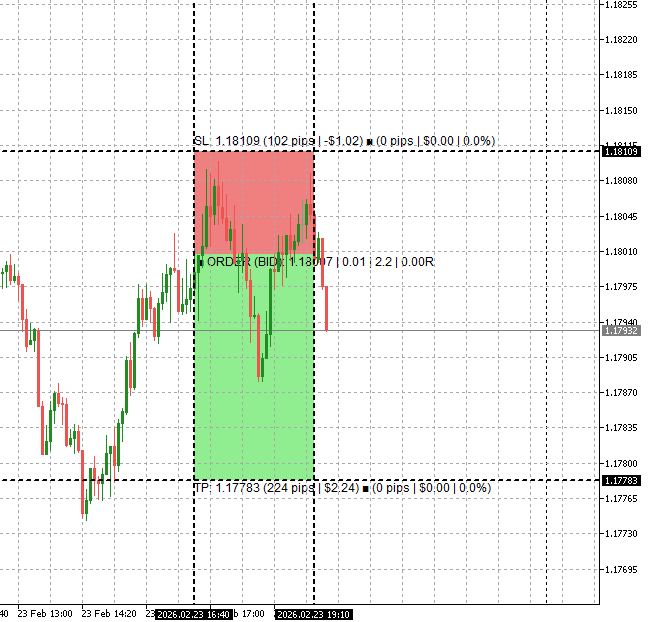
4. Zone Interaction and Chart BehavioriMManager is fully interactive.
You can:
- Drag Entry
- Resize Stop Loss
- Resize Take Profit
- Move time edges
- Move entire zone
Every change updates calculations instantly.
Visual adjustment of Stop Loss and Take Profit.
Important:
Deleting zone does NOT close position.
Zone is only a visual planning object.
You can always re-preview position from Positions panel.
Go to the iMManager for MetaTrader 5 product page.
Go to the iMManager for MetaTrader 5 — User Manual (Part 2).




