[Exo Scalper] Professional, reliable & safe XAUUSD trading robot.
Introducing a simple and reliable automated trading tool, Exo Scalper is an Expert Advisor specifically designed for the XAUUSD currency pair.
Exo Scalper is an Expert Advisor designed with a price strength comparison model summarized in a box zone indicator. Each box zone identifies a trend level within a specified candlestick period. The integration between the boxes has been thoroughly customized and is designed for scalping, providing more precise entry signals. The testing model not only uses the "Every tick based on real ticks" mode but is also adjusted by adding Commission and Swap to ensure test results are close to or identicaCheck it out now.l to actual ticks in the real market.
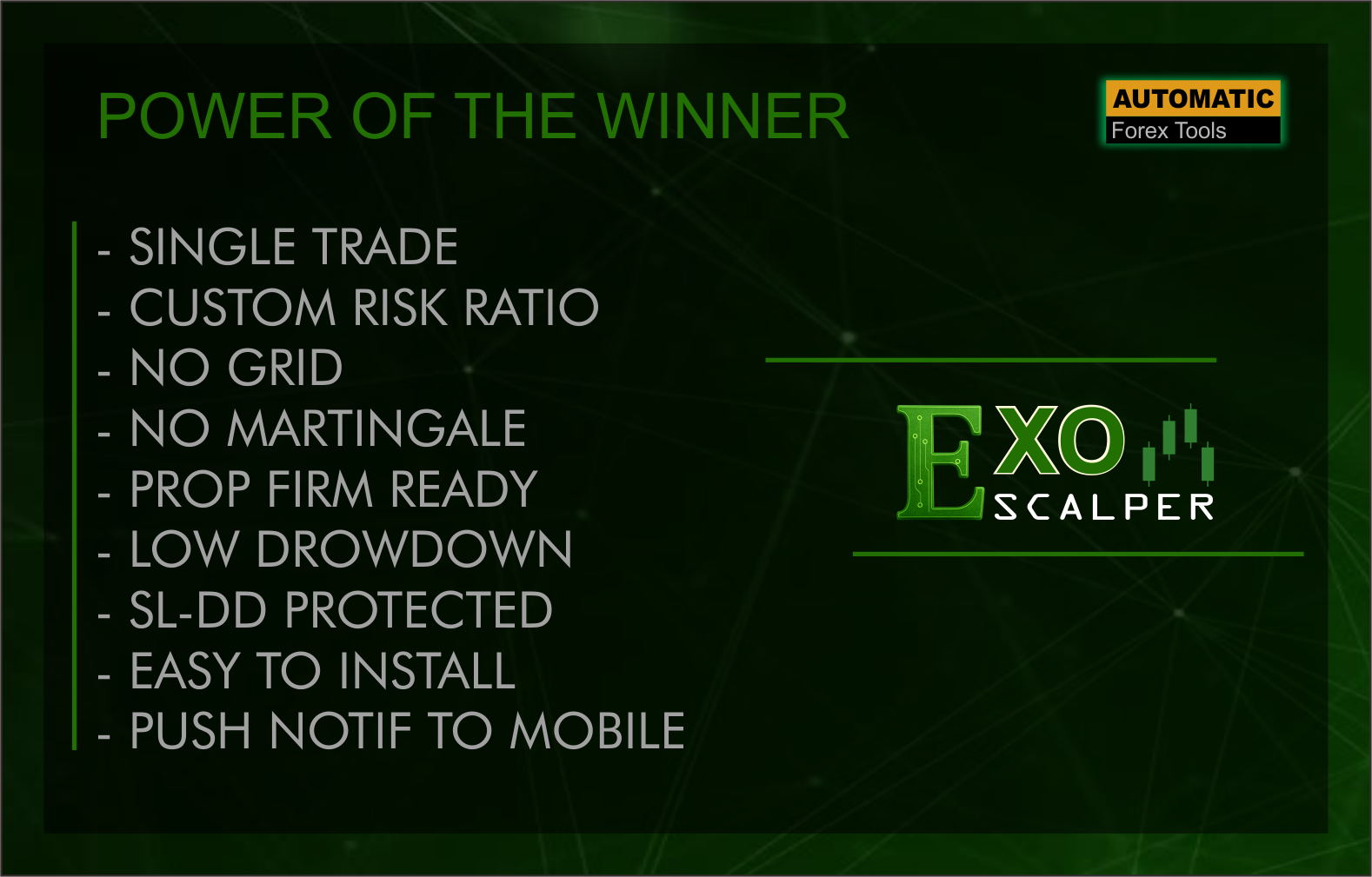
Exo Scalper is designed for scalping in the GOLD market, where this EA only uses a single entry and must always use a StopLoss on each position.
Check it out now.
Product Links: https://www.mql5.com/en/market/product/156752
# Input Parameter
| Magic Number | Unique number for grouping orders from EA. |
| Lot Size | Default Lot Fixed. |
| Use Auto Lot | Option to enable auto lot. If this option is turned OFF then the default lot (fixed) will be used |
| Risk Ratio | The risk size of the lot is proportional to the balance. this is an option provided for automatic lot size. This will be active if Use Auto Lot = ON. |
| Custom Risk Ratio [Balance:Lot] | Customize the lot value scale in comparison to the balance. To use this you need to change the "Risk Ratio" to Custom Ratio. |
| Take Profit in Point | TakeProfit in Point units |
| Stop Loss in Point | StopLoss in Point units |
| Filling Mode | Charging Mode for transactions. If the AUTO mode test cannot handle the entry, try each mode one by one. |
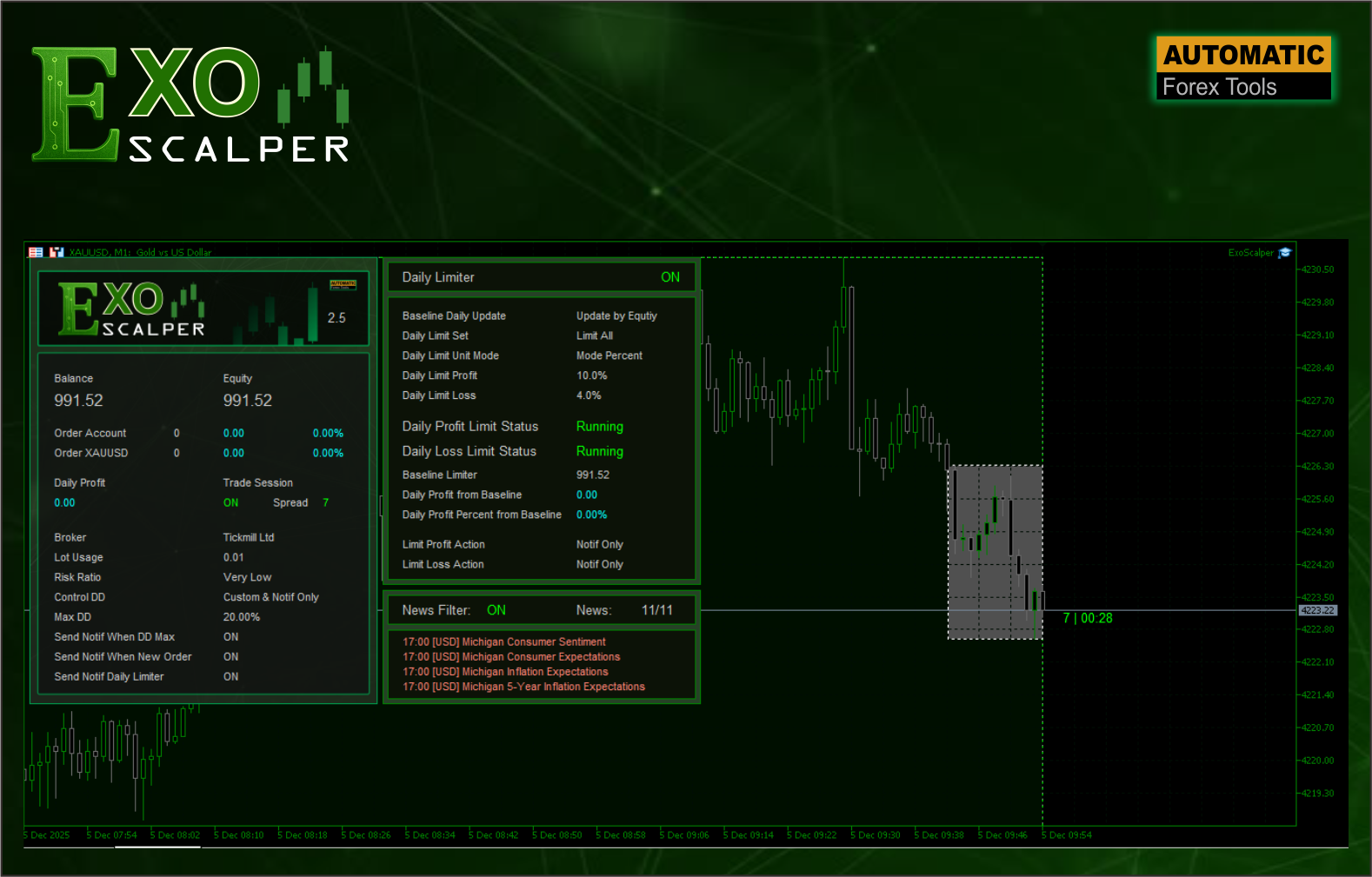
| Control DD | Option to enable Drowdown Limitation. DD None = OFF. DD Custom & Close All = active and will close the order. DD Custom & Notif Only = active and only send notifications via MQID to MT5 mobile. If you choose DD Custom, then you need to set the maximum limit on the Max DD input. |
| Max DD | Maximum Drowdown Limit in percent (%) |
| Max Spread Point | The maximum spread value for placing an order. |
| Use Trailing Point/Stop | Option to use trailing point / trailing stop. |
| Trailing Point | Trailing point/stop distance in points. |
| Strart Trailing Point | The trailing start is executed in point units. |
| Send Notif When DD Max | Send notification when order reaches Maximum Dropdown limit. |
| Send Notif When New Order | Send notification when EA makes a New Order. |
| Show Display Panel | Option to display the trading info panel. |
| Show Display Box Panel | Option to display the box zone candle. |
# Send Push Notifications MQID
To configure push notifications sent to MT5 mobile, you'll receive notifications when an EA places an order or the maximum drawdown is reached. See the article below:
How to activate MQID push notifications: https://www.mql5.com/en/blogs/post/765747
# Input Settings
For input settings at the time of writing, the default settings are the best. There are a few optional settings you may need to change, such as: - - Max Spread Point: Adjust to the average spread at your broker.
- Other optional settings that don't significantly affect performance, such as:
* Display Layout
* and Send Notifications Option
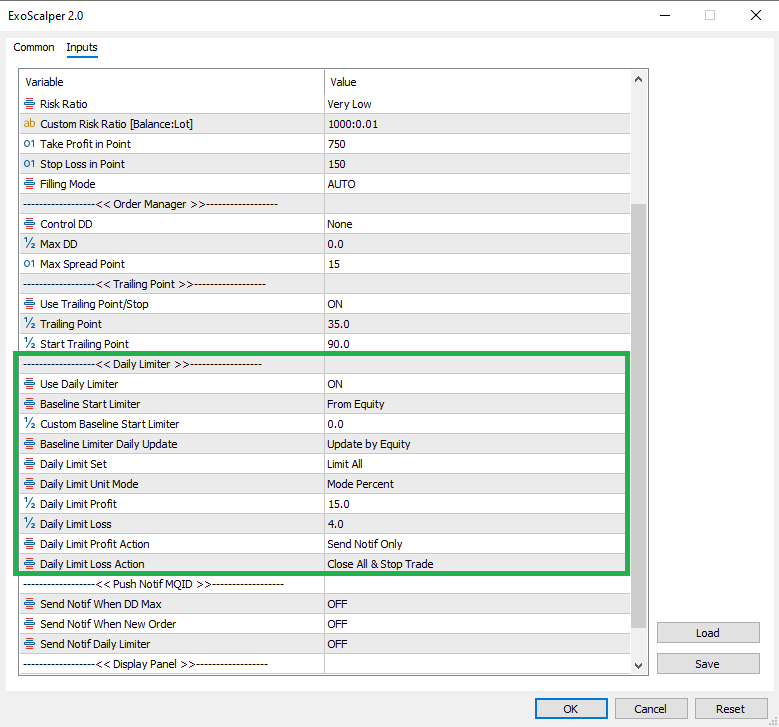
# New Settings Daily Limiter / PROP FIRM
# Input Parameter Daily Limiter
| Use Daily Limiter | Input to Activate Daily Limiter Mode |
| Baseline Start Limiter | Reference amount for basic limit calculation when EA is activated |
| Custom Baseline Start Limiter | Custom amount if at certain moments requires the EA to be reset. |
| Baseline Limiter Daily Update | Basic calculation reference for each change at the beginning of the day, this is intended if there are orders that stay overnight. |
| Daily Limit Set | Mode applied for daily restrictions |
| Daily Limit Unit Mode | Units applied for calculation of restrictions |
| Daily Limit Profit | Limit value for profit limitation |
| Daily Limit Loss | Limit value for loss limitation |
| Daily Limit Profit Action | Actions applied if the profit limit amount is reached |
| Daily Limit Loss Action | Actions applied if the loss limit amount is reached |
Fundamental Differences between Daily Limiter and Max Drawdown:
- The Daily Limiter uses Balance and Equity parameters, which are calculated at the Account Level (Order Account), which will affect the use of Multi-EAs.
- The Max Drawdown setting, on the other hand, only reacts at the Market Level (Order Market) and is not affected by the use of Multi-EAs.