

AI News Strike EA v1.0 Onboarding Manual & Set Files
AI News Strike EA — MQL5 Market page:https://www.mql5.com/en/market/product/153455
1. Overview
AI News Strike EA (NSE) is a next‑generation scalping EA that targets economic release spikes by combining the “GDELT Project,” one of the world’s largest news databases, with Perplexity Sonar‑Pro’s real‑time web search AI.
■ Phase 1: Automatic retrieval of economic‑release data via the GDELT Project
The GDELT Project is a massive big‑data initiative that collects and analyzes hundreds of millions of news articles every day from 100+ countries in 100+ languages. This EA uses GDELT’s aggregated economic news to automatically obtain scheduled release time, importance, expected volatility range, and target currency for major indicators.
■ Phase 2: Real‑time market analysis via Perplexity Sonar‑Pro
Traditional AI only analyzes past data. Perplexity Sonar‑Pro instantly searches and analyzes “last‑minute news, market sentiment, and expert takes”. Pulling from multiple trusted sources (Bloomberg, Reuters, CNBC, etc.), it infers the market’s expectations within minutes and auto‑decides BUY/SELL direction and confidence (★1–5).
■ Phase 3: Engineered to capture the spike’s first move
Beyond the released numbers, the AI predicts “how markets will react”, delivering precision that sets it apart from conventional news EAs. With optimal pre‑release entry timing, fast post‑release close, and a dynamic exit, it is built to go after the initial spike.
“Global big data × real‑time AI analysis × economic‑release spike trading” accelerates decision‑making and execution. It supports major pairs (EURUSD, USDJPY, GBPUSD, etc.) and high‑volatility gold (XAUUSD). ※ XAUUSD and minor pairs will be extended in future updates.
- Platform: MetaTrader 5 (MT5)
- Recommended timeframe: M1–M15 (not dependent on timeframe setting)
- Recommended symbols: EURUSD / USDJPY / GBPUSD / XAUUSD and other majors
- Recommended brokers: ECN / RAW accounts (ultra‑low spreads preferred)
- Targeted volatility: Designed to capture ±20–50 pips (or more) in a short time
2. Installation
Automatic install
If purchased on the MQL5 Market, install from “Navigator” > “Market”.
Manual install
- Copy AI News Strike EA.ex5 to MQL5\Experts\
- Restart MT5
Attach to chart
- Open any symbol/timeframe (the EA auto‑maps to the correct currency for each release)
- Navigator → Expert Advisors → AI News Strike EA → drag & drop
- Check “Allow algorithmic trading” → OK
- Symbol suffixes set by brokers (e.g., .m, #) are auto‑resolved
Important:
The EA auto‑detects target currencies and trades the optimal pair regardless of which chart you attach it to.
You do not need pair‑specific charts. It handles each news release automatically from any chart.
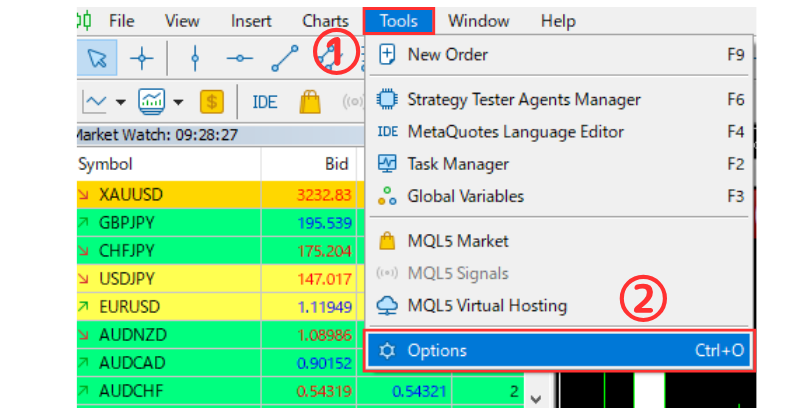
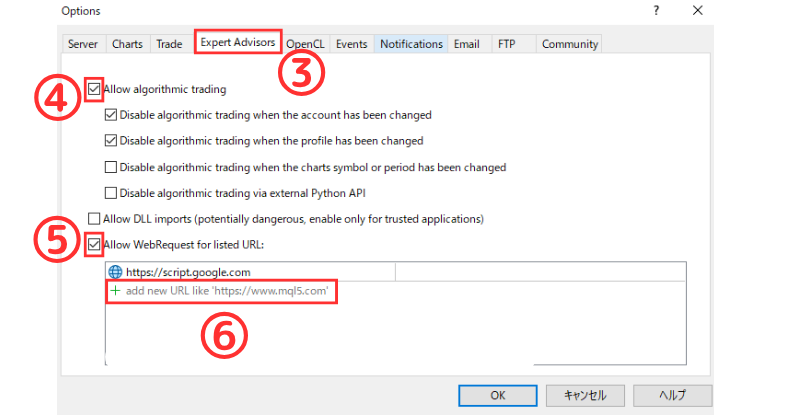
Be sure to add https://script.google.com and https://api.perplexity.ai under [Tools] → [Options] → [Expert Advisors] → WebRequest allowed URLs.
They are required for data retrieval and AI analysis.
3. How to obtain your Perplexity API key
You need a Perplexity API key to use AI analysis. We recommend obtaining the key in advance.
- Visit Perplexity AI
- Create an account and log in
- Go to the API settings page and generate an API key
- Copy the generated key
- Paste it into the EA parameter InpPerplexityKey
For detailed steps, see this guide.
https://www.mql5.com/en/blogs/post/764935
Why Sonar‑Pro?
Perplexity offers two models, “Sonar” and “Sonar‑Pro.” This EA recommends Sonar‑Pro by default for the following reasons:
- More advanced reasoning: understands complex interactions among economic indicators
- More accurate extraction: pulls key facts from massive multi‑source news
- More reliable decisions: analysis tuned for financial‑market context
You can choose “sonar” or “sonar‑pro” via InpPerplexityModel, but if you prioritize trade accuracy we strongly recommend sonar‑pro.
Note: The Perplexity API may incur fees. See the Perplexity pricing page.
4. Initial recommended settings (AI News Strike EA v1.0)
| Group | Setting | Recommended for beginners |
|---|---|---|
| AI Settings | InpPerplexityKey | (Enter your Perplexity API key) |
| AI Settings | InpUseAI | true |
| AI Settings | InpAILeadMinutes | 3 (run AI analysis 3 minutes before) |
| Data Feed | InpDataFetchIntervalSec | 7200 (fetch economic calendar every 2 hours) |
| Entry Timing | InpLeadSec | 45 (enter 45s before release) |
| Entry Timing | InpMaxEntryDelay | 10 (allow up to 10s delay) |
| Exit | InpForceCloseSec | 30 (force close 30s after release) |
| Spike Trade | InpUseDynamicExit | true (enable dynamic exit) |
| Filters | InpMinStars | 3 Stars (★3 or higher) |
| Filters | InpMinVolPips | 20 (min. expected volatility 20 pips) |
| Spread Filter | InpMaxSpreadPips | 10.0 (ECN/RAW account recommended) |
| Lot | InpFixedLot / InpVariableLot | 0.01 (start small) / true |
| Stop Loss | InpUseInitSL / InpInitSLPips | true / 100 |
5. Parameter Reference (ERS EA v1.0)
Inputs are grouped by function. Do not tune everything at once—adjust and test by block.
| Group / Parameter | Purpose | Default |
|---|---|---|
| 📡 Data Feed Settings | ||
| InpDataFetchIntervalSec | Refresh interval for economic data (seconds) | 7200 (2 hours) |
| 🌐 Timezone Settings | ||
| InpServerUtcOffsetOverride | Manual server UTC offset (‑999 = auto) | -999 |
| InpShowMultiTimezone | Show multiple time zones | true |
| InpAutoDeletePastEvents | Auto‑delete past events | true |
| InpPastEventKeepMinutes | Retention time for past events (minutes) | 5 |
| 🤖 AI Settings | ||
| InpUseAI | Enable AI analysis | true |
| InpPerplexityKey | Perplexity API key | xxx-xxx-xxx |
| InpPerplexityUrl | Perplexity API endpoint | https://api.perplexity.ai/chat/completions |
| InpPerplexityModel | Perplexity model (sonar / sonar‑pro) | sonar-pro |
| InpAILeadMinutes | Lead time to run AI analysis (minutes) | 3 |
| ⏱️ Entry Timing | ||
| InpLeadSec | Seconds before release to enter | 45 |
| InpMaxEntryDelay | Max entry delay (seconds) | 10 |
| 🚪 Exit Settings | ||
| InpForceCloseSec | Force‑close seconds after release | 30 |
| InpMaxHoldHours | Maximum holding time (hours) | 2 |
| 📊 Spike Trade Settings | ||
| InpUseDynamicExit | Enable dynamic exit | true |
| InpDynExitPipsFromPeak | Close when price pulls back from peak by (pips) | 5 |
| InpDynExitMinProfitPips | Minimum profit for dynamic exit (pips) | 3 |
| 🎯 Filters | ||
| InpMinStars | Minimum importance (★1–5) | 3 Stars |
| InpMinVolPips | Minimum expected volatility (pips) | 20 |
| InpMinConfidencePreRelease | Minimum confidence for pre‑release entries (%) | 60 |
| 📏 Spread Filter | ||
| InpMaxSpreadPips | Max allowed spread (pips) | 10.0 |
| 💰 Lot Settings | ||
| InpVariableLot | Enable lot scaling by confidence | true |
| InpFixedLot | Base lot | 0.01 |
| InpMaxLot | Maximum lot | 1.0 |
| 🛑 Stop Loss Settings | ||
| InpUseInitSL | Enable stop loss | true |
| InpInitSLPips | Stop‑loss distance (pips) | 100 |
| ⚠️ Risk Management | ||
| InpMaxConcurrent | Max concurrent positions | 3 |
| InpDailyDrawdownPercent | Daily maximum drawdown (%) | 5.0 |
| 🎨 Display Settings | ||
| InpFontSize | Panel font size | 9 |
| InpHeaderColor | Header color | clrDodgerBlue |
| 📝 CSV Log Settings | ||
| InpEnableCSVLog | Enable CSV logging | false |
| InpCSVLogFolder | Log folder name | ERS_Logs |
| 🔧 Advanced Settings | ||
| InpMagicBase | EA identifier (magic base) | 87654321 |
| InpSlippage | Allowed slippage (pips) | 5 |
6. Beginner Checklist
Please confirm the following before going live:
| Item | Status |
|---|---|
| ✅ Allow WebRequest for https://script.google.com and https://api.perplexity.ai | □ |
| ✅ Set your Perplexity API key in InpPerplexityKey | □ |
| ✅ Set InpUseAI = true (recommended) | □ |
| ✅ Start with small lots (0.01–0.05) | □ |
| ✅ Enable stop loss with InpUseInitSL = true | □ |
| ✅ Use ECN/RAW accounts (low spreads) | □ |
| ✅ Demo‑test for at least one week | □ |
7. Recommended Parameter Sets (3 types)
This EA includes three presets based on risk tolerance. Download the set files below.
📂AI_News_Strike_EA_HighRisk.set
📂AI_News_Strike_EA_Balanced.set
📂AI_News_Strike_EA_LowRisk.set
For first‑time users we strongly recommend starting with the Low‑Risk set.
📊 Set Selection Guide
| Type | Best for | Minimum capital | Characteristics |
|---|---|---|---|
| 🔴 High‑Risk | Advanced traders with experience | $5,000+ | Aggressive; aims for larger returns |
| 🟡 Balanced | Intermediate users seeking standard operation | $2,000+ | Good risk‑return balance |
| 🟢 Low‑Risk | Beginners / safety‑first | $1,000+ | Prioritizes safety; trades only high‑quality setups |
⚙️ Detailed Parameter Comparison
| Parameter | 🔴 High‑Risk | 🟡 Balanced | 🟢 Low‑Risk |
|---|---|---|---|
| Risk & Lot Settings | |||
| InpRiskPercent | 2.5 | 1.0 | 0.5 |
| InpFixedLot | 0.05 | 0.01 | 0.01 |
| InpLotMultiplier5 | 3.0 | 2.0 | 1.5 |
| InpLotMultiplier4 | 2.0 | 1.5 | 1.2 |
| Entry Settings | |||
| InpLeadSec | 60 | 45 | 30 |
| InpMaxEntryDelay | 15 | 10 | 5 |
| InpAILeadMinutes | 3 | 3 | 5 |
| Exit Settings | |||
| InpForceCloseSec | 45 | 30 | 20 |
| InpMaxHoldHours | 48 | 24 | 12 |
| InpDefaultExitSec | 45 | 30 | 25 |
| Filter Settings | |||
| InpImportanceFilter | All | High + Med | High Only |
| InpMinStars | 1 Star | 3 Stars | 4 Stars |
| InpMinVolPips | 15 | 20 | 30 |
| InpMaxSpreadPips | 15.0 | 10.0 | 5.0 |
| InpMaxConcurrent | 5 | 3 | 1 |
| InpMinInitialSpike | 10.0 | 15.0 | 25.0 |
| InpMinConfidencePreRelease | 2 | 4 | 5 |
| InpSkipLowSurprise | false | true | true |
| InpSkipFalseSpike | false | true | true |
| Stop‑Loss Settings | |||
| InpUseSL | true | true | true |
| InpSLPips | 150 | 100 | 80 |
| InpTrailStartPips | 30 | 25 | 20 |
| InpTrailStopPips | 25 | 20 | 15 |
| Take‑Profit Settings | |||
| InpUseTP | true | true | true |
| InpTPPips | 200 | 150 | 120 |
| InpPartialClosePips | 80 | 60 | 50 |
| Breakeven | |||
| InpBreakevenPips | 40 | 30 | 25 |
| InpBreakevenOffset | 10 | 8 | 5 |
| Risk Management | |||
| InpDailyDrawdownPercent | 8.0 | 5.0 | 2.0 |
| InpMaxSlippage | 5 | 4 | 3 |
📈 Expected Performance (reference)
| Metric | 🔴 High‑Risk | 🟡 Balanced | 🟢 Low‑Risk |
|---|---|---|---|
| Monthly trades (approx.) | 15–25 | 8–15 | 3–8 |
| Expected monthly return | 10–20% (highly variable) | 5–10% (moderate) | 2–5% (steadier) |
| Max drawdown (approx.) | 15–25% | 8–15% | 3–8% |
| Win rate (expected) | 45–55% | 50–60% | 55–65% |
🔄 How to load set files
Steps in MT5:
- Launch MT5 and drag & drop the EA onto a chart
- When the input window opens, click the “Load” button
- Select the desired .set file:
- AI_News_Strike_EA_HighRisk.set — High‑Risk
- AI_News_Strike_EA_Balanced.set — Balanced (recommended)
- AI_News_Strike_EA_LowRisk.set — Low‑Risk
- Click “OK” to apply
⚠️ After loading a set file, always verify:
- InpPerplexityKey: enter your key (replace "xxx-xxx-xxx")
- InpCurrencyFilter: specify pairs to trade (blank = all)
- InpMagicNumber: change as needed to distinguish from other EAs
- Timezone: confirm server UTC offset
💡 Phased approach (recommended)
Suggested rollout:
| Step | Duration | Setup | Goal |
|---|---|---|---|
| STEP 1 | 1–2 months | 🟢 Low‑Risk | Understand behavior and evaluate results |
| STEP 2 | 2–3 months | 🟡 Balanced | Capture more opportunities |
| STEP 3 | Ongoing | 🔴 High‑Risk (optional) | Pursue maximum performance |
Note: These performance estimates assume ideal conditions. Actual results vary with market conditions. Always demo test thoroughly before going live.
8. FAQ
Q1. Is AI analysis required?
A. Strongly recommended, but not mandatory.
You can set InpUseAI = false to run without AI. Without AI, trades rely only on importance and expected volatility, so you lose the “how markets will react” prediction.
With Perplexity Sonar‑Pro you can:
- Capture last‑minute market sentiment
- Account for surprises (geopolitics, central‑bank remarks, etc.)
- Aggregate multiple sources into a single decision
Q2. Which brokers are recommended?
A. ECN or RAW accounts are strongly recommended. Tighter spreads improve spike‑trade success.
Q3. Can I backtest?
A. The EA depends on real‑time calendar and AI analysis, so conventional backtesting isn’t supported. Use forward testing or a demo account.
Q4. Can it run across multiple pairs at once?
A. Yes. Attach the EA to one chart only and it will monitor and trade all relevant pairs automatically. No need to attach to multiple charts.
Q5. Time zone displays are incorrect
A. Adjust with InpServerUtcOffsetOverride. Enter the broker server offset to UTC (e.g., for GMT+2 enter “2”).
Q6. A spike occurred but no trade was placed
A. Please check:
- Confidence meets InpMinStars
- Expected volatility ≥ InpMinVolPips
- Current spread ≤ InpMaxSpreadPips
- Not exceeding InpMaxConcurrent
- InpMinConfidencePreRelease not set too high
9. Optimization Tips
📊 Per‑pair tuning
- EURUSD / GBPUSD: good results on standard settings
- USDJPY: volatility is lower; consider InpMinVolPips = 15
- XAUUSD (Gold): highly volatile; consider widening InpInitSLPips to 200–300
⏰ By trading session
- Europe (approx. 15:00–23:00 JST): liquid; standard settings work well
- US (approx. 21:30–06:00 JST): most key releases; more aggressive settings recommended
- Asia (approx. 9:00–15:00 JST): thinner liquidity; tighten InpMaxSpreadPips
🎯 Strategy by Stars (confidence)
- ★5: max lot, longer hold (~60s)
- ★4: standard lot, standard hold (30–45s)
- ★3: small lot, shorter hold (20–30s)
10. Troubleshooting
❌ “WebRequest not allowed”
Fix:
- MT5 menu → Tools → Options → Expert Advisors
- Add the following to “Allow WebRequest for listed URL”:
- Restart MT5
❌ “AI Analysis Failed”
Fix:
- Confirm your Perplexity API key
- Check API availability/quotas
- Verify Internet connectivity
- You can also set InpUseAI = false to run without AI
❌ Unable to fetch economic data
Fix:
- Re‑check WebRequest permissions
- Ensure firewall/VPN is not blocking
- Check the Experts tab logs
❌ Positions do not close
Fix:
- Verify InpMaxHoldHours
- Check InpForceCloseSec
- Confirm broker‑side trading restrictions
11. How to collect logs for troubleshooting
When issues occur (or to help improve the EA), sharing logs allows rapid diagnosis.
Basic log retrieval
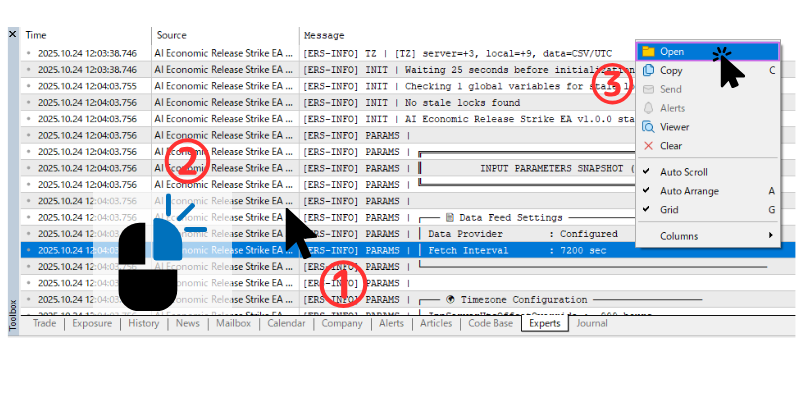
- At the bottom of the MT5 chart, open the “Experts” tab in the Toolbox
- Right‑click anywhere inside the tab
- Select “Open” from the menu
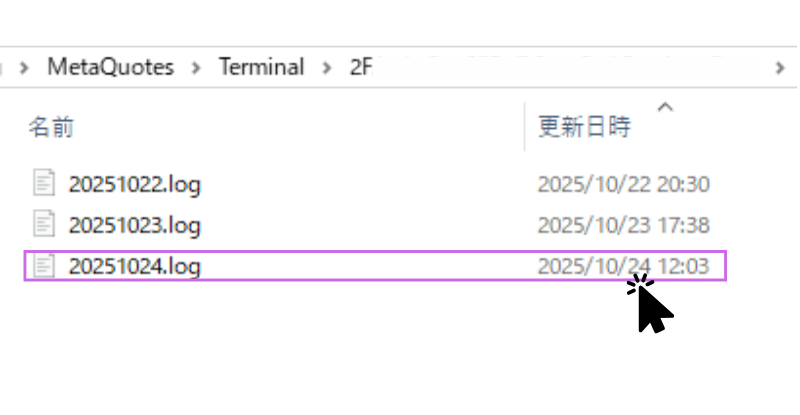
- From the opened folder, pick the latest and the previous day’s .log files
- Share these two log files via MQL5 messages
Deeper analysis: CSV log
If basic logs are insufficient, you can enable CSV logging for more detail.
Enable CSV logging
- Set InpEnableCSVLog = true in the EA inputs
- Specify InpCSVLogFolder (default: ERS_Logs)
- Restart the EA
CSV file location
- MT5 menu → File → Open Data Folder
- Go to MQL5 → Files → ERS_Logs (or your folder)
- Open the latest CSV (ERS_v437_YYYYMMDD_HHMMSS.csv)
What CSV logs contain
- Timestamps (when trades/analysis ran)
- Log level (INFO / WARN / ERROR)
- Tags (ENTRY / EXIT / AI / DATA, etc.)
- Detailed messages
- Trade info (symbol, type, lot, price)
- Event info (release time, importance, confidence)
- AI rationale (Perplexity results)
Important: CSV logging is disabled by default (false). Keep it off during normal operation to avoid overhead and disk usage. Enable temporarily only when troubleshooting.
12. Support
If you need help with setup or issues, contact us via MQL5 messages or in the Market product comments.
For faster handling, please attach:
- Screenshots of the Experts tab
- Your parameter settings
- CSV logs (if InpEnableCSVLog = true)
- Broker name and account type (ECN/STP/Standard, etc.)
13. Disclaimer
Important: This EA provides information and tooling only and does not constitute investment advice, solicitation, or a recommendation of financial products.
Leverage trading is high risk. Past results do not guarantee future returns.
Always test thoroughly on a demo account and operate at your own risk and discretion.
During economic releases, liquidity can shift abruptly, causing slippage or rejections.
The developer assumes no liability for any loss incurred through the use of this EA.
All investment decisions are your own responsibility.
Company, product, and service names are trademarks or registered trademarks of their respective owners.
Thank you for reading.
Wishing you success in your trading!




