

CHRISTMAS SPECIAL PRICE ->> 65% OFF + BONUS EA!
Promo price: $157 (regular price $447)
WallStreet Recovery PRO MT4 product page: https://www.mql5.com/en/market/product/150141
WallStreet Recovery PRO MT5 product page: https://www.mql5.com/en/market/product/150142
WALLSTREET RECOVERY PRO LIVE PERFORMANCE
Check Below WallStreet Recovery PRO performance on our accounts:
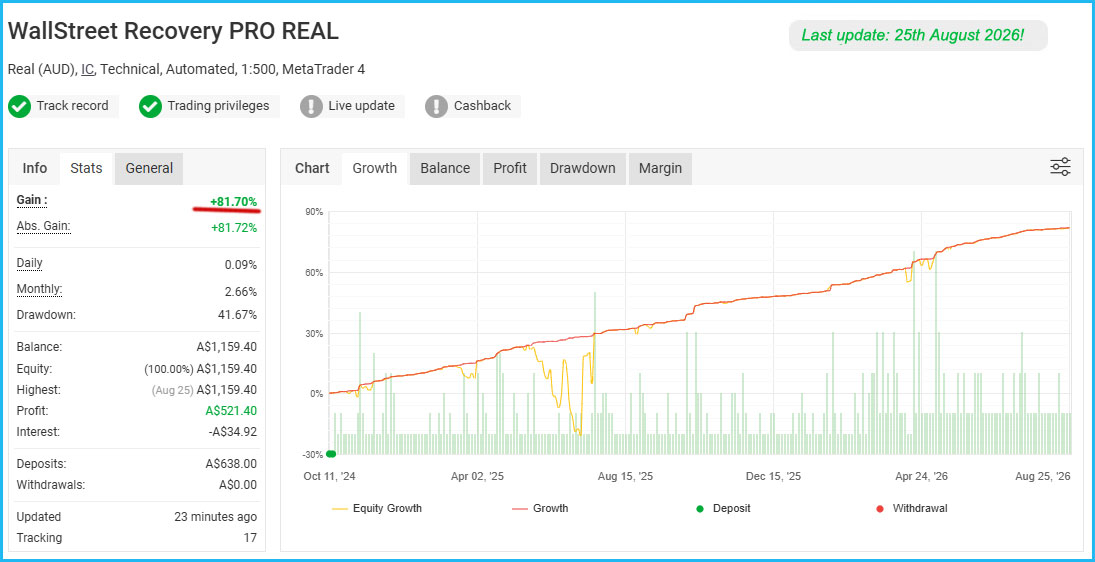
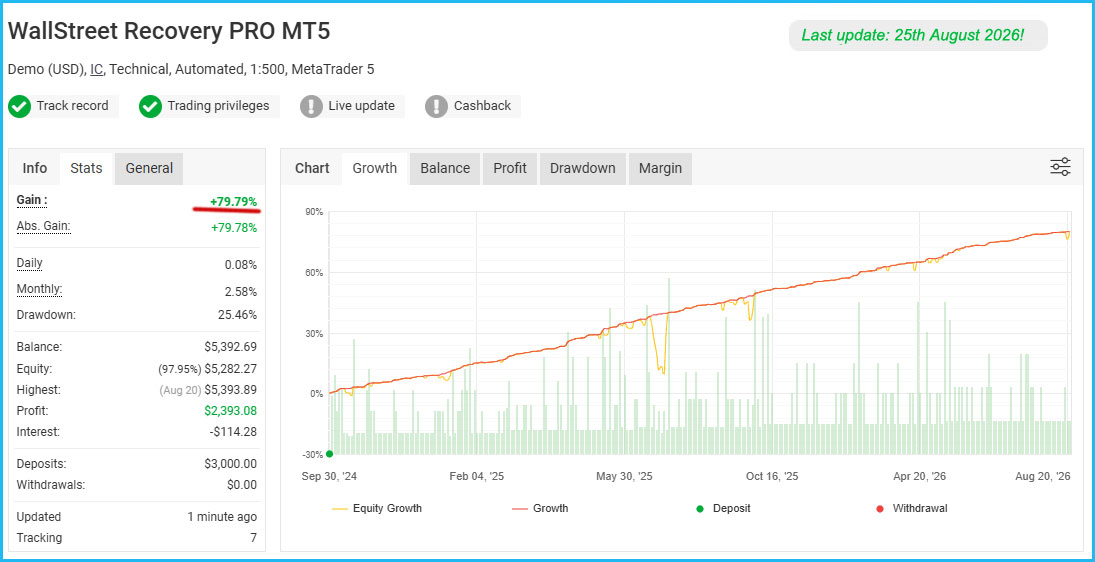
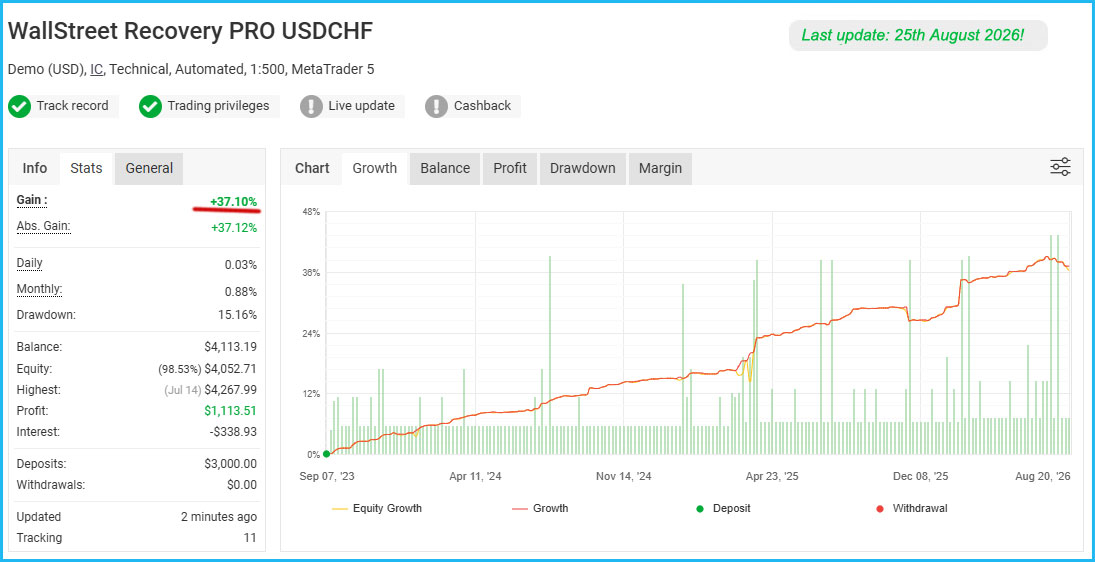
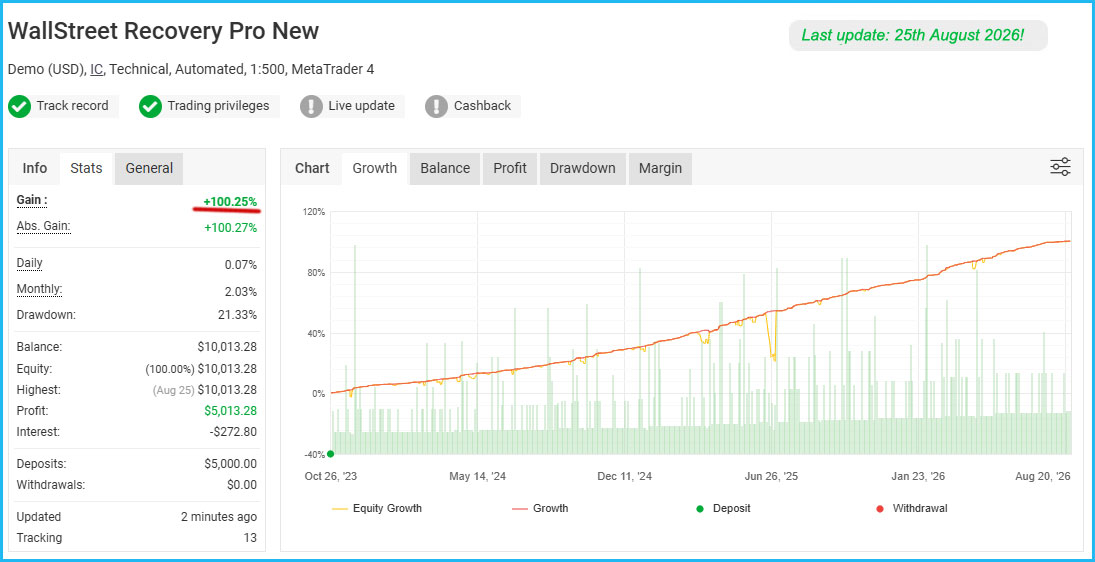
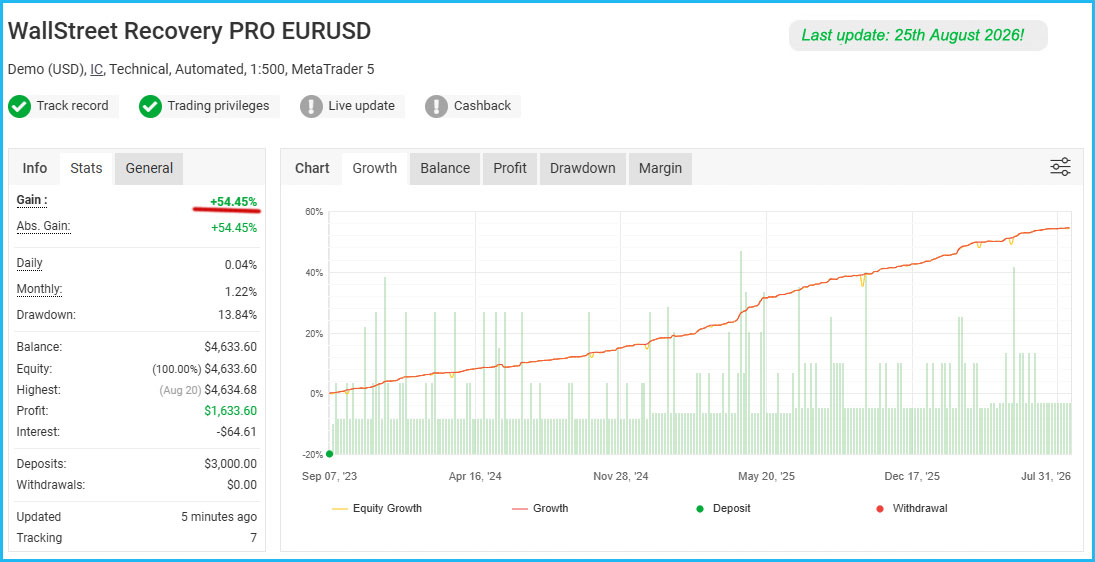
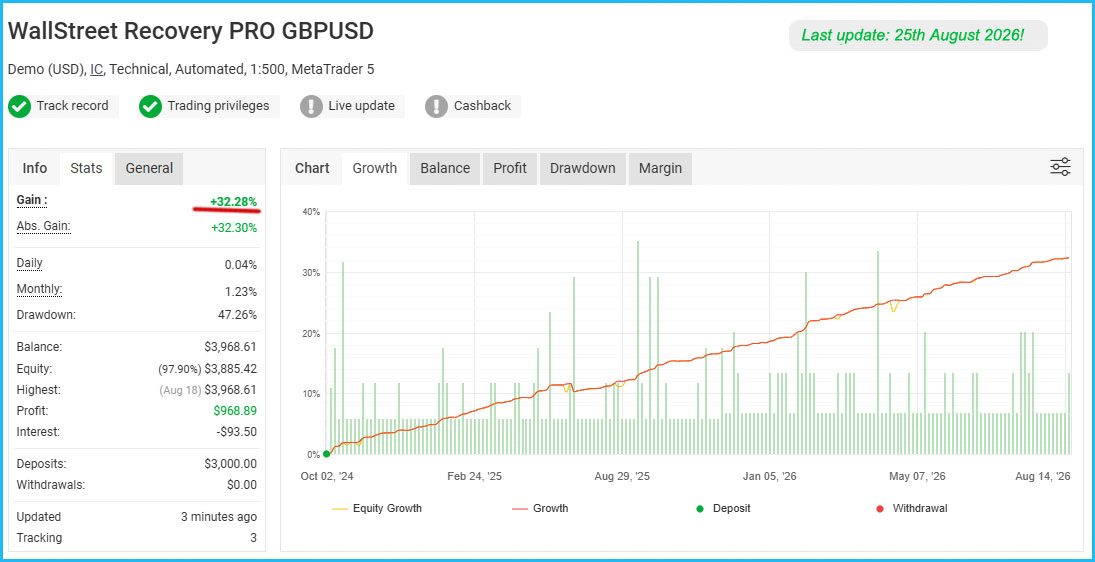
WallStreet Recovery PRO is a powerful trading system built on the legendary WallStreet Forex Robot core — one of the most popular and time-proven expert advisors in the world.
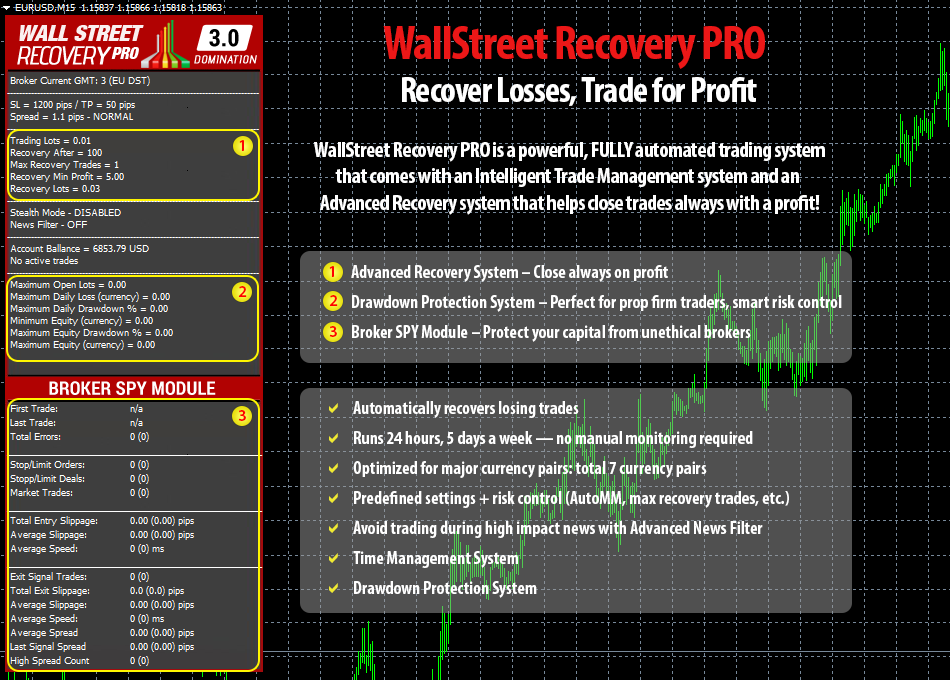
- Advanced Money Management System – automatically adjusts position size based on account balance and risk level.
- High-Impact News Filter – avoids trading during volatile news events.
- Efficient Dynamic Trading Logic – adapts to current market conditions for optimal entries and exits.
- Drawdown Protection System – dynamically limits risk to protect your capital.
- Advanced Time Management System – allows precise control of trading sessions.
- Revolutionary Broker SPY Module – to protect your capital from unethical brokers.
- Intelligent Dynamic Stop Loss & Take Profit – flexible exit levels adjusted to volatility.
- High Slippage & Spread Protection – prevents execution during unfavorable conditions.
- Profit Protection System – locks in gains once trades move into profit.
With years of proven strategy behind it and a new generation of recovery technology, WallStreet Recovery PRO is your professional partner for the modern forex market.
WallStreet Recovery PRO Settings
==== Risk Management ====
- FixedLots: the extent of the fixed trading volume. If you use AutoMM>0, the value of the FixedLots parameter does not matter.
- AutoMM: automatic risk management activates at values greater than zero:
- Example 1: at AutoMM = 2, WallStreet Recovery PRO opens positions equal to 0.2 lots (20,000) given account extent of 10,000. This places 2 percent of the account extent at risk per individual transaction at a loss of 100 pips.
- Example 2: at AutoMM = 10, WallStreet Recovery PRO opens positions equal to 1 lot (100,000) given account extent of 10,000. This places 10 percent of the account extent at risk per individual transaction at a loss of 100 pips.
- AutoMM_Max: the maximum permitted risk expressed as a percentage of the account per individual transaction, calculated on the basis of a 100 pip loss.
==== General Settings ====
- WinLargeFonts true/false: use "true" to adjust the robot information box display in case you are using the Windows Large Fonts.
- Magic: a unique identifier through which WallStreet Recovery PRO recognises and manages its own positions. If you use other expert advisors on the same account, please ensure that each of them has a distinct unique identifier.
- EA_Comment: you can type here a comment, if you wish to mark the WallStreet Recovery PRO trades.
- MaxSpread: maximum allowed spread.
- MaxSpreadExit: MaxSpreadExit - The parameter is used to control closing the trades and avoid closing the trades when the current market conditions are not good. Especially when the current spread is greater than MaxSpreadExit. For example if you set MaxSpreadExit=5 the EA will close the trades only when spread is equal or lower than 5 pips. This could be useful in the period from 00:00 to 00:59 o'clock when the spreads could be higher than usual. This parameter has value 0 (zero) by default which means it is disabled. If you want to use it then you can set a value greater than 0 (zero).
- Slippage: maximum allowed slippage.
- StealthMode true/false: a mode which conceals stoploss and takeprofit levels in program logic, making them invisible to brokers. If you use this mode, the stoploss and takeprofit orders are not located in the trading server. In this case, if your trading terminal is not connected, or the robot is not working, your orders would not be protected. However, we are strongly encouraging using the StealthMode, because in some cases the visible StopLoss levels could be attacked tendentiously by algorithms that some unethical brokers could use.
- EmergencyStopDist: this parameter ensures a second level of protection, when StealthMode is used. At values greater than zero it activates a second level of true (Emergency) StopLoss on a greater distance then the virtual hidden StopLoss is located. In such case the value of the new emergency StopLoss will be the sum of the EmergencyStopDist value plus the value of the hidden StopLoss.
As an example if StealthMode is used and the hidden “system” StopLoss is 60 pips and the EmergencyStopDist is 100 pips, then the emergency StopLoss will be placed 160 pips away from the trade entry price. The only purpose of this is to protect you from some extremely rare circumstances in which the market moves excessively and the EA does not manage to close by a market order on the actual “hidden” StopLoss level.
- NFA true/false: use "true" if your broker is NFA regulated.
- No_Hedge true/false: use "true" if you wish to cancel all hedge trades.
- LongTrades true/false: enable/disable Long trades.
- ShortTrades true/false: enable/disable Short trades.
- NoConcurrentTrades true/false: enable/disable concurrent trading. When NoConcurrentTrades = true, the EA will not open new trades if there is already an open trade on any other supported pair. This option is especially useful for traders who run WallStreet Recovery PRO on multiple pairs, as it helps reduce overall risk by ensuring that only one trade is active at a time across all supported pairs. If you decide to use this feature, you must set NoConcurrentTrades = true on all charts where WallStreet Recovery PRO is running.
==== Custom Settings ====
- PendingOrderDist: this value manages the new Pending (Stop/Limit) Orders functionality:
- If the value is zero (default) the robot will use only market orders.
- If the value is greater than zero (a positive value) the robot will use “Limit” orders with a distance from the market price equal to the PendingOrderDist value in pips.
- If the value is lower than zero (a negative value) the robot will use “Stop” orders with a distance from the market price equal to the PendingOrderDist value in pips.
Generally, we recommend using market orders, but we’ve designed this functionality to provide an additional flexibility to those our users, which would be interested to experiment. As an example, if you notice that your broker executes the market orders with a great slippage, you can try using Limit, or Stop orders. The Limit orders would help to open the trade on a most favourable price, but you can miss some of the trades. We recommend this functionality only for advanced traders, which are capable to make their own backtests and optimisations.
- StopLimitExpire: this value (in minutes) manages the pending orders expiration in case you are using the Pending Orders functionality.
- SecureProfit: minimum profit to be guaranteed where the position’s current profit is equal to the value of the SecureProfitTrigger parameter.
- SecureProfitTrigger: the position’s current profit (in pips) which would guarantee minimum profits equal to value of the SecureProfit parameter.
- StopLoss: distance to stoploss levels in standard (4 digits) pips.
- TakeProfit: distance to takeprofit levels in standard (4 digits) pips.
==== Recovery Settings ====
- RecoveryAfter (default value: 0) – The value is in pips. After the value is reached and the market conditions are appropriate, the robot will open an additional trade with larger lot size in attempt to compensate the loss in the initial trade. By default, the value of this parameter is 0, which means that the value from our server will be used (it is visible in the EA’s information box).
- MaxRecoveryTrades (default value: 0) – the maximum number of additional trades that could be opened during the recovery process. By default, the value of this parameter is 0, which means that the value from our server will be used (it is visible in the EA’s information box).
- RecoveryTradeLots (default value: 0) – the lot size used for the additional recovery trades. By default, the value of this parameter is 0, which means that the value from our server will be used (it is visible in the EA’s information box).
- RecoveryMMC (default value: 0) – This is the MM coefficient. The value entered should be greater than 0(zero). For example, if you set RecoveryMMC=5, and AutoMM > 0, the robot will open an additional trade with 5 time larger lot size. By default, the value of this parameter is 0, which means that the value from our server will be used (it is visible in the EA’s information box).
- RecoveryMinProfitDollars (default value: -1) – The minimum target profit, when the recovery system is active. The value of this parameter is in dollars because of the robot’s logic. If your account’s base currency is not in dollars (USD), then the profit will be in your actual base currency (EUR, GBP or anything else). By default, the value of this parameter is -1, which means that the value from our server will be used (it is visible in the EA’s information box).
If you want to make your own experiments with the WallStreet Recovery PRO settings, we could give you some recommendations – a combination between very low value of AutoMM: 0.5 - 1, MaxRecoveryTrades: 3-5, RecoveryAfter: 200-500 pips and RecoveryMMC: 1-3, could provide great long-term stability of the system.
==== Monday-Friday Rules ====
- MondayStartHour: The robot will start trading after this hour on Monday. If you want to set any custom value it must be between 0 and 23. To completely disable trading on Monday set MondayStartHour=24.
- FridayExit true/false: if you wish to close all trades on Friday, you should use FridayExit=true
- LastTradeHour: the robot can trade until the end of this hour on Friday (including this hour).
- ExitHour: the robot will close all open positions at this hour on Friday.
If you decide to use the "FridayExit" option you should set "LastTradeHour" and "ExitHour" several hours before the market closing of your broker on Friday.
==== GMT Settings ====
- AutoGMT_Offset - true/false - Change to false only if you want to use the ManualGMT_Offset in your live trading. In this case, please ensure that you have used the correct ManualGMT_Offset for your broker. Auto GMT works only if our website url is added on your terminal "Allow WebRequest for listed URL" configuration. To configure this: Go to MT4/MT5 Terminal → Tools → Options → Expert Advisors tab → "Allow WebRequests for listed URL" and add: https://www.wallstreet-forex.com
- ManualGMT_Offset - For this parameter you have to set the winter GMT offset of your broker. This parameter is very important in case that you have disabled the AutoGMT_Offset=false and when you backtest the WallStreet Recovery PRO. If you set wrong value, then you may get unexpected results.
- DST_Usage - This parameter is one of the most important parameters because it tells to WallStreet Recovery PRO how to deal with the GMT offset. You can set 3 different values on this parameter. Actually, it is a drop-down list and you only need to choose the correct value for your broker. Check below:
- If your broker has one GMT offset year-round (your broker never switches to summer/winter time) you must select DST_Usage=NONE.
- If your broker switch to summer/winter time based on EU DST (summer time from last Sunday of March till last Sunday of October) then set it DST_Usage=EU_DST.
- If your broker switch to summer/winter time based on US DST (summer time from second Sunday of March till first Sunday of November) then set it DST_Usage=US_DST.
==== News Filter Settings ====
- Avoid_News true/false - if you wish to use the news filter function, you should set Avoid_News=true
- Include_Medium_News true/false: if you also wish to avoid the medium impact news, you should set Include_Medium_News=true
- Wait_Before_News: the number of minutes before the news event, during which trading will be switched off
- Wait_After_News: the number of minutes after the news event, during which trading will be switched off
The News Filter works only if our website url is added on your terminal "Allow WebRequest for listed URL" configuration. To configure this: Go to MT4/MT5 Terminal → Tools → Options → Expert Advisors tab → "Allow WebRequests for listed URL" and add: https://www.wallstreet-forex.com
==== Time Management Settings ====
- MondayTrading true/false – enables trading on Monday.
- MondayHoursForbidden – sets forbidden trading hours for Monday (applies only when MondayTrading is enabled). You can set several values between 0 and 23 separated with commas. For example, if you set MondayHoursForbidden=9,10,11 the EA will not trade from 9:00 till 11:59. The hour values for this parameter are related to your broker’s server time (the Market Watch)!
- TuesdayTrading true/false – enables trading on Tuesday.
- TuesdayHoursForbidden – same as MondayHoursForbidden with the difference that you set forbidden hours for Tuesday.
- WednesdayTrading true/false – enables trading on Wednesday.
- WednesdayHoursForbidden – same as MondayHoursForbidden with the difference that you set forbidden hours for Wednesday.
- ThursdayTrading true/false – enables trading on Thursday.
- ThursdayHoursForbidden – same as MondayHoursForbidden with the difference that you set forbidden hours for Thursday.
- FridayTrading true/false – enables trading on Friday.
- FridayHoursForbidden – same as MondayHoursForbidden with the difference that you set forbidden hours for Friday.
- SaturdayTrading and SundayTrading true/false – enables trading during Saturday and Sunday respectively. Due to big GMT offset, some brokers trade during weekends and for that reason we added these parameters as well.
==== Notifications ====
- EMAIL_Notification - true/false - enable/disable email notifications.
- PUSH_Notification - true/false – enable/disable push notifications to mobile phones
==== Protection Settings ====
- Max open lots – The total allowed lot size for all open trades.
- Maximum daily loss (currency) - Set a maximum limit on the amount you can lose in a single day to protect your capital.
- Maximum daily drawdown % - Define the maximum percentage of your balance that can be lost in one day.
- Daily reset hour (terminal) – Daily reset hour. This is usually 00:00 but if your broker has different reset hour then you can set any hour. Have in mind that if you change the hour directly on the control panel it will be effective after the new hour is reached!
- Minimum Equity (currency) - Establish a minimum equity level that, when reached, triggers protective measures.
- Maximum Equity drawdown % - Limit the maximum percentage drawdown of your total equity to prevent significant losses.
- Maximum Equity (currency) - Set an upper limit on your equity to help manage gains and protect from volatile shifts.
- MaxAccountTrades: using this parameter you could limit the number of simultaneously opened trades in your account. The default value is zero, which means that by default this option is disabled.
Some traders need such protections in “Prop Firm” challenges.
We will refrain from recommending specific values. It is the responsibility of the traders to set these parameters correctly based on their broker restrictions.
We are obliged to inform you, that using such protections could decrease the overall profit in long-term.
Each trader must decide for himself whether to use these protections and at what values.
==== Broker Spy Module Settings ====
- BSM_Alerts true/false: use True, if you want to activate the Broker Spy Module alerts.
- BSM_Alert_Open_Delay: the maximum allowed delay in milliseconds (ms) for opening new trades, above which the BSM will display an alert.
- BSM_Alert_Open_Slippage: the maximum allowed slippage (in standard 4 digit pips) for opening new trades, above which the BSM will display an alert.
- BSM_Alert_StopLimit_Delay: the maximum allowed delay in milliseconds (ms) for accepting pending (Stop/Limit) orders, above which the BSM will display an alert.
- BSM_Alert_StopLimit_Slippage: the maximum allowed slippage (in standard 4 digit pips) for activating pending (Stop/Limit) orders, above which the BSM will display an alert.
- BSM_Alert_Close_Delay: the maximum allowed delay in milliseconds (ms) for closing trades, above which the BSM will display an alert.
- BSM_Alert_Close_Slippage: the maximum allowed slippage (in standard 4 digit pips) for closing trades, above which the BSM will display an alert.
WallStreet Recovery PRO Backtest Results
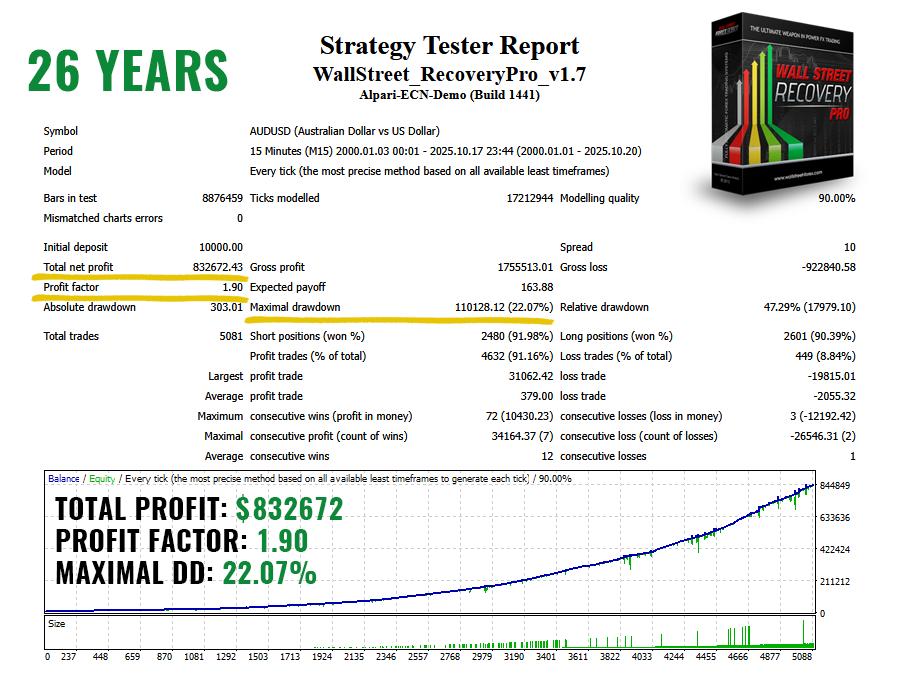
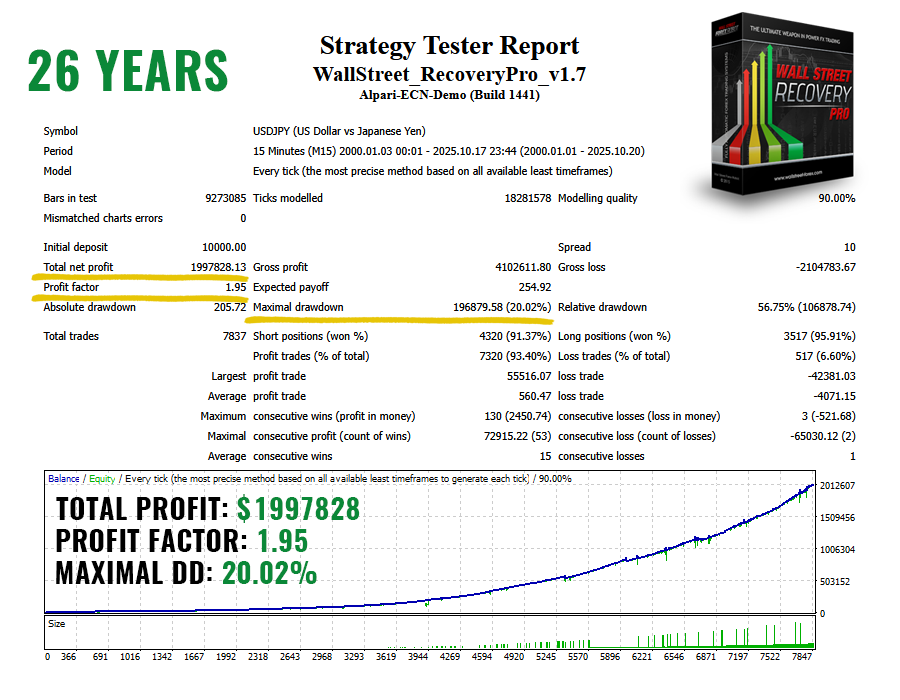
2. WallStreet Recovery PRO USDJPY Backtest
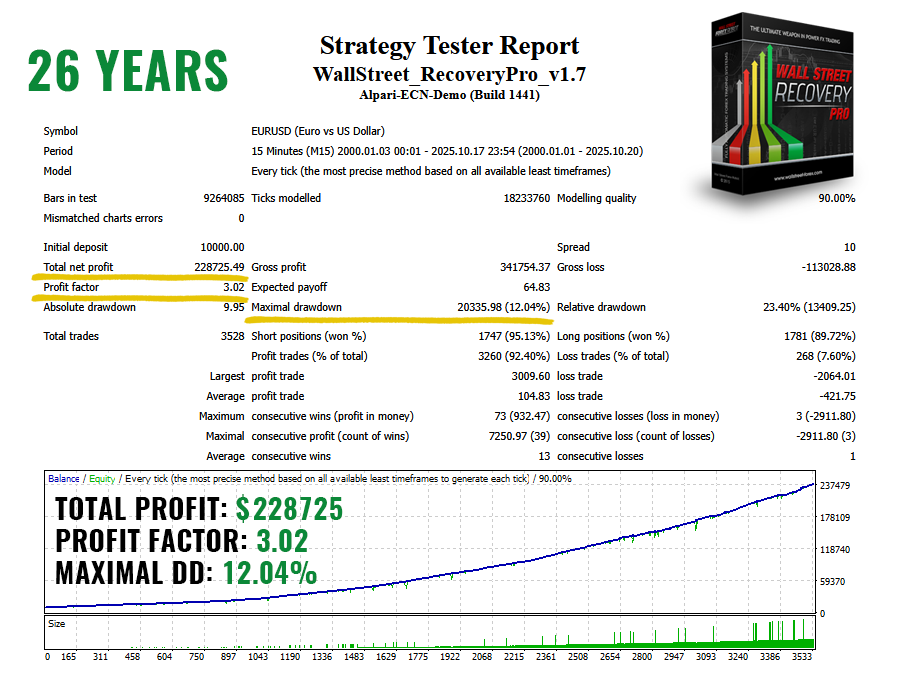
3. WallStreet Recovery PRO EURUSD Backtest
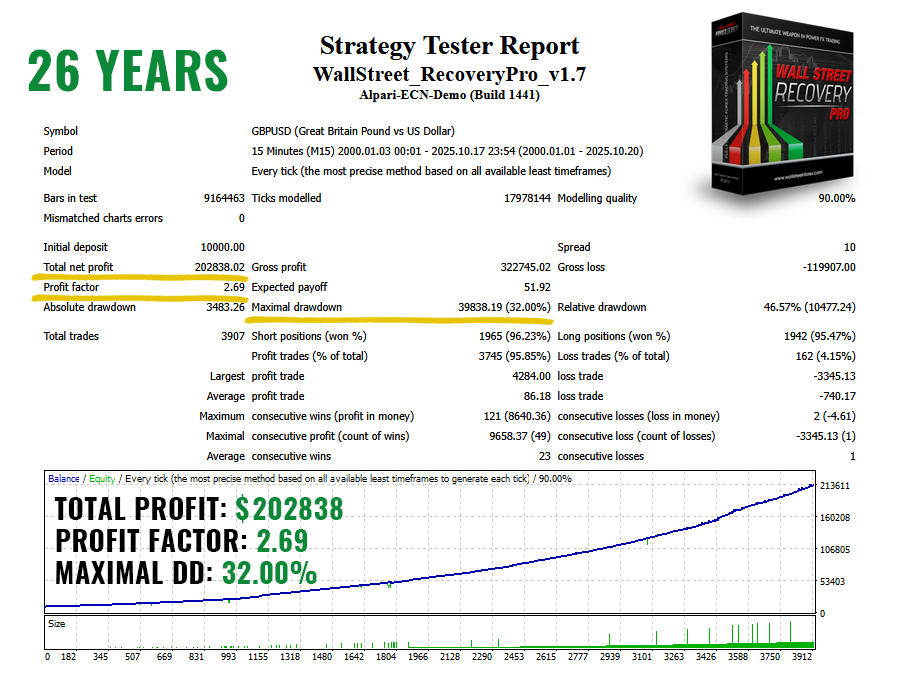
4. WallStreet Recovery PRO GBPUSD Backtest
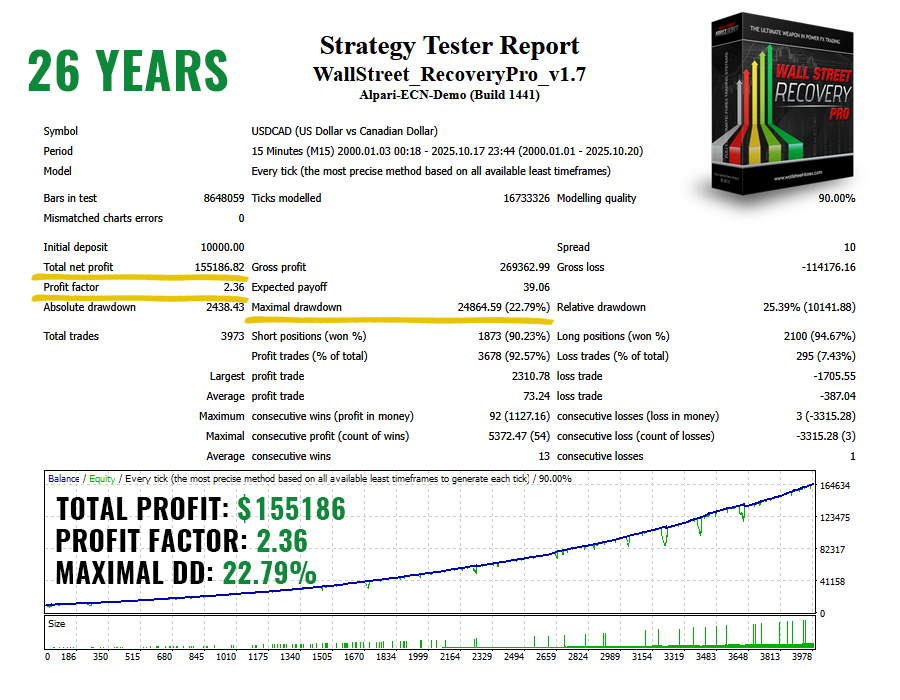
5. WallStreet Recovery PRO USDCAD Backtest
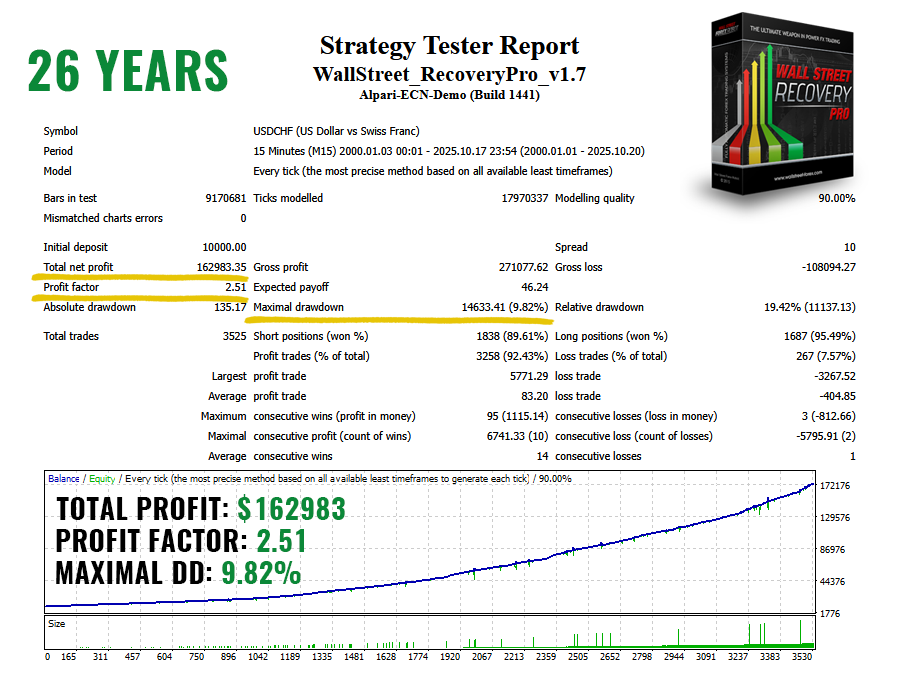
6. WallStreet Recovery PRO USDCHF Backtest
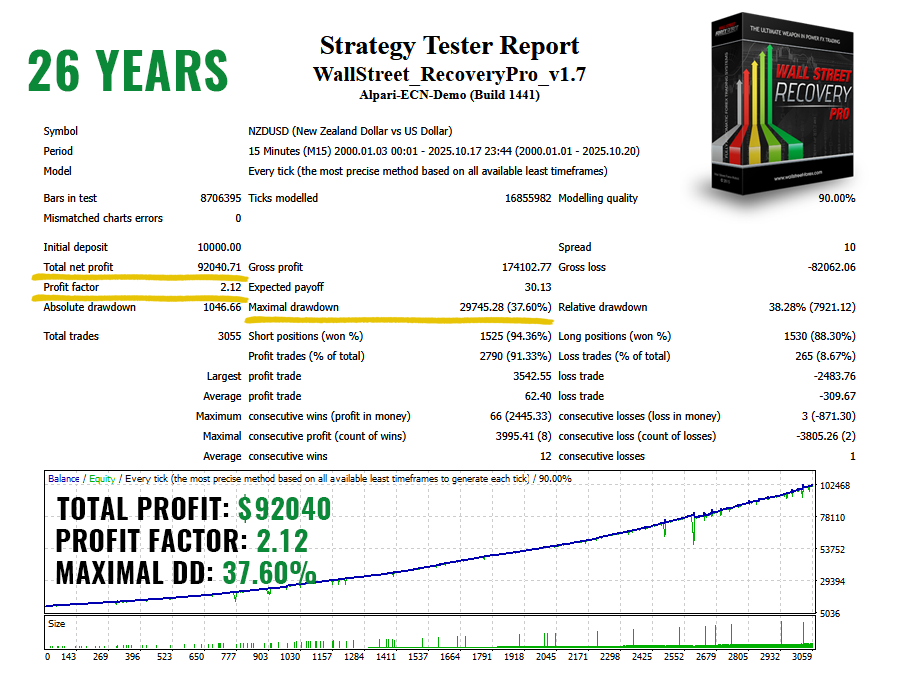
7. WallStreet Recovery PRO NZDUSD Backtest
sss




