

Practical Modules from Other Languages in MQL5 (Part 09): MATPLOTLIB (II)
 90
90
 0
0

“The most important property of a program is whether it accomplishes the intention of its user.”
― C.A.R. Hoare.
Contents
- Introduction
- A scatter plot
- Bar plot
- Horizontal bar plot
- A Histogram
- Pie chart
- Hexbin plot
- Multiple plots on a single Axes
- Working with subplots
- Axes array in the CFigure class
- Different Matplotlib styles
- Conclusion
Introduction
Effective data visualization is an essential part of analyzing trading strategies and financial markets. While MetaTrader 5 provides built-in charting capabilities, more specialized visualizations can help traders explore relationships, distributions, and patterns in market data. A Matplotlib-like plotting interface in MQL5 offers a practical way to create these visualizations while delegating the rendering process to Python.
In the previous article, we built the foundation of our Matplotlib integration by establishing the communication architecture between MQL5 and the Python backend. As a result, MQL5 applications can now use a Python-like Matplotlib syntax to construct figures and display Python-generated visualizations directly in the MetaTrader 5 terminal with minimal effort.
In this article, we build on that foundation by expanding the framework with a broader range of plotting and visualization techniques. We will implement additional chart types and their associated parameters, allowing MQL5 applications to produce richer and more informative visualizations while maintaining the familiar Matplotlib-style interface.
Through practical examples using trading and financial data, we demonstrate how these features can be combined into a consistent visualization workflow. The result is a more versatile Matplotlib-like API that allows MQL5 developers to explore and present data without having to implement the underlying rendering functionality themselves.
A Scatter Plot
A scatter plot displays individual observations as points on a two-dimensional coordinate system. Unlike a line plot where consecutive observations are connected, a scatter plot deliberately leaves the observations disconnected. This makes it useful when the relationship between two variables is more important than the sequence of observations.
In Matplotlib, a scatter plot can be created using the method Axes.scatter():
ax.scatter(x, y)
What makes scatter plots useful is that additional dimensions can be encoded into the points themselves. For example, the size of a marker can represent volume, its color can represent another numerical variable, and its shape can distinguish different categories.
When it comes to trading, scatter plots can be used for:
- Correlation analysis — to visually inspect the relationship between two instruments or indicators.
- For clustering analysis — to visualize observations classified into different market regimes.
- In detecting outliers as unusual observations often appear as isolated points.
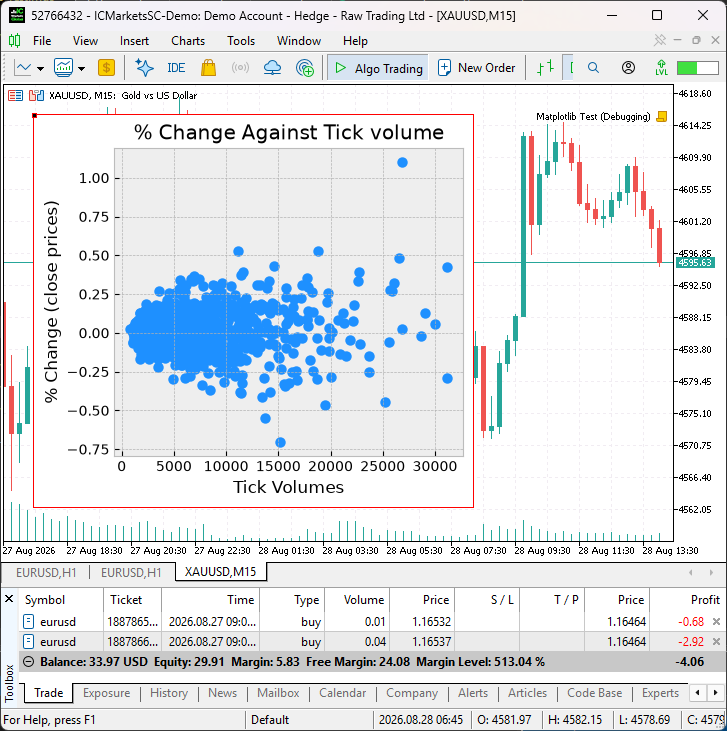
Let's use a scatter plot to display percentage returns for each bar against that bar's tick volume.
#include <MatplotLib\pyplot.mqh>
CPyplot plt;
//+------------------------------------------------------------------+
//| Script program start function                                    |
//+------------------------------------------------------------------+
void OnStart()
  {
//--- Getting info from the terminal

   uint total_bars = 1000;
   vector close = vector::Zeros(total_bars), tv = vector::Zeros(total_bars);

   close.CopyRates(Symbol(), PERIOD_CURRENT, COPY_RATES_CLOSE, 1, total_bars+1); //closing prices
   tv.CopyRates(Symbol(), PERIOD_CURRENT, COPY_RATES_VOLUME_TICK, 1, total_bars); //tick volumes

//--- Calculating percentage changes

   vector pct_change = vector::Zeros(total_bars);
   for (ulong i=1; i<pct_change.Size(); i++)
    {
      double prev = close[i-1], curr = close[i];
      pct_change[i-1] = ((curr - prev) / prev) * 100.0;
    }

//--- pct change against tick volume scatter plot

   CFigure fig = plt.subplots();

   CAxes ax;
   ax.scatter(tv, pct_change, "dodgerblue");

   ax.set_title("% Change Against Tick volume - "+Symbol());
   ax.set_xlabel("Tick Volumes");
   ax.set_ylabel("% Change (close prices)");
   ax.grid();

   fig.add_axes(ax); //Add the scatter plot Axes to a figure
   plt.show(fig); //display the entire figure
   DebugBreak();
}
Results.
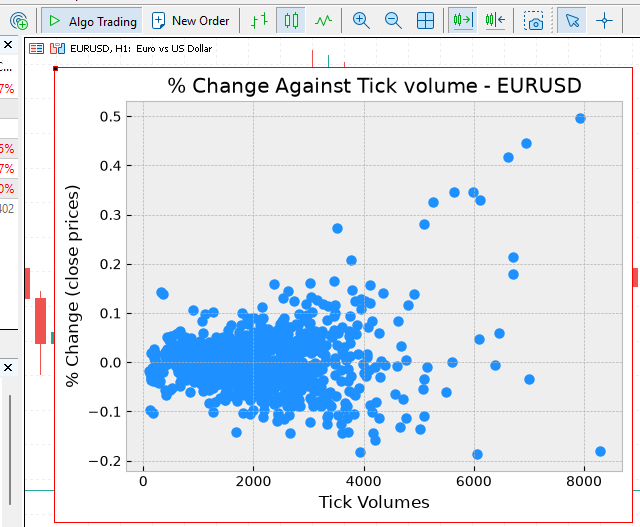
Notice: The results produced by the examples in this article depend on the current chart symbol, timeframe, broker, and available account history. Therefore, the plots may differ from those shown in the article.
In reference to Matplotlib, Axes.scatter(), below is the method CAxes::scatter — responsible for taking instructions for creating a scatter plot in MetaTrader 5:
class CAxes
  {
public:
   void              scatter(const vector &x,
                             const vector &y,
                             string c = NULL,
                             string label = NULL,
                             double s = nandbl,
                             string marker = NULL,
                             string cmap = NULL,
                             string norm = NULL,
                             double vmin = nandbl,
                             double vmax = nandbl,
                             double alpha = nandbl,
                             double linewidths = 1.5,
                             string edgecolors = NULL,
                             bool plotnonfinite = false
                            );
| Parameter | Type | Purpose |
|---|---|---|
| x | vector | X-coordinate of each point. |
| y | vector | Y-coordinate of each point. |
| s | string | Marker size in points². A scalar applies the same size to all points; an array can assign different sizes to individual points. |
| c | string | Determines the color of the markers. Numerical values can be mapped through a colormap. |
| marker | A string | Determines the shape of each marker, such as " o", " x", " ^", or " s" . |
| cmap | string | Colormap used to convert numerical c values into colors. |
| norm | string | Controls how numerical c values are normalized before being passed to the colormap. Useful for linear, logarithmic, and other scaling. |
| vmin | float | Lower bound of the numerical range mapped to the colormap. |
| vmax | float | Upper bound of the numerical range mapped to the colormap. |
| alpha | float | Marker transparency, from 0 (fully transparent) to 1 (fully opaque). |
| linewidths | float or array-like | Width of the marker edges. |
| edgecolors | color or sequence | Color of marker edges. "face" uses the marker's face color; NULL removes the edge. |
| plotnonfinite | bool | Determines whether points with non-finite color values ( NaN, inf, -inf ) should be plotted. |
Additional properties inherited from Matplotlib's collection/artist system (**kwargs) have not been implemented in the CAxes class.
Bar Plot
This visualization technique is used to compare the magnitude of discrete or categorical values. Each observation is represented by a rectangular bar where the height of a bar represents its value.
The categories are positioned along the x-axis, while their corresponding values are represented on the y-axis.
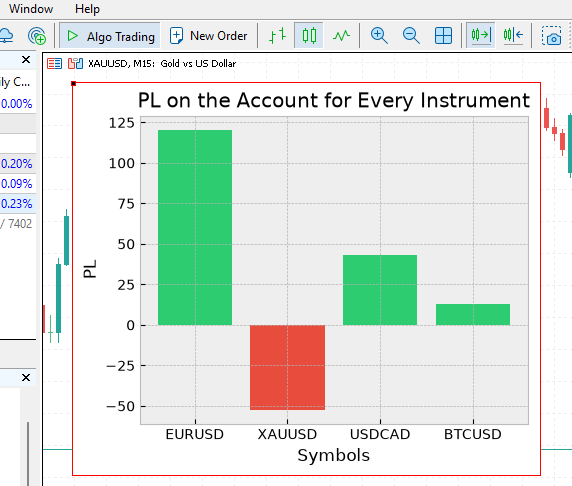
Bar plots are useful in datasets that consist of discrete categories that need to be compared. See the example below where we display profits made on several instruments:
#include <MatplotLib\pyplot.mqh>
CPyplot plt;
//+------------------------------------------------------------------+
//|                                                                  |
//+------------------------------------------------------------------+
input string matplotlib_style = "bmh";
//+------------------------------------------------------------------+
//| Script program start function                                    |
//+------------------------------------------------------------------+
void OnStart()
  {
//--- Setting a style to use for Matplotlib

   plt.style.use(matplotlib_style);

   string symbols[] = {"EURUSD", "XAUUSD", "USDCAD", "BTCUSD"};
   vector pl_vector = {120.5, -52.3, 43.1, 12.8};
   string colors[] = {
                       "#2ecc71", //green
                       "#e74c3c", //red
                       "#2ecc71", //green
                       "#2ecc71"  //green
                     };

//---

   CFigure fig = plt.subplots(1, 1, 5, 4);
   CAxes ax;

   ax.bar(symbols, pl_vector, colors);

   ax.set_title("PL on the Account for Every Instrument");
   ax.set_xlabel("Symbols");
   ax.set_ylabel("PL");
   ax.grid(true);

   fig.add_axes(ax);
   plt.show(fig);
   DebugBreak();
  }
Results:
Below is a signature (declaration) of the method Axes.bar(),in reference to matplotlib.pyplot.bar.
   void              bar(string &x[],
                         vector &height,
                         string &colors[],
                         vector &xerr,
                         vector &yerr,
                         vector &bottom,
                         string label = NULL,
                         double width = nandbl,
                         string align = NULL,
                         string facecolor = NULL,
                         string edgecolor = NULL,
                         double linewidth = nandbl,
                         string tick_label = NULL,
                         string ecolor = NULL,
                         double capsize = nandbl,
                         bool log_ = false
                        );
A second signature (variant) — recommended.
   void              bar(string &x[],
                         vector &height,
                         string &colors[],
                         string label = NULL,
                         double width = nandbl,
                         string align = NULL,
                         string facecolor = NULL,
                         string edgecolor = NULL,
                         double linewidth = nandbl,
                         string tick_label = NULL,
                         string ecolor = NULL,
                         double capsize = nandbl,
                         bool log_ = false
                        );
| Parameter | Type | Description |
|---|---|---|
| x | array | X-coordinate or categorical position of each bar. |
| height | vector | Height of each bar. This represents the value being visualized. |
| width | double | Width of each bar. A sequence can specify a different width for every bar. |
| bottom | float or array-like | Y-coordinate of the bottom of each bar. Useful for stacked bars or bars starting from a non-zero baseline. |
| align | string | Determines how the bar is positioned relative to its x-coordinate. Allowed entries are "center" and "edge". |
| colors | array | Sets the color of the bars. |
| facecolor | string | Sets the fill color of the bars. It takes precedence over colors when both are specified |
| edgecolor | string | Sets the color of the bar edges. |
| linewidth | double | Controls the width of the bar edges. 0 or "NaN" removes the edges. |
| tick_label | string | Specifies the labels displayed along the x-axis for the bars. |
| label | string | Associates the bars with a label that can be displayed by a legend. |
| xerr | vector | Adds horizontal error bars to the bars. |
| yerr | vector | Adds vertical error bars to the bars. |
| ecolor | string | Sets the color of error bars. |
| capsize | float | Controls the length of the caps on error bars. |
| log_ | bool | if true, the y-axis is displayed using a logarithmic scale. |
Horizontal Bar Plot
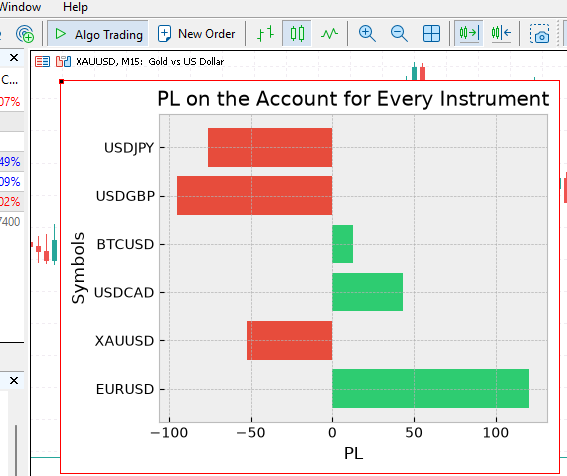
A horizontal bar plot is a direct mirror of a bar plot; it is similar to a bar plot but with horizontal bars.
Example usage.
#include <MatplotLib\pyplot.mqh>
CPyplot plt;
//+------------------------------------------------------------------+
//|                                                                  |
//+------------------------------------------------------------------+
input string matplotlib_style = "bmh";
//+------------------------------------------------------------------+
//| Script program start function                                    |
//+------------------------------------------------------------------+
void OnStart()
  {
//--- Setting a style to use for Matplotlib

   plt.style.use(matplotlib_style);

   string symbols[] = {"EURUSD", "XAUUSD", "USDCAD", "BTCUSD", "USDGBP", "USDJPY"};
   vector pl_vector = {120.5, -52.3, 43.1, 12.8,  -95, -76};
   string colors[] = {
                       "#2ecc71", //green
                       "#e74c3c", //red
                       "#2ecc71", //green
                       "#2ecc71",  //green
                       "#e74c3c", //red
                       "#e74c3c"  //red
                     };

//---

   CFigure fig = plt.subplots(1, 1, 5, 4);
   CAxes ax;

   ax.barh(symbols, pl_vector, colors);

   ax.set_title("PL on the Account for Every Instrument");
   ax.set_xlabel("PL");
   ax.set_ylabel("Symbols");
   ax.grid(true);

   fig.add_axes(ax);
   plt.show(fig);
   DebugBreak();
  }
Results:
A signature for this function is very similar to that of CAxes::bar(). Just like matplotlib.pyplot.barh.
   void              barh(string &y[],
                          vector &width,
                          string &colors[],
                          string label = NULL,
                          double height = nandbl,
                          string align = NULL,
                          string facecolor = NULL,
                          string edgecolor = NULL,
                          double linewidth = nandbl,
                          string tick_label = NULL,
                          string ecolor = NULL,
                          double capsize = nandbl,
                          bool log_ = false
                         );
| Parameter | Type | Description |
|---|---|---|
| y | array | y-coordinate or categorical position of each bar. |
| width | vector | The width of each bar. This represents the value being visualized. |
| height | double | Height of the bars. |
A Histogram
A histogram is used to visualize the distribution of numerical data. Unlike a regular bar chart, where each bar usually represents a distinct category, a histogram divides a continuous range of values into a series of intervals called bins; it then counts how many observations fall within each bin.
For example, when analyzing the percentage change of a financial instrument, a histogram can show how frequently different ranges of returns occur. This makes it useful for identifying the center, spread, skewness, and shape of a return distribution, as well as detecting unusually large positive or negative movements.
When it comes to trading, histograms can be used for:
- Assessing return distributions by explaining how frequently different returns occur.
- In drawdown analysis and more.
For example:
#include <MatplotLib\pyplot.mqh>
CPyplot plt;
//+------------------------------------------------------------------+
//|                                                                  |
//+------------------------------------------------------------------+
input string matplotlib_style = "bmh";
//+------------------------------------------------------------------+
//| Script program start function                                    |
//+------------------------------------------------------------------+
void OnStart()
  {
//--- Setting a style to use for Matplotlib

   plt.style.use(matplotlib_style);

   uint total_bars = 1000;
   vector close = vector::Zeros(total_bars), tv = vector::Zeros(total_bars);

   close.CopyRates(Symbol(), PERIOD_CURRENT, COPY_RATES_CLOSE, 1, total_bars+1); //closing prices

//--- Calculating percentage changes

   vector pct_change = vector::Zeros(total_bars);
   for (ulong i=1; i<pct_change.Size(); i++)
    {
      double prev = close[i-1], curr = close[i];
      pct_change[i-1] = ((curr - prev) / prev) * 100.0;
    }

//---

   CFigure fig = plt.subplots(1, 1, 5, 4);
   CAxes ax;

   int bins = 20;
   ax.hist(pct_change, bins, "gray");

   ax.set_title("Distribution of % change for closing prices on "+Symbol());
   ax.set_xlabel("% Change");
   ax.set_ylabel("Frequency");
   ax.grid(true);

   fig.add_axes(ax);
   plt.show(fig);
   DebugBreak();
  }
Results:
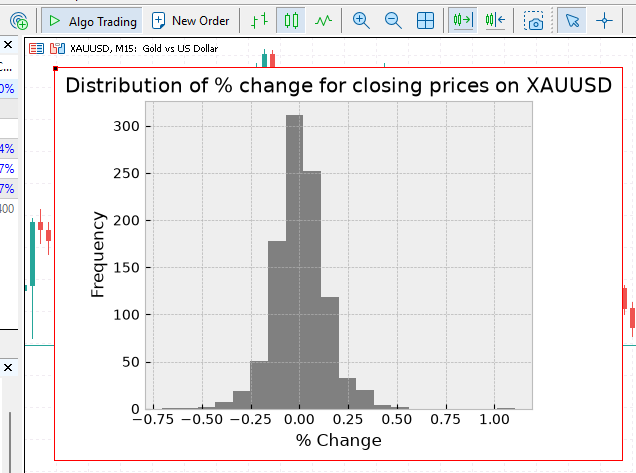
Notice: The results produced by the examples in this article depend on the current chart symbol, timeframe, broker, and available account history. Therefore, the plots may differ from those shown in the article.
Function signature in reference to matplotlib.axes.Axes.hist.
   void              hist(vector &x,
                          int bins,
                          vector &range,
                          vector &weights,
                          vector &bottom,
                          string clr = NULL,
                          bool density = false,
                          string label = NULL,
                          bool cumulative = false,
                          string histtype = NULL,
                          string align = NULL,
                          string orientation = NULL,
                          double rwidth = nandbl,
                          bool log_ = false,
                          bool stacked = false
                         );
| Parameter | Type | Description |
|---|---|---|
| x | vector | The input data to be distributed into bins. This is the numerical dataset from which the histogram is constructed. |
| bins | int | Specifies the number of bins when an integer is supplied. It can also represent explicit bin edges or a binning strategy on the Python side. |
| range | vector | Specifies the lower and upper limits used when calculating the bins. Values outside this range are ignored. |
| density | bool | If true, the histogram displays a probability density rather than raw counts. The total area of the histogram is normalized to 1. |
| weights | vector | Assigns a weight to each observation instead of treating every observation as having a weight of 1. |
| cumulative | bool | If true, each bin contains the accumulated count from the preceding bins. This produces a cumulative distribution. |
| bottom | vector | Specifies the vertical starting position of the histogram bars. It can be used to shift the bars upward. |
| histtype | string | Controls the visual style of the histogram: bar, barstacked, step, or stepfilled. |
| align | string | Controls the horizontal alignment of the histogram relative to the bin edges: left, mid, or right. |
| orientation | string | Controls the direction of the histogram. vertical produces the standard histogram, while horizontal produces a horizontal histogram. |
| rwidth | double | Specifies the relative width of the histogram bars as a fraction of the bin width. |
| log | bool | If true, the histogram axis is displayed using a logarithmic scale. |
| color | string | Specifies the color of the histogram. A sequence can be supplied when working with multiple datasets. |
| label | string | Assigns a label to the histogram, which can subsequently be displayed using the axes legend. |
| stacked | bool | If true, multiple datasets are stacked on top of one another instead of being displayed separately. |
Pie Chart
A pie chart represents a collection of values as proportional slices of a circle. Each value determines the size of one wedge relative to the sum of all values.
Below is how a fractional area of each wedge is calculated:

When it comes to the trading space, pie charts are useful in visualizing data that represents parts of a whole, for example:
- Visualizing trade distribution — showing the proportion of trades opened by either the user or an EA on different instruments or strategies.
- Visualizing profit distribution — displaying how much each instrument contributes to the total profit/loss in the account
As an example, let's display trade distribution in my demo account.
Starting with collecting trade metrics from the terminal:
//+------------------------------------------------------------------+
//|Returns the number of trades closed on a symbol from the first day|
//+------------------------------------------------------------------+
uint TradesBySymbol(string symbol, datetime start = 0)
  {
   uint total = 0;
   CDealInfo m_deal;

   if(HistorySelect(start, TimeCurrent()))
     {
      for(int i = HistoryDealsTotal() - 1; i >= 0; i--) //loop through all the deals
         if(m_deal.SelectByIndex(i))
            if(m_deal.Symbol() == symbol)
               if(m_deal.Entry() == DEAL_ENTRY_OUT) //A closed deal already
                  total++;
     }

   return total;
  }
//+------------------------------------------------------------------+
//| Assigns symbols that have trade history and the number of trades|
//| for every instrument in symbols[], and trades[] arrays           |
//| respectively                                                     |
//+------------------------------------------------------------------+
void TradingActivitySymbols(string &symbols[], uint &trades[])
  {
   int s_total = SymbolsTotal(false);
   uint found = 0;

   for(int i = 0; i < s_total; i++)
     {
      string name = SymbolName(i, false);
      uint trades_taken = TradesBySymbol(name);

      if(trades_taken == 0)
         continue;

      found++;

      ArrayResize(symbols, found);
      ArrayResize(trades, found);

      symbols[found-1] = name;
      trades[found-1] = trades_taken;
     }
  }
After obtaining the data (symbols and trades arrays), we pass them to the method CAxes::pie() for the creation of a pie chart.
A complete script:
#include <MatplotLib\pyplot.mqh>
CPyplot plt;
#include <Trade\DealInfo.mqh>
//+------------------------------------------------------------------+
//|                                                                  |
//+------------------------------------------------------------------+
input string matplotlib_style = "bmh";
//+------------------------------------------------------------------+
//| Script program start function                                    |
//+------------------------------------------------------------------+
void OnStart()
  {
//--- Setting a style to use for Matplotlib

   plt.style.use(matplotlib_style);

   string symbols[];
   uint trades[];

   TradingActivitySymbols(symbols, trades);

   vector trades_vector = {};
   trades_vector.Assign(trades); //Assign trades array to a vector

//---

   CFigure fig = plt.subplots(1, 1, 7, 5);
   CAxes ax;

   ax.pie(trades_vector, symbols, false, "%1.1f%%");

   ax.set_title("Trading activity on My Account");

   fig.add_axes(ax);
   plt.show(fig);
   DebugBreak();
  }
Results:
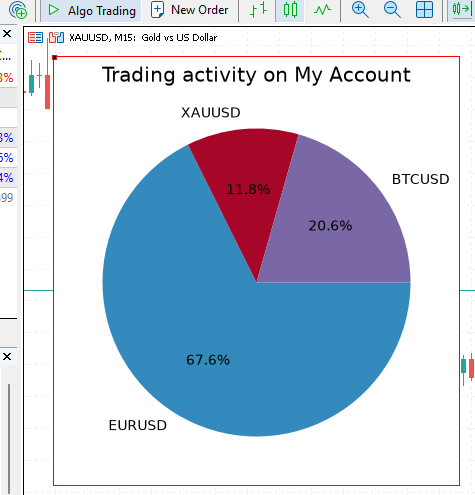
Notice: The results produced by the examples in this article depend on the current chart symbol, timeframe, broker, and available account history. Therefore, the plots may differ from those shown in the article.
Axes::pie() declaration in reference to matplotlib.axes.Axes.pie
Our equivalent MQL5 method signatures. The second declaration is recommended.
   //--- Pie chart
   void              pie(vector &x,
                         string &labels[],
                         vector &explode,
                         string &colors[],
                         string &hatch[],
                         bool shadow = false,
                         string autopct = NULL,
                         double pctdistance = nandbl,
                         double labeldistance = nandbl,
                         double startangle = nandbl,
                         double radius = nandbl,
                         bool counterclock = false,
                         string wedgeprops = NULL,
                         string textprops = NULL,
                         double center_x = 0.0,
                         double center_y = 0.0,
                         bool frame = false,
                         bool rotatelabels = false,
                         bool normalize = true
                        );


   void              pie(vector &x,
                         string &labels[],
                         bool shadow = false,
                         string autopct = NULL,
                         double pctdistance = nandbl,
                         double labeldistance = nandbl,
                         double startangle = nandbl,
                         double radius = nandbl,
                         bool counterclock = false,
                         string wedgeprops = NULL,
                         string textprops = NULL,
                         double center_x = 0.0,
                         double center_y = 0.0,
                         bool frame = false,
                         bool rotatelabels = false,
                         bool normalize = true
                        );
| Parameter | Variable Type | Description |
|---|---|---|
| x | vector | The values used to determine the size of each pie wedge. |
| explode | vector | Specifies how far each wedge is offset from the center as a fraction of the pie radius. |
| labels | string | Labels assigned to the individual wedges. |
| colors | string | Colors used for the wedges. Colors are cycled when fewer colors than wedges are supplied. |
| hatch | string | Hatching patterns applied to the wedges. Added in Matplotlib 3.7. |
| autopct | string | Format string used to display the numerical percentage inside each wedge. |
| pctdistance | double | Distance of the percentage text from the center, expressed as a fraction of the radius. |
| shadow | bool | Determines whether a shadow is drawn underneath the pie. |
| labeldistance | double | Distance of wedge labels from the center, expressed as a fraction of the radius. |
| startangle | double | Rotation angle of the first wedge, measured counterclockwise from the x-axis. |
| radius | double | Radius of the pie chart. |
| counterclock | bool | Determines the direction in which the wedges are drawn. true draws counterclockwise. |
| wedgeprops | string | Dictionary of properties passed to each wedge. |
| textprops | string | Dictionary of properties passed to the text objects. |
| center_x, center_y | double, double | Coordinates specifying the center of the pie chart. |
| frame | bool | Determines whether the axes frame is displayed. |
| rotatelabels | bool | If true, rotates each label according to the angle of its corresponding wedge. |
| normalize | bool | Determines whether the input values are normalized to produce a complete pie. |
Hexbin Plot
A hexbin plot is a two-dimensional visualization technique used to show the distribution and concentration of observations. Instead of plotting every observation as an individual point, the plotting area is divided into a grid of hexagonal cells.Observations falling inside the same hexagon are grouped, and the color of each hexagon represents the number of observations or an aggregated value associated with those observations.
Hexbin plots are useful when working with large datasets where a conventional scatter plot can become overcrowded for visualizing data points. For example, a scatter plot of thousands of returns visualized against their tick volume may produce a dense cloud of overlapping points. Hexbin replaces those individual points with colored hexagons, making areas of high and low observation density much easier to identify.
#include <MatplotLib\pyplot.mqh>
CPyplot plt;
//+------------------------------------------------------------------+
//|                                                                  |
//+------------------------------------------------------------------+
input string matplotlib_style = "bmh";
input group "Figure";
input uint WIDTH = 7;
input uint HEIGHT = 5;
//+------------------------------------------------------------------+
//| Script program start function                                    |
//+------------------------------------------------------------------+
void OnStart()
  {
//--- Setting a style to use for Matplotlib

   plt.style.use(matplotlib_style);

//---

   uint total_bars = 1000;
   vector close = vector::Zeros(total_bars), tv = vector::Zeros(total_bars);

   vector tick_volume = {};
   close.CopyRates(Symbol(), PERIOD_CURRENT, COPY_RATES_CLOSE, 1, total_bars+1); //closing prices
   tick_volume.CopyRates(Symbol(), PERIOD_CURRENT, COPY_RATES_VOLUME_TICK, 1, total_bars);
//--- Calculating percentage changes

   vector pct_change = vector::Zeros(total_bars);
   for (ulong i=1; i<pct_change.Size(); i++)
    {
      double prev = close[i-1], curr = close[i];
      pct_change[i-1] = ((curr - prev) / prev) * 100.0;
    }

//---

   CFigure fig = plt.subplots(1, 1, WIDTH, HEIGHT);
   CAxes ax;

   ax.hexbin(tick_volume, pct_change, vector::Zeros(0), vector::Zeros(0), 30, "log", "inferno");

   ax.set_title("% Returns Vs Volume");
   ax.set_ylabel("% Returns");
   ax.set_xlabel("Volume");

   ax.colorbar("counts");

   fig.add_axes(ax);

   plt.show(fig);
   DebugBreak();
  }
Don't forget the colorbar for two-dimensional plots like this.
ax.colorbar("counts"); Results:
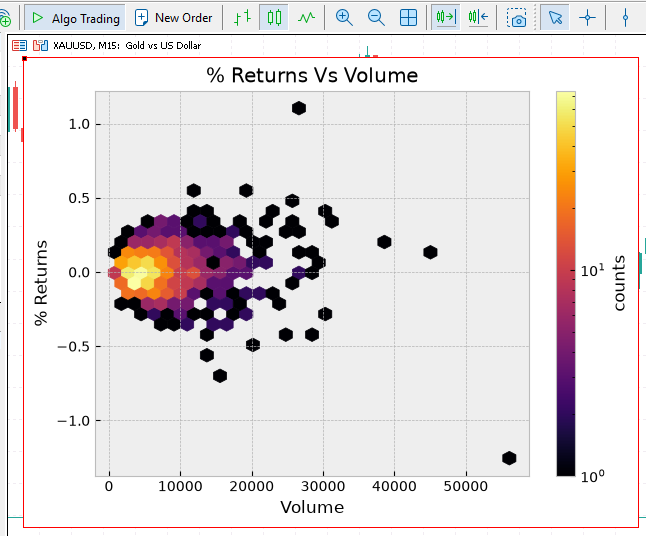
Notice: The results produced by the examples in this article depend on the current chart symbol, timeframe, broker, and available account history. Therefore, the plots may differ from those shown in the article.
Hexbin function signature, in reference to matplotlib.pyplot.hexbin.
CAxes::hexbin():
   void              hexbin(vector &x,
                            vector &y,
                            vector &C,
                            vector &extent,
                            int gridsize = nanint,
                            string bins = NULL,
                            string cmap = NULL,
                            string xscale = NULL,
                            string yscale = NULL,
                            string norm = NULL,
                            double vmin = nandbl,
                            double vmax = nandbl,
                            double alpha = nandbl,
                            double linewidths = nandbl,
                            string edgecolors = NULL,
                            string reduce_C_function = NULL,
                            int mincnt = nanint,
                            bool marginals = false,
                            string colorizer = NULL
                           );
| Parameter | Type | Description |
|---|---|---|
| x | vector | The x-coordinate data for the observations. |
| y | vector | The y-coordinate data for the observations. Must have the same length as x. |
| C | vector | Optional values associated with each (x, y) observation. Instead of simply counting observations, these values can be aggregated within each hexagon. |
| gridsize | int | Controls the number of hexagons. A larger value produces smaller hexagons and greater resolution. |
| bins | string | Controls how the values represented by the hexagons are mapped into colors. It can also use logarithmic binning with "log". |
| xscale | string | Scale used for the x-axis. It can be "linear" or "log". |
| yscale | string | Scale used for the y-axis. It can be "linear" or "log". |
| extent | vector | Defines the [xmin, xmax, ymin, ymax] region covered by the hexbin grid. |
| cmap | string | Colormap used to represent the values of the hexagons. |
| norm | string | Controls how values are normalized before being mapped through the colormap. |
| vmin | double | Minimum value used for color normalization. |
| vmax | double | Maximum value used for color normalization. |
| alpha | double | Transparency of the hexagons. 0 is completely transparent, and 1 is completely opaque. |
| linewidths | double | Width of the edges around the hexagons. |
| edgecolors | string | Color of the hexagon edges. "face" uses the same color as the hexagon itself. |
| reduce_C_function | string | Function used to combine the C values belonging to each hexagon. For example, the "mean", "sum", or "maximum" can be used. |
| mincnt | int | Minimum number of observations required for a hexagon to be displayed. |
| marginals | bool | If true, displays marginal distributions along the x and y axes. |
| colorizer | string | Controls the mapping between the numerical values and colors. |
Multiple Plots on a Single Axes
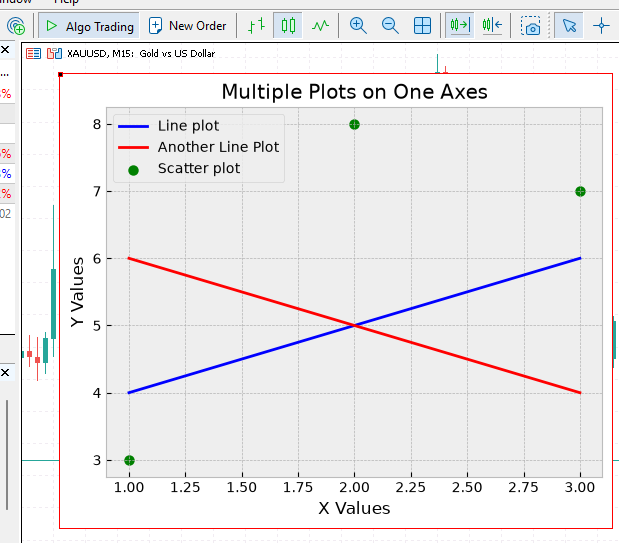
A Matplotlib Axes object can contain multiple plots, allowing several data series to be visualized within the same coordinate system. Each series can have its own data, plot type, color, and label while still sharing the same X/Y axes, limits, grid, title, and other Axes-level properties.
See the Python example below where we create a plot that contains two line plots and one scatter plot:
fig, ax = plt.subplots(figsize=(6, 4))

ax.plot([1, 2, 3], [4, 5, 6], color='blue', label='Line Plot')
ax.plot([3, 2, 1], [4, 5, 6], color='red', label='Another Line Plot')
ax.scatter([1, 2, 3], [3, 8, 7], color='green', label='Scatter Plot')

ax.set_title("Multiple Plots on One Axes")
ax.set_xlabel("X Values")
ax.set_ylabel("Y Values")
ax.legend(loc="upper left")
ax.grid(True)

plt.show()
Results:
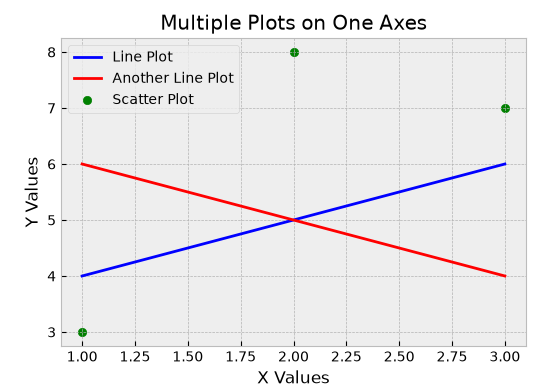
In Matplotlib, every time you call a method for creating a plot using the same Axes, a new plot is added to the mix regardless of its kind or instructions.
The project does not yet support these composite plots. To support them, the framework must dynamically create a new plot object for each call (scatter, plot, barh, etc.).
So, we need to dynamically add plots on top of each other (in a single Axes object). However, this raises a concern because each plot is unique, with different parameters and configurations. At the moment, we don't have a single/unified object for every plot; each plot (Axis) has its own data class.
Example a data class for the line plot:
//+------------------------------------------------------------------+
//| A class containing information about the line plot.              |
//+------------------------------------------------------------------+
class CLine2D
  {
public:

   vector            x, y;
   string            label;
   double            linewidth;
   string            linestyle;
   string            clr;
   string            gapcolor;
   string            marker;
   int               markersize;
   int               markeredgewidth;
   string            markeredgecolor;
   string            markerfacecolor;
   string            markerfacecoloralt;
   string            fillstyle;
   bool              antialiased;
   string            dash_capstyle;
   string            solid_capstyle;
   string            dash_joinstyle;
   string            solid_joinstyle;
   int               pickradius;
   string            drawstyle;

   JSON::Object*     toJSON(void)
     {
      JSON::Array *x_data = new JSON::Array();
      JSON::Array *y_data = new JSON::Array();

      for(ulong i = 0; i < x.Size(); i++)
         x_data.add(x[i]);

      for(ulong i = 0; i < y.Size(); i++)
         y_data.add(y[i]);

      JSON::Object *line = new JSON::Object();

      line
      .setProperty("type",              "line")
      .setProperty("x",                 x_data)
      .setProperty("y",                 y_data)
      .setProperty("label",             label)
      .setProperty("linewidth",         linewidth)
      .setProperty("linestyle",         linestyle)
      .setProperty("color",             clr)
      .setProperty("gapcolor",          gapcolor)
      .setProperty("marker",            marker)
      .setProperty("markersize",        (int)markersize)
      .setProperty("markeredgewidth",   (int)markeredgewidth)
      .setProperty("markeredgecolor",    markeredgecolor)
      .setProperty("markerfacecolor",    markerfacecolor)
      .setProperty("markerfacecoloralt", markerfacecoloralt)
      .setProperty("fillstyle",          fillstyle)
      .setProperty("antialiased",        antialiased)
      .setProperty("dash_capstyle",      dash_capstyle)
      .setProperty("solid_capstyle",     solid_capstyle)
      .setProperty("dash_joinstyle",     dash_joinstyle)
      .setProperty("solid_joinstyle",    solid_joinstyle)
      .setProperty("pickradius",         (int)pickradius)
      .setProperty("drawstyle",          drawstyle);

      return line;
     }
  };
Each plot class implements toJSON(), which serializes its attributes into a JSON::Object. CAxes then stores all plot JSON objects in a single array for that Axes instance.
This is what enables us to collect multiple instructions using the same object and essentially work with various Axis (plots) on a single Axes frame.
#ifndef MATPLOTLIB_AXES_CLASS

class CAxes
  {
protected:
   //--- Title and labels
   string            m_title;
   string            m_xlabel, m_ylabel;

   //--- Grid
   bool              m_grid;

   //--- Axis limits
   double            m_xmin;
   double            m_xmax;
   double            m_ymin;
   double            m_ymax;

   //--- Autoscaling
   bool              m_autoscale_x;
   bool              m_autoscale_y;

   //--- Axis visibility
   bool              m_xaxis_visible;
   bool              m_yaxis_visible;

   //--- Legend
   bool              m_legend;
   string            m_legend_loc;

public:
                     CAxes(void);
                    ~CAxes(void);

   JSON::Object*     m_plots[];
   void              add_plot(JSON::Object *plot)
     {
      uint s = m_plots.Size();
      ArrayResize(m_plots, s + 1);
      m_plots[s] = plot;
     }
...
...
};
The method add_plots() adds a JSON object containing plot information to the array m_plots[]. This method is called at the end of every function that creates a plot (Axis) of any kind.
For example, creating a line plot:
//+------------------------------------------------------------------+
//| Plot a line on the axes.                                         |
//|                                                                  |
//| Creates a CLine2D object from the supplied X/Y data and line     |
//| properties, converts it to JSON, and adds it to the axes plot    |
//| collection. The actual rendering is performed by the Python      |
//| Matplotlib server.                                               |
//|                                                                  |
//| Parameters:                                                      |
//|   x                    - X-coordinate values.                    |
//|   y                    - Y-coordinate values.                    |
//|   clr                  - Line color.                             |
//|   label                - Label used by the legend.               |
//|   marker               - Marker style for data points.           |
//|   linewidth            - Width of the line.                      |
//|   linestyle            - Line style, e.g. "-", "--", ":", "-.".  |
//|   gapcolor             - Color used for gaps in dashed lines.    |
//|   markersize           - Size of the markers.                    |
//|   markeredgewidth      - Width of the marker edge.               |
//|   markeredgecolor      - Color of the marker edge.               |
//|   markerfacecolor      - Primary marker face color.              |
//|   markerfacecoloralt   - Alternate marker face color.            |
//|   fillstyle            - Marker fill style.                      |
//|   antialiased          - Whether line rendering is antialiased.  |
//|   dash_capstyle        - Cap style used for dashed lines.        |
//|   solid_capstyle       - Cap style used for solid lines.         |
//|   dash_joinstyle       - Join style used for dashed lines.       |
//|   solid_joinstyle      - Join style used for solid lines.        |
//|   pickradius           - Picking tolerance for interactive       |
//|                          line selection.                         |
//|   drawstyle            - Draw style, e.g. "default", "steps",    |
//|                          "steps-pre", "steps-mid", or "steps-post|
//|                                                                  |
//| Notes:                                                           |
//|   The X and Y vectors should contain the same number of values.  |
//|   Empty or default styling parameters are passed through the     |
//|   JSON layer and are interpreted by the Python Matplotlib server.|
//|                                                                  |
//| Example:                                                         |
//|   vector x = {1, 2, 3, 4};                                       |
//|   vector y = {2, 4, 3, 5};                                       |
//|                                                                  |
//|   ax.plot(x, y, "blue", "Price", "o", 2.0, "-", ...);            |
//|                                                                  |
//+------------------------------------------------------------------+
void CAxes::plot(const vector &x,
                 const vector &y,
                 string clr,
                 string label,
                 string marker,
                 double linewidth,
                 string linestyle,
                 string gapcolor,
                 int markersize,
                 int markeredgewidth,
                 string markeredgecolor,
                 string markerfacecolor,
                 string markerfacecoloralt,
                 string fillstyle,
                 bool antialiased,
                 string dash_capstyle,
                 string solid_capstyle,
                 string dash_joinstyle,
                 string solid_joinstyle,
                 int pickradius,
                 string drawstyle)
  {
   CLine2D line;

//--- Values assignments
   line.x                    = x;
   line.y                    = y;
   line.clr                  = clr;
   line.label                = label;
   line.marker               = marker;
   line.linewidth            = linewidth;
   line.linestyle            = linestyle;
   line.gapcolor             = gapcolor;
   line.markersize           = markersize;
   line.markeredgewidth      = markeredgewidth;
   line.markeredgecolor      = markeredgecolor;
   line.markerfacecolor      = markerfacecolor;
   line.markerfacecoloralt   = markerfacecoloralt;
   line.fillstyle            = fillstyle;
   line.antialiased          = antialiased;
   line.dash_capstyle        = dash_capstyle;
   line.solid_capstyle       = solid_capstyle;
   line.dash_joinstyle       = dash_joinstyle;
   line.solid_joinstyle      = solid_joinstyle;
   line.pickradius           = pickradius;
   line.drawstyle            = drawstyle;

   add_plot(line.toJSON());
  }
When creating a scatter plot:
//+------------------------------------------------------------------+
//| Scatter plot                                                     |
//|                                                                  |
//| Creates a scatter plot from the supplied X/Y coordinates and     |
//| styling properties. The scatter plot is represented internally   |
//| by a CScatter object, serialized to JSON, and added to the axes. |
//| The resulting JSON is later processed by the Python Matplotlib   |
//| server to render the plot.                                       |
//|                                                                  |
//| Parameters:                                                      |
//|   x             - X-coordinate values for the data points.       |
//|   y             - Y-coordinate values for the data points.       |
//|   c             - Marker colors. Can be a single color or a      |
//|                   color specification used to map values through |
//|                   a colormap.                                    |
//|   label         - Label associated with the scatter plot, used   |
//|                   when displaying the legend.                    |
//|   s             - Marker size.                                   |
//|   marker        - Marker style used for each data point.         |
//|   cmap          - Colormap used when colors are mapped from      |
//|                   numerical values.                              |
//|   norm          - Normalization used to scale values before      |
//|                   applying the colormap.                         |
//|   vmin          - Lower bound of the data range used for color   |
//|                   normalization.                                 |
//|   vmax          - Upper bound of the data range used for color   |
//|                   normalization.                                 |
//|   alpha         - Marker transparency, where 0 is fully          |
//|                   transparent and 1 is fully opaque.             |
//|   linewidths    - Width of the marker edges.                     |
//|   edgecolors    - Color of the marker edges.                     |
//|   plotnonfinite - Specifies whether non-finite values are        |
//|                   plotted.                                       |
//|                                                                  |
//| Notes:                                                           |
//|   The X and Y vectors should contain corresponding coordinate    |
//|   values. Each X value is paired with the Y value at the same    |
//|   index.                                                         |
//|                                                                  |
//|   The scatter plot is not rendered directly by MQL5. Instead,    |
//|   its properties are serialized into JSON and sent to the Python |
//|   Matplotlib server for rendering.                               |
//+------------------------------------------------------------------+
void CAxes::scatter(const vector &x,
                    const vector &y,
                    string c,
                    string label,
                    double s,
                    string marker,
                    string cmap,
                    string norm,
                    double vmin,
                    double vmax,
                    double alpha,
                    double linewidths,
                    string edgecolors,
                    bool plotnonfinite
                   )
  {
   CScatter scatter;

//--- Values assignments
   scatter.x             = x;
   scatter.y             = y;
   scatter.label         = label;
   scatter.s             = s;
   scatter.c             = c;
   scatter.marker        = marker;
   scatter.cmap          = cmap;
   scatter.norm          = norm;
   scatter.vmin          = vmin;
   scatter.vmax          = vmax;
   scatter.alpha         = alpha;
   scatter.linewidths    = linewidths;
   scatter.edgecolors    = edgecolors;
   scatter.plotnonfinite = plotnonfinite;

//--- Add plot to Axes
   add_plot(scatter.toJSON());
  }
In the Python server, we extract instructions for every plot iteratively and call the respective function to create a plot (Axis).
def mpl():
        ...
        ...
        ...

        # Plots belonging to this Axes
        plots = axes_data_item.get("plots", [])

        for plot in plots:

            plot_type = plot.get("type")

            if plot_type == "line":  # Line plot

                x = plot.get("x", [])
                y = plot.get("y", [])

                kwargs = {
                    key: value
                    for key, value in plot.items()
                    if (
                        key not in ("type", "x", "y")
                        and value is not None
                        and value != ""
                    )
                }

                ax.plot(x, y, **kwargs)

            elif plot_type == "scatter":  # Scatter

                x = plot.get("x", [])
                y = plot.get("y", [])

                kwargs = {
                    key: value
                    for key, value in plot.items()
                    if (
                        key not in ("type", "x", "y")
                        and value is not None
                        and value != ""
                    )
                }

                ax.scatter(x, y, **kwargs)

            # Unknown plot
            else:
                print(f"Unsupported plot type: {plot_type}")
Similar to the Python example we've seen before for creating multiple plots on a single Axes, here is how you can accomplish it in MQL5.
#include <MatplotLib\pyplot.mqh>
CPyplot plt;
//+------------------------------------------------------------------+
//| Script program start function                                    |
//+------------------------------------------------------------------+
void OnStart()
  {
   CFigure fig = plt.subplots();

   CAxes ax;

   vector x1 = {1,2,3}, y1={4,5,6};
   vector x2={3,2,1}, y2={4,5,6};
   vector x3={1,2,3}, y3={3,8,7};

   ax.plot(x1, y1, "blue", "Line plot", "o");
   ax.plot(x2, y2, "red", "Another Line Plot");
   ax.scatter(x3, y3, "green", "Scatter plot");

   ax.set_title("Multiple Plots on One Axes");
   ax.set_xlabel("X Values");
   ax.set_ylabel("Y Values");
   ax.legend("upper left");
   ax.grid(true);

   fig.add_axes(ax);

   plt.show(fig);
   DebugBreak();
}
Results:
Working With Subplots
Apart from having multiple plots in a single Axes; a single figure can contain multiple Axes as well.
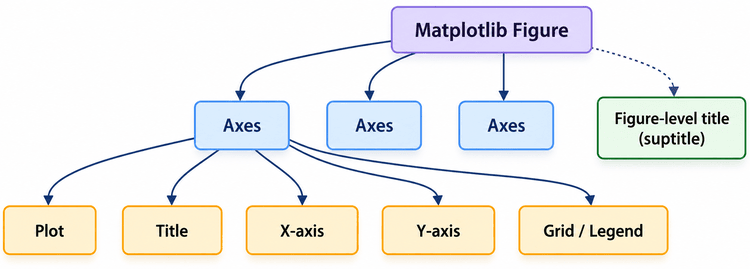
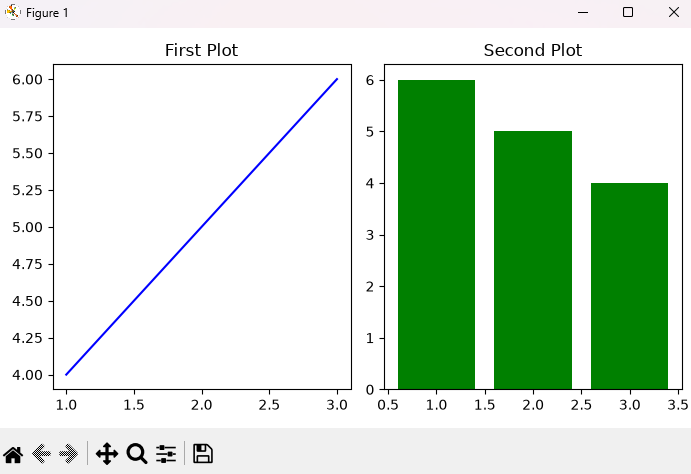
Suppose you want to have two plots (Axes) on a single figure (a line and a bar plot).
In Matplotlib-Python, below lines of code accomplishes that:
import matplotlib.pyplot as plt

# Create 1 row, 2 columns of subplots
fig, (ax1, ax2) = plt.subplots(1, 2, figsize=(7, 4))

# Plot on the first subplot
ax1.plot([1, 2, 3], [4, 5, 6], color='blue')
ax1.set_title('First Plot')

# Plot on the second subplot
ax2.bar([1, 2, 3], [6, 5, 4], color='green')
ax2.set_title('Second Plot')

plt.tight_layout()  # Fixes overlapping spacing
plt.show()
Results:
The important part here is.
fig, (ax1, ax2) = plt.subplots(1, 2)
matplotlib.pyplot.subplots(nrows=1, ncols=1, *, sharex=False, sharey=False, squeeze=True, width_ratios=None, height_ratios=None, subplot_kw=None, gridspec_kw=None, **fig_kw)[source]
Create a figure and a set of subplots.
This utility wrapper makes it convenient to create common layouts of subplots, including the enclosing figure object, in a single call.
The first two arguments specify the layout.
- Number of rows
- Number of columns
Therefore, Matplotlib creates a Figure containing two Axes in the same row (1) but separate columns (2).
Notice that ax1 and ax2 are independent Axes objects. Each one can have its own plot attributes, i.e., plot type, title, labels, grid, limits, and other properties.
The figure only acts as a container that holds both Axes, as discussed in a previous article.
A figure = the overall drawing surface.
Axes = an individual plotting area inside that Figure.
The method plt.tight_layour() adjusts the spacing around the Axes so that titles, labels, and other elements do not unnecessarily overlap.
To get the same capability in our MQL5 project, we have to make a few tweaks to the Figure class (CFigure), Axes class (CAxes), and inside the show() method.
Axes array in the CFigure class
We introduce an array for holding multiple CAxes objects inside the class and make it accessible outside of the class scope.
class CFigure
  {
protected:
   double            m_width;
   double            m_height;
   string            m_title;
   string            m_background;
   bool              m_tight_layout;
   bool              m_visible;

public:

   CAxes             m_axes[];
 };
This array will keep track of all Axes added to a single figure.
The method add_axes() adds a given CAxes object to this array.
//+------------------------------------------------------------------+
//|  Adds a CAxes object to the m_axes array[].                      |
//|                                                                  |
//|  Parameters:                                                     |
//|       ax -- the CAxes object to append to the m_axes array.      |
//|                                                                  |
//+------------------------------------------------------------------+
void CFigure::add_axes(CAxes &ax)
  {
   uint s = m_axes.Size();
   ArrayResize(m_axes, s + 1);
//---
   m_axes[s] = ax;
  }
We also need a method that returns the number of Axes objects stored in the class (the size of the m_axes[] array).
uint total_axes() { return m_axes.Size(); }
When it comes to crafting a JSON object for every Axes in a figure, the function below performs this task.
//+------------------------------------------------------------------+
//|  Converts a CAxes object into a JSON::Object.                    |
//|                                                                  |
//|  The resulting JSON object contains the axes configuration,      |
//|  including its title, axis labels, grid, legend, axis limits,    |
//|  and all plots associated with the axes.                         |
//|                                                                  |
//|  Parameters:                                                     |
//|       ax -- the CAxes object to convert to JSON.                 |
//|                                                                  |
//|  Returns:                                                        |
//|       A pointer to a JSON::Object containing the serialized      |
//|       CAxes properties and plot data.                            |
//+------------------------------------------------------------------+
JSON::Object* CFigure::axestoJSON(CAxes &ax)
  {
//--- X limits
   JSON::Array *xlim = new JSON::Array();

   xlim
   .add(ax.xmin())
   .add(ax.xmax());

//--- Y limits
   JSON::Array *ylim = new JSON::Array();

   ylim
   .add(ax.ymin())
   .add(ax.ymax());

//--- For every plot in the axis (for multiple plots)
   JSON::Array *plots = new JSON::Array();

   for(uint i = 0; i < ax.m_plots.Size(); i++)
     {
      plots.add(ax.m_plots[i]);
     }

//--- Axes object
   JSON::Object *axes = new JSON::Object();

   JSON::Object *legend = new JSON::Object();

   legend
   .setProperty("enabled", ax.get_legend())
   .setProperty("loc", ax.legend_loc());

   axes
   .setProperty("title",  ax.get_title())
   .setProperty("xlabel", ax.get_xlabel())
   .setProperty("ylabel", ax.get_ylabel())
   .setProperty("grid",   ax.grid())
   .setProperty("legend", legend)
   .setProperty("xlim",   xlim)
   .setProperty("ylim",   ylim)
   .setProperty("plots",  plots);

   return axes;
  }
This function extracts every property of an Axes object used in a figure and creates a JSON object for the entire Axes.
//--- For every plot in the axis (for multiple plots)
   JSON::Array *plots = new JSON::Array();

   for(uint i = 0; i < ax.m_plots.Size(); i++)
     {
      plots.add(ax.m_plots[i]);
     }
The method subplots() in a class CPyplot is the one that takes instructions about multiple Axes to be drawn on a figure.
//+------------------------------------------------------------------+
//| Creates a figure containing multiple Axes objects arranged in a  |
//| grid of rows and columns.                                        |
//|                                                                  |
//| Parameters:                                                      |
//|    nrows  - Number of rows in the subplot grid.                  |
//|    ncols  - Number of columns in the subplot grid.               |
//|    width  - Width of the resulting figure.                       |
//|    height - Height of the resulting figure.                      |
//|    sharex - Whether the subplots should share the X-axis.        |
//|    sharey - Whether the subplots should share the Y-axis.        |
//|                                                                  |
//| Returns:                                                         |
//|    A CFigure object configured with the requested subplot layout.|
//+------------------------------------------------------------------+
CFigure CPyplot::subplots(uint nrows = 1,
                          uint ncols = 1,
                          const double width = 6.4,
                          const double height = 4.8,
                          const bool sharex = false,
                          const bool sharey = false
                         )
  {
   CFigure fig;
   ArrayResize(m_figure.m_axes, nrows * ncols);

   fig.set_size(width, height);
   fig.rows(nrows);
   fig.cols(ncols);
   fig.sharex(sharex);
   fig.sharey(sharey);

   return fig;
  }
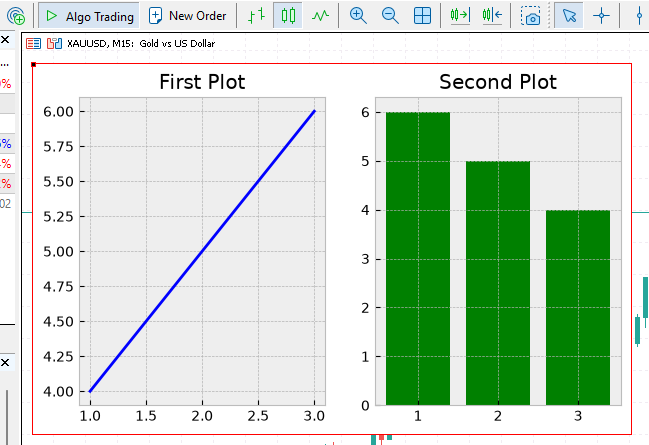
Let's recreate the same figure in MetaTrader 5 as we did in the Python example:
//+------------------------------------------------------------------+
//| Script program start function                                    |
//+------------------------------------------------------------------+
void OnStart()
  {
//--- collect x and y data to plot

   plt.style.use(matplotlib_style);

//--- Subplots

   CFigure fig = plt.subplots(1, 2, 7, 4);

   // Plot on the first subplot
   CAxes ax1, ax2;
   vector x1 = {1,2,3}, y1={4,5,6};
   ax1.plot(x1, y1, "blue");
   ax1.set_title("First Plot");

   fig.add_axes(ax1);

   // Plot on the second subplot
   vector x_bar={1,2,3}, height={6,5,4};
   ax2.bar(x_bar, height, "green");
   ax2.set_title("Second Plot");

   fig.add_axes(ax2);

   plt.show(fig);
   DebugBreak();
  }
Results:
Different Matplotlib Styles
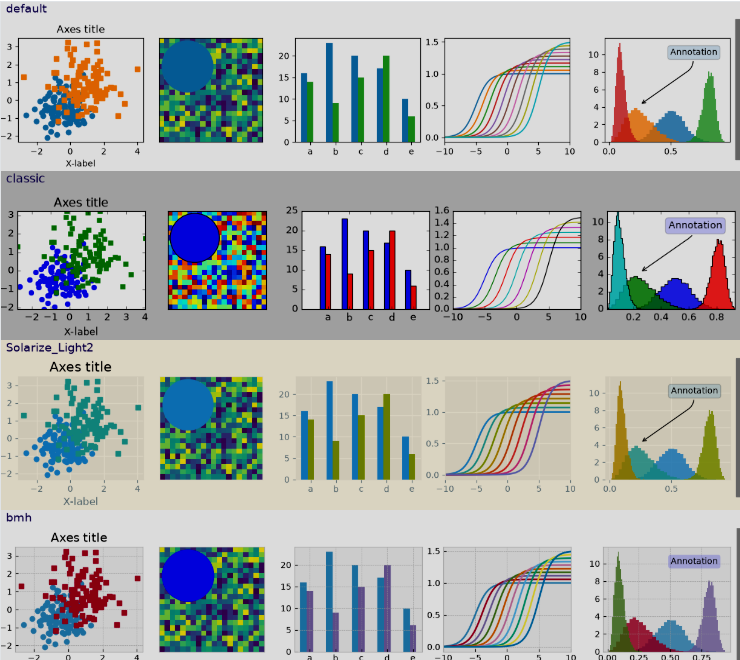
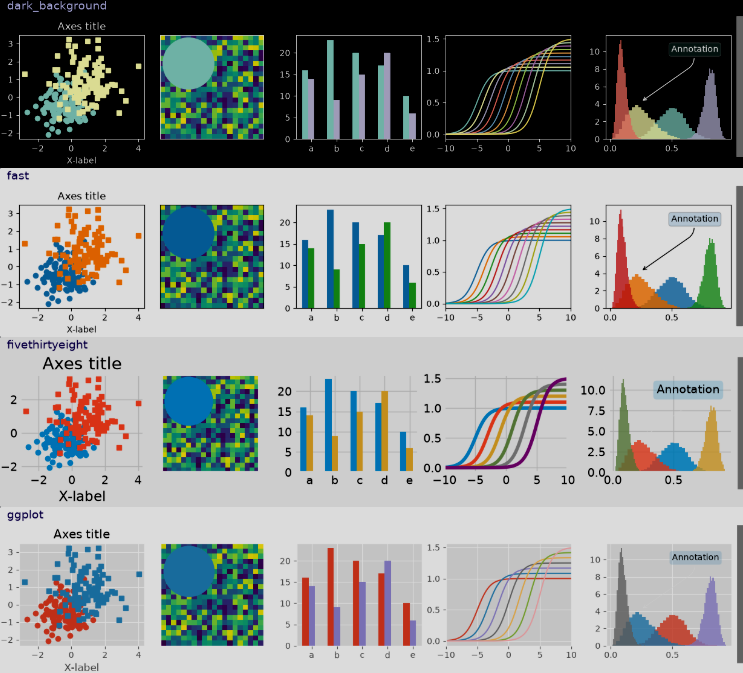
Apart from having different data visualization and plotting techniques, it is better to have a way to control how the plots appear to the user (style). This brings us to a submodule within Matplotlib called matplotlib.style.
According to the docs:
Styles are predefined sets of rcParams that define the visual appearance of a plot.
While you can customize everything as you see fit with style sheets and rcParams, using pre-made style sheets makes this process easier.
Below are some of the style sheets available, see the full list.
The CStyle class
#ifndef MATPLOTLIB_STYLE_CLASS

string DEFAULT_STYLES[] =
     {
      "Solarize_Light2",
      "bmh",
      "classic",
      "dark_background",
      "fast",
      "fivethirtyeight",
      "ggplot",
      "grayscale",
      "petroff10",
      "petroff6",
      "petroff8",
      "seaborn-v0_8",
      "seaborn-v0_8-bright",
      "seaborn-v0_8-colorblind",
      "seaborn-v0_8-dark",
      "seaborn-v0_8-dark-palette",
      "seaborn-v0_8-darkgrid",
      "seaborn-v0_8-deep",
      "seaborn-v0_8-muted",
      "seaborn-v0_8-notebook",
      "seaborn-v0_8-paper",
      "seaborn-v0_8-pastel",
      "seaborn-v0_8-poster",
      "seaborn-v0_8-talk",
      "seaborn-v0_8-ticks",
      "seaborn-v0_8-white",
      "seaborn-v0_8-whitegrid",
      "tableau-colorblind10"
     };
//+------------------------------------------------------------------+
//|                                                                  |
//+------------------------------------------------------------------+
class CStyle
  {
private:
   CSession          m_session;
   string            m_server;
   uint              m_port;
   string            m_name;

public:

   string            available[]; //styles available

                     CStyle(CSession *session, const string server, const uint port);
                    ~CStyle(void) {}

   bool              use(const string name);
   string            name(void) const { return m_name; }
  };
//+------------------------------------------------------------------+
//|                                                                  |
//+------------------------------------------------------------------+
CStyle::CStyle(CSession *session, const string server, const uint port):
   m_session(session),
   m_server(server),
   m_port(port)
  {
//---
   ArrayCopy(available, DEFAULT_STYLES);
  }
//+------------------------------------------------------------------+
//|                                                                  |
//+------------------------------------------------------------------+
bool CStyle::use(const string name)
  {
   m_name = name;
//---
   JSON::Object *json = new JSON::Object();

   json
   .setProperty("style", name);

   string json_str = json.toString();

   del_valid_ptr(json);

   string url = m_server+":"+string(m_port);
   CResponse response = m_session.post(url + "/set-style", json_str);

//---

   if (MQLInfoInteger(MQL_DEBUG))
      Print(CharArrayToString(response.content));

//---
   return response.ok;
  }
Just like matplotlib.style.use, the method CStyle::use() is responsible for setting a stylesheet to be used for Matplotlib.
In the backend, we create a route that receives stylesheet instructions and applies a specified style to a matplotlib.pyplot object.
import matplotlib.pyplot as plt


@app.route("/set-style", methods=["POST"])
def set_style():
    """Sets the style for the matplotlib plots.

    Returns:
        jsonify: A JSON response indicating success or failure.
    """

    data = request.get_json(silent=True)

    if not data:
        return jsonify({"error": "No JSON data provided"}), 400

    style = data.get("style")

    if style is None:
        return jsonify({"error": "No style specified"}), 400

    try:
        # Reset all rcParams to Matplotlib defaults
        plt.rcdefaults()

        # Apply the requested style
        plt.style.use(style)

    except OSError as e:
        return (
            jsonify({"error": f"Invalid Matplotlib style: {style}", "details": str(e)}),
            400,
        )

    return jsonify({"message": f"Style set to {style}"}), 200
Output (server logs):
127.0.0.1 - - [28/Aug/2026 14:07:50] "POST /set-style HTTP/1.1" 200 -
You might have noticed that I have been using "bmh" as the plotting style for all the examples discussed in this post.
input string matplotlib_style = "bmh";
//+------------------------------------------------------------------+
//| Script program start function                                    |
//+------------------------------------------------------------------+
void OnStart()
  {
//--- Setting a style to use for Matplotlib

   plt.style.use(matplotlib_style);

   ...
   ...
  }
Final Thoughts
With the additions introduced in this article, our MQL5 Matplotlib framework has evolved considerably beyond a simple interface for drawing line plots. We can now create a wider range of visualizations, including scatter plots, bar charts, horizontal bar charts, histograms, pie charts, and hexbin plots, while retaining a familiar Matplotlib-style syntax from within MQL5.
More importantly, these additions demonstrate that the architecture we established in the previous article is flexible enough to accommodate different types of plots without requiring significant changes to the underlying communication layer.
Always remember, MQL5 describes what to plot, and the Python backend renders it with Matplotlib. Ensure the Python server is running (main.py) so plots can appear in the terminal.
Best regards.
Attachments Table
| Filename | Description & Usage |
|---|---|
| MQL5\Include\Matplotlib\axes.mqh | Contains the CAxes class, which represents the plotting area of a Matplotlib-style figure. It manages plot data and axes properties such as titles, axis labels, grid, limits, autoscaling, axis visibility, and legends. |
| MQL5\Include\Matplotlib\axis.mqh | Contains data classes for every individual plot, including CScatter, CPlot, CHistogram, etc. |
| MQL5\Include\Matplotlib\figure.mqh | Contains the CFigure class, which represents the overall figure or drawing surface. It manages figure-level properties such as width, height, super title, background color, layout, visibility, and the axes associated with the figure. |
| MQL5\Include\Matplotlib\pyplot.mqh | Contains the CPyplot class, which provides the high-level, pyplot-style interface used from MQL5. It combines CFigure and CAxes, provides convenient plotting functions, converts the figure and axes configuration into JSON, and communicates with the Python Matplotlib server. |
| MQL5\Include\Matplotlib\jason.mqh | JSON serialization and deserialization library. |
| MQL5\Include\Matplotlib\JSON.mqh | A JSON library. |
| MQL5\Include\Matplotlib\requests.mqh | Contains the class CSession and others responsible for sending web requests in a Python-like syntax. |
| MQL5\Scripts\Matplotlib\Matplotlib Test.mq5 | A demonstration script used to test the MQL5 Matplotlib implementation. |
| Python\main.py | The main Python script; it contains the Flask server that listens to plotting instructions from MQL5. |
| Python\utils.py | Contains helper functions for plotting. |
| Python\requirements.txt | Contains a list of Python dependencies and their versions; used in this project. |
Warning: All rights to these materials are reserved by MetaQuotes Ltd. Copying or reprinting of these materials in whole or in part is prohibited.
This article was written by a user of the site and reflects their personal views. MetaQuotes Ltd is not responsible for the accuracy of the information presented, nor for any consequences resulting from the use of the solutions, strategies or recommendations described.

 Features of Custom Indicators Creation
 Confident Learning: Finding Mislabeled Trades Before They Poison Your Classifier
 Features of Experts Advisors
 How to Replace a WebSocket EA with TradeMux REST in MetaTrader 5

- Free trading apps
- Over 8,000 signals for copying
- Economic news for exploring financial markets
You agree to website policy and terms of use