

Account Audit System in MQL5 (Part 1): Designing the User Interface
 2 459
2 459
 0
0

Introduction
Traders and MQL5 developers routinely perform account “audits” by manually scanning deal history, counting wins and losses, and estimating weekly or monthly results — often without a single, persistent view that lives on the chart. Attempts to display these metrics on-chart frequently run into two practical problems: the interface becomes static and intrusive, and it can interfere with terminal features (for example, one-click trading), degrading the trader's workflow.
This article narrows the problem and addresses it as an engineering task: build the UI layer of an Account Audit System as a custom MQL5 indicator. Our goal is not to implement the audit calculations or storage yet, but to provide a compact, on‑chart dashboard that presents core audit fields (start/end balance, net profit, trades, wins/losses, win rate, withdrawals, and a performance rating) and that can be safely shown or hidden by the user. We design the indicator with maintainability in mind: named constants, a dedicated data structure for metrics, modular UI helpers, and an event-driven Show/Hide control so the dashboard integrates cleanly with the terminal without breaking one‑click trading.
This focused approach lets us validate the presentation, interaction model, and chart‑object handling up front. The UI produced here will serve as a plug-and-play surface for the audit engine, persistence layer, and notification subsystem to be developed in later parts.
Project Overview
Before diving into implementation, it’s important to give a visual sense of what we are about to build.
At its core, the system is designed to operate on a recurring evaluation cycle, automatically generating structured audit reports on a weekly or monthly basis, as defined by the user. Rather than requiring manual inspection, it continuously analyzes the most recent evaluation window, producing a consistent and objective view of account performance over time.
The audit results are then presented directly on the chart through a clean, structured interface. The result is a compact audit dashboard that sits alongside price action, allowing the trader to monitor performance in real time without leaving the chart. The objective here is not just to display numbers but to transform raw trading events into actionable, easy-to-read intelligence that a trader can interpret at a glance.
Below is what the final audit interface will look like when deployed on the chart: 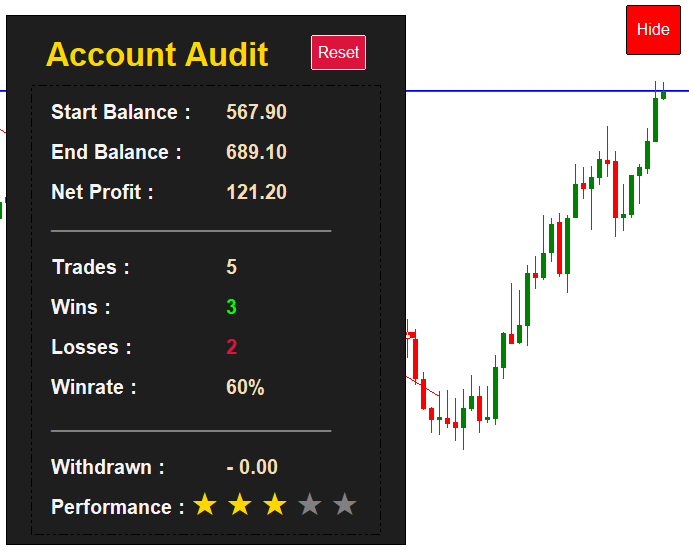
With this visual target in mind, the next step is to examine how this article approaches achieving a user-friendly interface. Rather than diving straight into code, the process is first decomposed into core components, allowing us to understand both structure and data flow before implementation.
The workflow diagram below offers a concise overview of this approach, outlining how each part contributes to building an intuitive and responsive account audit interface.
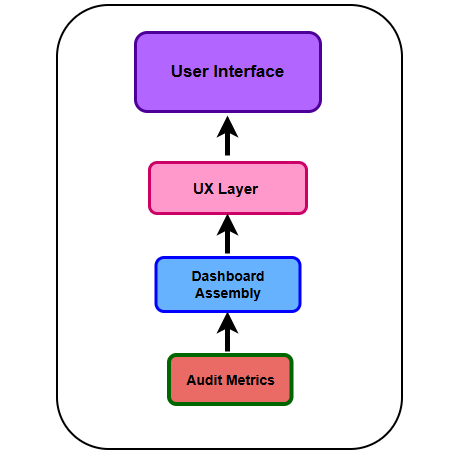
Now that the approach is clearly defined, we can now begin by outlining the key audit metrics required for the system.
Defining Audit Metrics
With the system architecture established, the next step is to define the core metrics that drive the audit process. These metrics form the quantitative backbone of the audit engine, transforming raw trading data into meaningful performance insights. Each metric is deliberately selected to answer a specific question about account behavior, efficiency, and risk exposure.
- Start Balance: Represents the account balance at the beginning of the audit period. It reflects realized capital only and excludes any floating profit or loss, ensuring that performance calculations remain stable and reproducible.
- End Balance: Captures the account balance at the end of the audit window. When paired with the start balance, it provides an immediate high-level view of whether the account has grown, stagnated, or declined over the specified period.
- Net Profit: Is the arithmetic difference between the end balance and the start balance, adjusted for deposits and withdrawals where necessary.
- Total Trades: Reflects the overall trading activity within the audit period. It provides context for other metrics, particularly win rate and profit.
- Wins and Losses: Breaks down the total trades into successful and unsuccessful executions. This binary classification is essential for understanding trade distribution and forms the basis for more advanced ratios.
- Win Rate: Expresses the probability of success per trade. While often overemphasized in isolation, it becomes highly informative when analyzed alongside net profit, revealing whether profitability is driven by frequency of wins or magnitude of returns.
- Withdrawn: Tracks all capital removed from the account during the audit period. This is a critical inclusion, as it prevents misinterpretation of performance. An account may appear to stagnate or decline when, in reality, profits have been consistently extracted.
- Performance Rating: Is a composite metric that synthesizes multiple dimensions—profitability, consistency, risk exposure, and trade efficiency—into a single evaluative score. Its purpose is not merely descriptive but interpretative: to provide an intuitive assessment of overall account quality at a glance.
Together, these metrics establish a structured and comprehensive view of trading performance. They enable the system not only to report what happened but to contextualize why it happened—laying the foundation for a user interface that is both informative and decision-oriented.
User Interface Design
With the analytical backbone clearly defined, the next step is to bring the audit system to life, translating raw metrics into a visual and interactive experience that traders can actually use.
In this implementation, we will be working with a custom indicator in MQL5. This is a deliberate architectural choice. Unlike scripts or Expert Advisors, a custom indicator naturally resides on the chart, giving us a persistent and reactive surface for rendering audit data in real time. It allows us to overlay performance insights directly where trading decisions are made, which is precisely where they are most valuable.
Preprocessor Directives
We begin by establishing the preprocessor directives, which define the compilation behavior and metadata of the MQL5 program. This is then followed by the declaration of key constants that will be referenced throughout the implementation, ensuring consistency and maintainability.
//+------------------------------------------------------------------+
#property copyright "© 2026, ChukwuBuikem"
#property link      "https://www.mql5.com/en/users/bikeen"
#property version   "1.00"
#property indicator_chart_window
#property indicator_plots 0
#property strict
#include <ChartObjects\ChartObjectsTxtControls.mqh>

#define PROG_NAME "Account Audit System"
#define OUTER_PANEL PROG_NAME + "_OuterPanel"
#define INNER_PANEL PROG_NAME + "_InnerPanel"
#define MAIN_HEADER PROG_NAME + "_Header"
#define START_BALANCE_LABEL PROG_NAME + "_StartBal"
#define END_BALANCE_LABEL PROG_NAME + "_EndBal"
#define NET_PROFIT_LABEL PROG_NAME + "_NetProfit"
#define LINE_SEPARATOR PROG_NAME + "_Separator"
#define TRADES_LABEL PROG_NAME + "_Trades"
#define WINS_LABEL PROG_NAME + "_Wins"
#define LOSSES_LABEL PROG_NAME + "_Losses"
#define WINRATE_LABEL PROG_NAME + "_WinRate"
#define WITHDRAWAL_LABEL PROG_NAME + "_Withdrawal"
#define PERFORMANCE_LABEL PROG_NAME + "_Performance"
#define RATING_LABEL PROG_NAME + "_Star"
#define CLR_CHARCOAL  C'30,30,30'
#define CHART_ID ChartID()
- #property: Declares program-level metadata such as versioning, author details, and compiler directives that define how the MQL5 program is treated and displayed within the terminal.
- #include: Incorporates header files into the program, allowing access to predefined classes, such as ChartObjectsTxtControls, to extend functionality and enable reuse of predefined classes and UI controls.
- #define: Establishes macros that act as reusable aliases, improving code readability and maintainability.
Custom Data Structure
Next, we introduce a custom data structure that serves as the core container for all computed account metrics. This structure acts as the central state of the audit system, ensuring that performance data is organized, accessible, and consistently managed.
//-Data structure
struct acc_Audit
  {
   //--Variables : Defined  audit metrics
   double            startBal, endBal;
   double            deposit, withdrawn, netProfit;
   int               winRate, totalTrades, wins;
   int               losses, stars;
   //-Constructor
                     acc_Audit()
     {
      startBal = 0;
      endBal = 0;
      withdrawn = 0;
      netProfit = 0;
      winRate = 0;
      totalTrades = 0;
      wins = 0;
      losses = 0;
      stars = 1;
     }
  };
- Variables: These represent the predefined performance metrics, encapsulating values such as start balance, end balance, performance score—stars, and other audit-related data points.
- Constructor: Responsible for initializing the structure’s variables to a clean default state. This ensures predictable behavior on first execution, before the persistence layer assumes control and begins restoring or updating stored values.
Global Variables
With the core data structure in place, we now transition to defining the program’s global variables. These serve as shared instances that persist across the program lifecycle, enabling coordinated access to both data and interface components.
//-Global variables
acc_Audit accountAudit;
CChartObjectRectLabel rectLabel;
CChartObjectLabel label; - accountAudit: An instance of the custom data structure, responsible for holding and managing all computed account metrics.
- rectLabel: An instance of CChartObjectRectLabel, used to simplify the creation and management of rectangle-based UI elements on the chart.
- Label: An instance of CChartObjectLabel, providing a convenient handle for rendering and updating text-based UI components.
Lifecycle Handlers
Now, we introduce the core program lifecycle handlers, where initialization, runtime processing, and cleanup logic are defined. These include OnInit(), OnCalculate(), and OnDeinit()—each playing a distinct role in the indicator’s execution flow.
At this stage, our primary focus is on setting up the user interface—so the logic within OnInit() and OnDeinit() will be fully implemented. The OnCalculate() function will be intentionally left empty for now. Its implementation will be addressed in a later part of the series, where we introduce the audit computation engine.
//+------------------------------------------------------------------+
//|        Initialization function                                   |
//+------------------------------------------------------------------+
int OnInit()
  {
//---
   showDashboard(accountAudit);

   return(INIT_SUCCEEDED);
  }
//+------------------------------------------------------------------+
//|       Deinitialization function                                  |
//+------------------------------------------------------------------+
void OnDeinit(const int32_t reason)
  {
//---
   ObjectsDeleteAll(0, PROG_NAME);//Clear chart
   ChartSetInteger(CHART_ID, CHART_SHOW_ONE_CLICK, true);
   ChartRedraw();
  }
//+------------------------------------------------------------------+
//| Custom indicator iteration function                              |
//+------------------------------------------------------------------+
int OnCalculate(const int32_t rates_total,
                const int32_t prev_calculated,
                const datetime &time[],
                const double &open[],
                const double &high[],
                const double &low[],
                const double &close[],
                const long &tick_volume[],
                const long &volume[],
                const int32_t &spread[])
  {
//-Empty for now
   return(rates_total);
  }
- OnInit(): Responsible for setting up the initial state—initializing variables and constructing the UI dashboard.
- OnDeinit(): Handles graceful shutdown by ensuring proper chart cleanup when the program is removed. It also restores modified chart settings—such as re-enabling one-click trading.
- OnCalculate(): Function for handling price data updates and performing iterative calculations on each tick or bar update.
Utility Functions
Next, we introduce a set of utility functions—modular helpers designed to encapsulate reusable logic, helping keep the core implementation concise, organized, and easier to maintain.
//+------------------------------------------------------------------+
//|        Function to create rectangle labels                       |
//+-----------------------------------------------------------------+
bool createRectLabel(const string objName, const int xDistance, const int yDistance,
                     const int xSize, const int ySize, const color clr, int borderWidth,
                     const color borderColor  = clrNONE, const ENUM_BORDER_TYPE borderType  = BORDER_FLAT,
                     const ENUM_LINE_STYLE  borderStyle = STYLE_SOLID)
  {
//---
   if(rectLabel.Create(CHART_ID, objName, 0, 0, 0, 0, 0))
     {
      rectLabel.X_Distance(xDistance);
      rectLabel.Y_Distance(yDistance);
      rectLabel.X_Size(xSize);
      rectLabel.Y_Size(ySize);
      rectLabel.BackColor(clr);
      rectLabel.SetInteger(OBJPROP_BORDER_COLOR, borderColor);
      rectLabel.BorderType(borderType);
      rectLabel.Style(borderStyle);
      rectLabel.Corner(CORNER_LEFT_UPPER);
      rectLabel.Tooltip("\n");
      rectLabel.SetInteger(OBJPROP_HIDDEN, true);
      return true;
     }
   return false;
  }
//+------------------------------------------------------------------+
//|        Function to create  labels                                |
//+------------------------------------------------------------------+
bool createLabel(const string objName, const int xDistance, const int yDistance,
                 const color clr, const string display, const int fontSize = 15,
                 const string font = "Arial Bold", const string tooltip = "\n")
  {
//---
   if(label.Create(CHART_ID, objName, 0, 0, 0))
     {
      label.X_Distance(xDistance);
      label.Y_Distance(yDistance);
      label.Color(clr);
      label.Tooltip(tooltip);
      label.SetString(OBJPROP_TEXT, display);
      label.FontSize(fontSize);
      label.Font(font);
      label.SetInteger(OBJPROP_HIDDEN, true);
      return true;
     }
   return false;
  }
//+------------------------------------------------------------------+
//|        Function to star shapes for rating, using labels          |
//+------------------------------------------------------------------+
void createStars(const int earnedStar)
  {
//---
   int xDistance = 215;
   for(int w = 1; w <= 5; w++)
     {
      string name = RATING_LABEL + IntegerToString(w);
      createLabel(name, (w == 1) ? xDistance : xDistance += 35, 513,
                  (w <= earnedStar) ? clrGold : clrGray, "★", 30, "Arial Bold", "Overall Rating");
     }
  }
//+------------------------------------------------------------------+
//|        Function to assemble Dashboard                            |
//+------------------------------------------------------------------+
void showDashboard(acc_Audit & audit)
  {
//---
   createRectLabel(OUTER_PANEL, 30, 50, 400, 530, CLR_CHARCOAL, 1, clrDarkBlue, BORDER_FLAT, STYLE_SOLID);
   createRectLabel(INNER_PANEL, 55, 120, 350, 450, CLR_CHARCOAL, 1, clrDarkBlue, BORDER_FLAT, STYLE_DASHDOTDOT);
   createLabel(MAIN_HEADER, 70, 70, clrGold, "Account Audit", 25);
   createLabel(START_BALANCE_LABEL, 75, 135, clrWhiteSmoke, "Start Balance :", 15);
   createLabel(START_BALANCE_LABEL + "Value", 250, 135, clrWheat, DoubleToString(audit.startBal, 2), 15);
   createLabel(END_BALANCE_LABEL, 75, 175, clrWhiteSmoke, "End Balance :", 15);
   createLabel(END_BALANCE_LABEL + "Value", 250, 175, clrWheat, DoubleToString(audit.endBal, 2), 15);
   createLabel(NET_PROFIT_LABEL, 75, 215, clrWhiteSmoke, "Net Profit :", 15);
   createLabel(NET_PROFIT_LABEL + "Value", 250, 215, clrWheat, DoubleToString(audit.netProfit, 2), 15);
   createLabel(LINE_SEPARATOR + "0", 75, 250, clrGray, "___________________________________", 11);
   createLabel(TRADES_LABEL, 75, 290, clrWhiteSmoke, "Trades :", 15);
   createLabel(TRADES_LABEL + "Value", 250, 290, clrWheat, IntegerToString(audit.totalTrades), 15);
   createLabel(WINS_LABEL, 75, 330, clrWhiteSmoke, "Wins :", 15);
   createLabel(WINS_LABEL + "Value", 250, 330, clrLime, IntegerToString(audit.wins), 15);
   createLabel(LOSSES_LABEL, 75, 370, clrWhiteSmoke, "Losses :", 15);
   createLabel(LOSSES_LABEL + "Value", 250, 370, clrCrimson, IntegerToString(audit.losses), 15);
   createLabel(WINRATE_LABEL, 75, 410, clrWhiteSmoke, "Winrate :", 15);
   createLabel(WINRATE_LABEL + "Value", 250, 410, clrWheat, IntegerToString(audit.winRate) + "%", 15);
   createLabel(LINE_SEPARATOR + "1", 75, 450, clrGray, "___________________________________", 11);
   createLabel(WITHDRAWAL_LABEL, 75, 490, clrWhiteSmoke, "Withdrawn :", 15);
   createLabel(WITHDRAWAL_LABEL + "Value", 250, 490, clrWheat, "- " + DoubleToString(audit.withdrawn, 2), 15);
   createLabel(PERFORMANCE_LABEL, 75, 530, clrWhiteSmoke, "Performance :", 15);
   createStars(audit.stars);
   ChartSetInteger(CHART_ID, CHART_SHOW_ONE_CLICK, false);
   ChartRedraw();
  }
//+------------------------------------------------------------------+
- createRectLabel(): Utilizes the CChartObjectRectLabel instance to construct rectangle-based elements that form the structural layout of the dashboard.
- createLabel(): Leverages the CChartObjectLabel instance to generate text components for displaying metrics.
- createStars(): Dynamically builds the performance rating output, rendering a star-based score using label objects.
- showDashboard(): Orchestrates the UI assembly by combining all components into a cohesive interface while also disabling one-click trading to prevent interaction conflicts.
At this stage, once the program is compiled and launched on the chart, the interface should render as follows:
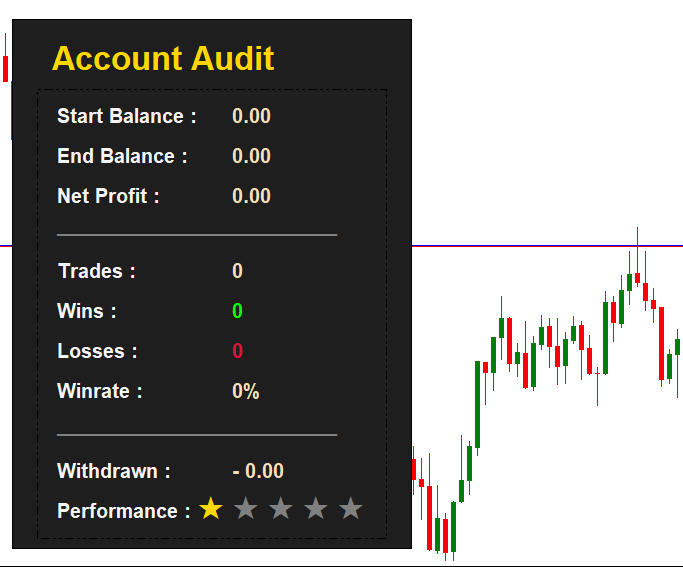
At this point, we have a clean and structured dashboard displaying our key metrics. However, a critical usability issue becomes apparent—the system is not user-friendly. It permanently disables the one-click trading panel while the dashboard remains static, limiting interaction and obstructing a clear view of historical price action.
This raises an important question: how can we enhance the user experience while preserving functionality?
Improving User Experience (UX)
To further enhance the user experience, several approaches can be considered. In this implementation, we adopt a simpler and more practical solution: introducing a toggle button that allows the dashboard to be shown or hidden on demand. This gives the user greater control over the chart space, ensuring that the dashboard remains accessible when needed while preserving an unobstructed view of price action when it is not.
Now, let’s proceed to the MQL5 implementation of this functionality.
Before creating the button, we define name constants that will be used during the button creation process. We also create an instance of CChartObjectButton to simplify and manage the button creation more efficiently.
. . .
. . .
#define CLR_CHARCOAL  C'30,30,30'
#define CHART_ID ChartID()
#define BUTTON_MENU PROG_NAME + "_ButtonMenu"
#define BUTTON_RESET PROG_NAME + "_ButtonReset"


//-Global variables
. . .
CChartObjectRectLabel rectLabel;
CChartObjectLabel label;
CChartObjectButton button;
Next, we modify the initialization function so that it creates only the menu button, rather than loading the entire dashboard at startup.
//+------------------------------------------------------------------+
//|        Initialization function                                        |
//+------------------------------------------------------------------+
int OnInit()
  {
//---
   createButton(BUTTON_MENU, 780, 40, 55, 50, clrBlue, clrBlack, "Show", 13, "Menu Button");
   ChartRedraw();

   return(INIT_SUCCEEDED);
  }
//+------------------------------------------------------------------+
After modifying the initialization process, we create a dedicated button creation function utilizing the CChartObjectButton instance. This is followed by a function to toggle the menu button—updating its state, text, and color to reflect the show and hide modes.
//+------------------------------------------------------------------+
//|        Function to create clickable button                       |
//+------------------------------------------------------------------+
bool createButton(const string objName, const int xDistance, const int yDistance,
                  const int xSize, const int ySize, const color backColor, const color borderColor,
                  const string display, const int fontSize, const string toolTip)
  {
//---
   if(button.Create(CHART_ID, objName, 0, 0, 0, 0, 0))
     {
      button.X_Distance(xDistance);
      button.Y_Distance(yDistance);
      button.X_Size(xSize);
      button.Y_Size(ySize);
      button.BackColor(backColor);
      button.SetString(OBJPROP_TEXT, display);
      button.Color(clrWhite);
      button.BorderColor(borderColor);
      button.State(false);
      button.Selectable(false);
      button.FontSize(fontSize);
      button.Tooltip(toolTip);
      button.SetInteger(OBJPROP_HIDDEN, true);
      return true;
     }
   return false;
  }
//+------------------------------------------------------------------+
//|               Function to toggle menu button                     |
//+------------------------------------------------------------------+
bool toggleMenuButton()
  {
//---
   static bool isShow = false;
   isShow = !isShow;
   if(button.Attach(CHART_ID, BUTTON_MENU, 0, 1))
     {
      if(isShow)
        {
         button.State(false);
         button.BackColor(clrRed);
         button.SetString(OBJPROP_TEXT, "Hide");
         button.Tooltip("Hide Button");
        }
      else
        {
         button.State(false);
         button.BackColor(clrBlue);
         button.SetString(OBJPROP_TEXT, "Show");
         button.Tooltip("Show Button");
        }
      button.Detach();
     }
   return isShow;
  }
//+------------------------------------------------------------------+
With these changes in place, our dashboard composition function now requires only a minimal modification.
//+------------------------------------------------------------------+
//|        Function to assemble Dashboard                        |
//+------------------------------------------------------------------+
void showDashboard(acc_Audit & audit)
  {
//---
   ChartSetInteger(CHART_ID, CHART_SHOW_ONE_CLICK, false);//-Should be executed before others
   createRectLabel(OUTER_PANEL, 30, 50, 400, 530, CLR_CHARCOAL, 1, clrDarkBlue, BORDER_FLAT, STYLE_SOLID);
   . . .
   . . .
   . . .
   createLabel(PERFORMANCE_LABEL, 75, 530, clrWhiteSmoke, "Performance :", 15);
   createStars(audit.stars);
   createButton(BUTTON_RESET, 335, 70, 55, 35, clrCrimson, clrWhiteSmoke, "Reset", 13, "Reset Button");//-Reset button
   ChartRedraw();
  }
//+------------------------------------------------------------------+
We then proceed to creating a function that hides the dashboard on user demand while simultaneously restoring the one-click trading feature.
//+------------------------------------------------------------------+
//|  Function to hide dashboard and re-enable one-click trading      |
//+------------------------------------------------------------------+
void hideDashboard()
  {
//---
   ObjectDelete(CHART_ID, OUTER_PANEL);
   ObjectDelete(CHART_ID, INNER_PANEL);
   ObjectDelete(CHART_ID, MAIN_HEADER);
   ObjectDelete(CHART_ID, BUTTON_RESET);
   ObjectsDeleteAll(CHART_ID, START_BALANCE_LABEL);
   ObjectsDeleteAll(CHART_ID, END_BALANCE_LABEL);
   ObjectsDeleteAll(CHART_ID, NET_PROFIT_LABEL);
   ObjectsDeleteAll(CHART_ID, TRADES_LABEL);
   ObjectsDeleteAll(CHART_ID, LINE_SEPARATOR);
   ObjectsDeleteAll(CHART_ID, TRADES_LABEL);
   ObjectsDeleteAll(CHART_ID, WINS_LABEL);
   ObjectsDeleteAll(CHART_ID, LOSSES_LABEL);
   ObjectsDeleteAll(CHART_ID, WINRATE_LABEL);
   ObjectsDeleteAll(CHART_ID, WITHDRAWAL_LABEL);
   ObjectDelete(CHART_ID, PERFORMANCE_LABEL);
   ObjectsDeleteAll(CHART_ID, RATING_LABEL);
   ChartSetInteger(CHART_ID, CHART_SHOW_ONE_CLICK, true);
   ChartRedraw();
  }
//+------------------------------------------------------------------+
At this stage, we arrive at the core of our user-friendly functionality—the OnChartEvent handler. Here, we configure the menu button to respond to user clicks by toggling the visibility of the audit dashboard.
//+------------------------------------------------------------------+
//| ChartEvent function                                              |
//+------------------------------------------------------------------+
void OnChartEvent(const int32_t id, const long & lparam, const double & dparam, const string & sparam)
  {
//---
   if(StringFind(sparam, PROG_NAME) == -1)
      return;
   if(sparam == BUTTON_MENU)
     {
      if(toggleMenuButton())
        {
         showDashboard(accountAudit);
         ChartRedraw();
        }
      else
        {
         hideDashboard();
         ChartRedraw();
        }
     }
   if(sparam == BUTTON_RESET)
     {
      //-Audit engine logic

     }
  }
//+------------------------------------------------------------------+
With these improvements in place, once the program is launched on the chart, we should see a more user-friendly audit dashboard: 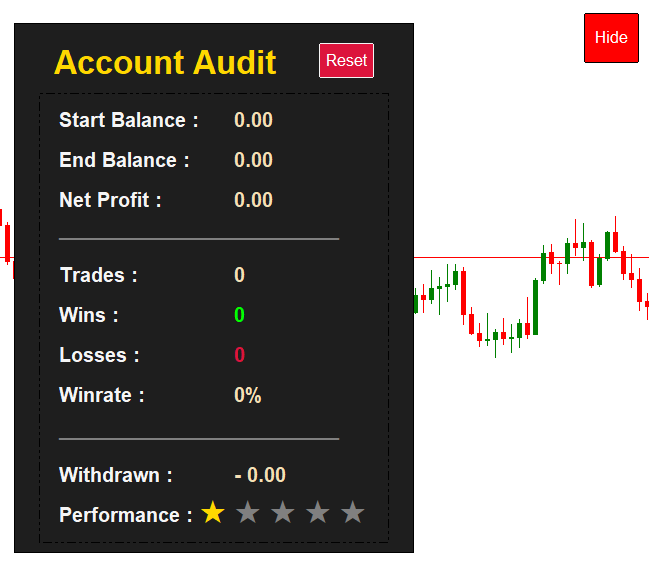
User-friendly audit dashboard
Conclusion
In this part we implemented and validated the user interface layer of the Account Audit System. The concrete deliverable is a chart indicator that:
- Draws a structured audit dashboard from a central metrics structure.
- Provides a Show/Hide menu button so traders can toggle the panel without losing chart usability.
- Restores one-click trading when the panel is hidden.
- Handles user clicks via OnChartEvent and exposes a Reset button placeholder for future actions.
Importantly, the computational core (OnCalculate) remains intentionally empty: metric values shown are read from the indicator's data structure and await connection to the audit engine. Future articles will complete the pipeline by implementing time‑filtered deal processing, metric computation, persistent state across restarts, and a notification layer (including mobile push). Because the UI was built with clear interfaces and named constants, it can be extended or connected to those modules without refactoring the presentation layer.
You can open the provided source in MetaEditor, launch the indicator on a chart to inspect the dashboard and interaction model, and then follow the next parts to attach the audit engine and storage layers.
Warning: All rights to these materials are reserved by MetaQuotes Ltd. Copying or reprinting of these materials in whole or in part is prohibited.
This article was written by a user of the site and reflects their personal views. MetaQuotes Ltd is not responsible for the accuracy of the information presented, nor for any consequences resulting from the use of the solutions, strategies or recommendations described.

 Foundation Models in Trading: Time Series Forecasting with Google's TimesFM 2.5 in MetaTrader 5
 Overcoming Accessibility Problems in MQL5 Trading Tools (Part III): Bidirectional Speech Communication Between a Trader and an Expert Advisor
 MQL5 Trading Tools (Part 27): Rendering Parametric Butterfly Curve on Canvas
 Hidden Markov Models in Machine Learning-Based Trading Systems

- Free trading apps
- Over 8,000 signals for copying
- Economic news for exploring financial markets
You agree to website policy and terms of use