AureonNexus
- 专家
-
Muhammad Andiya Nafhan
 🚀 Aureon Markets
🌐 Forex Technology & Trading Solutions Provider
We provide professional tools and solutions for traders who seek better market analysis and trading efficiency.
📊 Our Focus:
✅ Trading Tools
✅ Market Analysis Solutions
✅ Trading Automation - 版本: 1.0
- 激活: 10
Aureon Nexus — Three Independent Strategies for MetaTrader 5
Aureon Nexus is an automated trading system for XAUUSD, combining three independently managed strategies in one Expert Advisor. Each strategy has its own trade identity, position sizing and after-loss settings, and can operate alongside the other enabled strategies.
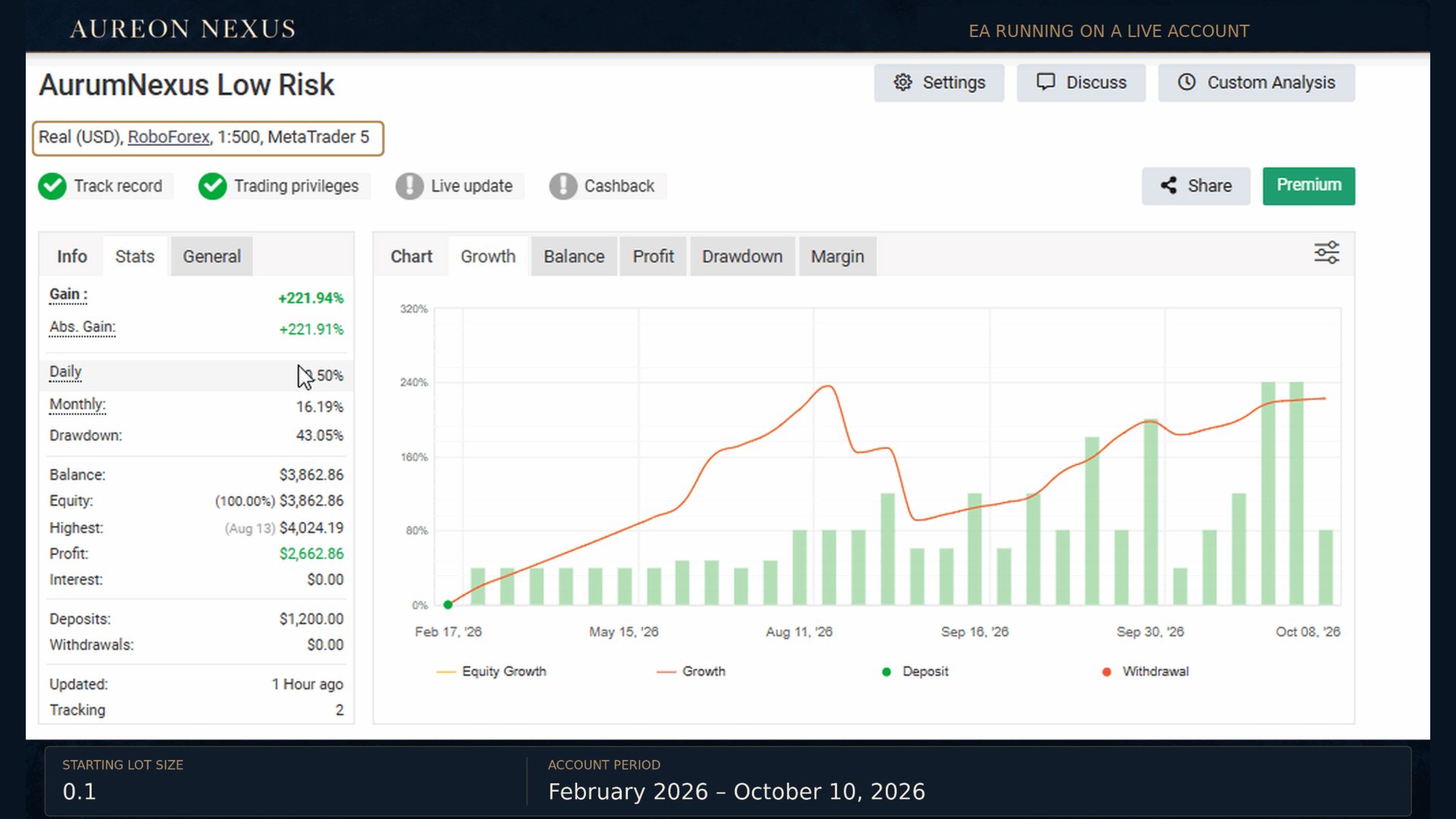
Development and optimization involved extensive testing and refinement. Nine months of live-account testing have informed the development of Aureon Nexus, alongside historical testing. This is development history, rather than a claim that the current release has remained unchanged throughout that period.
Launch Price
The launch price is USD 499. The price is planned to increase gradually as sales progress. The price displayed on the product page applies at the time of purchase.
Trading and Position Management
-
Three strategies that can be enabled or disabled separately.
-
Automated entries, stop-loss and take-profit management.
-
Trailing-stop management when the relevant profit conditions are met.
-
Signal generation without conventional technical indicators or oscillators.
-
Fixed lot sizing or lot increases based on each strategy’s own closed net profit.
-
Separate magic numbers to distinguish strategy trades from manual trades and other Expert Advisors.
-
Selectable after-loss management for each strategy.
-
Configurable economic-news filtering and chart displays.
Separate trade accounting does not create separate accounts: all strategies still share the account’s available margin.
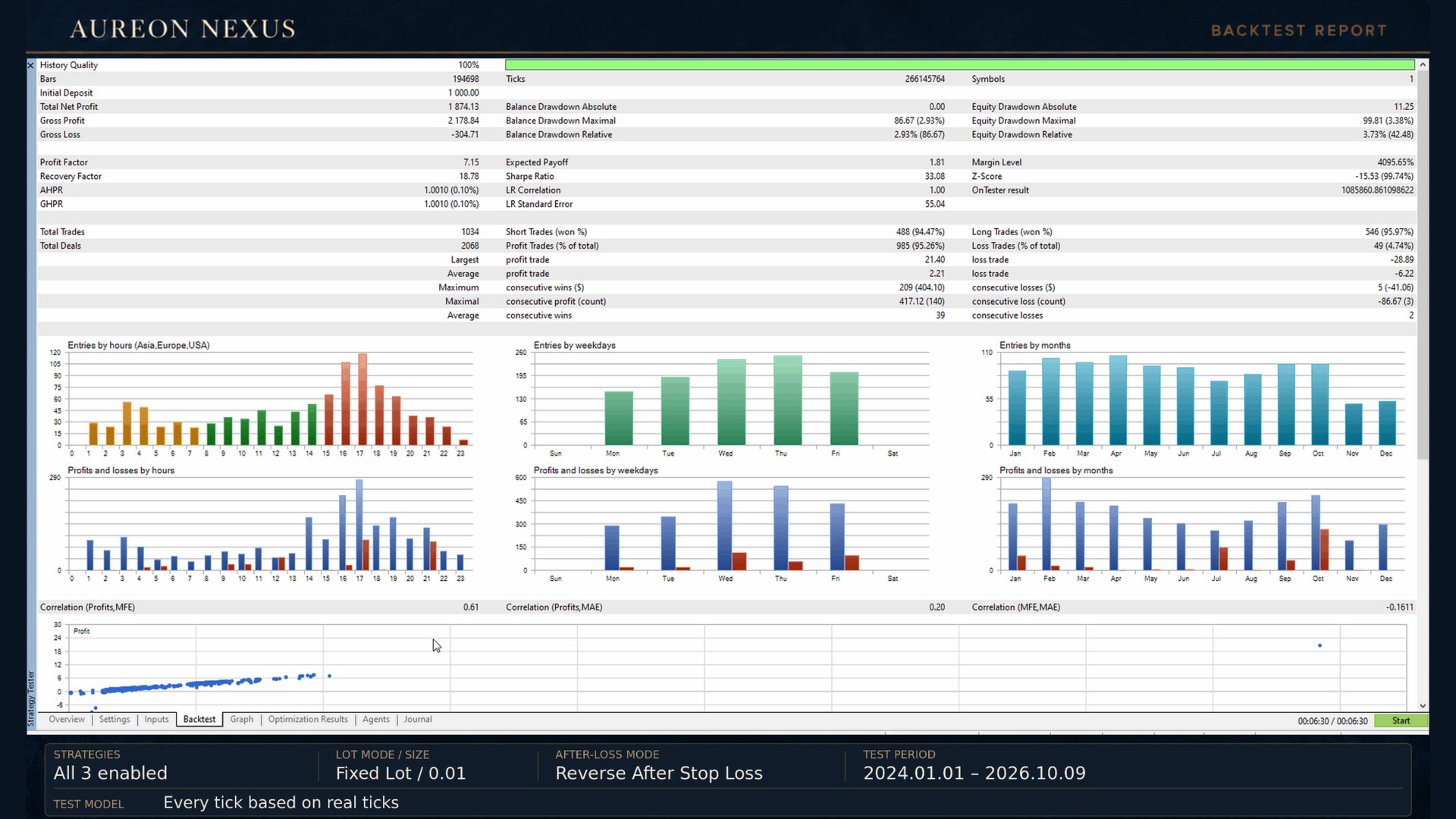
After-Loss Mode: OFF
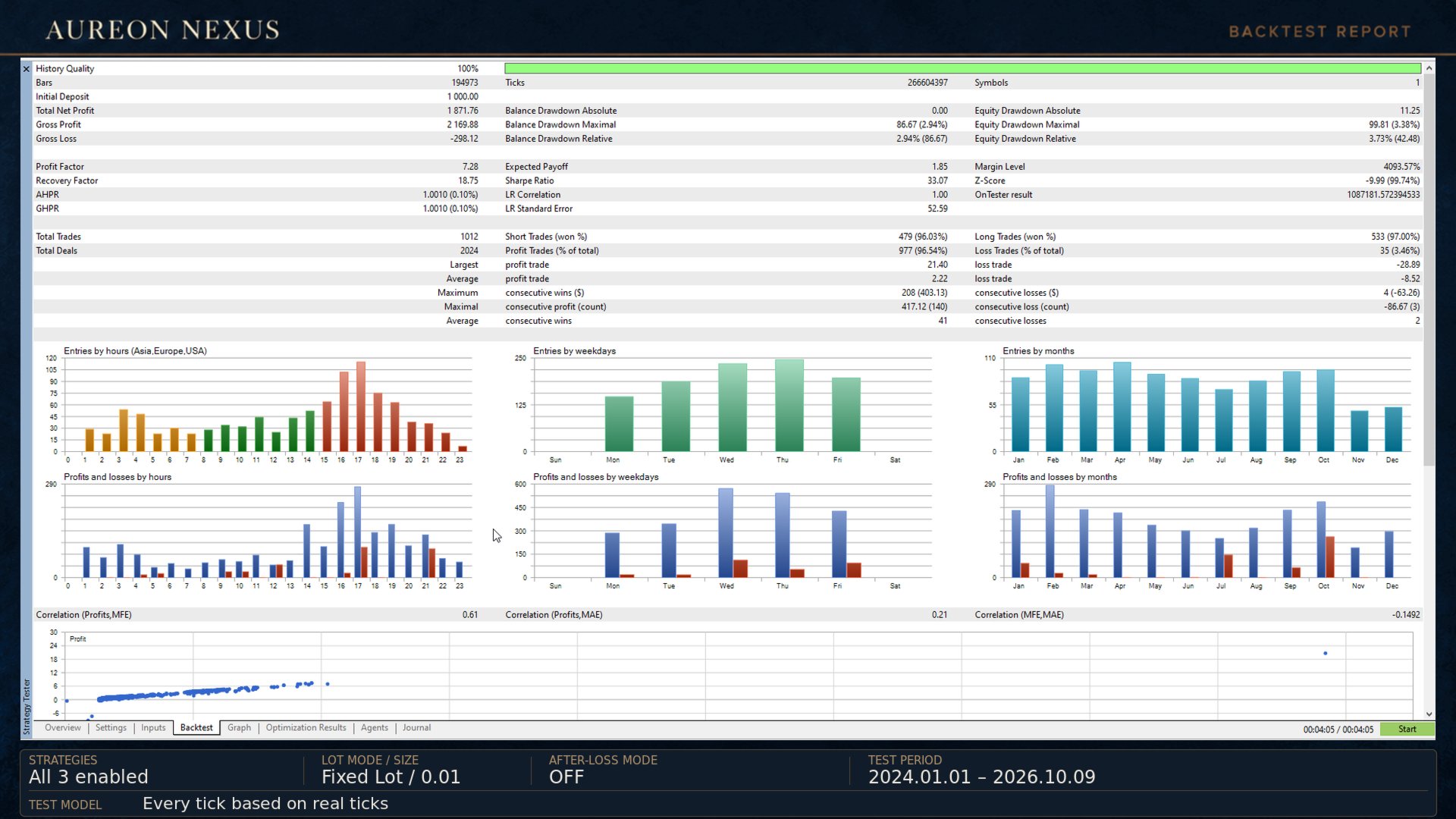
In OFF mode, Aureon Nexus continues following the selected strategy’s normal signals and exit rules. Trades use the normal lot-sizing method, with stop-loss, take-profit and trailing-stop management.
A losing trade does not activate recovery doubling or an automatic reversal. Entry filters, strategy limits and available margin still apply. OFF avoids the additional volume escalation used by Recovery Mode.
After-Loss Mode: Recovery Mode
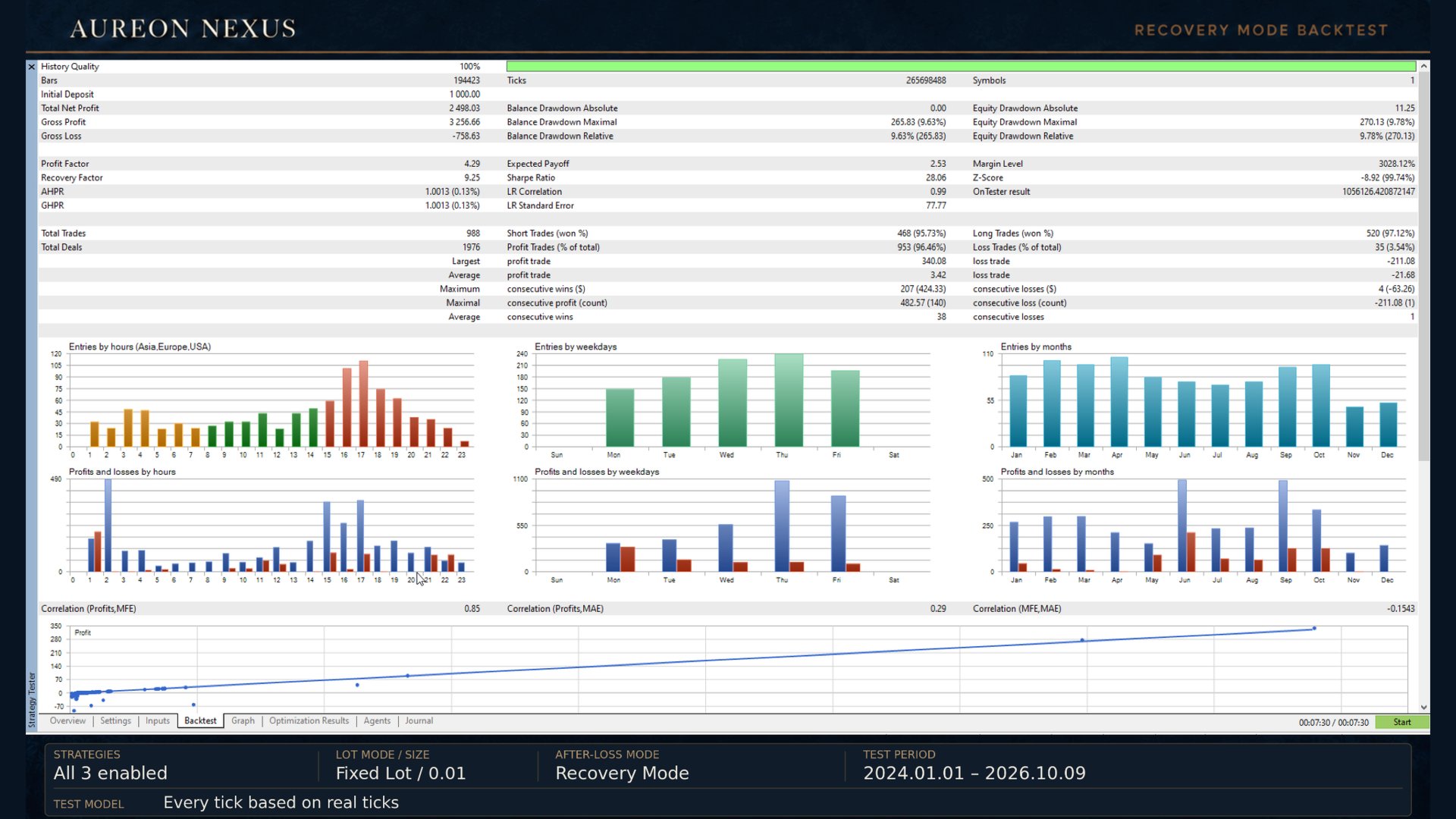
When an eligible trade closes at its stop loss with a net loss, Recovery Mode prepares the next recovery entry using doubled volume. For a single-order sequence, a stopped 0.01-lot trade leads to a 0.02-lot recovery entry; if that recovery trade also stops at a loss, the next recovery volume becomes 0.04 lots.
Losses accumulate during the recovery cycle. Recovery entries follow the strategy’s entry conditions, rather than opening automatically at the moment of the loss. Normal sizing resumes when the tracked recovery debt has been cleared.
The recovery profit target combines the outstanding loss with the configured Extra recovery target (pips):
-
0: targets compensation for the tracked loss, without an additional pip-based profit target.
-
A positive value: adds a monetary profit target equivalent to that number of pips at the recovery volume.
For example, a tracked loss of USD 50 with an extra target of 0 sets a recovery target of USD 50. An extra target of 10 adds the value of 10 pips at the recovery volume; it does not mean USD 10.
Recovery increases exposure after losses. The normal maximum-lot setting does not cap recovery volume; broker volume limits and available margin still apply. Strategy 1’s multiple-order recovery settings are explained below.
After-Loss Mode: Reverse After Stop Loss
After an eligible losing trade closes at its stop loss, Aureon Nexus attempts an opposite-direction market entry:
-
A stopped BUY can trigger a SELL.
-
A stopped SELL can trigger a BUY.
The reverse trade has its own protective stop and profit target. The maximum reverse-chain setting limits successive reversals. Execution remains subject to trading permissions, entry restrictions, available margin and broker acceptance.
A trailing-stop exit that closes with a net profit does not trigger this losing-trade reversal process. Reverse Mode is separate from Recovery Mode.
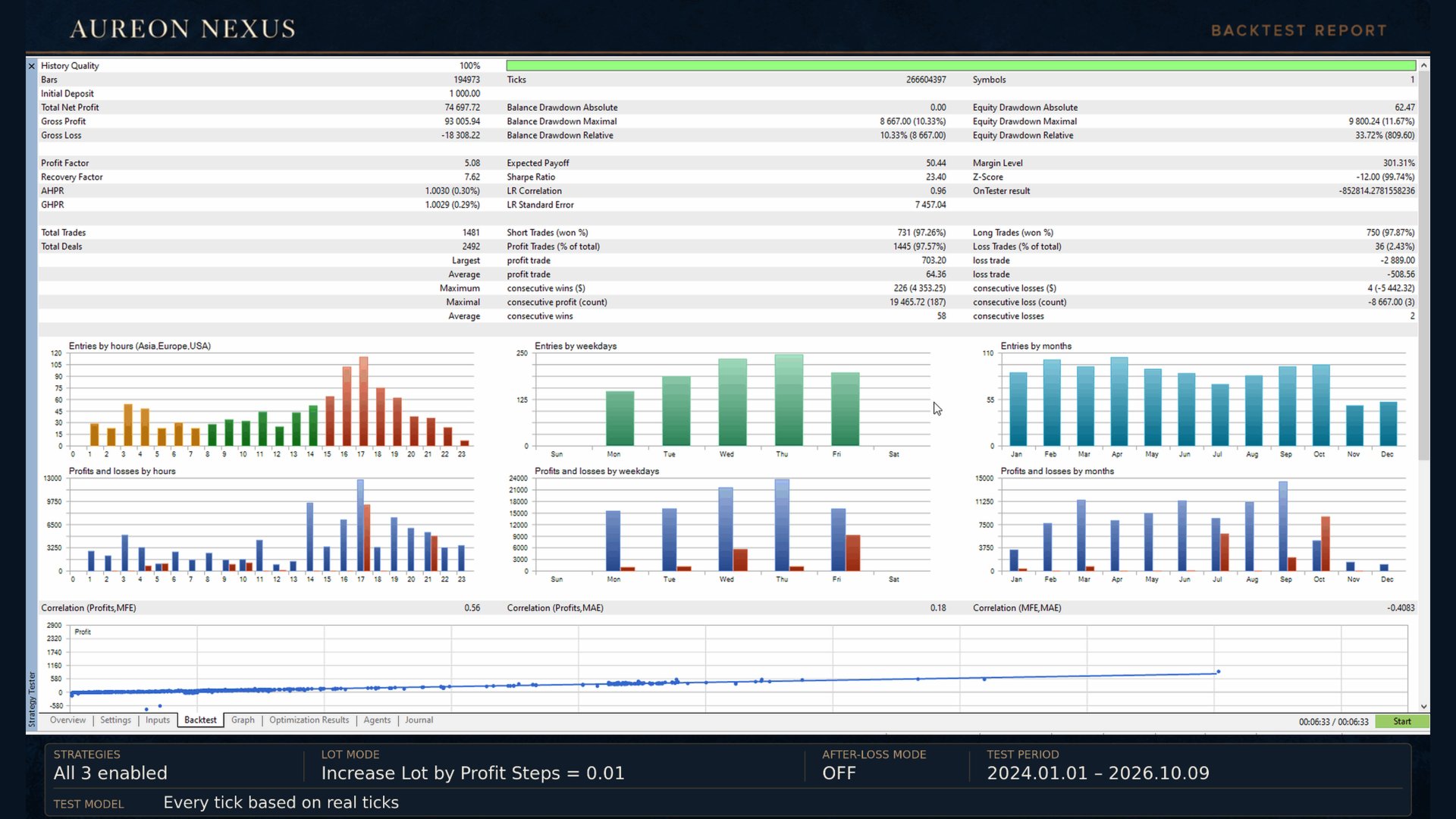
Lot-Sizing Options
-
Fixed Lot: normal entries use the configured starting lot, adjusted to the broker’s permitted volume.
-
Increase Lot by Profit Steps: normal lot size increases in configured increments as that strategy’s own closed net profit reaches each profit step.
Manual-trade profits and profits from other robots with different trade identities are not added to the strategy’s profit-step calculation. Use distinct magic numbers for other Expert Advisors.
Setup and Operating Requirements
| Item | Requirement or reference setup |
|---|---|
| Platform | MetaTrader 5 |
| Trading instrument | XAUUSD / Gold, using the broker’s corresponding symbol |
| Chart timeframe | M5 — attach the Expert Advisor to a five-minute chart |
| Account type | Hedging |
| Suggested starting balance | USD 1,000 for the starting configuration; required margin depends on enabled strategies, volume and after-loss mode |
| Starting normal lot | 0.01 per strategy in the default configuration, subject to broker minimum volume |
| Leverage used in development tests | 1:500; this is a test configuration, not a universal requirement |
| Brokers used in developer testing | RoboForex and IC Markets |
| Continuous operation | A stable VPS or continuously running terminal with reliable connectivity |
| Trading permissions | Algo Trading enabled in the terminal and Expert Advisor settings |
| Economic news | Internet access and authorization of the news-feed address supplied in Inputs |
| Symbol specifications | Check minimum lot, volume step, tick size, spread and stop-distance requirements |
Higher leverage does not reduce trading losses. Select leverage and position size according to the account’s margin requirements.
Price feeds, tick sequences, spreads, commissions, execution and symbol specifications can differ between brokers, so trading results can also differ. In this release, internal pip distances use ten symbol points per pip; different quote precision changes the corresponding price distance. Verify the configuration on the intended broker and symbol.
Chart Panels
-
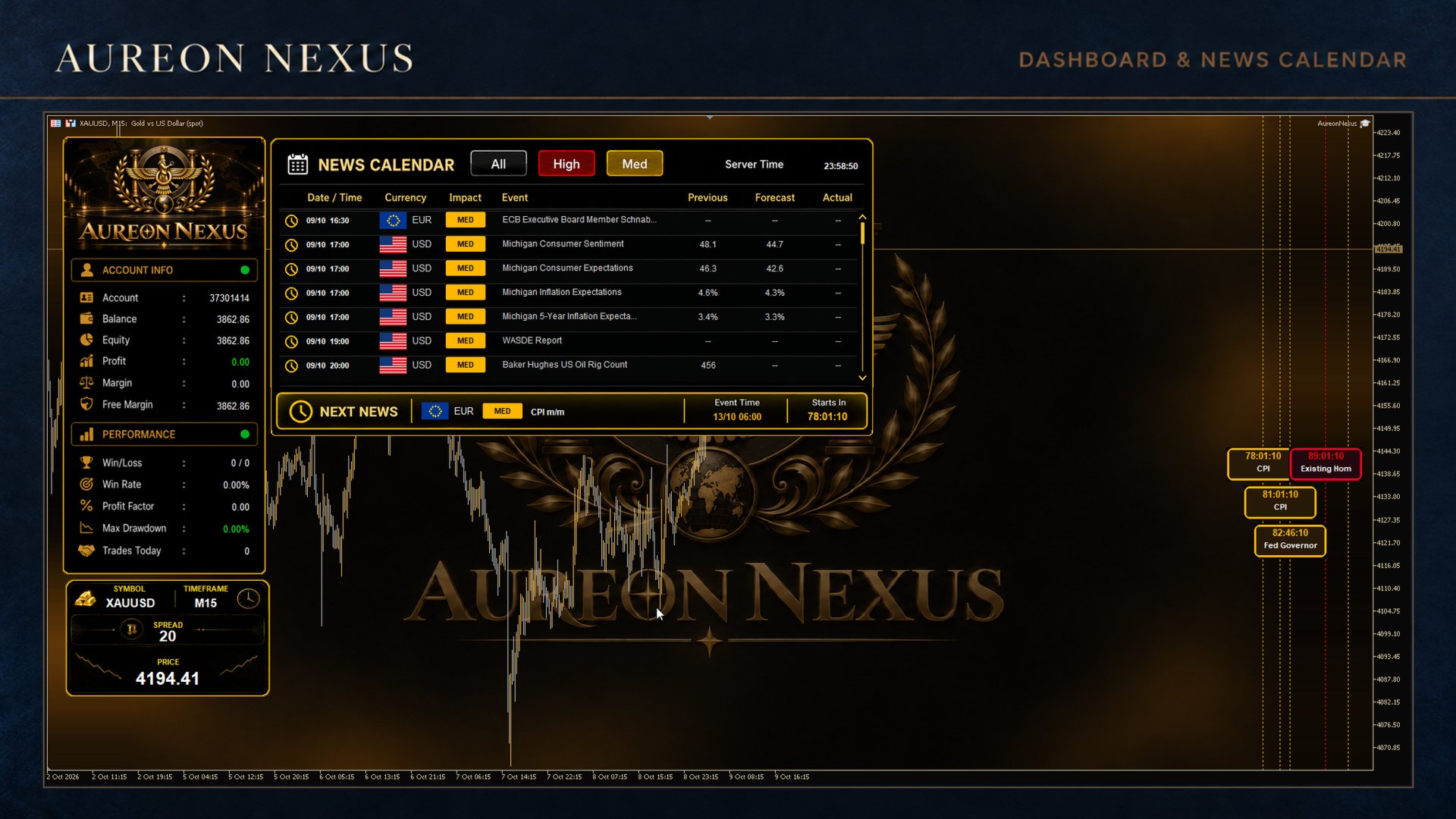
Account and performance panel: displays account information and robot statistics.
-
Market information panel: displays information for the chart symbol.
-
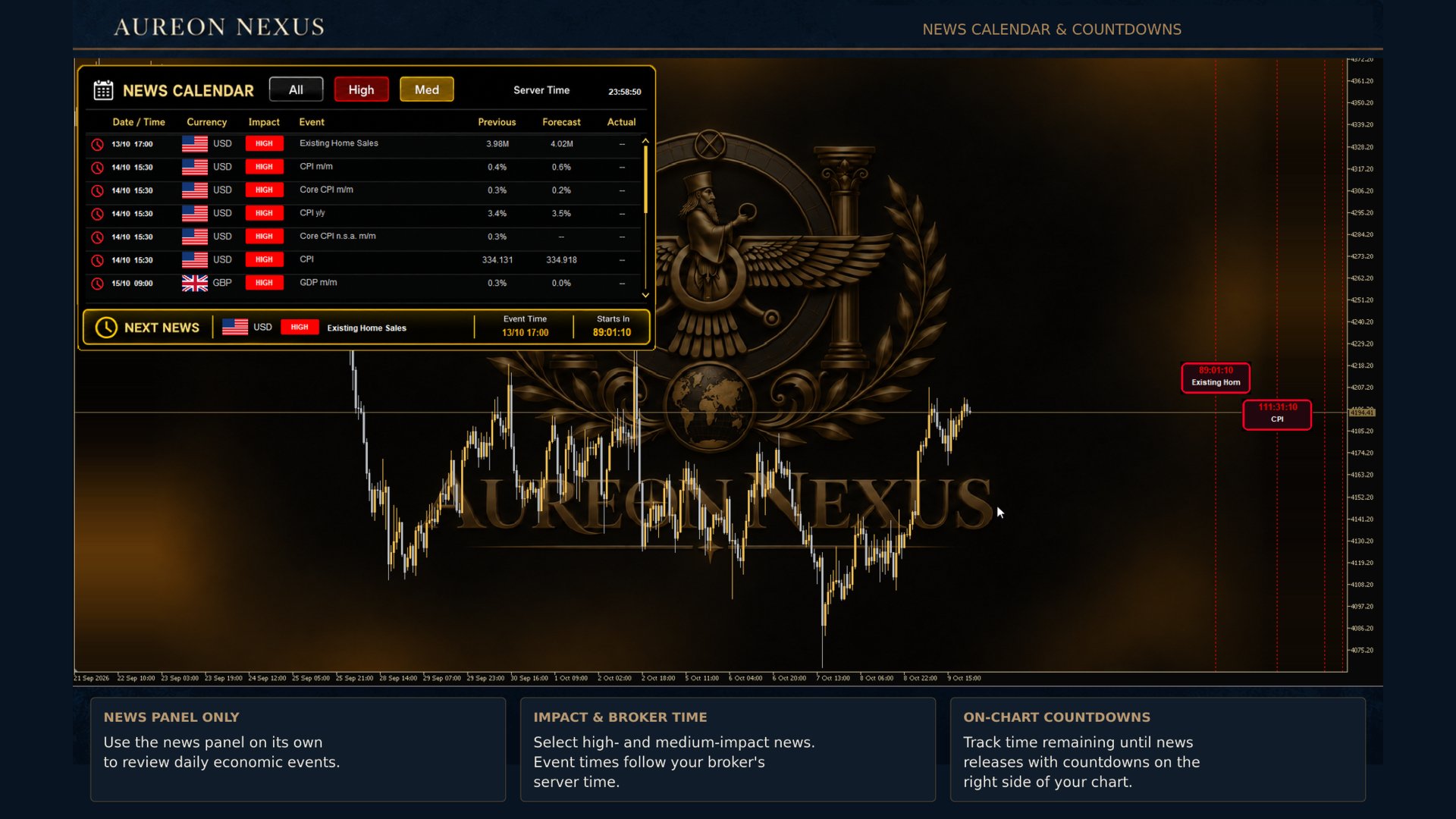
Economic-news panel: displays scheduled events, currencies, impact levels and available forecast, previous and actual values.
-
Upcoming-news display: identifies the next scheduled event.
-
Independent positioning: drag the robot, news and market-information panels to arrange the chart.
-
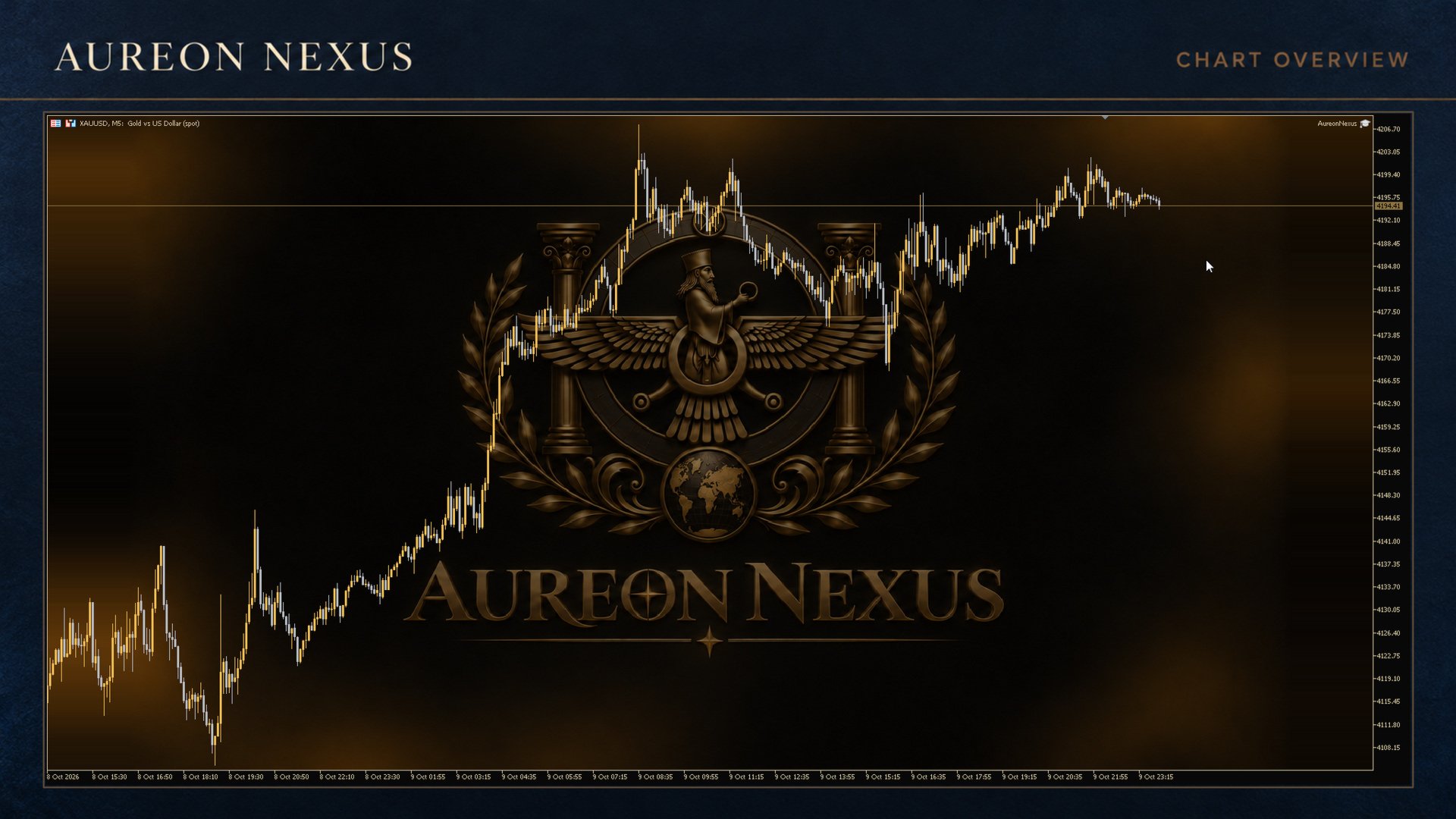
Optional appearance: enable or disable the black-and-gold chart theme, centered logo and individual panels.
Economic-News Controls
Select USD, EUR and GBP independently, and choose high-impact, medium-impact or both event categories. Set how many minutes before an event new entries pause and how many minutes after it they may resume.
During an applicable news pause, the robot blocks new entries and cancels its applicable pending orders. Existing positions remain under trade management; the news filter does not mean closing every open trade.
The panel can show this week’s events or include next week when feed data is available. Chart news lines and countdown boxes have separate display switches. Published values depend on the external feed’s availability and update timing.
The live news-entry filter is disabled in the Strategy Tester in this release, so historical tests do not reproduce its live blocking behavior.
Input Guide — Settings Available for Each Strategy
The following controls appear separately under Strategy 1, Strategy 2 and Strategy 3. Equivalent controls may have slightly different labels.
| Input | Function |
|---|---|
| Strategy ON/OFF | Enables or disables entries for that strategy. |
| Magic number | Identifies the strategy’s orders and trades. Use distinct positive numbers for the three strategies and avoid collisions with other robots. |
| Order label | Sets the trade comment used to identify orders. |
| Lot calculation method | Selects Fixed Lot or Increase Lot by Profit Steps for normal entries. |
| Starting lot size | Sets the initial normal trading volume. |
| Own closed profit step (account currency) | Sets the amount of that strategy’s own closed net profit required for each lot increase. |
| Lot increase per profit step | Sets the lot increment applied for each completed profit step. |
| Maximum allowed lot / Maximum normal lot | Caps normal lot sizing. It does not cap Recovery Mode volume. |
| Use broker minimum lot when needed | Allows the broker’s minimum volume when the calculated normal lot is too small. |
| After-loss mode | Selects OFF, Recovery Mode or Reverse After Stop Loss. |
| Extra recovery target (pips) | Adds a pip-equivalent profit target to the outstanding recovery loss. Set 0 for no additional target. |
| Maximum reverse chain depth / Maximum reverse orders after SL | Limits successive reverse entries after eligible stop-loss exits. |
| Fallback reverse stop (pips) | Supplies a stop distance when the reverse process cannot use its carried stop distance. |
| Stop entries at daily equity loss (%) | Sets the daily entry-loss threshold using the strategy’s own daily result, expressed against the account reference equity. This is an entry control, not an automatic account-wide liquidation. |
| Maximum spread (points) | Blocks new entries when the spread exceeds the configured threshold. |
| Maximum slippage (points) | Sets the permitted price deviation requested for applicable trade execution. |
Input Guide — Strategy 1 Pending Orders
| Input | Function |
|---|---|
| Normal-signal pending order mode | Selects one pending after confirmation, three copies of one confirmed signal, or one pending per independent signal with a maximum of three. Applies to normal entries regardless of the selected after-loss mode. |
| Recovery order count | Selects one or three orders for a recovery batch, independently of the normal pending-order count. The calculated total recovery volume is allocated across the batch subject to valid broker lot sizes. |
| Reverse order count | Selects one or three orders for an eligible reverse batch, independently of the normal pending-order count. |
Input Guide — Strategy 2 Recovery Filter
| Input | Function |
|---|---|
| Recovery target R filter | Filters candidate recovery entries by comparing the required recovery target with the loss represented by their entry-to-stop distance. Options are Off, 0.50R, 0.75R and 1.00R. This is an entry filter, not a maximum-loss guarantee or a trailing-stop setting. |
Input Guide — Chart Displays
| Input | Function |
|---|---|
| Use black/gold chart and centered logo | Enables the chart theme and background artwork. |
| Show account and performance panel | Shows or hides the main robot panel. |
| Show market information panel | Shows or hides the symbol-information panel. |
| Show economic news panel | Shows or hides the news panel. |
Input Guide — Economic News
| Input | Function |
|---|---|
| Pause new orders around selected news | Enables or disables the live news-entry filter. |
| Filter USD news | Includes US-dollar events in the filter. |
| Filter EUR news | Includes euro events in the filter. |
| Filter GBP news | Includes British-pound events in the filter. |
| Include high-impact news | Includes high-impact events in the filter. |
| Include medium-impact news | Includes medium-impact events in the filter. |
| Stop new entries BEFORE news (minutes) | Sets the pause period before selected events. |
| Resume entries AFTER news (minutes) | Sets the pause period after selected events. Other entry conditions must also be satisfied. |
| Show vertical news lines on chart | Enables or disables event-time lines. |
| Show countdown boxes beside news lines | Enables or disables the chart countdown boxes. |
| Show next week too | Shows this week and next week when enabled; this week only when disabled. |
| Copy URL to allowed WebRequest settings | Provides the news-feed authorization address. Copy it from Inputs into the terminal’s allowed WebRequest list. |
Support
For setup questions or technical assistance with Aureon Nexus, use the product’s Comments section or MQL5 messaging. Include the product version, broker, symbol and relevant error codes when reporting a technical issue.