Chart Sync MT5
- Индикаторы
-
Dragos Mihai Ofrim
 DuoFX Labs: trading tools for MetaTrader 5 and MetaTrader 4
We build the tools we use ourselves: fast, clean and honest about what they do. Every product ships for both MT5 and MT4 from the same code, is tested on live charts before release, and gets updates when traders ask for something. - Версия: 2.1
- Обновлено: 11 ноября 2026
- Активации: 10
Draw once. See it on every chart and every timeframe.
User guide and articles
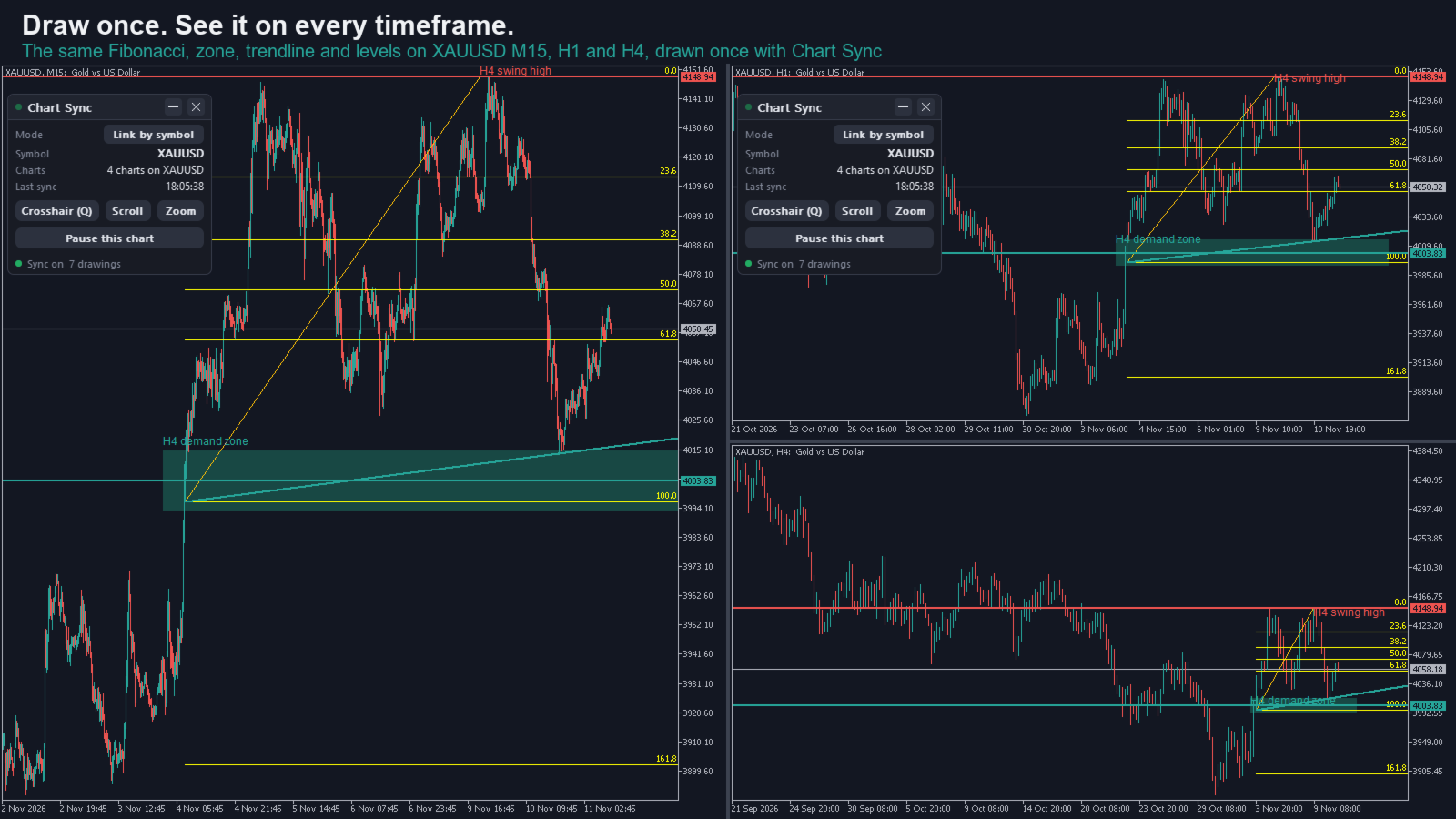
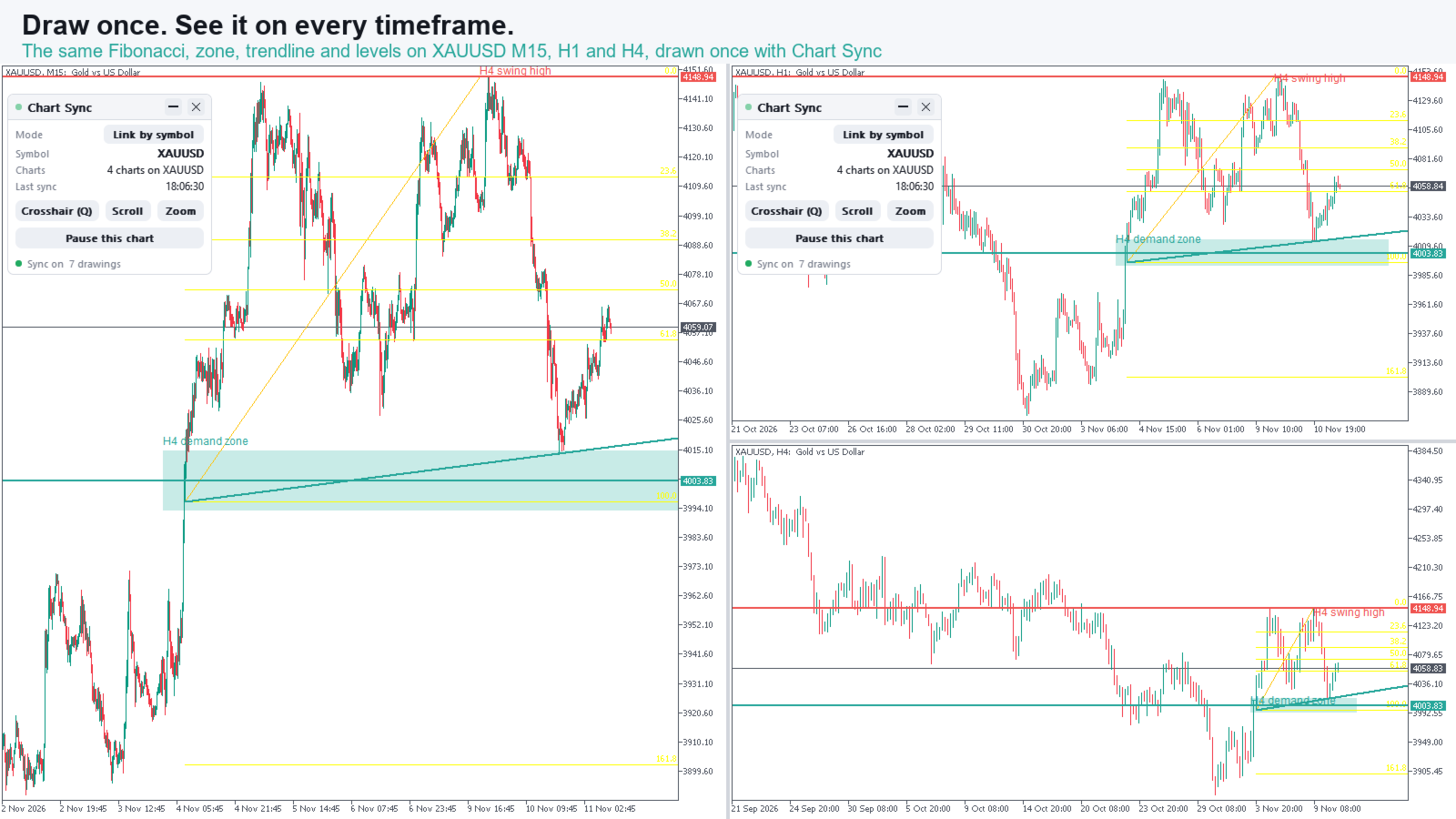
You mark a level on H4, flick to M15, then H1, then the daily, and draw the same line again on each. Or you open four gold charts and want the same support, the same Fibonacci and the same zone on all of them. Chart Sync does it for you. Draw, move, restyle or delete an object on one chart and the same change shows up on your other charts, typically in under half a second. Multi timeframe analysis without the copy and paste.
New in 2.0: synced crosshair across charts
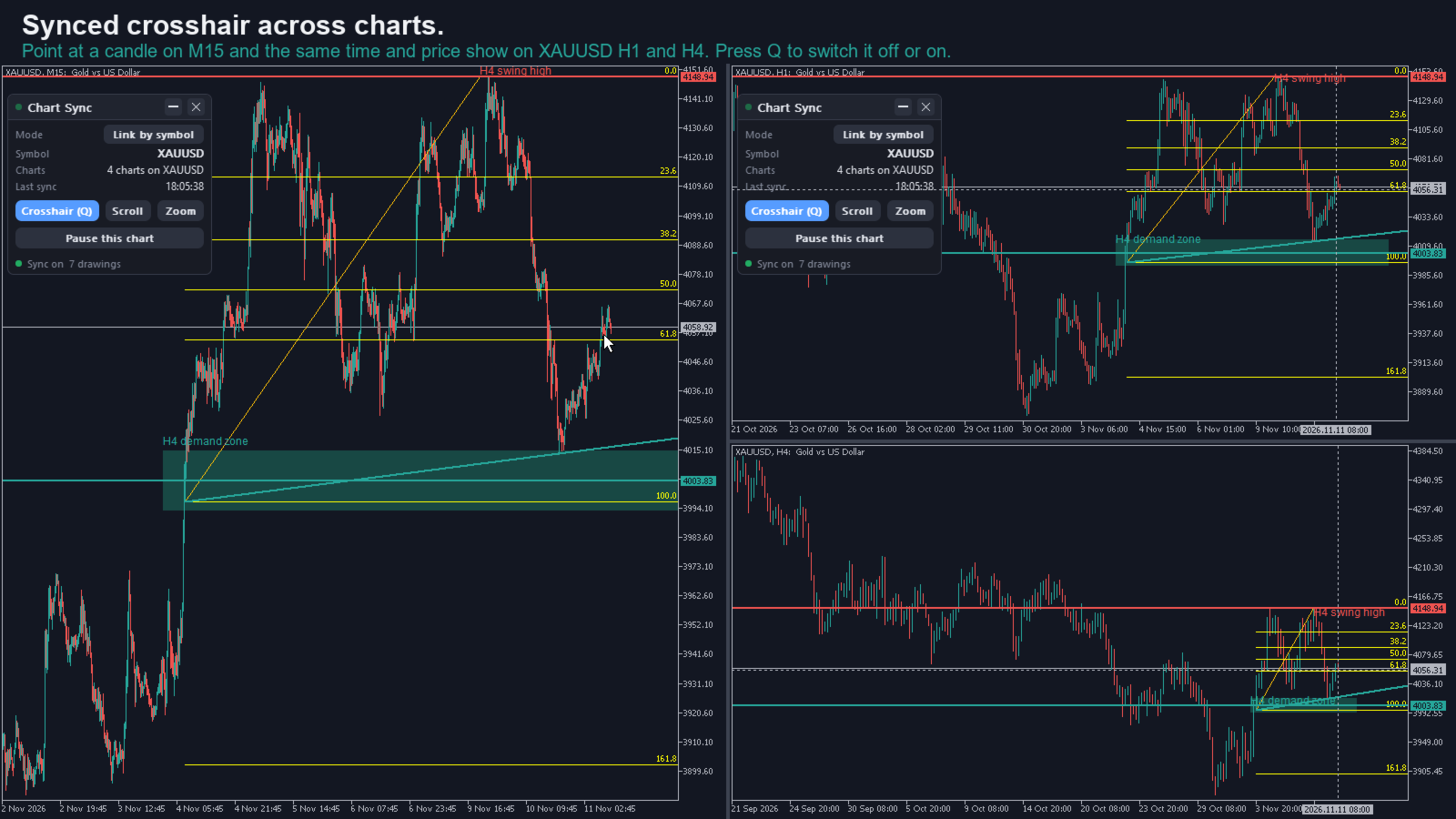
- Move the mouse on any chart and a crosshair appears on all your other Chart Sync charts: a time line on every chart, plus a price line on charts of the same symbol.
- Matched by time, so the M5 candle you point at shows up inside the right H1 and H4 candle.
- Point at an oscillator window or at a chart of another symbol and the others get the time line only.
- On for new installs; upgraders switch it on with the Crosshair chip or Q. Q (or the key you choose) switches it off or on for every chart at once, and you pick its colour and style.
- MetaTrader's own crosshair tool still works as usual for measuring.
Scroll sync and zoom sync (optional)
- Turn on scroll sync and the other charts follow the chart you scroll, lined up by time, each on its own timeframe. Scroll back to the end and they go back to the end.
- Add zoom sync and they copy your zoom level (the chart scale) together with the scroll position.
- Off by default, so nothing moves until you want it to. Switch them on or off for every chart from the panel. Zoom works on top of scroll, so a click on Zoom while Scroll is off switches both on.
Multi timeframe analysis, the TradingView way
- Draw a trendline on H4 and see it on M15, H1 and D1 of the same symbol.
- Keep support and resistance, supply and demand zones and Fibonacci levels aligned from M1 to MN1.
- Great for scalping, day trading and swing trading, and for gold (XAUUSD), forex, indices and crypto.
- Works with custom symbols and broker suffixes (XAUUSD.pro, XAUUSDm and similar).
- Handy for prop firm challenge charting: one clean set of levels across timeframes saves time and mistakes.
You decide what goes where
- Timeframe rules: for example, send M1 objects to M5 only, or let every object show on every timeframe.
- Per object type: "Sync enabled" and "Force-sync on all timeframes", so a Fibonacci can go everywhere while a small marker stays local.
- Settings are shared: change them on one chart and every Chart Sync chart follows. The sync mode is also on the panel. The panel (shown or hidden, theme, position) and the crosshair look stay per chart.
- No limit on charts, symbols or objects (the practical limit is your computer).
Sync by symbol or sync one symbol everywhere
- Link by symbol (default): every chart keeps its symbol. Drawings sync only between charts of the same symbol, so XAUUSD M15, H1 and H4 share their levels while your EURUSD charts share theirs. Sync objects by symbol across a multi symbol layout.
- One symbol: change the symbol on one chart and the other synced charts switch with it, to review the same market on every timeframe or move your whole layout from EURUSD to gold in one go.
- Switch modes with one click on the panel. One symbol asks first, and a chart it moves says on its panel which symbol it came from.
- Drawings are remembered per symbol, so when you come back to a market your levels are there.
Delete with confidence
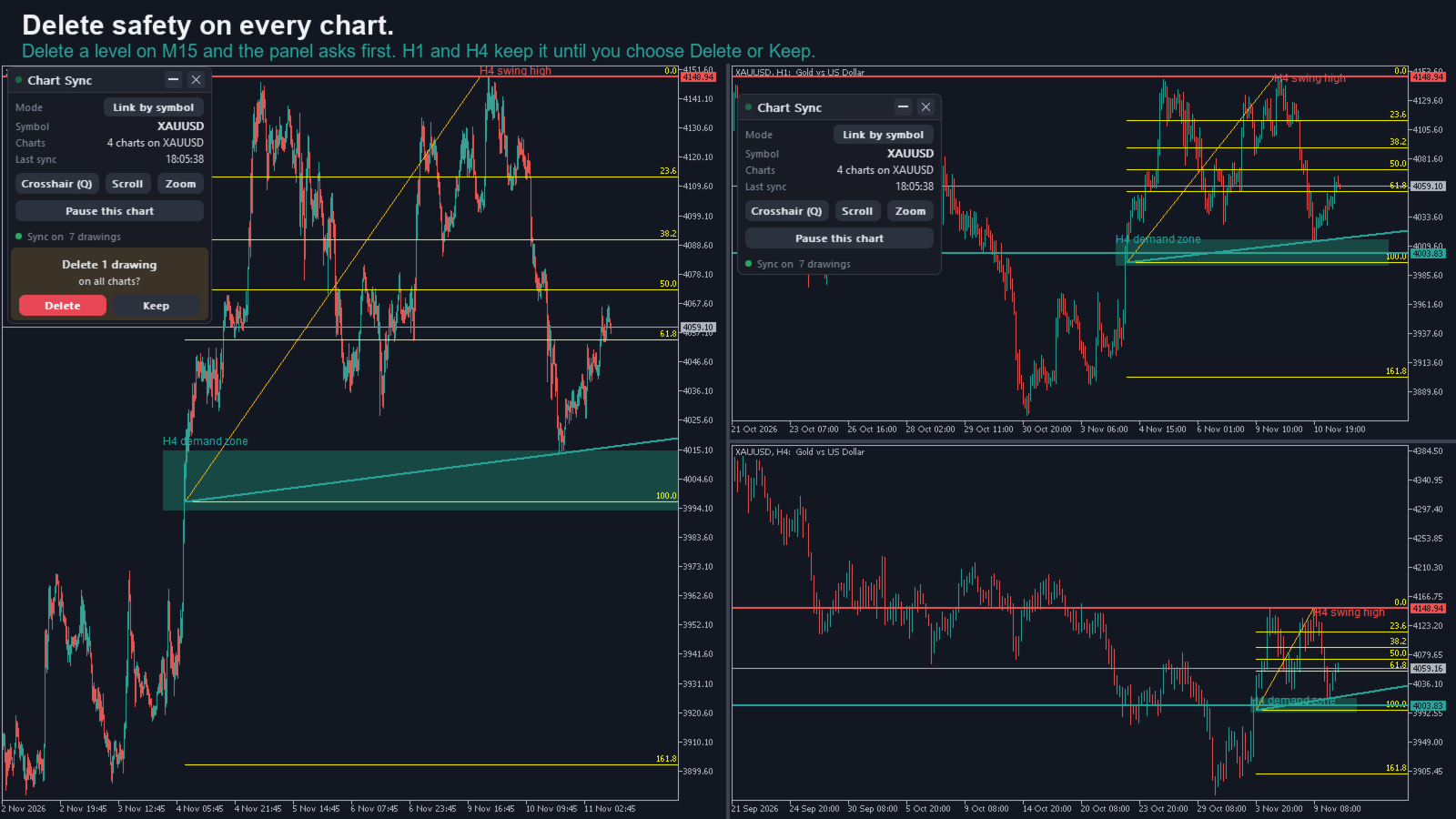
- Delete a drawing on one chart and your other charts keep it until you answer "Delete on all charts?" on the panel. Delete a batch and you get one question.
- Keep restores it on the chart you deleted it from. For 15 seconds after a delete, Undo on that chart's panel brings it back on every chart.
- On by default. Turn "Ask before deleting on other charts" off for instant deletes; Undo stays available.
What is synced
- Drawings: vertical and horizontal lines, trendlines, Trend by Angle, cycle lines, equidistant, standard deviation and regression channels, Andrews' pitchfork, Fibonacci retracement, time zones, fan, arcs, channel and expansion, rectangles, triangles, ellipses, text and text labels, plus arrowed lines on MT5. Colour, style, width, Fibonacci levels, text, descriptions and tooltips go with them.
- Text labels you place yourself sync; panels and dashboards drawn by other programs are left alone. On MT4 a label is picked up when you create, move or edit it.
- The symbol, the crosshair, and (optional) scroll and zoom.
- Objects that belong to other programs can be left alone with a name-prefix filter. On MT4, where indicators draw objects that look like a trader's, add the prefix of any indicator that draws zones or lines on your Chart Sync charts.
- Built for live and demo charts. In the Strategy Tester it stays idle.
Your drawings stay safe
- Saved with a backup copy, so a crash or a locked file does not wipe your drawings. A damaged drawings file falls back to the backup, and a damaged settings file is set aside and rewritten instead of stopping Chart Sync.
- Each drawing carries its own edit version and every delete is remembered, so two charts that missed each other's changes merge them instead of one overwriting the other.
- Attach it to a chart that already has drawings and they are kept.
- Drawings saved by earlier versions load after the upgrade.
Light on your terminal
- Only the object you change is sent, in one small batch, to charts running Chart Sync.
- The crosshair is throttled and draws two lines per chart, nothing else.
- Tested with 18 synced charts and 300 drawings for 20 minutes: about 0.2 s from one chart to another (median), nothing missed.
- No DLLs, no internet connection.
A clear panel, or none at all
- Sync status, mode switch, symbol, number of charts synced, number of drawings and last sync time on one small card. Hover any button for what it does.
- Crosshair, Scroll and Zoom switches that act on every chart, and Pause this chart.
- The X in the header removes Chart Sync from that chart; its drawings stay.
- Minimise to a small bar that still shows the symbol and chart count, drag it anywhere, and it stays put per chart, even after a timeframe change.
- Dark, light or automatic theme. Or hide it completely with one switch per chart.
Install in three steps
- Buy it on the Market and let the terminal install it (Market tab, Purchased, Install).
- Open the charts you want to sync and drag Chart Sync onto each one.
- Draw on any of them. If you use templates or profiles, include Chart Sync in them so it comes back on restart.
Chart Sync FAQ
- How do I sync objects across charts in MT5 or MT4? Attach Chart Sync to each chart. Anything you draw on one appears on your other Chart Sync charts of the same symbol.
- Does it sync the crosshair across charts? Yes. Since 2.0 a synchronized crosshair follows your mouse on every Chart Sync chart, matched by time across timeframes. Press Q or use the Crosshair chip on the panel to switch it on or off (it starts off after an upgrade from 1.7).
- Does it sync scroll and zoom? Yes, as options: turn on scroll sync, and zoom sync if you want the zoom level too. Click Scroll or Zoom on the panel and every chart follows; Zoom switches Scroll on with it.
- Does it sync across different timeframes of the same symbol? Yes, that is the main use. Control which timeframes get which objects with the timeframe rules.
- Will my drawings be there after I restart the terminal? Yes, they are saved per symbol with a backup copy.
- Why did my chart change symbol? Only One symbol mode moves charts: there every chart follows one symbol, so a chart of another symbol is switched when Chart Sync loads on it, and its own drawings are kept under its symbol. The panel then says which symbol the chart came from. Click Mode for Link by symbol (the default since 2.1) and that chart goes back to its own symbol, and no chart changes symbol again.
- Does it change the timeframe on every chart? No. Each chart keeps its own timeframe; that is what multi timeframe analysis needs. Drawings, the crosshair and (optionally) scroll and zoom follow across timeframes.
- Can I sync different symbols separately? Yes, with Link by symbol: charts sync with charts of the same symbol, and no chart changes symbol.
- I deleted a drawing by mistake. Can I get it back? Yes. Your other charts keep it until you confirm on the panel, and for 15 seconds after the delete Undo on that chart's panel restores it on every chart. A drawing no other chart shows (for example an M1 line while your other charts are H4) is deleted at once, with the same Undo.
- Does it work in the Strategy Tester? It is built for live and demo charts and stays idle in the tester.
- Can I try it first? The Market demo runs only in the Strategy Tester, which has one chart, so it cannot show syncing. See the screenshots and the user guide, and ask the seller anything before you buy.
- MT4 or MT5? Both are sold as separate products with the same features (MT4 has no arrowed line object, and picks up a text label when you create or edit it).
- Does it sync text labels and descriptions? Yes: text, labels you place, and the description and tooltip of any synced drawing, in any language.
- Can I keep some drawings on one chart only? Yes: Pause this chart on the panel. What you draw while paused stays on that chart, and changes from your other charts still arrive.
- Support? Contact the seller through MQL5 with your purchase.
Available for MetaTrader 5. Looking for MetaTrader 4? Search "Chart Sync MT4".
Disclaimer: Trading forex and CFDs is high risk and markets can move fast. This tool is for chart analysis and educational purposes only. It is not financial advice and does not guarantee results.






























I took a gamble buying this... And it's better than paying subscription in Trading View if you need multi chart to analyze. This allowed me to keep track of higher time frame levels while monitoring intraday movement. Dragos is also responsive to questions. Many thanks to you brother. The best part is it helped me hone my multi time frame strategy and pass prop trading trial. The gamble paid off.