ChartLedger
- Утилиты
- Версия: 1.0

Review not only what you traded, but what the chart looked like when you traded it.
ChartLedger is a local visual trade journal for MetaTrader 5. It automatically records trades for the attached chart symbol and combines trading data with chart screenshots taken at entry and final exit.
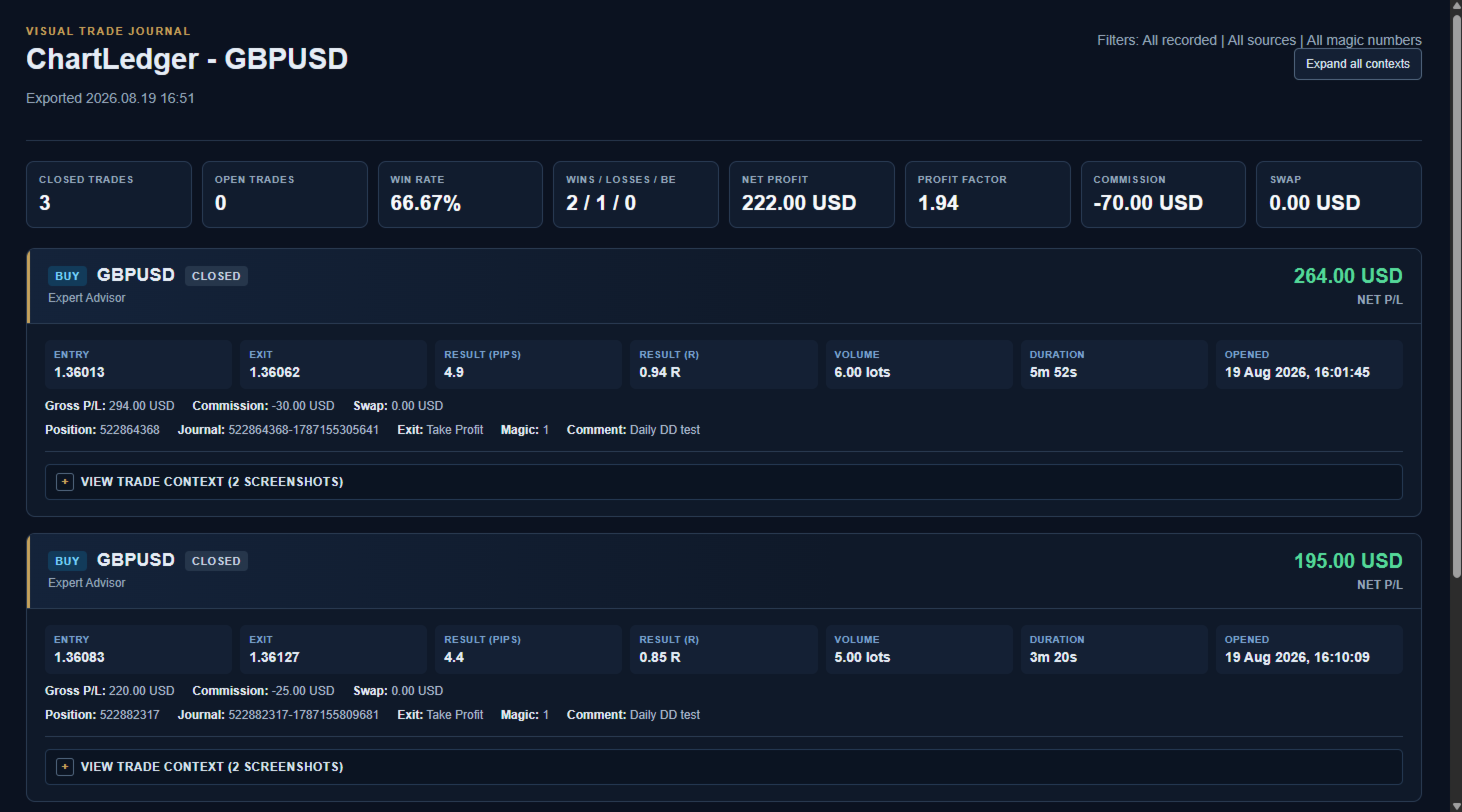
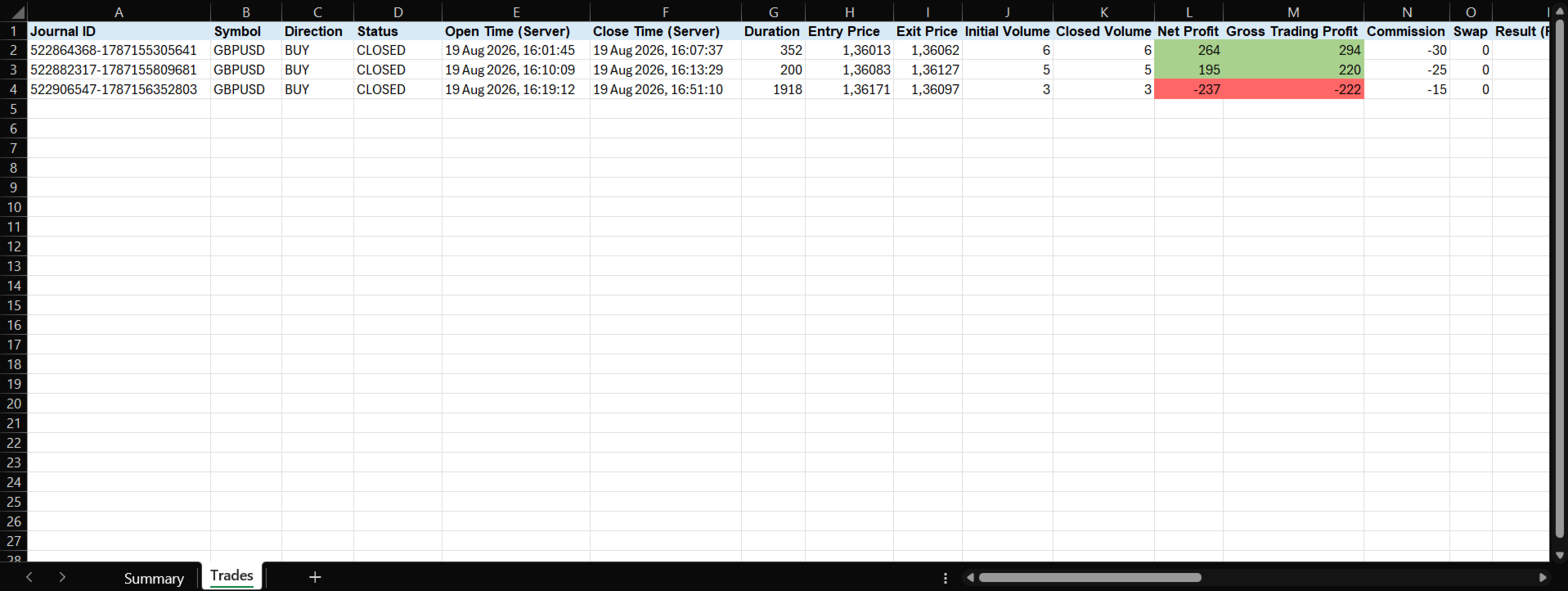
When you are ready to review your trading, ChartLedger can create a complete local export with an interactive HTML report, an Excel-compatible workbook, CSV data files, and the related chart images.
ChartLedger is observation-only. It never sends trading requests and never opens, modifies, or closes orders or positions.
Why Use ChartLedger?
A trading history tells you the entry price, exit price, and result.
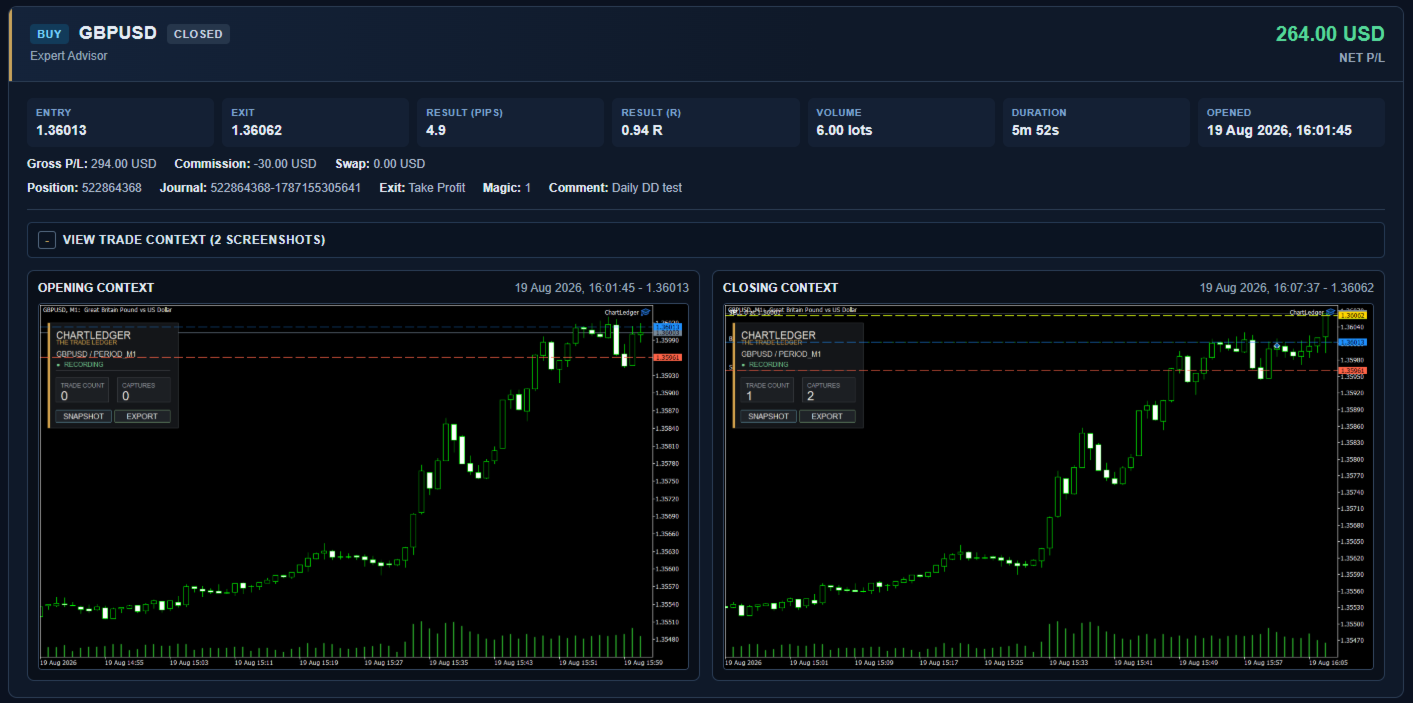
ChartLedger adds that missing visual context by capturing the actual MetaTrader chart used for the journal, including its timeframe, indicators, objects, and visual layout.
This makes it useful for reviewing:
- Manual trades.
- Trades placed from the MetaTrader mobile or web terminal.
- Trades opened by another Expert Advisor.
- Individual automated strategies using the magic number filter.
What ChartLedger Records
- Buy or sell direction.
- Entry and exit prices.
- Trade volume and duration.
- Gross profit, commission, swap, and net profit.
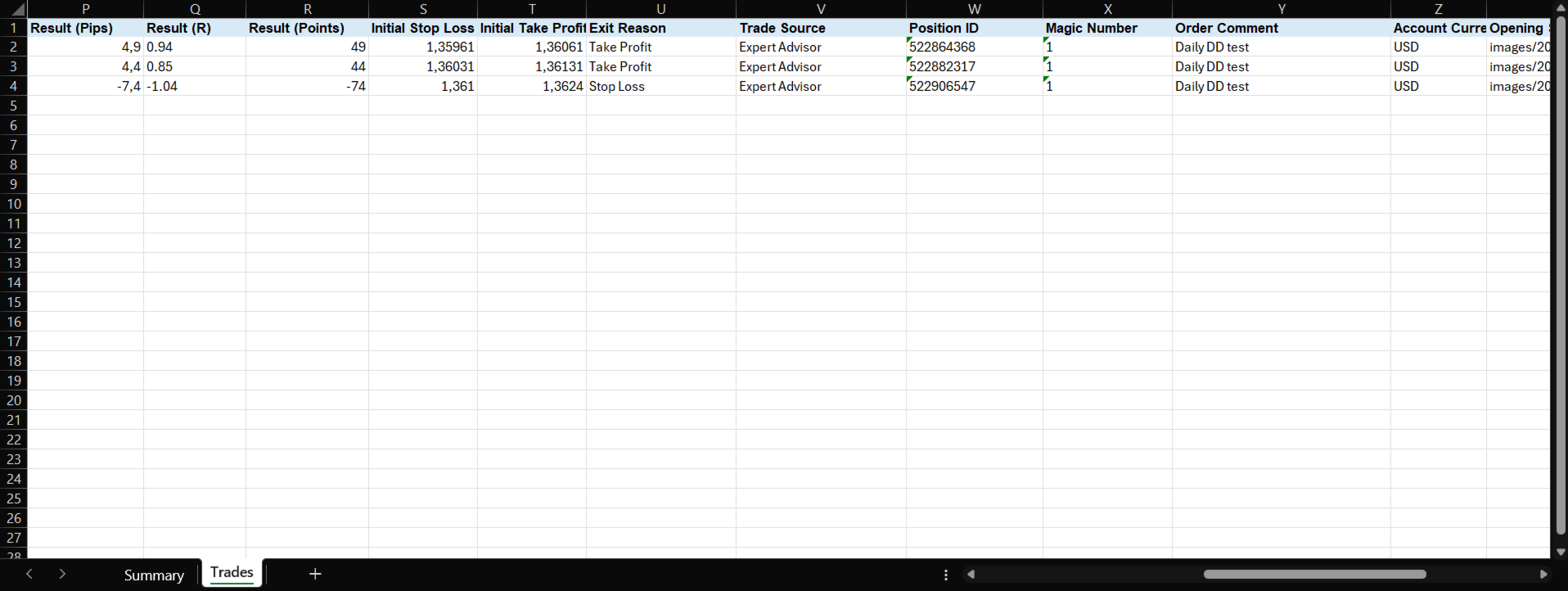
- Result in points and pips.
- Result in R when the initial trade risk is available.
- Opening and final-closing chart screenshots.
- Trade source, magic number, and order comment.
- Automatic exit reason when available.
- Full closes, partial closes, and netting reversals as separate journal records where applicable.
Visual Trade Context
When a new trade is detected, ChartLedger can automatically capture the current chart at entry.
When the trade is fully closed, it can capture the final chart context and complete the journal record with the exit information.
The screenshots reflect the actual chart at capture time, including:
- Current timeframe.
- Chart colors and layout.
- Indicators.
- Drawing objects.
- Visible market structure and price action.
You can also use the Snapshot button at any time to save an additional manual chart image.
Local Journal Export
Press Export on the ChartLedger dashboard to create a timestamped local review folder.
With Enable Live Report enabled, ChartLedger also refreshes one current local report after recorded trade activity and manual snapshots. The live report is updated in place; use Export whenever you need a permanent timestamped archive.
Each export can contain:
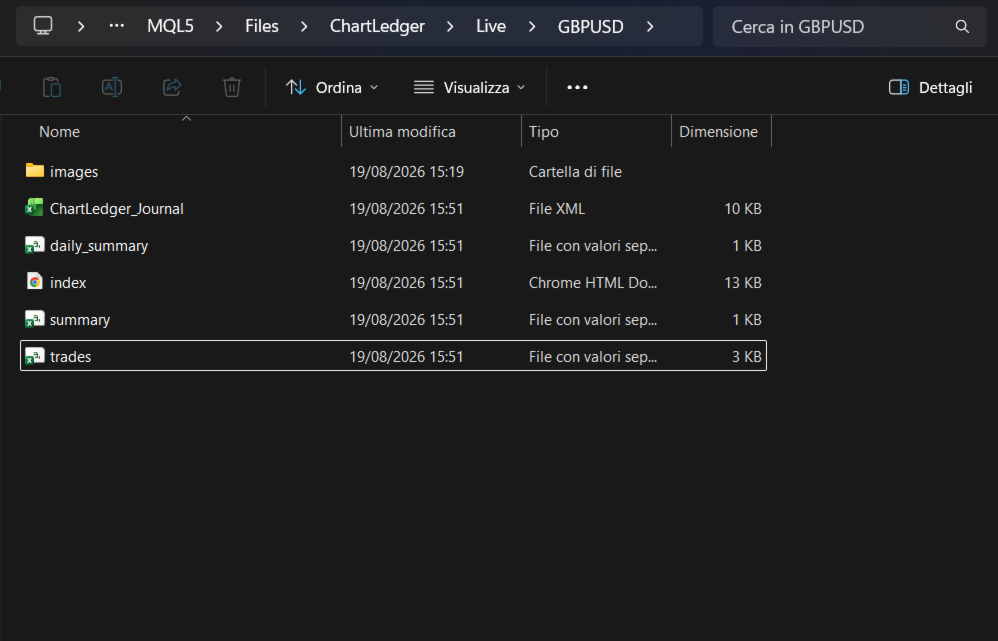
- index.html - interactive visual trade report with summary metrics, expandable chart screenshots, and image zoom.
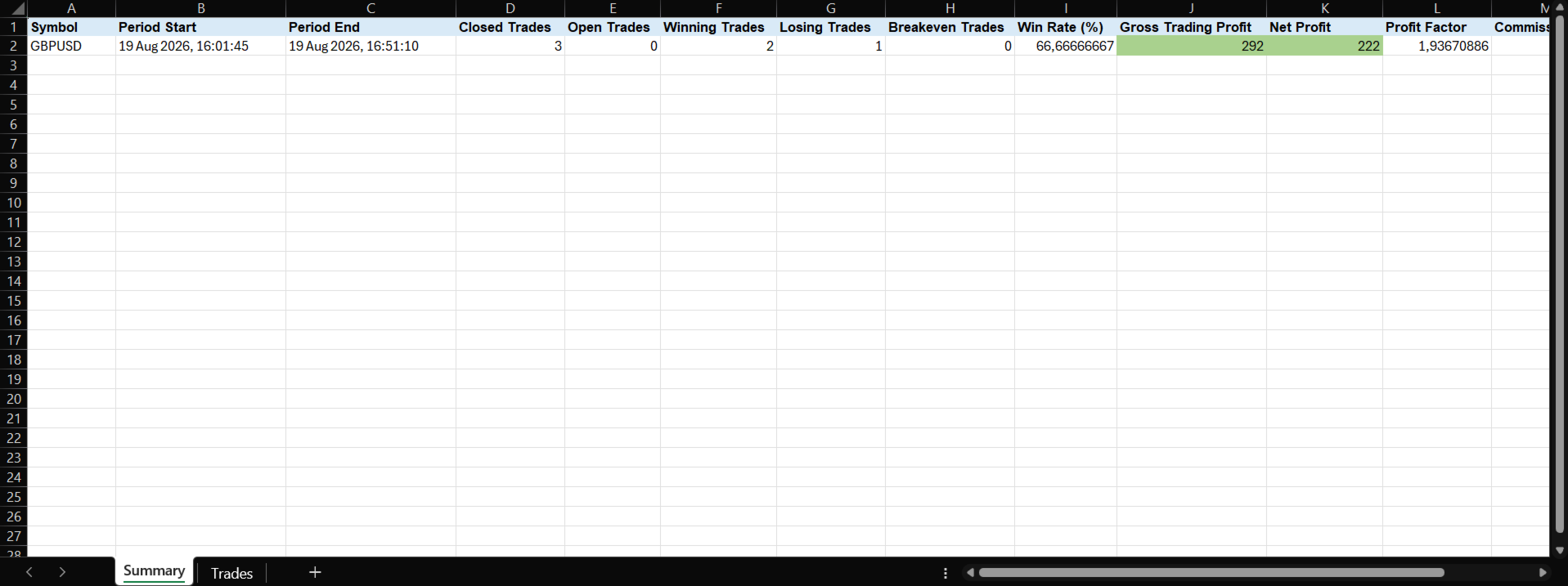
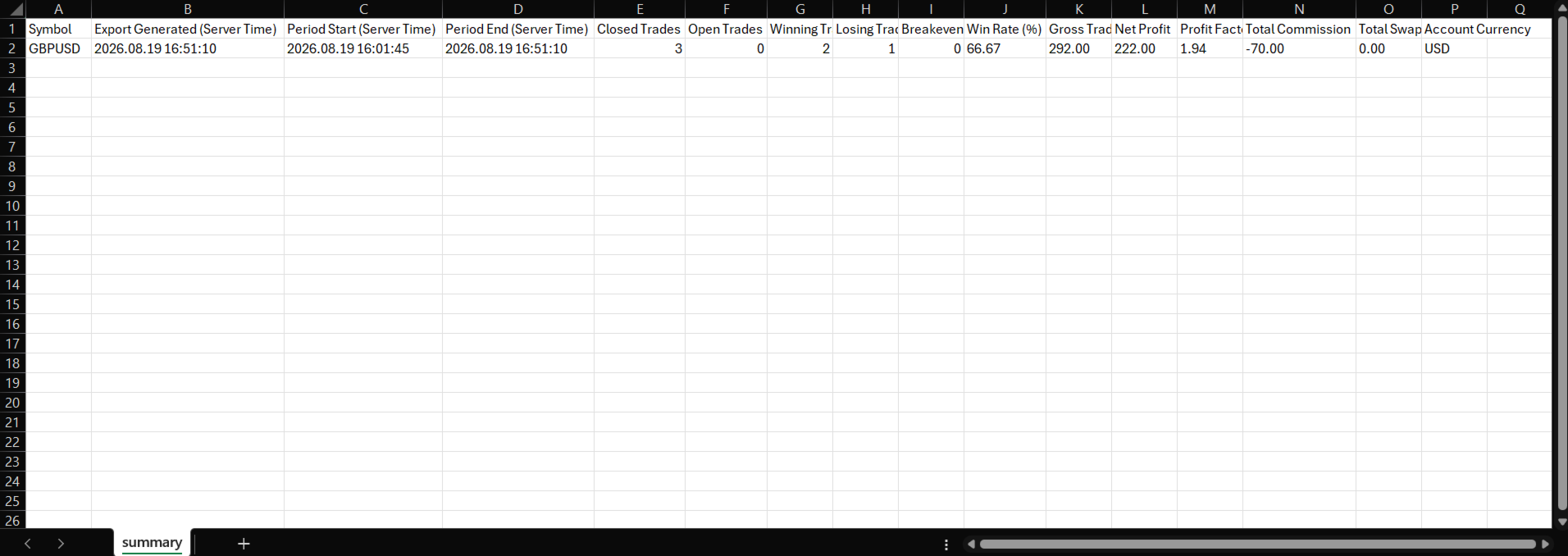
- ChartLedger_Journal.xml - Excel-compatible workbook containing Summary and Trades sheets.
- trades.csv - detailed journal records.
- summary.csv - overall trading summary.
- daily_summary.csv - results grouped by trading day.
- images - local copies of the screenshots referenced by the HTML report.
The HTML report is designed for visual review, while the workbook and CSV files can be used for sorting, filtering, custom calculations, or further analysis in spreadsheet software.
All files remain on your computer under:
MQL5\Files\ChartLedger\Exports
Simple Workflow
For continuous review, leave Enable Live Report enabled. Use Export only when you want to preserve a separate, timestamped archive.
- Attach ChartLedger to the chart of the symbol you want to journal.
- Keep Enable Trade Recording enabled.
- Trade normally, manually or using another Expert Advisor.
- Use Snapshot whenever you want an additional chart capture.
- Press Export when you want to review or archive your journal.
For a strategy-specific journal, set Magic Number Filter to the strategy's magic number.
Leave it at -1 to include all recorded trades for the attached symbol.
On-Chart Dashboard
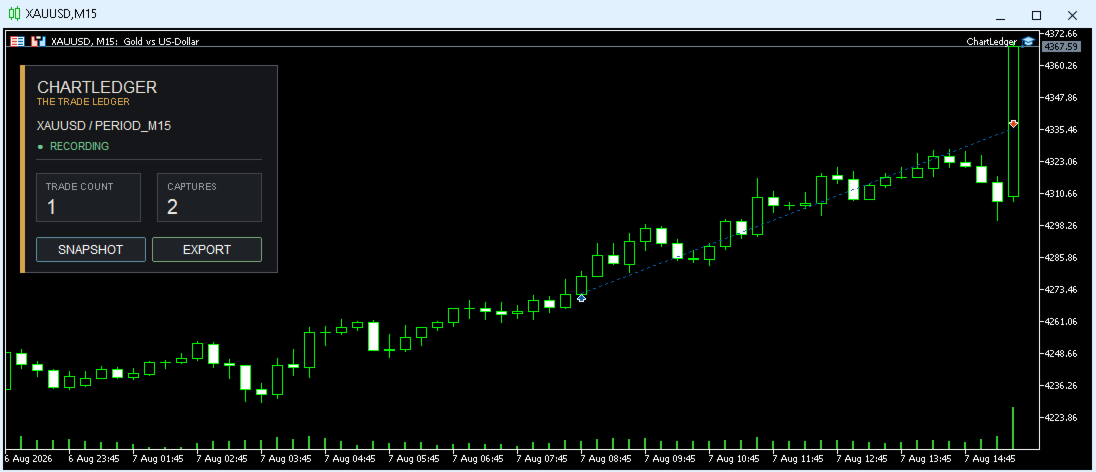
The compact dashboard shows the current journal status directly on the chart, including:
- Attached symbol.
- Recording status.
- Number of recorded trades.
- Number of captured screenshots.
From the same dashboard you can create manual snapshots and export the journal.
Inputs
Trade Recording
- Enable Trade Recording - enables or pauses the recording of new trades.
- Capture On Trade Open - automatically captures the chart when a trade opens.
- Capture On Final Close - automatically captures the chart when the trade is fully closed.
Screenshot Output
- Screenshot Width Pixels - width of generated screenshots.
- Screenshot Height Pixels - height of generated screenshots.
Live Report
- Enable Live Report - refreshes the current local report after recorded trade activity and manual snapshots.
Export Filters
- Export Period - all recorded trades, today, last 7 days, or current month.
- Export Source - all sources, manual, Expert Advisor, or other.
- Magic Number Filter - -1 includes all trades; any other value includes only that magic number.
Important Notes
- ChartLedger records only the symbol of the chart to which it is attached.
- Attach a separate ChartLedger instance to each additional symbol you want to journal.
- Only one ChartLedger instance can run for the same symbol. A second instance is refused to protect the journal state and prevent duplicate records.
- ChartLedger can run on a separate chart for the same symbol as another Expert Advisor and observe its trading activity.
- ChartLedger records new trading activity detected while it is attached. It preserves its local journal between restarts, but it does not reconstruct trades that occurred before recording began.
- Screenshot captures reflect the current chart state at the exact moment of capture.
- R results are available only when the initial trade risk can be determined.
- All journal data and exports are stored locally in the MetaTrader terminal data folder.
- No external account, cloud service, or web service is required.
- ChartLedger is a record-keeping and review utility. It does not provide trading signals or guarantee trading results.