TXBeeBox TradingPanel Pro
- Утилиты
- Версия: 1.99
- Активации: 5

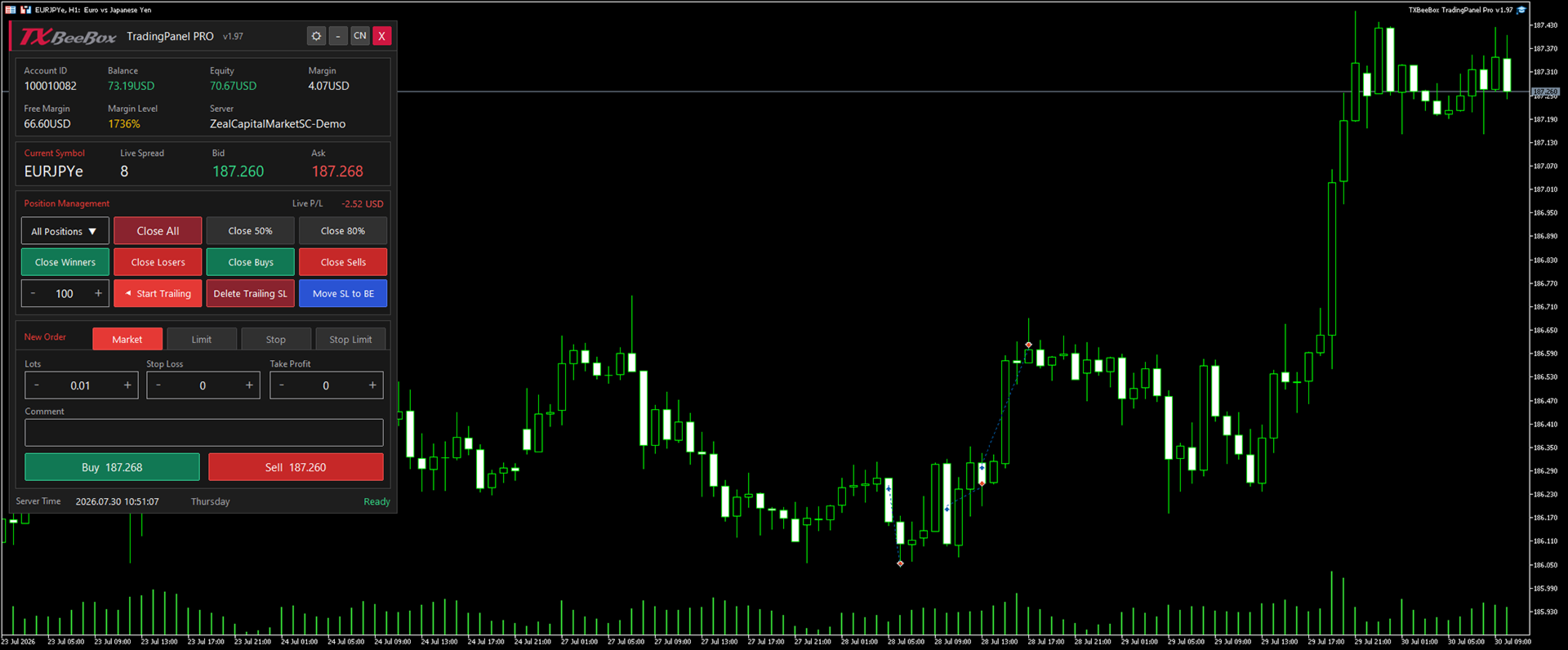
TXBeeBox TradingPanel Pro is a multifunctional manual trading and position-management panel designed for MetaTrader 5. It provides fast order entry, centralized position controls, real-time account information and practical risk-management tools in a clean, compact interface.
This product is a manual trading utility. It does not generate trading signals, predict market direction or open trades automatically. All entry and position-management commands are initiated by the user.
Main Features
Real-Time Account Information
The panel displays important account data directly on the chart:
- Account ID
- Account balance
- Account equity
- Used margin
- Free margin
- Margin level
- Trading server
- Current symbol
- Live spread
- Real-time Bid and Ask prices
- Floating profit or loss of the currently managed positions
- Current broker server time
Information is refreshed automatically while the panel is running.
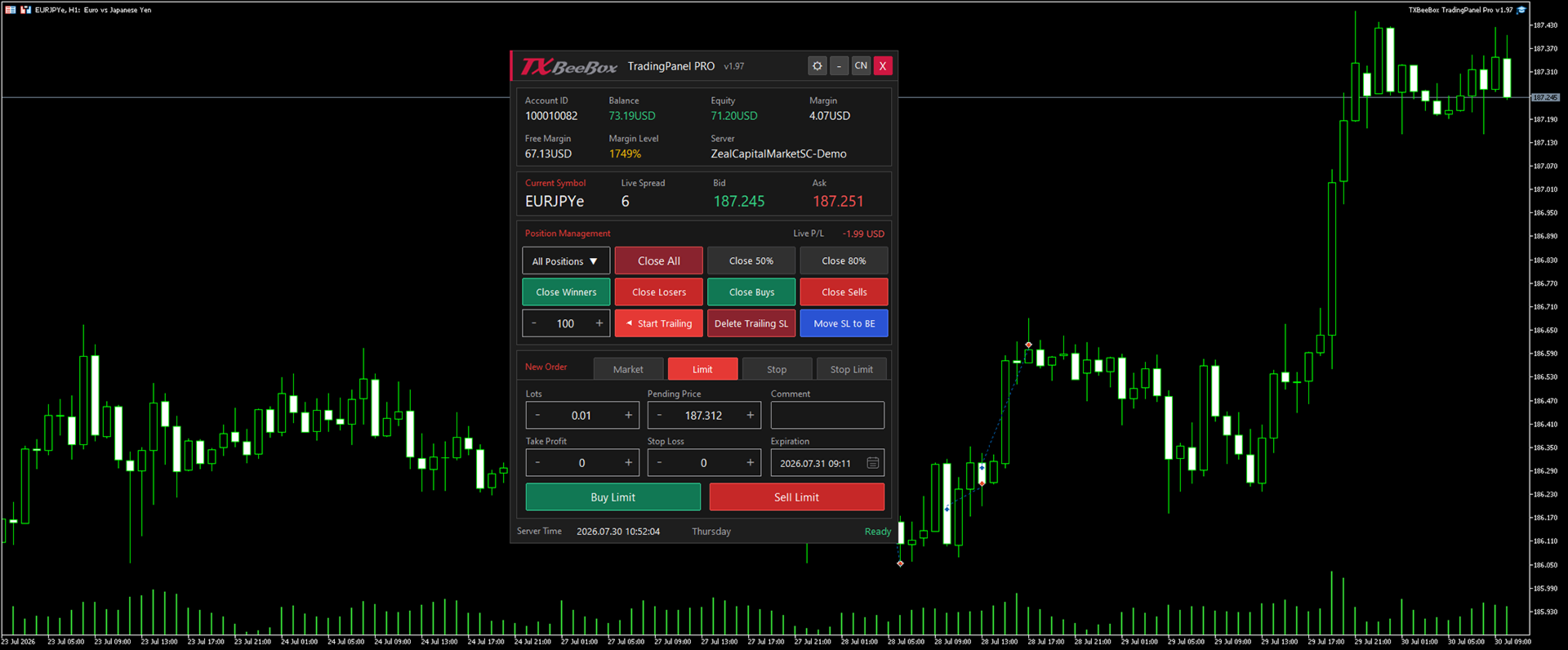
Manual Order Entry
The panel supports the following MetaTrader 5 order types:
- Market Buy
- Market Sell
- Buy Limit
- Sell Limit
- Buy Stop
- Sell Stop
- Buy Stop Limit
- Sell Stop Limit
Depending on the selected order type, the user can configure:
- Trading volume
- Entry or trigger price
- Stop Limit price
- Stop Loss
- Take Profit
- Order comment
- Specified expiration date and time
Market Buy and Sell buttons display live prices for quick order confirmation.
The Market page is displayed by default when the panel starts.
Position Management
The position-management section provides quick access to frequently used operations:
- Close all matching positions
- Close 50% of each matching position
- Close 80% of each matching position
- Close profitable positions only
- Close losing positions only
- Close Buy positions only
- Close Sell positions only
- Move profitable positions to breakeven
- Start a trailing stop using a user-defined distance
- Stop trailing and remove Stop Loss levels placed by the panel’s trailing function
Partial closing is automatically adjusted according to the broker’s minimum trading volume and volume step. A partial-close operation may be rejected if either the closing volume or the remaining volume is below the broker’s permitted minimum.
Position-closing functions apply to open positions. They do not delete pending orders.
Position Scope Selection
The position scope menu allows the user to choose which positions are affected by management commands:
- All Positions
- Positions for a selected symbol
The menu automatically lists symbols that currently have open positions.
Before using Close All, partial close, breakeven or trailing-stop functions, always verify the selected position scope.
Additional input parameters can restrict management operations to:
- The current chart symbol
- Positions using the configured Magic Number
Breakeven Function
The Move SL to BE function moves the Stop Loss of eligible profitable positions to their opening price.
A position is modified only when:
- The position is currently profitable
- The market price is sufficiently far from the opening price
- The new Stop Loss complies with the broker’s minimum stop-distance rules
- The new Stop Loss improves the existing protection
Positions that do not meet these conditions are skipped.
Trailing Stop
Enter the trailing distance in points and click Start Trailing.
Once activated, the panel monitors matching positions and moves their Stop Loss when:
- The position has moved into profit
- The requested Stop Loss improves the existing Stop Loss
- The new level satisfies the broker’s minimum stop-distance requirements
The effective trailing distance is never smaller than the minimum distance permitted by the broker.
The Delete Trailing SL button disables the active trailing function and removes Stop Loss levels from positions previously modified by this panel’s trailing system.
The panel must remain attached to an active chart for trailing-stop management to continue operating.
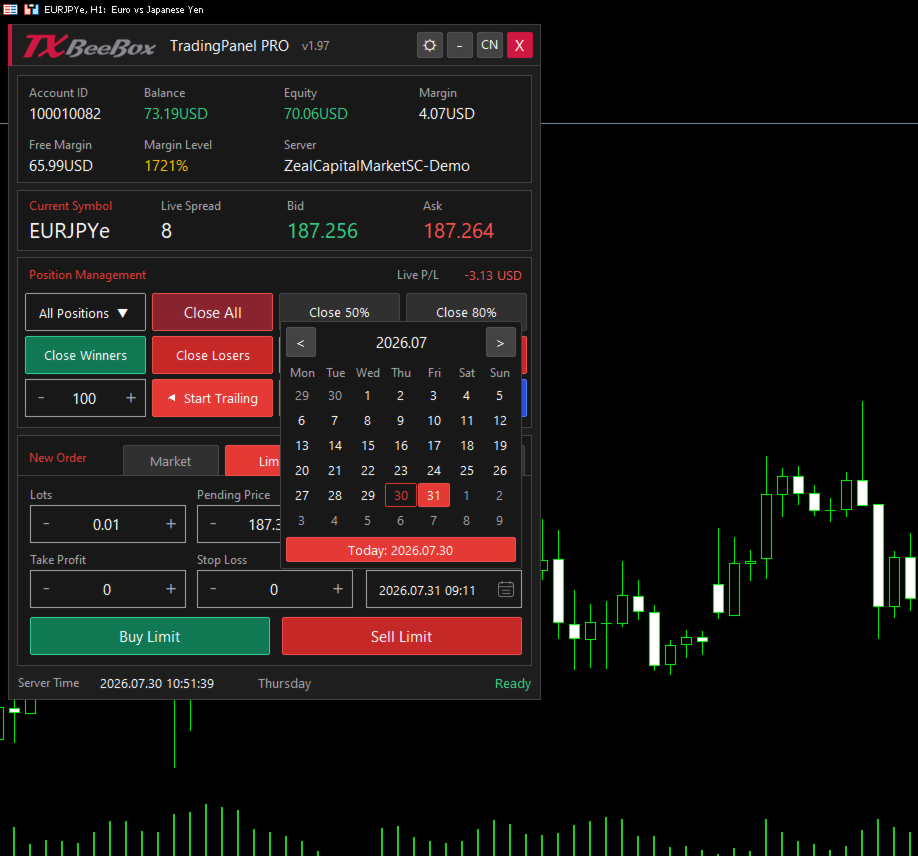
Specified Expiration Calendar
Limit, Stop and Stop Limit orders include a specified expiration field.
Click the calendar icon to:
- Open the integrated calendar
- Navigate between months
- Select an expiration date
- Select the current date
- Close the calendar by selecting a date, clicking the icon again or clicking elsewhere on the panel
Expiration values use the broker’s server time. Specified expiration is subject to support by the selected symbol and broker.
Trade Safety
The panel includes an optional two-click confirmation mechanism for sensitive position-management operations.
When confirmation is enabled, the same action button must be clicked again within the configured confirmation window before the command is executed.
Protected operations include:
- Full closing
- Partial closing
- Closing by profit, loss or direction
- Moving Stop Loss to breakeven
- Removing trailing Stop Loss levels
The panel also includes:
- Configurable price deviation
- Configurable retry count
- Configurable retry delay
- Trading-environment validation
- Price and volume normalization
- Stop-level validation
- Detailed trade-operation logging
Retries are performed only for appropriate temporary trade errors, such as requotes or price changes.
Interface
TXBeeBox TradingPanel Pro provides:
- Dark theme
- Light theme
- English interface
- Chinese interface
- One-click language switching
- One-click theme switching
- Collapsible panel mode
- Movable panel position
- Compact chart-friendly layout
- Clear profit, loss, warning and action colors
- Integrated operation-status display
To move the panel, press and hold the title bar and drag it to the required chart position. Chart dragging is temporarily disabled while the panel itself is being moved.
The Close button removes the EA and all panel objects from the chart.
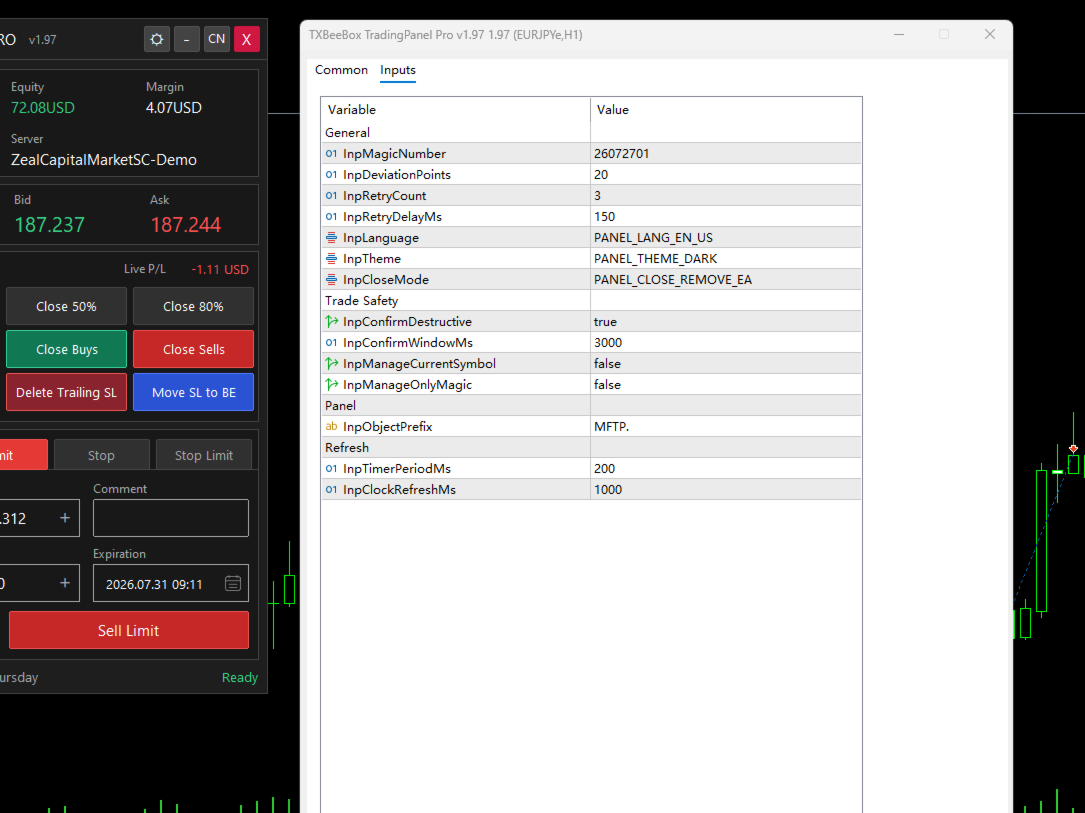
Input Parameters
General
-
InpMagicNumber
Magic Number assigned to orders opened by the panel. -
InpDeviationPoints
Maximum permitted execution deviation in points. -
InpRetryCount
Maximum number of attempts for eligible trade-operation retries. -
InpRetryDelayMs
Delay between retry attempts, in milliseconds. -
InpLanguage
Initial interface language. English is selected by default. -
InpTheme
Initial panel theme. -
InpCloseMode
Panel close-mode option.
Trade Safety
-
InpConfirmDestructive
Enables or disables two-click confirmation for sensitive actions. -
InpConfirmWindowMs
Time allowed for the second confirmation click. -
InpManageCurrentSymbol
When enabled, position-management commands are limited to the current chart symbol. -
InpManageOnlyMagic
When enabled, position-management commands are limited to positions using the configured Magic Number.
Panel
- InpObjectPrefix
Prefix used for chart objects created by the panel.
Refresh
-
InpTimerPeriodMs
Internal panel refresh period in milliseconds. -
InpClockRefreshMs
Server-time refresh interval in milliseconds.
Installation and First Use
- Install the product through MQL5 Market.
- Open the required symbol chart in MetaTrader 5.
- Attach TXBeeBox TradingPanel Pro to the chart.
- Enable Algo Trading in MetaTrader 5.
- Allow algorithmic trading in the EA settings.
- Check the initial language, theme and safety parameters.
- Confirm the current symbol and position scope.
- Test all functions on a demo account before using the panel on a live account.
New orders are placed for the symbol of the chart to which the panel is attached.
Compatibility and Important Notes
- Designed for MetaTrader 5.
- Supports both hedging and netting account modes.
- Uses the standard MetaTrader 5 trading interface.
- Does not require external DLL libraries.
- Broker execution rules, available order types and expiration policies may differ.
- Stop Limit orders may not be supported by every broker or symbol.
- Prices, trading volume, stop levels and expiration settings must comply with broker requirements.
- A stable terminal connection and enabled Algo Trading permission are required.
- The panel must remain active for trailing-stop processing and real-time updates.
- Test the product with your broker’s trading conditions before live use.
Risk Warning
Trading financial instruments involves significant risk. Position-closing and Stop Loss modification commands may execute immediately and cannot always be reversed.
TXBeeBox TradingPanel Pro is an order-entry and position-management tool. It does not guarantee profits, prevent losses or provide investment advice. Users are responsible for checking all order parameters, position scopes and broker requirements before executing any operation.
Always test the product on a demo account before using it with real funds.