CT Order Manager Pro
- Utilitários
- Versão: 6.11
- Atualizado: 2 novembro 2026
- Ativações: 5

# CT Order Manager Pro – Professional Order Management Panel for MetaTrader 5
**ALGI – Mustafa Konya**
**Manual Trading | Fast Order Management | Full Control**
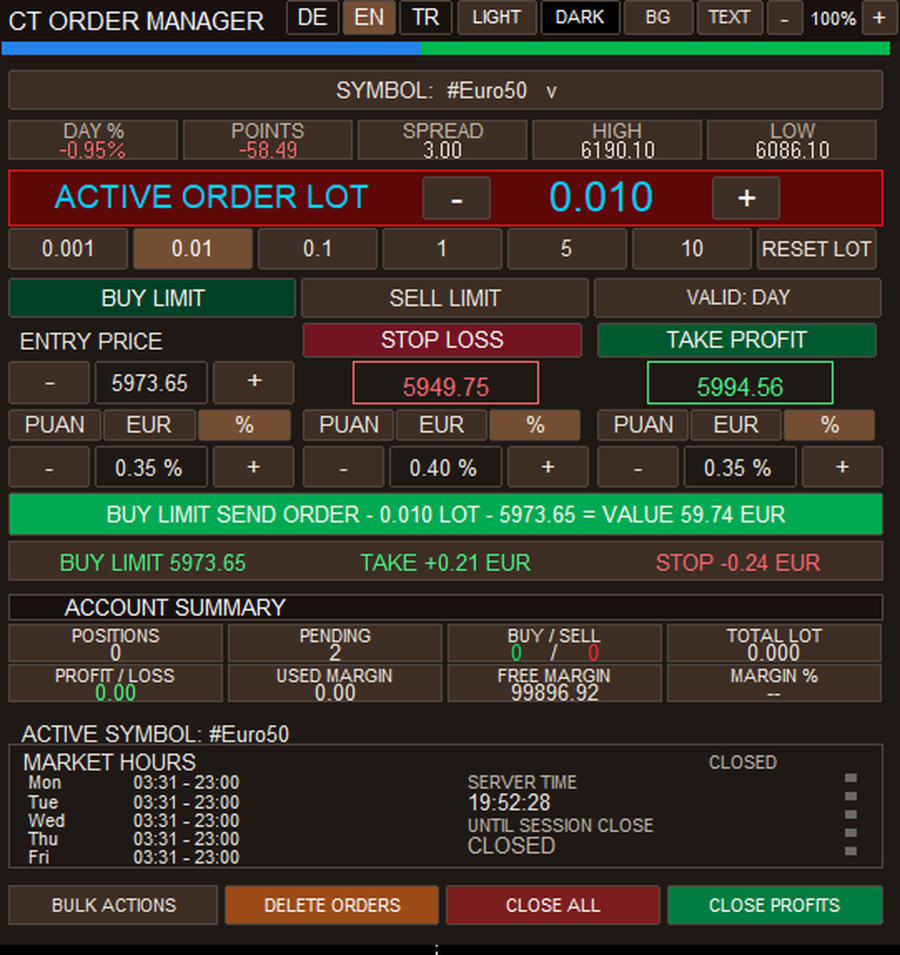
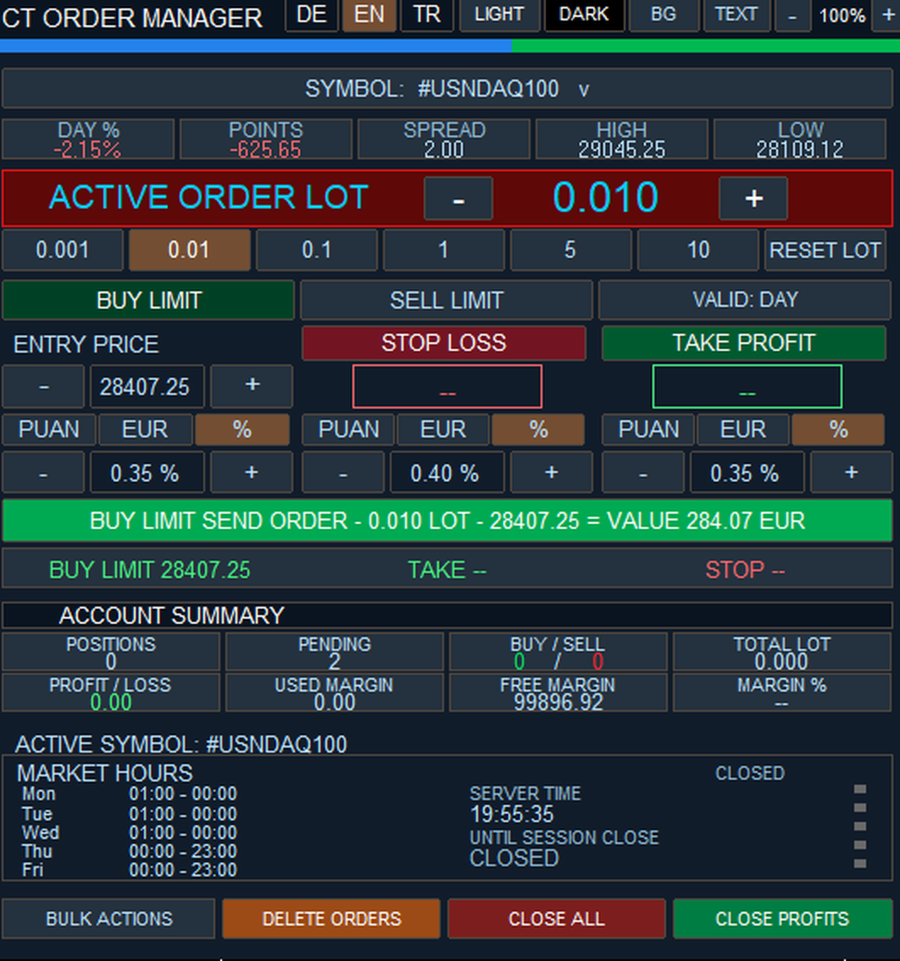
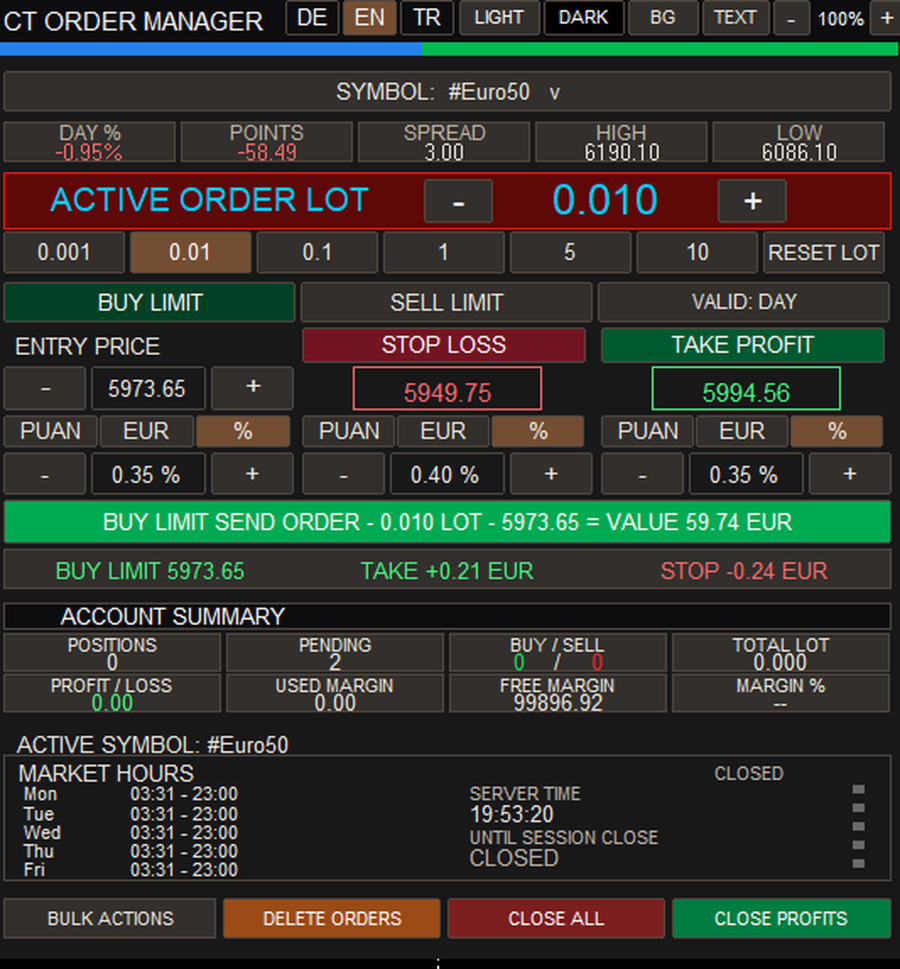
CT Order Manager Pro is a professional manual trading and order management utility developed for MetaTrader 5 (MT5).
It provides a practical interface for managing trading orders directly from the chart. Traders can adjust order volume, entry prices, Stop Loss and Take Profit settings, and monitor open positions and pending orders.
The software is not an automated trading strategy. All trading decisions remain under the user's control.
## 1. Main Features
**Order Management**
- BUY and SELL trading controls
- BUY LIMIT and SELL LIMIT orders
- Pending order monitoring and management
- Open position monitoring and closing
- Manual entry price adjustment
- Stop Loss and Take Profit controls
- Order information review before submission
**Lot Management**
- Manual lot size entry
- Quick lot selection buttons
- Plus (+) and minus (−) lot adjustment
- Lot reset function
- Broker-compatible minimum and maximum trading volume
- Support for broker-permitted volume steps
**Account and Market Overview**
- Number of open positions
- Number of pending orders
- Total trading volume
- BUY and SELL position summary
- Profit and loss information
- Used margin and free margin
- Selected symbol market information
- Trading session information
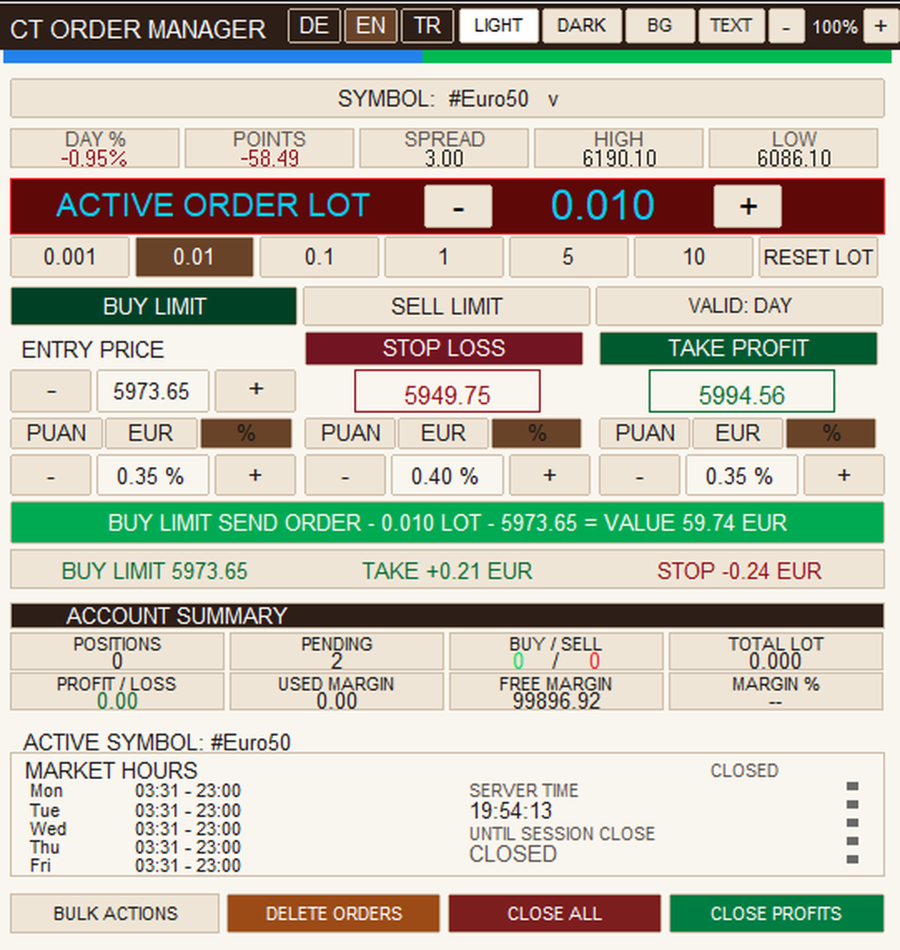
## 2. Theme, Colors and Panel Size
The interface can be customized according to the user's preferences.
- **LIGHT (AÇIK):** Switch to light theme
- **DARK (KOYU):** Switch to dark theme
- **BACKGROUND (ZEMİN):** Change panel background color
- **TEXT (YAZI):** Change panel text color
- **+ :** Increase panel size proportionally
- **− :** Decrease panel size proportionally
- **% :** Display the current panel scaling percentage
These options help traders adapt the interface to different screen sizes and personal preferences.
## 3. Multilingual Interface
Three interface languages are available:
- EN – English
- DE – German
- TR – Turkish
The language can be changed directly using the buttons at the top of the panel.
## 4. Installation in MetaTrader 5 – Step by Step
### Step 1 – Open MetaTrader 5
1. Start MetaTrader 5 on your computer.
2. Log in to your broker account.
3. We recommend using a demo account for initial testing.
4. Wait until the platform has fully loaded.
### Step 2 – Sign In to Your MQL5 Account
1. Open the MQL5.community login settings in MetaTrader 5.
2. Enter your MQL5 username and password.
3. Use the same MQL5 account that purchased or rented the product.
### Step 3 – Install CT Order Manager Pro
1. Open **Market** inside MetaTrader 5.
2. Navigate to **Purchased**.
3. Find **CT Order Manager Pro**.
4. Click **Install**.
5. Wait for the installation to finish.
MetaTrader 5 will install the purchased product automatically.
**Customers purchasing through MQL5 Market do not need to copy or compile MQ5 source files.**
### Step 4 – Open a Trading Chart
1. Press **Ctrl + M** to open Market Watch.
2. Find your desired trading symbol.
3. Right-click the symbol.
4. Select **Chart Window**.
The chart will open.
### Step 5 – Attach the Trading Panel
1. Press **Ctrl + N** to open Navigator.
2. Expand **Expert Advisors**.
3. Find **CT Order Manager Pro**.
4. Double-click the product or drag it onto the chart.
5. Review the input settings and permissions.
6. Click **OK**.
The panel should now appear on the chart.
### Step 6 – Check Trading Permissions
1. Check the **Algo Trading** button in MetaTrader 5.
2. Enable it if required.
3. Review the program's trading permissions.
4. Check the order confirmation settings.
5. Make sure your broker allows trading for the selected symbol.
Algo Trading permission may be required for the program to submit or manage orders. This does not mean that CT Order Manager Pro independently executes an automated trading strategy.
### Step 7 – Prepare Your First Order
1. Select your trading symbol.
2. Enter the desired lot size.
3. Choose the order type.
4. Set the entry price.
5. Configure Stop Loss if required.
6. Configure Take Profit if required.
7. Review all order details.
8. Click the relevant order submission button.
9. Confirm the order if prompted.
Order acceptance and execution depend on the broker's trading conditions.
## 5. Saving Program Settings
MetaTrader 5 allows users to save Expert Advisor input parameters.
1. Open the chart containing CT Order Manager Pro.
2. Press **F7**.
3. Select the **Inputs** tab.
4. Adjust the required input parameters.
5. Click **Save** to store them in a `.set` file.
6. Click **OK** to apply the settings.
To restore previously saved input parameters, open the same settings window and click **Load**.
Note: A `.set` file stores input parameters. Permanent storage of every visual change made directly through the panel depends on the program's supported functionality.
## 6. Manual Source File Installation – Developers Only
This section is intended only for developers who legally possess an MQ5 source file. It is not required for MQL5 Market customers.
1. Open MetaTrader 5.
2. Press **F4** to open MetaEditor.
3. In MT5, select **File → Open Data Folder**.
4. Navigate to `MQL5/Experts`.
5. Copy the MQ5 source file into the folder.
6. Open the file in MetaEditor.
7. Press **F7** to compile.
8. Check the compilation results.
9. Return to MetaTrader 5.
10. Refresh Navigator and attach the program to a chart.
MQ5 source files and compiled EX5 programs are different file types. MQL5 Market customers do not receive the MQ5 source code.
## 7. Troubleshooting
**Panel does not appear:** Check installation, Navigator and chart attachment.
**Trading disabled:** Check Algo Trading permissions, account permissions and program settings.
**Market Closed:** The selected instrument is currently closed for trading.
**Invalid Volume:** The requested lot size does not meet the broker's volume requirements.
**Invalid Price:** The requested price or order type does not meet current broker trading conditions.
**Product not found:** Verify that you are signed in to the MQL5 account used for the purchase or rental.
## 8. Important Information
- Developed for MetaTrader 5 only
- Trading conditions depend on the broker
- Available order types may vary by instrument
- Demo testing is recommended before live trading
- Financial trading involves the risk of capital loss
- No profit or performance guarantee is provided
**ALGI – Mustafa Konya**
**CT Order Manager Pro – Professional Manual Trading and Order Management in One Panel.**