
Layer Trade Manager
- 유틸리티
- 버전: 2.40
- 업데이트됨: 29 9월 2026
- 활성화: 5

Layer Trade Manager — Level trade & Scalping Assistant
Layer Trade Manager is a simple yet powerful on-chart trade management panel for MetaTrader 5 designed to take the heavy lifting out of layered trade strategies. It operates in two modes: Standard Mode — a single
click opens the first trade and queues up a basket of up to 5 staggered market entries if price reaches the preconfigured layers, each with its own configurable take profit, and the smart automation takes care of setting BE, etc. from there; and Quick Target Mode — a streamlined scalping mode where every BUY/SELL press opens a market layer, auto-cascading adds further layers as price moves, and the entire basket shares a single dynamic TP anchored to the deepest entry.
What It Does
Instead of manually placing multiple orders at different price levels, Layer Trade Manager does it for you. Press BUY or SELL on the panel and:
Standard Mode:
- Trade 1 opens immediately at market
- Trades 2–5 open automatically as the market moves against you, each triggered at a configurable offset from the previous trade's actual fill price — a classic layering approach for building into a position
- When price moves to your configured threshold, break even is set (if configured) on your open trades to take off risk
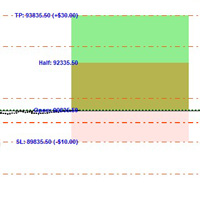
All active TP levels are calculated and displayed on the chart the moment you press the button, so you always know exactly where your exits are.
Quick Target Mode:
- Layer 1 opens immediately at market when BUY/SELL is pressed
- Further layers open automatically each time price moves a configurable number of pips against the basket — up to 20 layers total
- The basket take profit is always calculated from the deepest entry (lowest buy / highest sell) plus the Quick Target distance, and is recalculated every time a new layer opens
- An optional Best Layer TP gives the most recently opened layer a wider individual target
- An optional Recovery Mode switches the basket TP to a tighter level anchored just above Trade 1's fill price once the drawdown exceeds a configurable threshold
Key Features
Two Operating Modes
Switch between Standard Mode (up to 5 layered trades, full TP row management, auto-BE) and Quick Target Mode (unlimited auto-cascade layers, dynamic basket TP, best-layer and recovery options) via the EA Mode input before attaching the EA.
Compact On-Chart Panel
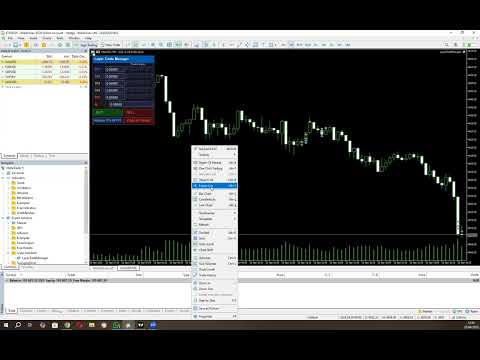
A clean, dark-themed HUD sits in the corner of your chart. In Standard Mode every TP price and the SL are live-editable — click any field, type a price, and it is applied to the linked trades instantly. In Quick Target Mode all pip distances are editable directly in the panel before and between baskets.
Up to 10 Configurable Take Profit Levels (Standard Mode)
TP1 through TP10 are spaced cumulatively from each other using configurable point offsets. TP rows with a zero offset are hidden from the panel. Each visible TP row has five trade-link buttons (T1–T5) — click a button to assign that trade to close at that TP level, or reassign it at any time while the basket is live.
Relay TPs off TP1
Changed your TP1? One click on Relayer TPs off TP1 recalculates and pushes TP2 through the last active TP row to all linked trades automatically, respecting the original spacing offsets.
Two Auto Break-Even Strategies (Standard Mode)
- Individual BE — Each trade's SL is moved to its own entry price (+ a configurable buffer for fees) as soon as price reaches a trigger distance from Trade 1's entry. Trades are protected one by one.
- Combined BE — A single weighted-average entry price is calculated across all open basket positions. All SLs are moved to that blended level at once, with a configurable settling delay so completed TP closes don't skew the average.
Automatic Cascade Entries
In Standard Mode, Trades 2–5 monitor price in real time and open at market the moment each threshold is breached, using actual fill prices as the reference for the next level. In Quick Target Mode every layer after the first cascades automatically each time price moves one Layer distance against the basket.
Trailing Stop for Unlinked Trades (Standard Mode)
Any trade slot not assigned to a TP row is automatically managed with a trailing stop, so nothing is left unprotected.
Prop Firm Protection
An optional minimum-time gate between cascade opens prevents rapid-fire layering that could breach prop firm trade-frequency rules. Set to 0 to disable.
Session Recovery
Restart MT5 mid-basket? No problem. The EA reads your existing open positions on OnInit and fully restores the panel state — tickets, TP links, SL, direction, and BE status — without touching any live trade settings. Quick Target Mode recovers all open layers and restores recovery mode state automatically.
Close All Trades button
If news is coming up, you need to go out, or you don't like the way the market is moving, press one button and all your open trades are closed together.
Live Chart Lines
Colour-coded TP lines and a dashed SL line are drawn directly on the chart for instant visual reference. They update the moment you edit a price in the panel.
Input Settings At A Glance
| Group | Parameters |
|---|---|
| Magic Number | Unique EA identifier, optional panel title label |
| Trade Settings | Lot size, SL offset, BE strategy, BE trigger distance, BE delay, BE buffer |
| TP Offsets | Independent point-offset for each of TP1–TP10 (set to 0 to hide a row) |
| Trade to TP Links | Which TP row each of Trade 1–5 closes at (0 = trailing SL) |
| Trade Entry Offsets | Cascade distance for Trades 2–5 from the previous entry |
| Order Frequency (Prop Firm Protection) | Minimum seconds between auto-cascade opens (0 = disabled) |
| EA Mode | Standard Mode or Quick Target Mode |
| Quick Target Mode Settings | Basket TP distance, layer spacing, SL distance, Best Layer TP, Recovery TP |
Who It's For
- Scalpers who want rapid basket execution without the manual overhead
- Grid/layer traders who build into positions as price retraces
- Any trader who wants a clean visual panel to manage multi-trade setups with automated BE and TP management
Requirements
- MetaTrader 5
- Algo trading enabled in MT5
Please note that you should always watch open trades to ensure the EA is managing your trades as you expect so you can close your trades manually if required to protect your capital.
Configuration Instructions
Magic Number
| Variable | Default | Description |
|---|---|---|
| EA magic number | 20260307 | Unique identifier stamped on every order placed by this EA. Use a different number per instance on the same account to keep baskets separate. |
| Configuration name for panel title (if using multiple instances) | (empty) | Optional text label appended to the panel title bar. Useful when running multiple instances on different charts — leave blank for the default “Layer Trade Manager” title. |
Trade Settings
| Variable | Default | Description |
|---|---|---|
| Lot size applied to every trade | 0.01 | Volume applied to every trade in the basket (T1–T5). Normalised to the broker’s minimum volume step automatically. |
| SL distance in points from Trade 1 entry | 800 pts | Initial stop-loss distance in points from the Trade 1 entry price. Applied when no manual SL has been typed into the panel. |
| BE strategy: Individual, Combined | BE_COMBINED | Determines how break-even is calculated when the auto-BE threshold is reached. Individual — each trade gets its own BE SL set just above its own entry price. Combined — all trades share a single BE SL set above the weighted average entry price of the whole basket. |
| Points from Trade 1 EP to trigger auto-BE | 300 pts | How far price must move in the trade direction from Trade 1’s actual fill price before auto-BE fires. Measured against the peak high-water-mark price so the trigger is never missed if price retraces. |
| Milliseconds to wait after BE threshold breach before applying BE | 800 ms | Settling delay (milliseconds) between the BE threshold being breached and the BE SL actually being applied. Allows in-progress TP closes at that level to settle before the weighted average EP is calculated. Most relevant to the Combined strategy. |
| BE points offset to cover fees/minor slippage | 50 pts | Points added above (buy) or below (sell) the reference entry price when setting the BE stop-loss, to cover spread, commission, and minor slippage. |
TP Offsets
TP levels are cumulative. TP1 is measured from Trade 1’s entry price; TP2 is measured from TP1; TP3 from TP2, and so on.
| Variable | Default | Description |
|---|---|---|
| TP offset for TP1 from EP | 300 pts | Distance from Trade 1 entry price to the TP1 level. |
| TP offset for TP2 from TP1 | 200 pts | Additional distance from TP1 to the TP2 level. |
| TP offset for TP3 from TP2 | 200 pts | Additional distance from TP2 to the TP3 level. |
| TP offset for TP4 from TP3 | 200 pts | Additional distance from TP3 to the TP4 level. |
| TP offset for TP5 from TP4 | 200 pts | Additional distance from TP4 to the TP5 level. |
T1 entry = $5000 • TP1Offset=300 • TP2Offset=200 • TP3Offset=200
→ TP1 = $5003 TP2 = $5005 TP3 = $5007
Trade to TP Links
Each trade is assigned to a specific TP row. When price reaches that TP level the assigned trade closes. Assignments can also be changed live on the panel by clicking the T1–T5 buttons on any TP row.
| Variable | Default | Description |
|---|---|---|
| TP row for Trade 1 (0 = trail SL, 1–10 = TP row) | 2 | The TP row at which Trade 1 will close. Default links Trade 1 to TP2. Set to 0 to use a trailing stop instead. |
| TP row for Trade 2 (0 = trail SL, 1–10 = TP row) | 3 | The TP row at which Trade 2 will close. Default links Trade 2 to TP3. |
| TP row for Trade 3 (0 = trail SL, 1–10 = TP row) | 4 | The TP row at which Trade 3 will close. Default links Trade 3 to TP4. |
| TP row for Trade 4 (0 = trail SL, 1–10 = TP row) | 0 | Trade 4 uses a trailing SL by default (no fixed TP). Set to 1–10 to assign a TP row. |
| TP row for Trade 5 (0 = trail SL, 1–10 = TP row) | 0 | Trade 5 uses a trailing SL by default (no fixed TP). Set to 1–10 to assign a TP row. |
| Trailing SL distance in points (for trades with no TP) | 200 pts | Trailing stop distance for any trade that has no TP assigned (link = 0). The trailing SL only activates once BE has been triggered and only ever moves in the profitable direction. |
Trade Entry Offsets
Trade 1 always opens at the market price when BUY/SELL is pressed. Trades 2–5 can open immediately, cascade as price moves, or be disabled entirely.
| Variable | Default | Special values | Description |
|---|---|---|---|
| Trade2 entry offset from Trade1 (0=disabled, -1=open with T1) | 200 pts | 0 = off • -1 = with T1 | Offset from Trade 1’s actual fill price at which Trade 2 opens. Buy: T2 opens when ask falls this many points below T1 entry. Sell: when bid rises this many points above T1 entry. |
| Trade3 entry offset from Trade2 (0=disabled, -1=open with T1) | 200 pts | 0 = off • -1 = with T1 | Offset from Trade 2’s actual fill price at which Trade 3 opens. Cascade chain anchors to the previous trade’s fill, not T1 entry. |
| Trade4 entry offset from Trade3 (0=disabled, -1=open with T1) | 0 (off) | 0 = off • -1 = with T1 | Offset from Trade 3’s actual fill price at which Trade 4 opens. |
| Trade5 entry offset from Trade4 (0=disabled, -1=open with T1) | 0 (off) | 0 = off • -1 = with T1 | Offset from Trade 4’s actual fill price at which Trade 5 opens. |
Special value reference
| Value | Behaviour |
|---|---|
| 0 | Trade slot disabled — that trade will never open as part of an auto-basket. |
| -1 | Trade opens immediately at market alongside Trade 1 when BUY/SELL is pressed. Use this to fire 2, 3, or 4 trades simultaneously. E.g. set Trade2Offset = -1 to always open two trades on each BUY/SELL click. |
| > 0 | Trade opens via cascade. The EA monitors price every tick and opens this trade at market once the threshold is reached. |
T1 fills at $5000. Trade2Offset=200 → T2 opens when ask ≤ $4998.
T2 fills at $4998. Trade3Offset=200 → T3 opens when ask ≤ $4996.
Each threshold is anchored to the previous trade’s actual fill, not T1 entry.
Order Frequency (Prop Firm Protection)
| Variable | Default | Description |
|---|---|---|
| Min seconds between layered trades | 0 (disabled) | Minimum number of seconds that must elapse between consecutive auto-cascade trade opens. Prevents rapid-fire layering that may breach prop firm trade-frequency rules. Set to 0 to disable the gate entirely and allow immediate cascading. Applies to both Standard Mode cascade entries and Quick Target Mode layers. |
EA Mode
| Variable | Default | Description |
|---|---|---|
| EA Mode | Standard Mode | Selects the operating mode for the EA. Standard Mode — the full multi-TP layered basket with auto-BE, TP row management, and T1–T5 trade slots. Quick Target Mode — a streamlined scalping panel with unlimited auto-cascade layers, a dynamic basket TP, optional Best Layer TP, and optional Recovery Mode. See the Quick Target Mode section below for full details. |
Panel Controls — Standard Mode (runtime)
| Control | Function |
|---|---|
| TP1–TP10 edit boxes | Type a price and press Enter to set that TP level and push it to any linked open trades. Only rows with a non-zero offset are shown. |
| T1–T5 buttons (per row) | Toggle the TP↔trade link. Highlighted green = linked. Click to link/unlink; linking immediately pushes the panel TP price to the live trade. |
| BE button | Grey — disabled; price has not yet reached Trade 1 entry level. Dark red — eligible; price is at or above T1 entry. Click to immediately apply BE stops to all open trades using the configured strategy. Bright red — BE active; SL is locked. Click again to deactivate and re-enable manual SL editing. The button re-disables if price drops back below T1 entry while BE is not yet activated. |
| SL edit box | Editable when BE is off. Type a price and press Enter to update the SL on every open basket trade simultaneously. Locked to read-only when BE is active. |
| BUY / SELL | Opens a fresh basket (T1 at market, immediate trades fired, cascade monitoring starts). If a basket is already active in the same direction and T5 is not yet filled, pressing the same button adds the next available trade at market. |
| Relayer TPs off TP1 | Recalculates all visible TP rows (TP2 onward) from the current TP1 value using the configured offsets and pushes the new prices to all linked trades. |
| Close All Trades | Closes every open basket position at market. Panel and tracking state reset automatically once all positions are confirmed closed. |
Quick Target Mode
Quick Target Mode is a dedicated scalping panel that replaces the Standard Mode panel entirely. It is designed for fast, repetitive basket scalps where you want a simple TP target, automatic layering as price moves against you, and optional smarter TP management for the deepest layer and for recovery scenarios.
How It Works
- Press BUY or SELL to open the first layer at market. The basket SL is set immediately from the configured SL distance and does not change for the life of the basket.
- Each time price moves one Layer distance against the basket, a new layer opens automatically at market — up to 20 layers total.
- The basket TP is always anchored to the worst entry in the basket (lowest buy fill / highest sell fill) plus the Quick Target distance, and is recalculated and pushed to all layers every time a new layer opens.
- If Best Layer is enabled, the most recently opened layer always gets a separate, wider TP equal to its own fill price plus the Best Layer distance. All other layers continue to use the basket TP.
- If Recovery Mode is enabled and price moves more than the Quick Target distance into drawdown from Trade 1's fill price, recovery mode activates automatically. While active, the basket TP for all layers (except the best layer) switches to Trade 1's fill price plus the Recovery distance — a tighter target designed to get out near break-even rather than waiting for the full basket TP.
- Once all layers have closed the panel resets automatically and is ready for the next basket.
You can also press BUY/SELL at any time while a basket is active to add an immediate extra layer without waiting for the cascade threshold to be reached. The opposite-direction button is greyed out while a basket is live.
Enabling Quick Target Mode
- In the EA inputs, find the EA Mode group.
- Set EA Mode to Quick Target Mode .
- Configure the Quick Target Mode Settings group (see table below).
- Attach or re-initialise the EA. The panel will display the teal-headed Quick Target Mode panel instead of the standard panel.
Quick Target Mode Settings
| Variable | Default | Description |
|---|---|---|
| Quick Target basket TP distance in points | 300 pts (30 pips) | Distance in points from the worst entry in the basket to the basket TP. This is the core profit target for every layer (except the best layer when Best Layer is enabled). Editable live in the panel as pips. |
| Layer offset in points between QT trades | 100 pts (10 pips) | How far price must move against the last opened layer before the next layer opens automatically. Each new layer's threshold is anchored to the previous layer's actual fill price. Editable live in the panel as pips. |
| SL distance in points for Quick Target mode | 500 pts (50 pips) | Stop-loss distance in points from the first layer's entry price. The same SL price is applied to all subsequent layers. Locked once a basket is open; editable as pips between baskets. |
| Best Layer extra TP in points (0 = disabled) | 1000 pts (100 pips) | When non-zero, the most recently opened layer in the basket is assigned a separate TP equal to its own fill price plus this distance. This gives your newest (deepest) layer a much wider target, effectively letting it ride further while earlier layers close at the tighter basket TP. Set to 0 to disable — all layers share the same basket TP. Editable live in the panel as pips. |
| Recovery TP offset in points above T1 fill (0 = disabled) | 100 pts (10 pips) | When non-zero, recovery mode can activate. Recovery mode triggers once price moves more than Quick Target points into drawdown from Trade 1's fill. When active, the basket TP for all non-best layers switches from the normal basket TP to Trade 1's fill price plus this recovery offset — a near-break-even target designed to exit the basket in adverse conditions. Set to 0 to disable recovery mode entirely. Editable live in the panel as pips. |
Quick Target Mode Panel Controls (runtime)
| Control | Function |
|---|---|
| Status row (read-only) | When idle: shows the configured SL distance in pips and Ready. When a basket is active: shows the current layer count, the live basket TP price, and the basket SL price. |
| Quick Tgt edit | The basket TP distance in pips. Edit and press Enter to update the runtime value. Takes effect on the next layer open or immediately if a basket is already active (recalculates and pushes TP to all open layers). |
| Layer edit | The cascade layer spacing in pips. Edit and press Enter to update the runtime value. Controls how far price must move from the last layer before the next one opens. |
| Best Layer edit | The Best Layer TP distance in pips. Edit and press Enter. Set to 0 to disable. When a basket is active the current Best Layer TP price is displayed alongside the edit field. |
| Recovery edit | The Recovery TP offset in pips. Edit and press Enter. Set to 0 to disable. The row turns red and the status label shows RECOVERY when recovery mode is active. When idle it shows the drawdown threshold that will trigger recovery (e.g. >30 DD). |
| SL edit | When idle: shows the SL distance in pips — edit and press Enter to change it before opening the next basket. When a basket is active: locked, displays the live SL price applied to all open layers. |
| BUY / SELL | Opens a new basket (first layer at market) when no basket is active, or adds an immediate extra layer to the existing basket when pressed in the same direction. The opposite-direction button is greyed out while a basket is live. |
| Close All Trades | Closes every open Quick Target layer at market. Panel and tracking state reset automatically once all positions are confirmed closed. |

































This EA is a highly efficient tool for layering trades. Once you manually enter a position, the system takes over and automates the rest based on your configured settings, including target levels and trade management. It offers two modes, giving flexibility depending on your strategy. I also appreciate the developer’s responsiveness—being open to feedback and actively incorporating improvements into the EA makes a big difference in usability and performance.