 MetaTrader 5
 エキスパート
 インディケータ
 ライブラリ
ライブラリ
 ユーティリティ
 ウィジェット
 ルール
ルール
YouTubeにあるマーケットチュートリアルビデオをご覧ください
ロボットや指標を購入する
仮想ホスティングで
EAを実行
EAを実行
ロボットや指標を購入前にテストする
マーケットで収入を得る
販売のためにプロダクトをプレゼンテーションする方法

「Golden Helper」は購入できなくなりました。
以前にこの製品を購入された方は、残りのアクティベーションがある限り、引き続きこの製品を制限なく使用し、新しいコピーをインストールできます。
- MetaTrader 4ターミナルを開きます。
- 設定でMQL5.communityのアカウント情報を入力します([ツール]>[オプション]>[コミュニティ])。
- [マーケット]タブを開き、[購入済み]タブに移動します。
- 製品名の右側にある[インストール]ボタンをクリックします。
詳しくは、ドキュメントをご覧ください。
他のMetaTrader 4アプリをご確認ください

プロップしっかり準備完了! ( SETFILEをダウンロード ) ローンチプロモーション: 現在の価格で残りわずかです! 最終価格: 990ドル EA を 1 つ無料で入手 (2 取引アカウント用) -> 購入後に連絡してください Ultimate Combo Deal -> click here JOIN PUBLIC GROUP: Click here Live Signal LATEST MANUAL
ゴールドリーパーへようこそ! 非常に成功した Goldtrade Pro を基にして構築されたこの EA は、複数の時間枠で同時に実行できるように設計されており、取引頻度を非常に保守的なものから非常に不安定なものまで設定するオプションがあります。 EA は複数の確認アルゴリズムを使用して最適なエントリー価格を見つけ、内部で複数の戦略を実行して取引のリスクを分散します。 すべての取引にはストップロスとテイクプロフィットがありますが、リスクを最小限に抑え、各取引の可能性を最大化するために、トレーリングストップロスとトレーリングテイプロフィットも使用します。 こ

8+ years of live track record with +12,000% account growth: Live performance MT 5 version can be found here Waka Waka is the advanced grid system which already works on real accounts for years. Instead of fitting the system to reflect historical data (like most people do) it was designed to exploit existing market inefficiencies. Therefore it is not a simple "hit and miss" system which only survives by using grid. Instead it uses real market mechanics to its advantage to make profit Supported cu

We proudly present our cutting-edge robot, the Big Forex Players EA designed to maximize your trading potential, minimize emotional trading, and make smarter decisions powered by cutting-edge technology. The whole system in this EA took us many months to build, and then we spent a lot of time testing it. This unique EA includes three distinct strategies that can be used independently or in together. The robot receives the positions of the biggest Banks (positions are sent from our database t

弱いエントリーを巨大な STOP LOSS で救うべきではありません。
GHOST XAU はまったく異なる考え方で設計されています。グリッドなし、ナンピンなし、 TP = SL — 正真正銘の 1:1。
この EA は ブローカー中立(broker-neutral) を重視して開発されており、特定のブローカーの条件ではなく、市場そのものに基づいて判断することを目指しています。
すべてのエントリーは、 3つのモデル、620本の決定木、120以上の市場特徴量 によって評価されます。
必要な品質がなければ、取引は行われません。 INSTRUCTIONS / BONUS / TEST / PDF
見えるのは取引だけではありません — その判断プロセスまで見えます
GHOST MODE — 実際の注文を出さず、仮想残高上で実取引と同じロジックを動作させます。
GHOST X-RAY — EA がどこでエントリーしたかだけでなく、なぜ取引候補を見送ったのかも表示します。
DECISION REPLAY — 完了した取引について、市場分析からエントリー、決済までの判断プロセス全体

Trend Radar — Expert Advisor for MetaTrader 4 Overview Trend Radar is an Expert Advisor (EA) for MetaTrader 4 that opens trades based on a proprietary price-channel analysis model, filtered by slope angle and corridor width. The EA combines clear signal logic with flexible risk management and full control over every stage of trade management — from entry to trailing stop. How It Works Channel analysis. The EA builds a price channel from the last SignalBarCount bars and determines its overall dir

Trend Sniper X は、トレーダーがトレンドの方向性と潜在的な反転ポイントを明確かつ正確に特定できるように設計された、MetaTrader 5 用のマルチタイムフレーム・トレンドフォロー指標です。 MT5版はこちら: https://www.mql5.com/en/market/product/181101 価格情報: 現在の価格はプロモーション価格であり、今後のアップデートや新機能の追加に伴い変更される場合があります。 Code2Profit チャンネル マルチタイムフレーム分析で市場をマスターしよう! Trend Sniper Xで勝率を最大化する方法:ルールとセッションのコツ 技術仕様 プラットフォーム MetaTrader 5 インジケータータイプ マルチタイムフレーム・トレンドインジケーター 動作タイムフレーム すべてのチャート時間足(上位足M1~MN1を独立して選択可能) 主要対象銘柄 為替(Forex)、ゴールド(XAUUSD)、その他のCFD 推奨口座 すべての口座タイプ ビジュアル表示 トレンドカラーローソク足(買い/売り/弱い/変化)+ 買い/売りシグナル

Scalping Robot Pro is a professional trading system designed specifically for fast and precise scalping on XAUUSD using the M1 timeframe. The system is built to capture short term market movements with accurate execution and controlled risk management. It focuses on real time price behavior, momentum shifts, short term volatility, and selective grid based trade management techniques to identify high probability trading opportunities in the gold market. Scalping Robot Pro is optimized for tra

Expert Advisor Sailing Gold is a fully automated Expert Advisor designed exclusively for trading Gold (XAUUSD) on MetaTrader 4. The EA combines momentum analysis, volatility-based market modeling, and an advanced scalping algorithm to identify high-probability trading opportunities while applying intelligent position management for consistent execution and disciplined risk control. To improve trade quality, Sailing Gold includes an optional Moving Average (MA) trend filter, enabling the EA to tr

Miraculous Indicator Binary & Forex v3 StrategySafe Miraculous Indicator Binary & Forex v3 StrategySafe は、明確なシグナル、強力な確認ツール、そして Binary と Forex 市場で使える体系的な取引アプローチを求めるトレーダー向けのプロフェッショナル指標です。 v3 では、MIR Dashboard、Miraculous Confirmation Dashboard、GANN Law、Square of 9 レベル、GANN 角度、そしてより高度な Forex モードが搭載されています。 主な特徴 Binary と Forex の両方に対応。 MIR Dashboard による素早い市場分析。 Miraculous Confirmation Dashboard によるエントリー確認。 Forex 分析用の GANN Law drawing lines。 Square of 9 のライン、レベル、方向表示。 1x1 GANN Angle によるトレンド圧力の確認。 Entry I

割引は 24 時間後に終了します — 次の価格は$ 69 ZORYK — MetaTrader 4専用 XAUUSDシグナル・トレードプランニングシステム
このような経験はありませんか。
ゴールドを分析し、エントリーを待ち、ようやくポジションを持った直後に価格が逆方向へ動く。
早すぎる決済をしてしまったり、Stop Lossを動かしたり、数秒迷っている間にチャンスを逃したりする。
その後、相場は自分が最初に予想していた方向へ進み、目標へ到達する。
問題は常に方向判断ではありません。
本当の問題は、明確な計画がなかったことです。
どこでエントリーすべきか。
どこでトレードの前提が無効になるのか。
近い利益を確保すべきか、より大きな値動きを待つべきか。
現在のsetupが本当に強いのか、それとも無理にトレードを探しているだけなのか。
ゴールドは非常に速く動きます。
正しい分析でも、明確なプランがなければ数秒で悪い判断に変わることがあります。
ZORYKは、その問題を解決するために開発されました。
ZORYKとは
ZORYKは、MetaTrader 4とXAU

BTCUSD CONSENSUS をご紹介します
私の新しい BITCOIN プロジェクト
私は BTCUSD のために、いくつかのインジケーターを組み合わせただけの EA ではなく、もっと本格的なシステムを作りたいと考えました。
そのため、ここには単一の戦略や単一のシグナルだけがあるわけではありません。
BTCUSD Consensus の内部では、 個別にトレーニングされた 5 つのモデルと 1360 本の決定木 が動作しています。
D LONG • D SHORT • U LONG • U SHORT • SELL META
それぞれのモデルには、それぞれの役割、トレーニング、最適化があります。
エントリー前には、EA が現在の Bitcoin の市場状態も判定します:
UP • DOWN • FLAT • COMPRESSION • EXPANSION • TRANSITION
その後、すべての結果が 1 つの最終判断 — CONSENSUS — にまとめられます。
十分な確認が得られなければ、取引は行いません。
これが私がこの EA に求めた動きです。 常に市場へ入る

SR Liquidity は、市場の流動性が集中し、価格が最も強く反応する「隠れたゾーン」を可視化するために設計されたトレーディング指標です。こうした流動性の高いエリアは強力なサポート(支持)およびレジスタンス(抵抗)レベルとして機能し、市場が反転する可能性が最も高いポイントを明確に示してくれます。 単なる一般的なサポートラインやレジスタンスラインを描画するのではなく、「SR Liquidity」は実際の価格変動を分析し、売りと買いの圧力が集中するゾーンを特定します。これらは、市場の真の動きを牽引する「流動性のプール(溜まり場)」そのものです。それらをチャート上に直接可視化することで、価格が実際に反応する前に、その動きを予測することが可能になります。つまり、このインジケーターは価格の方向性が変わる可能性を予測するのです。生のプライスアクションを、市場の重要な水準(転換点となり得るポイント)を示す、明確で実用的なロードマップへと変換してくれます。 このインジケーターは、FX、株価指数、貴金属、仮想通貨など、あらゆる銘柄や時間足で使用可能です。 ご購入後、取引手順や無料の優れた追加インジケ

「Tokyo EA」は、市場のトレンド転換を捉え、強気または弱気のシグナルが確定した際に自動売買を行うトレンドフォロー型のシステムです。「Tokyoインジケーター」から買いまたは売りの矢印シグナルが出ると、その次のローソク足の始値でエントリーし、グリッドおよびマーチンゲール戦略を用いて取引を行います。あらゆる通貨ペアや時間足で使用可能ですが、特にXAU/USD(ゴールド)の15分足(M15)など、強いトレンドが発生しやすい銘柄において極めて高いパフォーマンスを発揮します。 リアルタイムの結果はここで確認できます。 個人ボーナスを獲得するには、購入後すぐにご連絡ください。 設定・マニュアルはこちら 設定 Open new series – true/false - 新たな一連の注文の始まり。 Trade Buy - EAが購入できるようにする Trade Sell - EAの販売を許可する Support manual orders – true/false – EAが手動注文を制御できるようにする Use hedge - EAが買いと売りの両方向で取引できるようにします。Fals

Real Trading Account LIVE SIGNAL 100K: https://www.mql5.com/en/signals/2388151
Real Trading Account LIVE SIGNAL 3K: https://www.mql5.com/en/signals/2363526 Check Out All Our Products : Click Here
Fortune is an automated breakout Expert Advisor for MetaTrader 4 & 5, developed primarily for XAUUSD. The EA identifies potential breakout and breakdown zones based on recent market structure, then manages each trade according to the risk percentage set by the user. Every position is opened wit

Quantum Scalper GOLD v2.00 High-Precision Scalping for XAUUSD (Gold)
Quantum Scalper GOLD is an advanced and fully automated Expert Advisor designed exclusively for trading XAUUSD (Gold) on the M5 timeframe.
Key Features: Intelligent Hybrid Strategy: Combines RSI signals (overbought/overbold detection), Envelopes (volatility filter), and a real-time trained MLP Neural Network using price, EMA, MACD, and ATR features. Dynamic Risk Management: Adaptive Stop Loss based on ATR, intelligent traili

Local Trade Copier EA MT4 は、同一の Windows PC または Windows VPS 上で稼働する複数の MetaTrader 4 口座間で、取引をコピーおよび管理するための高速で柔軟なトレードコピーツールです。 ローカルでの取引同期に加え、Receiver 側でロットサイズ、リスク管理、取引フィルター、シンボルマッピング、取引管理、口座保護を個別に設定できます。 Transmitter と Receiver のターミナルは約 1分 で設定でき、同一ブローカーまたは異なるブローカーの口座間で、手動取引や EA による取引をコピーできます。適切な条件下では、ローカルの MetaTrader ターミナル間で取引情報を 0.5秒未満 で同期できます。実際の約定速度は、ブローカーのレイテンシー、ネットワーク状況、PC/VPS の性能、ターミナルの負荷によって異なります。 ご購入前に無料デモをお試しください Local Trade Copier EA MT4 の完全機能版無料デモ を、MT4 デモ口座で 1回につき4時間 テストできます。 Local Trad

アップデート — 2025年12月 2024年11月末、Aurumは正式に販売開始されました。
それ以来、ニュースフィルターや追加の防御条件、複雑な制限なしで、実際の相場環境にて継続的に稼働してきましたが、安定して利益を維持してきました。 Live Signal (launch April 14, 2026)
この1年間のリアル運用により、トレーディングシステムとしての信頼性が明確に証明されました。
そしてその実績と統計データを基に、2025年12月に大規模アップデートを実施しました:
プレミアムパネルを全面刷新、すべての画面解像度に最適化 取引保護システムを大幅に強化 Forex Factoryを基にした高性能ニュースフィルターを追加 シグナル精度を向上させる2つの追加フィルター 最適化の強化、動作速度と安定性の向上 損失後に安全に回復するRecovery機能を搭載 プレミアムスタイルの新しいチャートテーマを採用
AURUMについて
Aurum — ゴールド(XAU/USD)専用プレミアム自動売買EA
Aurumはゴールド市場において、安定性と安全性を重視して開発されたプロ

Gann Made Easy は、ミスター・ギャンの理論を使用した取引の最良の原則に基づいた、プロフェッショナルで使いやすい外国為替取引システムです。 W・D・ガン。このインジケーターは、ストップロスとテイクプロフィットレベルを含む正確な買いと売りのシグナルを提供します。 PUSH通知を利用して外出先でも取引可能です。 ご購入後、取引方法の説明と優れた追加インジケーターを無料で入手するには、私にご連絡ください! おそらく、ギャンの取引手法についてはすでに何度も聞いたことがあるでしょう。通常、ギャンの理論は初心者のトレーダーだけでなく、すでにある程度の取引経験がある人にとっても非常に複雑なものです。なぜなら、ギャンの取引手法は理論的にはそれほど簡単に適用できるものではないからです。私はその知識を磨き、最良の原則を私の外国為替インジケーターに組み込むために数年を費やしました。 このインジケーターは非常に簡単に適用できます。必要なのは、それをチャートに添付し、簡単な取引推奨事項に従うだけです。このインジケーターは常に市場分析の仕事を行い、取引の機会を探します。適切なエントリーポイントを検出す

Trade Manager EAへようこそ。これは、取引をより直感的、正確、そして効率的にするために設計された究極の リスク管理ツール です。これは単なるオーダー実行ツールではなく、包括的な取引計画、ポジション管理、リスク管理のためのソリューションです。初心者から上級者、迅速な実行を必要とするスキャルパーまで、Trade Manager EAはあらゆるニーズに対応し、為替、指数、商品、暗号通貨などさまざまな市場で柔軟に対応します。 Trade Manager EAを使用すると、複雑な計算が過去のものになります。市場を分析し、エントリーポイント、ストップロス、テイクプロフィットのレベルをチャート上のラインでマークし、リスクを設定するだけで、Trade Managerが最適なポジションサイズを即座に計算し、SLとTPをピップ、ポイント、口座通貨でリアルタイムに表示します。すべての取引が簡単かつ効果的に管理されます。 主な機能: ポジションサイズ計算機 :定義されたリスクに基づいて取引サイズを瞬時に決定します。 簡単な取引計画 :エントリー、ストップロス、テイクプロフィットを設定するためのド

Tokyo Indicatorは、トレンドの方向性、潜在的な取引シグナル、および市場状況を視覚的に分かりやすく表示します。 色分けされた階段状のトレンドラインにより、強気局面(青色)と弱気局面(マゼンタ色)が明確に区別されます。トレンドの変化に合わせて表示される方向矢印は、売買の好機を強調します。 統合されたダッシュボードには、現在のシグナル、市場のバイアス(傾向)、モメンタム、ボラティリティ、シグナルの品質がひと目で分かるようにまとめられています。これにより、トレーダーはパネルを切り替えることなく、価格変動(プライスアクション)とインジケーターの数値を照らし合わせて分析を行うことができます。 すっきりとしたチャート表示と簡潔な市場概要により、Tokyo Indicatorはトレンド分析や取引判断における体系的なアプローチをサポートします。 あらゆる時間足や銘柄に対応しており、特に金(ゴールド)の取引に適しています。 トレンド スキャナーの強力なサポートを利用して、無料のインジケーターを入手し、プライバシーを守ります。あーみー!
設定
ShowHUD - チャート上のパネ

Expert Advisor は、不採算ポジションを回復するために設計されたシステムです。 著者のアルゴリズムは、負けポジションをロックし、それを多くの別々の部分に分割し、それぞれを別々に決済します。簡単なセットアップ、ドローダウンの場合のローンチ遅延、ロック、他の Expert Advisor の無効化、トレンド フィルタリングによる平均化、負けポジションの部分決済が 1 つのツールに組み込まれています。 グループ全体でのみ注文をクローズするグリッド戦略とは対照的に、より低い預金負荷で損失を減らすことができ、損失をより安全に処理できるようにするのは、部分的に損失をクローズすることです。 注文が復元される方法: 1 EA は、選択した商品の他のウィンドウを閉じて、不採算の EA をオフにします (オプション)。 2 EA は、処理されたすべての注文のテイクプロフィットとストップロスのレベルをリセットし、対応する識別子を持つ保留中の注文を削除します。 3 EA は、利益を利用して不採算注文の一部をカバーし、総ポジション量を減らすために、すべての処理された採算性のある注文をクローズします

FOREX MEGA SALE! 50% OFF!
Buy Infinity Trader EA with a huge –50% discount ! Promo Price: $267
(Regular Price: $547 — You Save $280! ) Act now before this deal ends! Infinity Trader EA Live Results: https://www.mql5.com/en/signals/2290275 Infinity Trader EA seamlessly integrates the strengths of Chat GPT and Gemini AI, providing unparalleled market insights and in-depth fundamental analysis. It actively adapts to ever-changing market conditions, identifying statistically significant price pa

Quantum King EA — あらゆるトレーダーのために洗練されたインテリジェントパワー
IMPORTANT! After the purchase please send me a private message to receive the installation manual and the setup instructions.
発売記念特別価格 ライブ信号: ここをクリック
MT5バージョン: こちらをクリック
クォンタムキングチャンネル: ここをクリック
***Quantum King MT4 を購入すると、Quantum StarMan を無料で入手できます!*** 詳細についてはプライベートでお問い合わせください!
ルール 正確さと規律をもって取引を行ってください。
クォンタムキング EA 構造化グリッドの強さと適応型マーチンゲールのインテリジェンスを 1 つのシームレスなシステムに統合しました。M5 上の AUDCAD 用に設計されており、安定した制御された成長を望む初心者とプロフェッショナルの両
SCIPIO AIは、金融市場で20年以上の経験を積んだ私が開発した自動取引BOTです。エントリー、管理、ストップロスなど、取引活動のすべてを100%自動化するため、トレーダーは毎日何もする必要がありません。
このEAは一度に1つの取引のみを開き、ストップロスを即座に非常に近い値に設定します。グリッドやマーチンゲール法は使用せず、1取引ずつ行うため、大きなドローダウンを回避できます。
過去数日間の動向に基づいて、人工知能(AI)が取引(ロング+ショート)を開始する最適なタイミングを特定します。
取引方法 + EAをチャートに配置し、自動取引を有効にするだけで、他に何もする必要はありません。 + このEAはGBPUSD専用に作成されており、他の資産には対応していません。 + どの時間枠でも操作は同じなので、最終結果は変わりません。 + 中期的には、毎日辛抱強く続ければ結果が得られます。 + このEAは常に同じロットサイズを使用するため、使用するロットを慎重に選択してください。 + ロットは設定インターフェースから設定でき、いつでも変更できます。 + SCIPIO EAをアクティブ
プレシジョン・インデックス・オシレーター(Pi-Osc)は、Precision Trading SystemsのRoger Medcalfによるものです。
バージョン2は、チャートにスーパーファストでロードされるように注意深く再コードされ、その他の技術的な改良も組み込まれて、エクスペリエンスを向上させています。
Pi-Oscは、市場が強制的に行かなければならない、すべての人のストップを取り除くためのポイントである、極限のエクソースト・ポイントを見つけるために設計された正確な取引タイミング信号を提供するために作成されました。
この製品は、極限のポイントがどこにあるかを知るという古代の問題を解決し、トレーダーの生活をはるかにシンプルにします。
これは、業界標準のオシレーターとは異なる強力な要素を持つ高度なコンセンサス・インジケーターです。
使用されている一部の機能には、需要指数、マネーフロー、RSI、スティリング、パターン認識、出来高分析、標準偏差の極値などがあり、異なる長さでこれらのバリエーションが多く含まれています。
初めて見ると、訓練されていない目には、他のオシレーター
取引 ごとのリスクの 計算、新規注文 の 簡単 な 設置、部分的 な 決済機能 を 持 つ 注文管理、 7 種類 のトレーリングストップなど 、便利 な 機能 を 備 えています 。
追加の資料と説明書
インストール手順 - アプリケーションの手順 - デモアカウント用アプリケーションの試用版
ライン機能 チャート上にオープニングライン、ストップロス、テイクプロフィットを表示します。この機能により、新規注文を簡単に設定することができ、注文を出す前にその特徴を確認することができます。 リスク計算 リスク計算機能は、設定されたリスクとストップロス注文のサイズを考慮して、新規注文のボリュームを計算します。ストップロスの大きさを自由に設定できると同時に、設定したリスクを守ることができます。 Lot calc ボタン - リスク 計算 を 有効 / 無効 にします 。 Risk フィールドでは 、必要 なリスクの 値 を 0 から 100 までのパーセンテージまたは 預金通貨 で 設定 します 。 設定」 タブで 、 リスク 計算 の 種類 を 選択 します :「 $ 通貨」、「 % 残

MetaTrader 4向け 高機能トレードコピーソフト MetaTrader 4 用の、高速・安定・高機能なトレードコピーソフトです。 COPYLOT は、 MetaTrader 4 と MetaTrader 5 間でFX取引をコピーでき、さまざまな口座タイプや運用スタイルに合わせて柔軟に同期できます。 COPYLOT MT4版の対応コピー方式: MetaTrader 4 → MetaTrader 4 MetaTrader 5 Hedge → MetaTrader 4 MetaTrader 5 Netting → MetaTrader 4 MT5版 詳細説明 + DEMO + PDF 購入方法 インストール方法 ログファイルの取得方法 テストと最適化の方法 Expforexの全製品 MetaTrader 5版 を使えば、 MetaTrader 5 → MetaTrader 5 および MetaTrader 4 → MetaTrader 5 のコピーにも対応します: COPYLOT CLIENT for MT5 COPYLOT は、2台、3台、さらには10台規模のターミナル環境でも

Trade Indicator Assistant is a powerful MT4 utility designed to turn indicators into automated trading systems. Its main feature is the ability to automatically detect an indicator’s BUY and SELL signal buffers , without requiring you to know the buffer numbers, search through indicator settings, or modify the indicator source code. Bonus Indicator: After purchasing Trade Indicator Assistant, contact me to receive Trade Signal Pro completely free as a bonus indicator.
[Download Demo Version]

DayTrader PRO MT5: https://www.mql5.com/en/market/product/186222 DayTrader PROは、ジョン・エリュース(John Ehlers)のラグuerreフィルターと強力な自動最適化エンジンを組み合わせた、高度なトレーディング・インジケーターです。固定されたパラメーターを使用するのではなく、直近の市場状況に基づいて最適な設定を自動的に検索するため、手動による絶え間ない調整をすることなく、変化する市場のボラティリティに適応できます。 本インジケーターは、明確な「買い(BUY)」および「売り(SELL)」シグナルを生成し、現在の市場ボラティリティから算出された適応型のストップロス(Stop Loss)およびテイクプロフィット(Take Profit)レベルを表示します。トレンド、効率レシオ(Efficiency Ratio)、ボラティリティ、およびローソク足フィルターが内蔵されており、精度の低いセットアップを排除し、シグナルの精度を向上させます。 リアルタイム・パフォーマンスパネルには、現在最適化されている設定、プロフィッ

MetaTrader 対応のトレーディングロボット(Expert Advisor) 。トレンド方向へのポジションエントリー、押し戻し時の平均化、建値への自動移動、トレーリングストップ、そして管理された最小利益での一連のポジション決済を組み合わせています。 VR Protonは単なる「シグナル型EA」ではありません。これはポジションシリーズを総合的に管理するシステムです。いつ取引を追加するか、いつ建値ストップで利益を保護するか、いつ価格に合わせて保護レベルを移動するか、そしてあらかじめ設定した利益幅を確保した平均価格でいつ決済するかを自動的に判断します。 設定、setファイル、ボーナス、製品のデモ版は 作者のプロフィール からご確認いただけます。 このロボットが注目される理由 同じ銘柄で複数のポジションを手動で管理することは、トレードにおける最も難しい作業の一つです。トレーダーが一つのポジションを確認している間に、別のポジションが含み損になることがあります。また、シリーズ全体の平均価格を計算している間に、市場がすでに反転していることもあります。感情、損失への恐怖、欲によって、その後大きな

Vortex - 未来への投資
Vortex Gold EAはメタトレーダープラットフォーム上で金(XAU/USD)を取引するために特別に作られたエキスパートアドバイザーです。独自の指標と作者の秘密のアルゴリズムを用いて構築されたこのEAは、金市場の有益な動きを捉えるように設計された包括的な取引戦略を採用しています。その戦略の主要な構成要素には、CCIやパラボリックインジケーターなどの古典的なインジケーターが含まれており、これらは理想的なエントリーポイントとエグジットポイントを正確に知らせるために連動します。Vortex Gold EAの核心は、高度なニューラルネットワークと機械学習テクノロジーです。これらのアルゴリズムは、過去のデータとリアルタイムのデータの両方を継続的に分析し、EAがより高い精度で進化する市場トレンドに適応し対応することを可能にします。ディープラーニングを活用することで、Vortex Gold EAはパターンを認識し、指標パラメーターを自動的に調整し、時間の経過とともにパフォーマンスを向上させます。Vortex Gold EAは、独自の指標、機械学習、適応可能な取

通貨強さウィザードは、取引を成功させるためのオールインワン ソリューションを提供する非常に強力な指標です。このインジケーターは、複数の時間枠のすべての通貨のデータを使用して、このまたはその外国為替ペアのパワーを計算します。このデータは、使いやすい通貨インデックスと通貨パワーラインの形式で表され、特定の通貨のパワーを確認するために使用できます。 必要なのは、取引したいチャートにインジケーターを接続することだけです。インジケーターは、取引する通貨の実際の強さを示します。このインジケーターは、トレンドに合わせて取引するときに有利に利用できる売買高の圧力の極値も示します。このインジケーターには、フィボナッチに基づく可能なターゲットも表示されます。 このインジケーターは、PUSH 通知を含むあらゆるタイプのアラートを提供します。 購入後ご連絡下さい。私の取引のヒントをあなたと共有し、素晴らしいボーナスインジケーターを無料で提供します! 幸せで有益な取引をお祈りします。

プロモーションを開始します! 449ドルで残りわずかです! 次の価格: 599ドル 最終価格: 999ドル EA を 1 つ無料で入手 (2 取引アカウント用) -> 購入後に連絡してください Ultimate Combo Deal -> click here
New live signal: https://www.mql5.com/en/signals/2084890 Live Signal high risk : https://www.mql5.com/en/signals/2242498
Live Signal Set Prop Firm Set JOIN PUBLIC GROUP: Click here Parameter overview
Gold Trade Pro はゴールド取引 EA の仲間入りですが、大きな違いが 1 つあります。それは、これが本物の取引戦略であるということです。 「実際の取引戦略」とは何を意味しますか? おそらくお気づきかと思いますが、市場に出回っているほぼすべてのゴールド EA は単純なグリッド/マーチンゲール

PolyGold Scalper は、Polymarket APIとの統合に基づいて取引判断を行うことができる、XAUUSD向けの短期スキャルピングシステムです。 ライブシグナル: ここをクリック すべての取引はMetaTrader内で行われ、APIキーやPolymarketアカウントは必要ありません。 チャートにはPolymarketからのデータフィードを反映するパネルが含まれており、数秒ごとに更新されます。
EAは単発のポジションのみをエントリーし、グリッドやマーチンゲールを使用せずに管理します。決済は、日々のボラティリティに基づく動的なバーチャルストップロスとトレーリングストップによって行われます。
セットアップは非常に簡単で、数秒で完了できます。API URLを許可されたWebRequestに追加するだけです。 Polymarketから取得される継続的なデータフィードは、本質的に市場センチメントを表す数値です。 EAはこの数値を使用して判断します。群衆の知恵は現在の金価格を確認しているのか、それとも矛盾しているのか? これは遅行指標ではなく、先行的な予測であり、高確率のエントリ

CRT Candle Range Theory HTF MT4 - Ultimate CRT Indicator: 高度なICTコンセプトとMalaysian SnRトレーディングシステム 最も先進的なCandle Range Theoryインジケーターでマーケットメーカーの足跡をマスターしましょう。Ultimate CRT Indicatorを使用して、Smart Money Concepts (SMC)の真の力を解き放ち、機関投資家のように正確にトレードします。真剣なトレーダー専用に構築されたこのインジケーターは、ICT Concepts (Inner Circle Trader)の核となる柱である、非常に効果的なCandle Range Theory (CRT)を自動化し、Malaysian Support and Resistance (SnR)エントリー手法とFVG (Imbalance)ゾーンの致命的な精度でそれを強化します。 MT4またはMT5でForex、Crypto、Indicesのいずれを取引している場合でも、このアルゴリズムは市場のノイズを取り除き、ダマシ(fak

M1 SNIPER は使いやすいトレーディングインジケーターシステムです。M1時間足向けに設計された矢印インジケーターです。M1時間足でのスキャルピングのためのスタンドアロンシステムとして、また既存のトレーディングシステムの一部としても使用できます。このトレーディングシステムはM1時間足での取引に特化して設計されていますが、他の時間足でも使用できます。元々、この手法はXAUUSDとBTCUSDの取引用に設計しましたが、他の市場においても役立つと考えています。 インジケーターのシグナルは、トレンドの方向と逆方向に取引できます。インジケーターのシグナルを利用して両方向に取引するのに役立つ特別な取引テクニックをご紹介します。この手法は、特別な動的なサポートとレジスタンスの価格帯を利用することに基づいています。 ご購入後、M1 SNIPER矢印インジケーターをすぐにダウンロードできます。さらに、M1 SNIPERツールのすべてのユーザーに、以下のスクリーンショットに表示されているApollo Dynamic SRインジケーターを無料で提供しています。この2つのインジケーターを組み合わせることで

PRO Renko Systemは、特別にRENKOチャートを取引するために設計された高精度の取引システムです。
これは、様々な取引商品に適用することができる普遍的なシステムです。 システムは効果的に正確な逆転信号へのアクセスを与えるいわゆる市場の騒音を中和する。
表示器は非常に使いやすく、信号の生成に責任がある1つの変数だけがあります。 あなたは簡単にお好みの任意の取引ツールとレンコバーのサイズにツールを適応させることができます。
私はいつもあなたが私のソフトウェアで収益性の高い取引を支援するために余分なサポートを提供する準備ができています!
私はあなたに幸せで収益性の高い取引をしたいです!
ご購入後にご連絡ください! 私はあなたに私のレンコチャートジェネレータを送信します。 私はまた、私の個人的な推奨事項やシステムの他のモジュールを無料で共有します!

An advanced Expert Advisor powered by artificial intelligence and machine learning, specifically designed for analyzing Gold (XAU/USD). It adapts to price movements and market fluctuations to detect potential trading opportunities. Discounted price . The price will increase by $50 with every 5 purchases.
No Risky Strategies – Does not use martingale or grid methods Artificial Intelligence Integration: At the heart of this EA les a sophisticated AI engine capable of recognizing complex pat

ローンチプロモーション: 現在の価格で残りわずかです! 最終価格: 990ドル 新着: Goldbot One を購入すると、EA を 1 つ無料で選択できます!! (取引アカウント 2 つ分)
公開グループに参加する: ここをクリック 究極のコンボディール -> こちらをクリック LIVE SIGNAL
金市場向けに設計された非常に洗練された取引ロボット、 Goldbot One を ご紹介します。 Goldbot One はブレイクアウト取引に重点を置いており、サポート レベルとレジスタンス レベルの両方を活用して、最適な取引機会を特定します。 このエキスパート アドバイザーは、変動の激しい貴金属市場で効率性、信頼性、戦略的優位性を求めるトレーダー向けに作成されています。 注目すべき事実: サンプル外データにおける EA のパフォーマンスは、最適化に使用されるサンプル内データと完全に一致しています。 サンプル期間は 2016 年から 2023 年です。 戦略の確認に使用されたサンプル外データは 2004 年から 2016 年および 2024 年
スイングトレーディング は、トレンドの方向のスイングと可能な反転スイングを検出するように設計された最初のインジケーターです。トレーディングの文献で広く説明されているベースラインスイングトレーディングアプローチを使用します。インディケータは、いくつかの価格と時間のベクトルを調査して、全体的なトレンドの方向を追跡し、市場が売られ過ぎまたは買われ過ぎて修正の準備ができている状況を検出します。 [ インストールガイド | 更新ガイド | トラブルシューティング | よくある質問 | すべての製品 ]
むち打ちを起こさずに市場スイングの利益 インジケーターは常にトレンドの方向を表示します 色付きの価格帯は機会のベースラインを表します 色付きのダッシュは、可能な反転スイングを表します この指標は、独自の品質とパフォーマンスを分析します 複数時間枠のダッシュボードを実装します カスタマイズ可能なトレンドおよびスイング期間 電子メール/サウンド/プッシュアラートを実装します インジケータは再描画またはバックペインティングではありません
Swing Tradingとは Swing Tradingは

This is a professional chart indicator designed for traders focused on stability and clear price action. It helps filter market noise and provides clear visual entry and exit zones for your trading decisions. Core Features: Strictly Non-Repainting: The system is built with strict non-repaint logic. What you see on the chart is the true historical performance. Confirmed Signals: Signals are triggered and confirmed only after the candle closes . Once a trading arrow appears on a closed candle, it

ONE OF THE FEW ROBOTS WITH A SIGNAL HISTORY OF MORE THAN 3 YEARS AND AMONG THE TOP 10. LINK TO MY ROBOTS AND SIGNAL PRESETS: In my profile there is a link to download the PRESETS that I use in my SIGNALS, you can download and Backtest for free, there are explanations in the my WebSite. https://www.mql5.com/en/users/tec_daniel LINK TO OTHER ROBOT VERSIONS: MT4: https://www.mql5.com/en/market/product/97963 MT5: https://www.mql5.com/en/market/product/97962 SOME EXAMPLES OF SIGNALS ON “mql5.

トレンドキャッチャーインジケーター
トレンドキャッチャーインジケーターは、開発者独自の適応型トレンド分析指標を組み合わせることで、市場価格の動きを分析します。短期的なノイズを除去し、根底にあるモメンタムの強さ、ボラティリティの拡大、価格構造の挙動に焦点を当てることで、真の市場方向性を特定します。また、移動平均線、RSI、ボラティリティフィルターなどの平滑化およびトレンドフィルタリング機能を備えたカスタマイズ指標も使用します。
実際の運用状況のモニタリングやその他の製品については、こちらをご覧ください: https://www.mql5.com/en/users/mechanic/seller
ご注意ください。私はTelegramでEAや設定を販売していません。詐欺です。すべての設定はブログで無料で公開しています。
重要!ご購入後すぐにご連絡ください。手順とボーナスをお送りします!

PHANTOM is a high-performance automated trading system specifically engineered for Gold (XAUUSD) . Unlike retail grid or martingale bots, PHANTOM operates on the principles of Institutional Order Flow and Liquidity Engineering . It is designed to identify "The Footprint" of large market participants, entering trades only when high-probability liquidity sweeps occur during the most volatile market sessions. Core Trading Logic Liquidity Sweep Detection: PHANTOM identifies "Internal Range Liquidity

Trade Copierは、取引口座間の取引をコピーして同期するように設計された専門的なユーティリティです。 コピーは、同じコンピューターまたはvps にインストールされている、サプライヤーのアカウント/端末から受信者のアカウント/端末に行われます。 購入する前に、デモ アカウントでデモ バージョンをテストできます。 デモ版 こちら 。 詳細な説明は こちら 。 主な機能と利点: MT5ネッティングアカウントを含む、MT4> MT4、MT4> MT5、MT5> MT4のコピーをサポートします。 高いコピー速度(0.5秒未満)。 ベンダーモードと受信者モードは同じ製品内に実装されています。 チャートから直接リアルタイムでコピーを制御できる、簡単で直感的なインターフェイス。 接続が切断されたり、端末が再起動されたりしても、設定と位置が失われることはありません。 コピーするシンボルを選択できます。また、受信者のシンボルを置き換えることもできます(例:EURUSD> USDJPY)。 各シンボルごとにコピーの個別設定を行うことができます。 バックコピーをサポートします。 特定の注文のみのコピー

この製品は 2026 年の市場向けに更新され、最新の MT5 ビルドに最適化されています。 価格更新のお知らせ:
Smart Trend Trading System は現在 $99 で提供されています。
次の 30 件の購入 後、価格は $199 に上がります。 特別オファー: Smart Trend Trading System を購入後、私にプライベートメッセージを送ることで、 Smart Universal EA を無料 で受け取り、Smart Trend のシグナルを自動売買に変えることができます。 Smart Trend Trading System は、リペイントなし、再描画なし、遅延なしの完全なトレーディングシステムです。よりクリーンなシグナル、より明確なトレンド方向、そしてより整理された取引方法を求めるトレーダー向けに作られています。 Online course , manual and [download presets] . このシステムは、トレンド検出、反転ゾーン、Smart Cloud、トレーリングストップロジック、サポートとレジスタンス、ローソク足の色分け

FOREX MEGA SALE! 50% OFF!
Buy WallStreet GOLD Trader with a huge –50% discount ! Promo Price: $217
(Regular Price: $447 — You Save $230!) Act now before this deal ends! WallStreet GOLD Trader Live Results: https://www.mql5.com/en/signals/2389404 WallStreet GOLD Trader is a professional Expert Advisor designed specifically for trading Gold (XAUUSD) . Its trading concept is based on the core principles behind the WallStreet trading technology — a straightforward but powerful approach focused o

概要
"Shiranui"は、メジャー通貨ペアEURUSDで、短期トレードを行うEAです。 EURUSDは世界最大の取引量を誇る通貨ペアですが、東京時間は穏やかで、ロンドン時間や欧米指標では一変して急変します。この緩急を捉えるのが意外と難しい通貨ペアです。 エントリーロジックは、日足レベルでトレンド方向とその中での価格の位置関係、およびボラティリティの状態を環境認識した上で、トレンドが継続しやすいというEURUSDの性質を活かし、5分足でトレンド方向への回帰を狙った押し目買い・戻り売りのタイミングを計ります。
平均保有時間は買い8時間、売り7時間で、週末を跨ぐ持ち越しも行います。バックテスト解析では年間80~160回程度のトレード頻度となっています。 ポジション構築はグリッド・ナンピン・マーチンゲール・両建て無しの完全1ポジション運用で、TP/SL設置により損失は限定的です。利幅を小さく取る設計のため、勝率は70%と高めながら損益は細かく積み上がり、スプレッドの影響も受けやすくなっています。 当EAは、過剰最適化を抑えて再現性を確保するために、MT5のリアルティックとMT4のTDSを

Trade Panelは多機能なトレーディングアシスタントです。アプリには手動取引用の50以上のトレーディング機能が搭載されており、ほとんどの取引作業を自動化することができます。 アプリの説明書: https://www.mql5.com/en/blogs/post/756482 デモ口座用アプリの試用版: https://www.mql5.com/en/blogs/post/750865 アプリのインストール方法: https://www.mql5.com/en/blogs/post/756239 アプリをビジュアルモードでテストする方法: https://www.mql5.com/en/blogs/post/770277 VPSのMetaTraderにアプリをインストールする方法: https://www.mql5.com/en/blogs/post/770190 取引。 ワンクリックで取引操作を行うことができます: リスクを自動計算して指値注文やポジションを開く。 複数の注文やポジションをワンクリックで開く。 注文のグリッドを開く。 保留中の注文やポジションをグループごとに閉じる

Quantum Naked SMC Prime is a streamlined Smart Money Concepts indicator designed for traders who prefer a clean chart, structured market analysis and clear visual trade setups without unnecessary complexity. The indicator combines market structure, liquidity behavior, institutional zones and confirmation logic into a compact analytical framework. Instead of flooding the chart with technical indicators, Quantum Naked SMC Prime focuses on the core elements of price action and Smart Money Concepts

Take a Break pauses your Expert Advisors when trading is a bad idea: before news, after a daily loss, outside your trading hours, or when a rule you wrote yourself says so. When the pause is over, your EAs simply continue. Account protection for all your EAs in one tool: news filter, drawdown and equity protection, time filter and custom rules. One EA on one chart protects the whole account, the free indicator gives every chart its own rules on top. Free demo | What is new in 26.09 | Support Ass

市場は変化する。EUR MACHINE PRO も市場に合わせて変化する。 すべての相場に同じ戦略を使うわけではありません。単一のシグナルでも、固定された一つのルールでもありません。 EUR MACHINE PRO は、まず現在の市場がどのような状態にあるかを判断し、 その後で使用するトレーディングロジックを選択します。 レンジ?トレンド?低ボラティリティ?高ボラティリティ?
市場の状態が異なれば、使用するモデル、エントリー条件、そしてポジション管理も変わります。 多くの従来型 Expert Advisor には、この考え方がありません。 市場そのものが変化しても、同じ固定ロジックを使い続けてしまいます。 ローンチ特別価格 EUR MACHINE PRO のローンチ価格は $390 です。
この価格は 最初の10名の購入者限定 です。
10本販売後、製品価格は引き上げられます。 主な特徴 学習済み Machine Learning モデル — モデルロジックは過去の市場データで事前に学習され、EA内部に組み込まれています。 115個の市場特徴量 を使用して、現在の市場状況を評価しま
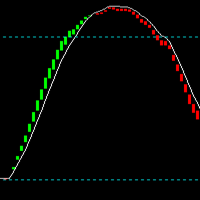
Top Bottom Tracker は、洗練されたアルゴリズムに基づき、市場のトレンドを分析し、トレンドの高値と安値を検出することができるインジケーターです / MT5バージョン 。
価格は500$に達するまで徐々に上昇します。次の価格 --> $99
特徴 リペイントなし このインジケーターは
新しいデータが到着してもその値を変更しません
取引ペア すべてのFXペア
時間枠 すべての時間枠
パラメーター ==== インジケータの設定
設定パラメータ // 40 (値が高いほど、シグナルは少なくなりますが、より正確です)
上レベル値 // 80 (上水平線の値)
下限値 // 20 (下限水平線の値)
インジケータ計算バー // 3000 (何本分のインジケータを計算するか。0を指定すると、全てのバーに対してインジケータを計算します)
==== アラーム設定
ポップアップアラート // true (端末にアラームを表示)
メールアラート // true (アラームをメールで通知)
アラート時間間隔 // 10 (アラーム間隔 (分))
警告

現在40%オフ!
初心者やエキスパートトレーダーに最適なソリューション!
このインジケータは、独自の機能と秘密の数式を組み込んだ、ユニークで高品質かつ手頃な価格のトレーディングツールです。たった1枚のチャートで28の通貨ペアのアラートを表示します。新しいトレンドやスキャルピングチャンスの引き金となるポイントを正確に把握することができるので、あなたのトレードがどのように改善されるか想像してみてください!
新しい基本的なアルゴリズムに基づいて構築されているため、潜在的な取引の特定と確認がより簡単になります。これは、通貨の強さや弱さが加速しているかどうかをグラフィカルに表示し、その加速のスピードを測定するためです。加速すると物事は明らかに速く進みますが、これはFX市場でも同じです。つまり、反対方向に加速している通貨をペアにすれば、利益を生む可能性のある取引を特定することができるのです。
通貨の勢いを示す縦の線と矢印は、あなたの取引の指針となるでしょう。 ダイナミックマーケットフィボナッチ23レベルはアラートトリガーとして使用され、市場の動きに適応します。もしインパルスが黄色のトリガ

KURAMA GOLD SIGNAL PRO MT4版 ゴールドのサインに、目で見えるトレード計画を。 ゴールドのサインが出た。利確はどこか。損切りはどこか。エントリー前に何を確認すべきか。 KURAMA GOLD SIGNAL PROは、その判断材料をチャートに集約します。XAUUSDのM5、M15向けに、売買サイン、自動計算TP/SL、3段階のサイン評価、注意すべき相場条件を知らせるMARKETパネルを搭載。 セットアップ、決済目安、相場の注意点を一か所で確認。情報を集める手間を減らし、トレードの判断に集中できます。 買い切り購入者限定特典 AI Zone Radar MT5版と完全PDFマニュアルを無料プレゼント。 ご購入後にMQL5でメッセージをお送りください。買い切り購入が対象です。レンタルは対象外です。 AI Zone Radarを見る サインから、具体的なトレード計画へ SMA 13、21、75、100へのタッチを使ったセットアップを検出。各サインに売買方向と対象MAを表示するため、浅い押し目、戻りと深い調整を区別して確認できます。 チャートとパネルには、次の情報を表示し

EA Gold Stuffは、金取引のために特別に設計されたExpert Advisorです。 この作業は、ゴールドスタッフインジケーターを使用した注文の開始に基づいているため、アドバイザーはトレンドに従うことを意味する"トレンドフォロー"戦略に従って動作します。
重要! 指示とボーナスを得るために購入後すぐに私に連絡してください! トレンド スキャナーの強力なサポートを利用して、無料のインジケーターを入手し、プライバシーを守ります。あーみー! リアルタイムの結果はここで見ることができます
パラメータ
新しいシリーズを開く-新しいシリーズの注文の開始をオン/オフします。 開始ロット-開始ロット。 トレードバイ-Expert Advisorが購入できるようにします。 トレード売り-Expert Advisorが売ることを許可します。 ヘッジを使用する-機能が有効になっている場合、アドバイザーは買いと売りの両方の方向を取引し、機能が無効になっている場合、アドバイザーは一方向 マネー Manadgementを使用-オン/自動ロット計算の使用をオフにします。 オートロットオー
ご紹介 Quantum Breakout PRO は 、ブレイクアウト ゾーンの取引方法を変革する画期的な MQL5 インジケーターです。 13年以上の取引経験を持つ経験豊富なトレーダーのチームによって開発された Quantum Breakout PROは 、革新的でダイナミックなブレイクアウトゾーン戦略により、あなたの取引の旅を新たな高みに押し上げるように設計されています。
クォンタム ブレイクアウト インジケーターは、5 つの利益ターゲット ゾーンを備えたブレイクアウト ゾーン上のシグナル矢印と、ブレイクアウト ボックスに基づいたストップロスの提案を提供します。
初心者トレーダーにもプロのトレーダーにも適しています。
量子EAチャネル: ここをクリック MT5バージョン: ここをクリック 重要!購入後、インストールマニュアルを受け取るためにプライベートメッセージを送ってください。 推奨事項:
時間枠: M15 通貨ペア: GBPJPY、EURJPY、USDJPY、NZDUSD、XAUUSD アカウントの種類: ECN、Raw、またはスプレッドが非

Trade Manager は、リスクを自動的に計算しながら、取引を迅速に開始および終了するのに役立ちます。 過剰取引、復讐取引、感情的な取引を防止する機能が含まれています。 取引は自動的に管理され、アカウントのパフォーマンス指標はグラフで視覚化できます。 これらの機能により、このパネルはすべてのマニュアル トレーダーにとって理想的なものとなり、MetaTrader 4 プラットフォームの強化に役立ちます。多言語サポート。 MT5バージョン | ユーザーガイド + デモ Trade Manager はストラテジー テスターでは機能しません。 デモについてはユーザーガイドをご覧ください。 危機管理 % または $ に基づくリスクの自動調整 固定ロットサイズを使用するか、ボリュームとピップに基づいた自動ロットサイズ計算を使用するオプション RR、Pips、または価格を使用した損益分岐点ストップロス設定 トレーリングストップロス設定 目標に達したときにすべての取引を自動的に終了するための 1 日あたりの最大損失 (%)。 過度のドローダウンからアカウントを保護し、オーバートレードを防ぎま

XGen Scalper MT4 - プロフェッショナル自動取引システム
XGen Scalperは、高度なアルゴリズム構造と実証済みのテクニカル分析を組み合わせ、あらゆる市場で一貫した結果を提供する最先端のエキスパートアドバイザーです。この強力な取引システムは、外国為替ペア、金や銀などの貴金属、暗号通貨、商品指数で問題なく動作します。
高度なアルゴリズム技術
独自の波動スキャンアルゴリズムは、市場データをリアルタイムで処理し、手動の投資家が見逃しがちな、可能性の高い取引機会を特定します。このシステムは、変化する市場の状況に絶えず適応し、トレンド、レンジ、ボラティリティの高い環境でも効果的に機能します。
ユニバーサルな互換性
特定のペア向けに設計された従来の EA とは異なり、XGen はすべての商品で優れたパフォーマンスを発揮します。
プロフェッショナルなコントロールパネル
リアルタイムの口座指標、詳細な取引統計、システムステータスを表示する洗練されたインターフェースで、取引パフォーマンスを監視します。統合された波形視覚化により、システムが市場の状況をどのように解釈し

この価格での在庫は残り 1/5 点のみ ---> 次回の価格 250$ // MT5バージョン Gold King AIは、強化学習を活用して堅牢な取引アルゴリズムの構築、トレーニング、評価、展開に特化したオープンソースのPythonフレームワーク「TensorTrade」を使用して作成されました。 このアルゴリズムはニューヨーク取引セッション中に動作します。市場を数時間分析して注目すべき領域を特定した後、価格が到達した際に実行される待機注文を配置します。これにより、利益を確定するためのトレーリングプロフィットが迅速に活性化されます。また、損失が発生した後に活性化される「スマートリカバリー」という第2の戦略も備えています。この戦略では、損失の一部を補填するためにやや大きな注文を実行します。 ご注意ください:ニューラルネットワークは、AIを最新状態に保つため、4~5ヶ月ごとに最新の歴史的データを使用してトレーニングされます。 このロボットは、マーチンゲールやヘッジングのような有害なリスク管理手法を使用しません。代わりに、すべての取引はトレーリングテイクプロフィットとストップロスで保護さ

Mirror EAは、単純移動平均線(SMA)と相対力指数(RSI)を組み合わせたSmaSRS196インジケーターに基づき、96期間の最適化フレームワークを用いて取引を実行する自動取引システムです。このEAは、SMAでトレンドの方向を確認し、RSIでモメンタムの強さや買われすぎ・売られすぎの状態を検出することで、市場状況を継続的に分析し、高確率の取引機会を特定します。インジケーターが赤色の場合はMAの下で売り、緑色の場合はMAの上で買います。
この戦略は、ポジションを開始する前にトレンドとモメンタムの整合性を要求することで、誤ったシグナルを減らすように設計されています。設定可能なパラメーターにより、さまざまな金融商品と時間枠に合わせて最適化しながら、実行の一貫性を維持できます。このEAはあらゆる通貨ペアと時間枠に適していますが、M15時間枠のxauusdのような強いトレンドのある銘柄で特に優れたパフォーマンスを発揮します。これはマーチンゲール/グリッドEAです。 リアルタイムの結果はここで確認できます。 個人ボーナスを獲得するには、購入後すぐにご連絡ください。 設定・マニュアルはこ

ARTEMIS サブウィンドウ・リバーサル・システム は、リペイントなしの強力な外国為替インジケーターであり、Smart Money Concepts(スマートマネー概念)とストキャスティクスのモメンタム分析を組み合わせて、高確率の反転トレードを特定するために設計されています。 精度の高いエントリーを求めるトレーダー向けに開発されており、流動性スイープの検出、マーケット構造の変化、モメンタム確認を一つのシンプルでプロフェッショナルなツールに統合しています。 このインジケーターが優れている理由 多くのインジケーターはランダムなシグナルを出しますが、
ARTEMISは実際の市場の動きに注目します: 流動性スイープ(ストップ狩り)の検出 チャージ・オブ・キャラクター(ChoCH)の確認 KとDのクロスによるタイミング判断 明確なBuy/Sell矢印 リペイントなしのロジック設計 これにより、無駄なシグナルが減り、高品質なトレードセットアップが増えます。 完璧なBUYシグナルシステム(最大の強み) このインジケーターは特に買いエントリーで強力です: ステップ1:弱気モメンタムの減少 ストキャス

MULTI SNIPER EA は、MT4プラットフォームで約90%の精度を誇る高精度自動取引システムです。
この収益性の高いスキャルピングEAは、現在市場で最も安定したシステムの一つです。 No grid! No martingale!
このMQL5ウェブサイトでのみ提供されるオリジナル製品です。 テストと取引用の EA Set_files をダウンロードします 。 GBPAUD Set_file GBPCAD Set_file - 複利法とスキャルピングテクニックを実装しています。 - システムは市場のボラティリティに応じて動的SLを自動的に設定します。 - EAはデフォルトで自動(ロット計算)リスク管理機能を備えており、固定ロットオプションも利用可能です。 - 取引エントリー感度パラメータを調整可能。 - 週末の取引ギャップを回避。 - 1分単位の高精度な動作時間フィルター。 - スプレッド表示機能搭載。 - ロボットには損益分岐点機能があります。 - 口座レバレッジ:1:30~1:2000の範囲で設定可能。 - 最も推奨される通貨ペアはGBPCADとGBPAUD

Introducing the POWER TRADE Indicator
Created by a small group of experienced traders with years of profitable experience in the financial markets, the Power Trade Indicator is a plug-and-play trading tool designed to help traders spot high-quality setups with ease and confidence.
What It Does: It provides powerful entry signals, profit-taking zones, and rebound areas — giving you a complete view of where price action is most likely to move next. The indicator reacts in real time, al