

市場シミュレーション(第13回):ソケット(VII)
 125
125
 1
1

はじめに
前回の「市場シミュレーション(第12回):ソケット(VI)」では、複数のクライアントに対応できるPythonサーバーを作成しました。このサーバーはスレッドを用いて動作します。これにより、スレッドがどのように機能するかという基本的な考え方は、ある程度イメージできたと思います。さらに重要なのは、サーバーがどのようにして簡易的なチャット機能を実現しているかを理解できたことだと思います。ソケットに関する説明の目的は、それらを網羅的に学ぶことではなく、仕組みを理解することにあります。この知識は、後のリプレイ/シミュレーションシステムで必要になります。
Excel側の問題に戻る
しかし、このPythonサーバーは複数クライアントで動作するようには設計されていますが、Excel内での利用を前提にはしていません。つまり、xlwingsを使ってこのサーバーをExcelに統合した場合、Excelとのやり取りで問題が発生します。では、スレッドを使って処理のブロックを回避しているにもかかわらず、なぜ問題が起きるのでしょうか。
これは、あるプログラムが別のプログラム(それ自体の一部ではないもの)を利用する仕組みに慣れていない人にとっては、やや複雑な問題です。少し分かりにくい表現かもしれませんが、順を追って見ていきましょう。Excel内でVBAスクリプトを実行するということは、実質的には一つのプログラムを動かしていることになります。そのスクリプトが別のアプリケーションを呼び出す場合、通常Excelはその処理が完了するまで待機します。ただし、常にそうなるわけではありません。Excelがアプリケーションの実行完了を待機しないようにするためには、Excelと直接連携していないアプリケーションを使用することができます。つまり、ExcelとVBAを持つ別アプリケーションを並行して動作させるということです。この場合、両者はCPUを巡って競合することなく動作できます。これは、ExcelにWordを開かせるようなものです。Wordがフリーズしても、それがExcelの動作に影響することはありません。
しかし、今回のケースはこれとは異なります。MetaTrader 5とExcel間でデータを交換することが目的ですが、この場合、MetaTrader 5とExcel自体はCPUを競合しません。競合するのは、そのデータ交換のためにソケットを構築しているPythonスクリプトです。これは、これまで示してきたサーバーモデルに起因します。説明を簡単にするため、前回の記事で扱った最後のスクリプトをもう一度見てみます。以下の通りです。
01. import socket as sock
02. import threading as thread
03.
04. CONN_LIST = []
05.
06. def NewClientHandler(conn, addr):
07.     global CONN_LIST
08.     CONN_LIST.append(conn)
09.     print(f"Client [%s:%s] is online..." % addr)
10.     while True:
11.         msg = conn.recv(512).decode().rstrip(None)
12.         if msg:
13.             print(f"Message from [%s:%s]: {msg}" % addr)
14.             for slave in CONN_LIST:
15.                 if slave != conn:
16.                     slave.send(f"[{addr[0]}]: {msg}\n\r".encode())
17.             if msg.lower() == "/see you later":
18.                 break
19.     print(f"Client [%s:%s] is disconnecting..." % addr)
20.     conn.close()
21.     CONN_LIST.remove(conn)
22.
23. server = sock.socket(sock.AF_INET, sock.SOCK_STREAM)
24. server.bind(('0.0.0.0', 27015))
25. server.listen()
26. print("Waiting connections...")
27. while True:
28.     conn, addr = server.accept()
29.     conn.send("Welcome to Server.\n\r".encode())
30.     thread.Thread(target=NewClientHandler, args=(conn, addr)).start()
Pythonコード
このスクリプトはxlwingsから直接サーバーとして使用することはできませんが、少し修正することで使用可能になります。上記のコードは次のように変換されます。
01. import socket as sock
02. import threading as thread
03.
04. CONN_LIST = []
05.
06. def NewClientHandler(conn, addr):
07.     global CONN_LIST
08.     CONN_LIST.append(conn)
09.     print(f"Client [%s:%s] is online..." % addr)
10.     while True:
11.         msg = conn.recv(512).decode().rstrip(None)
12.         if msg:
13.             print(f"Message from [%s:%s]: {msg}" % addr)
14.             for slave in CONN_LIST:
15.                 if slave != conn:
16.                     slave.send(f"[{addr[0]}]: {msg}\n\r".encode())
17.             if msg.lower() == "good bye":
18.                 break
19.     print(f"Client [%s:%s] is disconnecting..." % addr)
20.     conn.close()
21.     CONN_LIST.remove(conn)
22.
23. def InitServer(HOST, PORT):
24.     server = sock.socket(sock.AF_INET, sock.SOCK_STREAM)
25.     server.bind((HOST, PORT))
26.     server.listen()
27.     print("Waiting connections...")
28.     while True:
29.         conn, addr = server.accept()
30.         conn.send("Welcome to Server.\n\r".encode())
31.         thread.Thread(target=NewClientHandler, args=(conn, addr)).start()
32.
33. if __name__ == '__main__':
34.     InitServer('localhost', 27015)
Pythonコード
ご覧の通り、追加されたコードはごくわずかですが、これによりPython単体でも、またExcelのVBA(xlwings経由)からでも実行できるようになります。VBAでは次のようにしてサーバーを起動できます。
Public Sub ExecuteServer()
    RunPython ("import Server_Thread; Server_Thread.InitServer('127.0.0.1', 27014)")
End Sub
VBAコード
どうなるか見てみましょう。これは、この一連の流れをまだ追っていない方や、VBAの扱い方を知らない方のためのものですが、この小さなVBAスクリプトは、Excelに追加したボタンなどのコントロールから呼び出すことができます。実装自体は非常に簡単です。ボタンを追加し、そのプロパティに上記スクリプトを実行するよう設定するだけです。
では、このVBAスクリプトは何をしているのでしょうか。これはxlwingsに対して、先ほどのPythonスクリプトを実行するよう指示しています。Python側では、サーバーが使用するホストとポートを指定できます。Server_Thread.InitServerに渡している引数は、サーバーが接続を待ち受けるアドレス(ホスト)とポートを示しています。ここでは、Pythonスクリプトとは異なるポートを指定していますが、これはExcelから呼び出されるサーバーであることを明確にするためです。
すべてが正しく設定されていれば、ExcelからPythonが起動し、サーバーが利用可能になります。その動作は、Python単体で実行した場合と同じになります。しかし重要な点として、Excelの動作が不自然になり、操作が重くなることがあります。これはPythonサーバーがExcelとCPUを競合するためです。「しかし、なぜそんなことが起きるのでしょうか。サーバーはスレッドを使っているのではないのですか。」確かにサーバーはスレッドを使用していますが、それはサーバー全体の構造として完全に非ブロッキングになっているわけではありません。コードの中にはブロッキングする部分が存在します。それが元のコードの28〜29行目にあるaccept関数の呼び出しです。この関数が処理を停止させ、ExcelとCPUを競合する原因となっています。
では、この問題を解決する方法はあるのでしょうか。あります。ただし、どれだけの労力をかけるかによります。というのも、VBA側でスレッドを作成してPythonを完全に分離する方法もありますし、あるいは別の設計を採用することも可能だからです。
いずれにしても、accept関数によってPythonがExcelとCPUリソースを奪い合う状態を防ぐための対策が必要になります。
SELECT関数を使う
最もシンプルな解決策の一つとして、複雑なプログラミング手法を必要とせずに、サーバーコード内で select関数 を使用する方法があります。この関数は、本連載の他のコードでも既に登場しています。たとえば、C++で書かれたミニチャットサーバーのコードの69行目で確認できます。このコードは記事「市場シミュレーション(第9回):ソケット(III)」にあります。
ご覧の通り、それほど複雑な解決策ではありません。ただし、これと同様の処理をPythonでおこなう場合、コードはC++版とは少し異なります。もしC++と同じコードをそのまま使用すると、acceptの代わりにselectを呼び出した際にプログラムがクラッシュします。そこで理解を深めるために、Pythonでのサーバーコードの実装を見てみます。以下のスクリプトをご覧ください。
01. import socket as sock
02. import threading as thread
03. import select
04. import xlwings as xl
05. import time
06.
07. CONN_LIST = []
08. INPUTS = []
09. WB = None
10. LINE = 1
11.
12. def WriteMessageInExcel(msg):
13.     global WB
14.     global LINE
15.     if WB == None:
16.         WB = xl.Book.caller()
17.     WB.sheets[0].cells(LINE, 1).value = msg
18.     LINE = LINE + 1
19.
20. def NewClientHandler(conn, addr):
21.     global CONN_LIST
22.     CONN_LIST.append(conn)
23.     print(f"Client [%s:%s] is online..." % addr)
24.     while True:
25.         msg = conn.recv(512).decode().rstrip(None)
26.         if msg:
27.             print(f"Message from [%s:%s]: {msg}" % addr)
28.             for slave in CONN_LIST:
29.                 if slave != conn:
30.                     slave.send(f"[{addr[0]}]: {msg}\n\r".encode())
31.             if msg.lower() == "good bye":
32.                 break
33.     print(f"Client [%s:%s] is disconnecting..." % addr)
34.     conn.close()
35.     CONN_LIST.remove(conn)
36.
37. def InitServer(HOST, PORT):
38.     global INPUTS
39.     server = sock.socket(sock.AF_INET, sock.SOCK_STREAM)
40.     server.bind((HOST, PORT))
41.     server.listen()
42.     INPUTS.append(server)
43.     WriteMessageInExcel("Waiting connections...")
44.     while True:
45.         read, write, err = select.select(INPUTS, [], [], 1)
46.         for slave in read:
47.             if slave is server:
48.                 conn, addr = slave.accept()
49.                 conn.send("Welcome to Server in Python.\n\r".encode())
50.                 thread.Thread(target=NewClientHandler, args=(conn, addr)).start()
51.                 WriteMessageInExcel(f"Client [%s:%s] is online..." % addr)
52.         WriteMessageInExcel("Ping...")
53.         time.sleep(1)
54.
55. if __name__ == '__main__':
56.     InitServer('localhost', 27015)
Pythonコード
ご覧の通り、変更点はわずかです。段階的に進めて、どの部分が変更されているのか正確に理解できるようにしています。まず、08行目から09行目の間にいくつか追加の要素があることに注意してください。これらはselectとxlwings(Excel連携)の両方をサポートするための補助的な役割を持っています。
コードの記述、デバッグ、情報表示を簡単にするため、12行目に小さな手続きを追加しています。この処理はExcelにデータを書き込むためのものです。15行目では変数が初期化されているかを確認しています。初回呼び出し時には初期化されていないため16行目が実行されますが、これは一度だけです。その後17行目で現在のワークシート行にメッセージを書き込み、18行目で行カウンタをインクリメントし、次回の呼び出しでは次の行に表示されるようにしています。
コードとしてはあまり洗練されていませんが、ここで重要なのは見た目ではなく機能です。VBAから見て使いやすいかどうかよりも、正しく動作することが最優先です。
次に45行目に注目してください。ここでselectを呼び出しています。先ほどのC++コードとは異なり、ここでは追加のパラメータがあります。この値は1になっています。このパラメータはselectがどのくらいの時間イベントを待つかを指定します。この時間は秒単位で指定されるため、selectは1秒間待機してから処理を進めます。この値は小さく設定することもでき、小数も使用可能です。ただし、もし分からなければ後ほど説明します。重要な点として、この値を指定しない場合、selectはサーバーソケット上で何らかのイベントが発生するまでブロックし続けます。
これを理解するために、52行目に注目してください。ここではExcelにメッセージを出力し、53行目でさらに1秒待機しているため、ループ全体で2秒の遅延が発生しています。今回の検証にはこれで十分です。動作としては次のようになります。もし45行目のselectがソケットイベント待ちでブロックすると、Pingは2秒ごとに送信されません。ブロックしない場合は、Pingは定期的に送信されます。VBA経由でこのスクリプトを実行すると、次のような挙動になります。
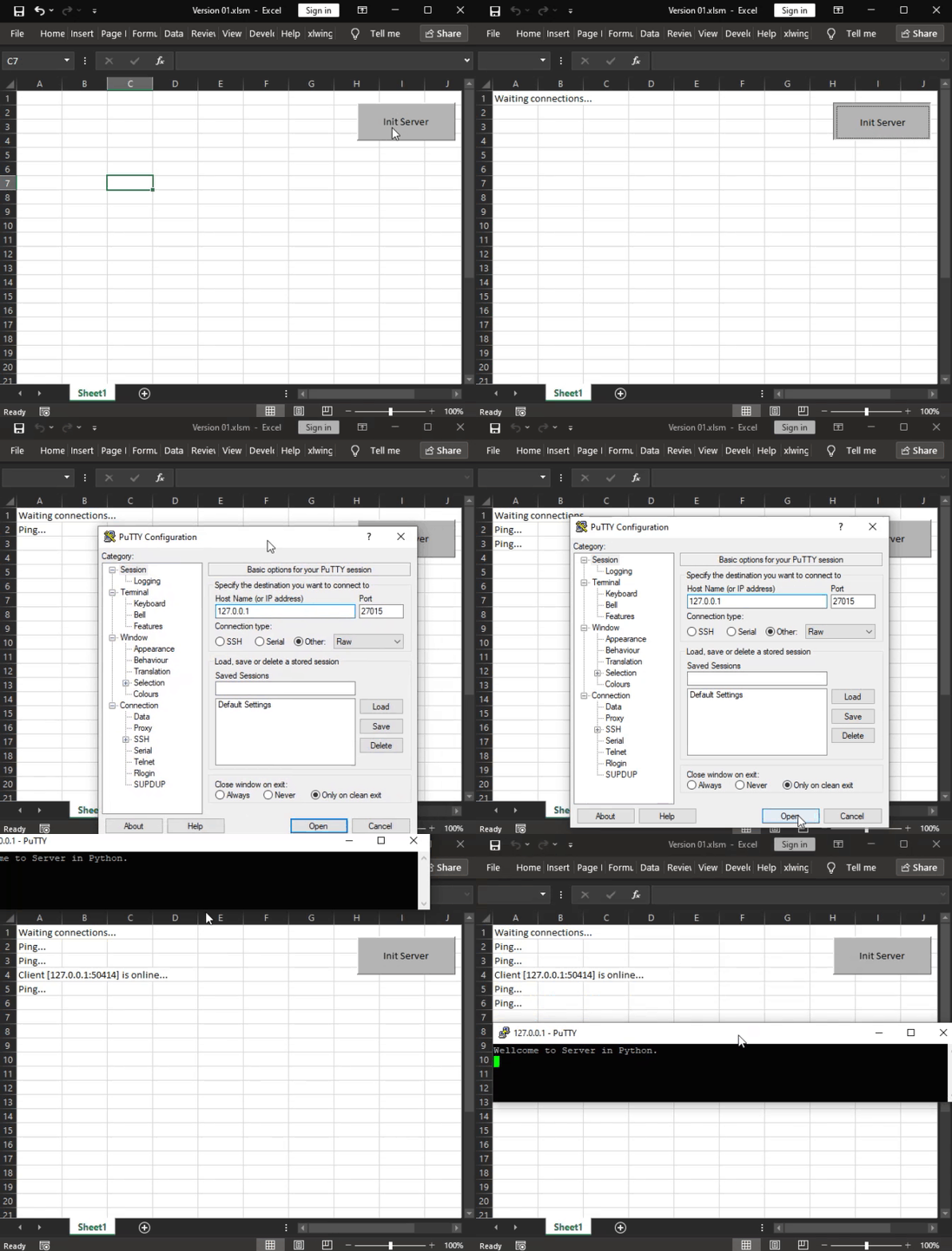
では、なぜ46行目のforループが必要なのでしょうか。これは、スレッドに入る前の段階で、どのソケットでイベントが発生したのかを確認するためです。したがって、ユーザーが接続を試みた場合、このループで何が起きたかを判断します。これにより他の処理はそのまま維持できます。重要な点として、このforループがない場合、サーバーは48行目のaccept関数で何かが起きるのを待ち続けて応答不能になります。しかし、47行目でのチェックにより、クライアント接続を検出できます。ただし、このサーバーは依然としてExcelとPythonがCPUリソースを奪い合う状態を解決できていません。しかし、すでにシステムは大幅に改善されています。
問題は44行目です。この無限ループによりPythonスクリプトはCPUを占有し続け、Excelと競合してしまいます。ただし、このループを削除することはできません。削除するとサーバーが停止してしまうためです。したがって、サーバーの接続を維持したままスクリプトの開始と終了を制御できるようにする必要があります。その前に、次に必要となる中間コードを見ていきます。少し雰囲気を変えて、新しいトピックに進みましょう。
クラスによるミニチャットサーバー
オブジェクト指向コードの開発や実装を好まない人も多いですが、明確な利点があります。まず第一に、Pythonで実装されたサーバーをより扱いやすくできる点です。少なくともプログラミングの観点ではそう言えます。これは、前のトピックで示したバージョンからスレッドを非常に簡単に削除できるためです。その結果、C++実装と非常に近い機能を実現できます。これを実現するために新しいコードを作成しますが、これまで見てきた内容と完全に互換性があります。もちろん、この段階ではまだExcelからは実行しません。純粋なPythonとして実行します。OOPを用いた新しいスクリプトは以下の通りです。
01. import socket as sock
02. import select
03. import time
04.
05. class MiniChat:
06.     def __init__(self, HOST : str = 'localhost', PORT : int = 27015) -> None:
07.         self.server = sock.socket(sock.AF_INET, sock.SOCK_STREAM)
08.         self.server.setblocking(0)
09.         self.server.bind((HOST, PORT))
10.         self.server.listen()
11.         self.CONN_LIST = [self.server]
12.         print(f"Waiting connections in {PORT}...")
13.
14.     def BroadCastData(self, conn, info) -> None:
15.         for sock in self.CONN_LIST:
16.             if sock != self.server and sock != conn:
17.                 sock.send((info + "\n\r").encode())
18.
19.     def ClientDisconnect(self, conn) -> None:
20.         msg = "Client " + str(conn.getpeername()) + " is disconnected..."
21.         self.BroadCastData(conn, msg)
22.         print(msg)
23.         conn.close()
24.         self.CONN_LIST.remove(conn)
25.
26.     def Shutdown(self) -> None:
27.         while self.CONN_LIST:
28.             for conn in self.CONN_LIST:
29.                 self.CONN_LIST.remove(conn)
30.
31.     def LoopMessage(self) -> None:
32.         while self.CONN_LIST:
33.             read, write, err = select.select(self.CONN_LIST, [], [], 1)
34.             for sock in read:
35.                 if sock is self.server:
36.                     conn, addr = sock.accept()
37.                     conn.setblocking(0)
38.                     self.CONN_LIST.append(conn)
39.                     conn.send("Welcome to Server Chat in Python.\n\r".encode())
40.                     self.BroadCastData(conn, "[%s:%s] entered room." % addr)
41.                     print("Client [%s:%s] connecting..." % addr)
42.                 else:
43.                     try:
44.                         data = sock.recv(512).decode().rstrip(None)
45.                         if data:
46.                             if data.lower() == '/shutdown':
47.                                 self.Shutdown()
48.                             self.BroadCastData(sock, str(sock.getpeername()) + f":{data}")
49.                         else:
50.                             self.ClientDisconnect(sock)
51.                     except:
52.                         self.ClientDisconnect(sock)
53.             time.sleep(0.5)
54.
55. if __name__ == '__main__':
56.     MyChat = MiniChat()
57.     MyChat.LoopMessage()
58.     print("Server Shutdown...")
Pythonコード
このコードについて質問がある場合は、Pythonのドキュメントを参照してください。しかし、このスクリプトを理解するのにそれほど苦労することはないと思います。初見では少し奇妙に見えるかもしれませんが、すべてはPythonの実装方法に起因しています。詳細についてはドキュメントを参照し、各要素がどのように動作するかを確認してください。ただし、より明確に理解するために、ここで簡単に概要を説明します。
ご覧の通り、クラスは05行目から始まり53行目で終わっています。56行目ではクラスのコンストラクタ(init)を使用しています。このメソッドは07行目のソケット生成を含め、サーバーを構築しますが、この時点ではまだ接続待ち状態ではありません。そして57行目で処理が開始され、31行目のメソッドへ制御が移ります。このメソッドではスレッドを削除しており、C++版サーバーと同様の制御方式になっています。32行目に注目してください。この時点ではまだループ内にいますが、重要なのはこのループがクラス内部でも外部でも動作可能であり、サーバーの機能自体には影響しないという点です。
なぜこれが重要なのでしょうか。理由は、ループをクラスの外に出す場合、サーバーがアクティブかどうかを確認する仕組みが必要になるためです。一方で、ループをクラス内に保持すれば、サーバーの生成は56行目と57行目だけで済みます。これにより、このサーバーを他のPythonスクリプトへ簡単にインポート可能な形でパッケージ化できます。
さらに興味深い点として、32行目のループを無視すれば、このサーバーはExcel (xlwings)と連携する形でも利用可能です。ただし従来とは異なる方式になります。この実装は意図的にこの形にしています。バージョン間の違いを理解しやすくするためです。また、PythonサーバーがExcelとCPUを競合しないようにする方法も明確にできます。では、もしここまででコードを十分に理解できたのであれば、次はこのコードを変更して、どのスクリプトからでも簡単にパッケージ化して利用できるようにしていきます。
01. import socket as sock
02. import select as sel
03.
04. class MiniChat:
05.     def __init__(self, HOST : str = 'localhost', PORT : int = 27015) -> None:
06.         self.server = sock.socket(sock.AF_INET, sock.SOCK_STREAM)
07.         self.server.bind((HOST, PORT))
08.         self.server.listen()
09.         self.CONN_LIST = [self.server]
10.         print(f"Waiting connections in {PORT}...")
11.
12.     def __BroadCastData(self, conn, info) -> None:
13.         for sock in self.CONN_LIST:
14.             if sock != self.server and sock != conn:
15.                 sock.send((info + "\n\r").encode())
16.
17.     def __ClientDisconnect(self, conn) -> None:
18.         msg = "Client " + str(conn.getpeername()) + " is disconnected..."
19.         self.BroadCastData(conn, msg)
20.         print(msg)
21.         conn.close()
22.         self.CONN_LIST.remove(conn)
23.
24.     def ExistConnection(self) -> bool:
25.         if self.CONN_LIST:
26.             return True
27.         return False
28.
29.     def CheckMessage(self, sleep) -> str:
30.         read, write, err = sel.select(self.CONN_LIST, [], [], sleep)
31.         for sock in read:
32.             if sock is self.server:
33.                 conn, addr = sock.accept()
34.                 self.CONN_LIST.append(conn)
35.                 conn.send("Welcome to Server Chat in Python.\n\r".encode())
36.                 self.__BroadCastData(conn, "[%s:%s] entered room." % addr)
37.                 print("Client [%s:%s] connecting..." % addr)
38.             else:
39.                 try:
40.                     data = sock.recv(512).decode().rstrip(None)
41.                     if data:
42.                         if data.lower() == '/shutdown':
43.                             self.CONN_LIST.clear()
44.                         self.__BroadCastData(sock, str(sock.getpeername()) + f":{data}")
45.                         return str(sock.getpeername()) + f"> {data}"
46.                     else:
47.                         self.__ClientDisconnect(sock)
48.                 except:
49.                     self.__ClientDisconnect(sock)
50.         return ""
51.
52. if __name__ == '__main__':
53.     MyChat = MiniChat()
54.     while MyChat.ExistConnection(0.2):
55.         info = MyChat.CheckMessage()
56.         if info:
57.             print(f"{info}")
58.     print("Server Shutdown...")
Pythonコード
では、上記コードの改善としてすでにおこなった変更について説明します。これにより、先ほど議論した通り、コードをパッケージ化して他のアプリケーションから利用できるようになっています。ただしここで重要なのは、このコードがもはやネットワークイベントを待ち続ける構造ではなくなっている点です。
まず、BroadCastDataおよびClientDisconnect手続きはクラス内部でprivateとして定義されています。つまり、クラスの外部から直接アクセスすることはできません。これらのprivate手続きをアクセスする方法はいくつか存在しますが、ここではその方法については説明しません。そうすることで、他のケースでも同様の手法を試してしまうような誘惑を避けるためです。Pythonでは、このようにprivateな要素を定義することができ、基本的にはprivateとして扱われている手続きや関数に外部からアクセスしようとすることは避けるべきです。もしそのような操作をおこなおうとすると、Pythonはエラーを返します。繰り返しになりますが、Pythonにはprivate手続きへアクセスする方法も存在しますが、その詳細についてはここでは触れず、読者自身の理解に委ねます。ただし、このような手法の使用は強く推奨されません。なぜなら、それはコードのカプセル化という原則の一つに反するためです。ある手続きや関数がprivateとして定義されている場合には、必ずそれに相応の理由があります。
public手続きはExistConnectionとCheckMessageの2つだけ残っています。ExistConnectionはブール値を返す関数です(24行目参照)。この戻り値は、クラスの外部からサーバーがアクティブであるかどうか、つまり現在アクティブな接続が存在しているかどうかを確認するために使用されます。
一方、CheckMessage手続きは29行目にあり、クライアントから送信されたメッセージを返します。ただし、常にメッセージを返すわけではありません。43行目に注目すると、クライアントの要求によってサーバーがシャットダウンする処理が含まれています。これは少し極端に見えるかもしれません。通常であれば、クライアントがこのような操作をおこなうべきではありません。しかし、このコードは教育目的であるため、このような実装でも問題ないと考えています。
いずれにしても、45行目ではクライアントから受信したデータを返します。このとき、クライアントの名前と入力されたメッセージの両方を組み合わせて関数の戻り値としている点が重要です。これは分析や実験において特に重要になります。
しかし、コードの中で最も興味深い部分は、53~58行目です。前のコードではクラス内部にあったループが削除され、この部分へと移動している点に注意してください。より正確には、そのループは現在54行目に配置されています。55行目では、クライアントがソケットに送信した内容を受信し、それを処理しています。そして、その値が有効である場合、つまり何らかのデータが含まれている場合には、受信した情報をPythonのコンソールへ出力します。この処理は57行目でおこなわれています。このようにして、すべてのクライアントから送信されたデータは他のクライアントにも共有されると同時に、サーバーが動作しているターミナル上でも直接監視することができます。
ここで一つ興味深い点があります。このサーバーは、監視しているソケット上で何もイベントが発生しない場合、どのくらいアイドル状態を維持するのでしょうか。以前のコードでは、select関数が1秒間待機するように設定されていましたが、それは特定の値によるものでした。
ここでは、より短い待機時間を使用します。クラスのコード自体は変更したくないため、その値はクラスへ直接渡す形で指定します。これは54行目でおこなわれています。ここでは1未満の値を設定している点に注意してください。この場合の値は0.2です。これは秒単位の待機時間であり、select関数は最大0.2秒待機します。
ソケットに送信される情報に対して必要な処理内容や処理時間に応じて、この値はさらに小さくすることも可能です。スレッドを使用していたモデルとは異なり、ここではサーバーは各接続の動作のみを監視します。スレッドモデルでは各接続は独立していました。このため、このモデルはソケットの読み書きにスレッドを使用する場合よりもわずかに遅くなります。
さて、次の点に注意してください。このサーバーは、上記のコードの通り、コマンドプロンプト上で実行すると問題なく動作します。ただし、多数のクライアントが存在する場合でも、接続は逐次的に処理されるという制限があります。
しかし、ExcelとMetaTrader 5の間で双方向のデータ交換をおこなうという観点では、このPythonスクリプトはまだ完全には適していません。ここまででかなり高度な段階には到達していますが、これまで見てきたすべての内容は動作するものの、PythonスクリプトがExcelとCPUCPUリソースを奪い合わずに実行できる形にはなっていません。
この最後のスクリプトでさえ、その状態を実現することはできませんが、どのようにおこなうべきかについての方向性を示すものにはなっています。もし分からなくても心配する必要はありません。実際にはそれほど簡単に気づけるものではなく、並列プログラミングの経験が必要になります。
ここ数回のスクリプトではxlwingsを使用していないことに気づいたかもしれません。なぜでしょうか。相性が悪かったのでしょうか。実際のところ、Pythonの基本以外のものを使用すると、ExcelとPythonを組み合わせた場合に良い体験は得られません。この点について誤解が生じないように明確にしておきます。
xlwingsなど、Excelへの直接的な読み書きを可能にするパッケージを用いて何かを開発する場合には、すべてのプログラム、関数、または手続きは実行され、その処理を完了すると同時に終了するという点に注意する必要があります。それらはループの中に常駐することはありません。そして、どれだけ工夫しても、ここの仕組みでは求められる動作は実現できません。問題は、サーバースクリプトはソケット上で何かを待っているかどうかに関わらず、常にループの中で動作し続ける必要があるという点です。
重要なのは、スクリプトはループ内で動作するということです。一方でクライアントの場合は、アプローチが少し異なります。クライアントはサーバーに接続し、その接続が成立すると同時にサーバーはクライアントが受け取るべき情報を送信します。クライアントは受信後に接続を閉じることができ、その時点でスクリプトは終了し、データはExcelで適切に処理できる状態になります。この処理はPythonからでもVBAからでもおこなうことができます。
しかし実際には、それが最も重要なポイントではありません。もしサーバーではなくクライアントを使用していた場合、コードは完全に異なるものになります。これは、VBAで作成したタイマーを使用してPythonのクライアントを実行することができ、その場合ExcelとのCPU競合の問題が発生しないためです。したがって、多くの人が一般的に使用しているパッケージだけでは不十分であり、別の解決策が必要であると考えます。
まとめ
本日の記事では、ソケットイベントを待機している間にブロックしないPythonサーバーをどのように構築するかを確認しました。しかし、提示したコードはいずれも最終的な目的を完全には達成していません。プログラマーとして、私たちは快適な領域の外に出る必要があります。プログラミングとは問題に対する解決策を見つけることであり、多くの人が想像するような単なるコピー&ペースト作業ではありません。より芸術的な側面を持ち、既存の枠を超えて学び、問題解決の方法を探す必要があります。
前回のトピックの最後でも述べた通り、Pythonで作成したクライアントをExcelと併用することで、Excelが異常な動作をして使用不能になるような状況は避けることができます。しかしここでは、本来想定していたようにPythonサーバーをExcel内で動作させ、それでもExcelを通常通り使用できるようにする方法を示したいと考えています。多くの人は、「なぜExcelを開いたままにするのか。計算を実行して、Pandasやxlwings、あるいは他のExcel連携パッケージでファイルを更新すればそれで十分ではないか」と考えるかもしれません。
それが最も単純な解決策です。しかしここでは、当初想定していた構想を実現できることを示したいのです。この考え方を理解するために、平均的なユーザーを想像してみてください。Pythonでどれだけ美しくシンプルなインターフェースを作成し、Excelを使わずにデータ分析ができるようにしたとしても、多くのユーザーはその解決策を疑うでしょう。そして自分たちのワークフローに合わせて問題を解決してくれるプログラマーを探すことになります。
重要なのは、その同じユーザーがExcelを使ってMetaTrader 5の動作を制御したいと考えるという点です。そしてプログラマーとして、また将来の専門家として、解決策が存在しないなら、自分で実装する必要があります。したがって、コピー&ペーストだけでは不十分です。
次の記事では、その方法について説明していきます。そのため、この内容をよく理解しておいてください。次のパートを理解するために必要になります。
| ファイル | 説明 |
|---|---|
| Experts\Expert Advisor.mq5 | Chart TradeとEA間の相互作用をデモンストレーションする(相互作用にはMouse Studyが必要) |
| Indicators\Chart Trade.mq5 | 送信する注文を設定するウィンドウを作成する(Mouse Studyが必要) |
| Indicators\Market Replay.mq5 | リプレイ/シミュレーションサービスと対話するためのコントロールを作成する(Mouse Studyが必要) |
| Indicators\Mouse Study.mq5 | グラフィカルコントロールとユーザー間のインタラクションを実現する(リプレイおよび実取引の両方で必須) |
| Services/MarketReplay.mq5 | 市場リプレイ/シミュレーションサービス(システム全体のメインファイル)を作成および維持する |
| VS Code C++Server.cpp | C++で作成されたソケットサーバーを作成および維持する(ミニチャット版) |
| Python Code Server.py | MetaTrader 5とExcel間の通信用のPythonソケットを作成および維持する |
| ScriptsCheckSocket.mq5 | 外部ソケットとの接続テストを可能にする |
| Indicators\Mini Chat.mq5 | インジケーターを介してミニチャットを実装する(サーバーが動作している必要がある) |
| Experts\Mini Chat.mq5 | EAにミニチャット機能を実装する(サーバーが正常に動作している必要がある) |
MetaQuotes Ltdによりポルトガル語から翻訳されました。
元の記事: https://www.mql5.com/pt/articles/12790
警告: これらの資料についてのすべての権利はMetaQuotes Ltd.が保有しています。これらの資料の全部または一部の複製や再プリントは禁じられています。
この記事はサイトのユーザーによって執筆されたものであり、著者の個人的な見解を反映しています。MetaQuotes Ltdは、提示された情報の正確性や、記載されているソリューション、戦略、または推奨事項の使用によって生じたいかなる結果についても責任を負いません。

 リスク管理(第4回):主要クラスメソッドの完了
 取引におけるニューラルネットワーク:市場異常の適応型検出(DADA)
 取引におけるニューラルネットワーク:市場異常の適応型検出(最終回)
 取引におけるニューラルネットワーク:多変量時系列のデュアルクラスタリング(DUET)

- 無料取引アプリ
- 8千を超えるシグナルをコピー
- 金融ニュースで金融マーケットを探索
掲載記事市場シミュレーション(第13回):ソケット(VII):
著者:ダニエル・ホセ