Risk Ratio Trade Panel Indicator
- Utilità
- Versione: 1.2
- Attivazioni: 5

Risk Ratio Trade Panel Indicator
A visual tool for planning pending orders directly on the chart using draggable price lines. The indicator displays potential loss, gain and R:R ratio in real time as you move the lines. A built-in calculator sizes your lot based on risk percentage and stop loss distance.
Works on any symbol: forex pairs, indices, metals, commodities, cryptocurrencies.
What the indicator does
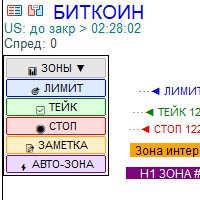
The indicator adds a compact panel to the bottom right corner of your chart. When you open the panel, a horizontal Entry line appears. You can then enable TP and SL lines with dedicated buttons.
As you drag the lines, the indicator calculates and displays next to each line:
- Distance in pips
- Potential value in account currency
The panel also shows the R:R ratio (for example, R:R (1:2.5)) when both TP and SL lines are active.
The order type switches automatically depending on where the Entry line is relative to the current price. For example, if you set the type to BuyLimit and drag the line above the price, it changes to SellLimit. The same logic applies to BuyStop and SellStop.
Risk-based lot calculator
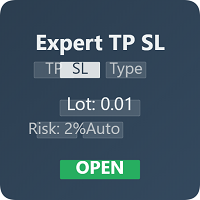
Set your acceptable risk as a percentage of account balance in the Risk % field. When the SL line is active, the panel calculates the appropriate lot size automatically based on stop loss distance and your risk setting. The lot field updates in real time as you move the SL line or change the Risk % value. You can also adjust the lot manually using the input field or the +/- buttons.
The Auto Risk button switches the calculation to the opposite direction: the lot is set manually and the Risk % field updates automatically to show what percentage of your balance is at risk with the current lot and SL distance. When Auto Risk is turned off, the Risk % value returns to the value set in the indicator inputs.
How to place an order
The indicator itself does not place orders. A companion script is required for this purpose. After setting up the lines on the chart, drop the script onto the chart. It reads Entry, TP, SL and lot from the indicator and sends the pending order to your broker.
RRPP Script: https://www.mql5.com/ru/market/product/167330?source=Site+Market+Product+Page
The script auto-detects the filling mode supported by your broker (FOK, IOC or Return), so no manual configuration is needed.
After a successful order, the script removes the lines from the chart and the panel closes automatically.
Step-by-step workflow
Step 1. Add the indicator to your chart. Click the ] button in the upper right corner to open the panel. Step 2. Select the order type using the type button. Click TP and SL buttons to add the corresponding lines. Step 3. Drag the lines to the desired levels. The panel updates calculations in real time. Step 4. Set the lot manually or adjust the Risk % field to let the panel calculate the lot automatically. Step 5. Drop RRPP Script on the chart to send the order.
Indicator parameters
Starting Lot - default lot size when the panel opens. Risk percent - percentage of account balance used for automatic lot calculation. Show TP/SL zones - enables colored zones between Entry and TP/SL lines. Disabled by default. Text shift from right edge - horizontal offset of the panel and all line labels. Label font size - font size of the text displayed next to the lines. Buy line color - color of the Entry line for Buy orders. Sell line color - color of the Entry line for Sell orders. TP line color - color of the Take Profit line. SL line color - color of the Stop Loss line. Entry label text color - color of the text label on the Entry line. TP label text color - color of the text label on the TP line. SL label text color - color of the text label on the SL line. TP zone color - fill color of the zone between Entry and TP lines. SL zone color - fill color of the zone between Entry and SL lines. Button text color - text color of the panel buttons. Button background color - background color of inactive panel buttons. Button active background color - background color of active panel buttons (TP, SL, Auto Risk when enabled). Lot +/- button background color - background color of the lot increment and decrement buttons. Order type button Buy color - background color of the order type button when a Buy type is active. Order type button Sell color - background color of the order type button when a Sell type is active. Order type button text color - text color of the order type button. Risk % label color - color of the Risk % label text. Stop level label color - color of the stop level value displayed on the panel. Lot warning color - color of the warning message when the lot exceeds allowed limits. Panel toggle button color - color of the ] button used to open and close the panel.
Technical details
The indicator uses a timer-based update cycle. When the panel is closed, the timer runs at 500ms intervals. When the panel is open, it runs at 50ms for responsive line tracking. Object creation and updates are optimized to minimize chart redraw calls.
No DLL libraries are used. No external files or resources are required. Pure MQL5 code.