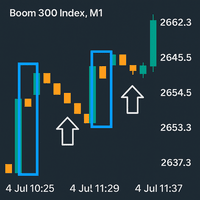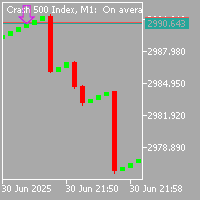
Swing Points Liquidity
- Indicatori
- Versione: 1.0
- Attivazioni: 5

Product Description: Swing Points & Liquidity (MT5)
What it does:
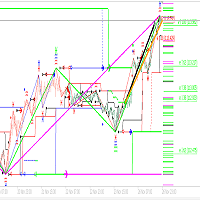
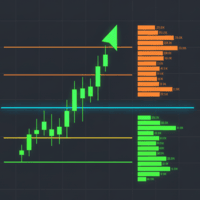
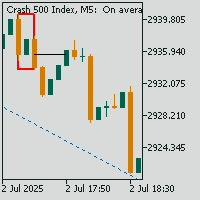
This indicator automatically identifies significant "Swing Highs" and "Swing Lows" (Fractals) on your chart. It assumes that these points represent Liquidity (where Stop Losses and Buy/Sell stops are resting) or Supply and Demand Zones.
-
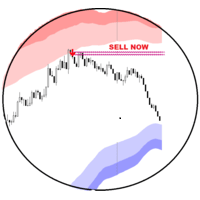
When a Swing High is formed, it projects a Red Box/Line to the right (Supply/Resistance).
-
When a Swing Low is formed, it projects a Green Box/Line to the right (Demand/Support).
-
As price moves forward, these lines extend until price touches ("fills") them, at which point the liquidity is considered "taken" or the zone "mitigated."
Key Features & Inputs Explanation
When you drag the indicator onto your chart, you will see the Inputs tab. Here is how to configure them:
1. Swing Settings (Sensitivity)
-
Bars Right (inpSwingSizeR): The number of bars after a high/low needed to confirm it.
-
Usage: Higher numbers (e.g., 10+) mean fewer, stronger zones. Lower numbers (e.g., 3-5) mean more zones, but they might be weaker.
-
-
Bars Left (inpSwingSizeL): The number of bars before the high/low that must be lower/higher.
2. Display Settings (Visuals)
-
Show Boxes: Draws the rectangular Supply/Demand zone.
-
Show Lines: Draws a straight line from the exact pivot price.
-
Show Labels (Bubbles): Puts a small dot above/below the swing point to mark the exact origin.
-
Extend Until Fill:
-
True: The zone keeps stretching to the right until Price touches it.
-
False: The zone stays short (mostly for visual backtesting).
-
3. Conditions (Filtering)
-
Hide Filled (inpHideFilled): (Important Feature)
-
True: Once price touches the line/box, it disappears from the chart. This keeps your chart clean and shows only "fresh" levels.
-
False: It keeps the old broken zones visible (ghost zones).
-
-
Volume > (inpVolTresh): Filters out swing points that happened on low volume. (e.g., if you set this to 500, swings formed on bars with <500 ticks won't show).
4. Appearance
-
Colors: You can customize the Red (Sell/Liquidity) and Green (Buy/Support) colors to match your chart theme.
-
Box Width: Controls how "thick" the rectangle is.
How to Use It for Trading
Here are three common ways to trade using this Product/Indicator:
Strategy A: The Retest (Supply & Demand)
-
Wait for a Swing Point to form and the indicator to draw a Box.
-
Wait for price to move away, leaving the box "open."
-
Entry: When price returns to the box later, look for a reversal candle.
-
Why: You are trading the "Unfilled" order blocks.
Strategy B: Liquidity Runs (Targeting)
-
If you are already in a trade, look at the Lines generated by this indicator.
-
Target: Use the nearest opposing Swing Point line as your Take Profit.
-
Why: Market makers often push price to these levels to trigger stop losses (Liquidity) before reversing.