

What it does
- Stack Manager watches your open trades. Trades on the same symbol and the same side form one stack.
- New trades get the stack's stop loss and take profit. Change the SL or TP on one trade and the rest of the stack follows, from the terminal or from your phone.
- A dashboard shows each stack's average entry, breakeven, global SL and TP (price, points, money) and open P/L. It never opens or closes a trade.
Install from the Market and attach
MT5
- Log in to your MQL5 account in the terminal (Tools > Options > Community), using the account you bought with.
- Open the Market in the terminal (where it sits depends on the build), go to Purchased and click Install next to Stack Manager.
- Open Navigator (Ctrl+N). Stack Manager is under Expert Advisors, in the Market folder. Drag it onto one chart.
- In the Common tab tick Allow Algo Trading. Click OK.
- Make sure the Algo Trading button in the top toolbar is on.
MT4
- Log in to your MQL5 account in the terminal (Tools > Options > Community), using the account you bought with.
- Open the Terminal window (Ctrl+T), Market tab, Purchased, and click Install next to "Stack Manager MT4".
- Open Navigator (Ctrl+N), Expert Advisors, Market folder, and drag Stack Manager MT4 onto one chart.
- In the Common tab tick Allow live trading. Click OK.
- Make sure the AutoTrading button in the toolbar is on.
One chart is enough. By default it manages the chart's symbol. To manage every market from one chart, set Symbols to All symbols.
Your first 5 minutes
- Attach it to a demo chart first. Open two or three buy trades on the same symbol.
- The dashboard shows one row: BUY, number of trades, total lots, average entry, SL, TP and open P/L.
- Set a stop loss on one trade. Usually within a second the other trades get the same stop.
- Open a new trade with no SL or TP. It picks up the stack's levels (default wait: 1 second).
- Move the stop on one trade. The whole stack moves with it.
- Click the small switches on the panel (Copy to new, New trade sets all, Sync edits, Sync removals, Chart lines) to turn each automation on or off.
- Drag the panel by its header. Minimise it into a slim bar that shows the number of stacks and total P/L. It remembers its place and state.
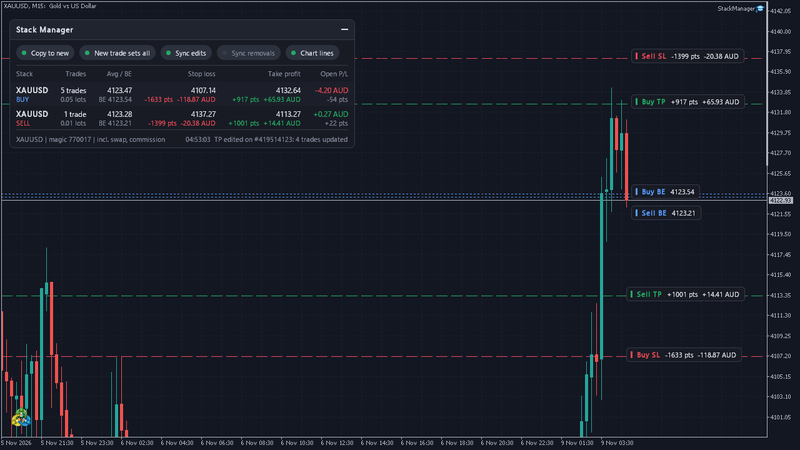
Inputs, in plain words
Automation
- Copy the stack's SL/TP to new trades that have none (default on). A new trade with no levels gets them from the most recent trade of its stack that has them.
- A new trade's own SL/TP updates the whole stack (default on). If you open a trade with its own SL/TP, the stack follows it.
- Editing SL/TP on one trade updates the whole stack (default on). The main sync.
- Removing SL/TP on one trade removes it from the whole stack (default off). Left off so one stray tap cannot strip every stop.
- Wait before handling a new trade (default 1 second). A short pause so your own order edits settle first.
- Pause a stack after this many edits in a minute (default 12, 0 = never). Stops a fight if another EA keeps changing the same levels.
Which trades
- Symbols (default: this chart's symbol only). Or All symbols.
- Trades (default: manual trades only, magic 0, which includes phone trades). Or all trades with any magic number, or only the magic numbers you list.
- Magic numbers for the "listed" mode, comma separated.
- Sides (default: buys and sells). Or buys only, or sells only. Buys and sells are always separate stacks; levels are never copied between them.
- Only trades with an empty comment (default off).
Dashboard and lines
- Show the dashboard (default on).
- Show stack SL, TP and breakeven lines (default on). The SL and TP labels show points and money. While labels show, it turns on chart shift to give them room.
- Include swap and commission in money and breakeven (default on).
- Corner (top left by default), Horizontal / Vertical offset (12 / 28 px).
- Theme: Auto (follows your chart background), Dark or Light.
- Font (Segoe UI), Font size (9), Start minimised (off).
- Check every N milliseconds (default 250).
The panel explained
- Columns: Stack (symbol and BUY or SELL), Trades (count and total lots), Avg / BE (average entry and breakeven), Stop loss, Take profit, Open P/L.
- Stop loss and take profit show the stack's level, then points and money if every level is hit. Points and money show once every trade in the stack has that level. A "~" before a price means the trades do not all share the same level, and the price shown is their lot-weighted average.
- "none / risk not capped" in warning colour means no trade in that stack has a stop loss. "2 without SL" means some trades have none (and "2 without TP" the same for take profit).
- Breakeven includes swap and commission when that input is on (exit commission is estimated).
- Open P/L is in your account currency, with points underneath.
- The status line says Watching, the last action it took, "Sync paused on N stacks", or "AutoTrading off: view only". A paused stack also shows "sync paused" next to BUY or SELL.
- With nothing to manage, the panel says "No open trades in scope".
- Minimised bar: "N stacks" and total P/L, or "no trades".
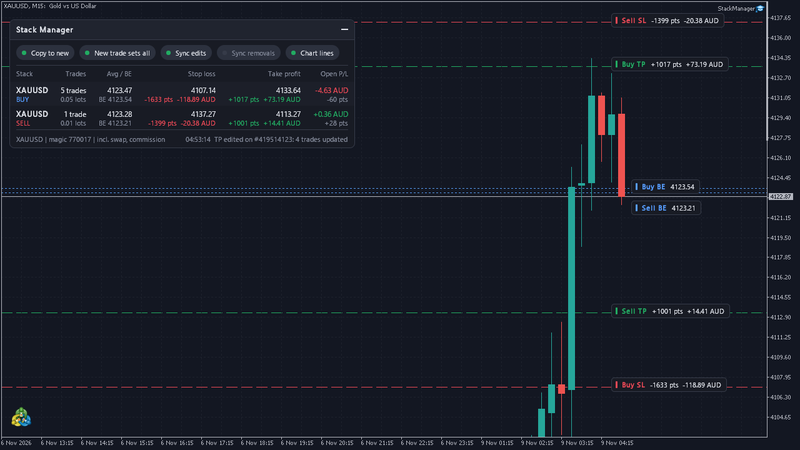
FAQ and troubleshooting
The dashboard shows but nothing syncs.
- AutoTrading is off, or the EA's own permission is not ticked. The status line says "AutoTrading off: view only". Turn on AutoTrading and tick Allow Algo Trading (MT5) or Allow live trading (MT4). Without them it only shows data.
It does not touch my EA's trades.
- By design: default is manual trades only. Change Trades to any magic number, or list the magic numbers.
It does not see trades on other symbols.
- Default is this chart's symbol only. Set Symbols to All symbols.
A stack says "sync paused".
- Something else (usually another EA or a trailing stop) kept changing the same levels, more than the edit limit per minute. Find the cause, or raise the limit. Turn the Sync edits switch off and on to resume.
Removing a stop on one trade did not remove it from the rest.
- Sync removals is off by default. Turn it on if you want that.
Can it open or close trades?
- No. It only adjusts SL and TP of the trades you tell it to manage.
Does it work on a netting account?
- There is one position per symbol, so nothing to sync. The dashboard still works.
Does it work with phone trades?
- Yes, as long as the terminal with Stack Manager is running, for example on a VPS, with AutoTrading on. Edits and new trades from the phone app or web terminal are picked up there.
Money figures look slightly off on MT4.
- MT4 uses the broker's tick value, which is an estimate for levels far from the current price. MT5 uses the terminal's own profit calculation.
A level was refused.
- Each level is checked against the current price, the broker's stops level and the freeze level before it is sent. Temporary errors get a few retries, then it stops. Every change is written to the Experts log.
Update did not appear.
- In the Market, open Purchased and click Update if it is offered. Then remove and re-attach the EA. The Experts log prints the version when it starts.
Version history
- 1.7 (2026-11-09), MT5: rebuilt release. New dashboard, edits from the phone sync across the stack, chart lines with points and money labels, buys and sells as separate stacks, filters by symbol, magic and side, money in account currency.
- 1.7 (2026-11-09), MT4: first publish, same version as MT5.
- 1.6 and earlier: the original Stack Manager.
Learn more
- How to average into a trade (scale in) with one stop for the whole stack
- How to pyramid into a winning trade and move the whole stack to breakeven
Links
- MT5: https://www.mql5.com/en/market/product/87027
- MT4: https://www.mql5.com/en/market/product/207135
- Website: https://duofxlabs.com/stack-manager/
Trading forex and CFDs is high risk. This utility manages stop loss and take profit levels of trades you open. It does not trade for you, is not financial advice and does not guarantee results. Try it on a demo account first.