
Apex Trade Assistant — Illustrated User Guide
A chart-based workspace for manual trading in MetaTrader 5. APEX brings order entry, visual trade planning, position management, and independent linear regression and Kalman models into one application. Start with your own values, use an assistant to help prepare parameters, or inspect model suggestions before deciding what to apply.
The main panel and independent Apex Micro planners support different ways of working: market and pending orders, local armed entry plans, broker or virtual protection, and configured trailing and break-even management. You decide which tools to use and when to submit an order.
- Manual control: enter and edit your values directly in the interface.
- Visual planning: move the entry, SL, and TP levels on the chart.
- Flexible workspace: choose Vertical, Classic, or Modern, with automatically saved layout and skin choices.
- Independent planners: prepare several plans without sharing every setting between them.
- Market context: use the top Market Info bar, model details, optional calendar information, and visual trade levels.
Screenshot values illustrate the interface. They are not recommended trading settings or promises of trading results.
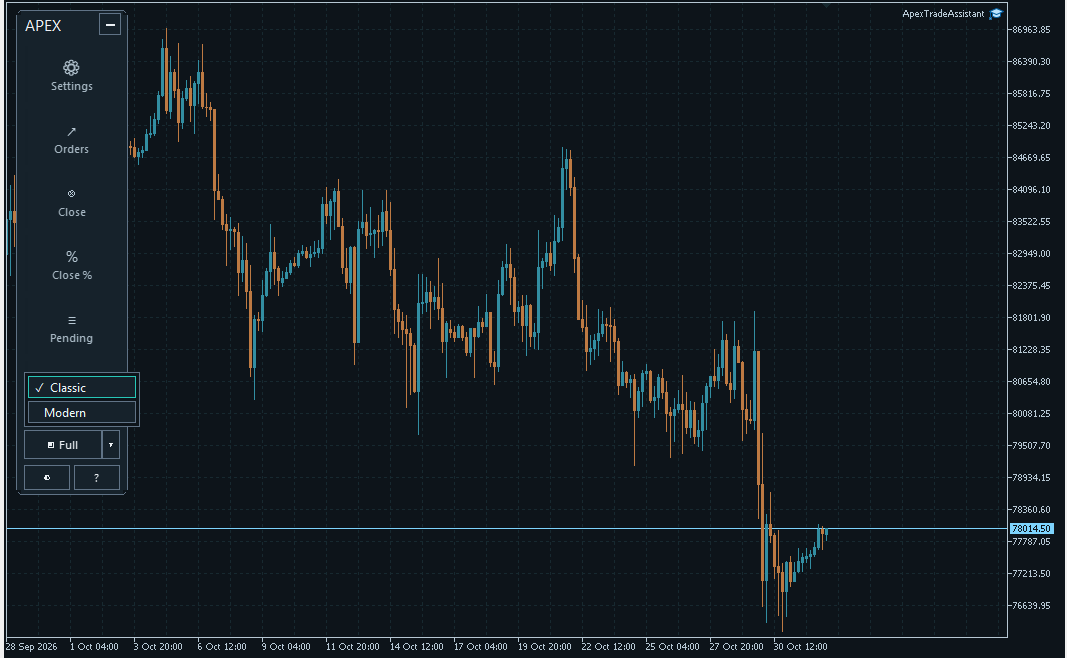
A fresh setup starts with the vertical toolbar. Open a section when you need it.
1. Your first start, three layouts, and saved appearance
The default presentation is the vertical toolbar with the Graphite Teal Copper skin. On startup, the vertical toolbar does not automatically expand Orders. Click Settings, Orders, Close, Close %, Pending, or Tools to open the corresponding section.
Use Full and its adjacent selector to choose the full-panel presentation: Classic or Modern. Use the return control in the full panel to go back to the vertical presentation. The layouts provide access to the same main-panel workflows.
The selected layout and skin are saved automatically. When saved settings exist, APEX restores those choices rather than forcing the fresh-install defaults. The vertical flyout itself starts closed. Appearance changes do not change what a trading command means.
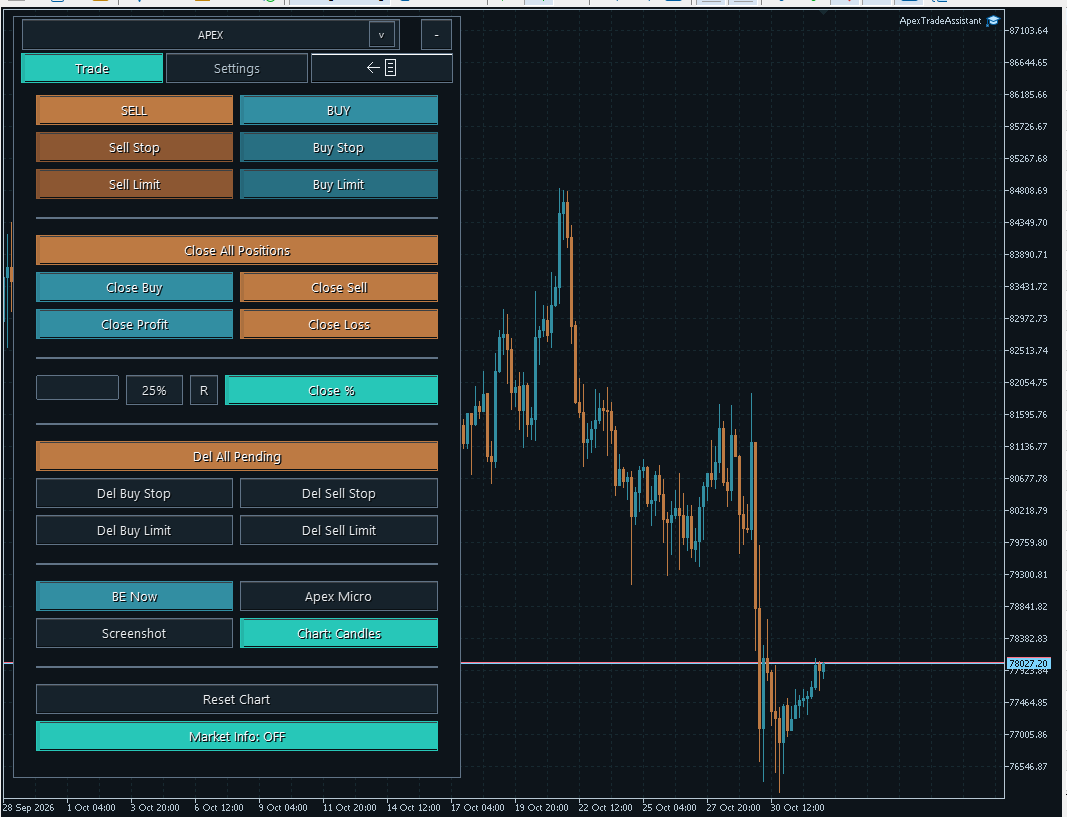
Classic: execution and management controls in one familiar full-panel layout.
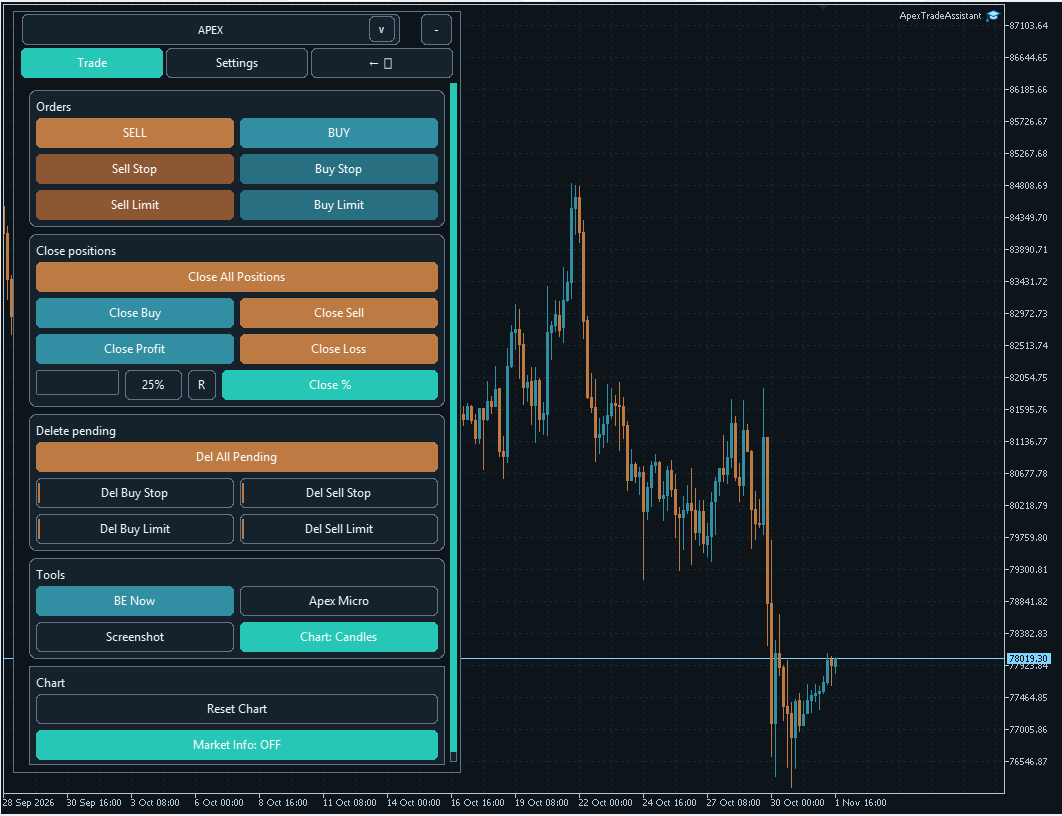
Modern: the same main workflows arranged in clearly grouped sections.
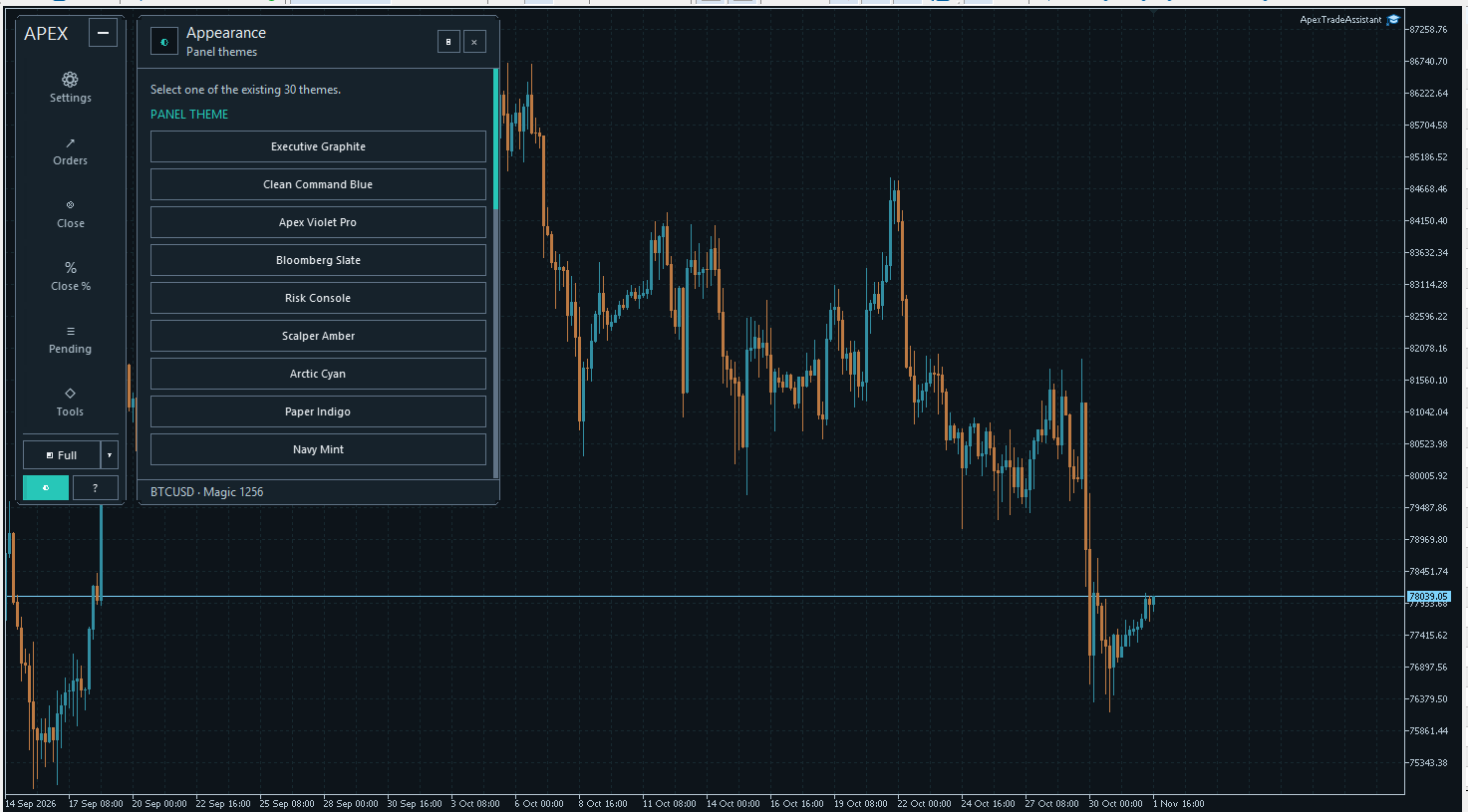
Open Appearance to choose a skin. Scroll the list to see the remaining choices.
2. Market Info, Linear Regression, and Kalman
The horizontal Market Info bar at the top of the chart presents the symbol, timeframe, enabled models, market state, and available signals. Its News option adds economic-calendar information when available. Open Details to inspect the selected model and its current setup.
APEX includes LinReg for linear regression analysis and Kalman for Kalman filtering and forecast analysis. Each keeps its own direction, confirmation, proposed levels, and scenario information. Enabling both does not merge them into a single signal.
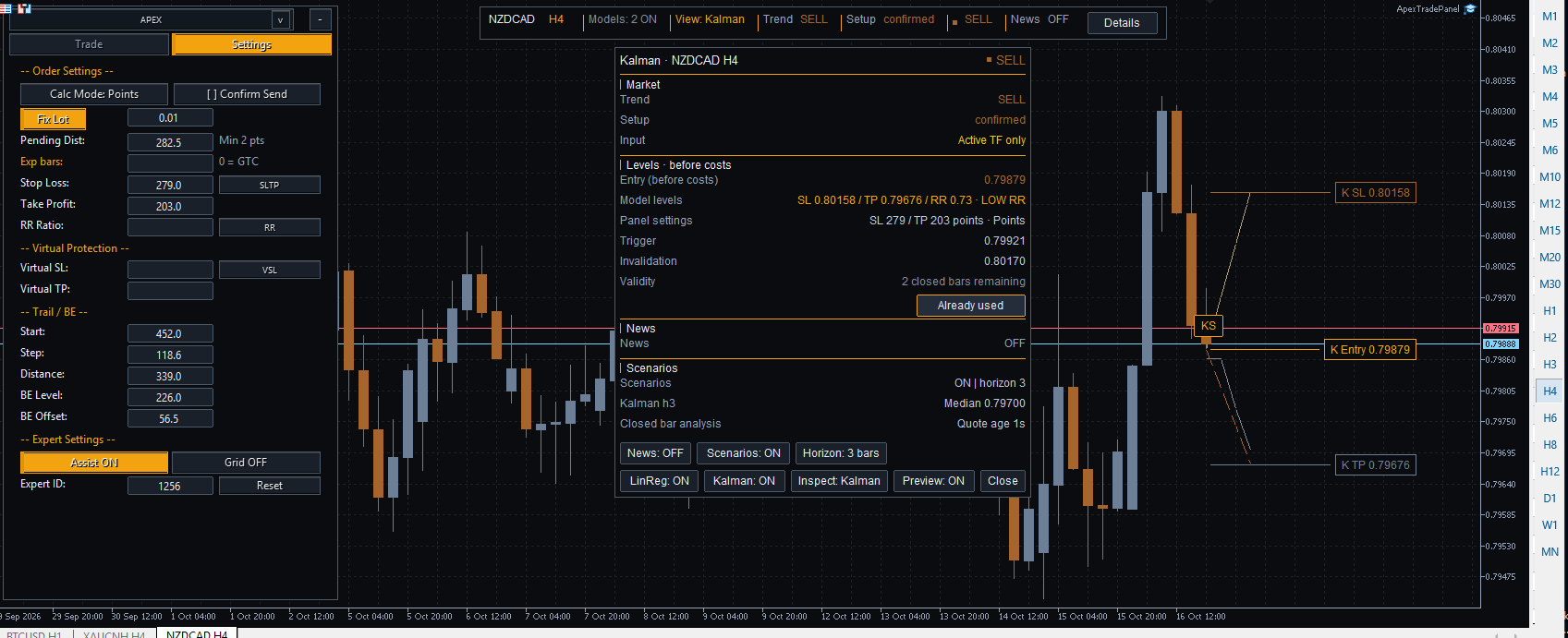
An earlier interface example retained for the model workflow: a Kalman SELL setup with Details and Preview levels.
| Marker | Meaning |
|---|---|
| KB / KS | Kalman BUY / Kalman SELL. |
| LB / LS | LinReg BUY / LinReg SELL. |
Click a marker or Details to review the current direction, confirmation, available entry/SL/TP levels, reward-to-risk ratio, trigger, invalidation, and remaining validity. A confirmed signal can still have unavailable actionable levels. Read the current status rather than relying on a marker alone.
| Control | What it does |
|---|---|
| News | Shows or hides optional calendar information. |
| Scenarios / Horizon | Controls projected paths and their horizon, from 1 to 5 bars. The initial horizon is 3 bars. |
| LinReg / Kalman | Enables or disables each model independently. |
| Inspect | Selects the model shown in Details. |
| Preview | Shows or hides the available informational Entry/SL/TP overlay. |
| Use model levels | Copies available selected-model SL/TP values into the main Settings. It does not send an order. |
| Close | Closes Details without switching off the models. |
Applying model levels switches the main assistant off and clears previous trailing and break-even values. Review any existing RR or virtual fields as well: their protection priority still applies. Preview and scenarios are separate controls, and their displays depend on the current validity checks.
LinReg may show R2 and RMSE diagnostics. Kalman includes a working ratio in the trend tooltip. These are mathematical diagnostics, not calibrated probabilities of a successful trade. Displayed model RR values are before trading costs.
3. Main-panel Settings
Open Settings from the vertical toolbar or the Settings tab in Classic and Modern. The trading settings are edited directly on the chart. The layouts change their presentation, not the purpose of the fields.
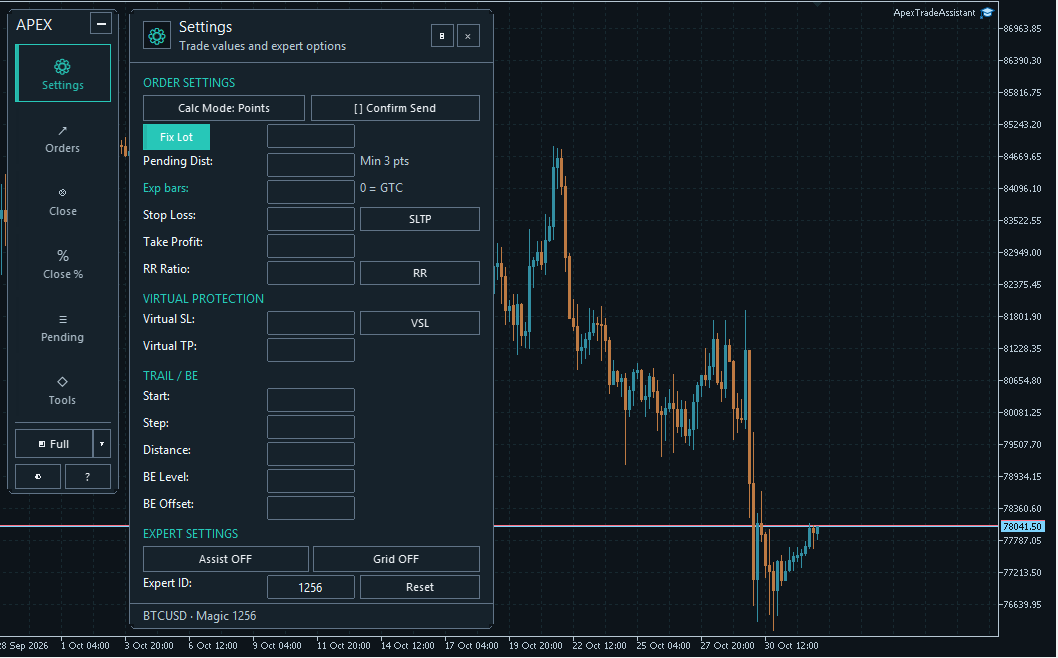
| Setting | Purpose |
|---|---|
| Calc Mode | Selects how distances are interpreted: points, pips, ATR multiples, account-currency distances, or none. |
| Fix Lot / Risk sizing | Chooses a fixed volume or position sizing based on the selected risk and stop distance. |
| Pending Dist | Sets the distance used to prepare a pending entry. Broker minimum-distance checks still apply. |
| Exp bars / Exp min | Sets pending-order expiration in bars or minutes. Zero means GTC, without a configured expiration limit. |
| Stop Loss / Take Profit | Ordinary protection distances, subject to the priority rules below. |
| RR Ratio | Derives TP from a positive ordinary SL and a valid enabled reward-to-risk ratio. |
| Virtual SL / Virtual TP | Explicit protective distances managed locally by the EA. |
| Start / Step / Distance | Configures the applicable trailing workflow. |
| BE Level / BE Offset | Sets the trigger distance and offset for break-even management. |
| Assist / Grid | Controls the main assistant and individual or grouped pending-order placement. |
| Expert ID | Identifies orders and positions for the applicable management scope. |
| Confirm Send | Adds a confirmation step before order submission. |
| Reset | Resets the relevant optional settings. It is different from the Reset Chart. |
The selected calculation mode matters: the same number entered as points, pips, or an ATR multiple represents a different distance. Check the displayed mode before preparing an order.
4. Manual input first; assistant when you want help
Your deliberate manual edits take priority over ordinary Assistant updates. For example, if the assistant fills a stop loss and you then edit that field, your committed value is used for that field instead of the assistant's suggestion. Values must still meet the applicable validity and broker checks.
The main assistant can help prepare supported sizing, pending distance, SL/TP, trailing, and break-even parameters. Apex Micro has its own assistant and inputs, independent of the main settings. Assistant parameter preparation is separate from the LinReg and Kalman signal display.
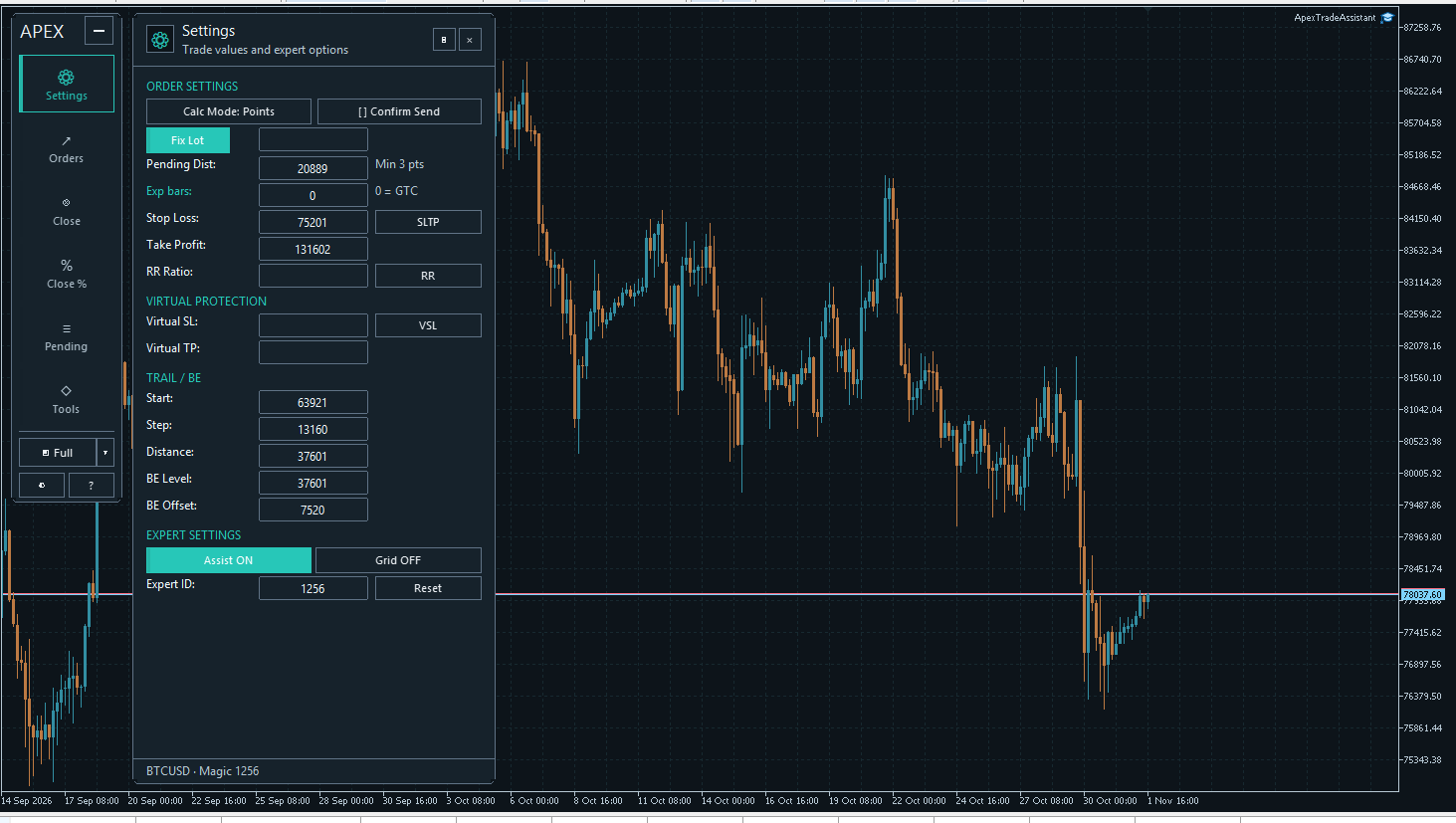
Use Assistant suggestions as a starting point, then review and adjust the values you want to control yourself.
Manual ownership and protection priority are different rules. A manually edited ordinary TP does not disable an active RR or virtual block. To use ordinary SL/TP directly, clear the virtual fields and disable RR.
5. SL/TP, RR, and Virtual: Which values are used?
The main panel chooses one protection block in this order: Virtual → RR → ordinary SL/TP. Among these three choices, the lower block in Settings takes priority. For the clearest workflow, use one protection method at a time and clear or disable the unused options.
| Configured values | Result during main-panel order preparation |
|---|---|
| A positive Virtual SL or Virtual TP | The virtual block is selected. Its virtual distances take priority over RR and ordinary SL/TP. |
| No virtual values; valid RR enabled | The ordinary SL is used, and TP is derived as SL × RR. RR requires a positive ordinary SL. |
| No virtual values; RR disabled | The ordinary Stop Loss and Take Profit fields are used directly. |
For example, with SL = 100 points and RR = 2, the derived TP distance is 200 points. This describes a distance ratio, not a probability of profit.
Important: even one positive virtual field selects the whole virtual block. An empty opposite virtual field remains unconfigured; it is not automatically filled from ordinary SL/TP. Check that the selected protection is complete for your intended plan.
The SLTP, RR, and VSL buttons open their corresponding visual editors. Review and apply the edited values before placing a trade.
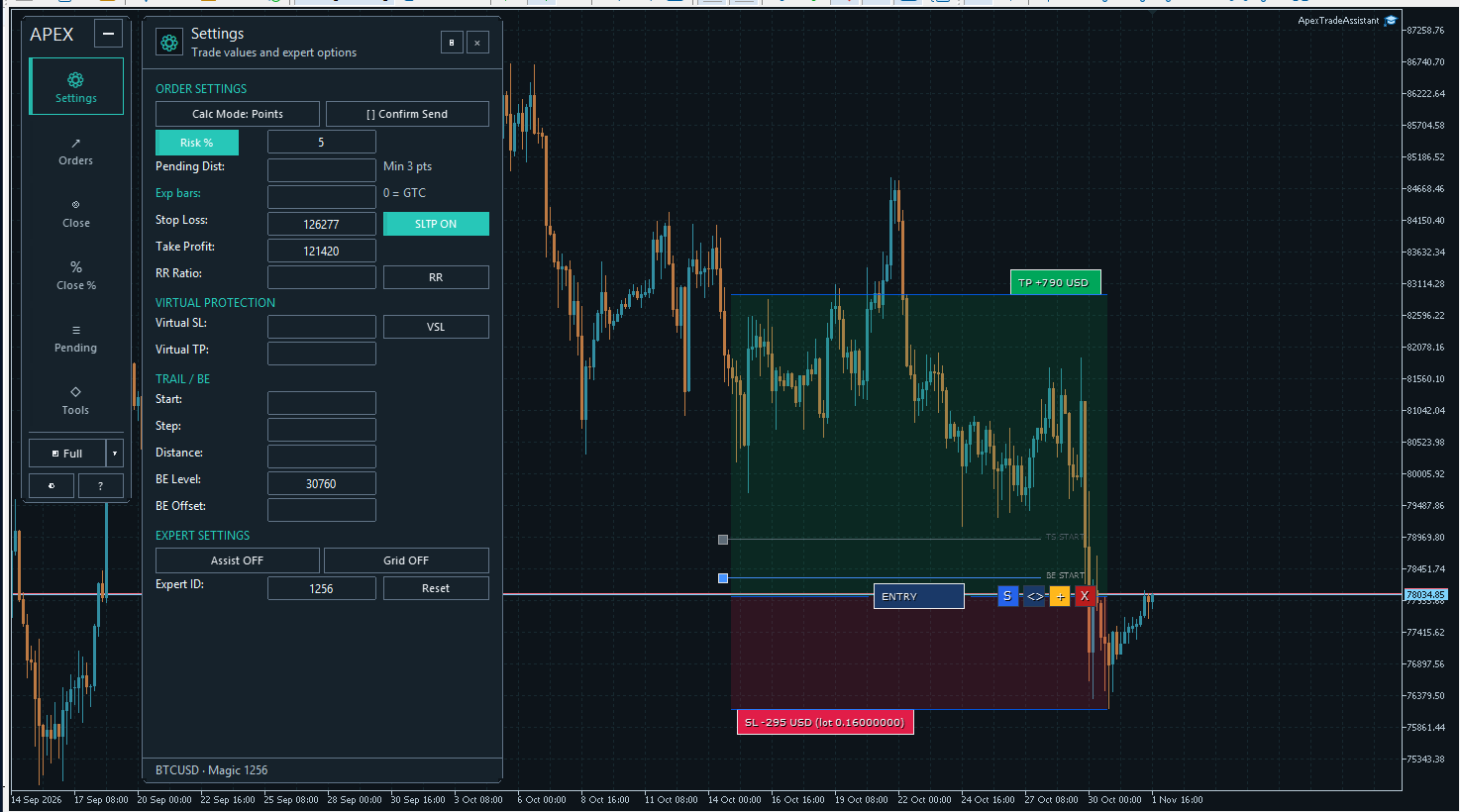
The main-panel visual editor adjusts its corresponding settings values. It is separate from an independent Apex Micro Planner.
6. Market orders, pending orders, and confirmation
Open Orders in the vertical layout or use the Trade tab in a full layout. The six entry buttons use the current main-panel Settings and the normal order safeguards.
| Buttons | Entry workflow |
|---|---|
| SELL / BUY | Market-order submission using the current tradable quote. |
| Sell Stop / Buy Stop | Pending stop orders below / above the market. |
| Sell Limit / Buy Limit | Pending limit orders above / below the market. |
Confirm Send adds a Confirm or Cancel step. It confirms your order intent; it does not lock an earlier quote. Order preparation uses fresh facts when you confirm, so review the final request.
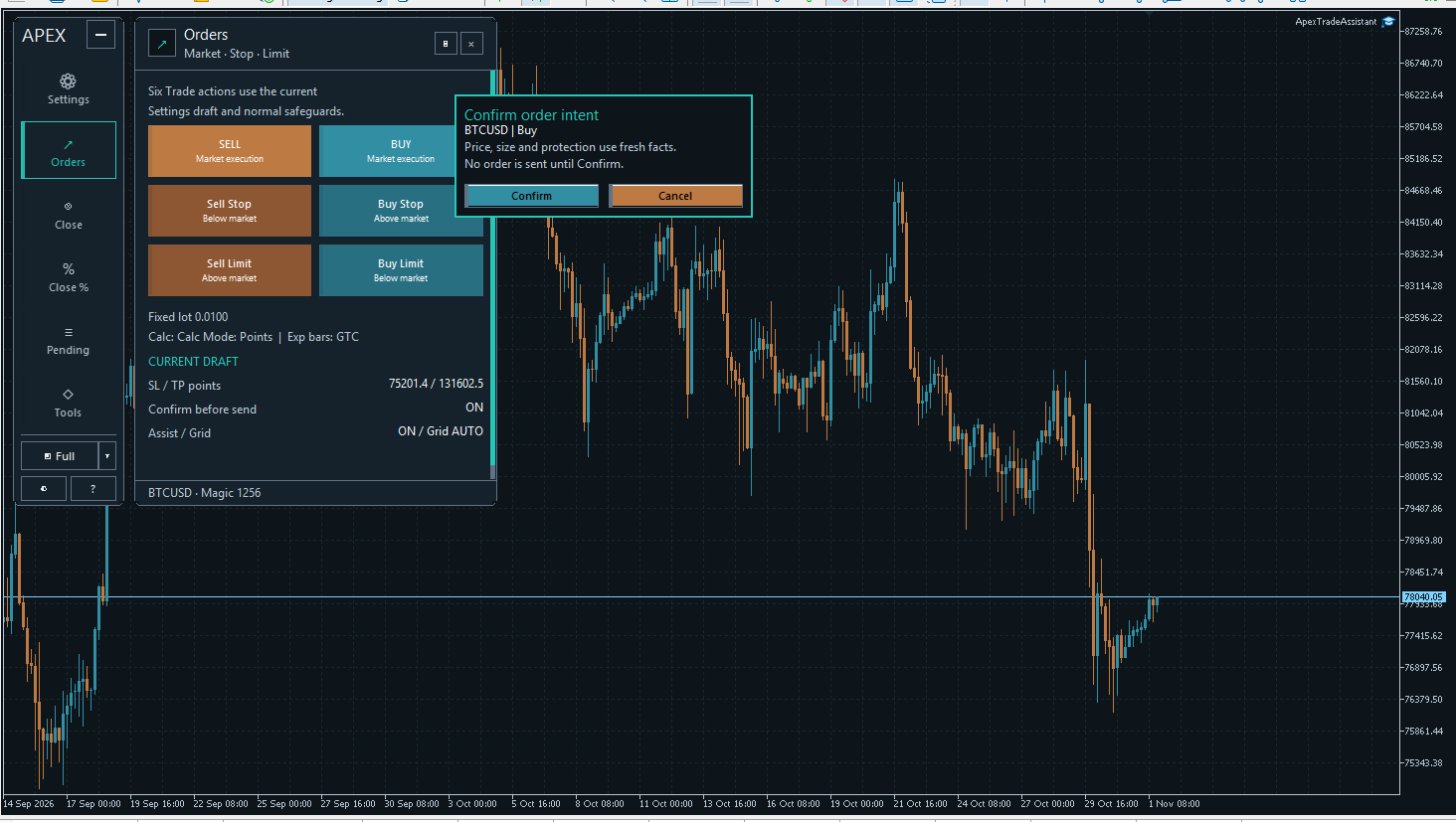
No order is sent from this confirmation workflow until you choose Confirm.
7. Close, partial close, and pending-order management
The vertical toolbar separates Close, Close %, and Pending. Classic and Modern place these commands in the full Trade view.
- Close All Positions / Close Buy / Close Sell: closes matching positions within the action's management scope.
- Close Profit / Close Loss: filters matching positions by profit or loss.
- Del All Pending and type-specific delete buttons: removes matching pending orders.
All means matching items in that command's scope, not automatically every trade on the account. Main-panel and mini-planner commands have separate ownership workflows. Review the symbol, Expert ID, and displayed management context.
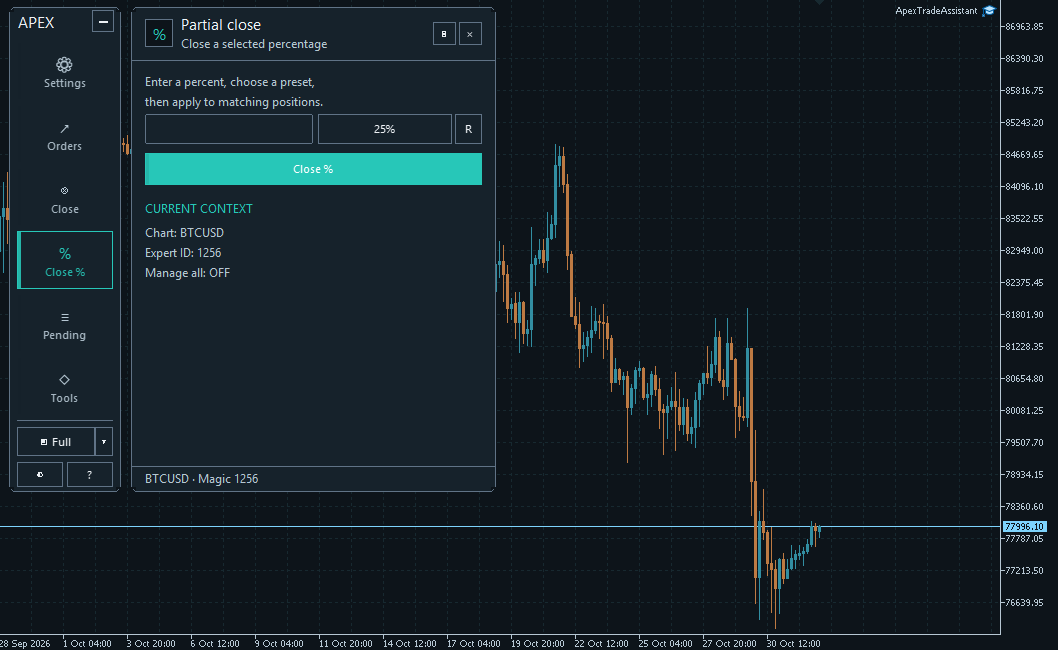
For a partial close, enter the desired percentage or cycle the presets 25%, 50%, 75%, and 100%, then press Close %. Selecting a percentage alone does not close a position.
R clears the percentage field. This reset button is unrelated to RR Ratio. The preset button shows the next preset it will select. Actual partial closing remains subject to valid volume and broker volume-step constraints.
8. Tools and chart controls
| Control | Purpose |
|---|---|
| BE Now | Requests the applicable immediate break-even action for matching positions. |
| Apex Micro | Opens the independent visual-planner workspace. |
| Screenshot | Saves a chart screenshot in the terminal's MQL5/Files area. |
| Chart | Cycles the supported chart-display choices. |
| Reset Chart | Restores the saved chart appearance. It is separate from Settings Reset or planner R. |
| Market Info | Switches the market-information runtime on or off. |
9. Apex Micro: independent visual planners
Each Apex Micro planner has its own sizing, calculation, assistance and order settings. Open it from Tools → Apex Micro and use + to add another planner for a separate idea.
Set the sizing value and adjust Entry, SL and TP on the chart. Moving the whole box vertically moves its planned prices together; moving it horizontally changes its display placement. Immediate market execution uses the current tradable quote, not the box's horizontal time position.
The command bar can be docked to the plan or detached for convenient positioning. Use its arrow controls to change the presentation. The I button cycles the input view, inputs with help, and the closed view. Commands provides the full names of the actions.
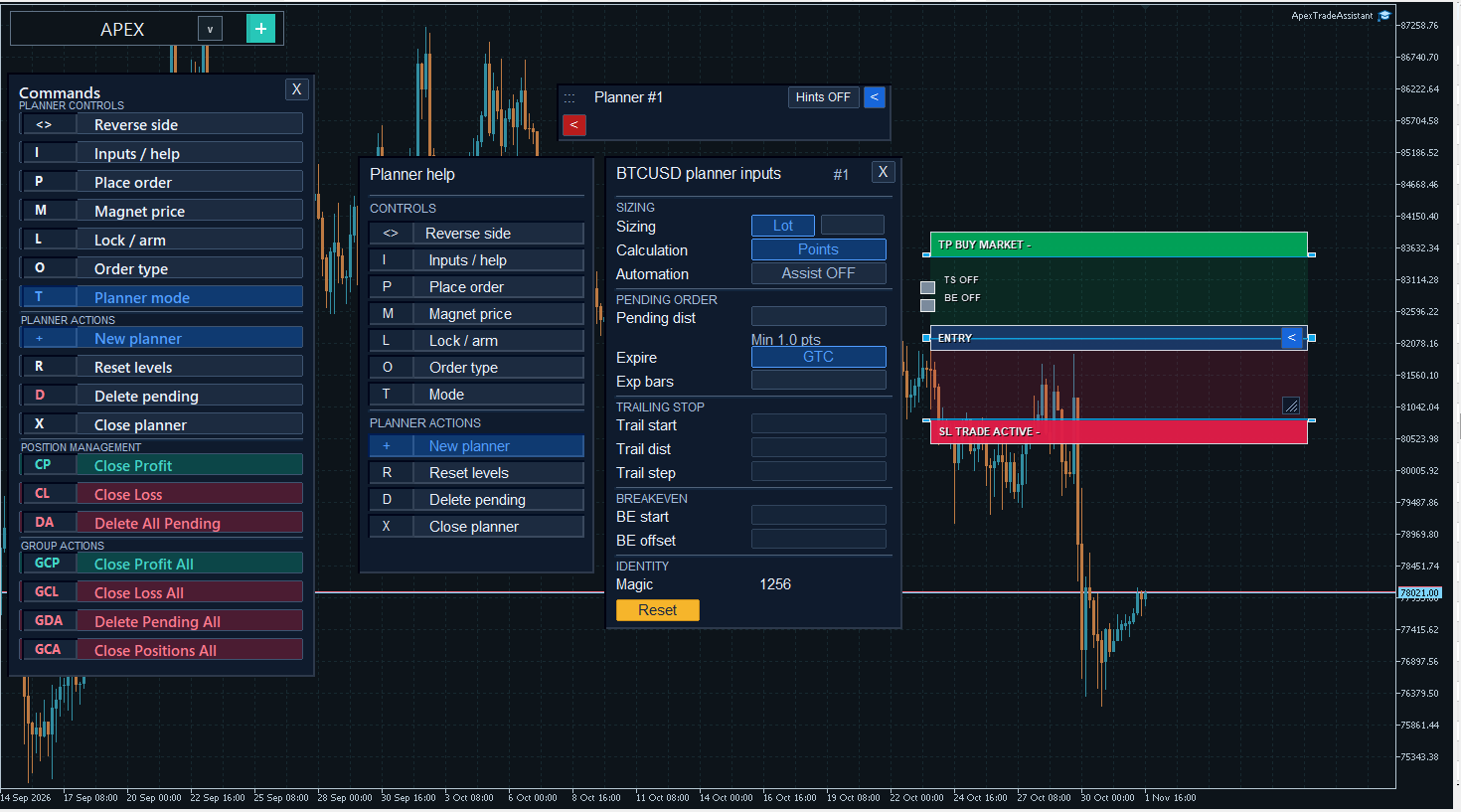
| Button | Meaning |
|---|---|
| <> | Reverses the plan between BUY and SELL. |
| I | Cycles the input and help views. |
| P | Places an order using that planner's current configuration and mode. |
| M | Toggles the price magnet. For pending types it uses the current quote and configured pending distance. |
| L | Uses the applicable lock/arm workflow for the prepared plan. |
| O | Cycles the order type. |
| T / V | Cycles Trade and Virtual modes. This is separate from the P order-placement button. |
| + | Adds an independent planner. |
| R | Resets planner levels. |
| D | Cancels the slot's waiting controller or deletes its attached pending order, as applicable. |
| X | Closes the planner display. An active controller can remain accessible as a chip; this does not itself close a position. |
| CP / CL / DA | Closes profitable / losing positions or deletes pending orders belonging to that planner slot, as applicable. |
| GCP / GCL | Closes profitable / losing mini-planner positions in the matching symbol and Expert ID scope. |
| GDA / GCA | Cancels matching planner pending orders and waiting controllers / closes matching planner positions through their controller workflow. |
In the input window, choose Lot or Risk% sizing, calculation units, pending distance, expiration and the desired trailing and break-even settings. Enable the planner's own Assistant when needed. Review TS and BE switches and values explicitly; displaying a planner alone does not enable every management function.
10. ARM chips, local triggers and broker pending orders
A prepared local entry plan can be armed through L and kept accessible as a compact ARM chip. Click the chip to reopen its planner and inspect the recorded context. The chip itself is not a broker order.
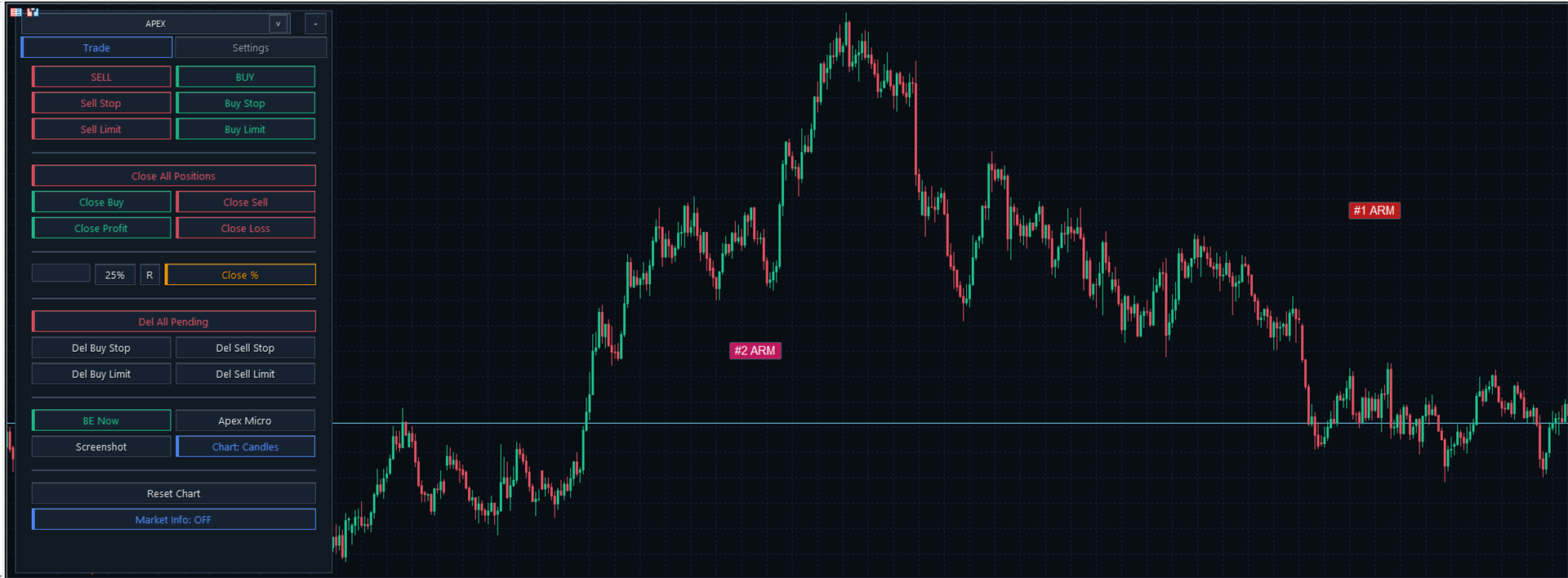
Earlier interface example retained to show several local plans represented by compact ARM chips.
A local market trigger and a broker pending order are different. With a local trigger, the EA monitors the configured condition and sends a market request when it is met. Quote, spread and other guards still apply; the trigger price is not a guaranteed fill price. A submitted broker pending order is held by the broker until it is executed, cancelled or expires under its conditions.
Review the order type, sizing, protection mode and intended action before arming or submitting. Use the relevant D or pending-management command to cancel a waiting plan or pending order. Closing a planner window is not a cancellation instruction.
11. Trade and Virtual protection
| Mode | Meaning |
|---|---|
| Trade | Uses the planner's normal order workflow and applicable broker protection settings. |
| Virtual | Uses locally managed protective levels instead of sending those virtual SL/TP levels to the broker. Real orders can still be placed. |
Virtual protection is available in the respective main-panel and mini-planner workflows. A main-panel pending order prepared with Virtual SL/TP can still be a real broker pending order. Virtual protection does not turn an order into a simulation.
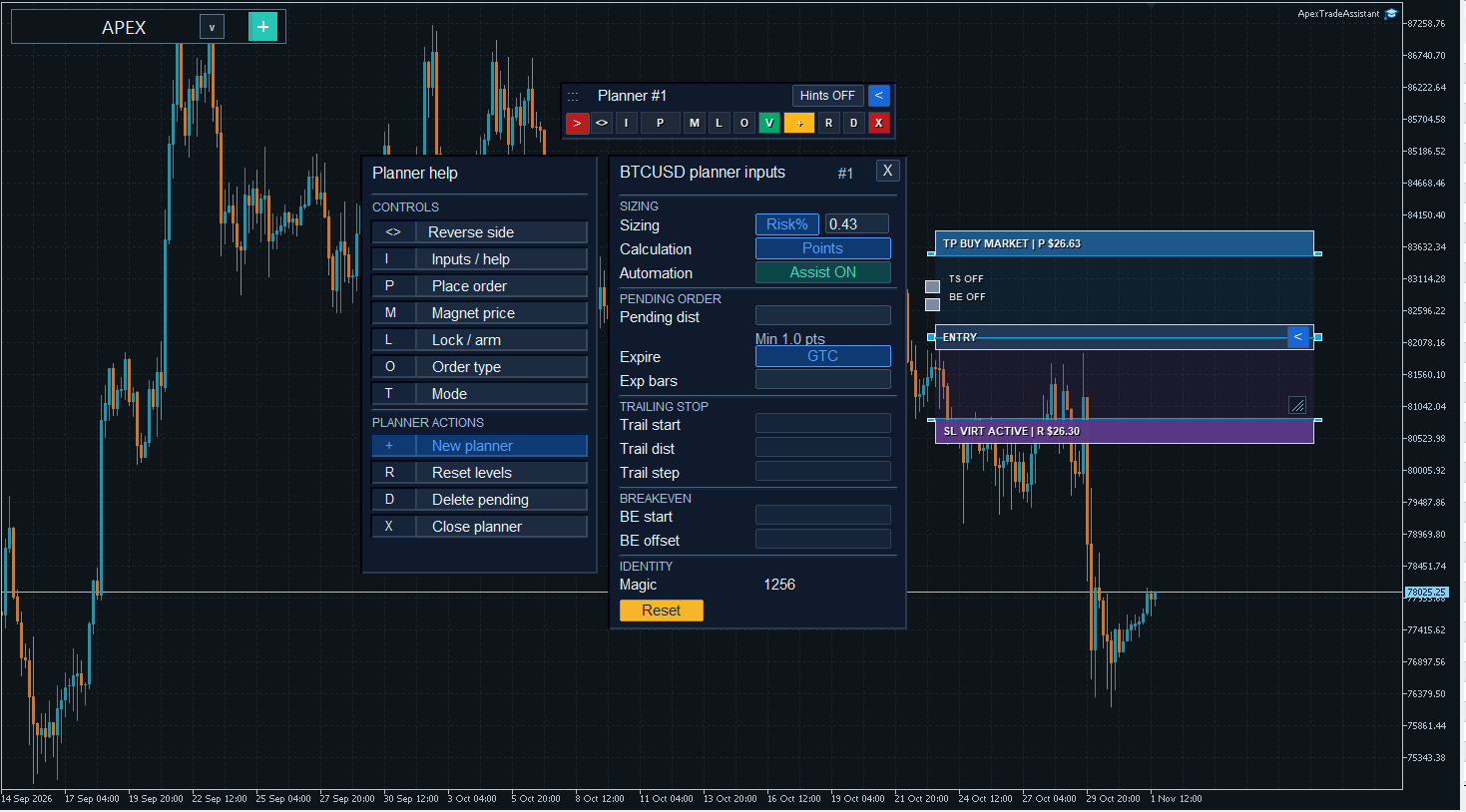
Virtual protective levels are managed by the EA. An executed real position remains visible to the broker.
Keep the terminal and EA running for local triggers, virtual protection, trailing and break-even management, with the necessary connection and trading permissions. A saved plan or controller record does not execute trades while the application is offline.
12. Grid pending orders
The main Grid setting prepares a group of pending orders at separate price levels. Choose the setting in Settings, then use the appropriate pending-order button.
| Choice | Requested behavior |
|---|---|
| OFF | Individual pending-order placement. |
| AUTO | Chooses the requested order count using the active timeframe. |
| 2 | Requests two orders. |
| G5 / G10 / G15 | Requests five, ten or fifteen orders. |
Every request still passes the applicable price, volume, margin and order checks. The actual number successfully placed may be lower than requested.
Sizing applies to an individual Grid order. The selected volume or Risk% is not automatically split as one shared allocation across the whole group. Review the combined exposure before submitting.
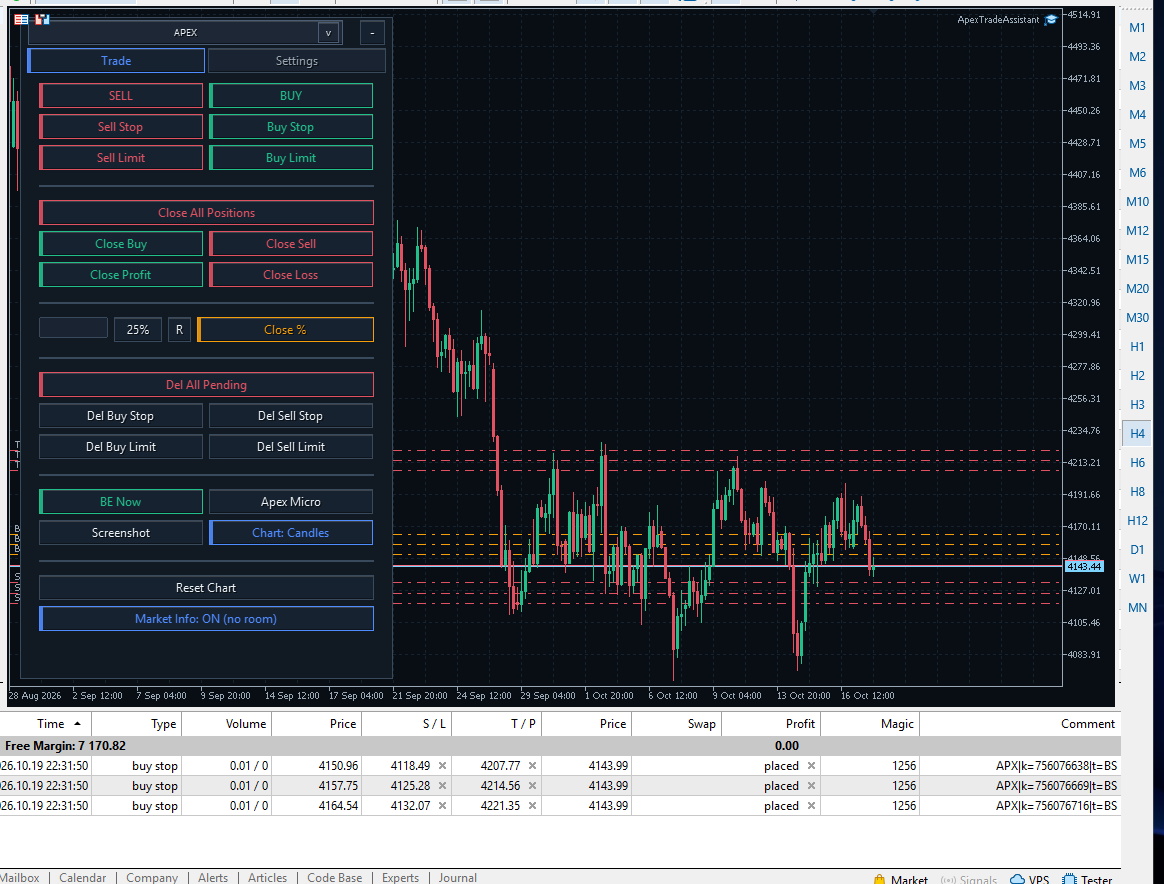
Earlier interface example retained for the order list: Grid AUTO on H4 with three Buy Stop orders and separate protective prices.
13. Before you submit: a short checklist
- Choose the main panel or an independent mini planner.
- Check the calculation unit, sizing value, symbol and management identity.
- Enter or visually prepare the protection. Check the main-panel Virtual → RR → SL/TP priority when relevant.
- Review any Assistant values or model levels you chose to apply.
- Confirm whether you intend immediate market placement, a broker pending order or a local armed trigger.
- Review the final values and submit only the intended action.
Chart startup and saved state
Use a dedicated chart for APEX. On initialization, it removes existing objects from its target chart before creating the workspace. This includes manual drawings and objects from other tools. Reset Chart does not recreate deleted objects.
APEX stores supported settings and planner/controller context locally. Saved appearance choices help restore your workspace; local records do not provide active protection while the terminal is closed or guarantee recovery of every action. Review the actual restored state after a restart.
You choose the trades and settings. APEX helps organize their preparation and management; model suggestions and screenshot examples do not guarantee trading results.
Product page and support
View Apex Trade Assistant on MQL5 Market.
For product questions, use the product Comments section or contact the author through MQL5 messaging.
Author: Dragan Drenjanin
#ApexTradeAssistant #MetaTrader5 #MQL5 #ManualTrading #TradingPanel #TradeManagement #VisualTrading #KalmanFilter #LinearRegression