Supreme VWAP And Targets User Manual for MetaTrader 4 and MetaTrader 5

1. What Supreme VWAP And Targets Is
Supreme VWAP And Targets is a chart indicator for MetaTrader 4 and MetaTrader 5. It anchors a volume-weighted average price (VWAP) at the latest confirmed swing, draws a value band around it once price has moved away from the swing, and prints a BUY or a SELL when a pullback into the band is reclaimed on a closed bar, with a plan: an entry, a stop and three targets. Seven filter profiles judge every reclaim side by side, and a dashboard shows which profile the chart displays and how its plans have played out on this chart.
It does not place trades and has no access to your account. Every signal is decided on a closed bar. For the trading method behind it, read the trading guide.
2. Installation
The steps are the same on both platforms; the MetaTrader 5 and MetaTrader 4 versions are separate products.
- Buy or rent the indicator on its MQL5 Market page with your MQL5 account.
- In MetaTrader, log in to the same MQL5 account (Tools, Options, Community).
- Open the Toolbox (Ctrl+T), go to the Market tab, find Supreme VWAP And Targets under Purchased and click Install.
- In the Navigator (Ctrl+N), open Indicators, then Market, and drag Supreme VWAP And Targets onto a chart.
- Click OK to start with the defaults. Change any input later with Ctrl+I on the chart.
It runs on any symbol and any timeframe from M1 to monthly, needs no DLL, no web request and no file access, and removes every object it drew when you remove it.
On attaching, it calculates the newest 20,000 bars and runs all seven profiles over them before it draws, so the first picture can take a few seconds; after that only new bars are calculated. The dashboard's records are counted over the bars the chart holds: if your terminal keeps fewer (Tools, Options, Charts, Max bars in chart), they cover less history.
3. What You See on the Chart
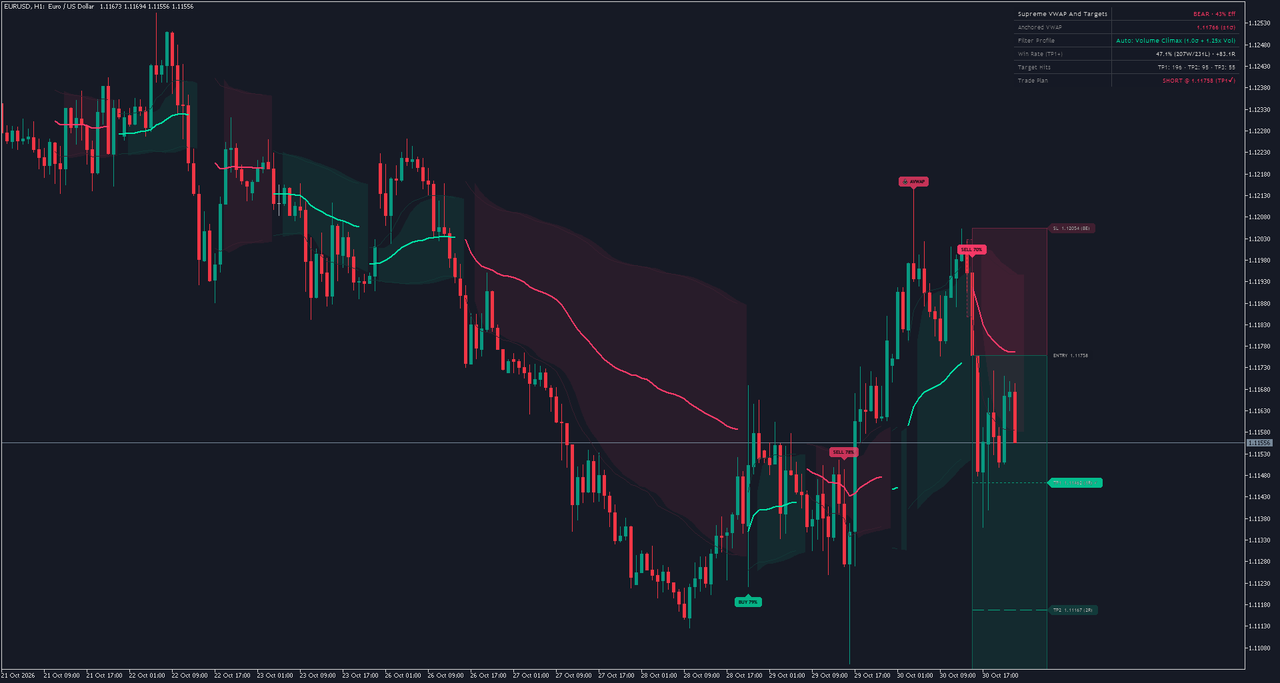
- The anchored VWAP, a line in the trend colour. Its value counts every bar from the swing it is anchored to; the line is drawn from the bar that confirmed that swing.
- The value band: two thin edges at the profile's band width in sigma around the VWAP, with a shaded fill behind the candles, over the most recent 181 bars. It breaks where the anchor changes.
- The anchor badge, an anchor symbol and the word AVWAP, on the swing bar of the active anchor.
- BUY and SELL badges under the signal bar (BUY) or over it (SELL), with the setup quality in percent, for example SELL 70%. The last three signals are badged, the newest in the more solid colour. Hover a badge for its tooltip: Bullish (or Bearish) AVWAP Pullback Reclaim and the setup quality.
- The plan of the newest signal: a dotted pullback box, a risk box from the entry to the stop (bearish colour), a reward box from the entry to TP3 (bullish colour), the entry and stop lines, and TP1 dotted, TP2 dashed and TP3 solid.
- SKIP circles (off by default) at the reclaims the profile on the chart refused.
- The dashboard in the top right corner.
The plan's labels give each level's price and its distance in R. A reached target gets a tick, and a target that sits on the impulse high or low reads MAG. The SL label keeps the initial stop price and reads (-1R) while that stop is in place, (BE) once TP1 has moved the working stop to the entry, (BE) with a tick when the plan ended there, or a cross when the stop was reached before TP1.
4. The Dashboard, Row by Row
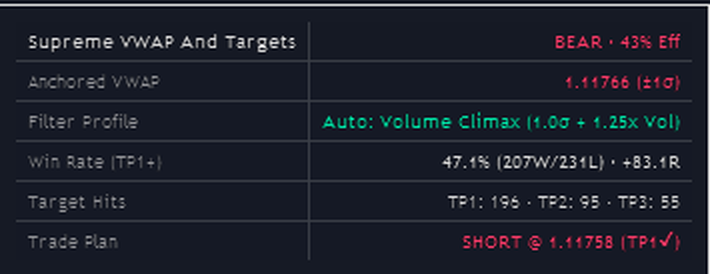
| Row | What it shows |
|---|---|
| Header | The indicator's name, then BULL, BEAR or NEUTRAL with the trend efficiency of the current bar in percent (Eff): in the bias colour when it clears the profile's minimum, muted when it does not. |
| Anchored VWAP | The price of the active anchored VWAP and the band width in sigma, or Scanning... when no anchor is active. |
| Filter Profile | The profile the chart shows by its full name, with Auto: in front under Auto-Optimize. |
| Win Rate (TP1+) | That profile's record on this chart: the share of its closed plans that reached TP1 or closed without a loss, the wins and losses, and the net result in R. It describes this chart's history, not a probability. In the bullish colour from 55 percent; 0 Trades before the first closed plan. |
| Target Hits | How many of its plans reached TP1, TP2 and TP3. |
| Trade Plan | Its newest plan, LONG or SHORT at the entry price, with the furthest state reached: OPEN, TP1, TP2 or TP3 with a tick, BE with a tick, or SL with a cross. Before its first plan, its last SKIP text or NONE. |
A plan is a win when it reached TP3, when it had reached TP1 before it ended, or when it expired or was closed by the next signal with its close at or beyond the entry in its favour; every other closed plan is a loss. The net result adds the R of TP3 for a full ladder, half the R of TP1 (of TP1 and TP2 once TP2 was reached) for a stop after TP1, minus 1 R for a stop before TP1, and for an expiry or a closing signal 1 R after TP1, otherwise the close's distance from the entry in R. Spread, slippage and commission are not counted.
The win share, the net R and the badge tooltip's quality print a whole number followed by .1: a share that rounds to 50 percent prints as 50.1%, a net result that rounds to 10 R as +10.1R. The .1 is part of the display format and carries no value. Table Size sets the text size; Show Summary Dashboard hides the dashboard.
5. When Things Are Calculated
- Anchors, pullbacks, signals, plans and records are calculated when a bar closes. Nothing of a signal changes while a bar is forming; on the forming bar only the dashboard's efficiency figure follows price, while the band and the open plan extend to it.
- A swing is confirmed 10 bars after it forms (Structural Anchor Swing Lookback), so an anchor appears 10 bars after its swing, with the VWAP's value counted from the swing bar.
- A plan is checked from the bar after its signal: the stop first, then TP1, TP2 and TP3. It ends at the stop, at TP3, 60 bars after the signal, or at the next signal of its profile.
- Under Auto-Optimize the chart can switch to another profile when a closed plan changes the ranking; each profile's signals stay as they were.
- On MetaTrader 5, when the last bar's time is up by the broker's clock and no tick has come (a quiet market, the weekend), the bar is treated as closed about ten seconds later.
- Alerts fire once, for the closed bar, and never for history or in the Strategy Tester.
6. Inputs
There are 30 inputs in 6 groups: four of the indicator's own, MetaTrader with two platform settings, and Alerts. On MetaTrader 4 each group starts with a separator line in the list of inputs.
1. Structural Anchor & AVWAP Value Band
| Input | Default | What it does |
|---|---|---|
| Structural Anchor Swing Lookback (3-40) | 10 | Bars on each side of a swing. A swing is confirmed this many bars after it formed; smaller values anchor on smaller swings, larger values on fewer, bigger ones. |
| Max Pullbacks Per Trend Anchor (1-4) | 2 | How many signals each profile may take from one anchor. Once Balanced has taken this many, the next qualifying swing becomes the anchor. |
| Min Impulse Expansion (ATR, 0.6-3.5) | 1.40 | How far price must move from the anchor, in ATR(14), before the leg is armed and pullbacks count. |
2. Pullback Chop Filter & Auto-Optimizer
| Input | Default | What it does |
|---|---|---|
| Pullback Filter Mode | Auto-Optimize (Best Chart Win Rate) | The profile the chart shows. Auto-Optimize picks by the records of this chart's history, which are not a probability; the other options keep one profile. |
| Custom Min Trend Efficiency (%, 10-70) | 26.0 | With Custom Thresholds: the minimum trend efficiency, the 10-bar net move as a share of the path travelled. |
| Custom Value Band Width (Sigma, 0.4-2.2) | 1.00 | With Custom Thresholds: the band's width in sigma; the defence line sits one sigma further out. |
3. Entry, Stop Loss & TP1-TP3 Targets
| Input | Default | What it does |
|---|---|---|
| Target Projection Mode | R Ladder + Impulse High/Low Magnet | TP1 to TP3 at 1, 2 and 3 R, with TP2 or TP3 moved onto the impulse high or low when it is in reach (MAG). Fixed R Ladder (1R / 2R / 3R): exactly 1, 2 and 3 R. |
| Stop Loss Buffer Beyond Pullback (ATR, 0.05-1.0) | 0.20 | How far beyond the pullback extreme or the band edge the stop sits, in ATR, times the profile's stop factor. |
| Move Stop to Breakeven After TP1 | Yes | After TP1 the plan's working stop moves to the entry, and the stop label reads (BE). |
4. Visuals & Dashboard
| Input | Default | What it does |
|---|---|---|
| Keep Historical Trade Plans (Last 5) | No | Five badges and three plans instead of three badges and one plan. |
| Show Filtered (SKIP) Pullbacks | No | Mark every reclaim the profile on the chart refused with a small SKIP circle. |
| Show Summary Dashboard | Yes | Show the dashboard in the top right corner of the chart. |
| Table Size | Small | The dashboard's text size: Tiny, Small, Normal or Large. |
| Bullish Trend & Reward Color | #00E6A8 | Colour of the bullish VWAP and band, the BUY badges, the target lines and the reward box. |
| Bearish Trend & Risk Color | #FF3B69 | Colour of the bearish VWAP and band, the SELL badges, the stop line and the risk box. |
MetaTrader
| Input | Default | What it does |
|---|---|---|
| Bars to calculate (0 = all; the statistics run over this window) | 20,000 | How many of the newest bars are calculated (0 = the whole chart); the records and Auto-Optimize's choice are counted over this window. |
| Pin plan labels inside the chart | Yes | Keep the open plan's labels inside the chart when the space right of the last bar is narrow. |
Alerts
| Input | Default | What it does |
|---|---|---|
| Enable alerts | Yes | The master switch of every alert. |
| Alert: 1. Bullish AVWAP Pullback Entry (BUY) | Yes | Alert when a BUY prints. |
| Alert: 2. Bearish AVWAP Pullback Entry (SELL) | Yes | Alert when a SELL prints. |
| Alert: 3. Any Confirmed AVWAP Pullback Entry | No | One alert for any BUY or SELL (with 1 or 2 also on, a signal alerts twice). |
| Alert: 4. Trade Plan TP1 Reached | No | Alert when the plan of the profile on the chart reaches TP1. |
| Alert: 5. Trade Plan TP2 Reached | No | Alert when it reaches TP2. |
| Alert: 6. Trade Plan TP3 Reached | No | Alert when it reaches TP3. |
| Alert: 7. Trade Plan Stop Loss Hit | No | Alert when a plan's stop is hit before TP1. |
| Channel: popup window | Yes | Deliver alerts in the terminal's alert window. |
| Channel: sound | No | Play a sound with each alert. |
| Sound file (in the terminal's Sounds folder) | alert.wav | The sound file, from the terminal's Sounds folder. |
| Channel: push notification | No | Send alerts to the MetaTrader app on your phone (set your MetaQuotes ID in the terminal's options). |
| Channel: e-mail | No | Send alerts by e-mail (set up the Email tab in the terminal's options). |
7. The Seven Profiles
Pullback Filter Mode chooses among these. Each sets the band width, the defence line beyond it, the minimum trend efficiency and setup quality, the stop buffer factor and the minimum stop; Volume Climax also asks for activity.
| Profile | Band | Defence | Min efficiency | Min quality | Stop buffer factor | Min stop | Min activity |
|---|---|---|---|---|---|---|---|
| Balanced | 1 sigma | 2 sigma | 26% | 52 | 1 | 0.35 ATR | none |
| Conservative | 0.8 sigma | 1.75 sigma | 35% | 60 | 1.15 | 0.35 ATR | none |
| Aggressive | 1.25 sigma | 2.3 sigma | 18% | 44 | 0.85 | 0.3 ATR | none |
| Shallow Pullback | 0.65 sigma | 1.6 sigma | 30% | 55 | 0.9 | 0.3 ATR | none |
| Deep Value Reclaim | 1.45 sigma | 2.5 sigma | 22% | 48 | 1.25 | 0.4 ATR | none |
| Volume Climax | 1 sigma | 2 sigma | 24% | 58 | 0.95 | 0.32 ATR | 1.25 x average |
| Custom Thresholds | 1 sigma | 2 sigma | 26% | 50 | 1 | 0.35 ATR | none |
Auto-Optimize compares the first six: those with at least three closed plans, and the core three (Balanced, Conservative and Aggressive) from their first; while none qualifies, any of the six with a closed plan competes. It shows the one with the highest share of closed plans that count as wins on this chart, a tie going to the higher net R, and Balanced until any profile has closed a plan. Custom Thresholds is used only when you choose it.
8. Setting Up Alerts
- Keep Enable alerts on and switch on the events you want. BUY and SELL are on by default.
- Choose the channels. The alert window is on by default.
- Sound: switch it on and name a file from the terminal's Sounds folder (for example alert.wav).
- Push notification: in Tools, Options, Notifications, enable push notifications and enter the MetaQuotes ID from the MetaTrader app on your phone; then switch the push channel on.
- E-mail: in Tools, Options, Email, enter your mail server and addresses and send a test; then switch the e-mail channel on. The subject names the indicator, the symbol and the timeframe.
Each event has its own message with the symbol and timeframe filled in. A BUY alert reads:
Supreme VWAP And Targets: Confirmed Bullish Anchored VWAP Pullback Reclaim on EURUSD (H1). Entry, SL, and TP1-TP3 trade plan active.
The TP and stop alerts follow the plan of the profile on the chart. A stop at breakeven after TP1 sends no alert. Alert 3 (any entry) repeats a BUY or SELL that alert 1 or 2 already sent, so switch on one or the other.
9. Bars to Calculate and Pin Plan Labels
Bars to calculate (20,000 by default; 0 = the whole chart) limits the calculation to the newest bars. It is also the window the records are counted over, and so the history Auto-Optimize chooses from: another value can show another profile with other figures. When you scroll older history into the chart, or change the value, everything is calculated once more from the newest bars. Each profile keeps its last eight plans for drawing; its record counts every plan in the window.
Pin plan labels inside the chart (on): an open plan reaches six bars past the last bar, and its labels start there. When the space right of the last bar is too narrow, the plan then ends closer to the last bar so its widest label stays inside the chart. It applies only while the last bar is on screen. Off, the plan always reaches six bars past the last bar; use the chart shift to make room.
10. MetaTrader 4 Notes
- MetaTrader 4 draws an indicator over the candles, so the band's fill is drawn as one column per bar, and on a candlestick chart the candles inside the band are drawn again on top of it in the chart's own candle colours: the fill sits under the candles as on MetaTrader 5. On a bar or line chart the fill covers the bars inside the band.
- MetaTrader 4 shows object tooltips in the ANSI code page. The badge tooltips use plain characters only, so they read the same on both platforms.
Everything else, the calculation, the drawings, the dashboard and the alerts, is the same on both platforms.
11. Troubleshooting
Price pulled back into the band but no BUY or SELL printed. A signal needs an armed leg, a pullback into the band and a reclaim: a candle in the leg's direction closing back beyond the VWAP, within 0.2 ATR of the previous bar's extreme. It must pass the profile's gates (efficiency, setup quality, a depth of 12 to 85 percent of the leg, and activity on Volume Climax). None prints while the profile holds an open plan in that direction, or after it has taken Max Pullbacks Per Trend Anchor signals from the anchor. Show Filtered (SKIP) Pullbacks shows the refused reclaims.
The chart switched to other signals. Under Auto-Optimize the choice is made again on every bar; the Filter Profile row names the profile shown. Choose one in Pullback Filter Mode to keep it.
There is no band, and the dashboard says Scanning... After a close through the anchor price, or more than 2.6 sigma beyond the VWAP, the anchor ends; a new one starts with the next confirmed swing that qualifies.
TP2 or TP3 says MAG. With the default target mode, the impulse high (low for a SELL) becomes TP2 when it lies 1.3 to 2.4 R from the entry, or TP3 when it lies beyond that up to 4.5 R. Fixed R Ladder keeps 1, 2 and 3 R.
The stop label says (BE) but the line has not moved. The line and label keep the initial stop price; (BE) says the working stop is at the entry since TP1.
The Trade Plan row says OPEN for an old plan. It shows the furthest state the newest plan reached; a plan that expired after 60 bars without reaching TP1 also reads OPEN.
My signals differ from another broker's chart. Other candles and tick volume give other swings, another VWAP and other signals; another history depth gives other records.
A SKIP circle appeared on the newest bar and went away. While a bar forms, it shows the SKIP of the bar that just closed; when it closes without one of its own, the circle goes.
No alerts arrive. Check the event's switch, Enable alerts and a channel. Alerts fire only on bars that close while the indicator runs; push and e-mail also need the terminal's settings.
12. Frequently Asked Questions
Do the signals repaint? No. Signals and plans are decided on closed bars and never moved by later bars; a plan's state is updated as bars close. Auto-Optimize switching profile, or a recalculation over another window, changes which signals the chart shows.
Can I use it in the Strategy Tester? Yes, in visual mode. Alerts never fire in the tester, and a non-visual run draws nothing.
Does it need real volume? It uses MetaTrader's tick volume; without volume, it weighs each bar by its range against the ATR.
Why did a SELL print while the band is bullish? Both legs are watched. The band shows the bias side; a signal can come from either armed leg.
13. Version History
- 1.00: first release for MetaTrader 4 and MetaTrader 5.
Risk Disclaimer
Trading leveraged products such as forex and CFDs carries a high level of risk and may not be suitable for all investors. Supreme VWAP And Targets is an analysis tool, not financial advice. Test it on a demo account before trading real money.