Confluence Sniper User Guide: Signal Grades, Gold Arrows, the Ledger, the Panel and Every Setting (Free and Pro)

What Confluence Sniper is
Confluence Sniper is an indicator that marks a closed bar with an arrow and a grade when a price-action trigger appears inside an allowed session, at a normal level of volatility, and at least one of three separate readings (trend, a demand or supply zone, and the strength of the two currencies) points the same way. Signals that fire while the indicator is running are written to a small CSV file on your computer, the ledger, and the arrows you see for them are drawn back from that file rather than recalculated. It does not trade, and a grade counts agreements; it is not a win rate or a probability.
The free edition, Confluence Sniper, has the full signal logic, the ledger and the panel with all its hover cards. Confluence Sniper Pro adds notifications and a higher-timeframe context row. Everything below applies to both editions unless marked Pro only. A multi-symbol scanner is not part of either edition.
Quick start
- Open the chart and timeframe you want to watch and drag the indicator onto it from the Navigator. It works on the chart's own symbol and timeframe.
- In the inputs, pick Language / 言語. Then check the session hours in the group Engine: Session and volatility gate. They are the broker's server hours, and the defaults (London 10 to 18, New York 15 to 23, Tokyo off) were set for one broker's server clock. Adjust them to your broker before relying on the gate.
- Click OK. The panel opens in the top-right corner. The first time it runs in a terminal, a short card explaining how to read it appears for nine seconds.
- Move the panel by dragging its header, change its size with the 100% button, and fold it with the triangle at the right end of the header or by double-clicking the header.
How a signal is decided
Only closed bars are evaluated. For each one the indicator asks five questions, which play two different roles.
Two of them are conditions that must both hold. SES, the session and volatility gate, requires the hour at which the bar opened (server time) to fall inside one of the switched-on windows, and the bar's ATR to rank between the 25th and the 95th percentile of the previous 200 bars. TRG, the price-action trigger, requires a momentum close (a bullish bar closing above the previous bar's high, or the mirror image for selling) or an engulfing bar (a bullish body covering the previous bearish body, or the mirror image). The trigger decides the direction of the signal.
The other three are votes, and only votes in the trigger's direction count. TRD reads the trend: by default four conditions vote up or down (the fast EMA against the slow EMA, the slope of the fast EMA, +DI against -DI, and the MACD main line against its signal line), and TRD takes the direction of the net vote, but only while the ADX is at 18 or above. ZON asks whether the bar dipped into a demand zone and closed back above its lower edge, or rose into a supply zone and closed back below its upper edge. The zones are built from earlier bars with order-block rules and are not drawn on the chart. STR compares the average percentage change of the chart's base currency and quote currency against the other major currencies over 24 bars, and votes when the gap is at least 0.15 percent. STR works only on currency pairs and on gold named XAU or GOLD, and only when the broker offers enough of the related pairs.
If the gate is open, the trigger has a direction and at least one vote agrees, the bar gets a grade. A means all three votes agree. B means two agree and one of them is ZON. C is everything else, that is one vote, or two without ZON. By default only B and A are shown; Min grade to show changes that, and anything below it is neither drawn, recorded nor notified. The score on a signal card is the average strength of the engines that agreed, from 0 to 100. It is not a probability.
Because the gate compares the hour at which a bar opens, bars that open at midnight never pass with the default windows. On D1 and higher timeframes no signal appears unless you change the windows or switch the gate off, and on H4 only the bars opening at 12, 16 and 20 server time can pass.
Gold arrows, thin arrows and the ledger
A thick gold arrow is a signal that fired while the indicator was running and was written to the ledger, or one that was drawn back from the ledger later. A thin blue arrow (buy) or red arrow (sell) is a projection: when the indicator loads, it evaluates the last 1500 bars (Projection depth on attach) with the same rules and marks what the model would have shown. The panel's help card calls these hollow; on the chart they have the same shape as the gold arrows and differ in colour and thickness. Projections are an estimate. The zones and the other currency pairs are rebuilt from the bars available at loading time, so a projection can differ from what a running indicator would have seen on that bar.
A signal becomes a gold arrow when the bar it is on is the newest closed bar and the indicator's first full calculation has already finished. In practice the row is written on the first tick of the next bar. Each row goes to MQL5\Files\ConfluenceSniper\ in the terminal's data folder (File, Open Data Folder), in a file named after the symbol and timeframe, for example EURUSD#_PERIOD_M15.csv. A row holds, separated by semicolons: the format mark 3, the bar time, the symbol, the timeframe, the direction (1 buy, -1 sell), the bar's close, the grade (1 to 3), the score, the zone edge (0 if none) and which votes agreed (1 TRD, 2 ZON, 4 STR, added together). Rows are only ever added. Whenever the indicator runs its full calculation, for example when it is loaded or when the terminal reloads history, it reads the file again and places a gold arrow on every row's bar. The file is plain text: you can open it and compare it with the chart, and anything written into it by hand would be replayed as well.
When a gold arrow's zone agreed and the zone edge lies on the favourable side of the close, a dotted gold line is drawn at that edge for twelve bars. It is drawn only at the moment of the signal, not when the ledger is replayed, so it disappears when the indicator is reloaded; the price stays in the ledger row.
Three things in the current version (1.11) should be known. First, after the terminal has been closed or disconnected, the indicator can finish its first calculation on history that is not yet up to date; when the missing bars then arrive, the newest closed bar among them can be recorded as live (and, in Pro, notified) although it closed while the terminal was off, and occasionally that bar is written twice in the process. Second, the ledger file is shared by every chart with the same symbol and timeframe and by both editions, and this version does not check for an existing row before writing, so two instances on the same symbol and timeframe can record the same bar twice, and a chart set to B and above will also replay the other instance's C rows. Third, on a new bar a solid arrow that has no row in the ledger can occasionally appear; reloading the indicator, for example by changing the timeframe and back, removes it, because gold arrows are then drawn from the file alone. In the first two cases the extra rows stay in the file and can be recognised by their bar time (a bar that closed while the terminal was off, or a time that appears twice); in the third the file, not the arrow, is the record.
Reading the panel
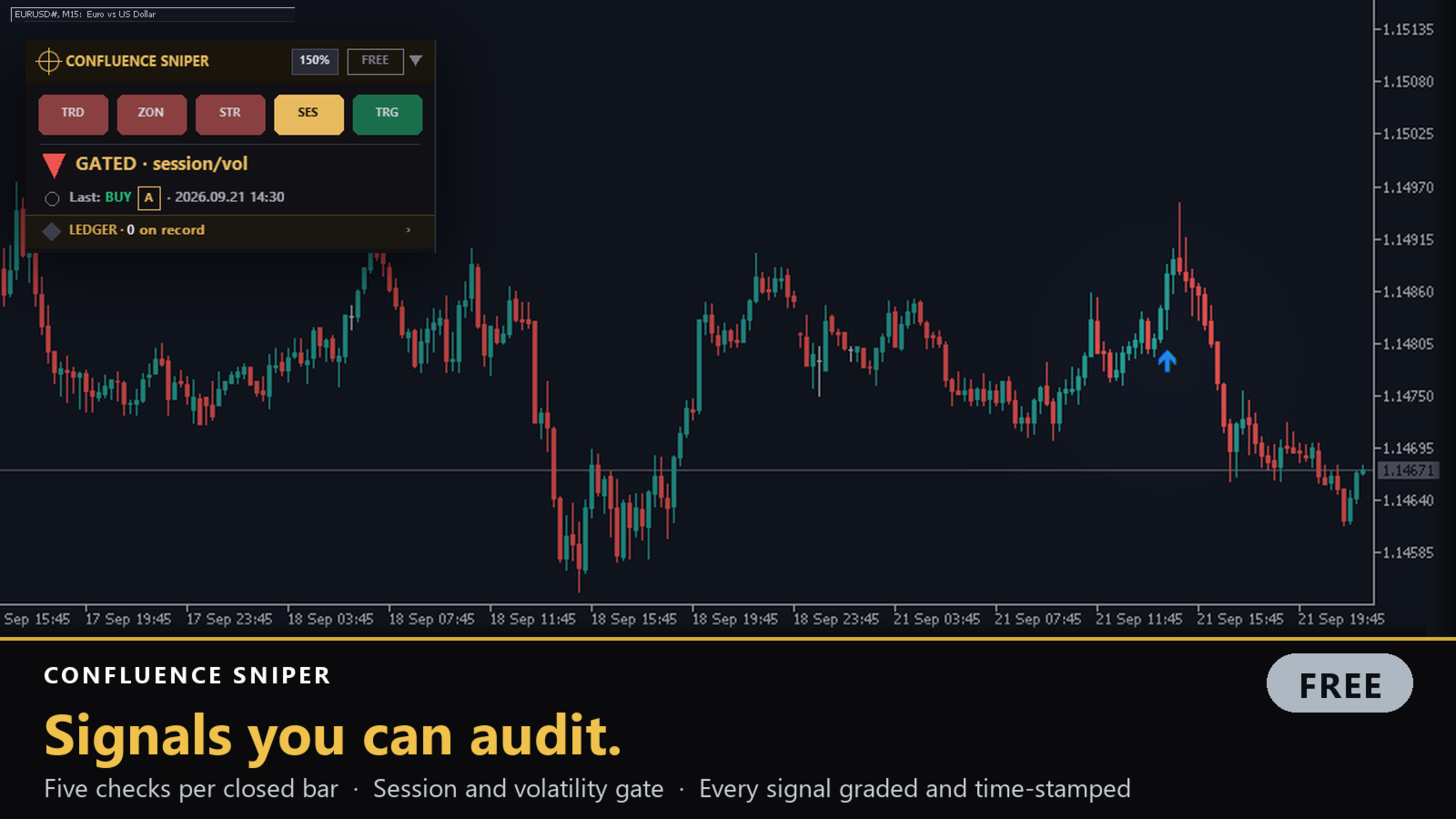
The picture shows the free edition 1.11 at 150 percent. The gate is closed (SES in amber), so the three votes, which all point down, are dimmed and the state line reads GATED · session/vol. TRG is green because the last closed bar had a bullish trigger; with the gate closed, and with no vote pointing the same way, there is no signal. The last signal on the chart, a blue arrow, is a projection graded A, which is why the Last: row starts with a grey ring and the ledger shows 0 on record.
Header
The header shows a crosshair mark, the name CONFLUENCE SNIPER, the size button (100%, 125%, 150% or 200%; each click moves to the next size), an outlined label FREE or PRO, which is not a button, and the fold triangle. Click the crosshair mark to open the About card. Point at the name to see the reading guide again. Drag the header to move the panel. The position is remembered per symbol, and the size and the folded state for the whole terminal, shared by both editions.
Engine chips
The five chips TRD, ZON, STR, SES and TRG show the state of the last closed bar. Green means up or buy, red means down or sell, and a dark chip with a small dot means the engine is watching but has no direction on this bar. SES is green while the gate is open and amber while it blocks. While the gate blocks, the direction chips are dimmed. A chip drawn as an outline only is switched off in the inputs, or, for STR, cannot work on this symbol. Point at a chip to see the numbers behind it, for example the four trend votes, the net vote and the ADX for TRD, or the window, the bar's hour and the ATR percentile for SES. These cards describe the last closed bar, except that the zone card measures the distance to the nearest zone edges from the current price.
State line
The large line below the chips answers what is happening now. Right after a signal has been recorded, and until the next bar closes, it reads BUY SIGNAL · B or SELL SIGNAL · A. While the gate blocks, it reads GATED · session/vol; the SES card tells you whether the hour or the volatility is the reason. Otherwise, when two or more of TRD, ZON and STR point the same way, it reads BUY BIAS · 2/3 or SELL BIAS · 2/3, the second number being how many of the three are in use. This is a reading of the votes only, not a signal. In every other case it reads STANDBY. The small picture on the left is a triangle for a signal or a bias, two amber bars for a closed gate and a grey ring for standby; when the gate is closed but two votes agree, the picture shows the triangle while the text says GATED, as in the screenshot above. Before the first calculation has finished, for example while history is still loading at the weekend, the panel shows STANDBY and LEDGER · 0 on record even if the ledger has rows.
Last signal
The row Last: BUY or Last: SELL, with the grade in a small frame and the time of the bar, shows the newest arrow on the chart, gold or projected. A gold crosshair in front of it means the signal is in the ledger; a grey ring means it is a projection. Point at the row, or at any arrow on the chart, for its card: direction and grade, LIVE · recorded in the ledger or Projection (model estimate), which votes agreed, the score, the bar's close and its time. With no arrow in the calculated range, the row reads No signals in view yet.
Higher-timeframe row (Pro only)
Pro adds a row that starts with MTF and shows the direction of the next two higher timeframes, for example M5 ▲ and M15 ▼ on an M1 chart, with — when there is no direction and … while the data loads. The direction uses trend conditions 1 to 4 as they are switched on in the inputs (never the fifth) and the ADX minimum, on the last closed bar of that timeframe. The row ends with ref only: it never changes a grade, and its card says so.
Ledger band
The bottom band reads, for example, LEDGER · 3 on record, with a gold diamond once there is at least one record. The number counts the ledger rows that could be placed on the bars currently loaded, so it can be lower than the number of rows in the file. Point at the band or click it to see the last five rows straight from the file, how many more there are, and the file's location.
Folded panel, About card and rating card
Folded, the panel keeps only its header. Signals, recording and, in Pro, notifications continue. The About card shows the version, the licence type and where to get support (the Comments tab of the product page), with a button to rate the product. After at least a week and some real use a card may ask for a rating; it appears at most three times in the free edition and twice in Pro, weeks apart, and never in the Strategy Tester. Don't ask again, or One-time honest rating reminder set to false, stops it.
Notifications (Pro only)
The free edition sends no notifications. Pro sends one when a signal becomes a gold arrow, at the same moment the row is written, whether or not the panel is folded. The text is in English whatever the panel language, for example Confluence Sniper EURUSD# PERIOD_M15 BUY grade B, followed by | entry zone and a price when a zone edge was recorded. Popup alert on live signal (on by default) shows it in the terminal's Alert window, Push notification sends it to the MetaTrader app on your phone (the MetaQuotes ID must be set in the terminal options), and Email sends it with the subject Confluence Sniper (the e-mail settings must be filled in). Pro does not check whether a push or an e-mail was accepted. Notifications follow the recording rules above, including the three points listed for version 1.11, and they are sent even when Record live signals to ledger is off.
Free and Pro
Both editions have the same engines and gate, the same grades, the same ledger file, the same projections and the same panel and hover cards; the same rules decide every signal. Pro adds the notifications and the higher-timeframe row, and its panel is one row taller.
The two editions share more than the ledger: they use the same chart-object prefix, the same saved position, size and folded state, and the same first-run help flag. Running both on the same chart therefore gives one panel, and removing either one removes that panel and the dotted zone lines. Changing Chart object prefix on one of them separates the objects, but the two panels still sit on the same saved position. Two charts of the same symbol also share the panel position, so moving the panel on one moves it on the other within a couple of seconds. The rating card is kept separately for each edition.
All settings
The table is generated from the source of the published version 1.11 of both editions, so it lists every input as the terminal shows it. The last column says which edition has it. The three session start hours are declared on the same line as their end hours and have no description of their own in the source, so they may appear in the input window under their variable names, InpTokyoOpen, InpLondonOpen and InpNYOpen.
General
Language, where the panel first appears, and its first size. Once you drag the panel or click the size button, the saved position and size are used instead of these inputs. The position is saved per symbol, the size and the collapsed state for the whole terminal, and both editions share them.
| Setting (as shown in MT5) | Default | What it does | Edition |
|---|---|---|---|
| Language / 言語 | LANG_EN | Language of the panel and its cards. The Pro notification text is always in English. Choices: LANG_EN, LANG_JP | Free and Pro |
| Panel corner (until dragged) | C_TR | Chart corner where the panel first appears. Used only until the panel has a saved position for this symbol. Choices: C_TL, C_TR, C_BR, C_BL | Free and Pro |
| Corner margin (px) | 14 | Distance in pixels between the panel and the chart corner. Used only together with Panel corner. | Free and Pro |
| Initial panel size (% chip on panel overrides) | CS_S100 | First size of the panel: 100, 125, 150 or 200 percent. After you click the % button on the panel, the saved size is used instead. Choices: CS_S100, CS_S125, CS_S150, CS_S200 | Free and Pro |
| Reset saved panel position/size/fold | false | When true, the saved position, size and collapsed state are deleted each time the indicator loads. The position returns to Panel corner at once; the size and the collapsed state return on the next load. Set it back to false afterwards, or the position is reset on every load. | Free and Pro |
Engines
Which of the three voting engines and the session gate are used, and the lowest grade that is shown. Switching off TRD, ZON or STR makes grade A impossible, and switching off ZON also makes grade B impossible. The price-action trigger (TRG) has no switch.
| Setting (as shown in MT5) | Default | What it does | Edition |
|---|---|---|---|
| TRD: trend consensus | true | Use the trend engine (TRD) as a vote. | Free and Pro |
| ZON: OB / FVG context | true | Use the zone engine (ZON) as a vote. It works with order-block zones only; there is no FVG detection despite the name. Grade B requires this engine. | Free and Pro |
| STR: currency strength gap | true | Use the currency-strength engine (STR) as a vote. On symbols it cannot read, such as indices or crypto, it stays off whatever this says. | Free and Pro |
| SES: session + volatility gate | true | Use the session and volatility gate (SES). When false, every bar passes the gate. SES master in the gate group does the same. | Free and Pro |
| Min grade to show (1=C 2=B 3=A) | 2 | Lowest grade that is drawn, recorded and, in Pro, notified: 1 = C, 2 = B, 3 = A. Signals below it are not shown at all. | Free and Pro |
Engine: Trend consensus (Trend Dashboard consistent)
How the TRD engine reads the trend of each closed bar: up to five conditions vote up or down, and the vote counts only while the ADX is at or above its minimum.
| Setting (as shown in MT5) | Default | What it does | Edition |
|---|---|---|---|
| Model 1: EMA cross (fast vs slow) | true | Vote up when the fast EMA is above the slow EMA, down when below. | Free and Pro |
| Model 2: EMA slope (fast rising/falling) | true | Vote up when the fast EMA is higher than one bar earlier, down otherwise. | Free and Pro |
| Model 3: ADX +DI vs -DI | true | Vote up when +DI is above -DI, down otherwise. | Free and Pro |
| Model 4: MACD (main vs signal) | true | Vote up when the MACD main line is above its signal line, down otherwise. | Free and Pro |
| Model 5: Price vs slow EMA | false | Vote up when the close is above the slow EMA, down otherwise. Off by default. The Pro higher-timeframe row never uses this condition. | Free and Pro |
| Min net model votes for a trend vote | 1 | How far the up votes must exceed the down votes (or the reverse) for TRD to have a direction. | Free and Pro |
| Fast EMA period | 20 | Period of the fast EMA. | Free and Pro |
| Slow EMA period | 50 | Period of the slow EMA. | Free and Pro |
| ADX/DI period | 14 | Period of the ADX and the DI lines. | Free and Pro |
| ADX below this = no-trade gate | 18.0 | Below this ADX value TRD casts no vote at all. Its strength score is the ADX, full at 50. | Free and Pro |
| MACD fast EMA | 12 | Fast EMA period of the MACD. | Free and Pro |
| MACD slow EMA | 26 | Slow EMA period of the MACD. | Free and Pro |
| MACD signal | 9 | Signal period of the MACD. | Free and Pro |
Engine: Zones (Order Block Zones consistent)
How the ZON engine builds its zones from earlier bars. The zones themselves are not drawn on the chart. There is no fair value gap detection, although the switch in Engines mentions FVG.
| Setting (as shown in MT5) | Default | What it does | Edition |
|---|---|---|---|
| Break must occur within N bars of the OB candle | 3 | A bar makes a demand zone from a bearish candle when its close is the first close above that candle's high within this many bars (a supply zone is the mirror image). | Free and Pro |
| Min displacement (x ATR) to qualify | 1.0 | The breaking close must be at least this many ATRs away from the far side of the candle, or no zone is made. | Free and Pro |
| ATR period (displacement gauge) | 14 | Period of the ATR used for the zone distance above and for the volatility gate. | Free and Pro |
| Also vote on mitigated-zone retests | false | When true, zones that price has already touched can also vote, with a lower score (55 instead of 85). | Free and Pro |
Engine: Strength gap (Currency Strength Duel consistent)
How the STR engine compares the strength of the two currencies of the chart symbol. It works only on currency pairs and on gold quoted as XAU or GOLD.
| Setting (as shown in MT5) | Default | What it does | Edition |
|---|---|---|---|
| Price-change lookback (bars, CSD default) | 24 | Number of bars over which each pair's percentage change is measured. | Free and Pro |
| Min base-quote strength gap (%) for a vote | 0.15 | Minimum difference, in percent, between the base and the quote currency strength for STR to vote. | Free and Pro |
Engine: Session and volatility gate (server hours, Gold Pulse defaults)
The time windows and the volatility band a bar must pass before any signal is possible. The hours are the broker's server hours, compared with the hour at which each bar opens; there is no automatic daylight-saving adjustment. The three Open inputs are declared on the same line as their Close inputs, so the table shows them under their variable names.
| Setting (as shown in MT5) | Default | What it does | Edition |
|---|---|---|---|
| SES master (off = gate always passes) | true | Master switch of the gate. When false, every bar passes, the same as Engines > SES off. | Free and Pro |
| Trade Tokyo window | false | Allow signals in the Tokyo window. Off by default. | Free and Pro |
| Trade London window | true | Allow signals in the London window. | Free and Pro |
| Trade New York window | true | Allow signals in the New York window. | Free and Pro |
| InpTokyoOpen | 2 | Start hour of the Tokyo window, in server time. | Free and Pro |
| Tokyo open/close (server hour) | 11 | End hour of the Tokyo window, in server time. The end hour itself is outside the window. If the start is later than the end, the window runs past midnight. | Free and Pro |
| InpLondonOpen | 10 | Start hour of the London window, in server time. | Free and Pro |
| London open/close | 18 | End hour of the London window, in server time (not included). | Free and Pro |
| InpNYOpen | 15 | Start hour of the New York window, in server time. | Free and Pro |
| New York open/close | 23 | End hour of the New York window, in server time (not included). | Free and Pro |
| ATR percentile lookback (bars) | 200 | Number of earlier bars against which the current ATR is ranked. With fewer than 30 usable values the volatility check passes. | Free and Pro |
| Min ATR percentile (dead-market filter) | 25.0 | The bar is blocked when its ATR ranks below this percentile (a quiet market). | Free and Pro |
| Max ATR percentile (news-spike guard, calibrated) | 95.0 | The bar is blocked when its ATR ranks above this percentile (a spike, such as around news). | Free and Pro |
Ledger
The signal ledger (a CSV file per symbol and timeframe) and the projection arrows drawn on older bars.
| Setting (as shown in MT5) | Default | What it does | Edition |
|---|---|---|---|
| Record live signals to ledger | true | Record live signals to the ledger file and replay the file as gold arrows. When false nothing is written or replayed, so gold arrows disappear when the indicator is reloaded; Pro still notifies. | Free and Pro |
| Show model projection on history (hollow) | true | Draw the projection arrows (thin blue and red) on older bars. Switching this off hides only the projections; gold arrows are unaffected. | Free and Pro |
| Projection depth on attach (bars) | 1500 | How many past bars are evaluated when the indicator loads (at least 50). Also the depth from which the zone list is rebuilt. | Free and Pro |
PRO: alerts
Pro only. How a live signal is announced. The free edition sends no notifications.
| Setting (as shown in MT5) | Default | What it does | Edition |
|---|---|---|---|
| Popup alert on live signal | true | Show a live signal in the terminal's Alert window. | Pro only |
| Push notification | false | Send a live signal to the MetaTrader app on your phone. The MetaQuotes ID must be set in the terminal options. | Pro only |
| false | Send a live signal by e-mail with the subject Confluence Sniper. The e-mail settings of the terminal must be filled in. | Pro only |
Rating reminder
The card that asks for a rating after some real use.
| Setting (as shown in MT5) | Default | What it does | Edition |
|---|---|---|---|
| One-time honest rating reminder | true | Allow the rating card. Despite the label it can appear up to three times in the free edition and twice in Pro, weeks apart. Set it to false to stop it. | Free and Pro |
Identity
The name prefix of the indicator's chart objects.
| Setting (as shown in MT5) | Default | What it does | Edition |
|---|---|---|---|
| Chart object prefix | csn_ | Prefix of the panel and entry-zone objects. Both editions use csn_ by default, so on the same chart they draw into the same panel; removing the indicator deletes every object that starts with this prefix. | Free and Pro |
Developer
Test switches used during development. Leave them as they are.
| Setting (as shown in MT5) | Default | What it does | Edition |
|---|---|---|---|
| DEV: fire dummy signals (plumbing test) | false | Development test only. When true, the real engines are replaced by dummy signals, and a dummy signal on the newest bar is written to the ledger as a live signal and, in Pro, notified. Keep it false. | Free and Pro |
| DEV: dummy signal spacing (bars) | 60 | Spacing in bars of the development test signals. Has no effect while DEV: fire dummy signals is false. | Free and Pro |
Frequently asked questions
No arrows appear at all.
Check, in order: the chart has at least 50 bars; the timeframe is below D1, or you have changed the session windows; the session hours match your broker's server time; and Min grade to show is not set higher than you meant. Then point at the SES chip: its card shows whether the last closed bar opened inside a window and what its ATR percentile was, so a few checks through the day tell you whether the gate is the reason. On quiet charts B and A signals are simply rare.
The STR chip is only an outline.
The chart's symbol is not a currency pair or gold, or the broker does not offer at least four of the related pairs under names the indicator can find. The other engines keep working, but grade A is not possible on that chart.
The panel shows LEDGER · 0 on record, but the file has rows.
The count includes only rows whose bars are loaded on the chart, and it reads 0 until the first calculation has finished. Rows older than the loaded history are kept in the file but not drawn.
A gold arrow appeared for a bar that closed while my terminal was off, or the same bar is in the file twice.
Both can happen in version 1.11, after a restart and when two instances run on the same symbol and timeframe (including the free and the Pro edition together). See the section on the ledger above. Keep one instance per symbol and timeframe if you want one row per bar.
Why do the thin arrows change after I reload the indicator?
They are projections, recomputed from the bars available at that moment. Gold arrows come from the ledger file and do not change.
What is DEV: fire dummy signals?
A development test switch. If it is set to true, the indicator produces dummy signals, and a dummy signal on the newest bar is recorded in the ledger as a live signal and, in Pro, notified. Keep it false.
Does the free edition send alerts?
No. Notifications are part of Pro only.
What it does not do, and where it stops
It does not trade and does not promise results. A grade counts how many readings agreed on one bar; the score is their average strength; neither is a win rate or a probability. All the readings come from prices of the chart's symbol and, for STR, of related currency pairs.
Signals are recorded only while the terminal is running, connected and receiving ticks, and a row is written on the first tick after the bar closes. Projections are estimates from the bars available when the indicator loads. The session gate uses fixed server hours without daylight-saving adjustment, so its windows have to follow your broker's clock by hand, and on D1 and above it blocks every bar with the default windows. STR works only on currency pairs and gold.
Apart from drawing, it adds the currency pairs it needs to Market Watch, writes the ledger files under MQL5\Files\ConfluenceSniper, saves the panel state in the terminal's global variables (names starting with CSN_), keeps the rating card's state in a small file in the terminals' shared Common\Files folder, and turns on mouse-move events for its chart. When it is removed, it deletes every chart object whose name starts with its prefix. Until its first full calculation has finished, for example when it is attached at the weekend and no ticks arrive, it may refresh the chart a few times (at most ten in a row) to prompt that calculation, and the indicators on that chart, this one included, are re-initialised each time. It uses no DLL and no web request.
Support
Post on the Comments tab of the product page (free edition, Pro). The symbol, the timeframe, what the panel and the cards showed and, for questions about recorded signals, the matching rows of the ledger file are enough to start.
This guide describes Confluence Sniper 1.11 and Confluence Sniper Pro 1.11.