"Just Send Me Your Login". What Actually Happens When You Hand Over Your Password

One Harmless Request
The mentor sent a direct message: "Send me access to your monitoring, I'll look at your trades and we'll go through them at the weekend."
A perfectly normal request. The review was needed, the mentor was a friend, there was nothing to hide. Igor sent the login and password to his workspace.
What follows is what nobody thinks about at that moment.
The mentor needed one account — the one Igor had been trading manually for the past two months. He received eight: including two challenges, his wife's account and an old archived account at a broker Igor had long forgotten about. Plus the section with payment details and billing history. Plus the workspace's main API key. Plus the privacy settings — meaning the ability to accidentally publish things that were never meant to be public.
The mentor did nothing wrong, obviously. A month later the reviews were over, the relationship ended on good terms, and Igor decided to close the access.
And that's when it turned out there was exactly one way to close it: change the password. After the change, every integration he'd spent six months setting up came apart — and he had to rebuild what had been working.
The result: to show one account for one month, he handed over everything he had in the service, and then paid for the return of control with his own time.
This article is about a new FX Monitor section built for exactly this situation. It's called Shared Access.
Four Bad Options People Choose Between Today
Before the solution, let's state the problem honestly. A trader who needs to show his statistics to a manager, a mentor, a partner or an investor currently picks from four options, and all four are bad.
| What people do now | Why it's bad |
|---|---|
| Hand over the workspace login and password | They hand over everything at once: billing, payment details, settings, every account. The only way to take it back is a password change |
| Send screenshots | Outdated the moment they're sent, nothing can be verified, no analytics |
| Create a second account "for showing" | Duplicated accounts, an extra subscription to pay for, data drifting apart |
| Hand over an API key | A key to the entire workspace: not tied to accounts, allows creating new ones, can't be revoked except by regenerating it |
Note what the first and last rows have in common. A password and an API key are all-or-nothing access. They have no gradations: you can't grant one account, you can't hide billing, you can't limit the term. And in both cases revocation isn't an action — it's an operation with side effects.
Screenshots and a second account are attempts to work around that limitation by hand. Hence their weaknesses: a screenshot is safe but useless for analysis; a second account is useful but requires duplicating the whole setup and paying for it.
Shared Access closes all four cases with a single mechanism.
What It Is
Shared Access lets you open your FX Monitor workspace to another person — a manager, a partner, a mentor or a client — without handing over your password. The owner chooses which accounts to show, what to allow and what to hide. The invited person works under their own account, with their own notifications and their own Telegram. Access is revoked in one click, and every data change is recorded in the log.
In one line:
Show your accounts to your manager — no password, nothing extra, and you can close access at any moment.
The interesting part is in the details, so let's go through them.
What the Workspace Owner Configures
Invitation by Email
The person receives an email with a link. The link is single-use and personal: it works only for the address it was issued to. A forwarded email won't open access — which matters, because emails get forwarded more often than people assume. The link is valid for 14 days.
If the link is lost, it can be re-sent from the "Access" section; the old one stops working at that point.
Role and Permissions
There are two preset roles — Observer and Manager. They're a starting point, not a rigid frame: permissions are then adjusted with checkboxes, and there are around twenty of them.
The logic behind the presets is simple. An Observer is someone who looks: a mentor, an investor, a partner. A Manager is someone who also works with the data in your workspace.
What Exactly Access Covers
Not "the whole workspace", but specific accounts and/or portfolios you select. This is the key difference from a password: Igor had eight accounts and wanted to show one.
Field Masking
Separate flags hide the account number, broker and trading server. The statistics stay complete — only the account's identity is masked.
The use case is obvious: a trader shows an investor the returns and drawdowns without revealing where the account is held. The investor sees everything needed for an assessment and nothing that isn't.
One-Click Revocation
Instantly. Not on a schedule, not "within the hour", but from the invited person's very next action. No password change, no broken integrations.
An Activity Log — Including Denials
The owner sees who changed what and when in their workspace. And — this is the part most implementations skip — what they weren't allowed to do. Denials are logged too.
So you see not only completed actions but attempts to reach places the permissions didn't cover. For judging how someone behaves in your workspace, that's considerably more informative than a list of successful operations.
EA Connection Key
A separate capability: if a manager or an EA developer needs to connect their own terminal to your account, the owner can issue an EA connection key.
It's important not to confuse this with the workspace's main API key — they're different things. The connection key is limited in scope: it works only on the accounts opened to that person, it can't be used to create new accounts, and revoking the invitation kills it immediately.
What It Looks Like From the Invited Person's Side
Half the value of the section lives on this side, and announcements usually undersell it.
The invited person works under their own account. No shared passwords, no "log in as me and just don't touch anything". Their own login, their own history, their own profile.
Switching between workspaces happens through a menu. The top of the page always shows whose workspace you're currently in. A small thing that stops being small once you have more than two clients.
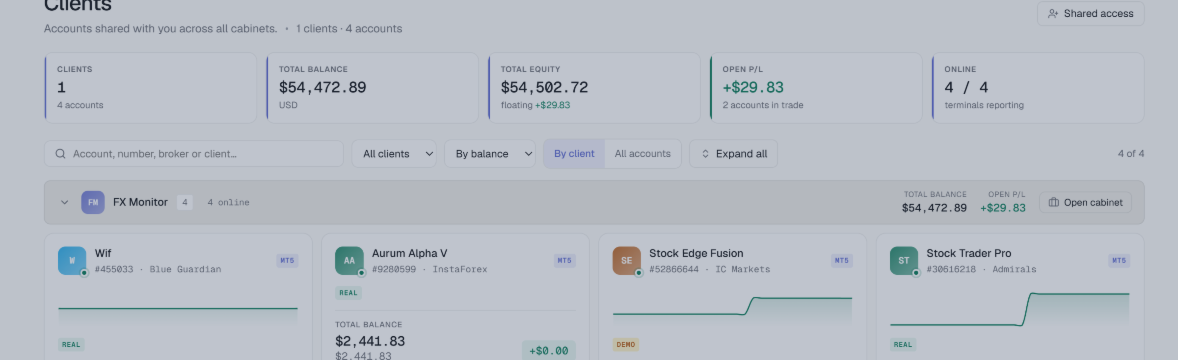
A dedicated "Manager Workspace" page. Account cards grouped by client, total capital, balance charts, search, sorting, filtering by client. This is the answer to "how do I see everything at once": all accounts of all clients on one screen, with one-click drill-down into any account.
Own Telegram, own notifications. The invited person connects their own Telegram and chooses which of the client's accounts to receive notifications for. The client's own settings aren't touched — these are two independent channels. A manager may want a drawdown alert on a client's account while the client doesn't; both get what they configured.
New invitations appear directly on the "Clients" page and are accepted there.
What Is Never Shared
Worth reading closely, because this defines the boundary of trust.
Even a Manager with maximum permissions does not receive:
- the owner's billing and payment details;
- the workspace's main API key;
- profile settings — password, email, language, timezone;
- privacy settings — what gets published externally is the owner's decision alone;
- the right to invite third parties on the owner's behalf;
- support tickets — that correspondence stays private.
On data deletion specifically: it's a separate permission, and it's off by default even for a Manager. The owner enables it deliberately, if they actually want that person to be able to delete things.
Compare that to the list of what Igor's mentor received along with the password. The difference is the entire point of the section.
Why It's Secure: The Mechanics
Five decisions that make up the section's security model.
The invitation link is single-use and personal. It works only for the email it was issued to, and it's valid for 14 days. Forwarding an invitation to "share the access" won't work.
Revocation is immediate. From the very next action, not on a schedule.
Permissions are checked on every action, not once at login. This matters: if you uncheck a box while the person is inside your workspace, the restriction takes effect on their next action rather than after they log out and back in.
The EA connection key is scope-limited. Only the accounts opened to that person, no creating new ones, and revoking the invitation kills the key at once.
The log records denials too. The owner sees not only what was done but what was attempted without permission.
One more detail for anyone coming off a paid plan: losing a subscription doesn't delete the configuration. Invitations go dormant and wake up when the plan returns. You won't have to hand out permissions again.
Who Needs This: Six Scenarios
A Manager and His Clients
A manager runs accounts for several clients. Each client opens access to their account. The manager sees all accounts of all clients on one page — total capital, equity, open P/L, who's online right now — and drills into any specific account in one click.
That job used to be handled by a spreadsheet someone filled in by hand.
A Mentor and a Student
The student grants the mentor view access. The mentor sees trades, the journal and the analytics — and leaves notes in the changelog, if permitted. The password stays with the student.
Exactly Igor's case, minus the side effects.
An Investor and a Trader
The trader shows the investor one account out of ten, with the account number and broker hidden. The investor sees returns and drawdowns, can't touch anything, and doesn't know where the account is held.
A Prop Trader and His Team
Shared Access works together with the prop firm vertical: a partner sees rule compliance, breaches and the challenge forecast. For teams running challenges jointly, that removes the need to send each other dashboard screenshots.
An EA Developer
A user grants the developer access to the account where their EA is running. The developer sees the EA working on a live account — not a report, not a screenshot, but live data. And if the owner issued a connection key, the developer can connect their own terminal to that account without getting access to the rest of the workspace.
For EA authors this is arguably the most practical scenario: support stops being an exchange of "please send me a screenshot of the History tab".
Family and Partnerships
Two people run accounts together. Each sees the full picture, while settings, billing and profile stay separate.
Plans: Who Pays for What
There are two independent paid capabilities here, and it's important not to conflate them.
| Capability | Who needs it | What it gives |
|---|---|---|
| Shared Access | The workspace owner | The right to open your workspace to others. The limit is the number of simultaneous invitations |
| Manager role | The invited person | The right to change data in someone else's workspace |
And the main point: viewing someone else's workspace is free. You can be an Observer on any plan, including Free.
The logic is simple. The person who opens their workspace to others pays. The second subscription is only needed by a professional who works inside other people's workspaces — that is, makes changes rather than just looking.
In practice this means the investor, mentor or partner you granted access to doesn't need to buy anything. They register, accept the invitation and look.
What the Section Doesn't Do
A necessary part, so as not to create false expectations.
This is not copy trading and not trading access. FX Monitor is analytics. A manager sees and analyses accounts but does not open or close trades through us.
We don't move money and take no part in settlements between a manager and a client. How you agree on compensation is between you.
We don't rate managers and give no recommendations about who to trust with an account. The section provides an access mechanism, not a ranking of people.
FX Monitor provides access to trading account analytics. The service does not execute trades, does not manage funds and does not constitute investment advice.
Short FAQ
Will the invited person see my other accounts? No. Only the ones you selected in the invitation.
Can they delete anything? Only if you specifically allowed it. Deletion is off by default even for a Manager.
Will they see my payment details? No. Billing, the API key, profile and privacy settings are never shared, under any permissions.
What happens to their notifications on my accounts if I revoke access? They switch off along with the access.
Can the account number be hidden? Yes. Separate flags hide the account number, broker and trading server. This doesn't affect the statistics — only the account's identity is masked.
Does the invited person need a paid plan? To view — no, a free plan is enough. To make changes in your workspace — a subscription with the Manager role is required.
What happens if my subscription runs out? Invitations aren't deleted — they go dormant. When the plan returns, access is restored with the same permissions.
Can a manager trade on my account? No. FX Monitor is analytics; trades are not placed through the service.
What if I lost the invitation link? Send it again from the "Access" section. The old link stops working at that point.
The Bottom Line
Back to Igor. What would have been different with Shared Access.
He'd have sent the mentor an invitation to his email. Selected one account — the one he wanted to show. Left the role as Observer. And, if he wanted, hidden the account number and broker.
The mentor would have registered under his own account — for free, since viewing is free — accepted the invitation and seen exactly what was opened to him. No billing, no API key, none of the other seven accounts.
A month later, when the reviews were done, Igor would have pressed one button. No password change, no reconnecting integrations.
That's the whole idea: access should be configurable and reversible. A password has neither property — and we keep using it because until now there simply wasn't another tool.
The Shared Access section is live in FX Monitor. MT4 and MT5 are both supported. Viewing someone else's workspace is available on any plan, including the free one; opening your workspace to others and working as a Manager are paid-plan capabilities.