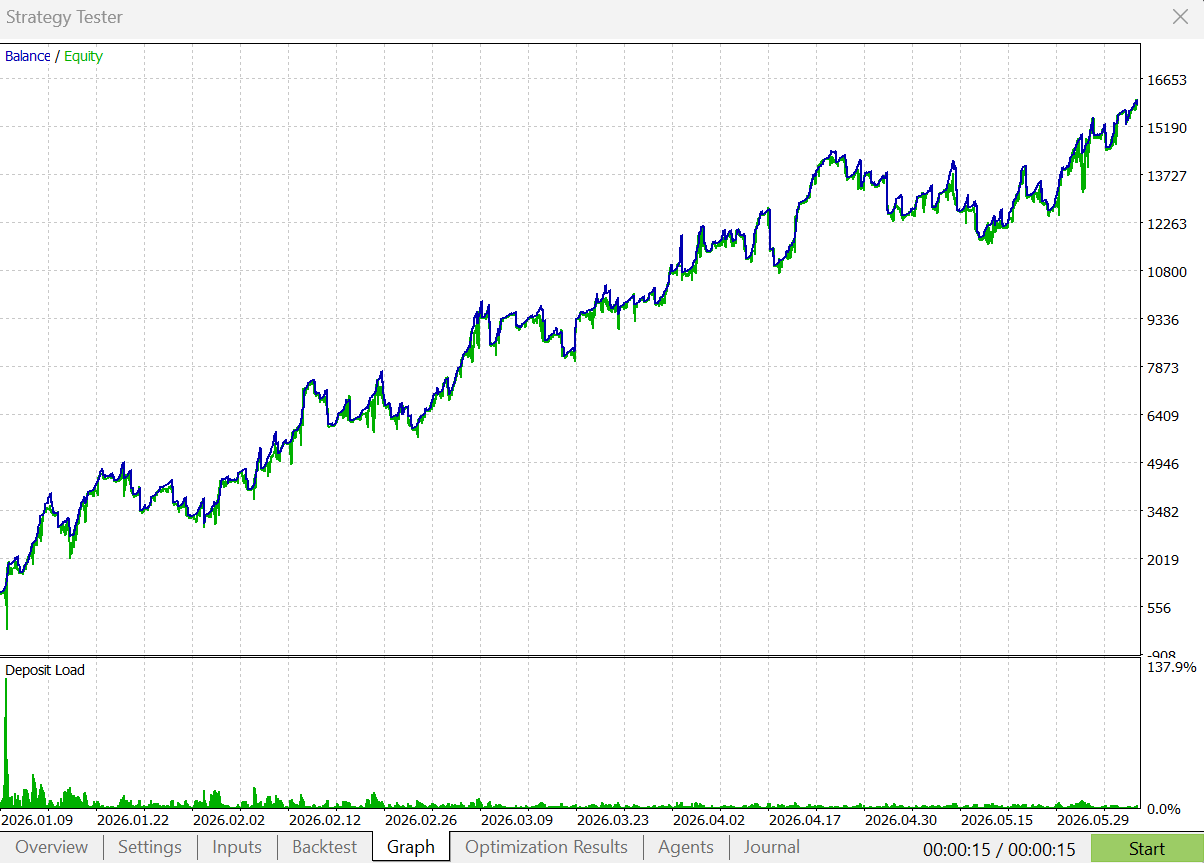
M1 Quantum Assistant
Download M1 Quantum Assistant MT5 V1.3
Download M1 Quantum Assistant MT5 V1.2
Introduction
M1 Quantum Assistant is a professional Expert Advisor (EA) for MetaTrader 5 designed to work seamlessly with the M1 Quantum MT5 Indicator. It can also operate as a fully independent trading assistant.
Whether you prefer:
-
Fully automated signal execution
-
Manual confirmation before every trade
-
Instant one-click trading
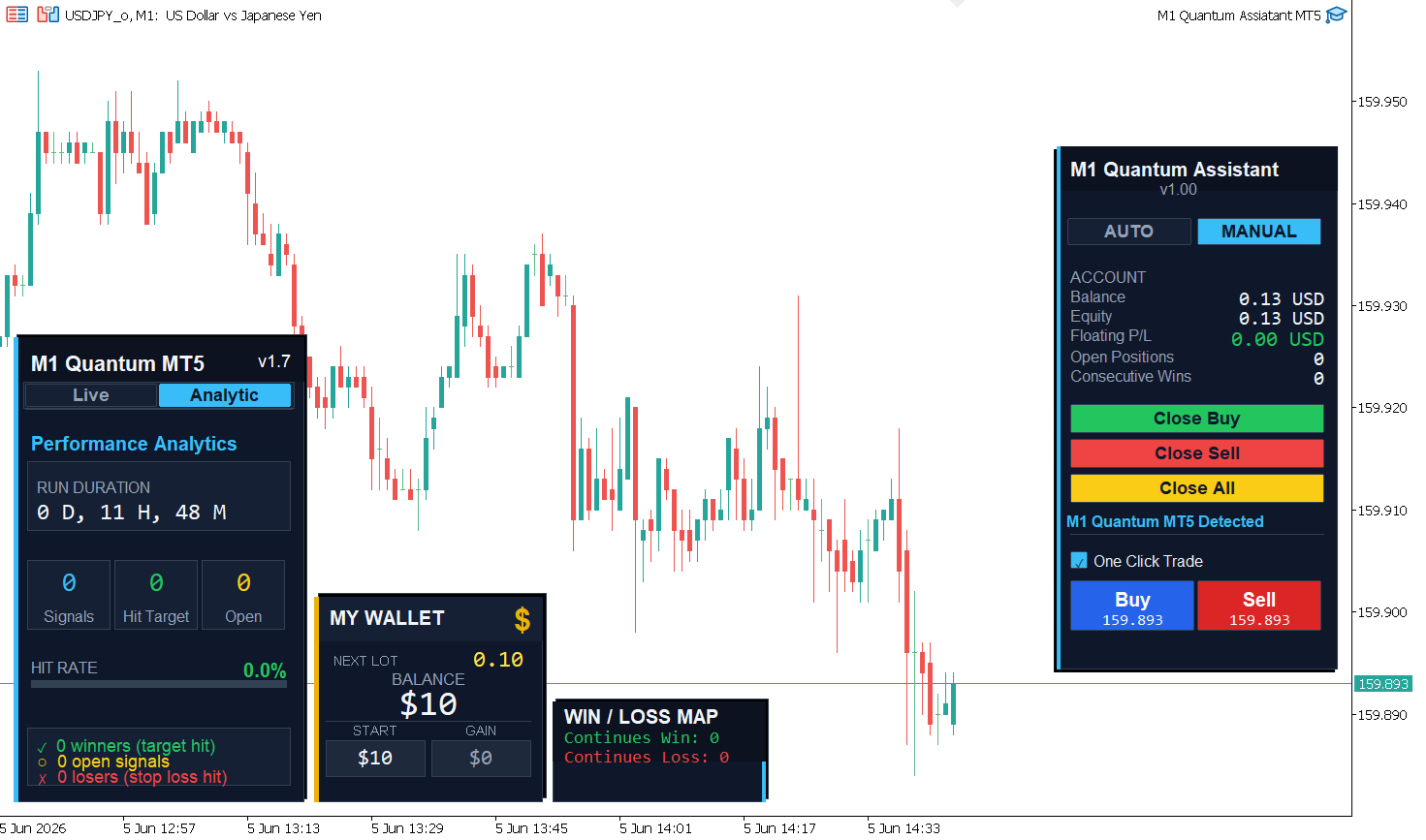
M1 Quantum Assistant provides a powerful trading panel with live account information, position management tools, and an intelligent money management system based on consecutive winning trades.
When connected to the M1 Quantum Indicator, the EA automatically reads trading signals, opens positions using the indicator's Stop Loss and Take Profit levels, and manages trade sizing according to your selected money management settings.
Even without the indicator, the built-in One Click Trade feature transforms the EA into a complete manual trading panel.
Key Features
- Live trading dashboard with Balance, Equity, and Floating Profit/Loss
- AUTO Mode for fully automated signal execution
- MANUAL Mode with confirmation before each trade
- One Click Buy and Sell buttons with live market prices
- Close Buy, Close Sell, and Close All functions
- Automatic M1 Quantum Indicator detection
- Fixed Lot and Quantum Money Management modes
- Consecutive Wins tracking
- Built-in pre-trade safety checks
Using M1 Quantum MT5 Indicator
Setup
-
Attach M1 Quantum MT5 to your chart.
-
Attach M1 Quantum Assistant EA to the same chart.
-
Enable Algo Trading in MetaTrader.
-
When the indicator is detected, the panel footer displays:
"M1 Quantum MT5 Detected"
Signal Trading Process
The EA monitors chart objects created by the indicator:
-
Buy/Sell Arrows ( M1Quantum_Sig_Arr_* )
-
Take Profit Lines ( M1Quantum_Sig_TpLn_* )
-
Stop Loss Lines ( M1Quantum_Sig_SlLn_* )
AUTO Mode
When a new signal appears:
-
Trade opens automatically at market price
-
Stop Loss and Take Profit are applied automatically
-
No user interaction required
MANUAL Mode
When a new signal appears:
-
A confirmation dialog is displayed
-
Trade details are shown before execution
-
You can approve or reject the trade
Note: Only signals generated after the EA is attached are processed. Existing historical signals are ignored.
Standalone Trading Assistant
The EA can be used without the M1 Quantum Indicator.
How to Use
-
Attach M1 Quantum Assistant to any chart.
-
Enable One Click Trade.
-
Use the Buy and Sell buttons for instant market entries.
Benefits
-
Compact trading panel
-
Fast manual order execution
-
Live account monitoring
-
Position management tools
-
Consecutive Wins money management system
When the indicator is not installed, the panel displays:
"Requires M1 Quantum MT5 Indicator"
This message is informational only and does not affect manual trading functionality.
AUTO Mode vs MANUAL Mode
AUTO Mode
Recommended for traders who want fully automated execution.
Features:
-
Instant execution of valid signals
-
No confirmation required
-
Safety checks remain active
MANUAL Mode
Recommended for traders who want full control.
Features:
-
Trade confirmation before execution
-
Complete discretion over signal acceptance
-
Ability to skip unwanted trades
You can switch between modes at any time from the panel.
Money Management
M1 Quantum Assistant offers two lot-sizing methods.
Fixed Lot Mode
Every trade uses the same lot size.
Advantages
-
Simple
-
Predictable
-
Easy risk management
Consecutive Wins and Increment Factor settings are ignored.
Quantum Mode (Recommended)
Quantum Mode increases lot size only after winning trades.
Unlike Martingale, which increases risk after losses, Quantum Mode rewards successful trading periods while protecting the account during losing periods.
How It Works
-
Start with the Base Lot.
-
Increase lot size after every winning trade.
-
Reset to Base Lot after reaching the target number of consecutive wins.
-
Reset to Base Lot immediately after any losing trade.
This approach allows growth during profitable streaks while maintaining controlled risk.
Consecutive Wins Money Management
Traditional Martingale systems increase lot size after losses, creating significant risk during losing streaks.
Quantum Mode follows the opposite principle:
| Event | Action |
|---|---|
| First Trade | Use Base Lot |
| Winning Trade | Increase Lot Size |
| Consecutive Wins Target Reached | Reset to Base Lot |
| Losing Trade | Reset to Base Lot |
This means larger positions are opened only when the market is already producing profits.
Quantum Mode Settings
| Setting | Description |
|---|---|
| Base Lot | Initial trade size |
| Consecutive Wins | Number of wins required to complete a cycle |
| Lot Increment Factor | Multiplier applied after each win |
Example
Settings
-
Base Lot: 0.10
-
Consecutive Wins: 3
-
Increment Factor: 2.0
Winning Cycle Example
| Step | Result | Lot Size | Approx. Profit |
|---|---|---|---|
| Trade 1 | Win | 0.10 | +$7 |
| Trade 2 | Win | 0.20 | +$14 |
| Trade 3 | Win | 0.40 | +$28 |
| Cycle Complete | Reset | 0.10 | Total ≈ $49 |
Loss Example
| Step | Result | Lot Size |
|---|---|---|
| Trade 1 | Win | 0.10 |
| Trade 2 | Loss | 0.20 |
| Trade 3 | Reset to Base Lot | 0.10 |
A loss immediately returns the system to the safest lot size.
Why the Win/Loss Sequence Matters
Many traders focus only on win rate.
However, the sequence of wins and losses can significantly impact performance.
Example
All three traders below have the same 60% win rate.
| Trader | Sequence |
|---|---|
| Trader A | W → W → W → L → L |
| Trader B | L → L → W → W → W |
| Trader C | W → L → W → L → W |
Results
Trader A
-
Completes a full winning cycle
-
Benefits from lot progression
Trader B
-
Also completes a full winning cycle
-
Benefits from lot progression
Trader C
-
Never reaches the consecutive wins target
-
Frequently resets to Base Lot
This is why tracking consecutive wins is often more valuable than simply tracking win percentage.
One Click Trade
The One Click Trade section is located at the bottom of the panel.
How It Works
-
Enable the One Click Trade option.
-
Use the Buy button to enter at the current Ask price.
-
Use the Sell button to enter at the current Bid price.
-
Trades are opened instantly.
Important Notes
-
Orders are opened without Stop Loss or Take Profit.
-
Lot size follows your selected money management settings.
-
When disabled, the buttons become inactive.
Account Information Panel
| Item | Description |
|---|---|
| Balance | Current account balance |
| Equity | Live account equity |
| Floating P/L | Current open profit or loss |
| Open Positions | Number of active EA trades |
| Consecutive Wins | Current winning streak |
Position Management
Close Buy
Closes all BUY positions opened by the EA.
Close Sell
Closes all SELL positions opened by the EA.
Close All
Closes every EA position on the current symbol.
All close operations require confirmation before execution.
Trade Settings
| Setting | Description |
|---|---|
| Magic Number | Unique identifier for EA trades |
| Slippage | Maximum acceptable slippage |
| Trade Comment | Comment attached to orders |
| One Trade Per Signal | Prevents duplicate entries |
| Allow Multiple Positions | Enables multiple simultaneous trades |
Pre-Trade Safety Checks
Before opening any trade, the EA verifies:
-
Broker connection is active
-
Trading is allowed by the terminal
-
Algo Trading is enabled
-
Account permissions allow EA trading
-
Symbol is available for trading
If any requirement fails, a detailed warning message is displayed.
If the broker rejects an order, the exact rejection reason is shown.
Quick Start Checklist
✅ Attach M1 Quantum Assistant to a chart
✅ Enable Algo Trading
✅ Select Lot Mode (Fixed Lot or Quantum Mode)
✅ Configure Base Lot, Consecutive Wins, and Increment Factor
✅ Choose AUTO or MANUAL mode
✅ Attach M1 Quantum MT5 Indicator (optional)
✅ Enable One Click Trade (optional)
Copyright
© 2026 Hamed Dehghani. All Rights Reserved.