User Manual
Table of Contents
1. Introduction
1.1 Overview and Purpose
1.2 Key Features at a Glance
1.3 Compatibility
2. Installation & Setup
2.1 Prerequisites
2.2 Attaching the EA to a Chart
2.3 Saving and Loading Parameters
2.4 Magic Number
3. Input Parameters Reference
3.1 Risk Coefficient (RiskCoef)
3.2 Position Pairs (Slots 1–10)
3.3 Pre-Limit Order Settings
3.4 Partial Default Size
3.5 Trailing Stop Distance
3.6 Break-Even Settings
3.7 Partial Close Settings
3.8 Profit/Loss Close Thresholds
3.9 Display Settings
3.10 Broker Minimum Volume Step
4. On-Chart Display & HUD
4.1 Top-Left Information Labels
4.2 AUTO BE Button
4.3 Position SL/TP Lines and Labels
4.4 Color Reference for Chart Objects
4.5 On-Screen Display Panel
5. Hotkey Reference — Trade Execution
5.1 Instant Market Order Keys
5.2 Close All Trades
6. Pre-Limit Order System
6.1 Concept
6.2 Drawing Pre-Limit BUY Lines (F16)
6.3 Drawing Pre-Limit SELL Lines (F17)
6.4 Adjusting the Lines
6.5 Confirming the Order (Z)
6.6 Cancelling the Pre-Limit Setup
7. Risk Calculator (Numpad *)
7.1 Purpose
7.2 Available Targets
7.3 Target Selection Popup
7.4 Entering a Target Risk and Applying
8. Position Management Hotkeys
8.1 Trailing Stop (F19)
8.2 Manual Break-Even (F20)
8.3 Auto Break-Even (AUTO BE Button)
8.4 Close Profitable Positions Above X
8.5 Close Losing Positions Above X
8.6 Partial Close % Preset 1 (Numpad 9)
8.7 Partial Close % Preset 2 (Numpad 0)
9. Partial Close System
9.1 Concept
9.2 Setting Up a Partial (Y Toggle)
9.3 Validation Rules
9.4 Partial Behaviour on Price Trigger
9.5 Stacking Multiple Partial Levels
10. F18 Cancel Popup
10.1 Purpose
10.2 Opening the Cancel Popup (F18)
10.3 Selecting and Cancelling
11. Inverse Trade Feature (Numpad /)
11.1 How It Works
11.2 SL/TP Preservation Logic
11.3 Broker Minimum Stop Distance
12. Trading Deck Configuration
12.1 Overview
12.2 Recommended Button Layout
12.3 Set-up in Stream Deck
13. Troubleshooting & FAQ
13.1 Hotkeys do not trigger trades
13.2 Pre-Limit lines do not appear correctly
13.3 Risk Calculator does not open
13.4 Risk target selector appears before the calculator
13.5 Partial setup is rejected
13.6 F18 popup contains different item types
13.7 OSD panel is not visible
Appendix A — Hotkey Quick Reference
Appendix B — Glossary of Terms
User Manual — Version 2.03 MT5 Trading-Deck EA Expert Advisor for MetaTrader 5 Copyright © 2026 Trading-Deck.com
Elgato and Stream Deck are registered trademarks of Corsair Memory, Inc.This product is independent and is not affiliated with, endorsed by, or sponsored by Corsair Memory, Inc. or Elgato.
1. Introduction
1.1 Overview and Purpose
The MT5 Trading-Deck EA is a keyboard-driven Expert Advisor for MetaTrader 5, designed to give active traders full control over trade execution, position management, and risk calculation from a single keystroke. Whether you are scalping on a 1-minute chart or managing multiple swing positions across different instruments, this EA eliminates the time-consuming process of manually filling order tickets. Every critical trading action — opening a position with a pre-defined stop loss and take profit, partially closing at a target level, triggering break-even, or reversing a trade — can be executed instantly with a single key press or Stream Deck button.
The EA is purpose-built for use with an Elgato Stream Deck device, which allows each hotkey to be mapped to a clearly labelled, backlit physical button. It is equally functional with any standard keyboard, on both Windows and Mac systems.
The EA also integrates a visual Position Calculator that lets you plan a trade directly on the chart before committing. Press Pre-Limit (BUY) or Pre-Limit (SELL) to draw three draggable lines — Entry, Stop Loss, and Take Profit — and position them at your desired levels. Labels update in real time showing the exact lot size, monetary SL exposure, and projected TP gain. Once satisfied, a single keypress submits the pending order to the broker. You can further schedule up to 10 automatic partial closes at pre-defined price levels: each Partial arms silently in the background and fires without any intervention the moment the market reaches your target, allowing you to scale out of a position at multiple levels while remaining entirely hands-free.
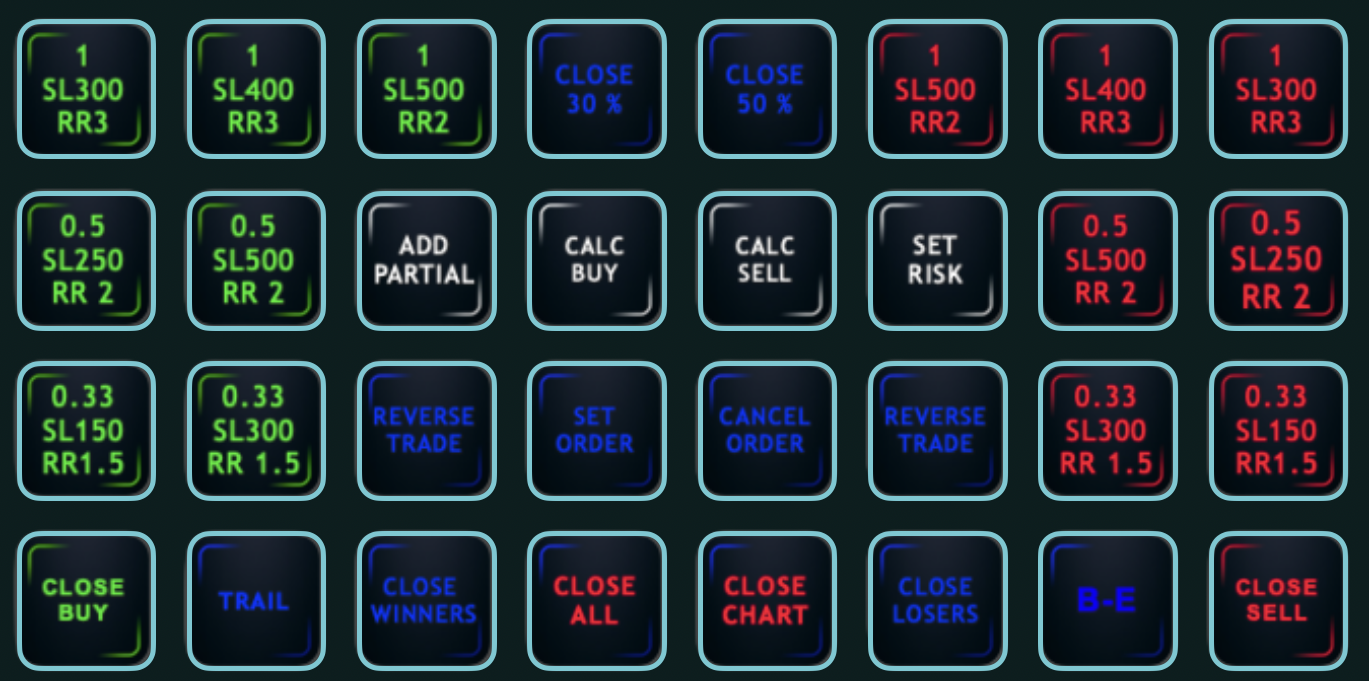
Overview of the MT5 Trading-Deck EA on a Stream deck
1.2 Key Features at a Glance
- Up to 10 independent position slots, each with its own lot size, stop loss (in account currency), and risk/reward ratio — 10 × BUY and 10 × SELL with automatic SL and TP placement
- Pre-Limit Order system with draggable chart lines and integrated position calculator
- Risk Calculator to compute the exact lot size for a defined monetary risk amount and apply it to a pre-limit setup or an eligible pending order
- Risk target selector popup that appears when more than one valid risk-calculation target is available on the chart
- Trailing Stop and Break-Even management, including an automatic BE trigger based on a configurable RR level
- Partial Close system: arm a partial close at a specific price level and let the EA fire it automatically when the market reaches that level — each partial can be defined as a % of position, up to 10 partials per trade
- Enhanced partial popup with contract/order selection, available-percentage control, and validation before confirmation
- Instant partial close — 2 shortcuts to close 2 different % of your running trade
- Inverse Trade: close any position and immediately reopen it in the opposite direction, preserving the original SL/TP distances and risk/reward ratio
- Close all trades, close all BUY trades, close all SELL trades, close profitable trades above a threshold, or close losing trades above a threshold — all in one keystroke
- F18 Cancel Popup to cancel pending orders and active partial watchers from one selector window
- On-Screen Display panel with quick-access controls for pre-limit setup, partial setup, order confirmation, risk tools, cancel actions, and flatten-all management
- Flatten All function to close all live positions and cancel all pending orders managed by the EA instance
- Full on-chart HUD displaying SL/TP levels, ticket numbers, real-time P&L, and trade count
- Mac compatible: F13–F20 keys and Numpad fully supported
1.3 Compatibility
The EA is compatible with any broker running MetaTrader 5 on Windows or Mac. All stop-loss distances and lot sizes are expressed in account currency (monetary units), not in pips, making the EA instrument-agnostic and directly usable across Forex, Indices, Commodities, and Crypto CFDs without recalculation. The EA automatically retrieves tick value and tick size from the broker to convert monetary SL amounts into the correct number of points for each instrument.
2. Installation & Setup
2.1 Prerequisites
Before attaching the EA to a chart, ensure the following conditions are met:
- MetaTrader 5 is installed and connected to your broker
- The EA file MT5-TRADING-DECK.ex5 is placed in the correct MT5 directories:
- EA source file: MQL5/Experts/
- .set files: MQL5/Presets
- AutoTrading is enabled in the MT5 toolbar (the green "AutoTrading" button must be active)
- The chart on which you attach the EA must allow keyboard events — ensure the MT5 chart window is in focus when using hotkeys (click with the mouse on the chart before striking a key)
2.2 Attaching the EA to a Chart
Open the chart of the instrument you wish to trade and drag the EA from the Navigator panel onto the chart, or double-click its name. The EA properties window will open, presenting all configurable input parameters (see Section 3). After reviewing, adjusting and saving the parameters, click OK. The EA will initialize, draw its HUD overlay on the chart, and begin listening for keyboard events.
Warning: ⚠ Important: The EA must be attached to the specific chart of the instrument you want to trade. Hotkeys are processed only for the chart on which the EA is running and in focus.
Warning: ⚠ Only the X key will act on all charts, closing all open positions.
2.3 Saving and Loading Parameters with a .set File
Once you have configured your parameters, it is strongly recommended to save them as a .set file so you can reload them instantly in the future without re-entering every value.
To save a .set file:
- Open the EA properties (right-click the EA smiley face icon on the chart → Expert Advisor Properties)
- In the Inputs tab, click Save
- Choose a meaningful filename (e.g., EURUSD_Scalping.set ) and save it
To load a .set file:
- Open the EA properties
- In the Inputs tab, click Load
- Select the appropriate .set file
This is particularly useful when you run the EA on multiple instruments with different lot sizes and risk parameters, or when you want to switch between a conservative and aggressive risk profile quickly.
2.4 Magic Number
The Magic Number is a unique integer identifier assigned to all orders and positions opened by this EA instance. It allows the EA to distinguish its own trades from those opened manually or by other EAs running on the same account. If you run multiple EA instances simultaneously on different charts, assign a unique Magic Number to each instance (e.g., 1001, 1002, 1003). Leaving the Magic Number at 0 means the EA will manage all trades regardless of origin.
3. Input Parameters Reference
The EA exposes all of its operating parameters through the standard MT5 Inputs tab. Parameters are organized into logical groups.
3.1 Risk Coefficient (RiskCoef)
The Risk Coefficient is a global multiplier applied to all position lot sizes across all 10 position slots simultaneously. It does not affect SL or TP distances — only the position size scales.
| Value | Effect |
|---|---|
| 1.0 (default) | Standard lot sizes as configured |
| 0.5 | All position sizes halved (reduced risk) |
| 2.0 | All position sizes doubled (increased risk) |
This is useful for quickly scaling up or down your overall exposure without modifying each position slot individually.
3.2 Position Pairs (Slots 1–10)
The EA provides 10 independent position slots, each mapped to a pair of keyboard keys: one for BUY and one for SELL. Each slot is configured with three parameters:
| Parameter | Description |
|---|---|
| Lot Size | Position size in lots (e.g., 0.10) |
| Stop Loss | SL distance expressed in account currency (monetary value), not in pips |
| Risk/Reward Ratio | Multiplier used to automatically calculate the TP distance from the SL distance. A ratio of 3 places the TP at three times the SL distance from entry |
Position slot key mapping:
| Slot | BUY Key | SELL Key |
|---|---|---|
| 1 | A | B |
| 2 | C | D |
| 3 | E | F |
| 4 | G | H |
| 5 | I | J |
| 6 | K | L |
| 7 | M | N |
| 8 | O | P |
| 9 | R | S |
| 10 | T | U |
Warning: Setting a Lot Size to 0 means no position will be opened when that key is pressed. Always set both Lot Size and Stop Loss to non-zero values before going live with any slot.
3.3 Pre-Limit Order Settings
- PreLotSize : Lot size used when placing a pending limit/stop order via the Pre-Limit system. Can be overridden at runtime by the Risk Calculator.
- PreStopLoss : Default SL distance (in account currency) for pre-limit orders. Determines the initial spacing between the Entry line and the SL line.
- RiskRewardRatioPre : The R/R ratio used to place the TP line relative to the SL distance for pre-limit orders.
3.4 Partial Default Size
Partial Default Size defines the default percentage of the position volume that will be closed when a Partial is armed (see Section 9). The default value is 50%. This can be adjusted at runtime in the partial close popup before confirming.
3.5 Trailing Stop Distance
Trailing Stop Distance defines the trailing stop distance in account currency. When the trailing stop is activated via F19 , the EA continuously moves the SL of all open positions on the current chart upward (for BUYs) or downward (for SELLs) as the market moves in your favour, maintaining the specified monetary distance from the current bid/ask price.
3.6 Break-Even Settings
- Break-Even: The minimum profit distance (in account currency) that the market must reach beyond the entry price before the SL is moved to break-even when F20 is pressed manually.
- Auto Break-Even: The Risk/Reward level at which the EA will automatically move the SL to break-even for all open positions. A value of 1.0 triggers BE when the trade is 1R in profit. Toggled via the AUTO BE button on the chart.
3.7 Partial Close Settings
- Partial Close % 1 (default: 50%): Percentage closed when Numpad 9 is pressed.
- Partial Close % 2 (default: 30%): Percentage closed when Numpad 0 is pressed.
3.8 Profit/Loss Close Thresholds
- Minimum Profit: When Numpad 7 is pressed, all open positions with an unrealised profit above this amount are closed immediately at market.
- Close Loss Above: When Numpad 8 is pressed, all open positions with an unrealised loss exceeding this absolute amount are closed immediately at market.
3.9 Display Settings
| Parameter | Description |
|---|---|
| DisplayOnChart | Enable or disable the EA chart overlay (default: true) |
| FontColor | Color of the SL/TP labels |
| FontSize | Font size of SL/TP labels (default: 9) |
| ContractFontSize | Font size of ticket number labels (default: 7) |
| TicketFontColor | Color of ticket number labels |
| PopupX / PopupY | Screen coordinates for the popup panels (Risk Calculator, Risk Target Selector, Partial popup, F18 popup). Adjust to avoid overlap with your chart analysis tools |
| OnScreenDisplay | Show or hide the On-Screen Display panel toggle button |
3.10 Broker Minimum Volume Step
Defines the minimum lot increment accepted by your broker (typically 0.01). Used to round calculated lot sizes to a value the broker will accept. Verify this against your broker's contract specifications.
4. On-Chart Display & HUD
When DisplayOnChart is set to true, the EA renders a real-time overlay directly on the chart. This display combines the main HUD, the trade-management labels, and optional quick-access controls.
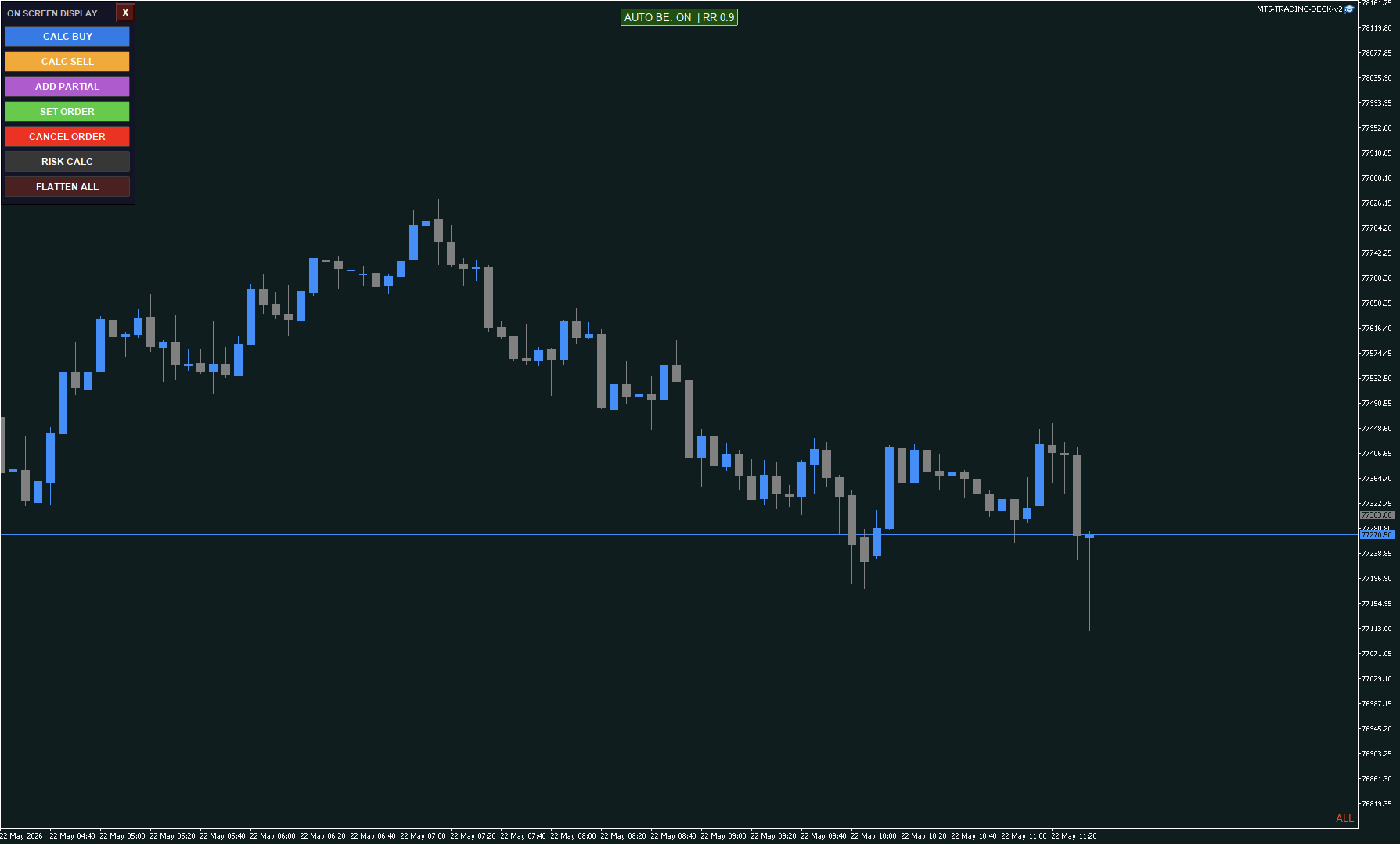
4.1 Top-Left Information Labels
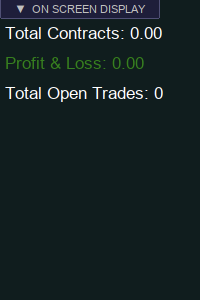
- Total Contracts: Cumulative lot volume of all open positions on the chart symbol
- P&L: Total unrealised profit or loss across all open positions, updated on every tick. Positive values in green; negative values in red
- Total Open Trades: Number of currently open positions on the current instrument
4.2 AUTO BE Button
A dedicated AUTO BE toggle button is displayed at the top-centre of the chart. Clicking it enables (Green) or disables (Red) the automatic Break-Even feature. When active, the EA monitors all open positions on every tick and moves the stop loss to the entry price (plus the configured Break-Even buffer) as soon as the position's unrealised reward-to-risk ratio reaches the set Risk Reward level.
4.3 Position SL/TP Lines and Labels
For every open position and pending order on the chart, the EA renders:
- Red horizontal line: Stop Loss level, with a label showing the exact SL price, position size in lots, and monetary loss
- Green horizontal line: Take Profit level, with a label showing the TP price, lot size, and monetary gain
- Ticket number label at both the SL and TP levels in a smaller font
All labels update dynamically. When a position is closed, its associated chart objects are automatically removed.
4.4 Color Reference for Chart Objects
| Color | Line Type | Meaning |
|---|---|---|
| Red (solid) | Solid | Stop Loss of an open position |
| Green (solid) | Solid | Take Profit of an open position |
| Red (dashed) | Dashed | Stop Loss of a Pre-Limit SL line / pending order |
| Green (dashed) | Dashed | Take Profit of a Pre-Limit TP line / pending order |
| Blue (solid) | Solid | Pre-Limit BUY Entry line |
| Orange (solid) | Solid | Pre-Limit SELL Entry line |
| Violet (solid) | Solid | Partial level (partial close trigger price) |
| Violet (dashed label) | Dashed label | PARTIAL label showing estimated close volume and P&L |
4.5 On-Screen Display Panel
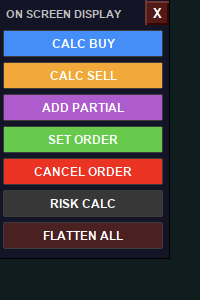
When OnScreenDisplay is enabled, the EA shows an On-Screen Display toggle button on the chart. Opening the panel gives direct access to key actions without using the keyboard.
The panel can include quick controls for Pre-Limit BUY, Pre-Limit SELL, Partial setup, Set Order, Cancel Order, Risk Calculator, and Flatten All. This panel is intended as an on-chart command center for the main Trading Deck functions.
 .
. 
5. Hotkey Reference — Trade Execution
5.1 Instant Market Order Keys
Pressing any of the configured trade keys sends an immediate market order with the SL and TP automatically calculated from the configured parameters for that slot. The SL is expressed in account currency and converted to points internally. The TP is derived from the SL distance multiplied by the configured Risk/Reward Ratio for that slot.
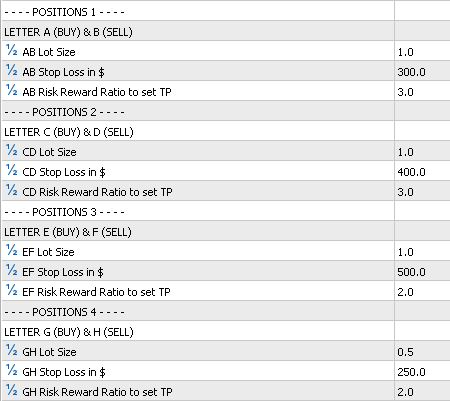
Sample Stream Deck BUY/SELL button layout
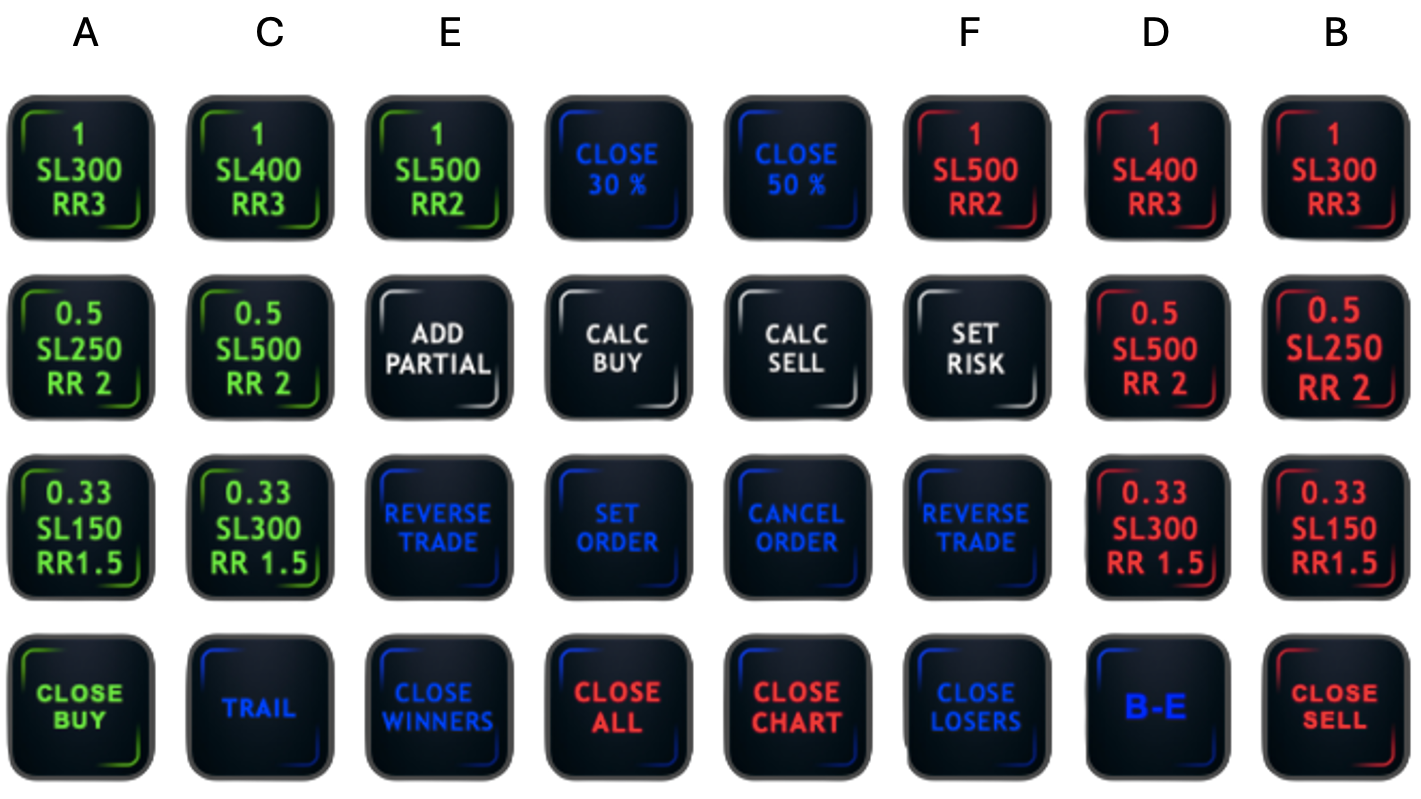
Full Stream Deck layout overview
5.2 Close All Trades
| Key | Action |
|---|---|
| X | Close all open positions on all symbols managed by this EA (Magic Number filter applies) |
| Q | Close all open positions on the active chart symbol only |
| V | Close all open BUY positions on the active chart symbol |
| W | Close all open SELL positions on the active chart symbol |
6. Pre-Limit Order System
The Pre-Limit Order system is the most powerful planning tool in the EA. It allows you to visually position your trade entry, stop loss, and take profit directly on the chart before committing to an order, while automatically calculating the monetary risk and reward in real time.
6.1 Concept
Rather than placing a pending order blind, you first draw three horizontal lines on the chart — Entry, SL, and TP — and drag them to your desired levels. The EA continuously updates labels showing you the exact lot size, the monetary SL risk, and the monetary TP reward as you adjust the lines. When you move the order line, the TP and SL remain at their initial distance to keep the R/R identical.
The system automatically determines the correct MT5 order type based on the position of your Entry line relative to the current market price: Entry above Ask → Buy Stop | Entry below Ask → Buy Limit | Entry below Bid → Sell Stop | Entry above Bid → Sell Limit
6.2 Drawing Pre-Limit BUY Lines ( F16 )
Press F16 to toggle the Pre-Limit BUY lines. Three draggable horizontal lines appear:
- Blue solid line — PRE ENTRY (BUY): initially placed at the current Ask price
- Red dashed line — PRE STOP LOSS: placed below the entry at the distance defined by PreStopLoss
- Green dashed line — PRE TAKE PROFIT: placed above the entry at the SL distance × RiskRewardRatioPre
Press F16 again to cancel · Press Z to confirm · Press F18 to remove after placing · Press Numpad * to adjust risk amount
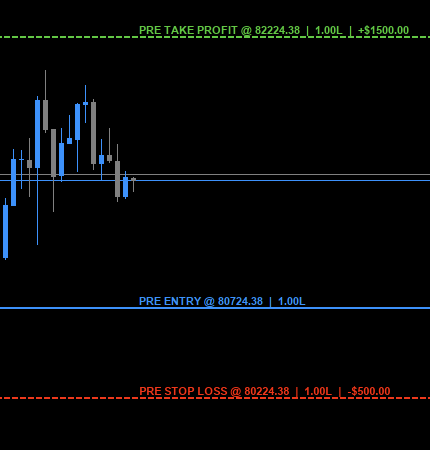
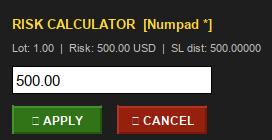
Pre-Limit BUY lines on the chart Risk popup
6.3 Drawing Pre-Limit SELL Lines ( F17 )
Press F17 to toggle the Pre-Limit SELL lines. The same three lines appear, mirrored for a short trade:
- Orange solid line — PRE ENTRY (SELL): initially placed at the current Bid price
- Red dashed line — PRE STOP LOSS: placed above the entry
- Green dashed line — PRE TAKE PROFIT: placed below the entry
Press F17 again to cancel · Press Z to confirm · Press F18 to remove after placing · Press Numpad * to adjust risk amount
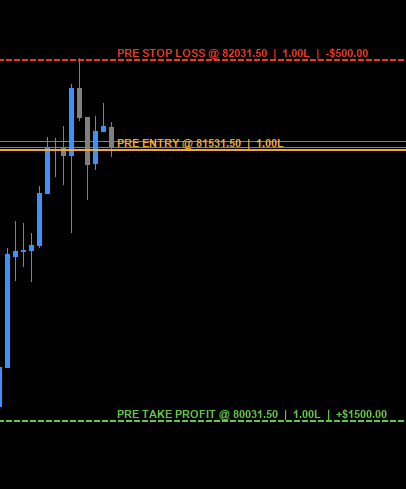
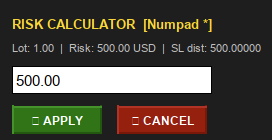
Pre-Limit SELL lines on the chart Risk popup
6.4 Adjusting the Lines
All three lines are draggable. Click and drag any line vertically to reposition it. Labels update in real time: moving the SL changes the monetary SL exposure; moving the TP changes the monetary TP target; moving the Entry repositions the entire setup.
Tip: Tip: Position your Entry line at a key technical level, set your SL just beyond the invalidation point, and let the TP auto-calculate based on your chosen R/R ratio. Use the Risk Calculator ( Numpad * ) to size the position precisely to your target monetary risk.
6.5 Confirming the Order ( Z )
Once the three lines are positioned to your satisfaction, press Z to submit the pending order to the broker. The EA will:
- Read the exact prices of the Entry, SL, and TP lines from the chart
- Determine the correct order type (Buy/Sell Limit or Stop)
- Submit the order with the calculated lot size
- Remove the Pre-Limit lines from the chart
- Play a confirmation sound
6.6 Cancelling the Pre-Limit Setup
To cancel without placing an order, press F16 (for a BUY setup) or F17 (for a SELL setup) again. All three lines and their labels are removed immediately. To cancel an already submitted pending order or an active partial watcher, use the F18 Cancel Popup (see Section 10).
7. Risk Calculator ( Numpad * )
7.1 Purpose
The Risk Calculator is used to size a trade according to a defined monetary risk amount. Instead of relying only on a fixed lot size, you can specify exactly how much money you are willing to risk and let the EA calculate the appropriate lot size from the distance between Entry and Stop Loss.
7.2 Available Targets
The Risk Calculator can work with a current Pre-Limit setup or with an eligible pending order managed by the EA on the active chart symbol. If no valid target is available, the calculator cannot be opened.
7.3 Target Selection Popup
If more than one valid target exists, the EA first opens a target-selection popup. This popup lets you choose exactly which Pre-Limit setup or pending order should receive the risk calculation.
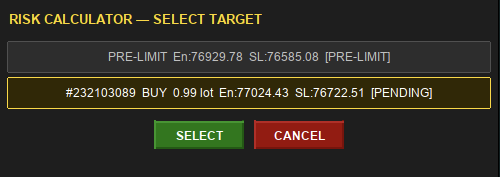
7.4 Entering a Target Risk and Applying
- Press Numpad * to open the Risk Calculator or the target selector
- If required, select the target to modify
- Enter the desired risk amount in account currency
- Click APPLY
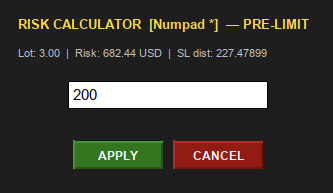
The EA recalculates the lot size from the Entry-to-SL distance, rounds it to the broker's accepted volume step, and applies the result to the selected target. If the selected target is a pending order, the EA replaces that order with the recalculated lot size while preserving the order prices and direction.
8. Position Management Hotkeys
8.1 Trailing Stop ( F19 )
Press F19 to activate a trailing stop on all open positions for the current chart symbol. The EA moves each position's SL toward the current market price, maintaining a fixed monetary distance. The trailing logic runs on every press of F19 :
- For BUY positions: the SL is raised each time the Bid price moves high enough that the distance from the SL to the current Bid exceeds the configured trailing distance
- For SELL positions: the SL is lowered symmetrically as the Ask price falls
The SL will never be moved against the trade. The TP is left unchanged.
8.2 Manual Break-Even ( F20 )
Press F20 to move the stop loss of all eligible open positions to break-even. A position is eligible if the current price is at least breakEven (in account currency) beyond the entry price, and the SL has not already been moved to or beyond break-even. A sound is played for each position successfully moved to break-even.
8.3 Auto Break-Even (AUTO BE Button)
Click the AUTO BE button on the chart to toggle the automatic break-even system. When enabled, the EA monitors the current reward-to-risk ratio of every open position on each tick. As soon as a position's live R/R ratio reaches or exceeds the given RR, the break-even logic is applied automatically without requiring any keypress. The Break-Even RR parameter defaults to 1.0 (BE triggered when the trade is "1R in profit").
8.4 Close Profitable Positions Above X ( Numpad 7 )
Press Numpad 7 to immediately close all open positions whose unrealised profit exceeds minimumProfit (in account currency). This is a rapid "harvest profits" function, useful for locking in gains during volatile price surges.
8.5 Close Losing Positions Above X ( Numpad 8 )
Press Numpad 8 to immediately close all open positions whose unrealised loss exceeds LossAbove (in account currency). This acts as a manual emergency cut function, complementing individual SL levels with a global maximum loss filter per session.
8.6 Partial Close % Preset 1 ( Numpad 9 )
Press Numpad 9 to close Partial Close % 1 (default 50%) of the volume of all open positions on the current chart symbol at the current market price instantly.
8.7 Partial Close % Preset 2 ( Numpad 0 )
Press Numpad 0 to close Partial Close % 2 (default 30%) of the volume of all open positions on the current chart symbol at the current market price instantly.
9. Partial Close System
9.1 Concept
The Partial Close system allows you to schedule a partial close at a specific price level in advance. Rather than watching the chart and manually pressing a key, you arm a partial trigger and the EA executes the partial close automatically when the market reaches that level.
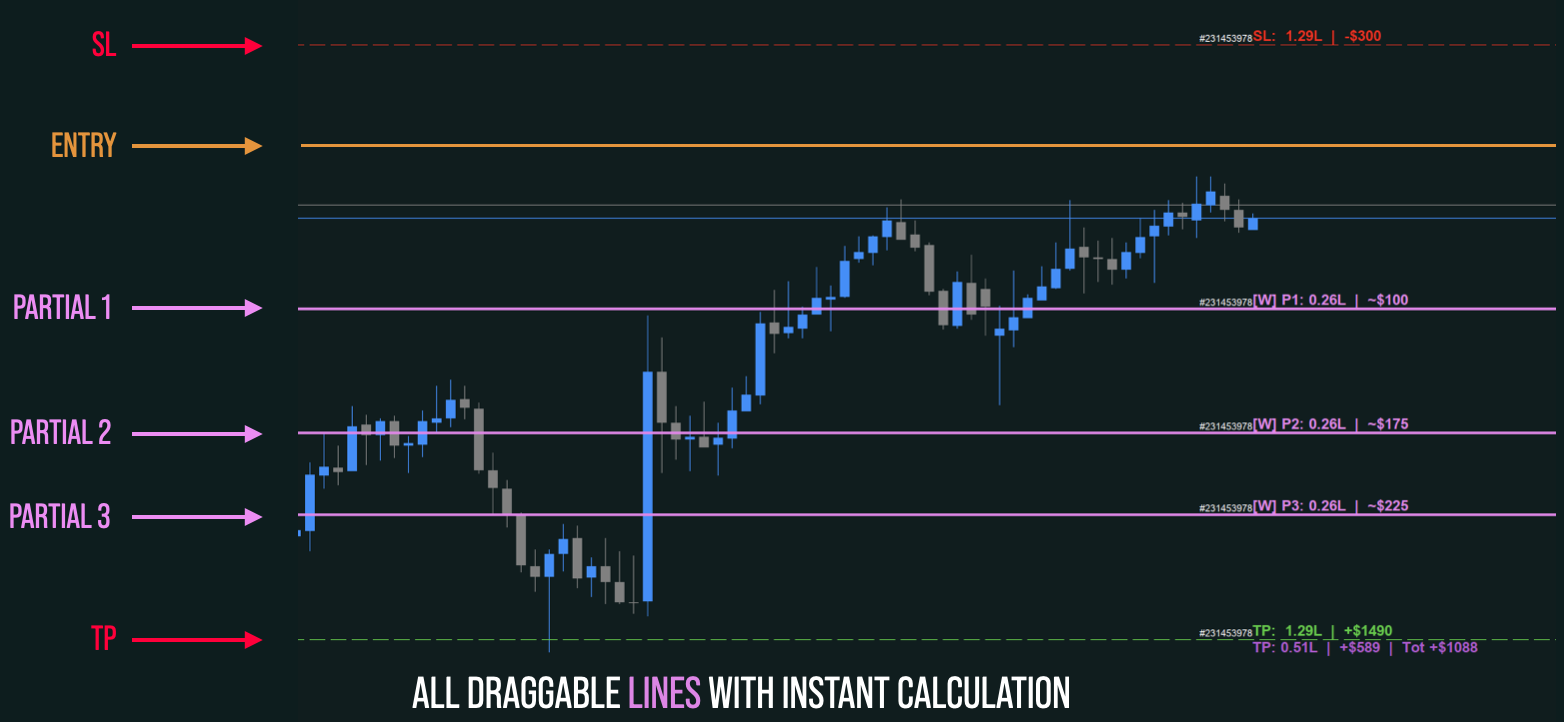
9.2 Setting Up a Partial (Y Toggle)
Press Y to toggle the Partial mode. The EA opens a partial popup where you select the relevant live position or eligible pending order, then define the percentage of volume to close.
After selection, a violet horizontal line is placed on the chart. Drag this line to the desired target price. The associated label updates to reflect the projected close level and estimated result.
9.3 Validation Rules
The partial popup validates the requested partial size before confirmation. The selected percentage must remain within the available unallocated volume after accounting for any other active partial watchers already attached to the same trade or order.
The trigger price must also remain within a valid range relative to the selected trade structure. If the requested level is not acceptable for the selected position or pending order, the EA rejects the setup and asks for a valid level.
9.4 Partial Behaviour on Price Trigger
When the market price reaches the partial trigger level, the EA submits the partial close automatically. If the watcher is attached to a pending order and that order becomes a live position before the trigger is reached, the watcher continues tracking the resulting position.
9.5 Stacking Multiple Partial Levels
You can arm several partial levels for the same chart, up to the EA's watcher capacity. Each active partial is tracked independently and displayed on the chart with its own line and label.
10. F18 Cancel Popup
10.1 Purpose
The F18 Cancel Popup provides a unified selector for cancelling pending orders and active partial watchers linked to the current chart symbol. It is the central cancel-management tool for working orders and scheduled partial actions.
10.2 Opening the Cancel Popup ( F18 )
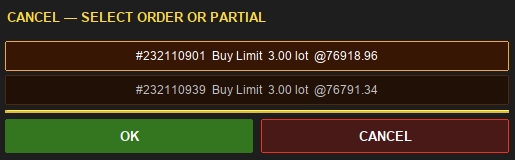
Press F18 to open the popup. The EA scans eligible pending orders and all active partial watchers, then displays them in a selectable list.
10.3 Selecting and Cancelling
Click the row of the item you want to remove, then click OK to confirm. Pending orders are cancelled from MT5, while partial watchers are disarmed and removed from the chart.
Click CANCEL to close the popup without making changes.
11. Inverse Trade Feature ( Numpad / )
11.1 How It Works
Press Numpad / to inverse all open positions on the current chart symbol. For each position, the EA:
- Records the entry price, current volume, direction, SL distance (in points), and TP distance (in points)
- Computes the original risk/reward ratio (TP distance ÷ SL distance)
- Closes the original position at market
- Opens a new position in the opposite direction at the current market price, using the same volume and recalculated SL/TP distances to preserve the original R/R ratio
11.2 SL/TP Preservation Logic
The SL and TP distances (in points) are preserved relative to the new entry price. Because the close and re-open happens at the current market price rather than the original entry price, the monetary values of the new SL and TP will reflect current market conditions. The original R/R ratio is always maintained — if no SL or TP was set, the fallback R/R ratio is 1:1.
11.3 Broker Minimum Stop Distance
The EA enforces the broker's minimum stop distance ( SYMBOL_TRADE_STOPS_LEVEL ) when placing the inverted position. If the calculated SL distance falls below the broker's minimum, it is automatically increased to the minimum permitted value, and the TP is scaled proportionally to maintain the original R/R ratio.
12. Trading Deck Configuration
12.1 Overview
The Elgato Stream Deck software allows you to assign any keystroke to a physical button on the device. To map EA functions, create Hotkey actions in the Stream Deck software and assign the corresponding keyboard shortcut to each button. Ensure MT5 is the active foreground application when pressing Trading Deck buttons.
12.2 Recommended Button Layout
A suggested layout for a 32-button Stream Deck XL can group market entries, pre-limit tools, risk tools, partial tools, and emergency management commands together for faster execution.
12.3 Set-up in Stream Deck
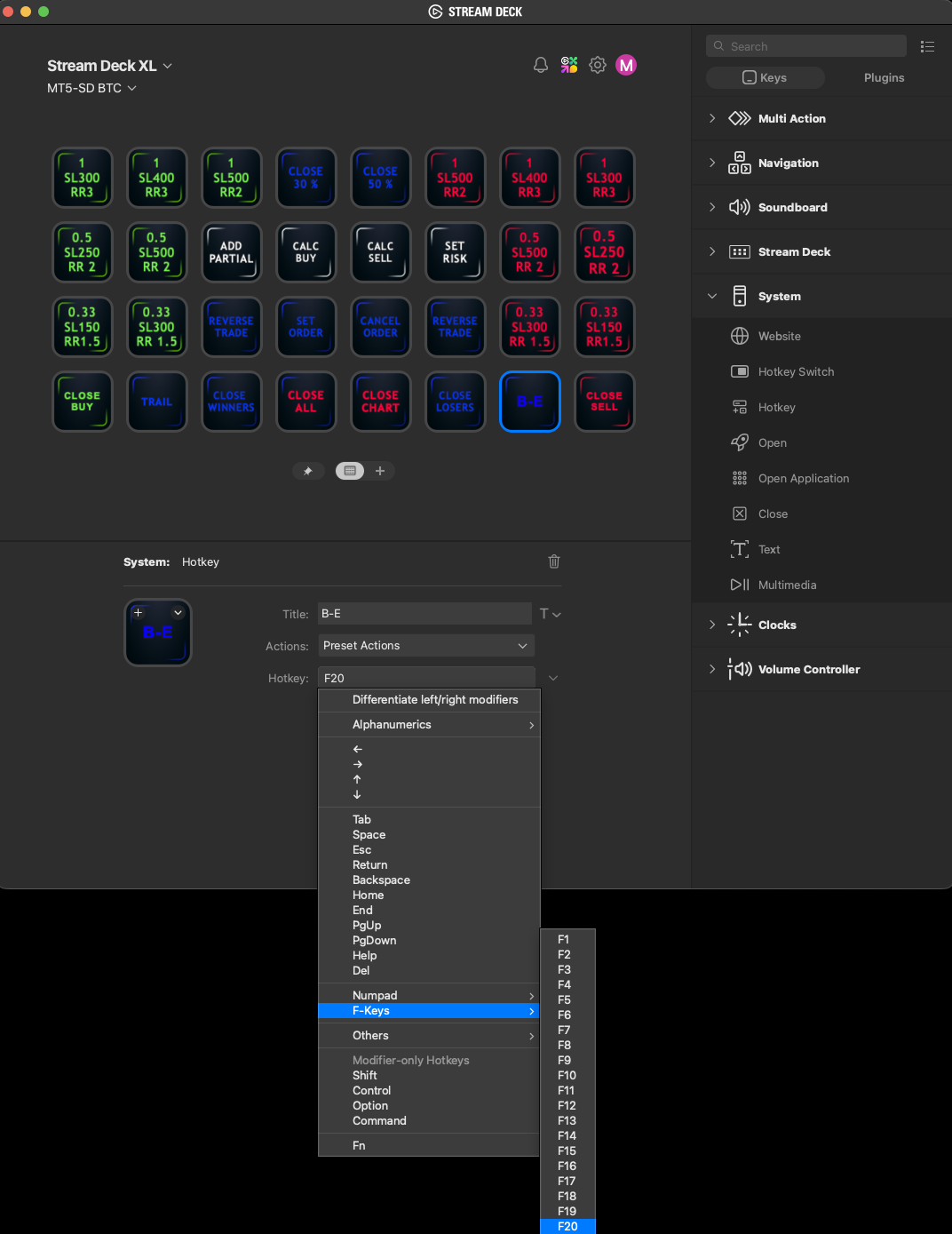
- Configure the selected button as a Hotkey
- In the menu on the right, select System ⇒ Hotkey and drag it to the desired button position
- Strike the hotkey field “Click to Assign”
- Hit the required key to assign it to that particular button
- If the key is not available on your keyboard, use the dropdown menu to select the corresponding key
- Set key graphics and text labels as desired
13. Troubleshooting & FAQ
13.1 Hotkeys do not trigger trades
Cause: The MT5 chart window is not in focus, or AutoTrading is disabled.
Solution: Click on the chart window to ensure it is active before pressing hotkeys. Verify the AutoTrading button in the MT5 toolbar is enabled and check that the EA smiley face icon is active.
13.2 Pre-Limit lines do not appear correctly
Cause: The PreStopLoss parameter may be set to 0, or the symbol's tick information is unavailable.
Solution: Ensure PreStopLoss is set to a non-zero value before pressing F16 or F17 . Also verify that the symbol is active and receiving live market data.
13.3 Risk Calculator does not open
Cause: No valid Pre-Limit setup or eligible pending order is currently available on the active chart.
Solution: First create a Pre-Limit setup or ensure an eligible pending order managed by the EA exists on the symbol, then press Numpad * again.
13.4 Risk target selector appears before the calculator
Cause: More than one valid risk-calculation target is available.
Solution: Select the exact Pre-Limit setup or pending order you want to modify, then continue to the calculator.
13.5 Partial setup is rejected
Cause: The requested partial size exceeds the available remaining allocation, or the chosen trigger price is not valid for the selected trade structure.
Solution: Reduce the requested percentage, check existing active partial watchers, and move the trigger line to a valid level before confirming again.
13.6 F18 popup contains different item types
Cause: The F18 selector is designed to display both pending orders and active partial watchers.
Solution: Review the row labels carefully, select the exact item you want to cancel, and confirm with OK.
13.7 OSD panel is not visible
Cause: The OnScreenDisplay input may be disabled.
Solution: Open the EA inputs, set OnScreenDisplay to true, and reload the EA if necessary.
Appendix A — Complete Hotkey Quick Reference
| Key | Action |
|---|---|
| A | BUY — Slot 1 |
| B | SELL — Slot 1 |
| C | BUY — Slot 2 |
| D | SELL — Slot 2 |
| E | BUY — Slot 3 |
| F | SELL — Slot 3 |
| G | BUY — Slot 4 |
| H | SELL — Slot 4 |
| I | BUY — Slot 5 |
| J | SELL — Slot 5 |
| K | BUY — Slot 6 |
| L | SELL — Slot 6 |
| M | BUY — Slot 7 |
| N | SELL — Slot 7 |
| O | BUY — Slot 8 |
| P | SELL — Slot 8 |
| R | BUY — Slot 9 |
| S | SELL — Slot 9 |
| T | BUY — Slot 10 |
| U | SELL — Slot 10 |
| X | Close ALL trades (all symbols) |
| Q | Close all trades on active chart |
| Y | Partial toggle |
| Z | Confirm pending order / Execute partial |
| V | Close all BUY positions |
| W | Close all SELL positions |
| F16 | Pre-Limit BUY toggle |
| F17 | Pre-Limit SELL toggle |
| F18 | LIFO Cancel popup (orders & Partials) |
| F19 | Trailing Stop |
| F20 | Break-Even (manual) |
| Numpad * | Risk Calculator |
| Numpad / | Reverse all trades |
| Numpad 7 | Close profitable positions above threshold |
| Numpad 8 | Close losing positions above threshold |
| Numpad 9 | Partial close — Preset 1 (%) |
| Numpad 0 | Partial close — Preset 2 (%) |
| Numpad . | Confirm pre-limit pending order |
Appendix B — Glossary of Terms
| Term | Definition |
|---|---|
| SL (Stop Loss) | A price level at which the position is automatically closed to limit loss |
| TP (Take Profit) | A price level at which the position is automatically closed to lock in profit |
| RR / R/R Ratio | Risk/Reward Ratio: the ratio of the potential profit to the potential loss. A 1:3 RR means the TP is 3× further from entry than the SL |
| BE (Break-Even) | Moving the SL to the entry price, eliminating the risk of a monetary loss on the trade |
| Lot Size | The standardised unit of trade volume. A standard lot = 100,000 units; a mini lot = 10,000; a micro lot = 1,000 |
| Pending Order | An order placed in advance to open a position when the market reaches a specific price (limit or stop order) |
| Pre-Limit Order | The EA's visual tool for constructing and placing a pending order by dragging chart lines |
| Partial Close | Closing a fraction of an open position's volume while leaving the remainder running |
| Partial | An internal EA mechanism that monitors price and automatically fires a partial close when a target level is reached |
| Magic Number | A unique integer identifier attached to all orders opened by a specific EA instance |
| Inverse Trade | Closing an existing position and immediately opening a new one in the opposite direction with the same volume and preserved SL/TP distances |
| LIFO | Last In, First Out — a selection order for the F18 cancel popup, presenting the most recently created items first |
| Tick Value / Tick Size | Broker-specific values used to convert a price movement into a monetary amount. Used internally by the EA to convert monetary SL inputs into points |


![[EURUSD]: Weekly Liquidity Activation Points (LAP), October 12-16, 2026](https://c.mql5.com/6/1035/splash-preview-777305.png "[EURUSD]: Weekly Liquidity Activation Points (LAP), October 12-16, 2026")