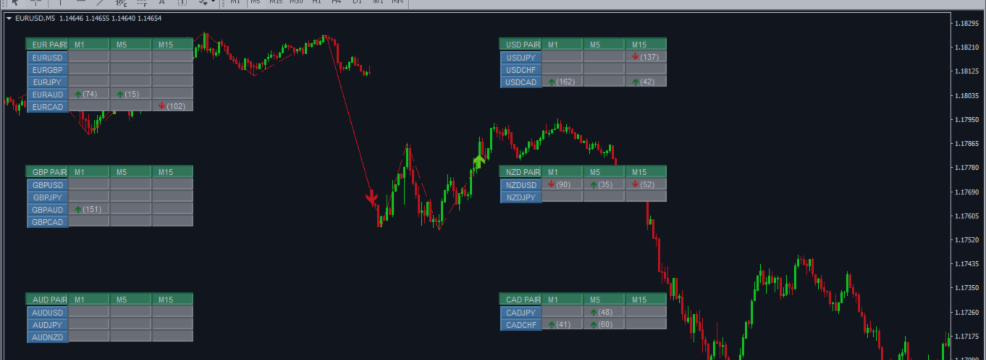
Double Top And Bottom Multicurrency Settings/Inputs Guide for MT4 & MT5

MT4 Version: Double Top and Bottom Multicurrency Scanner MT4
MT5 Version:
Complete User Documentation — MT4 & MT5
1. OVERVIEW
The Double Top and Bottom Multicurrency Scanner is an advanced tool that identifies double top and bottom patterns across multiple currency pairs, providing traders with actionable insights. By analyzing price movements and patterns, it helps traders spot potential reversal points, enhancing decision-making. This scanner is designed to streamline the trading process and improve the accuracy of trade entries.
Who Should Use It: This product is ideal for forex traders seeking to capitalize on reversal patterns and improve their trading strategies, whether they are beginners or experienced professionals.
Main Benefit: Gain a competitive edge with real-time alerts and a user-friendly dashboard that simplifies the identification of profitable trading opportunities.
2. INPUT PARAMETERS & SETTINGS
This product shares a common set of general input settings with all Multi-Currency Scanner Dashboard products in this series. The following sections are covered in the common guide: General Settings (pairs list, dashboard colors, panel size), Timeframe Signal Settings (individual TF scan per symbol), Timeframe Confluence Settings (multi-TF confluence scan), and Alert Settings (popup, push notification, email). For full details refer to the Common Multi-Currency Scanner Dashboard Settings Guide. The sections below cover only the product-specific inputs unique to this product.
Timeframe Signal Settings(confluence)
This section controls the parameters for analyzing the ZigZag patterns and the historical data range for scanning.
| Setting Name | Type | Default Value | Description | Example |
|---|---|---|---|---|
| ZigZag Depth Lower | int | 12 | Defines the minimum number of bars to consider when identifying ZigZag patterns. Adjusting this can help filter out noise in price action. | 10 - Use this setting for a more sensitive scan in volatile markets. |
| ZigZag Deviation Lower | int | 5 | Sets the minimum price movement required to confirm a ZigZag point. This helps in reducing false signals. | 3 - A lower value can be useful in trending markets to capture more signals. |
| ZigZag Backstep Lower | int | 3 | Specifies how many bars must be retraced before confirming a ZigZag point. This setting can help avoid premature signals. | 2 - Use this for a more aggressive approach in fast-moving markets. |
| Maximum candle to check behind | int | 200 | Determines how far back in time the scanner will look for patterns. A larger number increases the analysis range. | 150 - Useful for traders looking at longer-term trends. |
| Gaps sensitivity between tops/bottom | double | 2 | Controls the sensitivity of detecting gaps between peaks and troughs. Adjust this to refine pattern recognition. | 1.5 - A lower value may help in identifying tighter patterns. |
3. HOW IT WORKS
Core Calculation & Logic
This scanner identifies potential double top and bottom patterns across multiple currency pairs by analyzing price action and historical data. It utilizes mathematical algorithms to detect patterns that may indicate reversal points in the market.
By scanning multiple timeframes, the scanner provides a comprehensive view of market conditions, helping traders spot potential trading opportunities based on historical price movements.
How Signals Are Generated
A BUY signal is generated when the scanner identifies a confirmed double bottom pattern, indicating a potential upward reversal in price. This is typically confirmed by additional indicators showing bullish momentum.
A SELL signal is triggered when a double top pattern is detected, suggesting a potential downward reversal in price. This signal is reinforced by bearish indicators confirming the downward trend.
The scanner can also utilize confluence logic, where signals are only considered valid if multiple timeframes agree on the pattern, increasing the reliability of the signals.
The dashboard displays symbols in rows and timeframes in columns, with arrow colors indicating the type of signal and the age of the signal shown in parentheses for quick reference.
Step-by-Step Workflow
Step 1: Configure Currency Pairs Select the currency pairs you want to scan by editing the pairs list in the settings.
Step 2: Set Timeframes Enable the timeframes you wish to analyze for potential signals, ensuring they align with your trading strategy.
Step 3: Adjust Panel Settings Customize the panel's appearance, including colors and dimensions, to suit your preferences for better visibility.
Step 4: Monitor Signals Observe the dashboard for BUY or SELL signals, noting the age of each signal for timely decision-making.
Step 5: Execute Trades Based on the signals generated, execute trades according to your trading plan, using proper risk management techniques.
4. USAGE TIPS & BEST PRACTICES
Utilizing this scanner effectively can enhance your trading strategy.
| Feature | Description |
|---|---|
| Customizable Pairs List | Allows traders to focus on specific currency pairs that align with their trading strategy. |
| Multiple Timeframes | Enables traders to analyze signals from different timeframes, increasing the chances of finding reliable patterns. |
| Intuitive Dashboard | Provides a clear visual representation of signals, making it easy to identify trading opportunities at a glance. |
| Real-Time Alerts | Notifies traders of potential trading signals, allowing for timely execution of trades. |
5. IMPORTANT NOTES & WARNINGS
Known Limitations
| Issue | Explanation |
|---|---|
| Pattern Recognition Delay | There may be a delay in recognizing patterns due to market volatility, which can affect signal accuracy. |
| Risk of False Signals | Not all detected patterns will result in successful trades; traders should confirm with additional analysis. |
| Impact of News Events | High-impact news events can lead to unpredictable market movements, affecting pattern validity. |
Settings Beginners Should NOT Change
| Setting | Why to Leave Default |
|---|---|
| Pairs List | Changing this may lead to missing out on potential trading opportunities across various pairs. |
| Arrow Size | Default size ensures visibility of signals without cluttering the dashboard. |
| Panel Height & Width | Default dimensions provide optimal space for displaying signals clearly. |
Dashboard Usage Tips
- Keep it Organized: Regularly update your pairs list to focus on the most relevant currencies.
- Monitor Signal Age: Pay attention to the age of signals to prioritize timely trades.
- Use Color Coding: Utilize the color settings to differentiate between various currency strengths for better analysis.
- Adjust Timeframes: Experiment with different timeframes to find the best signals for your trading style.
- Stay Informed: Be aware of economic news that may impact market conditions and signal reliability.
Quick Start Guide
Follow these steps to get started in under 5 minutes:
- Install the Scanner: Download and install the Double Top and Bottom Multicurrency Scanner on your MT4 or MT5 platform.
- Open Settings: Access the settings menu to configure your pairs list and timeframe preferences.
- Customize Appearance: Adjust the dashboard colors and sizes to enhance visibility.
- Enable Scanning: Activate the scanning feature to begin monitoring for potential signals.
- Check Dashboard: Review the dashboard for any active BUY or SELL signals.
- Execute Trades: Based on the signals, execute trades according to your strategy.
- Monitor Performance: Regularly assess the effectiveness of the signals and adjust settings as needed.
You may also be interested in these related products:
Installation Guide for MQL Products | Updating Purchased MQL Products on MT4/MT5 | General Troubleshooting Guide
Check all my products: https://www.mql5.com/en/users/biswait50/seller
Contact me for support: https://www.mql5.com/en/users/biswait50




