CDV Candle Engine Pro — Confirm Breakouts & Spot Weak Moves (MT5 + MT4)

This guide is written for regular traders who want a clean, practical setup — not a technical manual. It focuses on how to use the tool in real trading and how to keep your charts fast & readable.
Public channel: CLICK HERE
Market Pages (Installation)
Note: This blog post is a usage guide. Installation and updates are always handled through the MQL5 Market.
MT4 Users — Subwindow Add-on (Included in Attachments)
MT4 limitation: the optional Subwindow panel must be attached as a separate indicator.
- Download CDV Candle Engine Sub (MT4) from the Attachments section below this blog post.
- This add-on is an optional visualization panel. The main indicator is still CDV Candle Engine Pro MT4.
MT5 users: no extra file is required — the Subwindow feature is already built into the MT5 version.
What You Get (Simple Explanation)
CDV (Cumulative Delta Volume) helps you visualize buying vs selling pressure behind price candles. This tool turns delta into a clean candle-style view, with optional trend filters and signals.
Think of it as a confirmation layer: use it to validate entries, avoid weak breakouts, and spot potential divergence.
Quick Start (2 Minutes)
MT5
- Install from the MQL5 Market after purchase.
- Restart MetaTrader 5 if needed.
- Attach CDV Candle Engine Pro to your chart.
- Open Inputs → keep default settings first.
MT4
- Install CDV Candle Engine Pro MT4 from the Market.
- Attach it to a chart.
- (Optional) Attach CDV Candle Engine Sub (download from Attachments) for the Subwindow panel.
First-Time Setup (Best Beginner Workflow)
Do this once, then you can save your chart as a template.
- Start with defaults → confirm everything draws correctly.
- Reduce clutter → turn OFF features you don’t use (extra boxes / RR guides).
- Choose the CDV Source (fast vs detailed).
- Enable Shadow Trend for direction filtering (recommended).
- Set alerts to candle-close to reduce noise.
Key Settings (Only What Most Traders Need)
| Setting | Best practice (simple) |
|---|---|
| CDV Source | Start with Tick Volume (fast & stable). Use LTF when you want more detailed candles (heavier load). |
| Auto LTF (LTF mode) | Keep ON for beginners. It automatically selects a reasonable lower timeframe. |
| CDV Candle Type | Normal for raw signals. Heikin Ashi for smoother reading & cleaner trend. |
| VSA Candle Rendering | Use Overlay to draw on price. Use Off for a clean chart. Use Auto Hide Chart Candles if you want only indicator candles visible. |
| Shadow Trend | Keep ON. It’s the easiest direction filter (great for confirmation trading). |
| Trend Background | Turn ON for quick direction reading. Turn OFF if you prefer a clean chart. |
| ER / Divergence / Shadow Break | Use these as filters, not “magic buttons”. Start with 1–2 signals only. |
| Alert Mode | For cleaner signals, use Closed-bar alerts (avoid current-bar noise). |
| Performance Limiter | If you see lag, process fewer bars (smaller value). LTF mode needs more CPU than Tick Volume. |
How To Use It (Practical Step-by-Step)
Step 1) Confirm Direction First
- Turn ON Shadow Trend and optionally Trend Background.
- Trade more aggressively when price and CDV trend agree.
- Be cautious when price pushes, but CDV looks weak/flat or opposite.
Step 2) Use CDV Candles as Confirmation
- Breakout: wait for a candle close with clear CDV support (strong delta candle body).
- Pullback: wait for CDV to stabilize and turn with the main direction.
- If price moves but CDV candles look indecisive, treat it as a warning.
Step 3) Use Signals as Filters (Not Standalone Entries)
The best results come when signals are used as filters with your strategy and risk management.
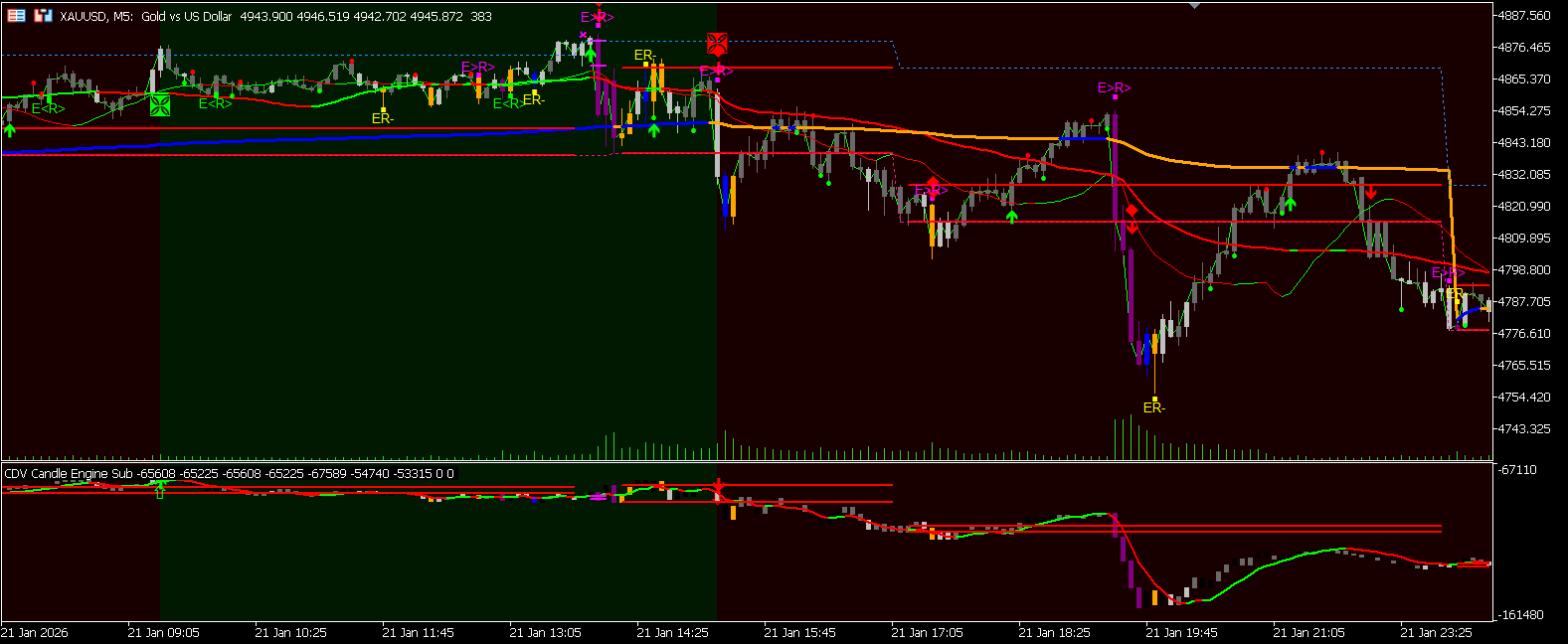
- ER Candles: unusual effort vs result (possible absorption / exhaustion).
- VSA Candles: highlights participation and unusual activity.
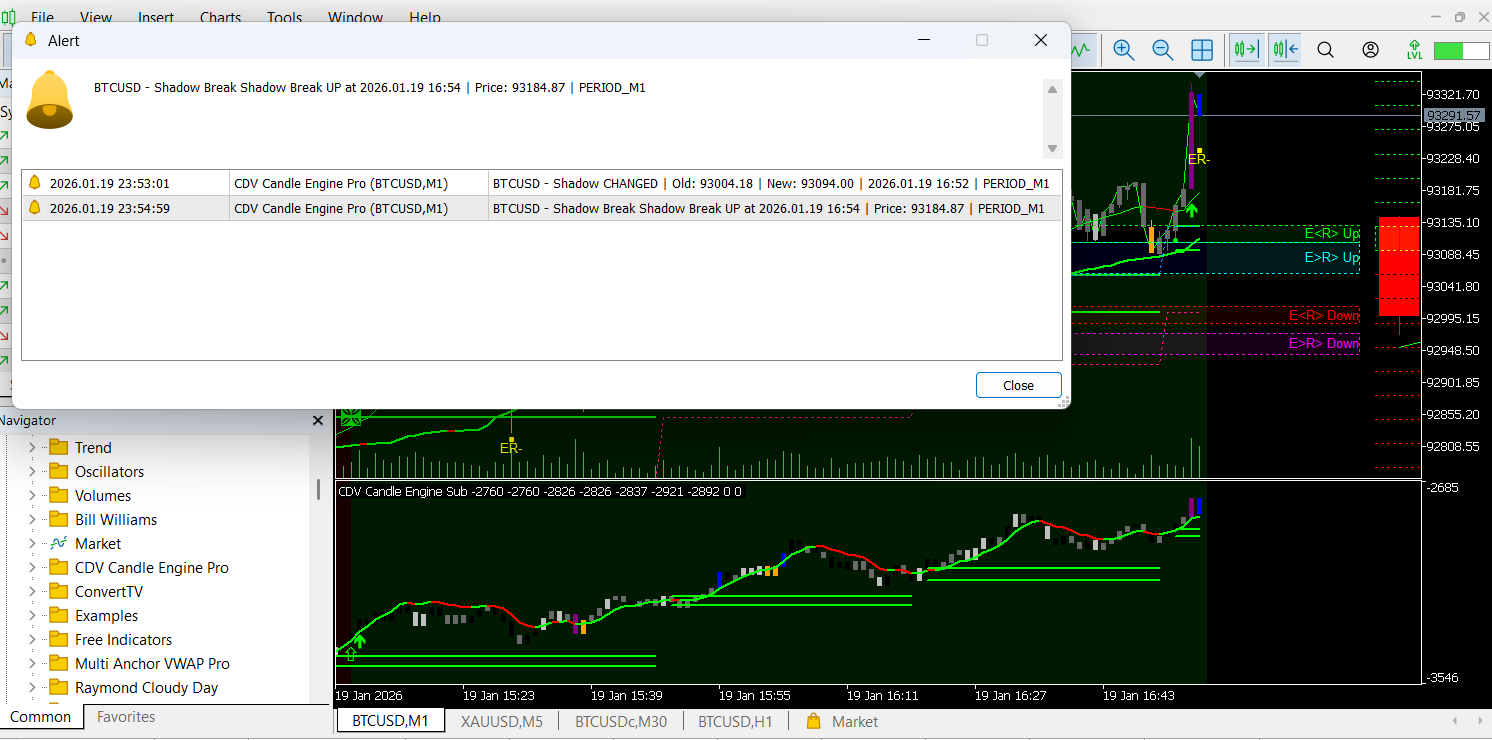
- Shadow Break: useful in clear trends for confirmation.
- Divergence: early warning when price and delta behavior disagree.
Step 4) Keep Alerts Clean
- Enable alerts only for the signals you actually trade.
- Use closed-bar alerts to reduce false signals.
- Use sound/push only if you monitor without watching the chart.
Ready-to-Use Presets (Fast Setup)
These presets are designed to be easy for most traders. Just toggle ON/OFF features (no complicated tuning needed).
Preset A — Clean & Minimal (Best for Beginners)
- CDV Candles: ON
- Shadow Trend: ON
- Trend Background: ON (subtle)
- Extra boxes / RR lines: OFF
- Alerts: OFF (first week)
Preset B — Confirmation Trading (Most Popular)
- CDV Candles: ON
- Shadow Trend + Background: ON
- 1–2 Moving Averages: ON (optional structure)
- ER Candles: ON
- Divergence: ON
- Alerts: Closed-bar only
Preset C — Signals & Alerts (For Active Traders)
- CDV Candles + Shadow Trend: ON
- ER + Boxes: ON
- Shadow Break: ON
- Divergence: ON
- Alerts: ON (Popup + Sound or Push)

MT4 Subwindow Panel Setup (CDV Candle Engine Sub)
- Attach CDV Candle Engine Pro MT4 on your chart first.
- Download CDV Candle Engine Sub (MT4) from this blog Attachments.
- Attach it to the same chart (it will open in a separate Subwindow).
- If needed, adjust colors/widths for better readability.
Performance Tips (If You See Lag)
- Reduce the bars processed limit to keep charts responsive.
- If using LTF mode, keep Auto LTF ON (too small LTF = heavier load).
- Disable extra layers you don’t need (multi-MA, boxes, RR lines, heavy overlays).
Troubleshooting
- Nothing is drawn: restart terminal, re-attach indicator, and test on a liquid symbol.
- Chart looks messy: start with Preset A and enable features one by one.
- Heavy CPU usage: use Tick Volume mode + reduce bars processed + disable extra visuals.
FAQ
Q: Does it repaint?
A: The current forming candle can change until it closes. For this reason, closed-bar confirmation is recommended.
Q: Which symbols work best?
A: It works on most instruments, but results depend on your broker feed. Liquid symbols usually look cleaner.
Q: Can I use it as a full strategy?
A: It’s designed as a confirmation layer. Combine it with your entries and risk management.
Inputs Reference
For most traders, the Key Settings section above is enough. If you want the full advanced list, open the indicator Inputs tab inside MetaTrader — every option is available there.
Support & Feedback
If you need help with settings or want to share screenshots, please leave a comment on the Market product page — I reply as soon as possible.
If this guide was helpful, I would appreciate your honest rating and review on the Market page. Your feedback helps future updates and improvements.
Risk Disclaimer: Trading involves risk. This indicator is a tool for analysis and does not guarantee profits. Always test on a demo account first and use responsible risk management.