
📘 User Guide: Haven MT5 to Telegram V2
MT5 Trade Publisher for Telegram
Product Link: Haven MT5 to Telegram
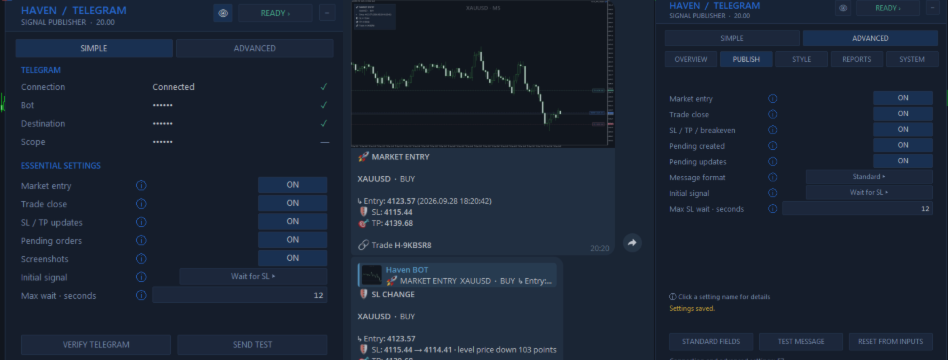
Haven MT5 to Telegram V2 automatically publishes trading events from MetaTrader 5 to Telegram. It can send market entries, SL/TP changes, partial and full closes, pending-order events, chart screenshots, open-position summaries and trading reports.
🚀 Step 1. Allow Telegram WebRequest in MT5
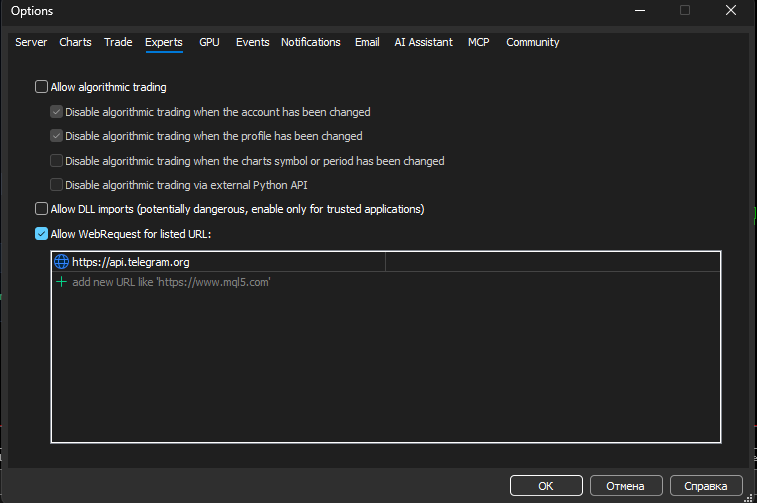
MetaTrader must be allowed to connect to the Telegram API.
- Open MetaTrader 5.
- Go to Tools → Options → Expert Advisors.
- Enable Allow WebRequest for listed URL.
- Add the following address:
5. Click OK.
🤖 Step 2. Create a Telegram Bot
- Open Telegram.
- Find the official @BotFather.
- Send the command /newbot.
- Choose a bot name.
- Choose a username ending in bot, for example MyTradingSignals_bot.
- BotFather will return a long Bot Token. Copy it.
Anyone who has the token may be able to control your bot.
How to choose a Telegram destination
Haven can publish to a Telegram chat, group or channel that your bot can access.
Personal chat:
- Open a conversation with your new bot.
- Press Start or send /start.
- Get your Telegram numeric Chat ID using a Telegram ID helper bot.
Channel:
- Create a Telegram channel or use an existing one.
- Add your bot to the channel.
- Give the bot permission to publish messages.
- For a public channel you may use its @channelusername. For private destinations use the appropriate numeric Chat ID.
⚙️ Step 3. First Launch
- Open any chart in MetaTrader 5.
- Attach Haven MT5 to Telegram to the chart.
- Open EA Inputs with F7.
- Enter your Bot Token.
- Enter your Chat ID or supported Telegram destination.
- Apply the Inputs.
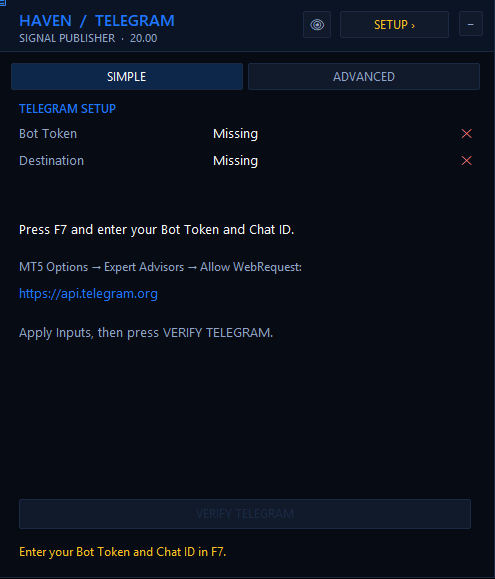
If Token or Destination is missing, the SIMPLE panel displays:
TELEGRAM SETUP

Bot Token        Missing ✕
Destination      Missing ✕

Press F7 and enter your Bot Token and Chat ID.
After the credentials are entered, press:
VERIFY TELEGRAM
Haven checks the Bot and Destination without sending an automatic test message.
When initialization is complete, the header status becomes:
READY
🟦 Step 4. SIMPLE Mode
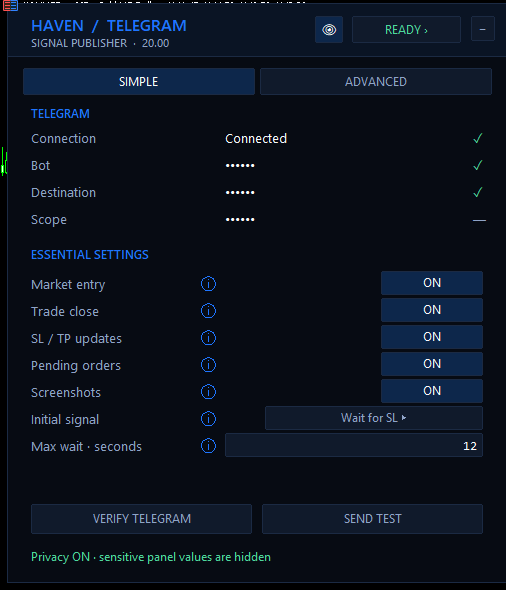
SIMPLE mode is designed for users who want Haven to work with minimal configuration. There are no additional tabs in this mode.
The first section displays the Telegram connection:
TELEGRAM

Connection      Connected ✓
Bot             Haven BOT ✓
Destination     My Channel ✓
Scope           All symbols · All
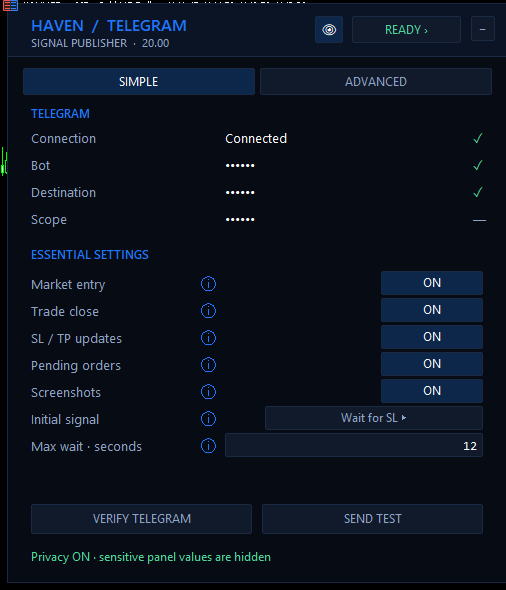
Essential Settings
| Setting | What it does |
|---|---|
| Market entry | Sends a message when a new market position is opened. |
| Trade close | Sends partial-close and full-close events. |
| SL / TP updates | Sends Stop Loss, Take Profit and Break Even updates. |
| Pending orders | Enables the main pending-order publishing workflow. More detailed pending settings are available in ADVANCED mode. |
| Screenshots | Allows Haven to attach chart screenshots to supported trade notifications. |
| Initial signal | Controls when a new Entry message is released. |
Initial Signal modes
Immediately
Sends the Entry as soon as possible without waiting for SL or TP.
Fixed Delay
Holds the Entry for a fixed number of seconds before publishing it. This gives SL and TP some time to appear.
Wait for SL
Waits for Stop Loss to appear before publishing the first signal. After SL is detected, Haven briefly waits for level changes to settle so SL and TP can be included in one initial message.
The waiting period always has a maximum timeout. If SL is still missing when the timeout expires, the Entry is released with the information available at that moment.
Keep the V2 defaults and use Wait for SL.
VERIFY TELEGRAM and SEND TEST
VERIFY TELEGRAM checks the bot and destination.
SEND TEST sends a simple Telegram connection test.
No test message is sent automatically when Haven starts.
🛠️ Step 5. ADVANCED Mode
Switch to ADVANCED when you need more control. SIMPLE and ADVANCED are only two views of the same Haven configuration.
Changing a setting in SIMPLE changes the same setting in ADVANCED and vice versa.
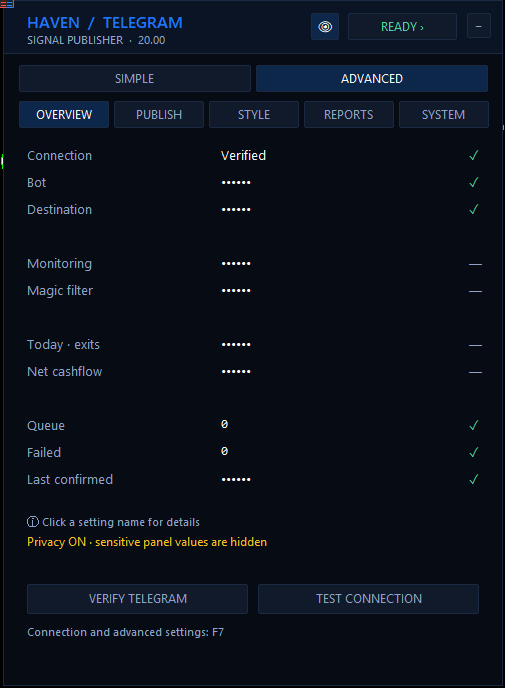
ADVANCED contains five sections:
| Tab | Purpose |
|---|---|
| OVERVIEW | Telegram identity, monitoring scope, queue and recent delivery information. |
| PUBLISH | Trade-event publishing, message format, Initial Signal settings and test trade messages. |
| STYLE | Screenshots, dimensions, watermark and chart annotations. |
| REPORTS | Daily/Weekly reports, Open Positions and economic-calendar notifications. |
| SYSTEM | Detailed Telegram, queue, storage and delivery diagnostics. |
🚦 Publisher Status
The status button in the Haven header summarizes the current state.
| Status | Meaning |
|---|---|
| SETUP | Required Telegram settings are missing. |
| VERIFYING | Telegram verification is running. |
| READY | Haven is ready to monitor and publish configured events. |
| WAITING | Haven is waiting for initialization, an Initial Signal release or a delivery retry. |
| WARNING | A non-fatal issue requires attention. |
| PAUSED | Delivery is paused because required storage or state is unavailable. |
| ERROR | Telegram, delivery or another required component has failed. |
Click the status button to open ADVANCED diagnostics and see which component needs attention.
📨 Trade Events
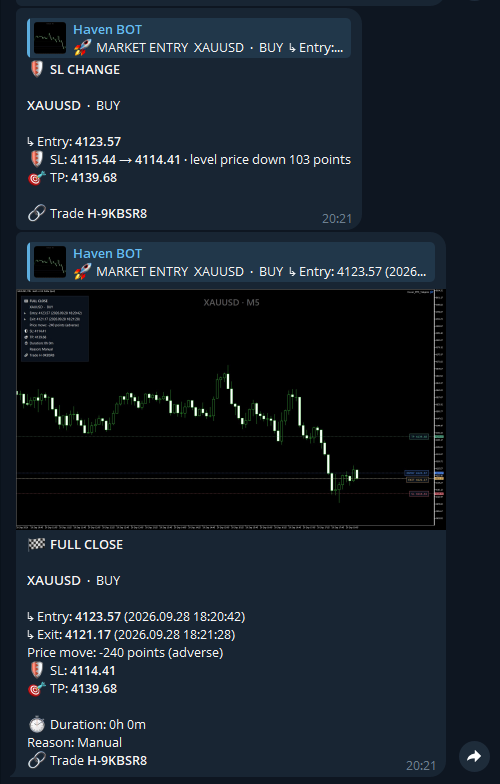
Haven V2 can publish the following lifecycle events:
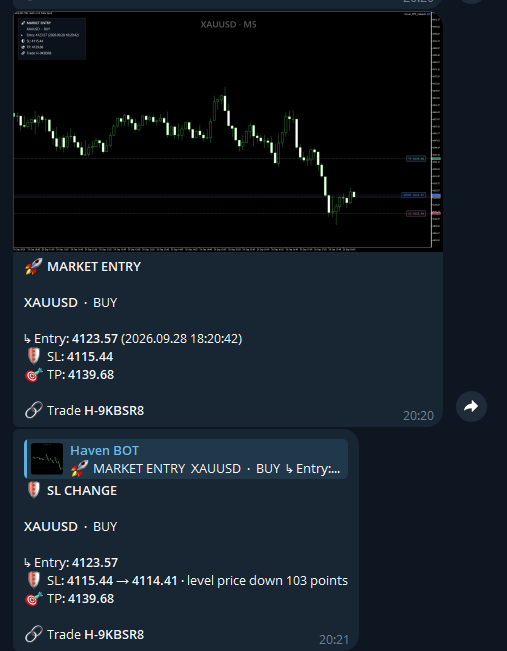
- 🚀 MARKET ENTRY
- 🛡️ SL CHANGE
- 🎯 TP CHANGE
- ⚙️ SL / TP CHANGE
- 🔒 BREAK EVEN
- ◐ PARTIAL CLOSE
- 🏁 FULL CLOSE
- ⏳ PENDING CREATED
- ✏️ PENDING MODIFIED
- ⚡ PENDING ACTIVATED
- ✖️ PENDING CANCELLED
- ⌛ PENDING EXPIRED
A Trade ID is used to help identify events belonging to the same trading segment.
🎨 Step 6. Message Format: STANDARD vs CUSTOM TEMPLATES
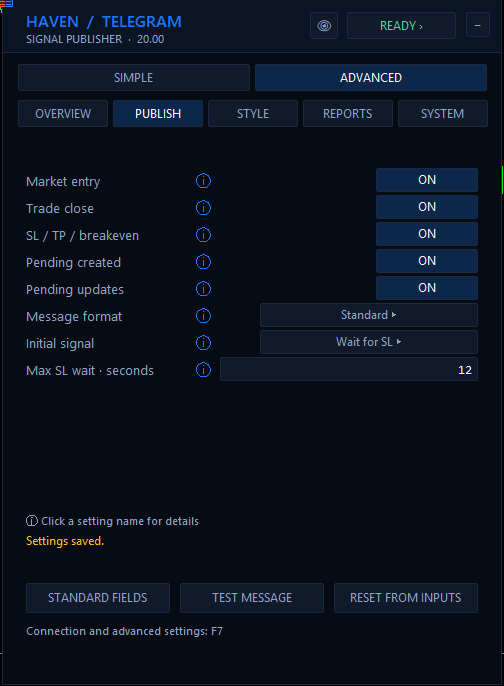
The ADVANCED → PUBLISH section contains the Message format setting.
STANDARD
STANDARD is the recommended mode for most users. No HTML editing is required.
Haven creates a structured Telegram message automatically.
Available Standard fields include:
- Symbol
- Direction
- Entry / Exit
- Stop Loss
- Take Profit
- Trade ID
- Duration
- Close Reason
- Volume
- Money P/L
- Ticket
Fields that are not relevant to a particular event are automatically omitted.
CUSTOM TEMPLATES
CUSTOM TEMPLATES is intended for users who want to control the message text manually.
Templates can be stored directly in EA Inputs or loaded from TXT files. Telegram HTML formatting can be used inside the templates.
📋 Available Custom Template Tags
| Tag | Description |
|---|---|
| {SYMBOL} | Trading symbol. |
| {TYPE} | BUY, SELL or order type. |
| {LOT} | Executed volume. |
| {PRICE} | Current event / execution price. |
| {OPEN_PRICE} | Opening price when known. |
| {CLOSE_PRICE} | Closing/event price. |
| {SL} | Stop Loss. |
| {TP} | Take Profit. |
| {PROFIT} | Event result with account currency when available. |
| {PIPS} | Legacy placeholder name for the point-distance value used by the template. |
| {TIME} | Event server time. |
| {OPEN_TIME} | Trade opening time when known. |
| {CLOSE_TIME} | Partial/full close time when relevant. |
| {DURATION} | Trade duration. |
| {TICKET} | MT5 ticket number. |
| {TRADE_ID} | Haven Trade ID. |
| {REASON} | Close reason when available. |
| {REMAINING_VOLUME} | Remaining position volume after a partial close. |
| {TYPE_ICON} | Direction icon. |
| {STATUS_ICON} | Result/status icon. |
📂 Step 7. Custom Templates from TXT Files
Long HTML templates can be easier to edit in external TXT files than inside the MT5 Inputs field.
- In MT5 click File → Open Data Folder.
- Open MQL5 → Files.
- Create your template files there.
- Save them as UTF-8.
Example filenames:
- pending.txt
- open.txt
- close.txt
Enter the filenames into:
- InpFilePending
- InpFileOpen
- InpFileClose
Example: open.txt
🚀 <b>MARKET ENTRY</b>

<b>{SYMBOL}</b> · {TYPE}

↳ Entry: <b>{PRICE}</b>
🛡️ SL: <b>{SL}</b>
🎯 TP: <b>{TP}</b>

Volume: <b>{LOT} lot</b>
🔗 Trade <b>{TRADE_ID}</b>
Example: close.txt
{STATUS_ICON} <b>TRADE CLOSED</b>

<b>{SYMBOL}</b> · {TYPE}

↳ Entry: <b>{OPEN_PRICE}</b>
↳ Exit: <b>{CLOSE_PRICE}</b>

💰 Result: <b>{PROFIT}</b>
⏱ Duration: {DURATION}

Reason: {REASON}
🔗 Trade <b>{TRADE_ID}</b>
Example: pending.txt
⏳ <b>PENDING ORDER</b>

<b>{SYMBOL}</b> · {TYPE}

↳ Order: <b>{PRICE}</b>
🛡️ SL: <b>{SL}</b>
🎯 TP: <b>{TP}</b>

Volume: <b>{LOT} lot</b>
Ticket: <code>{TICKET}</code>
📸 Step 8. Screenshots
Haven can attach chart screenshots to supported trade events.
Available options include:
- Screenshots — enable or disable images.
- Width / Height — image resolution.
- Watermark text — channel name, @username or another text label.
- Watermark size — watermark font size.
- Watermark position — selected chart corner.
- Entry / exit annotations — show relevant trade levels.
- Hide panel on screenshot — temporarily hides Haven controls.
- Capture delay — preparation time before the PNG is created.
Haven normalizes the visible chart area for the screenshot and can display Entry, Exit, SL and TP context.
The center of the image also shows the instrument and timeframe.
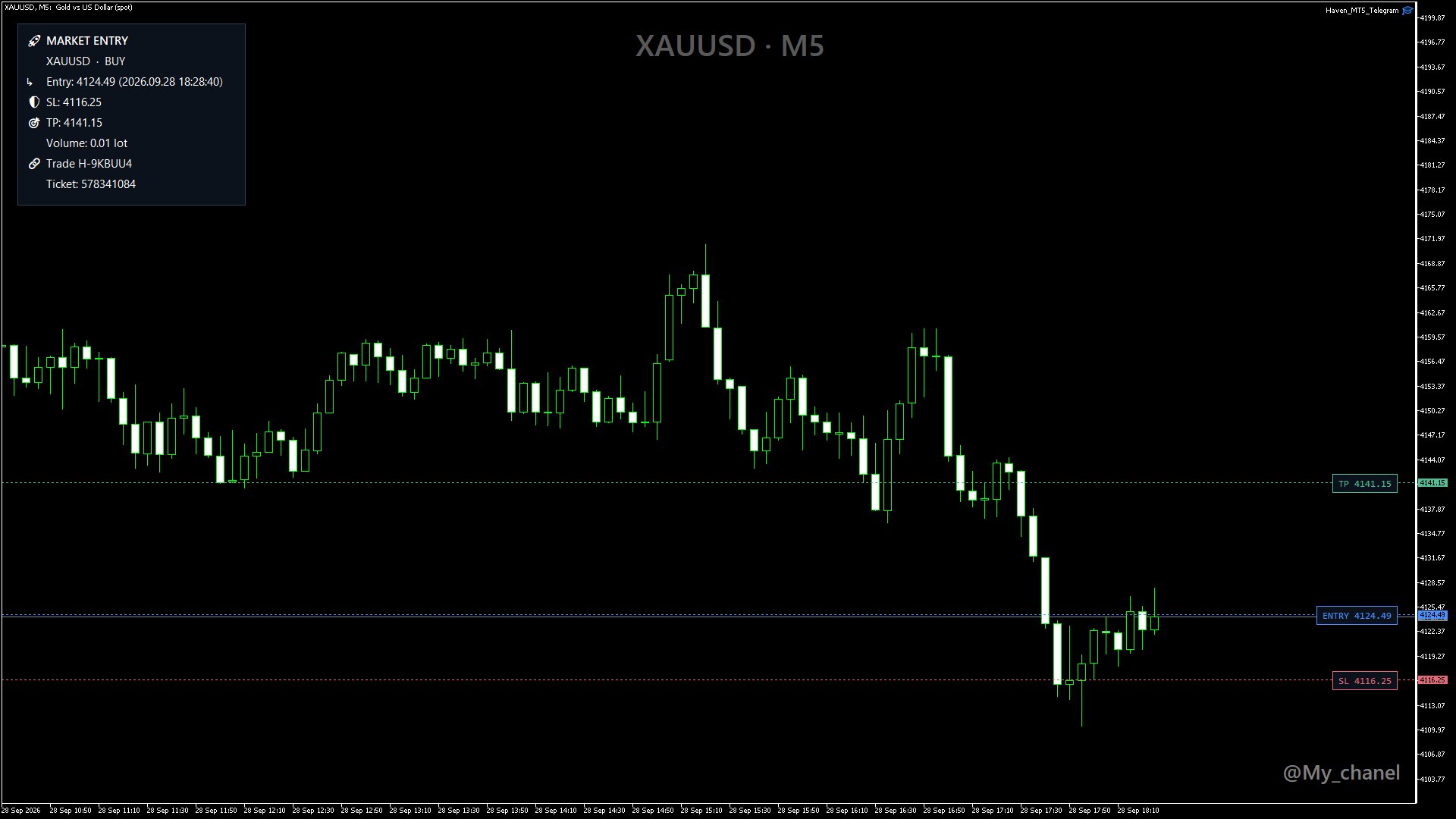
Trade monitoring can work for all symbols from one EA instance. Screenshot capture is different: to guarantee a screenshot for a particular symbol, keep a chart for that symbol open in MT5.
If a screenshot cannot be prepared, Haven can continue the delivery as a text message instead of losing the notification.
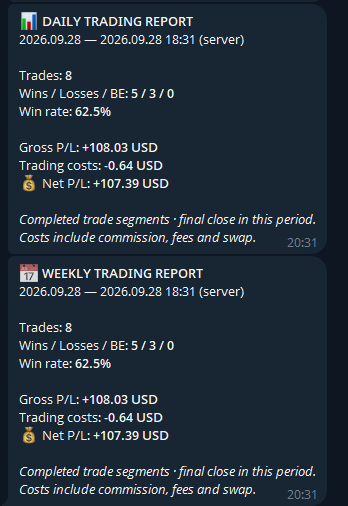
📊 Step 9. Reports
Daily Trading Report
Daily Report can be sent manually or automatically.
Automatic scheduling uses broker server time.
Weekly Trading Report
Weekly Report is currently sent manually from the REPORTS tab and covers the current week from Monday.
Report statistics
Reports may include:
- Trades
- Wins / Losses / Breakeven
- Win Rate
- Gross P/L
- Trading Costs
- Net P/L
Haven V2 counts a completed directional trade segment as one trade. Partial closes are included in the final result of that trade rather than counted as separate completed trades.
Trading costs include available commission, fees and swap from MT5 history.
📋 Step 10. Send Open Positions
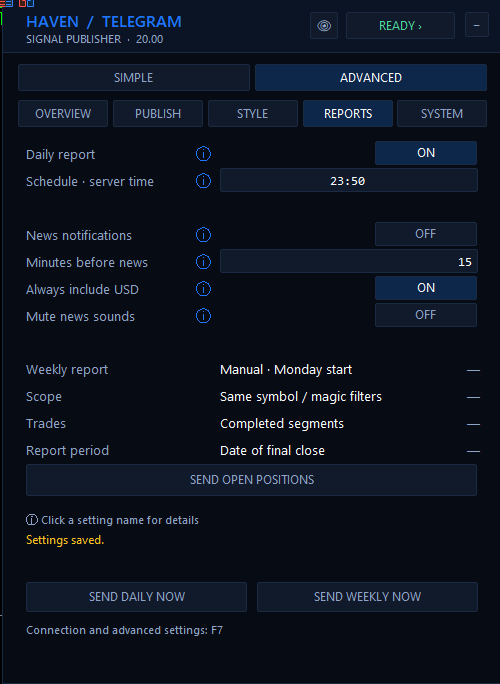
Press SEND OPEN POSITIONS in the REPORTS section to publish the current open-position snapshot.
Each position can include:
- Symbol and direction
- Entry price
- Stop Loss
- Take Profit
- Volume — when enabled
- Floating P/L including swap — when enabled
- Ticket — when enabled
The same symbol and Magic filters used by Haven are applied to the Open Positions summary.
📰 Step 11. Economic Calendar Notifications
High-impact economic-calendar notifications can be enabled in the REPORTS section.
- News notifications — enable or disable Telegram news warnings.
- Minutes before news — how early the warning should be sent.
- Always include USD — also monitor important USD events.
- Mute news sounds — disables the local MT5 sound only.
Muting news sounds does not disable Telegram news notifications.
🧪 Step 12. Test Messages
SIMPLE mode contains the basic SEND TEST action for checking Telegram delivery.
ADVANCED → PUBLISH also contains a trade-message test page.
Available demo scenarios include:
- Market Entry
- SL / TP Update
- Partial Close
- Close · Win
- Close · Loss
- Pending Order
These messages use demo trade data and the current message settings. They do not require opening a real trade.
Configure your Standard fields or Custom Templates, open TEST MESSAGE and send several demo scenarios before trading.
🔍 Step 13. Monitoring Scope and Magic Filter
The monitoring scope is configured in EA Inputs.
Monitor All Symbols = ON
Haven monitors matching trades across all symbols in the account.
Monitor All Symbols = OFF
Haven monitors only the symbol of the chart where the EA is attached.
Magic Filter = 0
All Magic Numbers are accepted.
Magic Filter = another value
Only matching trades are processed.
💾 Step 14. Inputs and Saved Panel Settings
Haven V2 stores normal panel configuration separately from Telegram delivery state.
This means settings edited directly from the panel remain available after restart.
After panel settings have been saved, changing F7 Inputs does not silently overwrite them.
If Haven detects that Inputs have changed, ADVANCED mode can show:
Inputs changed · saved settings remain active

[ APPLY INPUTS ]   [ KEEP SAVED ]
APPLY INPUTS rebuilds the active user configuration from the new F7 values.
KEEP SAVED keeps the settings currently stored by the panel.
👁 Panel Privacy Button
The eye button in the Haven header hides sensitive values displayed inside the panel.
This is useful for screenshots, streaming or screen sharing.
🔁 Delivery Queue and Retry
Haven uses a persistent delivery queue.
Before sending an external Telegram request, delivery progress is stored so that pending work can be recovered after an MT5 restart.
Temporary Telegram/network errors can be retried. Permanent failures remain visible in SYSTEM until they are resolved or manually retried.
If you see failed jobs, open:
ADVANCED → SYSTEM
and use RETRY FAILED when the underlying problem has been corrected.
❓ Frequently Asked Questions
Q: Haven stays on SETUP.
A: Open F7 and check that Bot Token and Destination are entered.
Q: Telegram verification fails.
A: Check the Bot Token, Destination, bot permissions and WebRequest permission for https://api.telegram.org.
Q: My channel does not receive messages.
A: Make sure the bot is added to the channel and has permission to publish messages.
Q: Why did Haven not send an automatic test message after startup?
A: V2 does not send automatic test messages. Use SEND TEST when you want to verify delivery.
Q: Why is my Entry delayed?
A: Check the Initial signal setting. Fixed Delay and Wait for SL intentionally hold the first Entry for a limited period.
Q: Wait for SL did not receive an SL before the timeout.
A: The Entry is still released when the maximum wait expires. Later SL/TP changes are handled as normal level updates.
Q: I receive trade messages but no screenshot.
A: Check that Screenshots are enabled and that a chart for the relevant symbol is available. If image capture fails, Haven may fall back to text delivery.
Q: The screenshot changed my chart zoom.
A: Haven temporarily prepares the chart for capture and then restores the previous chart state. If you can reproduce a case where restoration fails, save the Journal information for troubleshooting.
Q: Emojis in my TXT template appear incorrectly.
A: Save the TXT template in UTF-8.
Q: Why does the Weekly Report not send automatically?
A: Weekly Report is currently a manual action. Automatic scheduling is available for the Daily Report.
Q: What is the difference between SIMPLE / ADVANCED and STANDARD / CUSTOM TEMPLATES?
A: SIMPLE and ADVANCED are panel interface modes. STANDARD and CUSTOM TEMPLATES control how Telegram trade messages are formatted. They are separate settings.
Q: What does READY mean?
A: Telegram has been verified, Haven has loaded its required configuration and tracking state, and no blocking delivery condition is currently active.
✅ Quick Start Checklist
- Allow WebRequest for https://api.telegram.org.
- Create a Telegram Bot.
- Enter Bot Token and Chat ID in F7 Inputs.
- Press VERIFY TELEGRAM.
- Wait for READY.
- Optionally press SEND TEST.
- Keep the recommended SIMPLE defaults.
- Start trading.
✅ Haven MT5 to Telegram is ready when the panel shows READY.
SIMPLE is designed for quick setup.
Switch to ADVANCED only when you need additional control.