
SENDORIQ TradingView Bridge MT5 - Installation and Setup Guide

SENDORIQ TradingView Bridge MT5 – Installation and Setup Guide (v1.01)
REQUIRED: SENDORIQ HTTPS RELAY AND A TRADINGVIEW ACCOUNT WITH WEBHOOK ALERTS. SENDORIQ TradingView Bridge MT5 receives structured alerts from TradingView through the SENDORIQ HTTPS Relay and processes them in MetaTrader 5. Relay access is initially included for SENDORIQ buyers without an additional usage fee. Internet access and an available Relay are required; delivery time or uninterrupted availability is not guaranteed.
No separate Windows Bridge download is needed. The MQL5 Market product is a single MT5 Expert Advisor (EX5). The SENDORIQ Control Center is optional, not required for setup or operation. No Python, Flask, ngrok, external DLL or local web server is required.
Begin on a demo account. The EA can execute real trades when intentionally authorized, so first leave execution disabled until you have verified your account, symbol mapping, signal validation and risk limits.
1. Requirements
- MetaTrader 5 for Windows with an account at a broker that supports the intended instrument and order type.
- A TradingView subscription/account with webhook alerts and enabled two-factor authentication.
- Internet access to https://relay.sendoriq.com from the MT5 terminal.
- Valid JSON alerts containing a fresh numeric Unix timestamp, a unique event ID and valid trading parameters.
- A continuously running MT5 terminal and EA for receiving new alerts and managing EA-side Multi-TP schedules.
2. Install the EA in MetaTrader 5
- After the Market release is available, sign in to MT5 using the MQL5 account used for your purchase or rental.
- Open Market / My Purchases and install Sendoriq TradingView Bridge MT5.
- Attach the EA to one chart on the intended broker demo account.
- Leave the EA's Live Execution setting disabled. Enable the separate Bridge Enabled transport setting when ready to connect.
- Check the on-chart dashboard for the EA version, connection information and execution state.
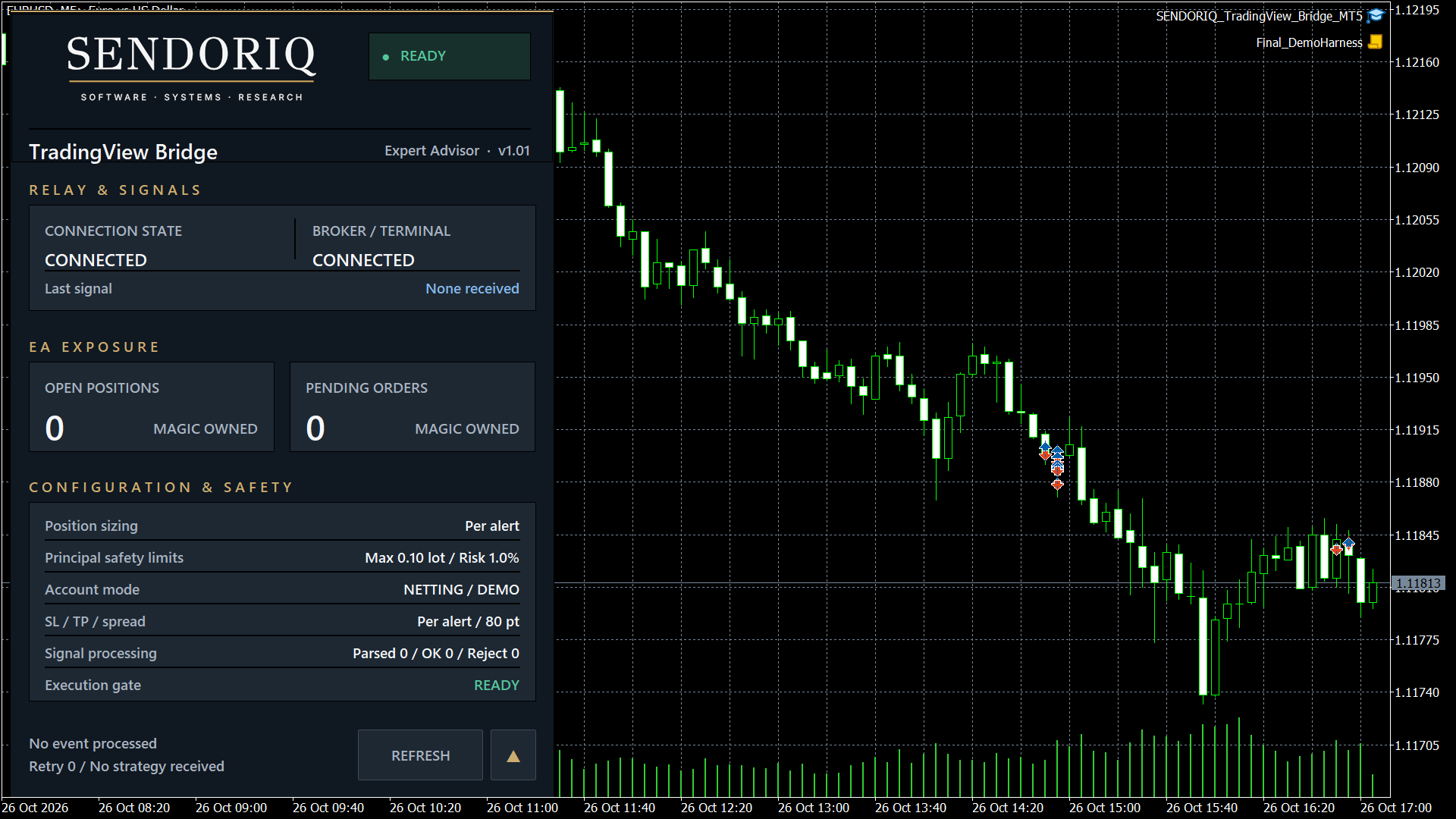
Expanded dashboard – READY. Diesen gesamten Platzhalter im MQL5-Editor durch das hochgeladene Originalbild ersetzen.
3. Allow the SENDORIQ Relay in MT5
- Open Tools → Options → Expert Advisors in MetaTrader 5.
- Enable Allow WebRequest for listed URL.
- Add exactly: https://relay.sendoriq.com
- Apply the setting and reinitialize or reattach the EA if the previous setup attempt was blocked.
- Allow the EA to create and register its terminal-local Bridge identity. If registration is not ready, investigate the dashboard and WebRequest setup first.
Important: Do not delete registry or identity files to work around account, server or ownership checks.
4. Locate your private Bridge ID and inbound token (without Control Center)
This version supports standalone configuration, but it does not contain a built-in copy-token wizard. The required values are stored in a private, tab-separated file in the MT5 data folder after successful Relay registration.
- In the correct MT5 terminal choose File → Open Data Folder.
- Navigate to MQL5/Files/SENDORIQ/TradingViewBridge/private/relay_identity.tsv .
- Open the file locally with a text editor. Do not modify, upload or share it.
- On its format-3 data row, count the tab-separated fields starting at 1: field 4 = Bridge ID; field 6 = inbound token.
- Never copy field 5 (EA credential) into TradingView or a webhook message.
- If fields 4 and 6 are empty, let registration finish and review WebRequest/Relay connection instead of inventing values.
- Close the editor after completing the private setup. Never share screenshots of the populated file.
If you prefer the optional SENDORIQ Control Center, its setup interface can prepare payloads. The Control Center is not a runtime dependency.
5. Create your TradingView webhook
- In TradingView open the intended chart and create an alert with Webhook URL enabled.
- Use this URL, replacing the placeholder with your own Bridge ID:
https://relay.sendoriq.com/v1/tv/SQ-YOUR-BRIDGE-ID - Use the required protocol-v1 JSON envelope: inbound_token and event .
- Provide the unique event ID and numeric Unix timestamp in seconds when the alert is actually sent. A retry must use the same event ID.
- Adapt broker symbols, volume, risk, SL and TP to the currently traded symbol and your broker. Use an SL when account-exposure protection is active.
Illustrative structure only – do not submit the following template unchanged. Its created_at: 0 is deliberately invalid for a live alert. The ID, secret, symbol, prices and timestamp must all be replaced with appropriate live values:
{ "inbound_token": "REPLACE_WITH_PRIVATE_INBOUND_TOKEN", "event": { "v": 1, "event_id": "REPLACE_WITH_UNIQUE_EVENT_ID", "created_at": 0, "expires_in": 30, "bridge_id": "SQ-YOUR-BRIDGE-ID", "strategy": "My-TradingView-Alert", "action": "OPEN", "side": "BUY", "symbol": "OANDA:EURUSD", "order_type": "MARKET", "risk": { "mode": "FIXED_LOT", "value": 0.01 }, "sl": 1.11500, "tp": 1.13000 } }
Optional Pine Script v6 example: The following BUY-only indicator is a setup example (EMA crossover), not a verified trading strategy. Before activating the alert, replace the private Bridge ID/token and adjust the fixed lot, broker symbol and absolute SL/TP price levels. The hardcoded levels below are illustrative and may be invalid or unsafe for current prices.
//@version=6 indicator("SENDORIQ TradingView Bridge Indicator", overlay=true) // Selected side: BUY. Absolute SL/TP levels must remain valid when the alert fires. string bridgeId = "SQ-YOUR-BRIDGE-ID" string inboundToken = "REPLACE_WITH_PRIVATE_INBOUND_TOKEN" fast = ta.ema(close, 9) slow = ta.ema(close, 21) buyCondition = ta.crossover(fast, slow) and barstate.isconfirmed sellCondition = ta.crossunder(fast, slow) and barstate.isconfirmed if buyCondition createdAt = int(timenow / 1000) eventId = "TV-BUY-" + str.tostring(timenow) + "-" + str.tostring(bar_index) eventJson = '{"v":1,"event_id":"' + eventId + '","created_at":' + str.tostring(createdAt) + ',"expires_in":30,"bridge_id":"' + bridgeId + '","strategy":"PINE-V100","action":"OPEN","side":"BUY","symbol":"' + syminfo.prefix + ':' + syminfo.ticker + '","order_type":"MARKET","risk":{"mode":"FIXED_LOT","value":0.01},"sl":1.05,"tp":1.2}' alert('{"inbound_token":"' + inboundToken + '","event":' + eventJson + '}', alert.freq_once_per_bar_close) plot(fast) plot(slow)
Add the script as an indicator to the intended TradingView chart, then create the alert using Any alert() function call. The script supplies the JSON including a fresh numeric Unix timestamp ( int(timenow / 1000) ) and event ID. TradingView stores an alert snapshot of the script/settings: recreate alerts after relevant changes.
TradingView security: Use the restricted inbound token only in your own private alert configuration. Do not share the alert body, token, screenshots containing it, or public logs. TradingView recommends avoiding secrets in webhook messages; this product's authenticated protocol requires a restricted inbound token, so protect access to the alert and rotate it if exposed.
6. Configure sizing and account-wide safety
- Confirm correct TradingView-to-broker symbol mapping, minimum volume and volume step, broker trading hours, spread, margin and permitted pending-order types.
- Select fixed-lot, balance/equity-percentage or cash-risk sizing as appropriate. Risk-based sizing requires a valid stop loss.
- The default Maximum Account Exposure is 3% of current equity. The EA estimates initial entry-to-SL risk across all account positions and pending orders, including manual trades and other EAs. With the cap enabled, missing or unquantifiable SL risk can block new/additional exposure.
- Setting this cap to 0 disables that account-wide cap; it does not remove other safeguards. A valid SL is still required for risk-based sizing. Do not disable the cap merely to bypass a setup error.
- Changes to an existing owned position, genuine risk reductions and closure follow the EA's ownership and validation rules. No risk setting guarantees a maximum loss during gaps or slippage.
7. Test connection without placing orders
- Leave Live Execution disabled. Check the dashboard for Relay state, terminal/broker connection and the execution gate.
- Send a fresh, valid test alert and inspect the final EA result and ACK. A TradingView webhook delivery success or Relay HTTP acceptance does not mean that a broker order was executed.
- Confirm that an intentionally repeated event ID does not create a second action.
- If the EA reports a stale event, invalid volume, invalid SL, symbol mismatch or missing WebRequest permission, correct the specific cause and test again.
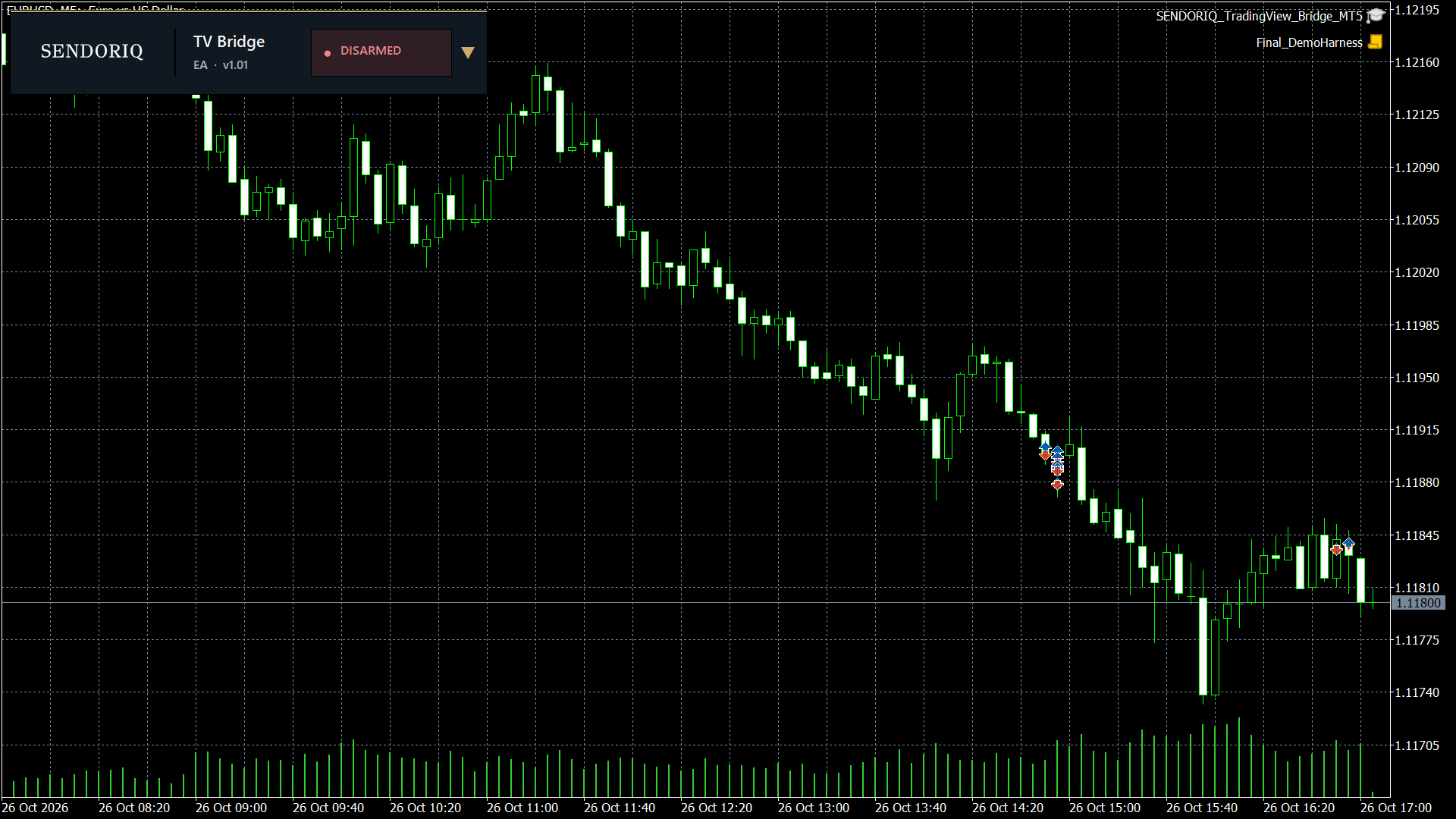
Expanded dashboard – DISARMED. Diesen gesamten Platzhalter im MQL5-Editor durch das hochgeladene Originalbild ersetzen.
8. Perform a controlled broker demo test
- Verify the terminal is connected to the intended demo broker account.
- Enable MT5 Algo Trading and the EA's trading permission, and deliberately enable Live Execution in the EA. Despite the name, this input is also required for actual demo order execution; it does not switch between demo and real accounts.
- Send one small, broker-valid test signal with a bounded SL. Confirm the order/position at the broker and the final EA execution result.
- Where relevant, test an order modification, partial close or pending-order cancellation.
- Close test positions and cancel outstanding test pending orders. Confirm that nothing remains on the demo account, then disable execution again.
9. Expanded and compact dashboard
The expanded panel shows relay connection, terminal status, activity, EA-owned positions/orders, risk settings and execution gate. The compact panel keeps the main status visible without occupying a large part of the chart. The refresh/view controls do not bypass the EA's execution authorization.
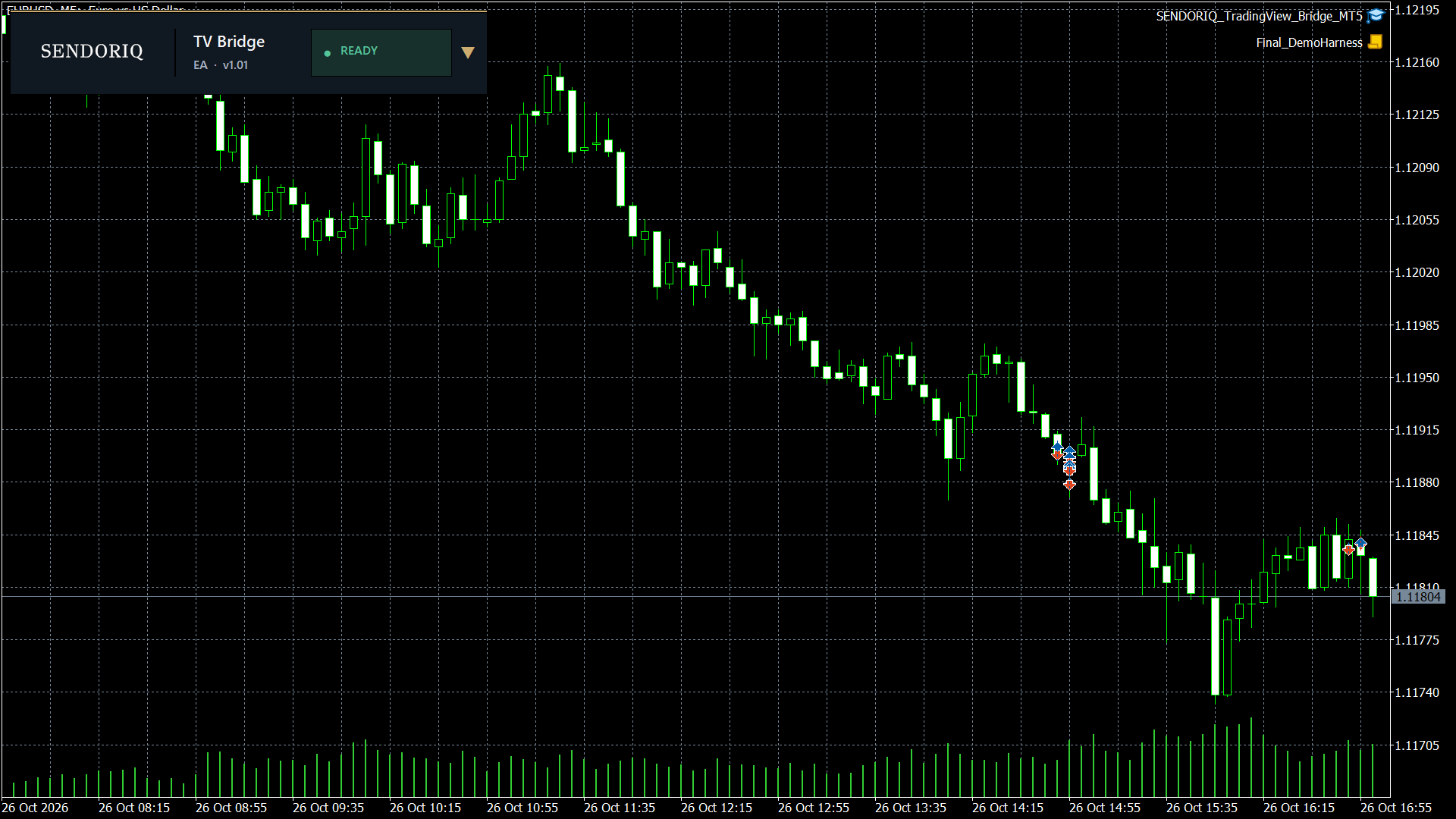
Compact dashboard – READY. Diesen gesamten Platzhalter im MQL5-Editor durch das hochgeladene Originalbild ersetzen.
READY means the execution gate is ready; it is not proof that a cloud alert was delivered or that a broker filled an order. Always inspect connection and ACK separately.
10. Supported commands and order management
The implemented command protocol supports OPEN with MARKET, BUY_LIMIT, SELL_LIMIT, BUY_STOP and SELL_STOP; CLOSE, CLOSE_PARTIAL, MODIFY, MOVE_SL, BREAK_EVEN, CANCEL and REVERSE. Multi-TP supports 1–10 sequential EA-managed partial-close targets. Those schedules require the EA to remain running. Automatic trailing is not included in the advertised TradingView command path.
A pending order with expiry: "SPECIFIED" needs a valid future UTC Unix-seconds expiration . Do not add a broker-time offset manually; expires_in is message freshness, not pending-order lifetime. Broker acceptance and supported expiration modes vary.
11. Common troubleshooting
- WebRequest not allowed / HTTP -1: check the exact Relay URL in the MT5 allowlist; reconnect the EA.
- Registration not ready: check internet/Relay reachability and the EA's identity status. Never delete the private registry as a shortcut.
- TradingView webhook sent, no order: inspect its alert log, the EA's last event/result, input-level execution authorization, current quote and broker retcode.
- STALE_EVENT or DUPLICATE_EVENT: check the live Unix timestamp, expiry and event ID. Retries of one event should keep the original ID.
- EXPOSURE_UNBOUNDED or EXPOSURE_LIMIT_REACHED: inspect account-wide positions and pending orders, including unrelated manual/EA exposure, and review SLs and the account cap.
- Market closed / symbol not found: inspect broker hours, exact contract names and your symbol mapping.
- Strategy Tester: MT5 WebRequest is unavailable in the Strategy Tester. This EA intentionally prevents live Relay transport in that environment.
12. Operational limits and support
TradingView webhook delivery, internet availability, the SENDORIQ Relay, running MT5/EA, broker prices, margin and order acceptance are external conditions. A connected dashboard does not guarantee alert delivery or execution. EA-managed Multi-TP requires the EA to stay online. No profit, trade execution, uptime or universal broker compatibility is guaranteed.
TradingView documents that webhook requests can time out after three seconds and may occasionally fail; check the Webhook status in the TradingView alert log. Webhook alerts require TradingView two-factor authentication and a plan/account that offers them.
For support, use the MQL5 product comments or MQL5 private messaging. State your EA version, broker symbol (without account number), sanitized status/error code and what you attempted. Never send tokens, identities, account credentials or private alert payloads.
Product version 1.01. Last updated: 26 October 2026. This is an installation guide, not a promise of trading results.




