VBC EA Telegram
- Yardımcı programlar
- Sürüm: 1.1
- Güncellendi: 13 Temmuz 2026

Price: Free Companion tool for: VBC Indicator (required — sold separately)
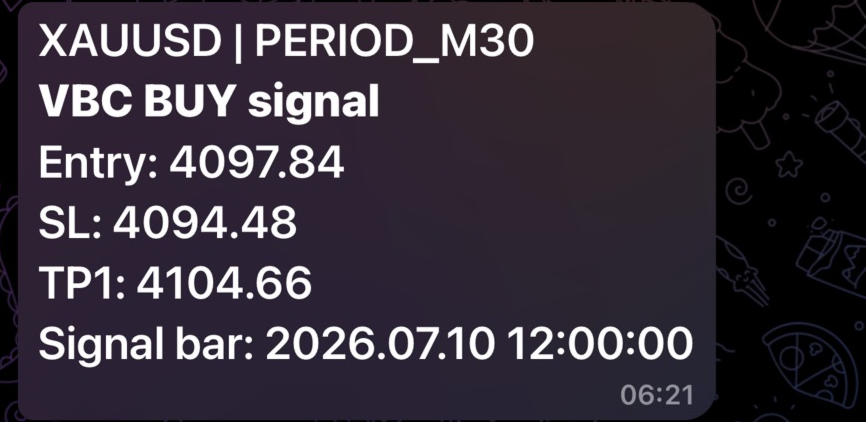
Never miss a VBC signal again. VBC EA Telegram watches your chart for VBC Indicator's Buy/Sell signals and instantly pushes them to your phone via Telegram — with Entry, Stop Loss and Take Profit already worked out for you. Want it fully hands-off? Turn on auto-trading and let it place the pending order for you the moment a signal confirms.
What It Does
VBC EA Telegram does not re-analyze the chart on its own. It reads the exact same signals VBC Indicator already draws on your chart — the Buy/Sell arrows, the Wait line, the Min Stop Loss line, and the TP1/TP2 lines — so what you get on Telegram is guaranteed to match what you see on the chart. No separate logic, no drift, no surprises.
- 📲 Instant Telegram alerts — the moment a new VBC signal confirms, a message lands in your Telegram with Entry, Stop Loss, TP1 (and TP2 if available), symbol, timeframe and signal time.
- 🤖 Optional auto-trading — enable it and the EA places a real pending order (Buy Stop/Buy Limit or Sell Stop/Sell Limit, chosen automatically based on where price is relative to the entry level) with SL and TP already attached.
- 🖥️ Works in the background — loads VBC Indicator internally, so you don't even need it visually attached to a chart for alerts to work.
- 🛡️ Safe by default — auto-trading can be switched off entirely ( InpEnableTrading = false ) so you can run it purely as a notification tool first.
- 🔁 No duplicate spam — each signal is only ever sent once, no matter how long it stays on the chart.
Requirements
- MetaTrader 5
- VBC Indicator installed and compiled (this EA loads it internally — it does not duplicate its detection logic)
- A Telegram account and a free Telegram bot (instructions below — takes about 2 minutes)
Setup Guide
1. Get your Telegram Bot Token
- Open Telegram and search for @BotFather.
- Send /newbot and follow the prompts (choose a name and a username ending in bot ).
- BotFather will reply with a token that looks like: 123456789:AAExampleTokenStringHere12345678901
- Copy this — it goes into the EA's InpBotToken input.
2. Get your Chat ID
Pick whichever is easier for you:
Option A — sending alerts to yourself (personal chat):
- Search for @userinfobot on Telegram and open a chat with it.
- Send any message — it replies with your numeric Id. That's your Chat ID.
Option B — sending alerts to a group:
- Add your new bot to the Telegram group.
- Send any message in the group.
- In a browser, open: https://api.telegram.org/bot<YOUR_BOT_TOKEN>/getUpdates
- Look for "chat":{"id":-100xxxxxxxxxx,...} in the response — that negative number is your group's Chat ID.
Copy the Chat ID into the EA's InpChatID input.
3. Allow MT5 to talk to Telegram
In MetaTrader 5: Tools → Options → Expert Advisors → tick "Allow WebRequest for listed URL" → add:
Without this step, MT5 will silently block every message.
4. Install and attach
- Make sure VBC Indicator is compiled ( VBC_Indicator.ex5 present in your Indicators folder).
- Drag VBC EA Telegram onto your chart (any symbol/timeframe you run VBC Indicator on).
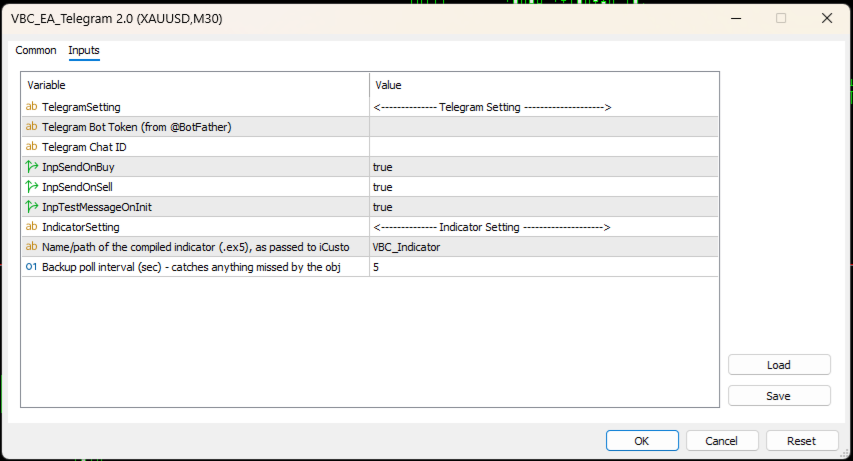
- In the Inputs tab, fill in InpBotToken and InpChatID .
- Tick InpTestMessageOnInit = true once to confirm the connection — you should get a "started" message on Telegram immediately.
- Make sure AutoTrading is enabled in the MT5 toolbar (required even for alert-only mode, since the EA needs to run).
That's it — you'll now get a Telegram message every time VBC Indicator confirms a new signal.
Inputs
Telegram Setting
| Input | Description |
|---|---|
| InpBotToken | Your Telegram bot token from BotFather |
| InpChatID | The chat/group to send alerts to |
| InpSendOnBuy / InpSendOnSell | Turn Buy/Sell alerts on or off independently |
| InpTestMessageOnInit | Sends a one-time test message when the EA starts, to confirm setup |
Indicator Setting
| Input | Description |
|---|---|
| InpIndicatorName | Name of the compiled VBC Indicator file (leave default unless you renamed it) |
| InpPollSeconds | Backup check interval in seconds, catches any signal the live event might miss |
Trading Setting
| Input | Description |
|---|---|
| InpEnableTrading | true = place a real pending order per signal · false = Telegram alerts only, no trading |
| InpLotSize | Fixed lot size used for every order |
| InpMagicNumber | Magic number tag for orders opened by this EA |
| InpPendingExpiryMin | Minutes before an unfilled pending order auto-cancels ( 0 = never expires) |
| InpTradeComment | Comment attached to every order |
How Auto-Trading Works
When InpEnableTrading = true , the EA places a pending order at the exact Entry price shown by VBC Indicator's Wait line:
- If the Entry price is above the current market → Buy Stop / Sell Limit
- If the Entry price is below the current market → Buy Limit / Sell Stop
The correct order type is chosen automatically for every signal — you don't need to configure this. Stop Loss and Take Profit (TP1) are attached to the order automatically. Every new signal places a fresh order regardless of any existing position or pending order — the EA does not manage or cancel prior trades for you.
Important Notes
- This EA is a free companion tool — it requires VBC Indicator (sold separately) to function; it has no signal logic of its own.
- Auto-trading places real pending orders with real risk. Test on a demo account first.
- Fixed lot sizing only — you are responsible for your own position sizing and risk management.
- Not an automated "set and forget" profit system — always monitor your open orders.
Also From This Author
- VBC Indicator — the signal engine this EA connects to
- Smart Entry MT5
- Fibo Pending EA
- HiTrader MT5
Questions or feature requests? Leave a comment or send a message — happy to help you get set up.