

平均足を使ったプロフェッショナルな取引システムの構築(第1回):カスタムインジケーターの開発
 363
363
 0
0

はじめに
テクニカル指標はアルゴリズム取引の中核であり、それらの構築方法を習得することはMQL5開発者にとって重要なステップです。本記事では、最も広く使用されているトレンド平滑化ツールのひとつである平均足チャートを題材に、カスタムインジケーター開発を実践的に学んでいきます。
本記事は2部構成シリーズの第1回です。第1回では、平均足の理論と算出方法を解説し、MQL5を用いて平均足インジケーターを1から実装する手順を詳しく説明します。単にソースコードをコピー&ペーストするのではなく、各行の意図と役割を理解してもらうことで、読者が今後自身のカスタムインジケーターを構築する際に応用できる力を身につけることを目指します。
第2回では、平均足インジケーターをエントリーとエグジットの基盤として用いるエキスパートアドバイザー(EA)を開発します。まずは、平均足チャートが従来のローソク足チャートとどのように異なるのかを理解するところから始めましょう。
本記事を読む前に必要な知識:本記事では、読者が以下の点について、あらかじめ理解していることを前提としています。
- MQL5プログラミング言語
- MetaTrader 5およびMetaEditor 5の操作
- チャートにインジケーターやEAを適用する方法
平均足と従来のローソク足の違い
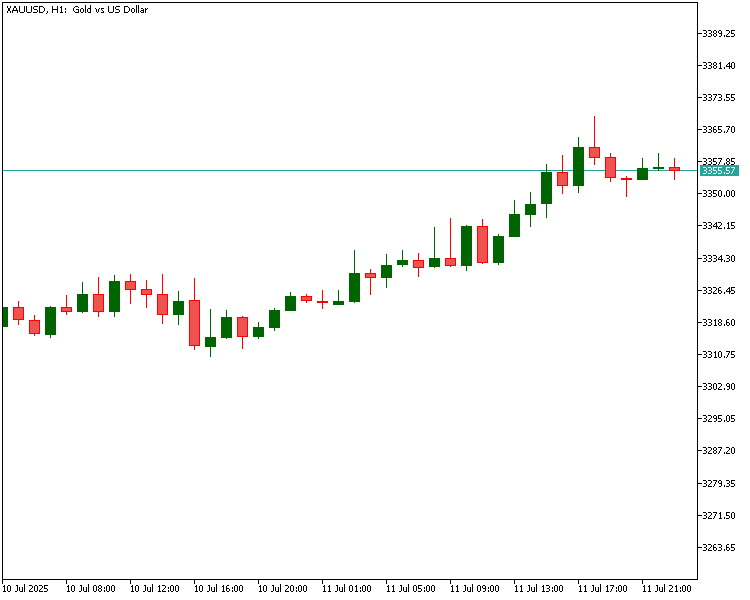
まず、2つのチャートを並べて見てみましょう。
従来のローソク足チャート
同じ価格データから生成された平均足チャート
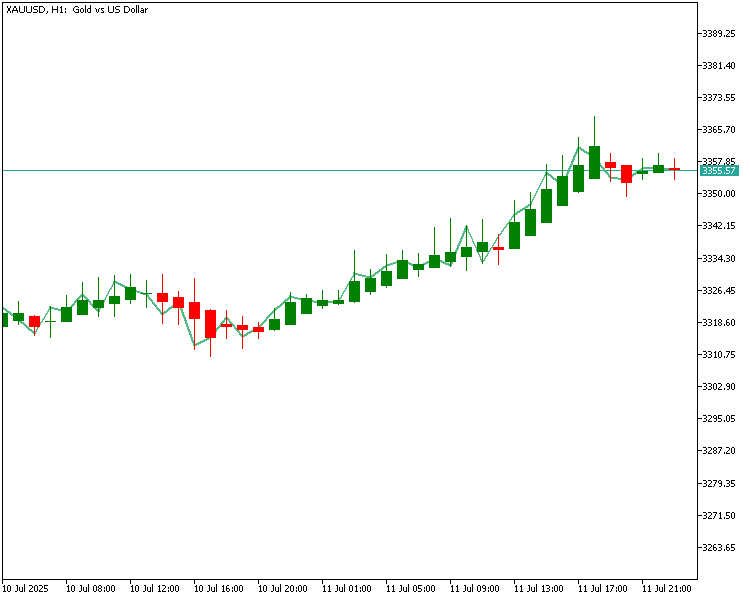
どちらのチャートも最近の金価格の値動きを基にしています。比較する際は、トレンド期におけるローソク足の挙動に注目してください。従来のローソク足チャートは各バーごとに更新されるため、全体のトレンドが続いていても色が頻繁に変わりやすく、チャートが断続的に見えることがあります。こうした色の変化は視覚的なノイズを生み、一目で勢いをつかむのを難しくします。これに対して、平均足は平滑化された値を用いて算出されるため見た目がよりすっきりします。トレンド期には同じ色のローソク足が連続して出ることが多く、上昇トレンドや下降トレンドを視覚的に捉えやすくなります。
簡単に言えば、平均足は上昇局面では緑(陽線)を、下降局面では赤(陰線)を維持しやすく、従来チャートで反転のように見える小さな押し目や戻りをフィルタリングします。そのため、一時的なノイズを除外してトレンドに沿った取引をおこないたいトレーダーにとって有用なツールです。
次のセクションでは、これらのローソク足が具体的にどのように計算されるかを分解して説明します。
平均足の計算方法
平均足の計算方法を見ていく前に、まず通常のローソク足と何が違うのかを理解しておきましょう。従来のローソク足チャートでは、各ローソク足は市場の4つの主要な値を使って形成されます。
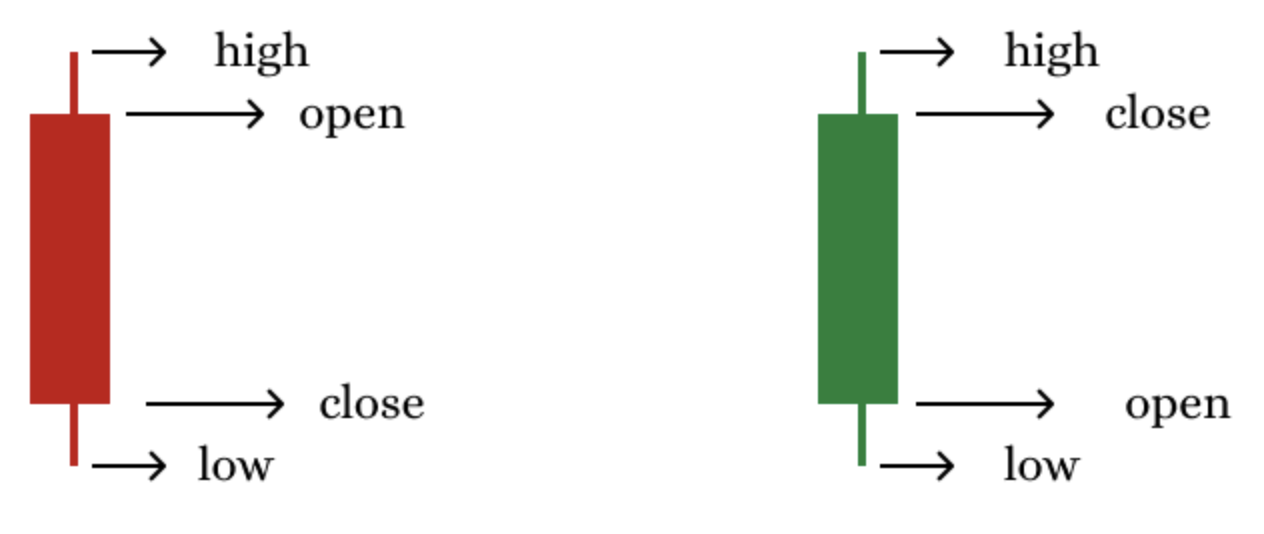
- 始値(Open):ローソク足の形成開始時の価格
- 高値(High):ローソク足形成中に到達した最高価格
- 安値(Low):ローソク足形成中に到達した最低価格
- 終値(Close):ローソク足形成終了時の最終価格
これらの値は、1時間や1日など特定の期間における市場の動きをそのまま反映します。しかし、平均足ではこれらの生の値をそのまま使うわけではありません。代わりに、チャートを滑らかにし、全体的なトレンドをより明確に把握できるように修正された値を使用します。
平均足を構成する値
- 始値(Open):前の平均足の始値と終値を平均した平滑化された値
- 高値(High):実データと平滑化データを組み合わせたセットの中での最高値
- 安値(Low):同じセットの中での最低値
- 終値(Close):現在の実際のローソク足の4本値の平均
次に、これら平均足の各値が具体的にどのように計算されるかを詳しく見ていきましょう。
平均足の公式
平均足終値 = (始値 + 高値 + 安値 + 終値) / 4
これは現在の平均足の平均価格です。この期間中の価格の全体的な動きを反映する、バランスの取れた単一の数値を示します。
平均足始値 = (前回の平均足始値 + 前回の平均足終値) / 2
つまり、現在の平均足の始値は市場の現在の始値ではなく、前の平均足の実体の中間点となります。これにより、ローソク足間の遷移がスムーズになり、「流れるような」見た目が生まれます。
平均足高値 = 平均足高値、平均足始値、平均足終値のうち最も高い値
平均足安値 = 平均足安値、平均足始値、平均足終値のうち最も低い値
これらの値は、市場の実際の高値や安値と平滑化された始値と終値を組み合わせたもので、ローソク足に現実的なヒゲを持たせつつ、平滑化のメリットを維持します。
要するに、
平均足の終値は、現在のローソク足の価格を平均化した値を反映します。平均足の始値は、前の平均足の値を平滑化して算出されます。また、平均足の高値と安値は、元のローソク足の値と平滑化された平均足の値の両方を組み合わせて、その期間の極値を表します。
この計算方法によって、平均足はすっきりとした、トレンド重視の見た目になります。上昇トレンドでは緑色、下降トレンドでは赤色になり、短期的な変動による混乱を除外できます。
次のセクションでは、MQL5を使ってカスタム平均足インジケーターをステップごとに構築し、この知識を実践に活かします。
インジケーターロジックの計画
コードに進む前に、平均足インジケーターのロジックを簡単に計画することが重要です。まず、通常のローソク足と同じように、平滑化された価格計算に基づいて、チャート上に直接平均足を表示するカスタムインジケーターを構築することを明確にします。
標準的な可視化に加えて、3つの異なる色を使用してローソクに色を付けることで平均足チャートを強化します。1色は強気のローソク足、もう1色は弱気のローソク足、3色目は中立のローソク足です。
この視覚的なロジックをサポートするために、インジケーターは次の5つのバッファを使用します。
- 平均足始値:平均足の始値を格納する配列
- 平均足高値:平均足の高値を格納する配列
- 平均足安値:平均足の安値を格納する配列
- 平均足終値:平均足の終値を格納する配列
- カラーバッファ:各平均足の強気、弱気、中立に応じたカラーインデックスを格納する配列
各バッファは、平均足のプロットと適切な色の動的適用の両方において重要な役割を果たします。。
これらのローソク足を描画するには、DRAW_COLOR_CANDLESを使用した単一のグラフィックプロットを用います。これにより、1つのプロットIDと別のバッファで色付けを管理できます。チャート上の最初のバーには前の平均足の値がないため、注意して処理する必要があります。残りのローソク足は適切な数式に基づいて正確に構築されるよう、最初のバーの値を手動で初期化します。
最後に、コードを簡潔で初心者にも扱いやすくするため、ロジックの主要部分を小さな関数に分割し、モジュラープログラミングスタイルで記述します。これにより、コードの理解、デバッグ、および将来のチュートリアルでの拡張が容易になります。
平均足インジケーターのコーディング手順ガイド
カスタム平均足インジケーターを作成するには、MQL5プログラミング言語を使用します。これはMetaTrader 5で自動取引ツールを開発するためのネイティブ言語です。
読者は既にMetaTrader 5やMetaEditorの操作方法、チャートへのインジケーター添付の基本を理解していると想定しているため、セットアップの詳細は省略し、カスタム平均足インジケーターの開発に直接進みます。
以下は、カスタムインジケーターを構築するための基礎として使用する初期の定型コードです。この出発点から、コアロジックの実装を段階的に進めていきます。
//+------------------------------------------------------------------+
//|                                          heikinAshiIndicator.mq5 |
//|                                  Copyright 2025, MetaQuotes Ltd. |
//|                          https://www.mql5.com/ja/users/chachaian |
//+------------------------------------------------------------------+
#property copyright "Copyright 2025, MetaQuotes Ltd."
#property link      "https://www.mql5.com/ja/users/chachaian"
#property version   "1.00"

//+------------------------------------------------------------------+
//| Custom indicator initialization function                         |
//+------------------------------------------------------------------+
int OnInit()
{

   return INIT_SUCCEEDED;
}

//+------------------------------------------------------------------+
//| Custom indicator iteration function                              |
//+------------------------------------------------------------------+
int OnCalculate(const int32_t  rates_total,
                const int32_t  prev_calculated,
                const datetime &time       [],
                const double   &open       [],
                const double   &high       [],
                const double   &low        [],
                const double   &close      [],
                const long     &tick_volume[],
                const long     &volume     [],
                const int32_t  &spread     [])
{

   return(rates_total);
}
//+------------------------------------------------------------------+
このコードを単純で論理的な部分に分解して、理解しやすくしましょう。
プロパティディレクティブ
...
#property copyright "Copyright 2025, MetaQuotes Ltd. Developer is Chacha Ian"
#property link      "https://www.mql5.com/ja/users/chachaian"
#property version   "1.00"

...
これらの行は、MetaTrader 5ナビゲータと説明ウィンドウに表示されるインジケーターのメタ情報を設定します。
- #property copyright:著作権者および開発者を宣言します。ブランディングやコードの所有権を示すのに有用です。
- #property link:プロジェクトファイルやプロジェクトページへのクリック可能なリンクを提供します。
- #property version:将来のアップデート時のバージョン管理に役立ちます。
...

//+------------------------------------------------------------------+
//| Custom indicator initialization function                         |
//+------------------------------------------------------------------+
int OnInit()
{
   return(INIT_SUCCEEDED);
}

...
OnInit()初期化関数は、インジケーターがチャートに最初に適用されたときに一度だけ呼び出されます。この関数は、セットアップや構成タスクの処理に使用されます。関数内でINIT_SUCCEEDEDを返すことで、MetaTrader 5にインジケーターが正常に読み込まれたことを通知します。次のステップでは、OnInit()を使用してインジケーターのバッファを登録し、プロットの視覚的なプロパティを定義していきます。
計算関数
...

//+------------------------------------------------------------------+
//| Custom indicator iteration function                              |
//+------------------------------------------------------------------+
int OnCalculate(const int32_t  rates_total,
                const int32_t  prev_calculated,
                const datetime &time[],
                const double   &open[],
                const double   &high[],
                const double   &low[],
                const double   &close[],
                const long     &tick_volume[],
                const long     &volume[],
                const int32_t  &spread[])
{

   return(rates_total);
}

...
これはインジケーターの心臓部にあたる部分です。新しいローソク足が形成されるたびに繰り返し呼び出されます。この関数のパラメーターを通じて、以下にアクセスできます。
- Rates_total:利用可能なバーの総数
- Prev_calculated:前回のOnCalculate関数呼び出しで処理されたバーの数(最適化用)
- Time、Open、High、Low、Close:基本的には過去の価格時系列データ
- Volume、Tick_volume、Spread:追加の取引データ
重要な点として、OnCalculate関数は新しいティックデータが到着したときや、履歴データが更新されたときに自動的に呼び出されます。たとえば、履歴データに空白があり、それが埋められた場合などです。この関数内に、インジケーターの主要なロジックを実装していきます。
MetaTrader 5では、インジケーターは主に2通りの方法で表示されます。1つはメインチャート上に直接表示して価格ローソク足の上に重ねる方法、もう1つはメインチャートの下にサブウィンドウを作って表示する方法です。
インジケーターの表示方法を設定するには、メインチャート上に表示したい場合は「#property indicator_chart_window」を使用し、サブウィンドウに表示したい場合は「#property indicator_sub_window」を使用します。今回は価格の上に重ねて表示するインジケーターを作成するため、メインチャート上に表示されるよう設定します。
この方針に従い、既存の#propertyディレクティブの直下に次の行を追加しましょう。
#property copyright "Copyright 2025, MetaQuotes Ltd. Developer is Chacha Ian"
#property link      "https://www.mql5.com/ja/users/chachaian"
#property version   "1.00"
#property indicator_chart_window

...
MQL5では、カスタムインジケーターは通常、計算結果を「インジケーターバッファ」と呼ばれる特殊な動的配列に格納します。これらのバッファは、組み込みMQL5関数SetIndexBuffer()を使って登録され、ラインやヒストグラム、矢印などのチャート上の表示に不可欠です。
バッファをソースコードで使用する前に、インジケーターがいくつのバッファを使用するかを指定する必要があります。これはディレクティブ「#property indicator_buffers N」を使っておこないます。ここでNは、インジケーターで必要なバッファの総数です。今回の例では5つのバッファを使用するので、「#property indicator_buffers 5」のように宣言します。
既存の他の#propertyディレクティブの直下に、上記の行を追加しましょう。
...

#property indicator_chart_window
#property indicator_buffers 5
...
インジケーターは通常、計算結果をチャート上に視覚的に表示するためにグラフィック構造を実装します。これらの視覚的要素、たとえばラインやヒストグラム、矢印などは「グラフィックプロット」とも呼ばれ、トレーダーがインジケーターの動きを一目で理解するのに役立ちます。
インジケーターが表示するグラフィックプロットの数は、ディレクティブ「#property indicator_plots P」を使って設定します。ここでPはインジケーターが表示するグラフィックプロットの数です。今回の例では、1つのグラフィックプロットだけを使用します。
既存の#propertyディレクティブの直下に、次のコード行を追加しましょう。
...
#property indicator_chart_window
#property indicator_buffers 5
#property indicator_plots   1
...
次に、インジケーターバッファとして機能する配列を宣言します。通常、これらの配列はグローバルスコープで宣言されます。配列のデータ型はほとんどの場合doubleに設定します。これは、インジケーターの値が通常浮動小数点数であるためです。ここでは、これらの配列をOnInit()関数の直前に宣言しましょう。こうすることで、インジケーター全体のコードで配列を利用できるようになります。
...
#property indicator_plots   1

//Global variables
double haOpen [];
double haHigh [];
double haLow  [];
double haClose[];
double colorBuffer [];
...
配列を宣言したら、次のステップは、それぞれの配列を組み込みMQL5関数SetIndexBuffer()を使ってインジケーターバッファとして登録することです。この関数は、宣言した配列をインジケーターシステムに紐付ける役割を持ち、MetaTraderが描画や計算に使用できるようにします。この処理はOnInit()関数内でおこない、配列ごとに順番に登録していきます。
...

//+------------------------------------------------------------------+
//| Custom indicator initialization function                         |
//+------------------------------------------------------------------+
int OnInit()
{

   // Registration of indicator buffers
   if(!SetIndexBuffer(0, haOpen, INDICATOR_DATA)){
      Print("Error while registering an indicator buffer: ", GetLastError());
      return INIT_FAILED;
   }

   if(!SetIndexBuffer(1, haHigh, INDICATOR_DATA)){
      Print("Error while registering an indicator buffer: ", GetLastError());
      return INIT_FAILED;
   }

   if(!SetIndexBuffer(2, haLow,   INDICATOR_DATA)){
      Print("Error while registering an indicator buffer: ", GetLastError());
      return INIT_FAILED;
   }

   if(!SetIndexBuffer(3, haClose, INDICATOR_DATA)){
      Print("Error while registering an indicator buffer: ", GetLastError());
      return INIT_FAILED;
   }

   if(!SetIndexBuffer(4, colorBuffer, INDICATOR_COLOR_INDEX)){
      Print("Error while registering an indicator buffer: ", GetLastError());
      return INIT_FAILED;
   }

}

...
次に、OnCalculate()関数内でインジケーターのコアロジックを設定していきます。この関数は、インジケーターが更新されるたびに呼び出されます。たとえば、チャートに初めて適用されたとき、新しいローソク足が形成されたとき、または新しい価格ティックが到着したときなどです。
通常、この関数は3つの主要な条件ブロックに分けて構成し、それぞれのシナリオに効率的に対応します。
- インジケーターがチャートに初めて適用された場合、「prev_calculated == 0」となり、ここで履歴データの初期化や開始条件の設定などをおこないます。
- 新しいローソク足が形成された場合、「prev_calculated != rates_total」かつ「prev_calculated != 0」となり、新しいバーごとに一度だけ実行すればよい処理をここでおこないます。これにより不要な計算の繰り返しを減らすことができます。
- 現在のローソク足に新しい価格ティックが到着した場合、「prev_calculated == rates_total」となり、最新の価格データを使ってリアルタイムのローソク足値を更新します。
以下は、OnCalculate()関数に含める基本構造です。
...

//+------------------------------------------------------------------+
//| Custom indicator iteration function                              |
//+------------------------------------------------------------------+
int OnCalculate(const int32_t  rates_total,
                const int32_t  prev_calculated,
                const datetime &time[],
                const double   &open[],
                const double   &high[],
                const double   &low[],
                const double   &close[],
                const long     &tick_volume[],
                const long     &volume[],
                const int32_t  &spread[])
{
   // This block is executed when the indicator is initially attached on a chart
   if(prev_calculated == 0){
   }

   // This block is executed on every new bar open
   if(prev_calculated != rates_total && prev_calculated != 0){
   }

   // This block is executed on arrival of new price (tick) data
   if(prev_calculated == rates_total){
   }

   return(rates_total);
}

...
次に、「#property indicator_color1」ディレクティブを使って、平均足用のカラーパレットを定義します。このディレクティブを使うことで、先に定義したグラフィックプロットに対してデフォルトの色を指定できます。今回のインジケーターでは、3色を使用します。
- 強気の平均足にはclrDarkGreen
- 弱気の平均足にはclrDarkRed
- 中立の平均足にはclrYellow
この色設定は、他の#propertyディレクティブの直下に追加して、インジケーターの初期化時に適用されるようにします。追加するコード行は以下の通りです。
...
#property indicator_plots   1
#property indicator_color1 clrDarkGreen, clrDarkRed, clrYellow
...
次に、インジケーターバッファそれぞれに説明的な名前を付けるディレクティブを追加します。これにより、MetaTraderのデータウィンドウで各ラインが何を表しているかをユーザーが理解しやすくなります。既存の#propertyディレクティブの直下に、次のコード行を追加しましょう。
...
#property indicator_color1 clrDarkGreen, clrDarkRed, clrYellow
#property indicator_label1 "HeikinAshiOpen;HeikinAshiHigh;HeikinAshiLow;HeikinAshiClose"
...
OnCalculateイベントハンドラ内で完全なロジックを実装する前に、まず平均足の計算や視覚的な解釈を担当するヘルパー関数をいくつか定義しましょう。これらのユーティリティ関数は、次の役割を持ちます。
- 通常の価格データから平均足のOHLC値を計算する
- 各平均足の視覚的方向(色)を決定する
- 効率化のため、履歴データの完全処理とリアルタイム更新を分離する
これらの関数を、OnCalculate()関数の直下に追加します。配置後は、必要に応じてOnCalculate内から順番に呼び出して使用していきます。
...

//+------------------------------------------------------------------+
//| Custom indicator iteration function                              |
//+------------------------------------------------------------------+
int OnCalculate(const int32_t  rates_total,
                const int32_t  prev_calculated,
                const datetime &time       [],
                const double   &open       [],
                const double   &high       [],
                const double   &low        [],
                const double   &close      [],
                const long     &tick_volume[],
                const long     &volume     [],
                const int32_t  &spread     [])
{
   ...

   return(rates_total);
}

// Utility functions

//+----------------------------------------------------------------------------------+
//| Calculates Heikin Ashi values for all historical candles using price data arrays.|
//+----------------------------------------------------------------------------------+
void GetHeikinAshiValues(const double &open[], const double &high[], const double &low[], const double &close[], const int32_t rates_total)
{

   if(ArraySize(open) < rates_total){
      return;
   }

   // Run a loop through all historical bars
   for(int i=0; i<rates_total; i++){
      if(i == 0){
         haOpen [i] = (open[i] + close[i]) / 2.0;
         haClose[i] = (open[i] + high[i] + low[i] + close[i]) / 4.0;
         haHigh [i] = MathMax(high[i], MathMax(open[i], close[i]));
         haLow  [i] = MathMin(low [i], MathMin(open[i], close[i]));
      }else{
         haOpen [i] = (haOpen[i-1] + haClose[i-1]) / 2.0;
         haClose[i] = (open[i] + high[i] + low[i] + close[i]) / 4.0;
         haHigh [i] = MathMax(high[i], MathMax(haOpen[i], haClose[i]));
         haLow  [i] = MathMin(low [i], MathMin(haOpen[i], haClose[i]));
      }
   }

}


//+---------------------------------------------------------------------------------------+
//| Calculates Heikin Ashi values for the most recent candle only (for real-time updates).|
//+---------------------------------------------------------------------------------------+
void GetCurrentHeikinAshiValue(const double &open[], const double &high[], const double &low[], const double &close[], const int32_t rates_total)
{
   haOpen [rates_total - 1] = (haOpen[rates_total-2] + haClose[rates_total-2]) / 2.0;
   haClose[rates_total - 1] = (open[rates_total - 1] + high[rates_total - 1] + low[rates_total - 1] + close[rates_total - 1]) / 4.0;
   haHigh [rates_total - 1] = MathMax(high[rates_total - 1], MathMax(haOpen[rates_total - 1], haClose[rates_total - 1]));
   haLow  [rates_total - 1] = MathMin(low [rates_total - 1], MathMin(haOpen[rates_total - 1], haClose[rates_total - 1]));
}


//+------------------------------------------------------------------------------------------------------------------+
//| Assigns a color code to each historical Heikin Ashi candle based on its direction (bullish, bearish, or neutral).|
//+------------------------------------------------------------------------------------------------------------------+
void GetHeikinAshiColors(const int32_t rates_total){

   for(int i=0; i<rates_total; i++){
      if(haOpen[i] < haClose[i]){
         colorBuffer[i] = 0;
      }

      else if(haOpen[i] > haClose[i]){
         colorBuffer[i] = 1;
      }

      else {
         colorBuffer[i] = 2;
      }
   }

}

//+-----------------------------------------------------------------------------------------------+
//| Assigns a color code to the latest Heikin Ashi candle only (used for real-time color updates).|
//+-----------------------------------------------------------------------------------------------+
void GetCurrentHeikinAshiColor(const int32_t rates_total){
      if(haOpen[rates_total - 1] < haClose[rates_total - 1]){
         colorBuffer[rates_total - 1] = 0;
      }

      else if(haOpen[rates_total - 1] > haClose[rates_total - 1]){
         colorBuffer[rates_total - 1] = 1;
      }

      else {
         colorBuffer[rates_total - 1] = 2;
      }
}

...
次に、OnCalculate()イベントハンドラ内でGetHeikinAshiValues()関数を呼び出します。呼び出すタイミングは、以下の場合です。
- 「prev_calculated == 0」の場合:インジケーターが初めて読み込まれ、過去のすべてのローソク足を処理する必要があるとき
- 「prev_calculated != rates_total」かつ「prev_calculated != 0」の場合:新しいバーが追加されたりチャートが更新されたりした場合で、前回の計算の続きから再計算する必要があるとき
この関数は、過去の価格データ配列をもとに、平均足の始値、高値、安値、終値を計算してシリーズ全体を生成します。これにより、バッファが初期状態から正確に埋められたり、新しいデータが追加された際に適切に更新されるようになります。
...

//+------------------------------------------------------------------+
//| Custom indicator iteration function                              |
//+------------------------------------------------------------------+
int OnCalculate(const int32_t  rates_total,
                const int32_t  prev_calculated,
                const datetime &time       [],
                const double   &open       [],
                const double   &high       [],
                const double   &low        [],
                const double   &close      [],
                const long     &tick_volume[],
                const long     &volume     [],
                const int32_t  &spread     [])
{
   // This block is executed when the indicator is initially attached on a chart
   if(prev_calculated == 0){
      GetHeikinAshiValues(open, high, low, close, rates_total);
   }

   // This block is executed on every new bar open
   if(prev_calculated != rates_total && prev_calculated != 0){
      GetHeikinAshiValues(open, high, low, close, rates_total);
   }

   // This block is executed on arrival of new price (tick) data
   if(prev_calculated == rates_total){
   }

   return(rates_total);
}

...
次に、OnCalculate()内の同じ条件ブロックでGetHeikinAshiColors()関数を呼び出します。具体的には、次の場合です。
- 「prev_calculated == 0」の場合:初回読み込み時に過去の全ローソク足の色を設定するとき
- 「prev_calculated != rates_total」かつ「prev_calculated != 0」の場合:更新されたデータに対して色を再設定するとき
この関数は、各平均足の始値と終値の関係に基づいて数値の色コードを割り当てます。
- 0:強気ローソク足
- 1:弱気ローソク足
- 2:中立ローソク足
これらの色コードは後でチャート上の実際の表示色にマッピングされ、最終的なインジケーター表示で強気、弱気、中立の価格変動を視覚的に区別できるようにします。
...

//+------------------------------------------------------------------+
//| Custom indicator iteration function                              |
//+------------------------------------------------------------------+
int OnCalculate(const int32_t  rates_total,
                const int32_t  prev_calculated,
                const datetime &time       [],
                const double   &open       [],
                const double   &high       [],
                const double   &low        [],
                const double   &close      [],
                const long     &tick_volume[],
                const long     &volume     [],
                const int32_t  &spread     [])
{
   // This block is executed when the indicator is initially attached on a chart
   if(prev_calculated == 0){
      ...
      GetHeikinAshiColors(rates_total);
   }

   // This block is executed on every new bar open
   if(prev_calculated != rates_total && prev_calculated != 0){
      ...
      GetHeikinAshiColors(rates_total);
   }

   // This block is executed on arrival of new price (tick) data
   if(prev_calculated == rates_total){
   }

   return(rates_total);
}

...
最後に、「if(prev_calculated == rates_total){}」ブロック内でGetCurrentHeikinAshiValue()とGetCurrentHeikinAshiColor()関数を呼び出します。このブロックは、インジケーターがリアルタイムで更新されるときに実行されます。つまり、新しいティックが到着したがまだ新しいローソク足が形成されていない場合です。
ここで
- GetCurrentHeikinAshiValue()を呼び出すことで、最新のティックデータを用いて現在のローソク足の平均足値を再計算します。
- GetCurrentHeikinAshiColor()を呼び出すことで、最新の平均足に対応する色コードを即座に割り当てます。
この設定により、インジケーターは常にリアルタイムで応答し、形成途中のローソク足もチャート上で正確に視覚表示されるようになります。
...

//+------------------------------------------------------------------+
//| Custom indicator iteration function                              |
//+------------------------------------------------------------------+
int OnCalculate(const int32_t  rates_total,
                const int32_t  prev_calculated,
                const datetime &time       [],
                const double   &open       [],
                const double   &high       [],
                const double   &low        [],
                const double   &close      [],
                const long     &tick_volume[],
                const long     &volume     [],
                const int32_t  &spread     [])
{
   ...

   // This block is executed on arrival of new price (tick) data
   if(prev_calculated == rates_total){
      GetCurrentHeikinAshiValue(open, high, low, close, rates_total);
      GetCurrentHeikinAshiColor(rates_total);
   }


   return(rates_total);
}

...
次に、PlotIndexSetInteger()関数を使ってグラフィックプロットを順番に設定し、平均足インジケーターが起動時に表示されるようにします。設定は1つずつおこない、各バッファがチャート上でどのように描画されるか(描画タイプなど)を定義していきます。
これらの設定は、MetaTrader 5が計算済みの値をどのようにプロットするかを理解するために不可欠です。このステップを完了すれば、平均足インジケーターはチャート上で視覚的に表示されるようになります。それでは、これらの構成について詳しく見ていきましょう。まず、PlotIndexSetInteger()関数を呼び出してグラフィックプロットの描画タイプを設定します。この行により、MetaTraderはプロットを色付きローソク足として描画することを認識します。配置場所は、OnInit()イベントハンドラ内のSetIndexBuffer()呼び出しの直下です。この構成に失敗した場合は、[エキスパート]タブのログにエラーメッセージが出力され、デバッグに役立ちます。
...

//+------------------------------------------------------------------+
//| Custom indicator initialization function                         |
//+------------------------------------------------------------------+
int OnInit()
{
   ...

   if(!SetIndexBuffer(4, colorBuffer, INDICATOR_COLOR_INDEX)){
      Print("Error while registering an indicator buffer: ", GetLastError());
      return INIT_FAILED;
   }

   // Configuration of Graphic Plots
   if(!PlotIndexSetInteger(0, PLOT_DRAW_TYPE, DRAW_COLOR_CANDLES)){
      Print("Error while configuring graphic plots: ", GetLastError());
      return INIT_FAILED;
   }

}

...
次に、平均足のデータがチャート上でマウスをホバーしたときにデータウィンドウに表示されるように設定します。これはPlotIndexSetInteger()を使い、PLOT_SHOW_DATAをtrueに設定することでおこないます。この行もOnInit()関数内の最後の設定の直後に追加します。もし正しく設定されない場合は、エラーメッセージが表示されます。
...

//+------------------------------------------------------------------+
//| Custom indicator initialization function                         |
//+------------------------------------------------------------------+
int OnInit()
{
   ...

   // Configuration of Graphic Plots
   if(!PlotIndexSetInteger(0, PLOT_DRAW_TYPE, DRAW_COLOR_CANDLES)){
      Print("Error while configuring graphic plots: ", GetLastError());
      return INIT_FAILED;
   }

   if(!PlotIndexSetInteger(0, PLOT_SHOW_DATA, true)){
      Print("Error while configuring graphic plots: ", GetLastError());
      return INIT_FAILED;
   }

}

...
次に、インジケーターの一般設定をおこないます。最初の設定では、インジケーターの値が持つ小数点以下の桁数(digits)をIndicatorSetInteger()とINDICATOR_DIGITSを使って指定します。これにより、インジケーターの値が通貨ペアや銘柄の精度と一致するようになります。もし設定に問題があれば、エラーメッセージを出力してデバッグに役立てます。
OnInit()セクション内のPlotIndexSetInteger()関数群の直下に、次のコード行を追加します。
...

//+------------------------------------------------------------------+
//| Custom indicator initialization function                         |
//+------------------------------------------------------------------+
int OnInit()
{
   ...

   if(!PlotIndexSetInteger(0, PLOT_SHOW_DATA, true)){
      Print("Error while configuring graphic plots: ", GetLastError());
      return INIT_FAILED;
   }

   // Configure Indicator
   if(!IndicatorSetInteger(INDICATOR_DIGITS, Digits())){
      Print("Error while setting indicator values accuracy: ", GetLastError());
      return INIT_FAILED;
   }

}

...
次に、IndicatorSetString()を使ってインジケーターに短い名前を付けます。この名前「HeikinAshi」は、データウィンドウやチャート上に表示され、ユーザーがインジケーターを簡単に識別できるようになります。名前の設定に失敗した場合は、エラーメッセージが出力され、原因の確認に役立ちます。
...

//+------------------------------------------------------------------+
//| Custom indicator initialization function                         |
//+------------------------------------------------------------------+
int OnInit()
{
   ...

   // Configure Indicator
   if(!IndicatorSetInteger(INDICATOR_DIGITS, Digits())){
      Print("Error while setting indicator values accuracy: ", GetLastError());
      return INIT_FAILED;
   }

   if(!IndicatorSetString(INDICATOR_SHORTNAME, "HeikinAshi")){
      Print("Error while setting indicator shortname: ", GetLastError());
      return INIT_FAILED;
   }

   return INIT_SUCCEEDED;

}

...
これで、カスタム平均足インジケーターのコア部分の作成がすべて完了しました。次に、MetaEditorの[コンパイル]ボタンをクリックします。すべて正しく作成されていれば、エラーなくコンパイルされ、チャート上で使用できる状態になります。もしすべての手順に従って正しく作業していれば、現在のソースコードは以下のようになっているはずです。コンパイルでエラーが出たり、うまく動作しない場合は、下記の完成版と比較して間違いを確認し、修正してください。
//+------------------------------------------------------------------+
//|                                          heikinAshiIndicator.mq5 |
//|                                  Copyright 2025, MetaQuotes Ltd. |
//|                          https://www.mql5.com/ja/users/chachaian |
//+------------------------------------------------------------------+
#property copyright "Copyright 2025, MetaQuotes Ltd."
#property link      "https://www.mql5.com/ja/users/chachaian"
#property version   "1.00"
#property indicator_chart_window
#property indicator_buffers 5
#property indicator_plots   1
#property indicator_color1 C'38,166,154', C'239,83,80', clrYellow
#property indicator_label1 "HeikinAshiOpen;HeikinAshiHigh;HeikinAshiLow;HeikinAshiClose"

//Global variables
double haOpen      [];
double haHigh      [];
double haLow       [];
double haClose     [];
double colorBuffer [];

//+------------------------------------------------------------------+
//| Custom indicator initialization function                         |
//+------------------------------------------------------------------+
int OnInit()
{
   //--- Registration of indicator buffers
   if(!SetIndexBuffer(0, haOpen, INDICATOR_DATA)){
      Print("Error while registering an indicator buffer: ", GetLastError());
      return INIT_FAILED;
   }

   if(!SetIndexBuffer(1, haHigh, INDICATOR_DATA)){
      Print("Error while registering an indicator buffer: ", GetLastError());
      return INIT_FAILED;
   }

   if(!SetIndexBuffer(2, haLow,   INDICATOR_DATA)){
      Print("Error while registering an indicator buffer: ", GetLastError());
      return INIT_FAILED;
   }

   if(!SetIndexBuffer(3, haClose, INDICATOR_DATA)){
      Print("Error while registering an indicator buffer: ", GetLastError());
      return INIT_FAILED;
   }

   if(!SetIndexBuffer(4, colorBuffer, INDICATOR_COLOR_INDEX)){
      Print("Error while registering an indicator buffer: ", GetLastError());
      return INIT_FAILED;
   }

   //--- Configuration of graphic plots
   if(!PlotIndexSetInteger(0, PLOT_DRAW_TYPE, DRAW_COLOR_CANDLES)){
      Print("Error while configuring graphic plots: ", GetLastError());
      return INIT_FAILED;
   }

   if(!PlotIndexSetInteger(0, PLOT_SHOW_DATA, true)){
      Print("Error while configuring graphic plots: ", GetLastError());
      return INIT_FAILED;
   }

   //--- General indicator configurations
   if(!IndicatorSetInteger(INDICATOR_DIGITS, Digits())){
      Print("Error while setting indicator values accuracy: ", GetLastError());
      return INIT_FAILED;
   }

   if(!IndicatorSetString(INDICATOR_SHORTNAME, "HeikinAshi")){
      Print("Error while setting indicator shortname: ", GetLastError());
      return INIT_FAILED;
   }

   return INIT_SUCCEEDED;
}

//+------------------------------------------------------------------+
//| Custom indicator iteration function                              |
//+------------------------------------------------------------------+
int OnCalculate(const int32_t  rates_total,
                const int32_t  prev_calculated,
                const datetime &time       [],
                const double   &open       [],
                const double   &high       [],
                const double   &low        [],
                const double   &close      [],
                const long     &tick_volume[],
                const long     &volume     [],
                const int32_t  &spread     [])
{
   //--- This block is executed when the indicator is initially attached on a chart
   if(prev_calculated == 0){
      GetHeikinAshiValues(open, high, low, close, rates_total);
      GetHeikinAshiColors(rates_total);
   }

   //--- This block is executed on every new bar open
   if(prev_calculated != rates_total && prev_calculated != 0){
      GetHeikinAshiValues(open, high, low, close, rates_total);
      GetHeikinAshiColors(rates_total);
   }

   //--- This block is executed on arrival of new price (tick) data
   if(prev_calculated == rates_total){
      GetCurrentHeikinAshiValue(open, high, low, close, rates_total);
      GetCurrentHeikinAshiColor(rates_total);
   }

   return(rates_total);
}

//--- Utility functions
//+----------------------------------------------------------------------------------+
//| Calculates Heikin Ashi values for all historical candles using price data arrays.|
//+----------------------------------------------------------------------------------+
void GetHeikinAshiValues(const double &open[], const double &high[], const double &low[], const double &close[], const int32_t rates_total)
{

   if(ArraySize(open) < rates_total){
      return;
   }

   //--- Run a loop through all historical bars
   for(int i=0; i<rates_total; i++){
      if(i == 0){
         haOpen [i] = (open[i] + close[i]) / 2.0;
         haClose[i] = (open[i] + high[i] + low[i] + close[i]) / 4.0;
         haHigh [i] = MathMax(high[i], MathMax(open[i], close[i]));
         haLow  [i] = MathMin(low [i], MathMin(open[i], close[i]));
      }else{
         haOpen [i] = (haOpen[i-1] + haClose[i-1]) / 2.0;
         haClose[i] = (open[i] + high[i] + low[i] + close[i]) / 4.0;
         haHigh [i] = MathMax(high[i], MathMax(haOpen[i], haClose[i]));
         haLow  [i] = MathMin(low [i], MathMin(haOpen[i], haClose[i]));
      }
   }

}

//+---------------------------------------------------------------------------------------+
//| Calculates Heikin Ashi values for the most recent candle only (for real-time updates).|
//+---------------------------------------------------------------------------------------+
void GetCurrentHeikinAshiValue(const double &open[], const double &high[], const double &low[], const double &close[], const int32_t rates_total)
{
   haOpen [rates_total - 1] = (haOpen[rates_total-2] + haClose[rates_total-2]) / 2.0;
   haClose[rates_total - 1] = (open[rates_total - 1] + high[rates_total - 1] + low[rates_total - 1] + close[rates_total - 1]) / 4.0;
   haHigh [rates_total - 1] = MathMax(high[rates_total - 1], MathMax(haOpen[rates_total - 1], haClose[rates_total - 1]));
   haLow  [rates_total - 1] = MathMin(low [rates_total - 1], MathMin(haOpen[rates_total - 1], haClose[rates_total - 1]));
}


//+------------------------------------------------------------------------------------------------------------------+
//| Assigns a color code to each historical Heikin Ashi candle based on its direction (bullish, bearish, or neutral).|
//+------------------------------------------------------------------------------------------------------------------+
void GetHeikinAshiColors(const int32_t rates_total)
{

   for(int i=0; i<rates_total; i++){
      if(haOpen[i] < haClose[i]){
         colorBuffer[i] = 0;
      }

      if(haOpen[i] > haClose[i]){
         colorBuffer[i] = 1;
      }

      if(haOpen[i] == haClose[i]){
         colorBuffer[i] = 2;
      }
   }

}

//+-----------------------------------------------------------------------------------------------+
//| Assigns a color code to the latest Heikin Ashi candle only (used for real-time color updates).|
//+-----------------------------------------------------------------------------------------------+
void GetCurrentHeikinAshiColor(const int32_t rates_total)
{
      if(haOpen[rates_total - 1] < haClose[rates_total - 1]){
         colorBuffer[rates_total - 1] = 0;
      }

      else if(haOpen[rates_total - 1] > haClose[rates_total - 1]){
         colorBuffer[rates_total - 1] = 1;
      }

      else {
         colorBuffer[rates_total - 1] = 2;
      }
}
//+------------------------------------------------------------------+
テストと視覚的調整
平均足インジケーターを視覚的にテストする前に、チャートを整理して見やすくしておくと良いでしょう。ここでは、そのための小さな関数を定義します。この関数は、背景色やグリッド、色設定を調整してチャートを整え、ローソク足がはっきり見えるようにします。以下がそのコードです。
...

//+-----------------------------------------------------------------------------------------------+
//| Assigns a color code to the latest Heikin Ashi candle only (used for real-time color updates).|
//+-----------------------------------------------------------------------------------------------+
void GetCurrentHeikinAshiColor(const int32_t rates_total){
      if(haOpen[rates_total - 1] < haClose[rates_total - 1]){
         colorBuffer[rates_total - 1] = 0;
      }

      else if(haOpen[rates_total - 1] > haClose[rates_total - 1]){
         colorBuffer[rates_total - 1] = 1;
      }

      else {
         colorBuffer[rates_total - 1] = 2;
      }
}

//+-------------------------------------------------+
//| This function configures the chart's appearance.|
//+-------------------------------------------------+
bool ConfigureChartAppearance()
{
   if(!ChartSetInteger(0, CHART_COLOR_BACKGROUND, clrWhite)){
      Print("Error while setting chart background, ", GetLastError());
      return false;
   }

   if(!ChartSetInteger(0, CHART_SHOW_GRID, false)){
      Print("Error while setting chart grid, ", GetLastError());
      return false;
   }

   if(!ChartSetInteger(0, CHART_MODE, CHART_LINE)){
      Print("Error while setting chart mode, ", GetLastError());
      return false;
   }

   if(!ChartSetInteger(0, CHART_COLOR_FOREGROUND, clrBlack)){
      Print("Error while setting chart foreground, ", GetLastError());
      return false;
   }

   return true;
}
この関数は、チャートのパーソナルスタイリストのような役割を果たします。具体的には次のことをおこないます。
- 視認性を高めるため、背景色を白に設定する
- グリッドを非表示にして、チャートをすっきり見せる
- チャートタイプをラインチャートに変更し、カスタムローソク足の表示を妨げないようにする
- 前景色を黒に設定して、コントラストを確保する
これらの操作のいずれかが失敗した場合は、ターミナルにエラーメッセージが出力され、デバッグに役立ちます。次に、ConfigureChartAppearance()関数をOnInit()イベントハンドラ内で呼び出し、インジケーターが読み込まれたときに自動でチャートを整えるようにします。方法は以下の通りです。
...

//+------------------------------------------------------------------+
//| Custom indicator initialization function                         |
//+------------------------------------------------------------------+
int OnInit()
{

   if(!ConfigureChartAppearance()){
      Print("Error while configuring chart appearance: ", GetLastError());
      return INIT_FAILED;
   }

   // Registration of indicator buffers
   if(!SetIndexBuffer(0, haOpen, INDICATOR_DATA)){
      Print("Error while registering an indicator buffer: ", GetLastError());
      return INIT_FAILED;
   }

   ...

}

...
これで、カスタム平均足インジケーターの作成が無事完了しました。平均足の計算から、整った表示でチャート上に描画するまで、すべての準備が整っています。カスタム平均足インジケーターをゴールドのH1時間足に適用したところ、問題なく動作しています。
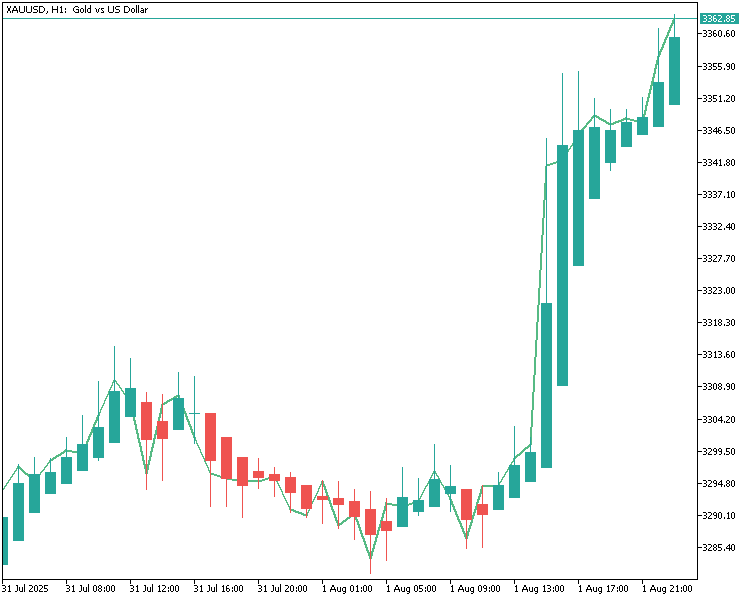
すべて期待通りに表示されており、コードが正しく機能していることが確認できました。これで、チャートは視覚的な調整やさらなるテストをおこなう準備が整った状態です。
結論
今回は、MQL5を使用して完全に動作するカスタム平均足インジケーターを構築することに成功しました。バッファの設定、値の計算、チャート表示のカスタマイズ、そして最終的にインジケーターを金のH1時間足チャートへ適用するまで、各ステップを順を追って解説しました。すべてが期待どおりに動作することも確認済みです。チュートリアルの理解やトラブルシューティングに役立つよう、ソースコード全文とコンパイル済みファイルの両方も併せて提供しています。
次回は、さらに一歩進めて、作成した平均足インジケーターを用いて売買判断をおこなうEAを構築していきます。どうぞご期待ください。
MetaQuotes Ltdにより英語から翻訳されました。
元の記事: https://www.mql5.com/en/articles/19260
警告: これらの資料についてのすべての権利はMetaQuotes Ltd.が保有しています。これらの資料の全部または一部の複製や再プリントは禁じられています。
この記事はサイトのユーザーによって執筆されたものであり、著者の個人的な見解を反映しています。MetaQuotes Ltdは、提示された情報の正確性や、記載されているソリューション、戦略、または推奨事項の使用によって生じたいかなる結果についても責任を負いません。

 プライスアクション分析ツールキットの開発(第39回):MQL5でBOSとChoCHの検出を自動化する
 機械学習の限界を克服する(第3回):既約誤差に関する新たな視点
 初心者からエキスパートへ:MQL5を使ったアニメーションニュース見出し(X) - ニュース取引のための多銘柄チャート表示
 プライスアクション分析ツールキットの開発(第38回):ティックバッファVWAPと短期不均衡エンジン

- 無料取引アプリ
- 8千を超えるシグナルをコピー
- 金融ニュースで金融マーケットを探索