Trading Manager Mql5
- Utilità
-
Eduardo Cumplido
 I develop professional MetaTrader tools designed to help traders and investors analyze their performance, manage risk, and make better data-driven decisions.
 - Versione: 1.7
- Attivazioni: 5
Plan, execute, and manage your trades from a single panel
Calculating lot size, checking risk, setting Stop Loss and Take Profit levels, and managing multiple positions through MetaTrader’s standard windows takes time and can lead to manual errors.
Trade Manager brings the entire process into one visual panel on the chart. It helps you prepare each trade, understand its real impact before execution, place orders, and manage exposure using manual tools and automated rules.
You decide when to buy or sell. Trade Manager does not generate signals or predict the market—it turns your decisions into structured trades aligned with your risk limits.
What is Trade Manager?
Trade Manager is a manual trading assistant for MetaTrader.
It centralizes the following tools in one interface:
- Visual trade planning.
- Position sizing and risk calculation.
- Market and pending orders.
- Individual and group position management.
- Break Even and trailing stop.
- Partial closes and filtered exits.
- Exposure monitoring.
- Daily limits and account protection.
It is not a signal robot and does not decide when to enter the market. Trade direction, entry timing, and strategy always remain under the trader’s control.
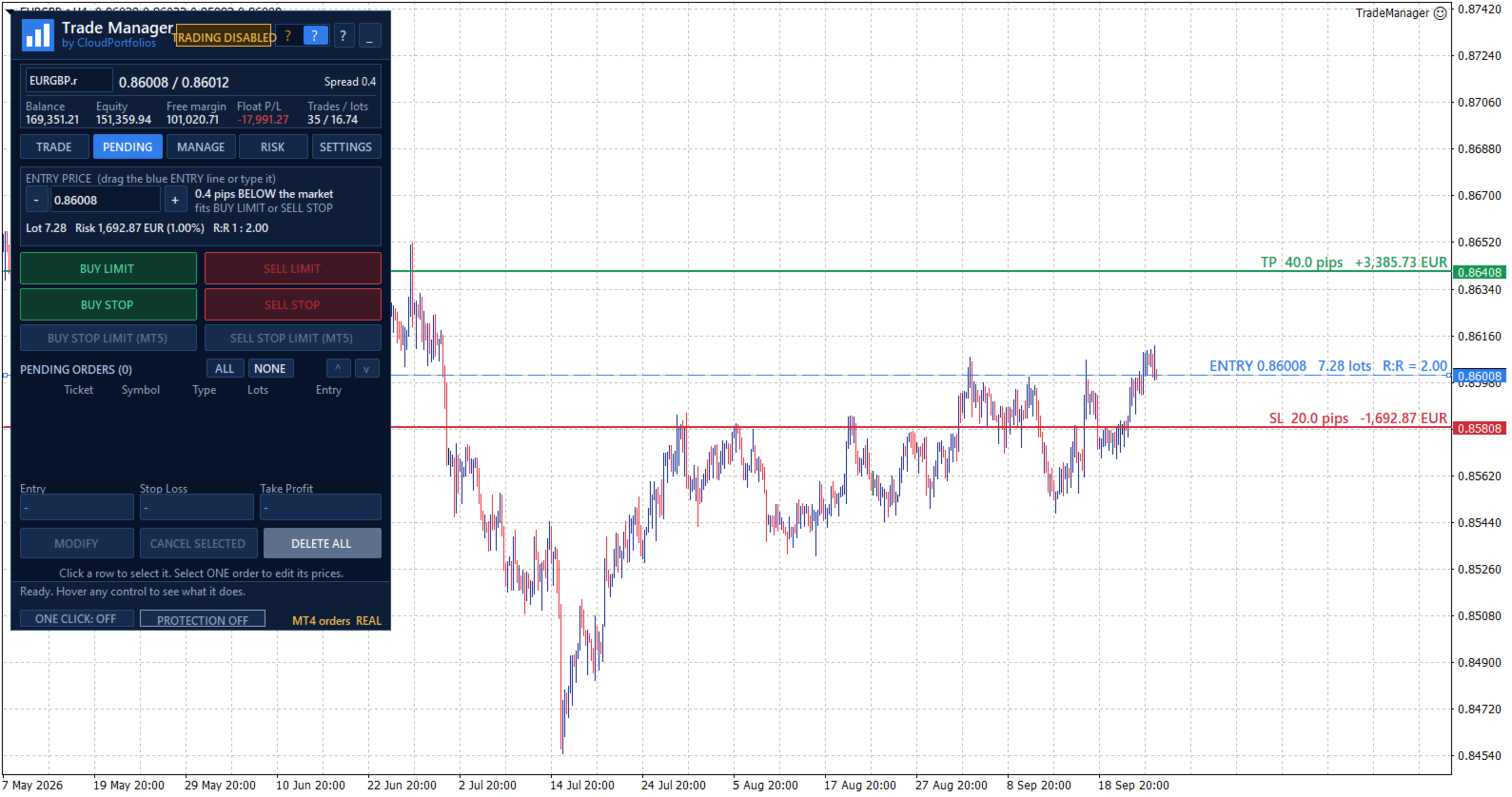
Visual trade planning on the chart
Build your trade using interactive lines for:
- Entry.
- Stop Loss.
- Take Profit.
The SL and TP lines can be moved directly with the mouse. For pending orders, the entry line can also be dragged across the chart.
Every adjustment automatically updates:
- Entry price.
- Stop Loss distance in pips.
- Take Profit distance in pips.
- Lot size.
- Monetary risk.
- Percentage risk.
- Potential profit.
- Risk-to-reward ratio.
Optional chart labels display volume, pips, risk, estimated profit, and R:R next to their corresponding levels.
Flexible position sizing
Choose how the volume of each trade should be calculated:
- Percentage risk based on balance.
- Percentage risk based on equity.
- Fixed monetary risk.
- Manually entered lot size.
When percentage or monetary risk is selected, Trade Manager calculates the lot size using the actual Stop Loss distance and the symbol specifications supplied by the broker.
Volume is adjusted to the symbol’s permitted lot step. If the calculated size falls below the broker’s minimum, you can choose to:
- Block the order.
- Use the minimum lot and display the resulting real risk.
The panel always distinguishes between the theoretical volume and the volume that can actually be submitted.
Understand the impact before trading
Before executing an order, you can review:
- Final lot size.
- Actual monetary risk.
- Risk as a percentage of balance or equity.
- Potential loss at the Stop Loss.
- Potential profit at the Take Profit.
- Risk-to-reward ratio.
- Estimated margin.
- SL and TP distances.
- Current spread.
If the spread is large relative to the Stop Loss distance, the panel displays a warning before the trade is placed.
Flexible Stop Loss and Take Profit
Stop Loss and Take Profit can be defined using:
- An exact price.
- A distance in pips.
- Draggable chart lines.
- An R:R target for Take Profit.
When TP is defined by R:R, its level automatically follows changes to the Stop Loss to preserve the selected ratio.
SL or TP can also be disabled when allowed by the selected sizing mode. Trades without a Stop Loss are explicitly identified as having unlimited risk.
Market orders
Execute BUY and SELL orders from the panel using the previously calculated lot size, Stop Loss, and Take Profit.
Before submission, Trade Manager checks:
- Connection status.
- Quote availability.
- Market status.
- Symbol trading permissions.
- Minimum and maximum volume.
- Permitted volume step.
- Correct SL and TP placement.
- Minimum broker distance requirements.
- Available margin.
- Active account protection rules.
If the price changes while the confirmation window is open and the risk increases significantly compared with the amount shown, the order is stopped so it can be reviewed again.
Pending orders
Place the following pending orders directly from the panel:
- Buy Limit.
- Sell Limit.
- Buy Stop.
- Sell Stop.
The entry can be typed, moved using the chart line, or adjusted in one-pip steps.
The panel shows the entry’s distance from the market and helps identify which order types are compatible with its current position.
Pending orders use the same lot, risk, Stop Loss, Take Profit, and R:R calculation engine as market orders.
Pending order management
The pending order table displays:
- Ticket.
- Symbol.
- Order type.
- Volume.
- Entry price.
You can:
- Select one or several orders.
- Cancel selected orders.
- Delete every pending order within the current management scope.
- Modify the entry, Stop Loss, and Take Profit of an order.
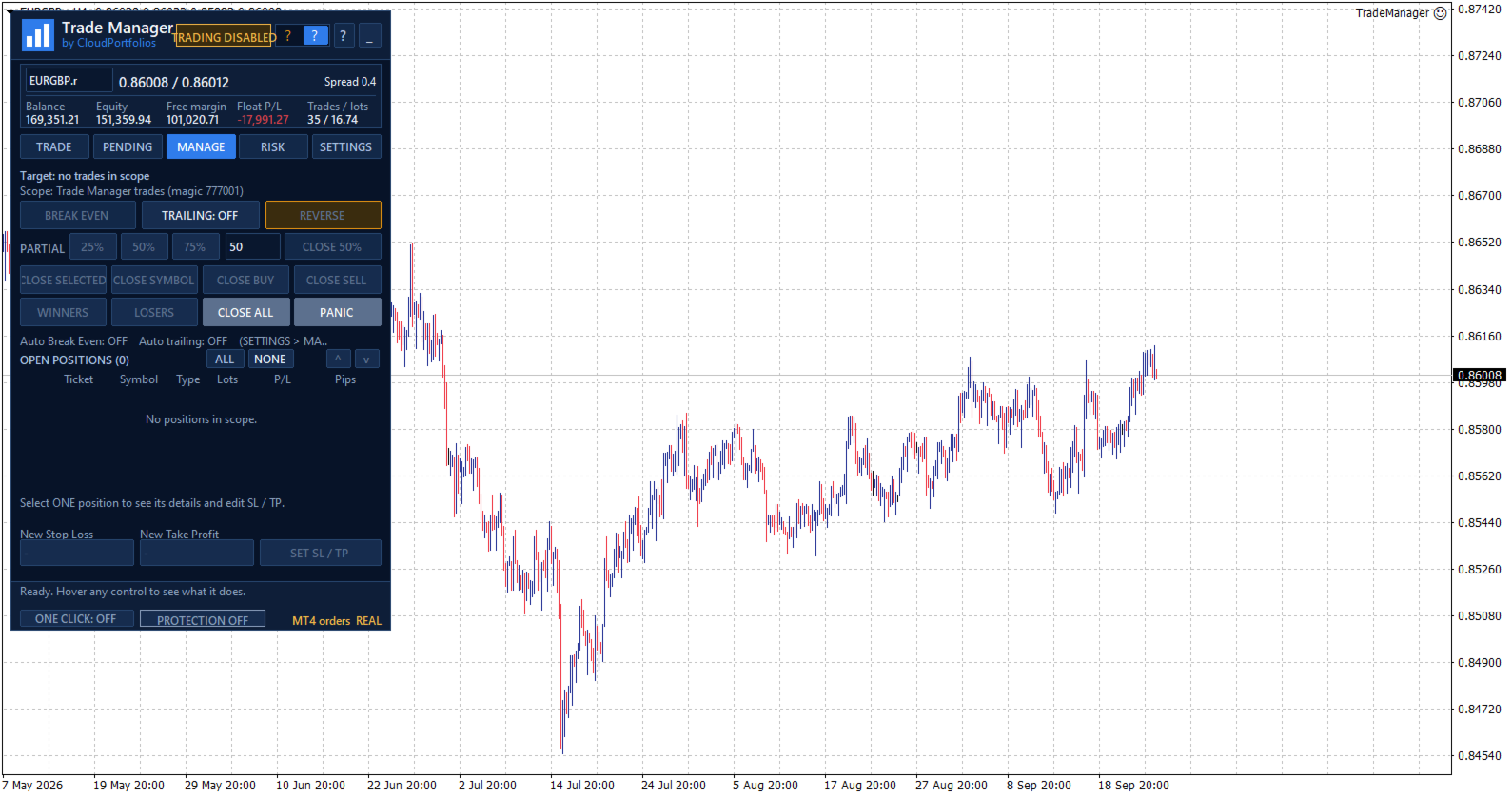
Centralized position management
The MANAGE tab displays the positions included in the selected scope, together with:
- Ticket.
- Symbol.
- Direction.
- Volume.
- Monetary result.
- Result in pips.
Positions can be selected individually. If no position is selected, general actions can be applied to every position within the management scope.
Selecting one position also displays its details and allows its Stop Loss and Take Profit to be modified.
Manual and automatic Break Even
Move the Stop Loss to the entry price plus a configurable offset in the profit direction.
Break Even can be applied manually or activated automatically using:
- Profit reached in pips.
- A multiple of the initial risk, such as 1R.
Before modifying the position, Trade Manager checks that the price has moved far enough and that the new level complies with the broker’s restrictions.
Automatic trailing stop
The trailing stop can use:
- A fixed distance in pips.
- A distance based on a multiple of the initial risk.
You can also configure:
- The minimum profit required to start trailing.
- The minimum improvement step before modifying the Stop Loss again.
The trailing stop never increases the existing risk. The Stop Loss only moves in a favorable direction.
Partial closes
Reduce position exposure using:
- 25%.
- 50%.
- 75%.
- A custom percentage between 1% and 99%.
Trade Manager adjusts the closing volume to the broker’s minimum and permitted lot step. It also checks that the remaining volume will still be valid.
Controlled Reverse
The Reverse function:
- Closes the original position.
- Waits until the close is confirmed.
- Opens the opposite direction with the same volume.
- Preserves the original Stop Loss and Take Profit distances.
If the close cannot be confirmed, the opposite position is not opened automatically.
Fast group closing
Close positions using different filters:
- Selected positions.
- Current symbol.
- All BUY positions.
- All SELL positions.
- Winning positions.
- Losing positions.
- Every position within the management scope.
Actions affecting several positions are processed progressively to avoid sending all requests to the server simultaneously.
PANIC mode
PANIC is designed to remove all exposure within the configured management scope:
- It closes all included positions.
- It deletes all included pending orders.
- It checks afterward that no residual exposure remains.
This action requires two confirmation steps to reduce the risk of accidental activation.
Configurable management scope
Choose exactly which trades Trade Manager is allowed to control:
- Trades identified by its Magic Number.
- Trades on the current symbol.
- All trades in the account.
The selected scope applies to:
- Break Even.
- Trailing stop.
- Partial closes.
- Reverse.
- Group closing.
- Pending order management.
- Account Protection closing actions.
This makes it possible to keep different strategies separate or deliberately extend control when required.
Global risk overview
The RISK section displays:
- Monetary risk of positions with a Stop Loss.
- Potential risk of pending orders with an SL.
- Risk as a percentage of balance or equity.
- Positions without a Stop Loss.
- Pending orders without a Stop Loss.
- Total open volume.
- Total pending volume.
Trades without an SL are not treated as having zero risk. They are shown as unlimited exposure through a dedicated warning.
Equity-based daily result
Trade Manager calculates the daily result using a persistent equity baseline and displays:
- Realized result.
- Change in floating result since the baseline.
- Total result.
- Deposits and withdrawals excluded from the trading result.
If the program is started for the first time during the trading day, the panel clearly identifies that moment as the baseline instead of presenting the result as if it covered the period since midnight.
When the available account history cannot verify balance operations reliably, the daily protection rules remain disabled to avoid acting on incomplete information.
Account Protection
Account Protection is disabled by default and must be enabled explicitly.
It allows you to define:
- Maximum daily loss in percentage or money.
- Daily profit target in percentage or money.
- Maximum total risk.
- Maximum number of positions and pending orders.
- Maximum total volume, including pending orders.
When the daily loss or profit target is reached, you can choose to:
- Block new trades.
- Close trades within the management scope and delete their pending orders.
- Block new trades and close the exposure.
The daily lock remains active until the next server day and persists after restarting MetaTrader. It can also be manually overridden for the current day through an explicit confirmation.
The panel displays a warning state when the loss reaches 80% of the configured daily limit.
Protection metrics are calculated using the entire account. Closing actions respect the selected management scope.
Limits before adding exposure
Account Protection can prevent a new trade when it would:
- Exceed the permitted total risk.
- Exceed the maximum number of trades.
- Exceed the configured total volume.
- Add exposure without a Stop Loss while the total-risk limit is active.
- Add exposure to an account containing positions without an SL, where total risk cannot be measured.
These limits are checked before the order is submitted.
Symbol information
View the broker’s symbol specifications directly in the panel:
- Bid, Ask, and spread.
- Digits and pip size.
- Tick size and tick value.
- Contract size.
- Long and short swap.
- Minimum and maximum lot.
- Volume step.
- Stop level and freeze level.
- Estimated margin for one lot.
- Market status.
- Trading permissions.
- Account type.
All calculations adapt to these broker-provided properties instead of relying only on the symbol name.
Execution safety and confirmations
Trade Manager includes several operational safeguards:
- One Click disabled by default.
- Detailed confirmation before every order.
- Configurable confirmations for sensitive actions.
- Two-step confirmation for Close All and PANIC.
- Double-click protection.
- Tracking of executions awaiting confirmation.
- Identification of partial executions.
- Temporary blocking of new entries when an execution result is uncertain.
- Visible connection, market, and trading status.
- Panel messages and warnings.
If an execution remains unconfirmed, Trade Manager avoids sending it again automatically and asks the user to check the account before unlocking new orders.
Chart-integrated interface
The interface is organized into five main sections:
- TRADE: plan and execute market orders.
- PENDING: create and manage pending orders.
- MANAGE: control open positions.
- RISK: monitor exposure, daily results, protection, and symbol information.
- SETTINGS: configure trading behavior, automation, and visual options.
The panel also provides:
- Dark and light themes.
- Adjustable size.
- Draggable position.
- Minimized view.
- Symbol switching from the panel.
- Contextual help for every control.
- Connection and market status indicators.
- Visible real or demo account identification.
- English, Spanish, Italian, and French.
Persistent settings and trade plans
Trade Manager automatically saves:
- Trading settings.
- Visual theme.
- Panel position and state.
- Magic Number and order comment.
- Break Even and trailing rules.
- Account Protection configuration.
- Individual plans for each symbol.
- Initial-risk memory for managed positions.
The configuration is restored after restarting MetaTrader, and each symbol’s plan is recovered when returning to it.
Key features
✓ Manual trading from the chart
✓ Lot calculation by percentage, money, or manual volume
✓ Risk basis selectable between balance and equity
✓ Stop Loss and Take Profit by price or pips
✓ Draggable Entry, SL, and TP lines
✓ Take Profit based on R:R
✓ Risk, profit, and margin information before execution
✓ Market BUY and SELL orders
✓ Buy Limit, Sell Limit, Buy Stop, and Sell Stop
✓ Pending order modification and cancellation
✓ Management by Magic Number, symbol, or entire account
✓ Multi-symbol open-position table
✓ Manual SL and TP modification
✓ Manual and automatic Break Even
✓ Break Even triggered by pips or R multiples
✓ Trailing stop based on pips or initial risk
✓ Configurable partial closes
✓ Reverse with equivalent volume and SL/TP distances
✓ Close selected, BUY, SELL, winning, or losing positions
✓ Close All and PANIC mode
✓ Account-wide open and pending risk
✓ Identification of exposure without a Stop Loss
✓ Equity-based daily result
✓ Daily and exposure limits
✓ Optional One Click trading
✓ Dark and light themes
✓ Four interface languages
✓ Automatic saving of settings and symbol plans
Trade Manager turns manual trading into a clearer process: define the trade, review its impact, and manage it from the same panel.
You remain in control of every entry while reducing repetitive calculations, centralizing trade management, and applying your risk rules more consistently.
Important: automatic Break Even, trailing stop, and account protection functions require Trade Manager to remain running and MetaTrader to stay connected to the broker.