VortexLab Trade Manager MT5
- Utilità
-
Jose Luis Heredia Padilla
 CEO & Founder of VortexLab
A laboratory for developing advanced indicators, quantitative strategies, and Expert Advisors (EAs) for MetaTrader 5.
Focus on technical precision and consistent results. - Versione: 2.1
- Attivazioni: 10
VortexLab Trade Manager MT5 is a visual utility for calculating risk, preparing trades, executing orders, and managing positions directly from a MetaTrader 5 chart.
The product runs as an Expert Advisor, but it does not analyze the market, generate trading signals. The user remains responsible for choosing the direction, entry, protective levels, and closing conditions of every trade.
The panel combines position-size calculation, multi-target execution, Break Even, Trailing Stop, partial closes, pending-order management, safety limits, account statistics, and visual customization in one interface.
Basic use
To prepare a trade:
1. Attach VortexLab Trade Manager MT5 to a chart.
2. Enable algorithmic trading in MetaTrader 5.
3. Select the symbol you want to trade.
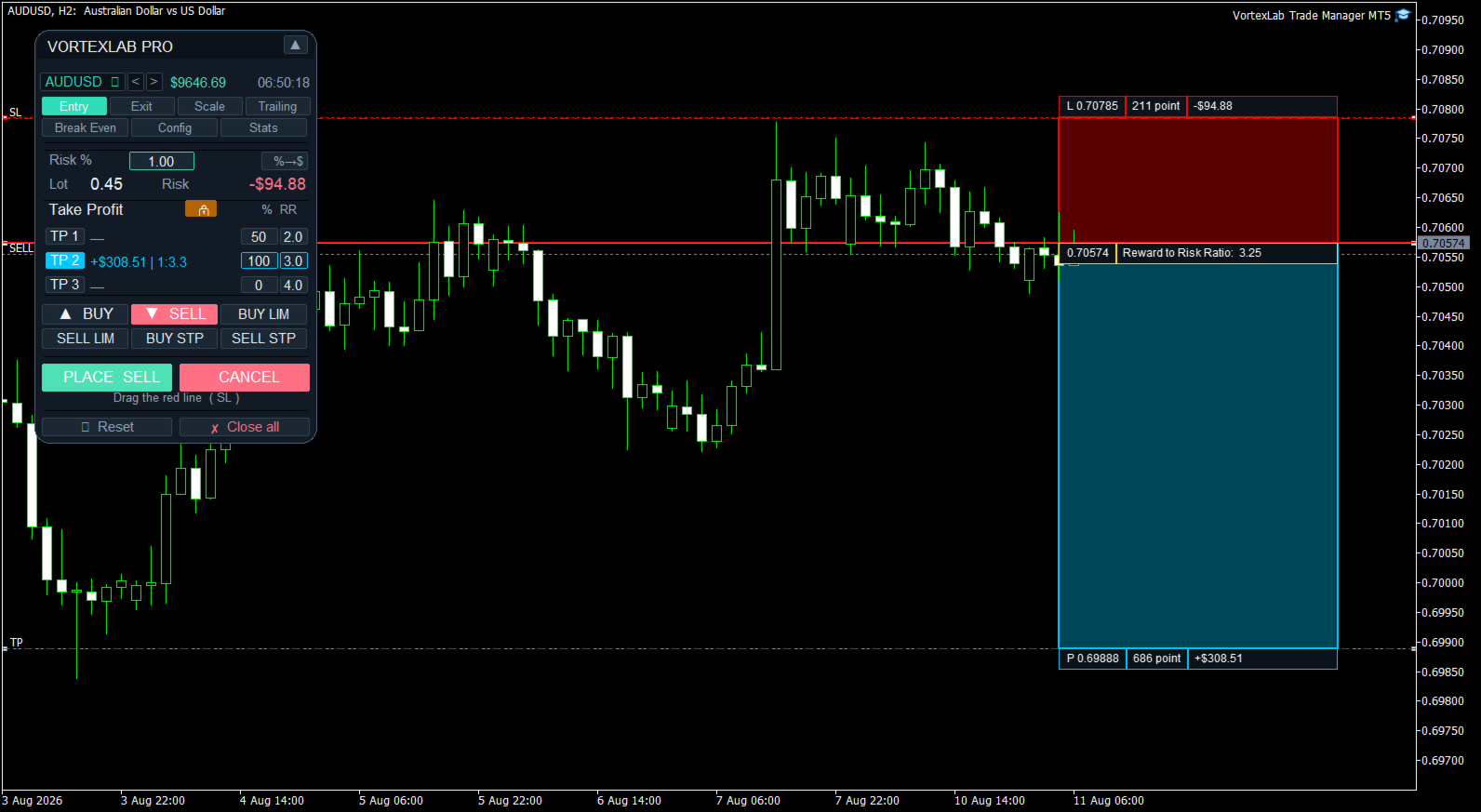
4. Choose Buy, Sell, or a pending-order type.
5. Set the risk as a percentage or a fixed monetary amount.
6. Move the Stop Loss line to the required level.
7. Enable one, two, or three Take Profit targets.
8. Configure the volume percentage and risk-to-reward ratio of each target.
9. Review the calculated volume and estimated risk.
10. Press Place to send the orders.
The chart lines make it possible to review the complete trade structure before execution.
Automatic position-size calculation
The panel calculates the trading volume using:
- The selected risk.
- The entry price.
- The distance to the Stop Loss.
- The symbol calculation model.
- Tick size and tick value.
- Contract size.
- Minimum and maximum volume.
- Volume step.
- The symbol properties supplied by the broker.
The calculation first uses the profit-and-loss model provided by MetaTrader 5. This helps adapt the volume calculation to instruments whose specifications differ from standard Forex symbols.
The volume is recalculated whenever the user moves the entry price or Stop Loss.
If the requested risk cannot be achieved without exceeding the broker's minimum volume, the panel does not round the volume upward. The entry is blocked instead of opening a trade with a considerably larger risk than requested.
Risk calculation methods
Risk can be configured as a fixed monetary amount or as a percentage of different account values.
- Fixed amount in the account currency.
- Percentage of the current balance.
- Percentage of the current equity.
- Percentage of the free margin.
- Percentage of a custom value.
- Percentage of the balance recorded at the start of the day.
- Percentage of the balance recorded at the start of the week.
- Percentage of the balance recorded at the start of the month.
The risk-mode button allows the user to switch quickly between percentage risk and fixed monetary risk.
Market compatibility
The panel can be used with Forex, stock indices, synthetic indices, metals, energies, cryptocurrencies, stocks, futures, CFDs, and custom broker symbols.
Calculation accuracy depends on the broker supplying valid contract size, tick value, tick size, and volume rules for the selected symbol.
On instruments with a large minimum volume, some small risk amounts may not be executable. The panel displays zero volume or blocks the entry when the selected risk cannot be respected without using a larger lot.
Visual entry and Stop Loss
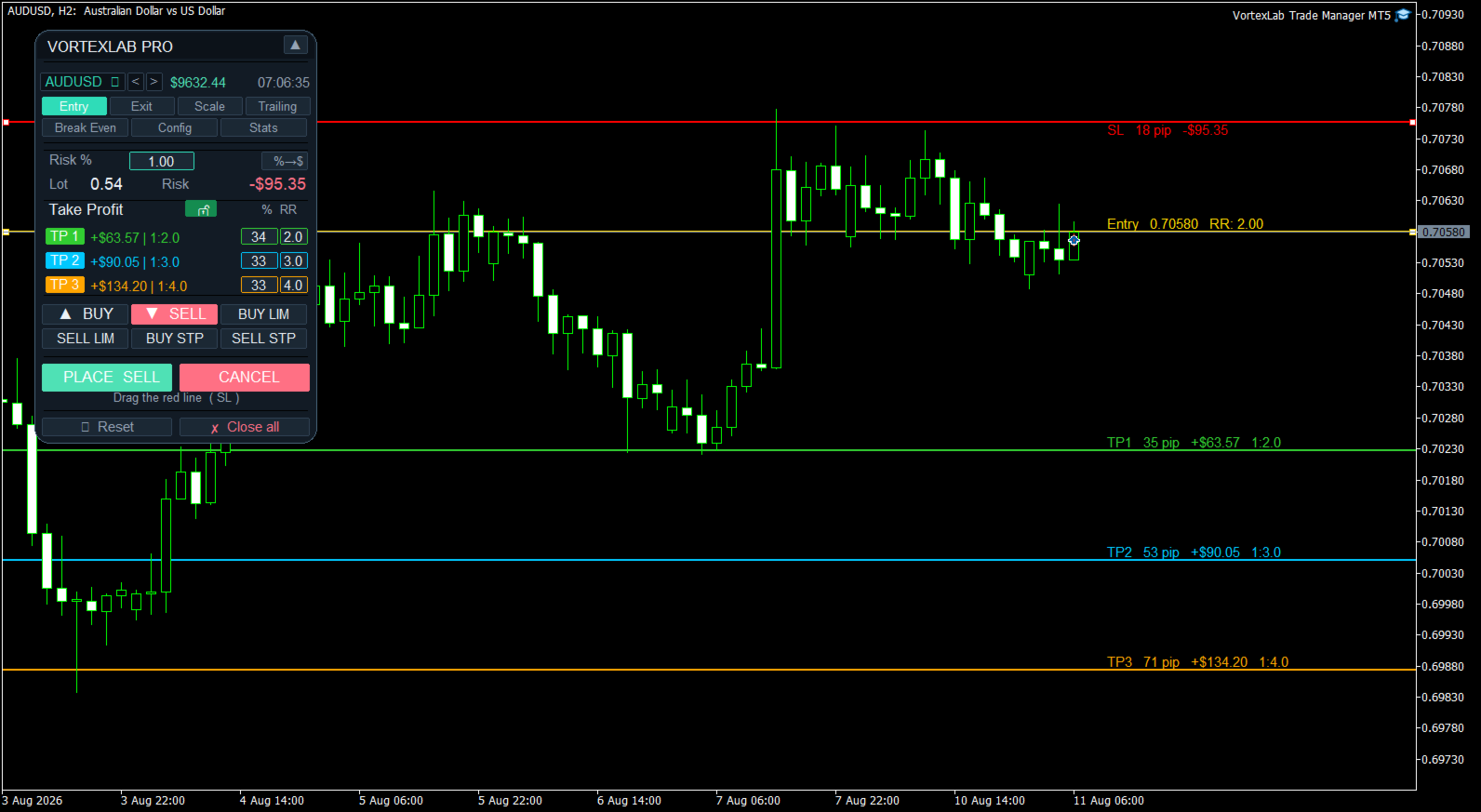
When an order type is selected, the panel creates the required chart lines. The entry line represents the current price for market orders or the requested activation price for pending orders.
The Stop Loss line can be moved manually. Every movement updates the Stop Loss distance, calculated volume, estimated monetary risk, dynamic Take Profit levels, risk-to-reward ratios, and estimated profit for each target.
The Stop Loss must be placed on the correct side of the market. A Buy is blocked if its Stop Loss is above the entry price, and a Sell is blocked if its Stop Loss is below the entry price.
Three Take Profit targets
Up to three Take Profit targets can be enabled. Each target has an independent volume percentage, risk-to-reward ratio, target price, and visual color.
When one target is enabled, it receives 100 percent of the volume. With two targets, the initial distribution can be 50 and 50 percent. With three targets, the initial distribution is 34, 33, and 33 percent. These percentages can be changed before execution.
The panel checks whether the requested distribution can be converted into volumes that respect the broker's minimum volume and volume step.
Dynamic and fixed Take Profit
The Take Profit lock button changes how the targets are controlled.
In dynamic mode, target prices are calculated from their risk-to-reward ratios and are updated when the entry or Stop Loss changes.
In locked mode, targets can remain at specific prices selected directly on the chart. This allows the user to choose between automatic ratios such as 1:1, 1:2, or 1:3 and manually selected technical price levels.
Visual styles
- Lines: displays horizontal entry, Stop Loss, and Take Profit lines.
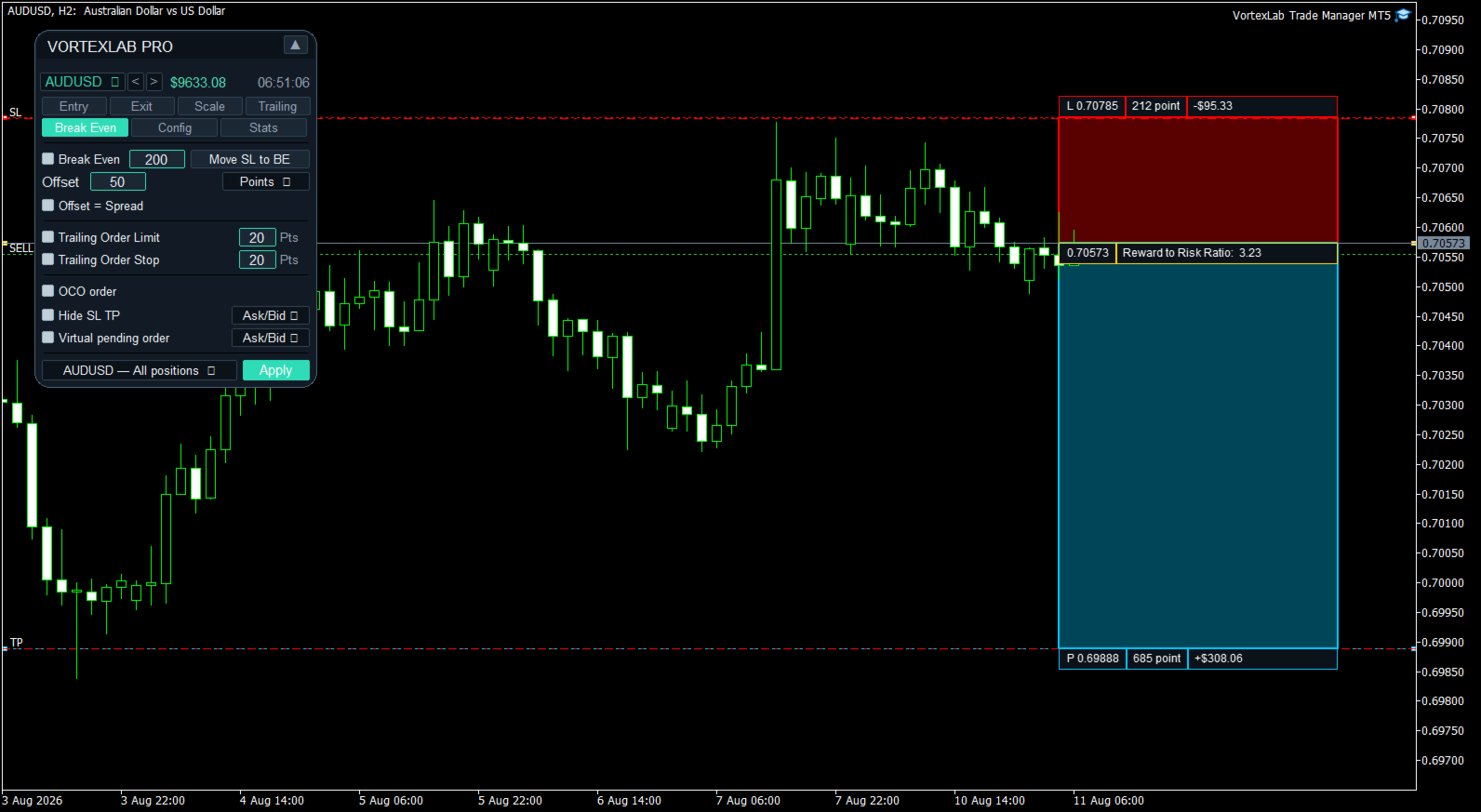
- Boxes: displays colored risk and reward zones with information boxes.
The chart information can include price, distance in points, monetary risk, estimated profit, volume, and risk-to-reward ratio. Entry, Stop Loss, and Take Profit colors can be customized, together with the line width.
Supported order types
- Market Buy.
- Market Sell.
- Buy Limit.
- Sell Limit.
- Buy Stop.
- Sell Stop.
Before sending a request, the panel checks the symbol's trading permissions, minimum and maximum volume, volume step, actual tick size, Stops Level, Freeze Level, Stop Loss and Take Profit placement, supported execution mode, spread limit, and configured risk limits.
The supported filling mode is detected automatically between RETURN, IOC, and FOK when the symbol properties allow it. Prices are aligned to the actual tick size, which is not always equal to Point.
Splitting an entry into smaller orders
Open a position in parts allows a large entry to be divided into smaller orders.
The user defines the maximum volume for each part. If the calculated volume exceeds this value, the panel sends the required number of parts without changing the planned total volume. The Place button shows in advance how many orders will be sent.
This function can be combined with the three Take Profit targets. Volume is first allocated to each target, and each target allocation can then be divided into smaller broker-valid orders.
Custom order comments
The product can add a custom comment to submitted orders. The user can enable or disable comments, define a base text, and append the target number automatically to identify TP1, TP2, and TP3 orders.
Spread limit
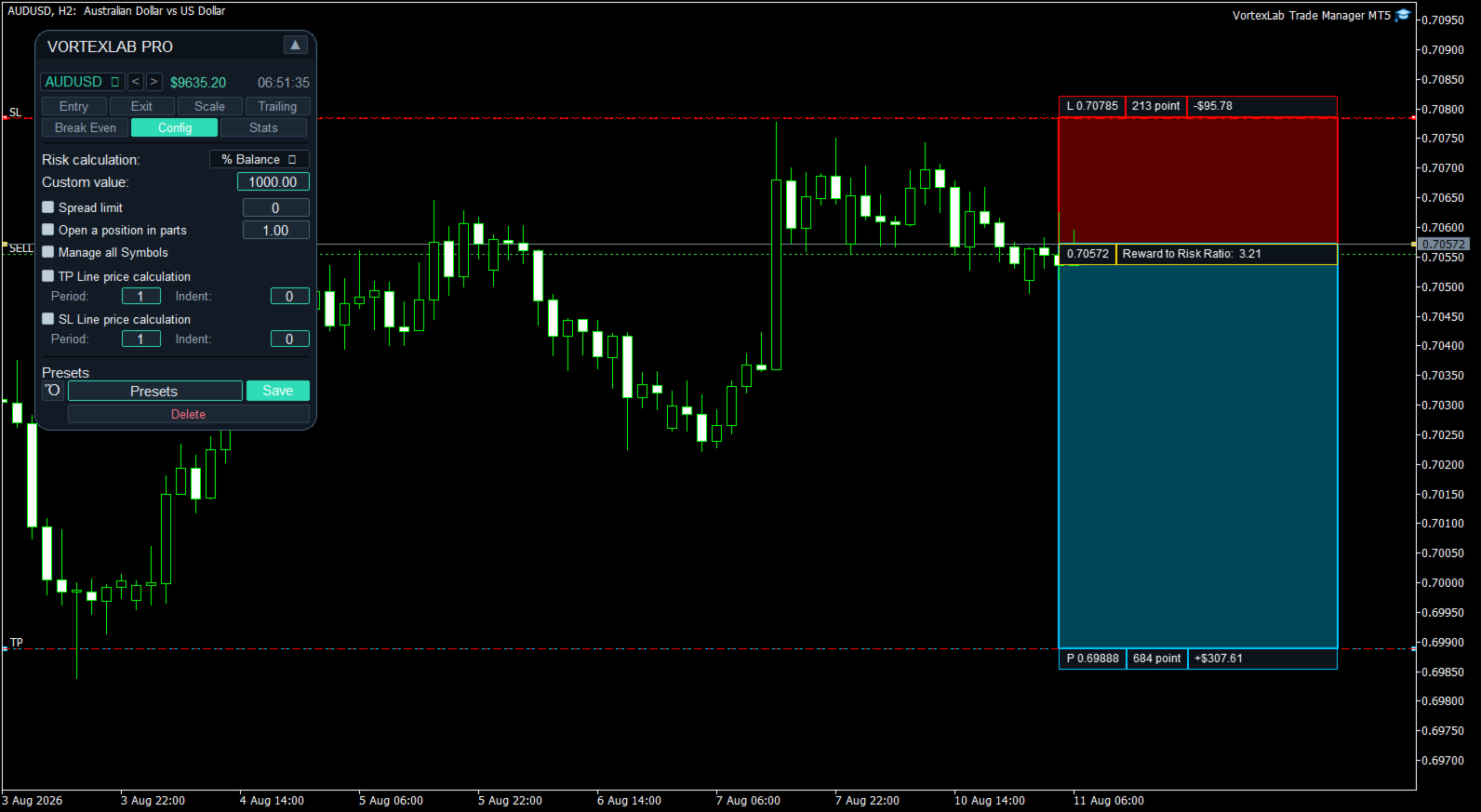
Spread Limit blocks a new entry when the current spread is greater than the configured maximum. This check is performed before sending orders and does not modify positions that are already open.
Safety limits
The following protections can be configured in the input parameters:
- Maximum total volume per entry.
- Maximum risk as a percentage of current equity.
- Daily loss limit in the account currency.
- Blocking of new entries after the daily loss limit is reached.
- Optional closing of positions and cancellation of orders belonging to the configured Magic Number when the daily limit is reached.
- Management restricted to the product's Magic Number.
- Optional restriction of symbol changes from the panel.
The daily protection uses the equity recorded at the beginning of the broker's server day. A value of zero disables the corresponding limit.
Magic Number management
Every order sent by the panel receives the configured Magic Number. Manage only this EA's Magic Number prevents the management functions from modifying manual trades or positions belonging to other systems. This protection is enabled by default.
If management of other identifiers is deliberately enabled, the active filters should be checked carefully before closing positions or deleting orders.
Close panel
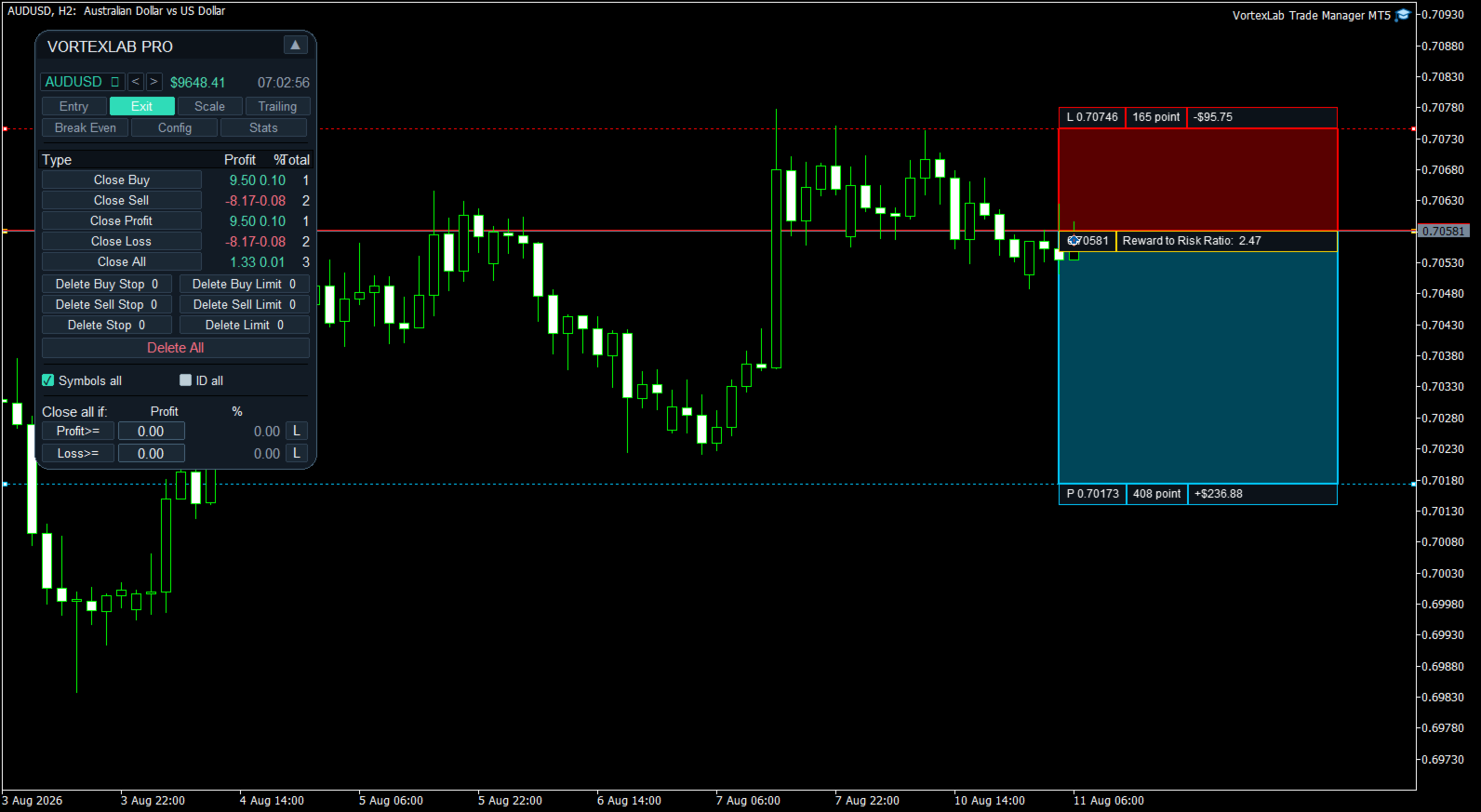
The Close tab manages open positions and pending orders.
- Close Buy: closes Buy positions.
- Close Sell: closes Sell positions.
- Close Profit: closes positions with a positive floating result.
- Close Loss: closes positions with a negative floating result.
- Close All: closes all positions included by the active filters.
For each group, the table displays floating profit or loss, its percentage of the account balance, and the total number of matching positions.
Deleting pending orders
Pending orders can be deleted by type using Delete Buy Stop, Delete Sell Stop, Delete Stop, Delete Buy Limit, Delete Sell Limit, Delete Limit, and Delete All.
The panel displays how many orders match each category. Delete All requests confirmation before deleting the orders included by the active filters.
Closing filters
Symbols All allows the closing functions to include other symbols. ID All allows other Magic Numbers to be included when the protection configured in the inputs permits it.
When both filters are disabled, management is concentrated on the current symbol and the product's Magic Number. Check these filters before using Close All or Delete All.
Confirmation dialogs
Close All and Delete All require confirmation. The dialog allows the user to confirm or cancel the action.
Selective actions such as Close Buy, Close Sell, Close Profit, and Close Loss are executed directly. They should only be used after checking the active filters.
Automatic closing by profit or loss
Close all if monitors the combined floating result of the selected positions.
The panel can close the selected positions when their combined profit reaches a configured amount or when their combined loss reaches a configured limit. The condition is monitored in real time while MetaTrader 5 remains open and connected.
The panel also displays the configured amount as an approximate percentage of the account balance.
The L buttons can place broker-side protection levels on positions of the current symbol. This serves as a backup for local monitoring. With mixed Buy and Sell exposure, the combined result may be approximate because every position has its own level.
Trailing Stop
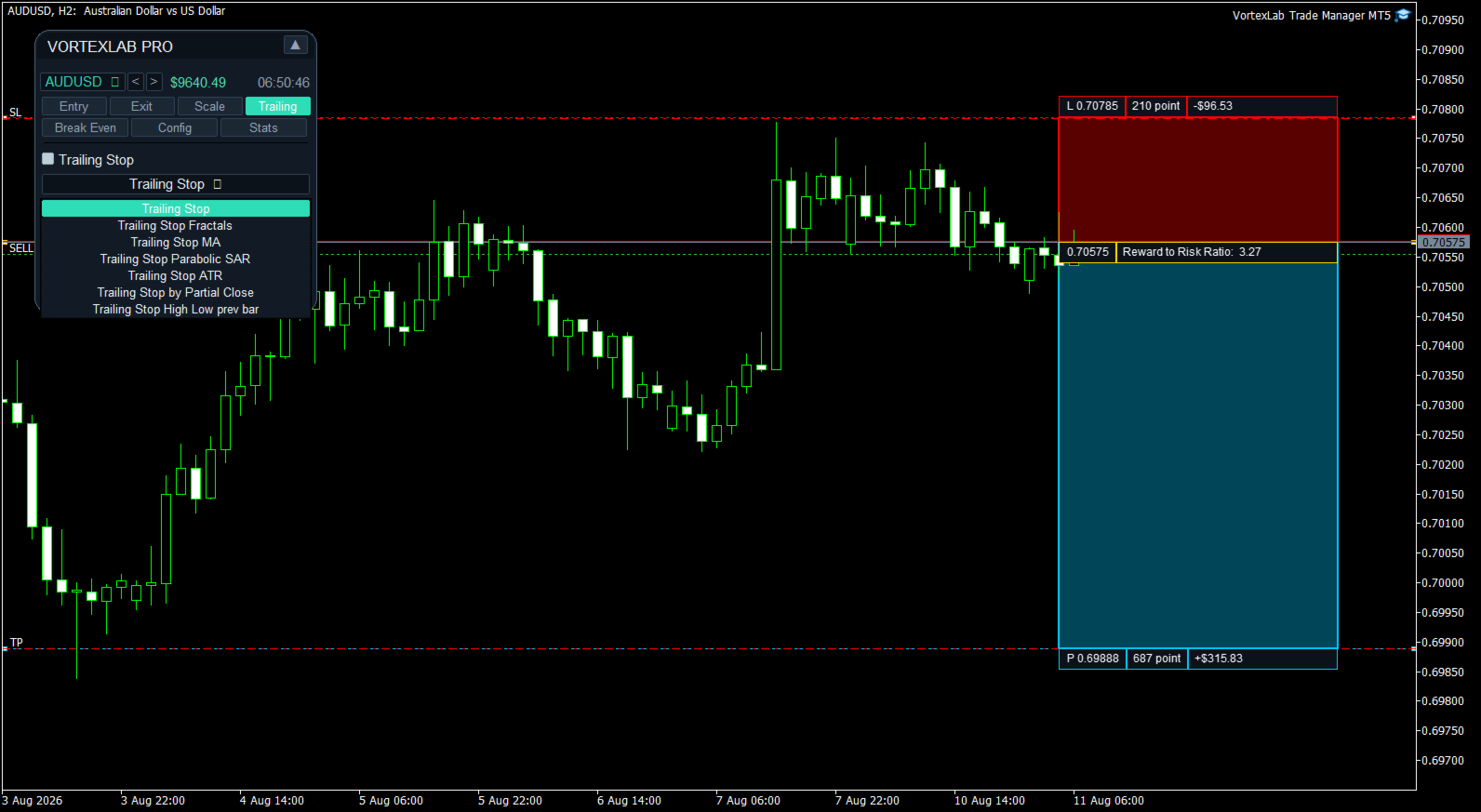
The Trailing tab includes seven management methods.
Classic Trailing Stop
Uses Start, Distance, and Step. The Stop Loss begins following the market after the minimum profit is reached and only moves in the protective direction.
Fractals Trailing Stop
Uses symbol fractals to update the Stop Loss. The activation distance, timeframe, and number of scanned bars can be configured. A lower fractal is used for Buy positions and an upper fractal for Sell positions.
Moving Average Trailing Stop
Places the Stop Loss using a moving average. The activation distance, timeframe, period, calculation method, and applied price can be configured.
Available methods are Simple, Exponential, Smoothed, and Linear Weighted. The moving average can be applied to Close, Open, High, or Low.
Parabolic SAR Trailing Stop
Updates the Stop Loss using Parabolic SAR. The activation distance, timeframe, Step, and Maximum can be configured.
ATR Trailing Stop
Calculates the trailing distance using Average True Range. The activation distance, timeframe, ATR period, coefficient, and optional use of the previous candle's High or Low as the base price can be configured.
Trailing Stop after a partial close
Detects a reduction in the position volume. After the first partial close, it can move the Stop Loss to the position's opening price.
Previous High or Low Trailing Stop
Uses the previous closed candle's Low for Buy positions and High for Sell positions. The activation distance, timeframe, and additional distance in points can be configured.
Scale: multi-level partial closes
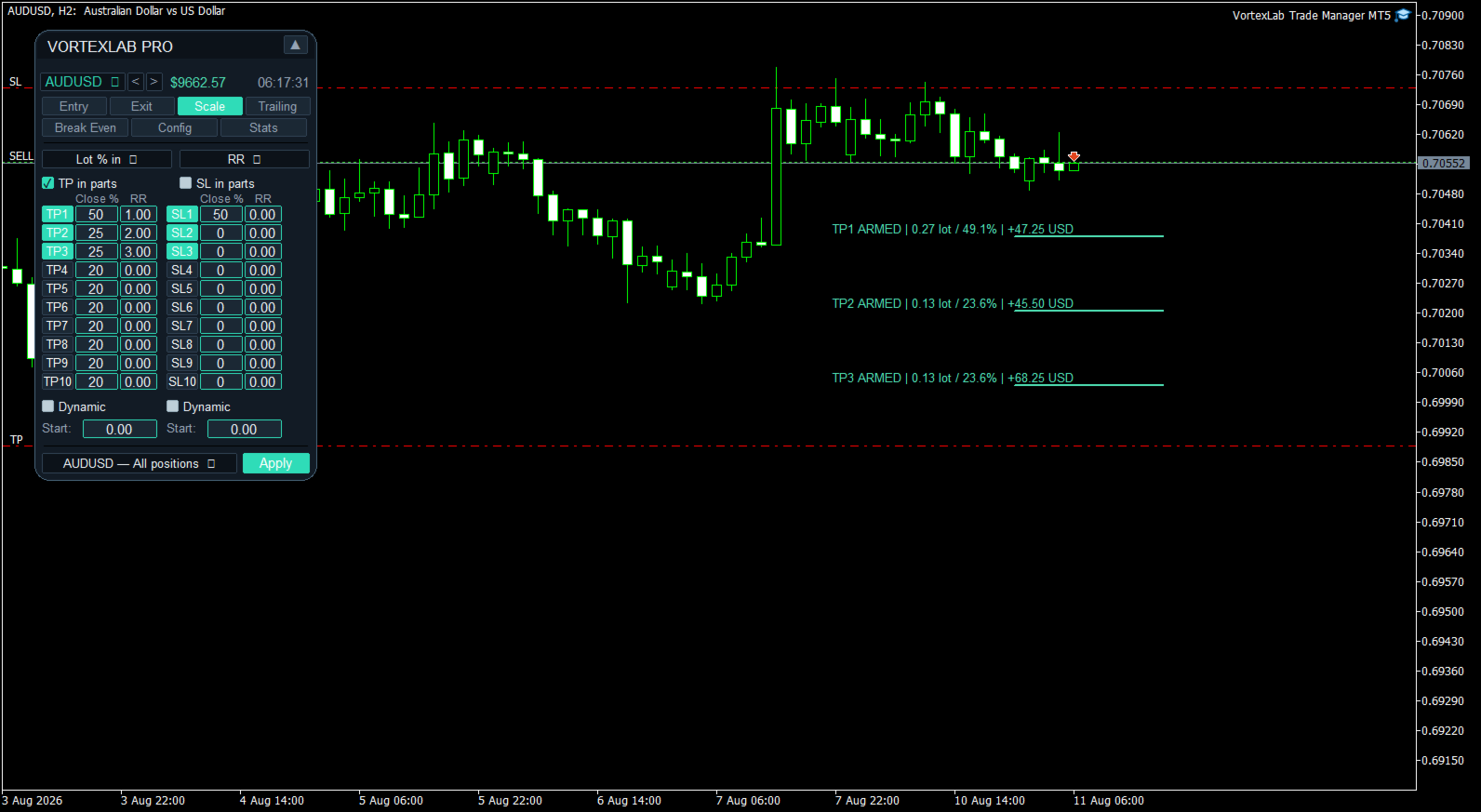
The Scale tab can program up to ten partial Take Profit levels and ten partial Stop Loss levels.
Every level can be enabled or disabled independently. The volume to close can be defined as:
- A percentage of the initial position volume.
- A percentage of the current position volume.
- A fixed lot amount.
Price levels can be defined using:
- Automatic distribution.
- Distance in points.
- Exact price.
- Risk-to-reward ratio.
- Percentage price change.
The configuration can be applied to all compatible positions on the symbol or to one position selected by ticket.
Visual lines show Armed for a prepared level, Wait while waiting for dynamic activation, and Done after a partial close has been executed. They also show the planned volume and estimated monetary result.
Dynamic Scale
Partial Take Profit and Stop Loss levels can use a dynamic anchor. The system records the best price reached by the position and can recalculate the levels from that reference. Start defines when dynamic management begins.
Automatic Break Even
Break Even moves the Stop Loss to a protective level when the configured activation condition is reached.
The activation can be expressed as:
- Points.
- Risk-to-reward ratio.
- Percentage price change.
- Percentage of the distance to Take Profit.
Offset can place the Stop Loss exactly at entry, above entry for a Buy, below entry for a Sell, or at a distance based on the current spread. The Stop Loss is changed only if the new level improves existing protection.
Visual Break Even line
When Break Even is enabled, the product draws a visual line for every managed position. The line shows the price that will activate Break Even, the new Stop Loss price, and whether the condition is still pending or has been reached.
The initial Stop Loss and Take Profit references are preserved so that calculations based on RR or a percentage of Take Profit remain stable after other tools modify the current Stop Loss.
Manual Break Even
Move SL to BE immediately applies the configured Offset without waiting for the activation price. It can be used to protect all compatible positions on the symbol.
The RR mode requires an initial Stop Loss. The percentage-of-TP mode requires an initial Take Profit.
Trailing pending orders
Trailing Order Limit and Trailing Order Stop can move pending orders while maintaining a configured distance from the current market price.
The function respects Stops Level, Freeze Level, Stop Loss, and Take Profit. It only manages orders belonging to the corresponding symbol and Magic Number.
OCO orders
OCO can be used with pending orders placed on opposite sides of the market. When one pending order is actually filled, the panel cancels pending orders on the opposite side.
Same-side orders used for multiple Take Profit allocations are preserved. Manual deletion or expiration does not trigger OCO cancellation.
Hidden Stop Loss and Take Profit
Hide SL TP converts the current protective levels of a position into virtual levels.
When applied, the panel records the existing Stop Loss and Take Profit, removes them from the broker server, monitors the selected price reference, and closes the position at market when a virtual level is reached.
Available reference prices are Ask/Bid, Ask, Bid, Mid, and Close. The function can be applied to all compatible positions or to a selected position.
Hidden levels depend completely on local operation. MetaTrader 5 must remain open, connected, and authorized for algorithmic trading.
Virtual pending orders
Virtual Pending Order prepares a pending order without sending it immediately to the broker server.
The panel stores the order type, trigger price, Stop Loss, Take Profit targets, and volume distribution locally. When the selected reference price reaches the level, the panel sends a market order.
Available references are Ask/Bid, Ask, Bid, Mid, and Close. One virtual pending order can be armed per panel instance.
The virtual order does not exist on the broker server. It cannot be triggered while MetaTrader 5 is closed, disconnected, or after the product has been removed from the chart.
Automatic chart-range levels
The panel can calculate technical levels from closed candles on the current timeframe.
For Stop Loss, it uses the selected period's lowest Low for a Buy and highest High for a Sell. For Take Profit 1, it uses the highest High for a Buy and lowest Low for a Sell. An additional distance in points can be applied.
Presets
Presets can save, load, and delete the main panel configurations, including risk basis, percentage and fixed risk, custom value, spread limit, order splitting, symbol management, automatic chart-range levels, and the configuration of the three Take Profit targets.
Account and symbol statistics
The Stats tab displays:
- Balance and equity.
- Used margin and free margin.
- Margin level and leverage.
- Account currency.
- Spread, Swap Long, and Swap Short.
- Contract size.
- Minimum, maximum, and step volume.
- Stops Level and symbol digits.
- Result for the current day, week, and month.
- Product version and Magic Number.
- Current symbol, timeframe, and server time.
Alerts
The product can use MetaTrader 5 alerts, sounds, and push notifications. Push notifications require a valid MetaQuotes ID configured in MetaTrader 5.
Languages
The interface includes English, Spanish, Portuguese, French, German, Russian, Arabic, Simplified Chinese, Hindi, and Japanese. English is the default language and another language can be selected in the input parameters.
Visual themes
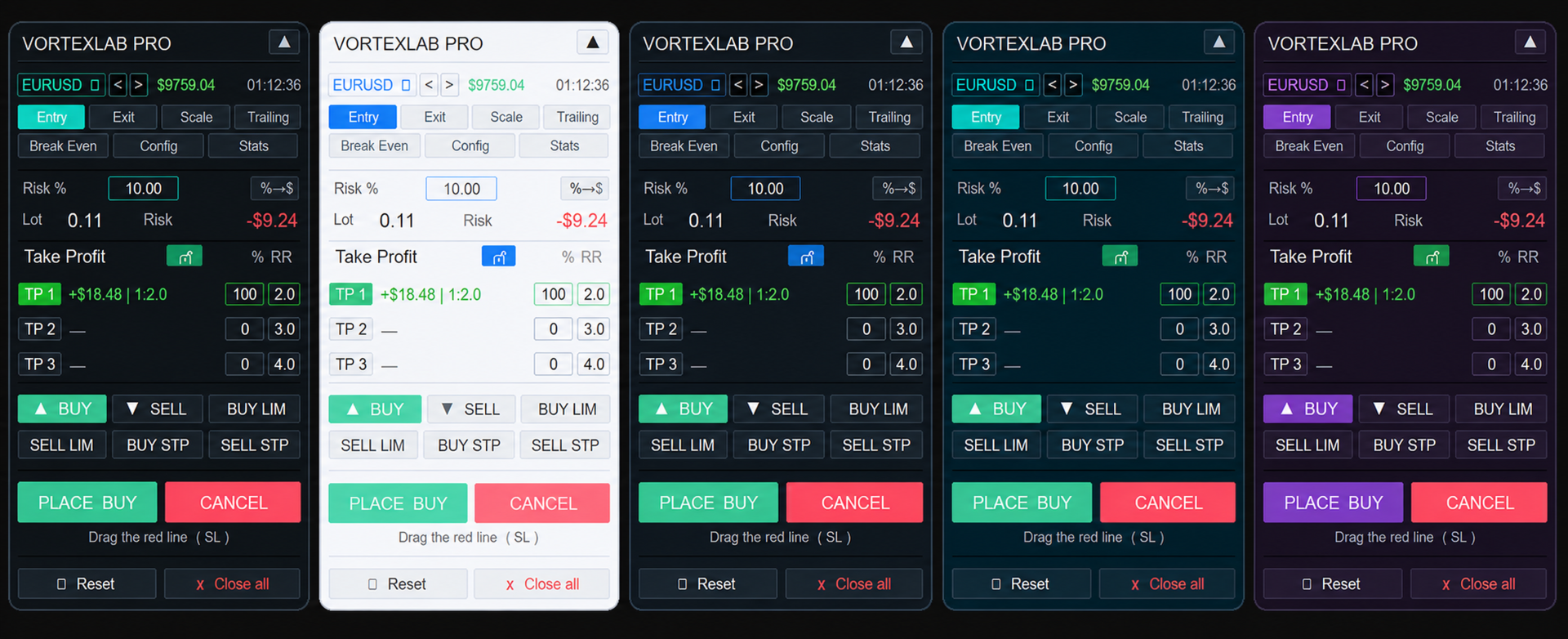
The panel includes Dark, Light, Midnight, Charcoal, Ocean, Forest, Sunset, Purple, Gold, Slate, Sky, Ice, Mint, and Vortex themes.
Movable and minimizable panel
The panel can be moved by dragging its header. It can also be minimized so that only the top bar remains visible. The selected position is stored to preserve the workspace arrangement after a restart.
Account-mode compatibility
The product is designed for MetaTrader 5 and can be used on Hedging and Netting accounts.
On a Hedging account, each entry can remain as a separate position. On a Netting account, trades on the same symbol are combined into one net position, and the broker maintains one Stop Loss and one Take Profit for that position.
Test multi-target execution with the broker and account mode that will be used.
Functions that require MetaTrader 5 to remain open
The following functions run locally and require MetaTrader 5 to remain open, connected, and authorized for algorithmic trading:
- Automatic closing by combined profit or loss.
- Automatic Break Even.
- Trailing Stop.
- Scale partial closes.
- Trailing pending orders.
- OCO management.
- Hidden Stop Loss and Take Profit.
- Virtual pending orders.
- Alerts and push notifications.
A MetaTrader 5 compatible VPS can be used for continuous operation.
VortexLab Trade Manager MT5 is a calculation, execution, and trade-management utility. It does not provide financial advice, generate signals, or guarantee profits. The user is responsible for reviewing every order and testing the product on a demo account before using it on a live account.