Workspaces Launcher
- Utilità
- Versione: 1.1
- Attivazioni: 5

-
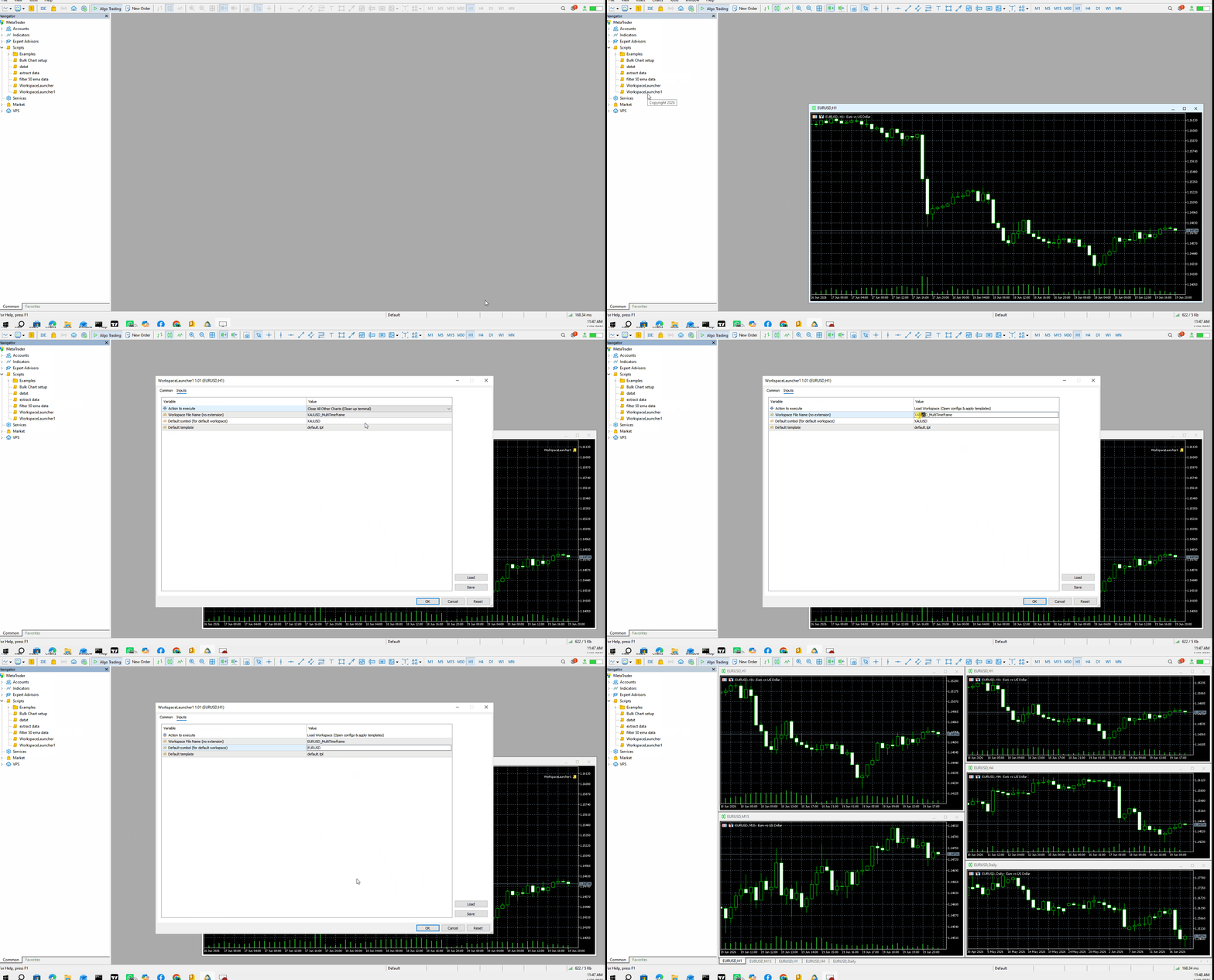
Drag the script onto any chart.
-
Under the Inputs tab:
-
Set Action to ACTION_LOAD_WORKSPACE.
-
Set Workspace Name to XAUUSD_MultiTimeframe.
-
Click OK.
-
-
Since this file doesn't exist yet, the script creates a default configuration file for XAUUSD with M15, H1, H4, and D1 timeframes, applies the default template to each, and tiles them on your screen[ 1].
-
-
Customizing Templates & Symbols:
-
Open the file located at MQL5\Files\Workspaces\XAUUSD_MultiTimeframe.csv using a standard text editor (like Notepad).
-
It looks like this:
codeCSVSymbol;Timeframe;Template XAUUSD;M15;default.tpl XAUUSD;H1;default.tpl XAUUSD;H4;default.tpl XAUUSD;D1;default.tpl
-
You can change the symbol to any asset supported by your broker (e.g., EURUSD), adjust the timeframes, or set individual templates (e.g., Ichimoku.tpl on H4, and Clean.tpl on M15).
-
Note: Ensure your custom templates are placed in the /MQL5/Profiles/Templates/ folder of your terminal before executing.
-
-
Saving a Custom Setup:
-
If you manually set up a set of charts and want to capture this layout:
-
Drag the script onto any chart.
-
Set Action to ACTION_SAVE_CURRENT and give it a Workspace Name (e.g., MySpecialLayout).
-
The script will scan all open charts and generate a new CSV file containing their configurations[ 2].
-
-
Clutter Cleanup:
-
Running the script with Action set to ACTION_CLOSE_ALL_OTHER closes all charts except the one executing the script, preparing your screen for a clean workspace swap.
-