GoldenLock
- Utilitaires
-
Lasse Mathias Baagoe S Christensen
 I code what I trade.
I also teach how I trade.
______________________________________
Trading Experience: 5 years.
CEO: Powered Traders & Deep Traders.
Tools & chart inspiration. 👇🏽 - Version: 1.3
How to Read GoldenLock
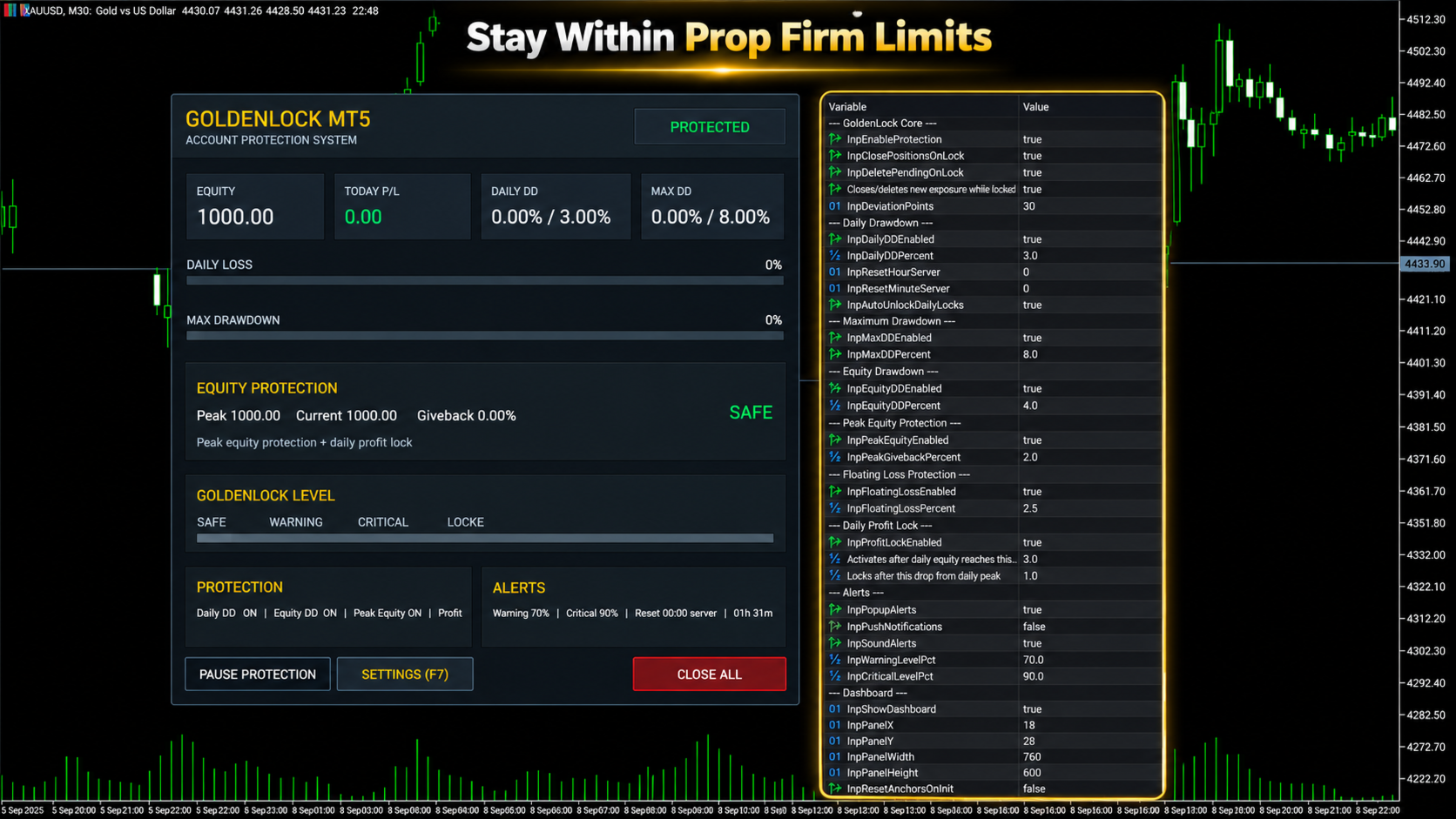
GoldenLock is designed to make the current account-risk state easy to understand from one dashboard.
The dashboard allows you to monitor important account information such as:
-
Current Equity
-
Today P/L
-
Daily Drawdown
-
Maximum Drawdown
-
Peak Equity
-
Equity Giveback
-
Current Protection Status
The Warning, Critical and Locked states make it easier to see how close the account is to the limits you have configured.
GoldenLock monitors the risk. Your trading strategy remains separate.
Three Protection Stages
GoldenLock can provide several stages before the final protection action is reached.
Warning Level
An early indication that the selected drawdown or risk measurement is approaching its configured limit.
Critical Level
A stronger warning that the account is moving closer to the protection threshold.
GoldenLock
When the configured limit is reached, GoldenLock can activate the selected protection actions.
Depending on your settings, this can include:
-
Closing open positions
-
Deleting pending orders
-
Blocking new exposure
-
Continuing to remove new exposure while the account remains locked
This creates a clear progression from monitoring to warning to active protection.
Multiple Drawdown Layers
Account risk cannot always be represented by one number.
GoldenLock therefore allows several protection methods to work as separate risk layers.
Daily Drawdown Protection focuses on losses during the current trading day.
Maximum Drawdown Protection monitors larger account-level loss limits.
Equity Drawdown Protection can include floating profit and loss from currently open positions.
Peak Equity Protection measures how much current equity has fallen from its recorded peak.
Floating Loss Protection can restrict the amount of unrealized loss currently open on the account.
Daily Profit Lock can help protect part of a profitable trading day after the configured profit condition has been reached.
Each protection layer can be configured according to the account and rules you are trading under.
Daily Profit Lock
Risk management is not only about limiting losses.
GoldenLock can also monitor how much profit has been given back after a profitable trading day reaches the configured activation level.
Once Daily Profit Lock becomes active, GoldenLock tracks the daily equity peak.
If equity then falls by the configured amount from that peak, the selected protection action can be triggered.
This allows the utility to monitor both downside risk and profit giveback during the trading day.
Entire Account or One EA
GoldenLock can be configured to protect different scopes of trading activity.
Entire Account
This mode can include manual trades and positions opened by other Expert Advisors.
It is generally the more complete option when the risk limit applies to the whole trading account.
Magic Number Matching
This mode limits GoldenLock's trade actions to positions associated with the selected Expert Advisor Magic Number.
This can be useful when you want GoldenLock to operate alongside one specific EA without applying the same trade actions to every position on the account.
Always confirm which mode matches the rules and protection you actually need.
Built to Work Beside Your Strategy
GoldenLock is not designed to replace your existing trading system.
Your Expert Advisor or manual strategy can continue handling:
-
Entries
-
Exits
-
Trade signals
-
Stop Loss and Take Profit logic
-
Strategy-specific trade management
GoldenLock independently focuses on the account-risk limits you configure.
This separation allows your trading logic and your protection logic to operate as two different layers.
Quick Dashboard Controls
The on-chart dashboard also provides direct access to important protection controls.
-
Pause Protection – Temporarily pause the active protection logic
-
Open Settings – Access the configured protection parameters
-
Close All – Close the positions covered by the selected trade-control mode
Before using manual dashboard controls on a live account, always confirm that the selected trade-control mode matches the positions you intend to manage.
Alerts and Notifications
GoldenLock can provide several types of alerts so you can monitor changes in account-risk status.
-
MT5 Popup Alerts
-
Sound Alerts
-
Push Notifications
-
Warning Level Alerts
-
Critical Level Alerts
This allows GoldenLock to provide information before the final protection threshold is reached.
Server-Time Reset
Daily drawdown rules do not always reset at your local midnight.
GoldenLock allows the daily reset time to be configured using broker server time.
Available controls include:
-
Reset Hour
-
Reset Minute
-
Automatic Daily Unlock
This is especially important when using GoldenLock with an account that defines its daily loss period according to a specific server-time reset.
Always verify the exact reset time required by your broker or trading program before enabling the protection.
What GoldenLock Does Not Do
-
Does not generate BUY or SELL signals
-
Does not decide when to enter the market
-
Does not replace your trading strategy
-
Does not guarantee that losses cannot exceed a configured threshold
-
Does not guarantee prop firm compliance
-
Does not guarantee that an account will pass a challenge
-
Does not guarantee that an account will remain funded
GoldenLock is an additional risk-management utility designed to react according to the protection rules you configure.
GoldenLock MT5 in Short
-
Daily Drawdown Protection
-
Maximum Drawdown Protection
-
Equity Protection
-
Peak Equity Protection
-
Floating Loss Protection
-
Daily Profit Lock
-
Warning & Critical Levels
-
Close Positions at Limit
-
Delete Pending Orders
-
Block New Exposure
-
Automatic Daily Reset
-
Custom Server Reset Time
-
Entire Account Protection
-
EA Magic Number Protection
-
Manual & EA Trading Support
-
On-Chart Risk Dashboard
YOUR STRATEGY TRADES. GOLDENLOCK WATCHES THE RISK.
Testing GoldenLock
Before using GoldenLock on a live or funded account, test the complete protection setup in a MetaTrader 5 demo environment.
Verify:
-
Daily Drawdown calculation
-
Maximum Drawdown calculation
-
Equity protection behaviour
-
Peak equity tracking
-
Floating loss protection
-
Daily Profit Lock behaviour
-
Warning and Critical levels
-
Position-closing behaviour
-
Pending-order deletion
-
Account or Magic Number mode
-
Daily server-time reset
-
Alerts and notifications
Also test what happens when another Expert Advisor attempts to create new exposure while GoldenLock is in a locked state.
The configuration should match the exact trading environment in which you intend to use it.
Important Information
GoldenLock MT5 is a risk-management utility.
It is not a trading strategy, trade signal service or guarantee against trading losses.
Actual account behaviour can be affected by execution speed, slippage, gaps, connection interruptions, broker conditions and other circumstances outside the utility's control.
Prop firm definitions of daily drawdown, maximum loss, equity, balance, reset time and permitted automated trading can differ.
Always configure GoldenLock according to the exact rules of your broker, prop firm or personal trading account.
Test the selected protection settings before relying on them with live funds.
Trading leveraged financial products involves substantial risk and can result in loss of capital.
Risk controls can help limit exposure, but they cannot eliminate trading risk.
For product questions or support, use the MQL5 product comments or MQL5 messaging system.