Trade Assistant Risk Calculator MT5
- Utilitaires
- Version: 1.35
- Mise à jour: 18 octobre 2026
- Activations: 10

Trade Assistant Risk Calculator is an all-in-one floating trading panel Expert Advisor for MetaTrader 5, built for professional manual traders. It combines visual chart trading, automatic risk calculation, and advanced position management in one compact interface.
Stop calculating lot sizes manually. Stop guessing your Risk:Reward ratio. Drag the planning lines on the chart and the EA calculates the exact lot size for your selected risk percentage, equity, fixed-money risk, or fixed-lot workflow.
Try before you buy: A free Demo build is available at https://www.mql5.com/en/blogs/post/769841. The Demo runs on demo accounts or in the Strategy Tester for 30 days from first run on each terminal; live accounts are blocked. The full product has no time limit and works on both live and demo accounts.
Important Notes
- This product is an Expert Advisor (EA), not an indicator. Attach it to any chart to activate the floating panel.
- Algo Trading must be enabled in MetaTrader 5 for the EA to place orders and manage positions.
- The panel is draggable from its title bar and can be minimized with the title-bar minus button to a one-line status bar (lots or risk, floating P/L, Algo Trading).
- The full product works on live and demo accounts. Because this EA relies on chart mouse/object events for its floating panel, Strategy Tester support is limited on the full build; use a demo account for day-to-day evaluation, or the Demo build (which explicitly allows Strategy Tester).
- Supports both Hedging and Netting accounts.
Core Features
1. Visual Order Placement & Interactive Chart Overlays
- Drag-to-Trade Planning: Entry, Stop Loss, and Take Profit planning lines appear directly on the chart. Move the lines to define your setup visually.
- Instant Risk Calculation: As you move the Stop Loss line, the EA recalculates lot size to keep your selected risk constant.
- Live R:R Display: Adjust the Take Profit line and see the Risk:Reward ratio update in real time.
- Market & Pending Orders: Place market orders or pending orders (Buy/Sell Limit and Buy/Sell Stop) from the chart overlay. To reduce accidental market entries, the Entry card defaults to Pending mode. If VPend is enabled, the Pending command creates a virtual pending order instead of a broker pending order. Pending orders support configurable expiry timers.
- Order Confirmation: Optional Confirm Trade dialog shows order type, lots, risk, margin, entry, SL, and TP before execution. Use Submit to send the order.
- Clear Order Feedback: If an order cannot be placed (lines on the wrong side, Algo Trading off, spread, trading hours, symbol restriction), a message explains why.
- Interactive Drag Bars: Entry, TP, SL, and active partial levels have floating bars showing price, pips distance, and money value. Drag the bar instead of the thin chart line.
- Entry Bar Quick Actions: B/S flips direction, Cmd executes, M/S switches market or pending mode, R cycles risk mode, and X removes the planning lines.
- Color-Shaded Profit/Loss Zones: Semi-transparent green and red zones between Entry, TP, and SL make the reward and risk areas easy to see at a glance.
- Order State Colors: Filled positions, broker pending orders, and virtual pending orders use different chart-card colors and markers. Positions filled from virtual pending orders are marked with [VP].
- Live Floating P/L Badges: Filled positions show real-time floating P/L in both money and pips, including swap and commission.
- Apply-to-Positions Buttons: The "L" buttons on the main TP / SL bars apply the current planned TP / SL price to all open positions on the current symbol as broker-side TP / SL.
- Order Ticket: the Trade tab shows risk, stop loss, take profit and target R:R with live lots, R:R and spread, a Market / Pending switch and large Buy and Sell buttons. OCO, Hide SL/TP and Virtual pending are switches; less-used sections fold into rows that show their state. Hide SL/TP and VPend affect new orders only and never change already-existing tickets.
- Execution Mode: Three modes are available on the Trade tab. Single places one order at the planned entry. Multi splits the total lot size across multiple entry levels. Grid auto-places a sequence of orders separated by a configurable step in pips, with lot sizes distributed using an ASC, DESC, or EQUAL curve. The grid plan is previewed live on the chart before execution; filled positions appear green, broker pending orders appear purple, and virtual pending orders appear cyan.
- Per-Ticket Action Menu: Every position, broker pending order, and virtual pending order has a chart-card menu. Depending on ticket type, you can close, reverse, partial-close, edit broker or virtual SL/TP, open Edit Parts, configure per-ticket BE / Trail, run Parts: Copy Applied Panel, or use Parts: Disable This Ticket.
- Trade Presets: Save and recall up to 32 named panel snapshots covering risk mode, risk value, R:R, Lot Calc on/off, lot size (when Lot Calc is off), BE/Trail, OCO/VPend/vSLTP, execution mode (Single/Multi/Grid), grid parameters, and Entry/SL/TP line positions. Use < / > in the Trade tab Presets row to switch and apply instantly; New / Save / Delete manage individual slots. With Lot Calc off, switching presets restores each saved manual lot size; with Lot Calc on, lots are recalculated from that preset's risk settings and SL distance.
- Panel & Planning Line Persistence: Entry, SL and TP lines and BE / Trail settings survive timeframe switches, parameter changes, upgrades, re-attach and even a terminal crash; every change is saved immediately.
2. Buy/Sell Direction Flip & Smart Mirroring
- One-Click Direction Flip: The B/S button flips the entire setup between Buy and Sell.
- Automatic Mirror: SL and TP mirror around the entry price, preserving the geometry of your setup.
- Partial Lines Follow: Active TP1–TP10 and SL1–SL10 levels move to the correct side when the direction flips.
- Auto-Flip on Drag: Dragging TP or SL across entry flips the trade direction and mirrors the opposite line.
3. Professional Risk Management
- 9 Risk Modes: % Balance, % Equity, Fixed Money, Fixed Lots, % Free Margin, % Custom Reference (anchored to a user-defined base amount via InpRiskCustomBase ), % Previous Day Balance (locked to the server-day close), % Previous Week Balance (locked to the last completed Mon–Sun week close), and % Previous Month Balance. Each mode remembers its previous value independently.
- Commission-Inclusive Lot Sizing: When enabled ( InpRiskLotsIncludeComm ), the EA estimates round-turn commission per lot from account history and deducts it from the risk budget, so the actual net loss including commission equals the configured risk amount.
- Pips or Price Input: Work with absolute price levels or pip distances from entry.
- Spread Filter: Block new trades when spread exceeds your configured maximum.
- Custom Comments: Add an order comment from the Trade tab.
- Daily Loss Lock: Stop new trading, and optionally close positions, when daily loss limits are reached. Lock can apply to the current symbol or all symbols and resets on daily rollover. For comprehensive over-trading controls — per-minute, per-hour, per-week, per-month limits, cooldowns, and multi-period loss locks — see the RISK Tab (section 9).
4. PARTS Tab — Multi-Level Partial Close System
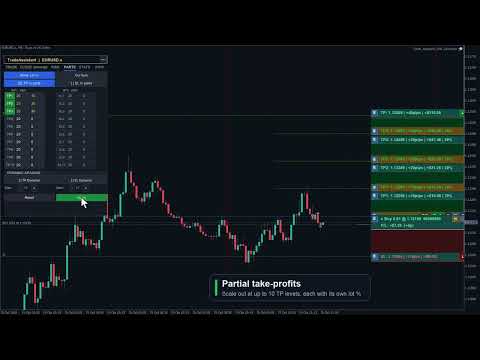
- Up to 10 TP Levels and 10 SL Levels: Configure TP1–TP10 and SL1–SL10 with independent active state, pips distance, and close percentage.
- Draft / Apply Workflow: Editing PARTS values or toggling active buttons creates a draft first. The live planning state changes only when you click Apply. If there are unsaved edits, the panel shows APPLY * and a pending-changes prompt.
- Active Buttons Are Draft Controls: Turning TP1–TP10 or SL1–SL10 active on/off does not immediately draw or remove lines. Click Apply to commit the change.
- Safe Symbol Scope: PARTS defaults to Cur Sym (blue) and applies only to the current chart symbol. Switching to All Sym requires a second confirmation click (Confirm All uses the warning color, All Sym uses red) and is session-only. Because pip scales differ widely between instruments such as EURUSD, XAUUSD, and indices, All Sym never applies the current chart's global fixed-pip levels directly to other symbols; non-current symbols act only when that ticket has an explicit per-ticket PARTS setup.
- Chart Visualization: Applied active partial levels draw dotted lines with drag bars showing price, pips, money value, and close percentage.
- Drag Applied Levels: Dragging an already-applied partial bar updates that live planning value while preserving smart clamps.
- Smart Clamping: Partial TP levels stay on the profit side, partial SL levels stay on the loss side, and each partial level keeps at least a 1 pip gap from the full TP or SL distance.
- Input Validation: Invalid pips values turn red and are kept for correction. Invalid draft values are not applied until fixed.
- Per-Ticket Inheritance / Override Model: Existing positions, broker pending orders, and virtual pending orders inherit the applied panel settings until you explicitly configure that ticket. Explicit disabled state is also an override and blocks later panel changes from re-enabling that ticket.
- Per-Ticket Edit Parts: Each ticket can open its own Edit Parts sub-panel with Apply / Back semantics, ticket-level validation, and independent TP1–TP10 / SL1–SL10 values. Closing or Back discards temporary edits; Apply saves the ticket override.
- Copy or Disable One Ticket:Parts: Copy Applied Panel copies the current applied PARTS panel to one ticket. Parts: Disable This Ticket disables that ticket's partial structure without touching other tickets.
- Placed Ticket Snapshots: Filled positions, broker pending orders, and virtual pending orders can keep independent TP/SL partial structures, and pending-ticket settings migrate to the filled position when triggered.
- Lines OFF Reset: Turning Lines off resets the PARTS panel planning fields and master toggles for the next setup; already-placed tickets keep their own snapshots.
- Proportional Money Display: Each partial level shows money value based on that level's close percentage, not the full position size.
- Dynamic Spacing: Auto-calculate evenly spaced TP and SL partial levels with independent dynamic-spacing controls.
5. BE Tab — Breakeven & Pending Management
- Auto Breakeven: Move SL to breakeven after a configurable profit trigger with adjustable offset. The trigger supports four units: Pips (favorable pip move from entry), R (a multiple of the initial SL distance, e.g. 1.0 R), % Price (percentage of entry price as a favorable move), and % TP (percentage of the entry-to-TP distance traveled).
- Auto Offset: Estimate spread and commission costs from history to calculate a practical breakeven offset.
- Per-Ticket BE Overrides: Positions, broker pending orders, and virtual pending orders can have dedicated BE settings. Pending-ticket settings migrate to the filled position. Explicit ON or OFF blocks the global BE panel from overriding that ticket.
- Broker Pending Limit Trail: Trail BUY_LIMIT / SELL_LIMIT broker pending orders closer to market as price moves favorably, while preserving pending expiry.
- Broker Pending Stop Trail: Trail BUY_STOP / SELL_STOP broker pending orders. Virtual pending orders are not moved by this broker pending trail module.
- OCO: When one pending order on the same symbol triggers, other broker pending orders and virtual pending orders on that symbol are canceled.
- Hide SL/TP: New market orders or broker pending orders can be sent without broker-side SL/TP while the EA manages virtual SL/TP locally. Existing tickets are not changed by the panel toggle.
- Virtual Pending Orders: VPend keeps pending entries local until triggered. When triggered, the EA converts the setup to a stealth market position with virtual SL/TP and migrates ticket-specific PARTS / BE / Trail settings. The filled position keeps its [VP] marker and can be rebuilt on a newly opened chart for the same symbol.
- Persistence Model: Planning lines (Entry / SL / TP), virtual SL/TP, BE / Trail panel settings, PARTS panel settings, ticket partial snapshots, and ticket BE / Trail overrides are restored across EA version upgrade, remove + reattach, and even a MetaTrader client abnormal termination; however, the PARTS All Sym scope is not auto-persisted and returns to the safer Cur Sym scope after reload. Existing stealth positions, broker pending orders with virtual SL/TP, and VP-filled positions can also be rebuilt on a newly opened chart for the same symbol. Only untriggered virtual pending orders remain chart-scoped and are restored from hidden chart mementos on the same chart window only.
6. TRAIL Tab — 8-Mode Trailing Stop Engine
- 8 Trail Modes: NONE, PIPS, HI/LO, MA, SAR, ATR, FRACTALS, and PARTIAL. The ATR mode has an additional option ( InpTrailATRUseBarHL ): anchor the stop to the previous bar's Low/High offset by ATR × multiplier instead of maintaining a fixed ATR-sized gap from live Bid/Ask.
- Universal Settings: Start, Distance, and Step control when trailing activates and how often it updates.
- Per-Ticket Fixed-Pip Trail: Positions, broker pending orders, and virtual pending orders can define ticket-level trail settings. Pending-ticket settings migrate to the filled position. Explicit disabled state blocks global trailing for that ticket.
- Hidden SL/TP Safe: Breakeven and trailing updates preserve the other hidden SL/TP leg when modifying virtual protection.
7. CLOSE Tab — Bulk Position & Pending Management
- Close/Cancel All: Close all positions and cancel all broker pending orders and virtual pending orders across all symbols.
- Close + Pending Symbol: Close current-symbol positions and cancel that symbol's broker pending orders and virtual pending orders.
- Cancel Pending: Cancel all broker pending orders and virtual pending orders.
- Close Buy / Sell / Profit / Loss: Close buy positions, sell positions, profitable positions, or losing positions according to the selected rule.
- Partial Close: Close a configurable percentage of each open position with one click.
- Auto-Close Targets: Set profit or loss targets in money or percent for the account or current symbol.
- Trading Locks: Lock all trading or lock only the current symbol to prevent impulsive entries.
8. INFO Tab — Account Dashboard
- Live Account Data: Balance, Equity, Floating P/L, Free Margin, and Margin % update in real time.
- Position Summary: See total positions, buy lots, sell lots, and current-symbol P/L.
- Daily Statistics: Day-start equity, today's P/L, and lock status reset automatically at daily rollover.
- Symbol Switcher: Configure up to 6 symbols for one-click chart switching through InpSwitcherSymbols .
- Hotkey Reference: The panel shows quick keyboard shortcuts such as Close/Cancel All, Close/Cancel Symbol, Cancel Pending, Trail, and BE.
9. RISK Tab — Over-Trading & Loss Lock Rules
- Trade Count Limits: Set maximum trades per minute, hour, day, week, and month. Live counters show used / allowed on the tab. The counting scope can be set to the chart symbol or all symbols, to this EA's magic number or all magic numbers, and to Buy, Sell, or both trade directions.
- Maximum Open Trades: Block new entries when the number of simultaneously open positions reaches a configured cap.
- Cooldown After Open: Enforce a minimum wait in minutes before the next entry is allowed after the most recent trade was opened.
- Cooldown After Close: Enforce a minimum wait in minutes before re-entering after any position closes.
- Daily Loss $ and %: Stop new trading when today's cumulative realized loss exceeds a fixed dollar amount or a percentage of starting equity.
- Daily Profit % Lock: Stop new trading once today's profit reaches a configured percentage target, preventing overtrading on a winning day.
- Advanced Locks (ADV mode): Per-symbol loss lock in $ and %, weekly equity loss lock in $, and monthly equity loss lock in $.
- Close On Lock: Optionally close all open positions automatically when any loss lock triggers.
- Unlock Next Day: All risk locks reset automatically at the next server-day rollover.
- Live Summary: The RISK tab always shows today's closed trade count, today's net P/L, and the current restriction status.
- Last 10 Blocked Opens: A history list shows the last 10 trade attempts that were blocked, with timestamp and reason, for post-session review.
- Apply / Reset: RISK tab changes take effect immediately. Click APPLY to persist them to the chart so they survive EA remove + reattach. Click RESET to restore input defaults.
10. STATS Tab — Trading History & CSV Export
- Period Selector: Toggle between TODAY, 7D, 30D, and ALL to scope the statistics to the chosen history window.
- Symbol & Magic Filter: Filter statistics to the current chart symbol or all account symbols, and to this EA's magic number or all magic numbers.
- Performance Metrics: Closed-trade count, win/loss/flat breakdown, win rate, net P/L, profit factor, gross profit, gross loss, average win, and average loss — computed from MetaTrader 5 account history deals.
- CSV Export: Click EXPORT CSV to save the filtered deal rows to a CSV file in MQL5/Files/ . The full path is logged to the Experts tab.
- Refresh: Click REFRESH to re-run the statistics scan after new trades close.
- Floating analytics panel: Tools › Statistics on the TRADE tab opens the wide Performance Analytics panel (see 11f) for chart-rich analysis; it complements this embedded tab's compact report.
11. Tools
- Screenshot: Capture a full chart screenshot with one click. The file is saved automatically with the symbol name and timestamp.
11a. Alert Tool
- Place up to 48 price-crossing alert lines (horizontal or angled trend line) directly on the chart. Choose Bid or Ask and an up or down crossing direction from 8 preset combinations.
- When price crosses the line, the EA plays a sound and shows a visual notification. The alert auto-resets and re-fires on the next qualifying crossing — no recreation needed.
- Delete individual lines on the chart or use Clear to remove all at once. All alert lines are saved per symbol/timeframe and survive EA reload and MT5 restarts.
11b. Cancel Lines Tool
- Same 8-option model as the Alert tool, but triggers order cancellation instead of a notification: when price crosses the level, all broker and virtual pending orders on the current symbol are cancelled.
- Up to 48 cancel levels per chart, each with its own Bid/Ask and direction setting. Saved per symbol/timeframe; survive EA reload and MT5 restarts.
11c. Economic Calendar
- Open from Tools › Calendar on the Trade tab. Browse Mon–Fri economic events from the MT5 built-in database. Filter by impact level (Low / Med / High) and by currency. Events within 30 minutes are highlighted. Opening Calendar, STATS, or SCHED closes the other floating overlays to reduce clutter.
- Block Trading: Select events and set a minute window. The EA rejects new orders that many minutes before and after each selected event. Optional Pnd (default ON) also cancels broker and virtual pending orders in scope when Block is active. Choose All Pairs to block all symbols or restrict to symbols matching the event currency.
- Auto-close on news: Enable Close Pos together with Block Trading to automatically close affected positions when a news block window opens. Close Pos alone does not block new entries — it closes and cancels when the window starts.
- Block/close rules stay active after the panel is closed. Notification delivery (popup, sound, push, email) is configured via input parameters.
- Optional chart news markers and block-zone shading (per impact level via inputs) show event times on the chart with hover tooltips, independent of the panel block rules.
11d. Task Scheduler
- Queue up to 10 tasks that execute automatically. All date and time values use local PC time. Actions span 18 types: Buy, Sell, Buy/Sell Stop, Buy/Sell Limit, Close Buy, Close Sell, Close Profit, Close Loss, Close All, and order deletion (Del Buy/Sell Stop, Del Buy/Sell Limit, Del Stop, Del Limit, Del All Orders).
- Trigger modes: Time trigger fires at the first tick on or after the scheduled date and local time. Price trigger fires when market price touches a specified level — set manually or linked to the ENTRY, SL, TP drag line, or any named chart object. Both modes can coexist on one task.
- Task dependencies: A task can be set to fire only after another task in the list has already executed, enabling chained sequences (e.g. close all at 17:00, then place a fresh pending only after the close task completes).
- Repeat: Check any combination of day-of-week boxes (Su Mo Tu We Th Fr Sa) for a recurring task. Leave all unchecked for a one-shot task that removes itself after firing.
- Task status tracking: Each task carries a live status — Pending, Wait Trigger (waiting for price touch), Wait Dependency (parent not yet fired), Disabled (paused by user), Success, or Failed — with a last-result and reason field for post-session review.
- Enable / Disable: Any task can be paused (disabled) and re-enabled without deleting it, so you can build a library of recurring setups and selectively activate them.
- Execution history: The SCHED panel has a History view tab showing up to 180 recent execution log entries (Symbol, Time, Task#, Event, Status, Lots, Entry, TP, SL, Result / Reason). Filter by the current chart symbol or view all symbols. Paginate with Prev / Next buttons.
- All tasks are saved to file and restored across EA reload and MT5 restarts. One-shot tasks are removed automatically after execution.
11e. Session Boxes
- Turn on Session boxes on the TRADE tab to draw dashed-border session rectangles directly on the chart. Four independent slots are configurable — defaults are Sydney (22:00–07:00), Tokyo (00:00–09:00), London (08:00–17:00), and New York (13:00–22:00), each with its own label, color, and enable switch.
- Time reference modes:UTC (default) — industry standard GMT session hours shifted onto the broker chart using the server-UTC offset; Server — broker chart clock; Local — PC OS timezone. The UTC offset can be set manually (minutes) or derived automatically each refresh for accurate DST handling.
- Opacity ( InpSessionFillAlpha ) and pastel-mix level ( InpSessionColorPastel ) are configurable via input parameters. Boxes have a dashed border outline with a label; there is no solid fill so the chart price action underneath remains fully visible.
11f. Stats Analysis Panel (STATS button)
- Click Tools › Statistics on the TRADE tab (separate from the top STATS tab) to open the wide floating Performance Analytics panel. It visualizes your MT5 account history. The panel is draggable and independent of the main panel; opening it closes other floating overlays (Calendar, Scheduler, etc.).
- Four views:Overview (KPI cards, radar chart, cumulative/daily P&L charts, P&L calendar, recent closed trades / open positions table), Reports (monthly stats and charts), Compare (period comparison), and Symbols (per-symbol P&L ranking, win rate, cross-month matrix).
- Calendar drill-down: Click a day on the Overview P&L calendar to open a day-detail panel with per-trade rows, an intraday equity curve, and an optional trade chart snapshot (multi-timeframe bars around entry/exit).
- Data window: Scans roughly the last 100 trading days of account history by default; refreshes every 5 seconds while the panel is open.
- vs. the STATS tab: The embedded STATS tab is a compact report (TODAY / 7D / 30D / ALL, symbol and magic filters, win rate / profit factor / net P&L, EXPORT CSV). The floating Stats Panel is the chart-rich analytics view. Both read broker deal history — not an EA event log.
12. Entry Line Proportional Drag
- Dragging the Entry line moves SL, TP, and active partial levels by the same amount, preserving distances and Risk:Reward geometry.
Hotkeys
- B / S: Buy / Sell Market
- U / D: Buy / Sell Pending
- C: Close positions and cancel all pending orders
- X: Close current-symbol positions and cancel its pending orders
- P: Cancel all broker and virtual pending orders
- L: Lock current-symbol trading
- A: Lock all trading
- T: Toggle trailing stop
- E: Toggle breakeven
Input Parameters
- Risk Settings: default risk, fixed money risk, R:R, and max spread.
- Stealth Settings: virtual pending and virtual SL/TP.
- Management: BE, trailing, OCO, pending expiry, Magic Number, and symbol scope.
- Auto-Close Rules: profit/loss targets in money or percent.
- Time Filters: trading sessions, trading days, and crypto-weekend support.
- Visual Settings: Six built-in color themes — Dark, Darker, Slate, Classic, Light, and Light Modern — selectable via InpColorTheme . Chart line and session colors have their own Inp*Color inputs. Panel position, line widths, and label sizes are also configurable. All panels scale with Windows display scaling (150%, 200%, 4K); InpUiScalePercent can force a size.
- Risk Guards: Commission-inclusive lot sizing ( InpRiskLotsIncludeComm ), virtual order trigger source (Ask / Bid / Mid / Bar Close), and block-alert delivery (popup, sound, push, email).
- Symbol Switcher & Favorites: Up to 6 quick-jump symbols via InpSwitcherSymbols . A separate favorite-symbols list ( InpFavoriteSymbols ) is merged into the INFO tab's quick-jump panel.