Complete User Guide — All Panels, Buttons & Features
MetaTrader 5 Expert Advisor · Professional Risk-Managed Order Execution
Table of Contents
- 1. Introduction & Installation
- 2. Panel Overview
- 3. TRADE Tab — Order Planning & Execution
- 4. CLOSE Tab — Bulk Close & Grid Management
- 5. MANAGE Tab — Breakeven & Trailing Stop
- 6. RISK Tab — Over-Trading & Loss-Lock Protection
- 7. PARTS Tab — Multi-Level Partial Close System
- 8. STATS Tab — Trading History & CSV Export
- 9. INFO Tab — Account Dashboard
- 10. Tools Row — Screenshot, Alert, CNCL, Calendar, Scheduler
- 11. Keyboard Hotkeys
- 12. Input Parameters Reference
- 13. Chart Overlays & Order Lines
- 14. Persistence — What Survives EA Reload
1. Introduction & Installation
Trade Assistant Risk Calculator is a professional MetaTrader 5 Expert Advisor that turns your chart into a complete trading workstation. It provides interactive order-line planning, precise risk-based lot sizing, automated breakeven and trailing stops, multi-level partial close scheduling, grid trading, over-trading protection rules, and an in-panel trading history report — all in a compact draggable floating panel.
Key Features
- Order Planning: Drag Entry/SL/TP lines on chart; instant R:R, spread filter, commission-inclusive lot sizing; 32 named trade presets; Single/Multi/Grid execution modes; virtual pending and virtual hidden SL/TP orders
- Trade Management: Auto Breakeven (4 trigger unit types); 8-mode trailing stop engine; PARTS system with up to 10 TP + 10 SL levels; bulk close/cancel; grid tag system with topup, rebuild, per-tag thresholds
- Risk Control: 9 risk modes; over-trading rules (Month/Week/Day/Hour/Minute); day loss $, day loss %, day profit % limits; cooldown timers; auto-lock with configurable unlock and close-on-lock behavior
- Analytics & Tools: In-panel trading report (win rate, profit factor, net P/L, avg win/loss); CSV export; Economic Calendar; Task Scheduler (10 tasks, 18 action types); Performance Analytics panel; Session Boxes; Price Alerts; Cancel-on-Level (CNCL); chart screenshot
Installation
- Copy the .ex5 file to your MQL5/Experts/ folder (or install from MQL5 Market).
- Drag the EA from the Navigator onto your chart. Configure inputs and click OK.
- Enable Algo Trading in the MT5 toolbar (green robot icon) so the EA can place orders.
- The floating panel appears on the chart. Drag it by its title bar to reposition.
2. Panel Overview
The title bar shows TradeAssistant | SYMBOL. Drag it to move the panel. The – button minimizes to title-bar only. Seven tabs appear below the title bar:
TRADECLOSEMANAGERISKPARTSSTATSINFO| Tab | Purpose |
|---|---|
| TRADE | Order planning lines, risk calculator, order placement, presets, auto-management shortcuts, tools, quick jump |
| CLOSE | Bulk close/cancel, grid tag management, partial close, profit/loss targets, trade lock |
| MANAGE | Breakeven settings, broker pending trail, trailing stop configuration |
| RISK | Over-trading frequency rules, day loss limits, lock behavior, risk-block history |
| PARTS | Multi-level partial TP and SL schedules (up to 10 levels each), dynamic spacing |
| STATS | Trading history report: win rate, profit factor, net P/L; CSV export |
| INFO | Live account data, position summary, day/week/month P/L, risk monitor, hotkey reference |
Color Themes: Six built-in themes (Dark, Darker, Slate, Classic, Light, Light Modern) plus Custom. Cycle with the THEME button in the TOOLS row. The AUTO MANAGEMENT and TOOLS sections in the TRADE tab are collapsible via their [–]/[+] header buttons.
3. TRADE Tab — Order Planning & Execution
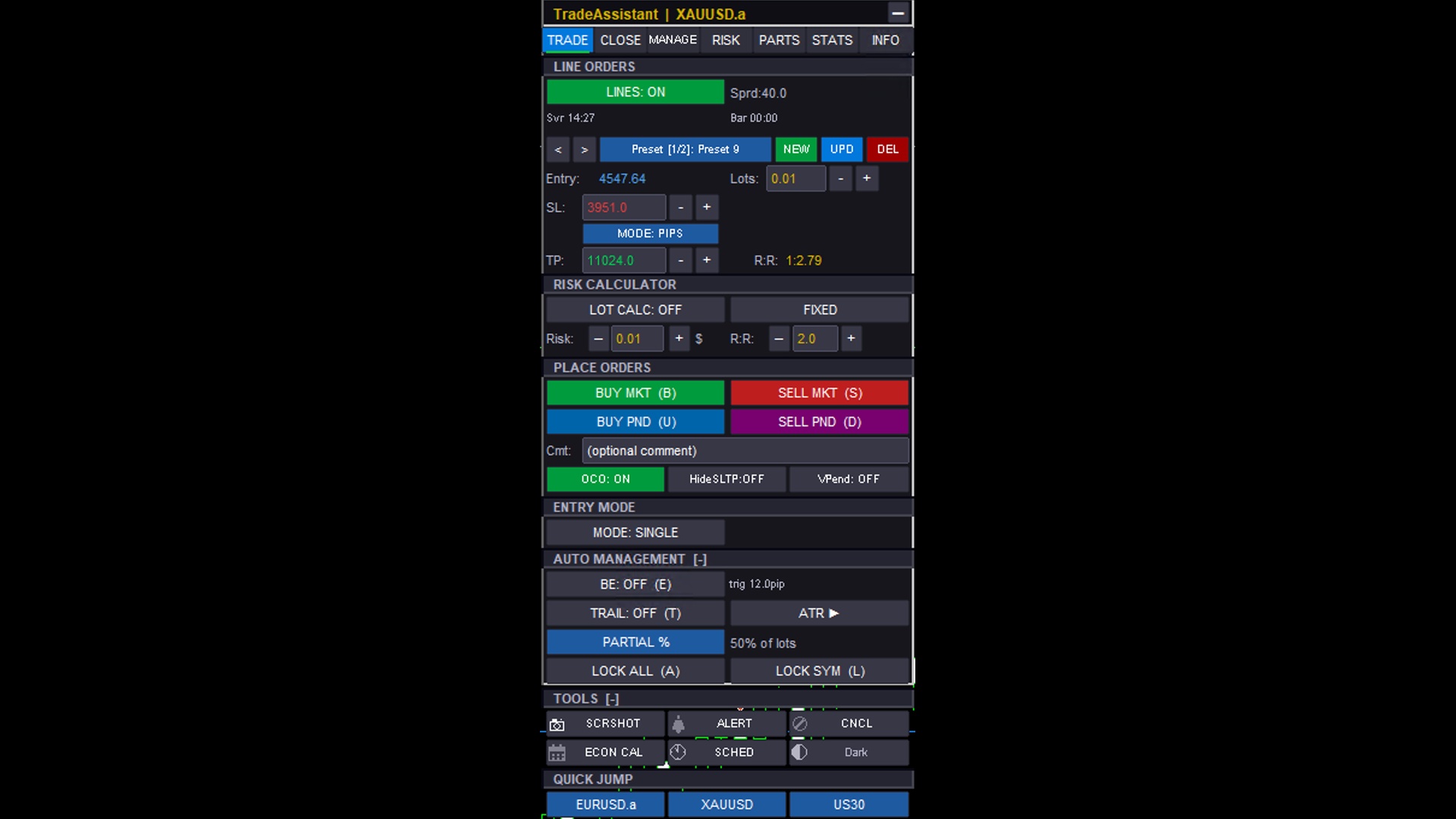
TRADE Tab — LINE ORDERS, RISK CALCULATOR, PLACE ORDERS, ENTRY MODE, AUTO MANAGEMENT, TOOLS, and QUICK JUMP sections
LINE ORDERS Section
LINES: ON/OFF — Toggles three interactive chart lines: Entry (blue), SL (red), TP (green). Drag lines to any price; lot size and R:R update instantly. Spread is shown as Sprd: XX.X pips . Two live clocks: Svr HH:MM (broker server time) and Bar MM:SS (countdown to bar close).
Trade Presets (up to 32)
Each preset stores all panel settings plus Entry/SL/TP line positions. < / > navigate and apply presets. The name display shows slot index and name (e.g., Preset [1/3]: Preset 9 ).
- NEW — Save current settings as a new named preset
- UPD — Overwrite the selected preset with current settings
- DEL — Delete the selected preset
Entry, SL, TP and Lots Controls
| Control | Description |
|---|---|
| Entry | Current entry price (blue). Set by dragging the entry line. |
| Lots + –/+ | Manual lot size. Read-only when LOT CALC is ON. |
| SL + –/+ | Stop-loss price or pip distance. Red. |
| MODE: PRICE/PIPS | Toggle between absolute price and pip distance input for SL/TP. |
| TP + –/+ | Take-profit price or pip distance. Green. |
| R:R | Live reward-to-risk ratio, updates automatically. |
RISK CALCULATOR Section
LOT CALC: ON/OFF — Enables automatic lot sizing based on risk mode and Entry→SL distance. When ON, the Lots field is read-only. Risk Mode button cycles through 9 modes:
| Label | Mode |
|---|---|
| % BAL | % of current account balance |
| % EQ | % of current equity (includes floating P/L) |
| % MARG | % of available free margin |
| % REF | % of user-defined reference amount (Ref $ row appears below) |
| % PD | % of previous day's closing balance |
| % PW | % of previous week's closing balance |
| % PM | % of previous month's closing balance |
| $ USD | Fixed dollar amount (account currency) |
| FIXED | No auto-sizing; manual lots only |
Risk: – [value] + — Set the risk amount (% or $). R:R: – [value] + — Target reward:risk; adjusting moves the TP line. When % REF mode is active, a Ref $: –/+ row appears to set the reference notional.
Tip: Lot sizing includes estimated commission when InpRiskLotsIncludeComm is enabled (default ON), ensuring actual risk after fees precisely matches your target. Default SL distance is never inflated to a point where the calculated lot would fall below the broker minimum lot; saved SL/TP offsets that would produce 0.00 lots are corrected automatically.PLACE ORDERS Section
| Button | Key | Action |
|---|---|---|
| BUY MKT | B | Buy Market at current Ask |
| SELL MKT | S | Sell Market at current Bid |
| BUY PND | U | Buy Limit/Stop pending (or virtual if VPend ON) |
| SELL PND | D | Sell Limit/Stop pending (or virtual if VPend ON) |
Cmt: text field — Custom order comment. If blank, auto-fills TradeAssistant | local order time .
OCO / HideSLTP / VPend Toggle Row
| Button | Description |
|---|---|
| OCO | One-Cancels-Other: when one pending fills, all other pending orders for this symbol are cancelled. |
| HideSLTP | Virtual SL/TP: new orders placed without broker SL/TP; EA monitors and exits at virtual levels. |
| VPend | Virtual Pending: pending orders are simulated locally; no broker order until price reaches entry. |
When HideSLTP or VPend is ON, a VTRIG button appears to select the fill/exit test price source: ASK / BID / MID / CLOSE (last chart bar close).
ENTRY MODE Section
MODE button cycles: SINGLE (one order at entry price) → MULTI (multiple simultaneous orders; Count + Split mode: Equal/ASC/DESC) → GRID (series of pending orders at intervals).
Grid-specific controls: Count –/+ (number of legs), Curve (lot distribution: EQUAL/ASC/DESC), Step (pips) –/+ (price spacing between legs).
AUTO MANAGEMENT Section (Collapsible)
| Control | Key | Description |
|---|---|---|
| BE: ON/OFF | E | Toggle auto-breakeven. Trigger setting shown (e.g., trig 12.0pip ). Configure in MANAGE tab. |
| TRAIL: ON/OFF | T | Toggle trailing stop. Active mode shown on right button. Configure in MANAGE tab. |
| PARTIAL % | — | Displays current partial close % (shared with CLOSE tab and TRAIL PARTIAL mode). |
| LOCK ALL | A | Global lock — blocks new orders on all symbols. |
| LOCK SYM | L | Symbol lock — blocks new orders on current symbol only. |
TOOLS Section (Collapsible)
Tool buttons in two rows: SCRSHOT | ALERT | CNCL (row 1) and ECON CAL | SCHED | THEME (row 2). The SESSIONS toggle and the STATS analytics button are also on the TRADE tab. See the Tools Row section for details.
QUICK JUMP Section
Three symbol buttons for fast chart switching. Filled in priority order: open positions → InpFavoriteSymbols → InpSwitcherSymbols → current symbol. Click to switch chart to that symbol.
4. CLOSE Tab — Bulk Close & Grid Management
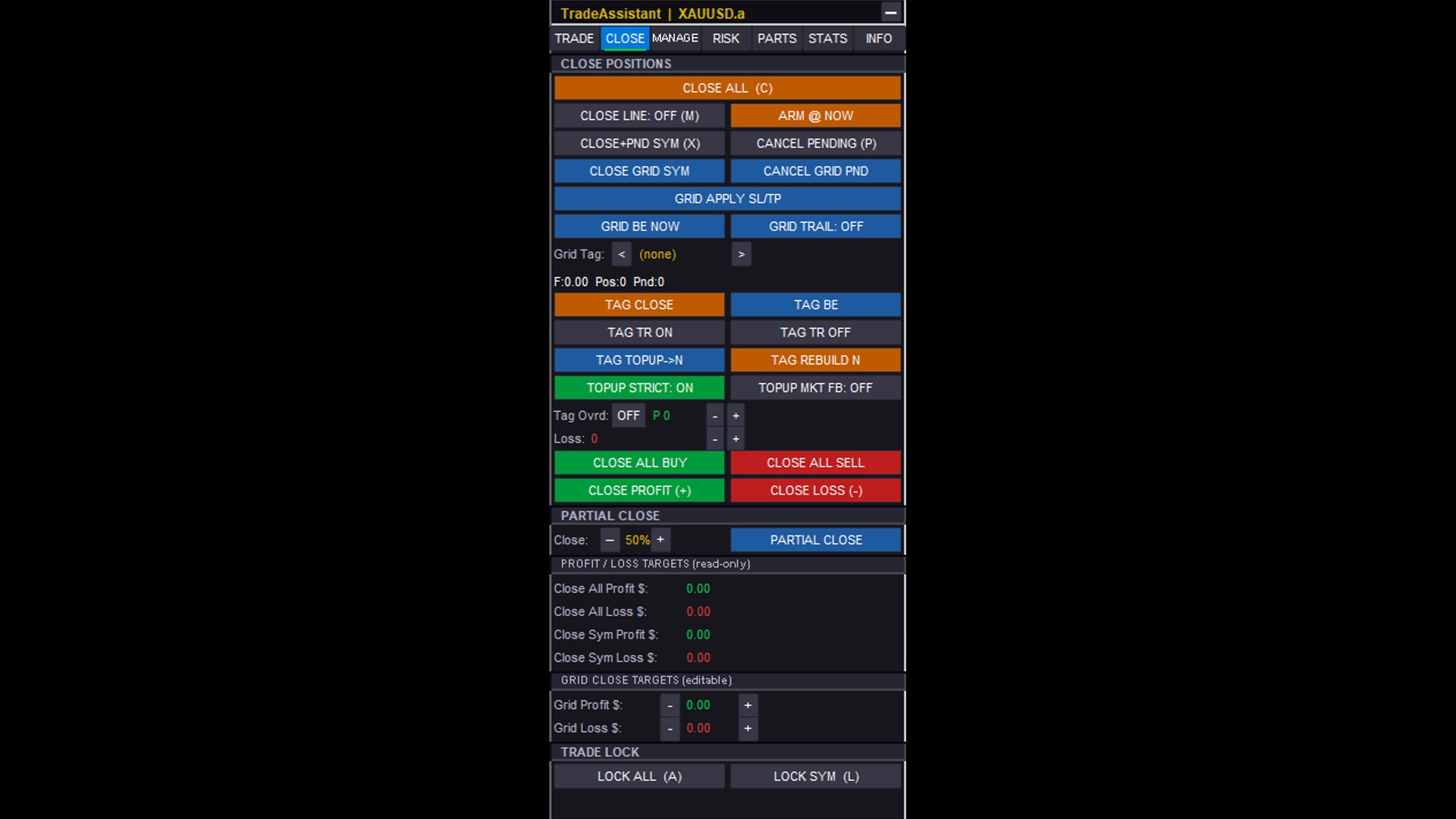
CLOSE Tab — CLOSE POSITIONS, grid tag management, directional close, partial close, profit/loss targets, and TRADE LOCK sections
CLOSE POSITIONS Section
| Button | Key | Description |
|---|---|---|
| CLOSE ALL | C | Close all positions on all symbols and cancel all pending orders. |
| CLOSE LINE | M | Toggle a chart line trigger. When ARMED, touching it closes all positions once. |
| ARM @ NOW | — | Place the close-all trigger line at current Bid and arm it immediately. |
| CLOSE+PND SYM | X | Close all positions on the current symbol and cancel its pending orders. |
| CANCEL PENDING | P | Cancel all broker and virtual pending orders on all symbols. |
| CLOSE GRID SYM | — | Close only positions tagged as grid legs on current symbol. |
| CANCEL GRID PND | — | Cancel only grid-tagged pending orders on current symbol. |
| GRID APPLY SL/TP | — | Apply current LINE_SL and LINE_TP prices to all grid positions/orders on current symbol. |
| GRID BE NOW | — | Move SL to breakeven immediately for all filled grid legs on current symbol. |
| GRID TRAIL: ON/OFF | — | Toggle per-ticket trailing for all grid positions on current symbol. |
Grid Tag Management
Each grid placement receives an auto-generated tag string. Navigate tags with < / >. The status line shows: F: [float P/L] Pos: [count] Pnd: [pending] — turns red with TRIG when a threshold is breached.
| Button | Description |
|---|---|
| TAG CLOSE | Close all positions and cancel all pending legs for the selected tag. |
| TAG BE | Move SL to breakeven for all filled legs of the selected tag. |
| TAG TR ON/OFF | Enable/disable per-ticket trailing for the selected tag's legs. |
| TAG TOPUP→N | Add missing pending legs to restore the tag to its original count N. |
| TAG REBUILD N | Close/cancel existing legs and place a fresh new grid with count N. |
| TOPUP STRICT: ON/OFF | ON: fills only missing index slots. OFF: appends from highest existing leg. |
| TOPUP MKT FB: ON/OFF | ON: if pending placement fails, fall back to a market order for that leg. |
Tag Ovrd: ON/OFF — per-tag profit/loss thresholds independent of global grid targets. P [amount] –/+ (profit close threshold $) and Loss [amount] –/+ (loss close threshold $). Set to 0 to disable.
Directional & Partial Close
Full and partial closes are automatically split into chunks no larger than the symbol's maximum volume, so very large positions (including on Netting accounts) close reliably.
- CLOSE ALL BUY — Close all open long positions on all symbols
- CLOSE ALL SELL — Close all open short positions on all symbols
- CLOSE PROFIT (+) — Close all positions with positive floating P/L
- CLOSE LOSS (–) — Close all positions with negative floating P/L
- Partial Close: – [%] + → PARTIAL CLOSE button — Reduce each open position by the specified percentage
Profit / Loss Targets
Read-only (set in inputs): Close All Profit $, Close All Loss $, Close Sym Profit $, Close Sym Loss $ — auto-close triggers when floating P/L reaches these thresholds. Set to 0 to disable.
Editable on-panel (Grid targets): Grid Profit $: –/+ and Grid Loss $: –/+ — when total grid floating P/L crosses these thresholds, grid legs are closed automatically.
LOCK ALL (A) / LOCK SYM (L) also appear in the TRADE LOCK section at the bottom.
5. MANAGE Tab — Breakeven & Trailing Stop
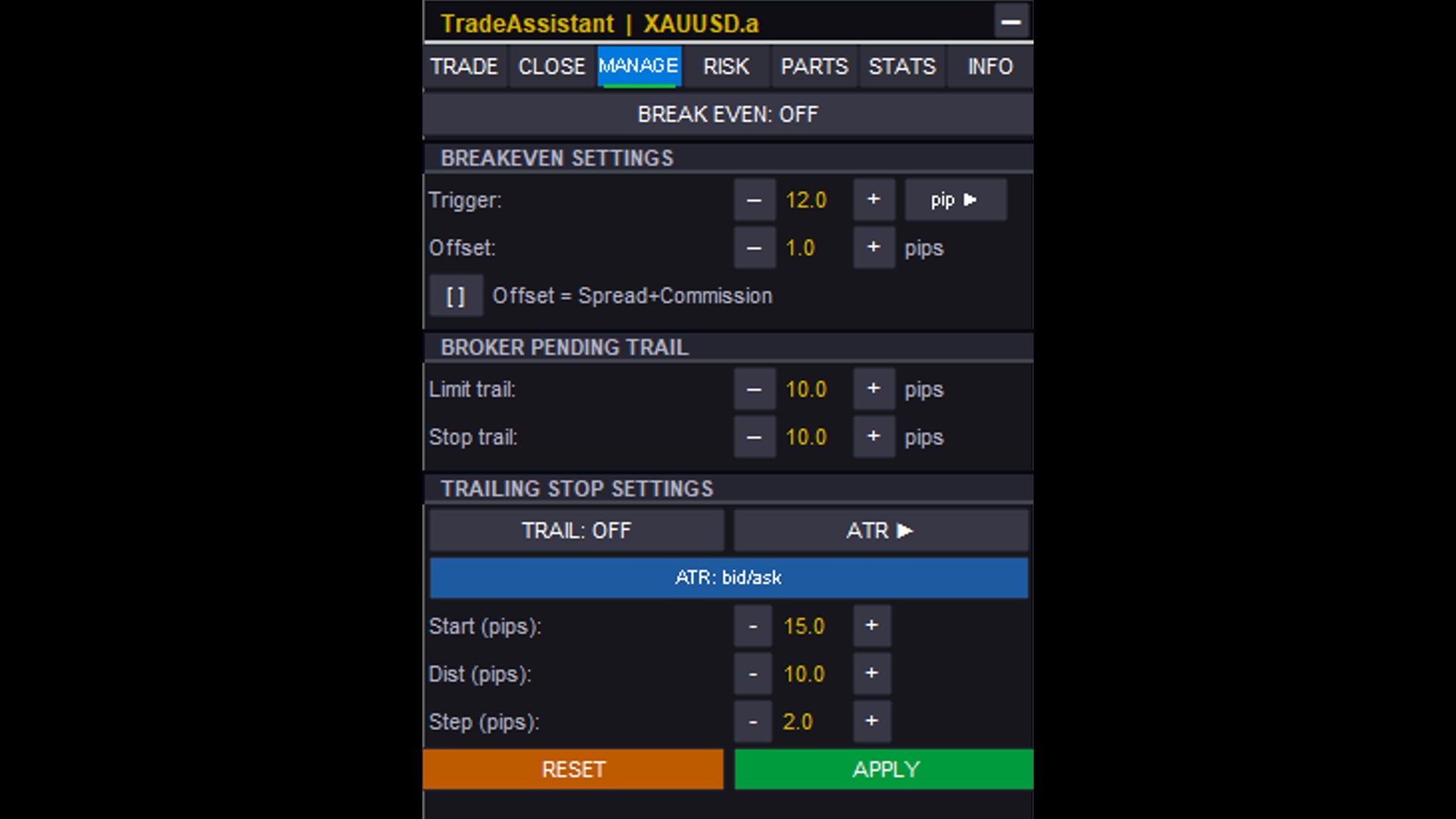
MANAGE Tab — BREAK EVEN toggle, BREAKEVEN SETTINGS, BROKER PENDING TRAIL, and TRAILING STOP SETTINGS sections
BREAK EVEN
The full-width BREAK EVEN: ON/OFF button globally enables or disables auto-breakeven (same as E hotkey).
Breakeven Settings
| Control | Description |
|---|---|
| Trigger: – [value] + [unit ►] | How far price must move in profit before SL moves to BE. Click unit button to cycle: pip (fixed pips) → R (R-multiple of risk distance) → % P (% of entry price) → % TP (% of entry→TP distance) |
| Offset: – [pips] + | Pips above entry (for longs) the SL is moved to — locks in a small profit instead of breaking exactly even. Grayed out when Auto is ON. |
| [X] Offset = Spread+Commission | Auto offset: calculates spread + estimated commission so the BE trade is cost-neutral or better. |
BROKER PENDING TRAIL Section
Trails unexecuted broker pending orders as price moves, keeping them close to market:
- Limit trail: – [pips] + — Trail distance for Buy Limit / Sell Limit orders. 0 = disabled.
- Stop trail: – [pips] + — Trail distance for Buy Stop / Sell Stop orders. 0 = disabled.
TRAILING STOP SETTINGS Section
TRAIL: ON/OFF toggles trailing globally (T hotkey). The mode button cycles through 8 modes:
| Mode | Description |
|---|---|
| NONE | Trail disabled |
| PIPS | Classic pip-based: SL follows price at a fixed pip distance once profit > Start pips |
| HI/LO | Candle high/low: SL set to low (longs) or high (shorts) of last completed bar |
| MA | Moving average: SL tracks a configurable MA value |
| SAR | Parabolic SAR: SL follows the SAR indicator |
| ATR | ATR-based: SL at ATR × multiplier from price. Sub-toggle: ATR: bid/ask (distance from live price) vs ATR: bar H/L (anchored to previous bar High/Low) |
| FRACTALS | Fractal trailing: SL moves to most recent fractal low (longs) or fractal high (shorts) |
| PARTIAL | Partial-close trailing: closes a percentage of the position when the trail condition is met |
Start (pips) — profit before trailing activates. Dist (pips) — trail distance (or ATR multiplier). Step (pips) — minimum movement before SL updates.
RESET reverts to input defaults. APPLY persists settings to the chart for survival across EA reattach.
6. RISK Tab — Over-Trading & Loss-Lock Protection
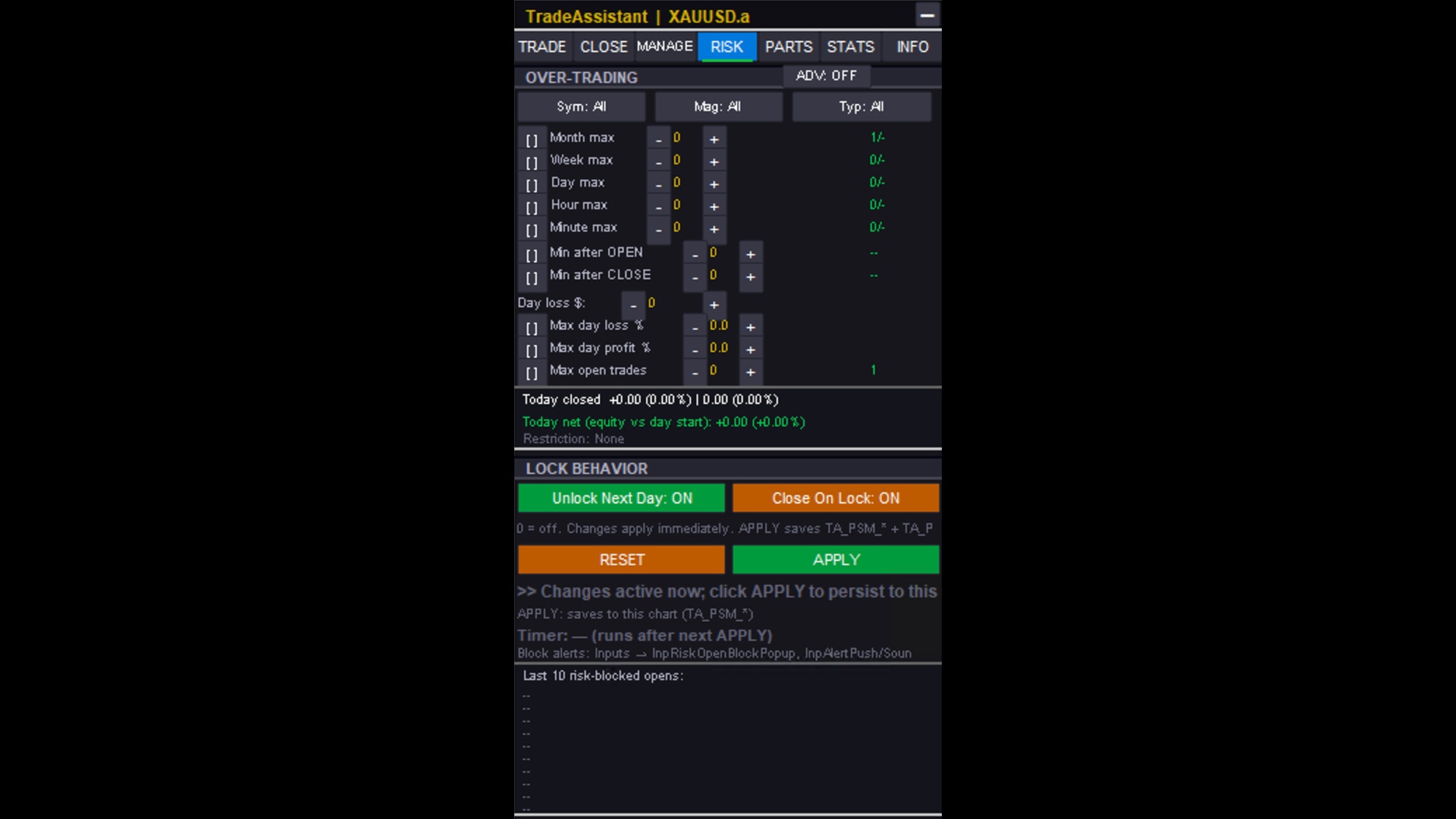
RISK Tab — OVER-TRADING panel with frequency limits, cooldowns, day loss controls; LOCK BEHAVIOR; APPLY/RESET; last 10 risk-blocked opens
OVER-TRADING Section
Three scope buttons define which trades are counted: Sym: All/Chart (all symbols or current only), Mag: All/EA (all magic numbers or this EA only), Typ: All/Buy/Sell (direction filter).
Each rule row has a checkbox [X]/[ ] to enable/disable, a –/value/+ spinner, and a live counter showing used / limit on the right:
| Row | Description |
|---|---|
| Month max | Max trade opens allowed in the current calendar month |
| Week max | Max trade opens allowed in the current calendar week |
| Day max | Max trade opens allowed today (server date) |
| Hour max | Max trade opens allowed in the current clock hour |
| Minute max | Max trade opens allowed in the current minute — prevents burst entries |
| Min after OPEN | Cooldown minutes after any trade opens before next entry is allowed |
| Min after CLOSE | Cooldown minutes after any trade closes before next entry is allowed |
| Day loss $: –/+ | Max dollar loss today (closed P/L). When exceeded, new opens are blocked. 0 = off. |
| [X] Max day loss % | Max daily loss as % of day-start equity. Blocks new opens when reached. |
| [X] Max day profit % | Daily profit target lock: blocks new opens when today's profit reaches this % of day-start equity. |
| [X] Max open trades | Max simultaneous open positions allowed. Live count shown on right. |
ADV: OFF/ON (top right) reveals advanced controls: Sym Loss $, Sym %, Week Loss $, Month $ thresholds.
The dark Today Summary Box shows: Today closed (total closed P/L in $ and %), Today net (equity change since day start), and Restriction — current block reason in green (None) or red/orange.
LOCK BEHAVIOR Section
| Button | Description |
|---|---|
| Unlock Next Day: ON/OFF | ON: risk locks triggered today are automatically released at next day start. OFF: locks require manual clearing. |
| Close On Lock: ON/OFF | ON: triggering a risk lock immediately closes all open positions. OFF: existing positions remain open; only new opens are blocked. |
RESET reverts all RISK tab values to EA input defaults. APPLY persists current settings to the chart (TA_PSM_* mementos). Changes take effect immediately; APPLY only saves them for reattach survival. A green flash in the RISK tab header confirms successful APPLY.
The Last 10 Risk-Blocked Opens log at the bottom shows the 10 most recent blocked trade attempts with timestamp, symbol, and the rule that caused the block.
7. PARTS Tab — Multi-Level Partial Close System
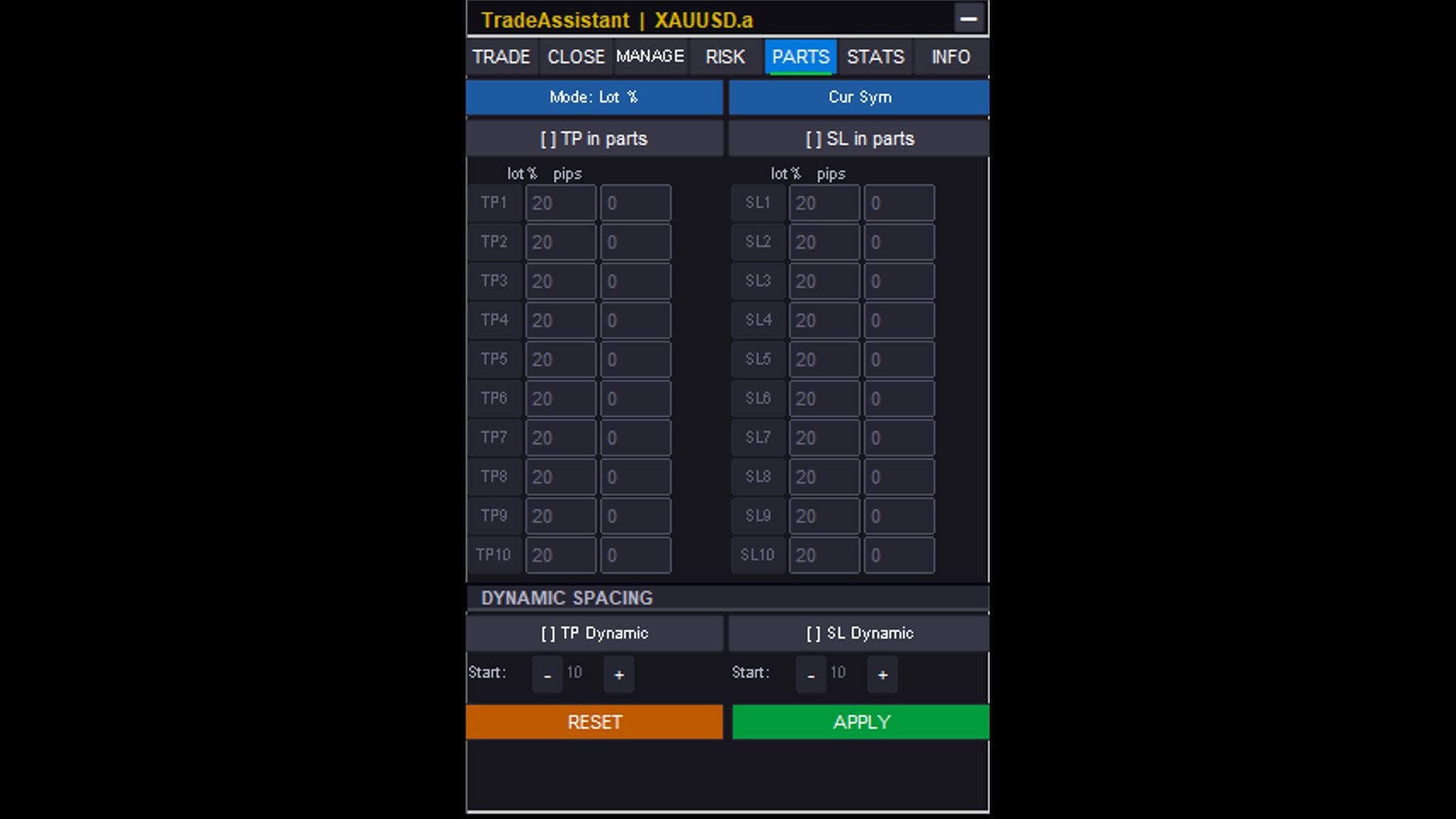
PARTS Tab — TP1–TP10 and SL1–SL10 tables with lot% and pips columns; Dynamic Spacing section
Pre-schedule up to 10 partial take-profit levels (TP1–TP10) and 10 partial stop-loss levels (SL1–SL10) for automatically closing portions of a position as price reaches each level.
Header Controls
- Mode: Lot % / Mode: Fixed — Draft toggle: Lot% = close that % of current position; Fixed = close that absolute lot amount at each level.
- Cur Sym / All Sym — Apply PARTS to current symbol only (safest) or all symbols (requires second confirmation click).
- [X] TP in parts — Enable scheduled partial closes at TP levels. Chart lines are drawn for active levels.
- [X] SL in parts — Enable scheduled partial closes at SL levels.
Level Grid (TP1–TP10 / SL1–SL10)
Each row has three controls per side: a toggle button (TP1/SL1 etc.) to activate/deactivate in draft (changed-but-unapplied rows shown orange), a lot% edit field (percentage or fixed lots to close), and a pips edit field (distance from entry in profit direction). After clicking APPLY, chart lines are drawn for active levels and can be dragged to fine-tune.
Example: TP1 at 20 pips / 20%, TP2 at 40 pips / 20%, TP3 at 60 pips / 20% — closes 20% at each level, leaving 40% to run to final TP.Dynamic Spacing Section
[X] TP Dynamic / [X] SL Dynamic — Auto-distributes active levels at equal pip intervals. Start: –/+ sets the pip spacing (e.g., 10 pips places TP1 at +10, TP2 at +20, TP3 at +30...).
RESET discards draft changes. APPLY commits all changes and draws/removes chart lines. All changes are staged in draft state until APPLY.
8. STATS Tab — Trading History & CSV Export
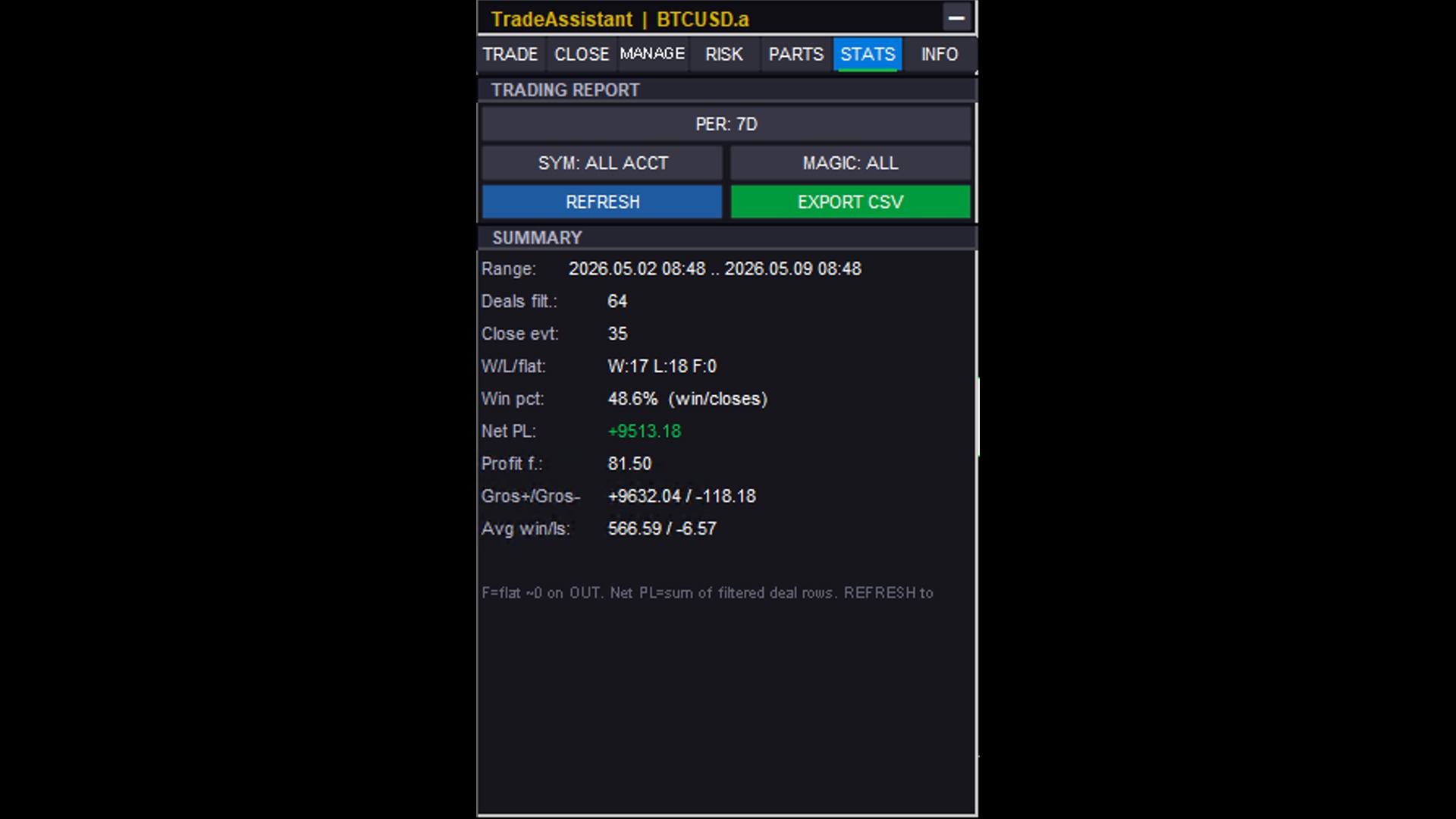
STATS Tab — TRADING REPORT with PER/SYM/MAGIC filters, REFRESH and EXPORT CSV buttons, SUMMARY metrics
Filter Controls
| Button | Options | Description |
|---|---|---|
| PER | TODAY / 7D / 30D / ALL | History time window. TODAY = server calendar day; 7D / 30D = last N days; ALL = all terminal history. |
| SYM | CHART / ALL ACCT | CHART = current EA symbol only; ALL ACCT = all symbols in terminal history. |
| MAG | ALL / EA ONLY | ALL = every magic number; EA ONLY = trades placed by this EA's InpMagicNumber . |
REFRESH — Re-scan deal history with current filters. Always click after changing filters. EXPORT CSV — Write filtered deals to MQL5/Files/TA_stats_[ChartID]_[timestamp].csv ; full path logged to Experts tab.
SUMMARY Metrics
| Metric | Description |
|---|---|
| Range | Date/time range of the selected window. Shows "All history loaded" for ALL period. |
| Deals filt. | Total deal rows matching filters (all entry types: IN, OUT, INOUT). |
| Close evt. | Closing deal events only (OUT + OUT_BY + INOUT — actual position closes). |
| W/L/flat | Win/Loss/Flat breakdown of closing events. Win = P/L > 0; Loss = P/L < 0; Flat ≈ 0. |
| Win pct | Win rate = wins ÷ close events × 100%. E.g., 48.6% (win/closes) . |
| Net PL | Sum of all matched deal rows' Profit + Swap + Commission. Green = profit, Red = loss. |
| Profit f. | Profit Factor = sum of winning P/L ÷ sum of |losing P/L|. Above 1.0 = profitable. |
| Gros+/Gros- | Total gross profit and total gross loss of all closing deals. |
| Avg win/ls | Average winning trade amount / average losing trade amount. |
9. INFO Tab — Account Dashboard
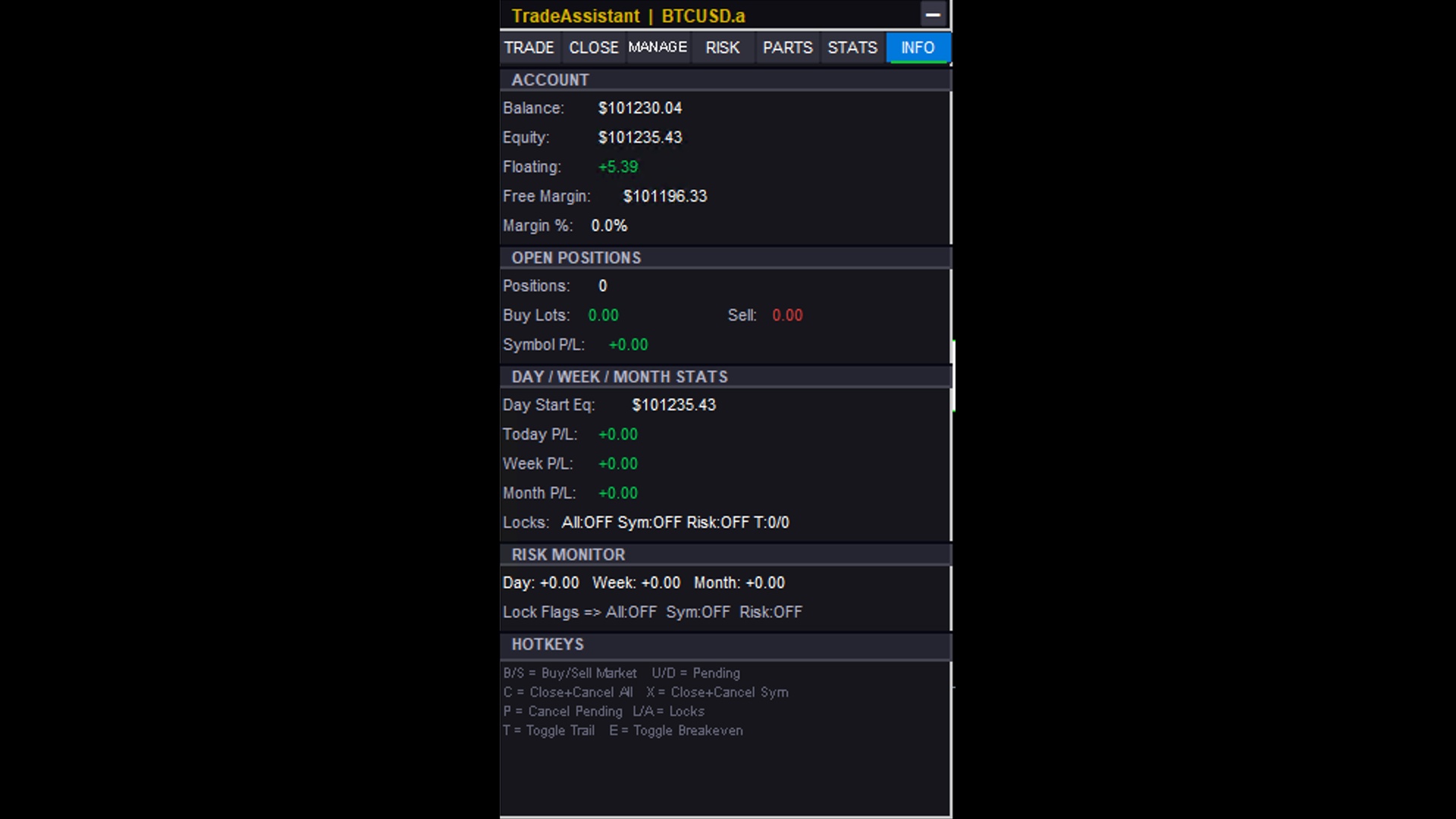
INFO Tab — ACCOUNT, OPEN POSITIONS, DAY/WEEK/MONTH STATS, RISK MONITOR, and HOTKEYS sections
ACCOUNT: Balance, Equity, Floating P/L, Free Margin, Margin % — all live-updated on every tick.
OPEN POSITIONS: Total positions count, Buy Lots, Sell Lots, Symbol P/L (current symbol only).
DAY / WEEK / MONTH STATS: Day Start Equity, Today P/L, Week P/L, Month P/L, and active Locks status ( All:OFF Sym:OFF Risk:OFF ).
RISK MONITOR: Real-time equity change since day/week/month start; Lock Flags (All / Sym / Risk) shown ON/OFF.
HOTKEYS: Quick-reference table for all keyboard shortcuts (see ).
10. Tools Row — Screenshot, Alert, CNCL, Calendar, Scheduler
Row 1: SCRSHOT | ALERT | CNCL
SCRSHOT — Takes a PNG screenshot of the full chart, saved to MQL5/Files/Screenshots/ . Check the Experts log for the full path.
ALERT — Opens the Alert menu overlay. Up to 48 price alert rules simultaneously. Each rule defines: trigger price (fixed price or chart line), direction (Above > or Below <), price source (Bid/Ask/Mid), and action type (8 variants: Popup, Push, Sound, Email, combinations). The icon lights up when any alerts are armed.
CNCL — Opens the Cancel-on-Level menu. Up to 48 cancel rules. Each rule defines: trigger price or chart line, direction (Above/Below), and action (cancel all pending, cancel symbol pending, close all, close symbol, etc.). Useful for auto-cancelling pending orders if price moves against you.
Row 2: ECON CAL | SCHED | THEME
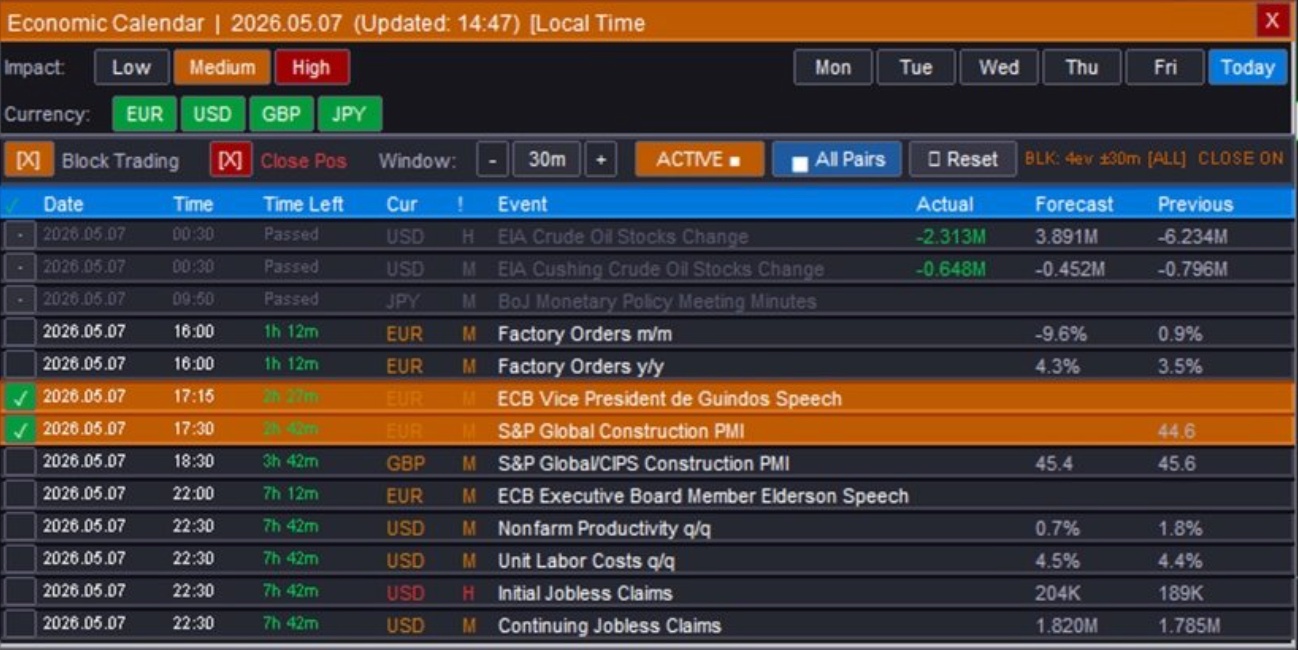
ECON CAL — Economic Calendar Panel
ECON CAL button toggles a floating Economic Calendar panel driven by the MT5 built-in calendar service. The button label changes to CAL: ON when the panel is open. The panel header shows the selected date, last update time (local clock), and a ⛔ BLOCK ON badge when trade-blocking is active. The panel refreshes automatically every minute.
Day Selector
Six buttons in the top toolbar select which day to display: Today, Mon, Tue, Wed, Thu, Fri. The active day button is highlighted. Switching days rebuilds the event list immediately.
Impact Filter
Three toggle buttons filter events by impact level. Active tiers are highlighted in their respective color:
- Low (gold) — routine low-impact data releases
- Medium (orange) — notable mid-tier events
- High (red) — high-impact market-moving events (NFP, CPI, rate decisions, etc.)
Currency Filter
Currency toggle buttons are auto-derived from the current chart symbol and all symbols added to the symbol switcher. Standard 3-letter currency codes (USD, EUR, GBP, JPY, AUD, NZD, CAD, CHF, etc.) are extracted from symbol names. Commodity and index symbols are mapped to their primary influencing currency (e.g. XAUUSD / OIL → USD, GER40 → EUR, UK100 → GBP, JP225 → JPY). Click any currency button to hide its events; click again to restore them.
Event Table Columns
| Column | Description |
|---|---|
| Time | Local display time of the event (broker server time corrected for PC clock offset) |
| Left | Countdown (e.g. 2h 15m) or Passed after the event time has elapsed |
| Cur | Affected currency (e.g. USD, EUR) |
| Imp | Impact: ★ Low · ★★ Medium · ★★★ High |
| Event | Event name (e.g. Non-Farm Payrolls, CPI m/m) |
| Actual | Released value (populated after the event fires) |
| Forecast | Analyst consensus estimate |
| Previous | Prior period value |
Up to 60 events are shown per day, sorted chronologically. Click any event row to select or deselect it for the Block Trading feature.
Block Trading on News Events
The bottom control bar lets you automatically block trading and close positions around selected news events. First click one or more event rows to select them, then configure the controls below and click APPLY.
- Block Trading checkbox — when enabled, any attempt to open a new trade (market order or pending order) on the affected pair is rejected during the blackout window around each selected event.
- ± Minutes — width of the blackout window in minutes before and after each selected event time. Range: 1–240 minutes; default 30. Adjust in 5-minute steps with the − / + buttons or type directly.
- All Pairs toggle — OFF (default): only pairs whose base or quote currency matches the event currency are blocked. ON: all symbols are blocked during the event window.
- Close Pos checkbox — when enabled, open positions on the affected pair(s) are automatically closed once at the start of each selected event's blackout window.
- APPLY button — commits the current selection and settings. The panel header shows ⛔ BLOCK ON and the ECON CAL button turns warning-color to confirm the block is live. Click APPLY again with no events selected to cancel all blocking.
Alert behavior is controlled by input parameters: InpBlockAlertPopup — MT5 popup when a trade is blocked; InpCloseAlertPopup — MT5 popup when a position is auto-closed. Push notifications and sound alerts are shared with other alert channels via InpAlertPush and InpAlertSound.
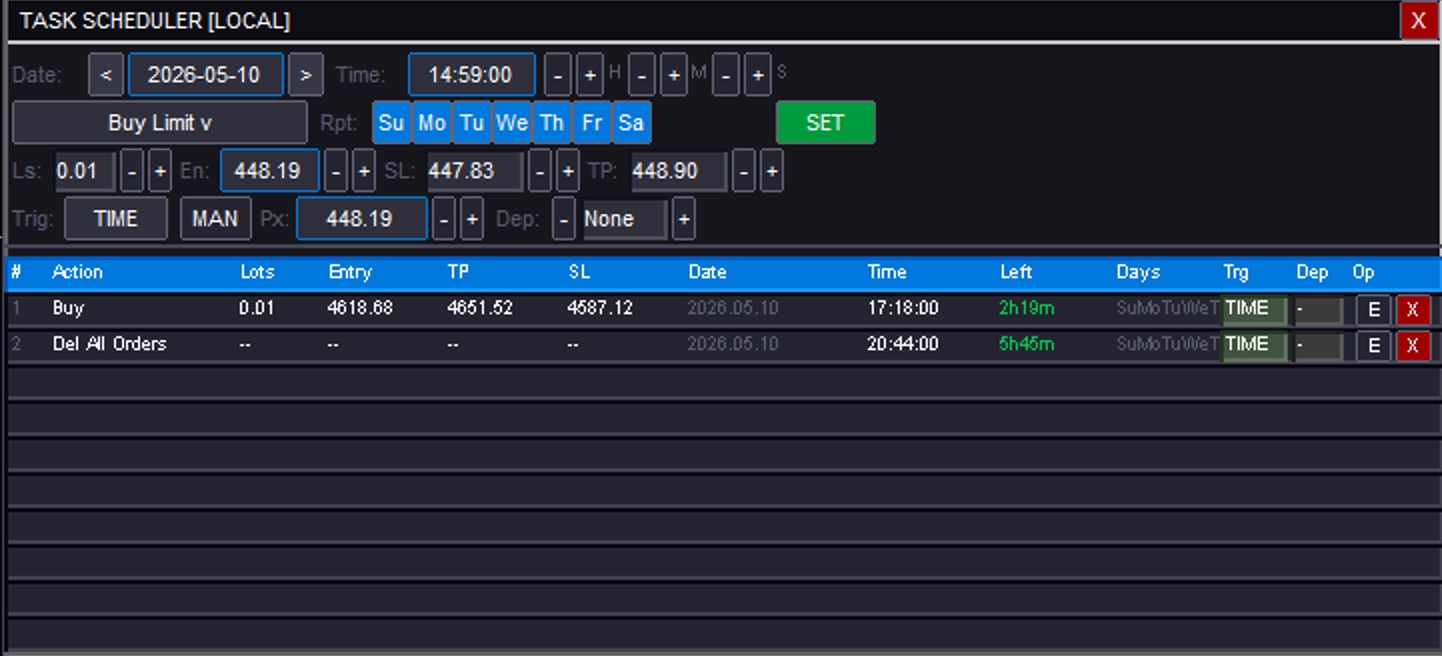
SCHED — Task Scheduler Panel
SCHED button toggles the Task Scheduler panel. Up to 10 tasks can be stored and run simultaneously. All tasks persist across EA restarts (saved to file on disk). The panel title reads TASK SCHEDULER [LOCAL] — all date and time values are entered and displayed in local PC time.
Creating a Task
Fill in the form at the top of the panel and click SET:
- Date — target date in YYYY-MM-DD format. Use the < / > arrow buttons to step one day at a time, or type directly into the date field.
- Time — target time in HH:MM:SS format. Use the − / + buttons to adjust hours (H), minutes (M), or seconds (S) individually, or type directly.
- Action — drop-down with 18 action types (see table below). Click the action button to expand the drop-down; click again or select an item to close it.
- Repeat — day-of-week repeat buttons: Su Mo Tu We Th Fr Sa. Enable any combination. Leave all off for a one-shot task that removes itself after firing. Repeating tasks reschedule to the next matching weekday at the same HH:MM:SS.
- Lots / Entry / SL / TP — visible only for order-placement actions. Entry price can be typed or linked to the ENTRY drag line on the chart. SL and TP are optional (use 0 to omit).
Trigger Modes
Each task supports two trigger modes that can be combined:
- Time trigger (default) — task fires at the first incoming tick on or after the scheduled date and local time.
- Price trigger — task fires when market price crosses a specified level. The trigger price can be set manually as a fixed value, or linked to a chart line: ENTRY line, SL line, TP line, or any named chart object (OBJ). Price-triggered tasks do not require a date or time.
Task Dependencies
A task can depend on another task in the list. The dependent task will only fire after its parent task has already executed. This allows chained sequences — for example: close all positions at 17:00, then place a fresh pending order at 17:01 only if the close task already fired.
18 Action Types
| Category | Action | Description |
|---|---|---|
| Market Orders | Buy | Place a Buy market order at the scheduled trigger |
| Market Orders | Sell | Place a Sell market order at the scheduled trigger |
| Pending Orders | Buy Stop | Place a Buy Stop pending order |
| Pending Orders | Sell Stop | Place a Sell Stop pending order |
| Pending Orders | Buy Limit | Place a Buy Limit pending order |
| Pending Orders | Sell Limit | Place a Sell Limit pending order |
| Close Positions | Close Buy | Close all Buy (long) positions on the current symbol |
| Close Positions | Close Sell | Close all Sell (short) positions on the current symbol |
| Close Positions | Close Profit | Close all profitable positions on the current symbol |
| Close Positions | Close Loss | Close all losing positions on the current symbol |
| Close Positions | Close All | Close every open position across all symbols |
| Delete Pending | Del Buy Stop | Cancel all Buy Stop pending orders on the symbol |
| Delete Pending | Del Sell Stop | Cancel all Sell Stop pending orders on the symbol |
| Delete Pending | Del Buy Limit | Cancel all Buy Limit pending orders on the symbol |
| Delete Pending | Del Sell Limit | Cancel all Sell Limit pending orders on the symbol |
| Delete Pending | Del Stop | Cancel all Stop orders (Buy Stop + Sell Stop) on the symbol |
| Delete Pending | Del Limit | Cancel all Limit orders (Buy Limit + Sell Limit) on the symbol |
| Delete Pending | Del All Orders | Cancel every pending order across all symbols |
Managing Existing Tasks
The lower section of the panel lists all active tasks. Each row shows the task number, trigger time or price, repeat pattern, action, and symbol. To modify a task click its row to load it back into the form — the SET button changes to UPD in edit mode and a CANCEL button appears to discard unsaved edits. To delete a task use the delete button on its row. One-shot tasks are automatically removed from the list after they fire.
SESSIONS — Session Boxes
Toggle SESSIONS on the TRADE tab to draw dashed-border session rectangles directly on the chart. Four independent slots are configurable — defaults are Sydney (22:00–07:00), Tokyo (00:00–09:00), London (08:00–17:00) and New York (13:00–22:00), each with its own label, color and enable switch.
- Time reference modes: UTC (default) — standard GMT session hours shifted onto the broker chart using the server-UTC offset; Server — broker chart clock; Local — PC timezone. The UTC offset can be set manually (minutes) or derived automatically on each refresh for correct DST handling.
- Opacity (InpSessionFillAlpha) and pastel-mix level (InpSessionColorPastel) are set via input parameters. Boxes have a dashed outline and a label with no solid fill, so price action underneath stays fully visible.
STATS — Performance Analytics Panel
Click the STATS button on the TRADE tab LINE ORDERS row (separate from the STATS tab) to open the wide floating Performance Analytics panel, which visualizes your MT5 account history. It is draggable, independent of the main panel, and opening it closes other floating overlays (Calendar, Scheduler, etc.).
- Four views: Overview (KPI cards, radar chart, cumulative/daily P&L charts, P&L calendar, recent closed trades / open positions), Reports (monthly stats and charts), Compare (period comparison) and Symbols (per-symbol P&L ranking, win rate, cross-month matrix).
- Calendar drill-down: click a day on the P&L calendar to see per-trade rows, an intraday equity curve and an optional trade chart snapshot (multi-timeframe bars around entry/exit).
- Data window: scans roughly the last 100 trading days of account history by default and refreshes every 5 seconds while open.
- vs. the STATS tab: the embedded STATS tab is a compact report (TODAY / 7D / 30D / ALL, symbol and magic filters, win rate / profit factor / net P&L, EXPORT CSV). The floating panel is the chart-rich analytics view. Both read broker deal history.
THEME — Cycles to the next color theme. Available themes: Dark → Darker → Slate → Classic → Light → Light Modern → Custom (uses input parameter colors).
11. Keyboard Hotkeys
| Key | Action |
|---|---|
| B | Buy Market order |
| S | Sell Market order |
| U | Buy Pending order (broker or virtual) |
| D | Sell Pending order (broker or virtual) |
| C | Close All positions and cancel all pending orders |
| X | Close + Cancel all on current symbol |
| P | Cancel all Pending orders only |
| A | Toggle Lock All (blocks new trades on all symbols) |
| L | Toggle Lock Sym (blocks new trades on current symbol) |
| T | Toggle Trailing Stop ON/OFF |
| E | Toggle Breakeven ON/OFF |
12. Input Parameters Reference
Core Order & Risk
| Parameter | Default | Description |
|---|---|---|
| InpMagicNumber | 202401 | Magic number for all EA orders. Used for filtering in STATS and RISK tabs. |
| InpFixedLots | 0.01 | Default lot size when LOT CALC is OFF. |
| InpRiskPercent | 1.0 | Default risk % for % balance/equity modes. |
| InpRiskLotsIncludeComm | true | Include estimated commission in lot sizing so total cost = risk target. |
| InpRiskCustomBase | 10000 | Reference notional (account currency) for % CUSTOM REF risk mode. |
| InpCloseAllProfitMoney | 0 | Auto-close all when total floating profit ≥ this $ (0 = off). |
| InpCloseAllLossMoney | 0 | Auto-close all when total floating loss ≤ –this $ (0 = off). |
| InpCloseSymProfitMoney | 0 | Auto-close symbol when symbol profit ≥ this $ (0 = off). |
| InpCloseSymLossMoney | 0 | Auto-close symbol when symbol loss ≤ –this $ (0 = off). |
Breakeven & Trailing Stop
| Parameter | Default | Description |
|---|---|---|
| InpBETrigger | 12.0 | Default BE trigger value. |
| InpBETrigUnit | pip | Default BE trigger unit (pip / R / % price / % TP). |
| InpBEOffset | 1.0 | Breakeven offset in pips. |
| InpBEOffsetAuto | false | Auto offset = spread + commission. |
| InpTrailMode | ATR | Default trailing mode. |
| InpTrailStart | 15.0 | Pips profit before trailing activates. |
| InpTrailDist | 10.0 | Trail distance in pips (or ATR multiplier). |
| InpTrailStep | 2.0 | Minimum movement to trigger SL update. |
| InpTrailATRUseBarHL | false | ATR mode: use previous bar High/Low anchors instead of live Bid/Ask. |
Panel, Display & Symbols
| Parameter | Description |
|---|---|
| InpColorTheme | Starting color theme: Dark / Darker / Slate / Classic / Light / Light Modern / Custom |
| InpPanelX / InpPanelY | Initial panel position in pixels from chart top-left |
| InpSwitcherSymbols | Comma-separated symbol list for the symbol switcher / quick jump bar |
| InpFavoriteSymbols | Favorite symbols shown in QUICK JUMP when no open positions occupy those slots |
| InpAlertPush / InpAlertSound | Enable push notifications / sound for alert triggers |
| InpRiskOpenBlockPopup | Show a popup when a RISK rule blocks an attempted trade |
13. Chart Overlays & Order Lines
Interactive Planning Lines
When LINES: ON, three draggable horizontal lines appear: Entry (blue), SL (red), TP (green). Dragging the Entry line while SL/TP are set moves all three proportionally (maintaining pip distances) — shift the entire setup without recalculating. Right-clicking the entry line opens a quick-action menu (flip direction, market/pending toggle, cycle risk mode, delete lines). New planning lines start at the current chart price and stay inside the visible price range while you drag them, so they never get lost off-screen.
Order Card Overlays
Each open position and pending order shows a floating card on the chart:
- Green — filled/open market position
- Purple — broker pending order (sent to broker, awaiting fill)
- Cyan/Teal — virtual pending order (simulated locally, not sent to broker)
Each card shows a live floating P/L badge (green/red). Clicking a card opens the per-ticket action menu: Close, Reverse, Partial Close, Edit SL/TP, Edit PARTS, and per-ticket BE/Trail toggles (independent of global settings). Dragging SL or TP on a position or pending order is clamped to the broker's minimum stop / freeze distance so the modify is not rejected; if the broker still rejects it (invalid stops, frozen, locked, requote, timeout), the level is kept as a virtual SL/TP and any existing broker-side protection stays in place as a backup. Color-shaded zones between lines show profit (green) and risk (red) areas visually.
PARTS Chart Lines
After clicking APPLY in the PARTS tab, dashed horizontal lines appear for each active TP and SL level, labeled TP1, TP2... SL1, SL2... These can be dragged to fine-tune levels after applying.
14. Persistence — What Survives EA Reload
Persisted (survive reattach)
- Breakeven and Trailing Stop settings — chart mementos (TA_BE_* / TA_TRAIL_* objects)
- RISK tab rules — chart mementos (TA_PSM_*) saved on APPLY
- PARTS tab settings — chart mementos (TA_PART_*) saved on APPLY
- Hidden SL/TP virtual levels and per-ticket PARTS — account file + chart mementos
- Per-ticket BE/Trail overrides — account file + chart mementos
- Trade presets (up to 32) — account-level file (TA_PRESETS_*.dat)
- Panel position — chart object position
Not Persisted
- Virtual pending orders — restored only from same-chart TA_VPM_* mementos (requires reattaching to the same chart while mementos exist)
- STATS tab filter selections — reset to defaults on reattach
- RISK tab changes without APPLY — changes are immediately active but lost on reattach unless APPLY was clicked
Trade Assistant Risk Calculator — Complete User Guide
Blog post & demo: https://www.mql5.com/en/blogs/post/769841