QuickBar Pro — Trade Manager for MetaTrader 5 and 4: User Guide

[ English ] [ Русский ] [ 中文 ] [ Español ] [ Português ] [ 日本語 ] [ Deutsch ] [ 한국어 ] [ Français ] [ Italiano ] [ Türkçe ]
QuickBar Pro is a trade manager and one-click trading panel for MetaTrader 5 and MetaTrader 4. This guide shows how to install it, open a trade with the lot size calculated from your risk, and manage it with breakeven, partial close and trailing stop.
Products: QuickBar Pro MT5 and QuickBar Pro MT4.
What the trade manager does for you
A manual trade needs three calculations at the worst possible moment: the lot size for your risk, the distance to the stop and the money you lose if it is hit. After that the trade has to be managed: the stop moved to the entry, part of the profit taken, the price followed. QuickBar Pro does all of it from a single bar at the top of the chart.
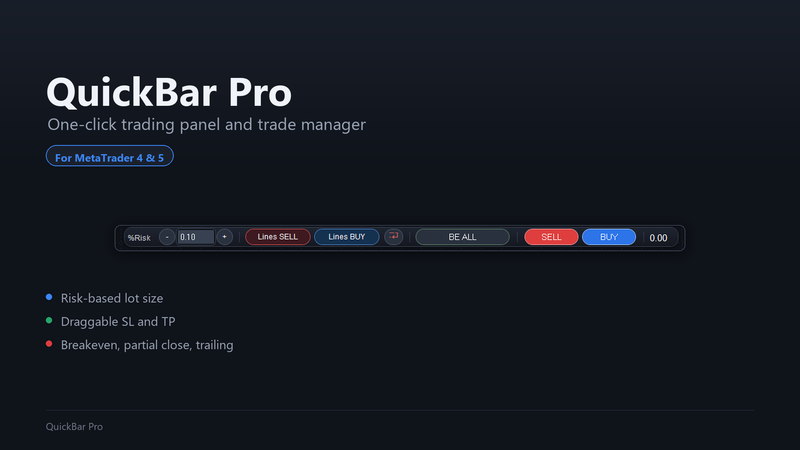
- Lot size calculated from your risk, as a percentage of the balance or as a fixed amount of money.
- Stop Loss and Take Profit lines that you drag on the chart, with pips, money, percentage and Risk-Reward on each line.
- One click to send the order, with the lot size shown on the button.
- Breakeven, partial close and trailing stop for every position.
Step 1. Install it
- In MetaTrader, open the Market tab of the Toolbox, then Purchased, and click Install.
- Open the chart of the symbol you want to trade and drag QuickBar Pro onto it from the Navigator, under Expert Advisors, Market.
- In the Common tab, tick Allow Algo Trading (MT5) or Allow live trading (MT4), and click OK.
- Turn on the Algo Trading button (AutoTrading in MT4) at the top of the terminal.
The bar appears at the top of the chart. The panel works on the symbol of its own chart: for another symbol, open its chart and attach the panel there too.
Step 2. Set your risk
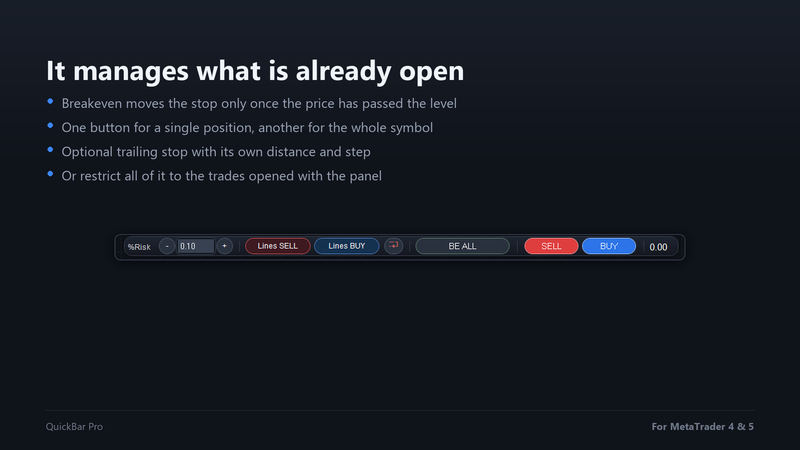
The first field of the bar is your risk. With Risk mode set to percentage, the label reads %Risk and the value is a percentage of the balance. Set to money, it reads Money and the value is an amount in the currency of the account. Type the value or use the - and + buttons. The panel remembers it, even after closing the terminal.
Step 3. Place the lines
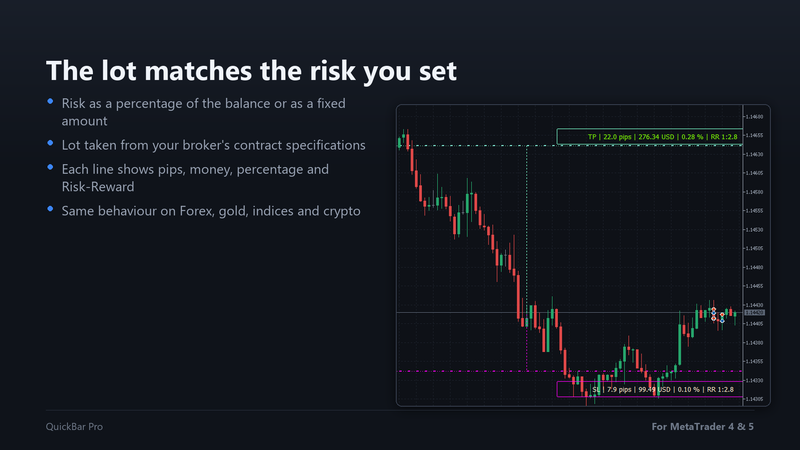
Click Lines BUY to prepare a buy or Lines SELL to prepare a sell. Two lines appear on the chart, the Stop Loss and the Take Profit. Drag them with the mouse to the levels you want. While you drag, each line shows the distance in pips, the money at stake, the percentage of your account and the Risk-Reward ratio.
The SL line keeps the lot size within what your account can open: it cannot be dragged so close that the lot would exceed your free margin or the maximum of the symbol, nor so far that it would fall below the minimum lot.
The small button with the red arrow, next to Lines BUY, removes the lines.
Step 4. Send the order
With the lines on the chart, the BUY or SELL button shows the lot size it is about to send, for example BUY 0.75. Click it and the order goes out with that lot and with the SL and TP of the lines. If the broker rejects the order, the lines stay on the chart so you can correct them and try again.
The number at the right end of the bar is the current spread, in points.
Step 5. Manage the trade
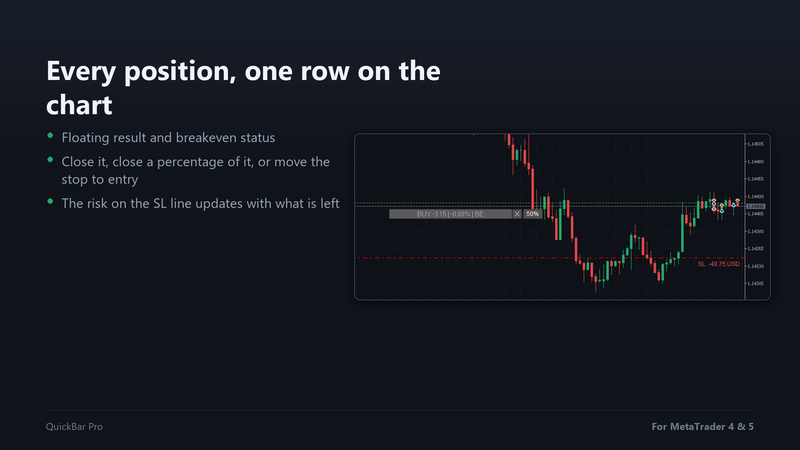
Every open position gets its own row on the chart, at the level of its entry:
- The wide button shows the direction, the floating result and the percentage of the account. It turns green when the trade is in profit. Click it to move the stop to the entry price (breakeven). Once the stop is there, the row shows BE ✔ (BE ok in MT4).
- X closes the position.
- 50% closes that part of the position. The percentage is set in Partial close button (% of position, 0 = off).
BE ALL, on the bar, moves the stop to the entry on every position of the symbol at once. A stop that already protects the entry or more is left where it is.
Breakeven only moves the stop once the price has passed the entry far enough for the broker to accept it. Before that, the panel tells you instead of sending a request that would be rejected.
For a trailing stop, set Trailing stop (points, 0 = off) to the distance you want. When the trade has gained that distance, the stop follows the price, moving each time the price advances by Trailing step (points). It never moves back and never goes below the entry.
Only the trades you want
By default the panel manages every position of the chart symbol: the ones it opens, the ones you open by hand and the ones opened by another Expert Advisor. To leave the others alone, turn on Manage only trades opened with this panel. The panel recognises its own orders by the number in Magic number for panel orders; change it only if another tool of yours already uses the same number.
Settings
- Risk mode: whether the risk you type is a percentage of the balance or a fixed amount of money.
- Max slippage (points): how much price movement you accept between the click and the fill.
- Magic number for panel orders: the number the panel puts on its own orders.
- Manage only trades opened with this panel: limits breakeven, partial close, trailing and the position rows to the panel's own orders.
- Partial close button (% of position, 0 = off): how much of the position the partial button closes; at zero the button is hidden.
- Trailing stop (points, 0 = off): distance at which the stop follows the price.
- Trailing step (points): how far the price has to move before the stop moves again.
Try it in the Strategy Tester
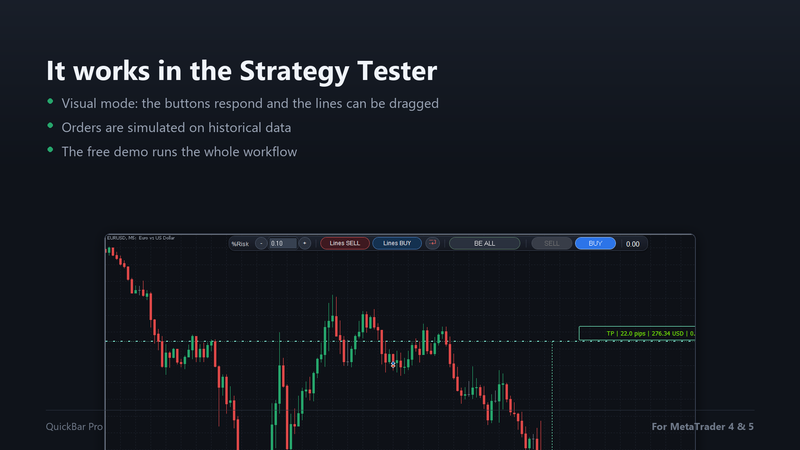
The free demo runs in the Strategy Tester. Choose QuickBar Pro, tick Visual mode and start the test: the buttons respond, the lines can be dragged and the orders are simulated on historical data. It is the same workflow as on a live chart.
Messages and what they mean
- set the SL line first with the Lines BUY button (or Lines SELL): you clicked BUY or SELL without the lines on the chart. Place them first.
- SL/TP placed on the wrong side for BUY. Check the lines. (or SELL): for a buy the SL goes below the price and the TP above it; for a sell, the other way round.
- not enough free margin to open even the minimum lot: the account has no margin left for this symbol. Close something or lower the risk.
- invalid calculated lot size. Check your risk and SL.: the risk field is empty or zero, or the SL line is missing.
- the price has not passed the break-even level yet: the price has not moved far enough from the entry to place the stop there.
Need help?
Write to me through my MQL5 profile with a screenshot of the chart and the Experts tab of the terminal. I usually reply within 24 hours.