How to copy trades between MT4 and MT5 accounts on one PC: Local Trade Copier quick start

Local Trade Copier copies trades between MetaTrader 4 and MetaTrader 5 terminals that run on the same Windows PC or VPS. Setting it up takes four things: allow algorithmic trading and DLL imports once in every terminal, attach LTC Server to one chart on the master account, attach LTC Client to one chart on each client account, and check the result with a pending order. The steps below were tested with version 3.1.8.
1. Allow algorithmic trading and DLL imports (once per terminal)
The master and client terminals talk to each other through a DLL, so DLL imports must be allowed.
- MetaTrader 5: Tools > Options > Experts. Tick "Allow algorithmic trading" and "Allow DLL imports".
- MetaTrader 4: Tools > Options > Expert Advisors. Tick "Allow automated trading" and "Allow DLL imports".
Leave the "Disable ... when the account / profile / symbol has been changed" boxes unticked, and make sure the Algo Trading (MT5) or AutoTrading (MT4) button in the toolbar is green.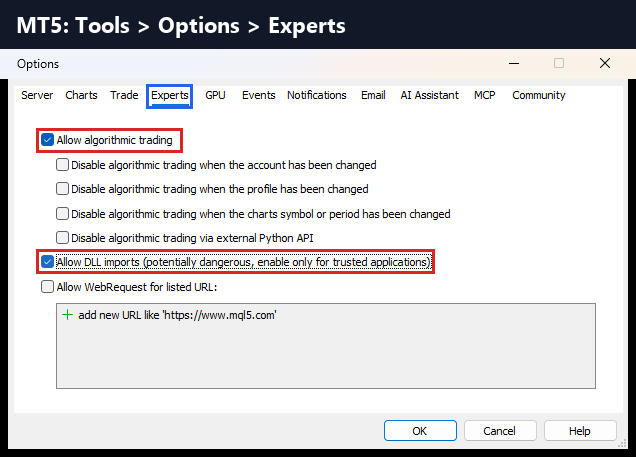
A common MT5 surprise: when DLL imports are off, the EA properties window shows only Cancel and Reset. There is no OK button, so the EA cannot be started. Tick "Allow DLL imports" on the Dependencies tab, or once for all EAs in Tools > Options > Experts, and the OK button appears.
2. Attach LTC Server to the master account
Open any chart on the master account, attach LTC Server, check the Common tab (Allow Algo Trading / Allow live trading) and enter the licence key. One chart is enough: LTC Server sends the trades of all symbols.
The master account can be logged in with its investor (read-only) password. LTC Server only reads the trades there. Client accounts need the trading password, because LTC Client opens and closes trades on them.
3. Attach LTC Client to each client account
Open a chart of a symbol exactly as the client broker names it (for example EURUSD+ or EURUSD.m) and attach LTC Client. It needs no licence key. With the default settings it copies every trade from every master on the same PC and adjusts the lot size to the account size.
4. Different brokers and symbol names
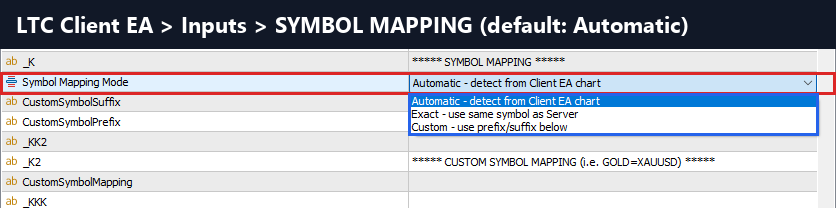
The default Symbol Mapping Mode, "Automatic - detect from Client EA chart", takes the client broker's prefix and suffix from the LTC Client chart. In a test with a Pepperstone MT5 master and a Vantage MT5 client, a trade on EURUSD was copied to EURUSD+ without any settings.
Since version 3.1.0, common alternative names are matched automatically too (XAUUSD/GOLD, NAS100/US100/USTEC, US500/SPX500, GER40/DE40), and 3.1.8 improved this further. For anything else:
- Symbol Mapping Mode = "Custom - use prefix/suffix below" with CustomSymbolPrefix / CustomSymbolSuffix
- CustomSymbolMapping = master=client pairs, comma separated, case sensitive, for example GOLD=XAUUSD,GDAXI=DE30 .
5. Test with a pending order
- On the master, place a Buy Limit far from the price so it can't be triggered.
- Check that the copy appears on each client with the client broker's symbol name.
- Delete the order on the master. The client copy is deleted too.

In the test above the client received 0.20 lot for a 0.10 lot master order, because its balance was about twice the master's (auto-adjust mode).
Common problems
- No OK button (MT5): DLL imports are off.
- Nothing happens: the Algo Trading / AutoTrading button is red, or algo trading is unticked on the EA's Common tab.
- Error 133 / unknown symbol: wrong symbol name on the client. Attach LTC Client to the right chart or set the custom suffix or mapping.
- "Trade is disabled" on a client: that client is logged in with the investor password.
- Always check the Experts tab: the copier logs every copied, skipped or rejected trade there with the reason.
The full tutorial, with a screenshot of every step, is on mt4copier.com: Local Trade Copier quick start.
Rimantas Petrauskas, developer of Local Trade Copier since 2010.