
“Better performance with better instruments.” – Peter Ewers, classically trained musician
1. Welcome to GBO
GBO trades gold (XAUUSD) like a well-rehearsed orchestra. Several independent breakout strategies play together: some react to short-term movements, others patiently follow multi-day trends. A central conductor keeps the risk in tune.
Three principles guide everything GBO does:
- Every trade has a stop loss from the very first second.
- No grid, no martingale, no averaging down. GBO never adds to a losing position.
- Honest expectations. GBO is a trend-following system. It performs best when gold trends and can go through longer flat periods when the market moves sideways.
2. Requirements
| Item | Requirement |
|---|---|
| Platform | MetaTrader 5 (desktop or VPS) |
| Account type | Hedging account. GBO places buy and sell orders at the same time and may hold positions in both directions. Netting accounts are not supported. |
| Symbol | Gold: XAUUSD or your broker’s gold symbol (for example GOLD, XAUUSD.r, XAUUSDm). GBO recognises all symbols containing “XAU” or “GOLD”. |
| Chart timeframe | Any timeframe. GBO reads all data it needs on its own. |
| Capital | Standard account: from about USD 1,000 (trend strategies only, minimum lot 0.01). All strategies trade from about USD 3,500. Cent accounts: from about USC 20,000. |
| Operation | 24/5. A VPS is strongly recommended so GBO never misses a placement time. |
3. Installation in five minutes
| Step | What to do |
|---|---|
| 1. Open a gold chart | Open a chart of XAUUSD (or your broker’s gold symbol). Any timeframe will do. |
| 2. Attach GBO | In the Navigator under Expert Advisors → Market, drag GBO onto the chart. |
| 3. Allow trading | Tab Common: tick “Allow Algo Trading”. Make sure the Algo Trading button in the toolbar is green. |
| 4. Check two inputs | InpAccountType: leave on AUTO, but set it to CENT if your broker reports a cent account as USD (for example RoboForex ProCent). InpMagicBase: use a different number for every GBO instance on the same account (for example 5000, 6000, 7000). |
| 5. Click OK | The GBO Studio appears. The status light glows, and NEXT PLACEMENT shows when GBO will place its next orders. |
Tip: GBO places its orders at fixed times of day. Do not be surprised if nothing happens for a few hours after the start – the countdown in NEXT PLACEMENT shows exactly when the next orders follow.
4. Choosing your risk class
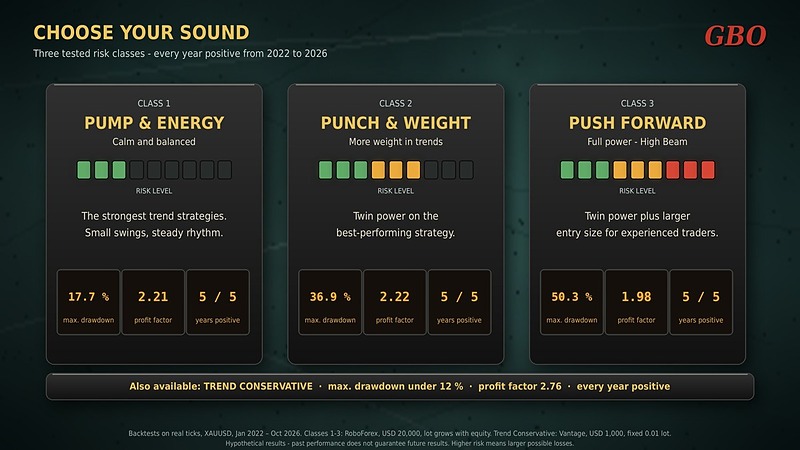
All risk classes trade the same proven gold trend breakouts. What changes is the power behind them. Choose your class by the drawdown you can comfortably accept, not by the potential profit.
Class | How to set it up in the Studio | Max. drawdown* |
|---|---|---|
| Trend Conservative | Only the main trend strategy: in the inputs, switch off all slots except Slot 2. Ideal for small accounts. | under 12 % |
| Pump & Energy | ACTIVE GROUPS selector on TREND. Twin slots OFF. Risk knobs at 1.0×. | 17.7 % |
| Punch & Weight | ACTIVE GROUPS on TREND. TWIN SLOTS switch on + Slot 4 + Slot 9. | 36.9 % |
| Push Forward | As Punch & Weight, plus RISK · TREND knob on 1.5× (“High Beam”). | about 50 % |
| Full orchestra (default) | ACTIVE GROUPS on BOTH, twins OFF, all knobs at 1.0×: trend and scalp strategies together. | 27.1 % |
* Backtests on real ticks, XAUUSD, January 2022 – October 2026. Hypothetical results – past performance does not guarantee future results.
Important: Twin slots and risk knobs multiply each other. Push Forward means the main trend strategy trades with 4.5 times the default size. Use higher classes only with money you can afford to lose, ideally on a separate account.
5. The GBO Studio
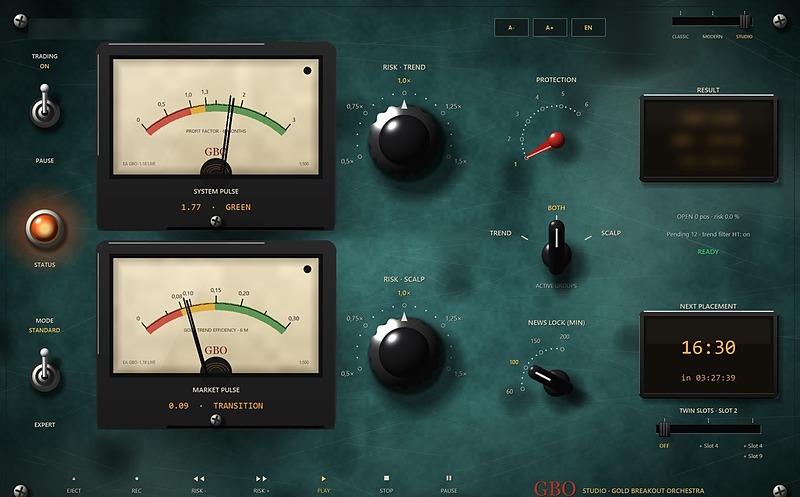
The Studio is GBO’s control panel. Move your mouse over any element – a tooltip explains what it shows or does. Every change is saved automatically and survives a restart.
| Element | Meaning |
|---|---|
| SYSTEM PULSE (top meter) | GBO’s profit factor over the last six months. Green from 1.3, yellow 1.0–1.3 (conditions getting harder), red below 1.0. Until 60 trades have been collected, the needle rests left of zero and the display reads “collecting data”. |
| MARKET PULSE (lower meter) | How straight gold is currently moving (trend efficiency over six months). High values mean clear trends, which suit GBO best. |
| TRADING switch | ON: GBO places orders. PAUSE: no new orders, waiting orders stay, open trades are still managed. |
| STATUS light | Steady: trading. Pulsing: pause or news lock. Dark: stopped. |
| MODE switch | STANDARD: only tested settings are active. EXPERT: all inputs apply (see chapter 8). |
| RISK · TREND / RISK · SCALP | Position size of the trend or scalp strategies, from 0.5× to 1.5×. The golden mark is the tested default. Above it the Studio shows “High Beam (higher risk than default)”. |
| PROTECTION (red pointer) | Level 1 = tested default. Levels 2–6 add a daily loss limit, from level 4 also a total loss limit. When a limit is reached, GBO closes all its positions. |
| ACTIVE GROUPS | Which strategies trade: TREND only, BOTH (default) or SCALP only. |
| NEWS LOCK (MIN) | No new orders before and after important economic news. 100 is the tested default. |
| RESULT | Profit or loss today, this week and since start. |
| NEXT PLACEMENT | When GBO places its next orders, with countdown. |
| TWIN SLOTS · SLOT 2 | Adds one or two exact copies of the strongest trend strategy (chapter 4). |
| A− / A+ / DE·EN / CLASSIC·MODERN·STUDIO | Panel size, language and display view. |
Tip: Knobs react to a click on their left or right half, and to the mouse wheel.
6. The cassette deck
The row of symbols at the bottom of the Studio works like the transport keys of a tape recorder. The active function lights up in gold.
| Key | Function |
|---|---|
| PLAY | GBO trades normally. This is the standard setting. |
| PAUSE | No new orders. Waiting orders stay in place, open trades are still managed. Ideal before a holiday or important news. |
| STOP | No new orders, and all waiting orders are removed. Open trades continue with their protection until they close. |
| RISK − | Turns both risk knobs down one step. |
| RISK + | Turns both risk knobs up one step. |
| REC | Saves a screenshot and your current settings to a file (MQL5\Files) – useful if you contact support. |
| EJECT | Emergency stop: closes all GBO trades and orders immediately after a safety question. Open losses are realised. |
Tip: If you just want a break, use PAUSE rather than STOP or EJECT. Nothing is closed, and PLAY resumes trading at any time.
7. Classic and Modern views
Prefer a sober view? The slide switch in the top right corner of the Studio offers two alternatives:
- CLASSIC: a compact table with all slots, status and buttons.
- MODERN: tiles, a signal matrix, reports and a calendar of daily results.
In both views, the UI button brings you back to the Studio. Language and tooltips work in every view. Switching views never interrupts trading.
8. Standard and Expert mode
In Standard mode (default) GBO uses only tested settings. Untested features and parameters are locked, even if they are changed in the input dialog. This protects you from accidental settings outside the proven range.
Expert mode unlocks all inputs. Switch it on with the MODE switch in the Studio (with a safety question) or the input InpExpertMode. Use it only if you know exactly what you are changing – results can then differ widely from the backtests.
9. Important inputs
Most users never need to change more than the first two lines. Strategy parameters are already set to the tested values and are protected in Standard mode.
| Input | Purpose | Recommendation |
|---|---|---|
| InpAccountType | AUTO, CENT or STANDARD – how account values are displayed | AUTO; CENT for brokers that report cent accounts as USD |
| InpMagicBase | Identifies this GBO instance | different value per instance on the same account |
| InpTwinSlots | Twin slots at the first start (later the Studio switch decides) | 0 (off) |
| InpLotMode | Position sizing: lot per 10,000 of balance or risk in % | lot per 10,000 (tested) |
| InpUseNews | Pause around important news | on |
| InpUIMode | Display view: Classic, Modern or Studio | Studio |
| InpStudioLang / InpStudioScale | Start language and size of the Studio | to taste |
| InpStudioTips | Mouse-over explanations | on |
| InpExpertMode | Unlocks all inputs | off |
10. Troubleshooting & FAQ
GBO does not place any orders.
Check that Algo Trading is green and that NEXT PLACEMENT shows a time – GBO trades at fixed times of day. During a news lock or PAUSE, no new orders are placed.
Some strategies never trade on my small account.
On a standard account the calculated lot may be below the broker’s minimum lot of 0.01. GBO then pauses this slot instead of risking more than intended and notes it in the Experts journal. The slot starts automatically once the balance has grown.
GBO does not start on another symbol.
GBO is developed and tested for gold. On other symbols it starts only in Expert mode.
Results are shown in USD although I have a cent account.
Set InpAccountType to CENT.
The SYSTEM PULSE says “collecting data”.
The meter needs at least 60 trades within six months. On a new account this takes a few weeks.
Can I run GBO on several accounts?
Yes. Use one chart per account and a different InpMagicBase for every instance on the same account.
Can I change the chart timeframe?
Yes, at any time. Avoid switching exactly at a placement time, because GBO restarts briefly.
Does GBO work on a VPS?
Yes. If the panel looks grainy over Remote Desktop, set the connection colours to “Highest quality (32 bit)”.
11. Risk notice
Trading leveraged products such as gold CFDs carries a high risk of losing capital. All backtest results in this manual are hypothetical, are based on historical data and do not guarantee future performance. Longer flat periods and drawdowns are a normal part of trend-following systems. Only trade with money you can afford to lose. Start with the tested default settings and increase risk only once you are familiar with GBO’s behaviour.
Use it wisely. Protect your hard earned money.