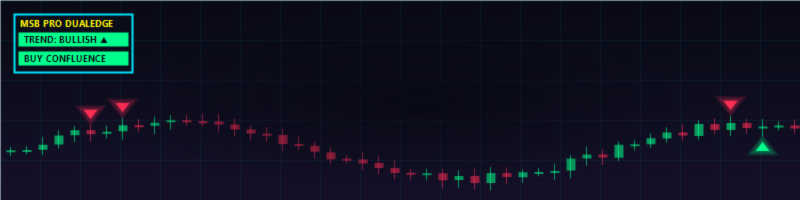

Step-by-step guide for MSB Pro DualEdge Panel on MetaTrader 5: installation, reading the panel, arrows, alerts on your phone, trading hours and troubleshooting.
1. Install the indicator
Open MetaTrader 5 and log in with the same MQL5 account you used to buy or rent the product.
Go to: Navigator → Market → My Purchases
Find MSB Pro DualEdge Panel and click Install. After installation it appears under:
Navigator → Indicators → Market
If you do not see it, right-click the Navigator and choose Refresh, or restart MetaTrader 5.
2. Attach it to a chart
Open any chart and drag MSB Pro DualEdge Panel from the Navigator onto it. Click OK.
Three things appear:
- the panel in the top-left corner,
- green and red arrows on the price chart,
- the MSB Pro Oscillator in its own window below the chart.
You do not need to add the oscillator yourself. It is included and opens automatically. If you remove the panel, the oscillator window is removed too.
The first time you attach it, the panel may show "TREND: LOADING" for a few seconds while MetaTrader 5 downloads the history of the other timeframes. This is normal.
3. Reading the panel
Tip: hover the mouse over any cell to see what it means.
- TREND (top right): the overall market direction. BULLISH = favour buys, BEARISH = favour sells, NEUTRAL = no clear trend.
- TF / SIGNAL: the direction on five timeframes, from short to long.
- STRENGTH: how strong the trend is, from 0 to 100%.
- AGREE: how many of the five timeframes agree with the trend.
- MSB OSC: momentum direction. RISING or FALLING, and OVERBOUGHT or OVERSOLD when the move is stretched.
- OSC VALUE: the current oscillator value.
- LAST: the last arrow on this chart. TE means a TimeEdge signal.
- DUAL: the summary line.
BUY CONFLUENCE / SELL CONFLUENCE = trend and momentum point the same way.
MIXED (orange) = they disagree.
WAIT (yellow) = no clear direction. Waiting is also a decision. - HOURS: shows ALL DAY, or OPEN / CLOSED if you use the trading hours filter.
4. The arrows
- Green arrow: a turn up. Red arrow: a turn down.
- Grey arrows: minor turns. You can hide them with "Show minor turns as grey arrows" = false.
- Large arrows (Gold only): TimeEdge signals. They appear on XAUUSD and on gold symbols with other names (for example GOLD or XAUUSD.m).
Arrows are drawn when a candle closes. Once drawn, they never move or disappear (no repainting).
A simple way to use it:
- Choose your side with the TREND line.
- Take the arrows in that direction. Be careful with arrows against the trend.
- Prefer moments when DUAL shows BUY or SELL CONFLUENCE.
5. Alerts on your phone
Popup and push alerts are on by default. To receive push alerts on your phone:
- Install MetaTrader 5 on your phone.
- In the phone app: Settings → Chats and messages → copy your MetaQuotes ID.
- On your PC: Tools → Options → Notifications → paste the MetaQuotes ID → tick "Enable Push notifications" → Test.
Alert options in the indicator inputs:
- Popup alert / Push notification / E-mail
- Alert only TimeEdge signals: useful on gold if you only want the premium signals.
- Alert when the regime / confluence changes: a message when TREND or DUAL changes.
6. Trading hours filter
If you only trade at certain hours, you can turn off signals and alerts outside them:
- Enable trading hours filter = true
- Choose the time zone (broker time or your local time)
- Set "from" and "until" in HH:MM
- Or simply block the Asian, London or New York session
Outside your hours the panel shows CLOSED and no signals or alerts are given.
7. Display options
- Panel corner: top-left (default), top-right, bottom-left or bottom-right
- X / Y offset: move the panel a few pixels
- Font size: 10 by default. Use 11-12 on large screens, 8-9 on small ones.
- Show MSB PRO Oscillator in a sub-window: set to false if you want only the panel and arrows
8. Troubleshooting
- Panel stays on "LOADING": check your internet connection, then switch the chart timeframe once and come back.
- No push notifications: send a test from Tools → Options → Notifications. If the test fails, check the MetaQuotes ID.
- No large arrows: TimeEdge signals are for gold only. On other symbols you see the normal arrows.
- No arrows at all: check whether the trading hours filter is on and the panel shows CLOSED.
- The panel covers price: change the panel corner or reduce the font size.
If you still have a problem, send me a private message with a screenshot of the chart and the Experts / Journal tab.
Important
MSB Pro DualEdge Panel is an indicator. It does not open or close trades. It is a decision-support tool: past signals do not guarantee future results. Test it on a demo account first and always use a stop loss and proper risk management.
Product page: https://www.mql5.com/en/market/product/201746
Updates and guides: https://www.mql5.com/en/channels/msbgoldpro
MSB Pro DualEdge Panel
Developed by Kemal Mustafa Ozkan
MSB Pro ALGO