

Order Block Confluence Pro – User Manual (4 parts)
- Getting Started
- Controls & Quality Score
- Input Reference
- Alerts & FAQ (this part)
Alerts Reference
Order Block Confluence Pro can alert you when Order Blocks or Regular Gaps form or reach certain stages of mitigation. Fair Value Gaps do not have alerts — there is no FVG equivalent of the alert inputs below.
Alerts are configured separately for Order Blocks and Regular Gaps, using a matching pair of inputs for each: an alert channel and an event filter. Both are located under the Alerts group in the Inputs dialog.
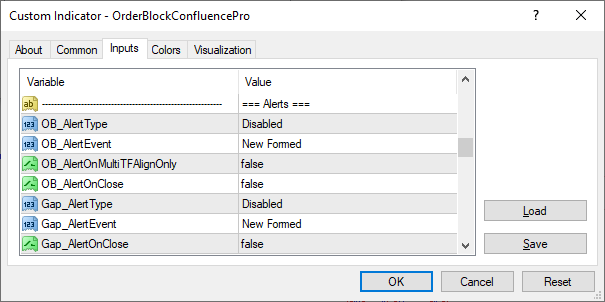
The Alerts group in the Inputs dialog, showing the Order Block and Regular Gap alert inputs together.
Alert Channels
OB_AlertType and Gap_AlertType each determine how alerts for that zone type are delivered:
- Disabled — the default. No alerts are generated for that zone type.
- Sound
- Push
- Sound + Push
- Push + Email
- All Channels
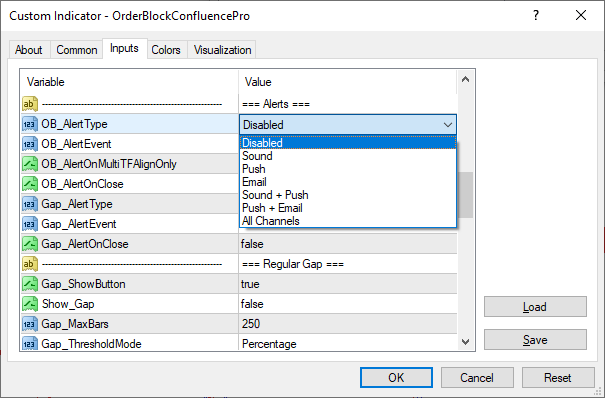
OB_AlertType — six delivery channels for Order Block alerts.
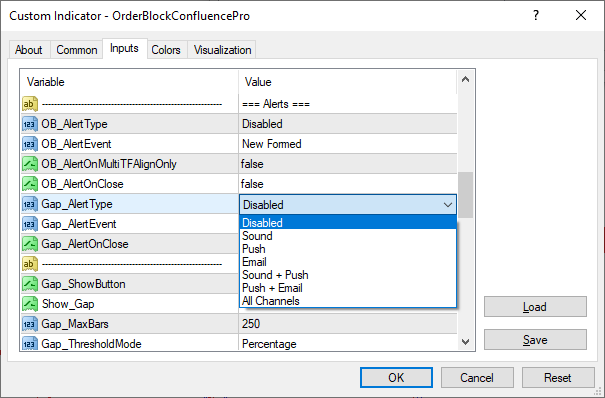
Gap_AlertType — the same six channels, set independently for Regular Gaps.
Whichever delivery channel you choose, the indicator also generates MetaTrader’s built-in Alert() notification. This displays the alert in an on-screen popup and records it in the terminal’s Experts log. It does not require a separate channel selection and cannot be disabled through OB_AlertType or Gap_AlertType.
For example, selecting Sound does not mean you will receive only a sound — the Alert() popup and Experts log entry are also generated.
Push and Email require MetaTrader’s own notification settings to be configured first (Tools → Options → Notifications for Push, and Tools → Options → Email for Email). If either channel is selected here without the corresponding MetaTrader setting being configured, that delivery method will not work. The always-on Alert() popup and terminal log entry will still occur.
Alert Events
OB_AlertEvent and Gap_AlertEvent each determine which lifecycle stage triggers an alert:
- New Formed — the default. Fires once when a new zone is detected.
- Touch Only — fires once when price first taps the zone (0–5% penetration).
- Mitigation Only — fires once penetration passes 5%.
- Touch + Mitigation — fires for both of the above, as two separate alerts.
- All Events — fires for New Formed, Touch, and Mitigation.
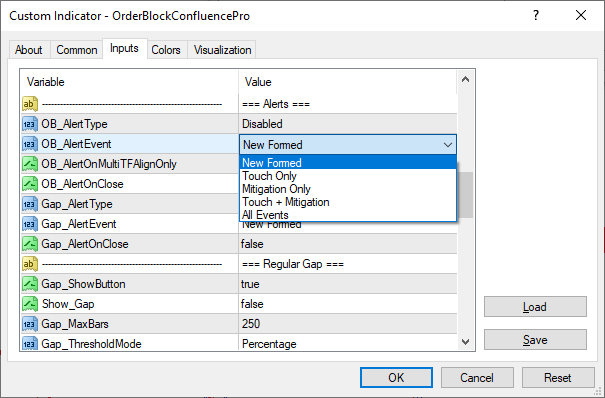
OB_AlertEvent — five event options for Order Block alerts.
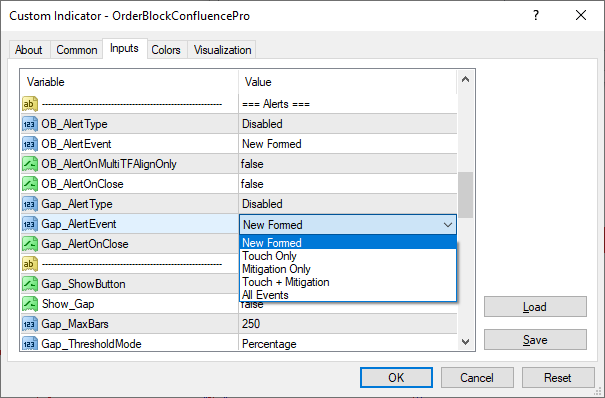
Gap_AlertEvent — the same five event options, set independently for Regular Gaps.
The 5% threshold between Touch and Mitigation is fixed and cannot be adjusted through an input. It is the same threshold used throughout the indicator to distinguish a Tapped zone from a Mitigated one.
One-Shot Delivery
Each zone can generate an alert at most once for each event type. New Formed, Touch, and Mitigation are each one-time triggers per zone rather than repeating notifications.
This is enforced permanently, not just for the current chart session. Once an alert has fired for a given zone and event, that record is saved and survives:
- closing the chart,
- restarting MetaTrader, or
- the exact same zone reappearing later — with the same anchor bar and direction — after being deleted and reformed.
Turning alerts on for the first time does not retroactively trigger New Formed alerts for zones already sitting on the chart. Only zones detected from that point forward are eligible.
OB_AlertOnClose and Gap_AlertOnClose
Both inputs default to false. With this setting, Touch and Mitigation alerts fire live, the moment price intra-bar reaches the penetration required for the relevant event. This provides the fastest possible notification, but it can occasionally alert on a wick that reverses before the bar closes.
Setting either input to true switches that zone type to confirm-on-close behavior. The alert fires only after the bar has closed at a penetration deep enough to qualify, with the check performed against the just-closed bar.
This trades a small delay — up to one full bar — for a more reliable confirmation.
Under confirm-on-close mode, if a zone is penetrated deeply enough during the bar but is subsequently invalidated before that bar closes, no Touch or Mitigation alert is generated for that bar. There is nothing left to confirm at the close. This is expected behavior, not a bug.
OB_AlertOnMultiTFAlignOnly
This input applies only to Order Blocks. There is no Regular Gap equivalent because Gaps have no timeframe alignment concept.
When enabled, New Formed, Touch, and Mitigation alerts fire only for Order Blocks that carry at least one higher-timeframe alignment.
Unaligned Order Blocks are silently skipped for alerting purposes, although they continue to appear on the chart and dashboard normally.
Alert Message Format
A typical Order Block alert reads like this:
EURUSD H4 | Bull OB New Formed | Top: 1.16980 Bot: 1.16820 | Size: 16.0 Pips | Age: 3 Bars | Formed: 2026.08.14 09:00 | Aligned: H4-D1
A typical Regular Gap alert reads like this:
MSFT_CFD H1 | Bull Gap Filled 34% | Top: 481.20 Bot: 479.50 | Size: $1.70 | Age: 5 Bars | Formed: 2026.08.14 10:00
Every message includes:
- the symbol,
- chart timeframe,
- direction,
- event,
- the zone’s Top and Bottom prices,
- its size,
- its age in bars, and
- the exact date and time it formed.
Order Block messages additionally include an Aligned segment when the zone carries higher-timeframe alignment. Regular Gap messages never include this segment because Gaps have no timeframe alignment concept.
FAQ & Troubleshooting
Visibility & Detection
Why don’t I see any Order Blocks or Fair Value Gaps on my chart?
Check the Show/Hide toggles in the top-right corner first. Order Blocks, Fair Value Gaps, and Regular Gaps each have their own display control. Fair Value Gaps and Regular Gaps are mutually exclusive — enabling one automatically disables the other. If the relevant toggles are already enabled and no zones appear, check whether OB_MinSizeATR, FVG_MinSizeATR, or OB_MinDisplayScore has been set unusually high, which can filter out every zone on some instruments. This is uncommon with default settings. See Show/Hide Toggles in On-Chart Controls and OB Display Filters in Input Reference.
Why does Zone Radar show “—” for some timeframes?
A dash simply means that no qualifying zone is currently available for that timeframe and category. This can happen because no qualifying Order Block or Fair Value Gap exists within the scan range, or because the corresponding zone type has been switched off.
Why didn’t an Order Block become invalidated when price wicked through it?
An Order Block is invalidated when a candle closes beyond the opposite side of the zone. A wick or shadow that trades beyond the zone does not invalidate it by itself. This allows temporary intrabar excursions through the zone without immediately removing the Order Block. See OB_BodyThreshold and OB_WickInvalidation in Input Reference.
OB Lifecycle
Should I use One-Time Use or Persistent for OB_LifecycleMode?
One-Time Use is designed for traders who want an Order Block to be concluded after its reaction has fulfilled its role. An active zone concludes when it is invalidated, or after a Post-Reaction BOS, an adaptive-ATR price departure, the formation of a newer qualifying OB, or dormancy.
Persistent keeps an Order Block active through subsequent retouches and does not apply the One-Time Use consumption rules. The zone remains available until it is invalidated or becomes dormant. Neither mode is inherently more correct — they represent different approaches to managing the Order Block lifecycle.
Why did an Order Block I was watching suddenly disappear?
A live Order Block concludes for one of several reasons: a candle body closed beyond the opposite side of the zone (Invalidated), price closed beyond a swing in the OB’s direction (Post-Reaction BOS), price moved far enough away based on adaptive ATR (Distance), a newer qualifying OB formed and replaced it (New OB Formed), or it went untouched for too long after being tapped (Dormancy). Enable OB_ShowConsumedOnly to review exactly which reason applies — every concluded OB is archived with its precise reason attached. See OB_ShowConsumedOnly in Input Reference.
Why is an Order Block marked Mitigated even though price is still inside the zone?
An Order Block does not need to be completely crossed to become mitigated. The indicator tracks penetration into the zone and classifies its lifecycle according to the configured mitigation thresholds. A zone can therefore become Mitigated while price remains inside the Order Block. See Color & Timeframe Legend in Interface Overview and Alert Events in Alerts Reference.
Consumed Mode
OB_ShowConsumedOnly hid my buttons and my tracked zone — is that a bug?
No — that’s by design. Consumed Only mode switches the chart from live-zone review to historical review. Live-zone actions such as Select Range, Clear Range, Track Zone, and Quality Score are unavailable because there are no active zones to operate on, so those buttons are hidden. A dotted Track Zone projection you had running before switching modes is also suppressed while Consumed Only is active — it reappears exactly as it was as soon as you switch back, nothing about the tracked zone itself is cleared. In place of the hidden buttons, an Export Log button appears, letting you write the full Consumed history to a text file. See OB_ShowConsumedOnly and OB_ExportConsumedLog in Input Reference.
I set OB_ConsumedShowCount to 100 (or used Export Log) but only got a handful of records — is something wrong?
No. OB_ConsumedShowCount and the exported log are both ceilings, not targets. OB_ConsumedShowCount limits how many records can be shown, while the exported log can only contain records that actually exist.
The actual number of concluded Order Blocks depends entirely on how many have genuinely concluded on that chart, which varies by symbol, timeframe, volatility, and how far back OB_MaxBars scans. A quiet symbol or a shorter scan depth will naturally produce fewer concluded OBs than a more active symbol or a deeper scan — this is expected, not a limitation.
Alerts
Why do my alerts fire late, or not at all?
A few independent things gate alert delivery. OB_AlertType or Gap_AlertType must not be Disabled. Push and Email specifically require MetaTrader’s own notification settings to be configured first (Tools → Options). And each zone can only fire a given event once, ever — see One-Shot Delivery in Alerts Reference — so a zone that already alerted won’t alert again for the same event. If alerts feel late rather than absent, check OB_AlertOnClose and Gap_AlertOnClose: with confirm-on-close enabled, the alert waits for the bar to close before firing, trading a small delay for a more reliable signal.
Why does a Regular Gap alert say “Filled” but an Order Block alert say “Mitigated”?
This is intentional. A Regular Gap is described as Filled, while an Order Block is described as Mitigated. These terms reflect the different concepts represented by each zone type, and the alert wording is intentionally matched to the zone being reported. See Alert Message Format in Alerts Reference.
Instruments
Can I use this indicator on Stocks, Crypto, Gold, or Indices — not just Forex?
Yes. Set AssetType to Forex (the default, which also covers Gold, Silver, Cryptocurrencies, and Indices) or Stocks_Commodities (for stock charts only). This setting only affects how the indicator distinguishes ordinary market gaps from genuine Fair Value Gaps — every other feature works identically across asset classes. See AssetType in Input Reference.
State & Settings
Why did my dashboard tab, direction filters, or Two-Point Selection state change?
They shouldn’t. These are all remembered per symbol and timeframe once you’ve interacted with them on-chart, and survive both a timeframe switch and a full MetaTrader restart. If something did appear to reset, check whether you edited the corresponding input (for example OB_ShowBullish) in the Properties dialog and clicked OK — a deliberate input edit is treated as new intent for that specific timeframe and does take priority over the previously saved state. See OB_ShowBullish in Input Reference and Tab Behavior in Interface Overview.
Why don’t my changes to some inputs in the Properties dialog take effect?
A handful of inputs — Show_OB, Show_Gap, Show_FVG, OB_ShowBullish, OB_ShowBearish, and OB_MinDisplayScore — only set the starting value the very first time the indicator is attached to a chart. Once you’ve interacted with the corresponding on-chart control, that live, on-chart state is remembered for that chart and takes priority from then on, even over a later edit to the input. To change these settings day-to-day, use the on-chart controls directly rather than the Inputs dialog. This is documented individually under each affected input in Input Reference.
Operation
Does this work in MetaTrader’s Strategy Tester?
Order Block Confluence Pro is an indicator, not an Expert Advisor, so it does not generate an automated trading backtest report. You can still use MetaTrader’s Strategy Tester in visual mode to step through historical price action and observe how the indicator responds as bars develop.
Why does the indicator take a moment to load, and should I refresh it periodically?
The first time the indicator attaches to a chart, allow a moment for it to fully populate. It needs to load and process historical data across the relevant higher timeframes before Order Blocks, alignment, and Zone Radar are completely ready.
The indicator refreshes automatically when you switch profiles, but a profile change can temporarily leave previously drawn objects visible while the new scan completes. If the chart does not appear fully synchronized after the refresh has completed, toggle the OB Show/Hide control off and back on to force a complete rescan and redraw.
Can I run the indicator on multiple charts or symbols at the same time?
Yes. State is maintained independently for each symbol and timeframe, so running the indicator on multiple charts does not cause settings, selections, tracking, or dashboard state to carry over between charts.
Support
Direct support for Order Block Confluence Pro is available through the following channels on the MQL5 Marketplace:
- MQL5 Private Message
- The product’s Comments tab on its MQL5 Marketplace page
When reporting a suspected issue, please include the symbol, timeframe, and a screenshot of the Inputs dialog whenever possible. Providing these details helps identify the cause and resolve the issue more quickly.
← Part 3 – Input Reference | Back to Part 1 – Getting Started