Keeping a CAppDialog Panel Stable Across Timeframe Changes in MQL5

1. Introduction
The MQL5 Standard Library gives us CAppDialog: a window with a caption, a close button, a minimize button, and a dedicated client area for child controls. A few dozen lines of code are usually enough to place a professional, modern-looking panel directly on the chart.
Raw chart objects such as OBJ_BUTTON, OBJ_LABEL and OBJ_RECTANGLE_LABEL are another valid approach. I chose CAppDialog for this project because it already provides a window and a client area for controls.
The trouble starts when the panel meets real use. A trader minimizes it to inspect price action, switches from the H1 timeframe to M15, maximizes it again, or drags it to another corner of the screen. In my own project, each of these everyday actions broke something:
- The panel unexpectedly jumped to the top-left corner under the terminal's native toolbars.
- The minimized window shrank into an unreadable, narrow strip.
- Edit fields and checkboxes detached from the client area and remained floating across the chart.
- Values typed into input fields vanished or silently reset to zero.
When these issues first appeared, I rebuilt the panel from scratch three times, each time attempting a cleaner architecture and strictly following the official MQL5 documentation. Yet, the exact same visual glitches returned every single time. After working through these issues for a year, I found that stable behaviour depended on handling the dialog lifecycle and my own event routing together. The targeted changes below are the approach used in this demo; they are not a claim that every panel needs the same patches.
The demo code accompanying this article (StableDialogDemo.mq5) contains no trading logic at all — a dialog shell with two tabs, each with an edit field and a checkbox. Even without trading logic, keeping that simple UI stable required roughly 500 lines of code. This article walks through the exact fixes applied. All tests were run on MetaTrader 5, build 6230.
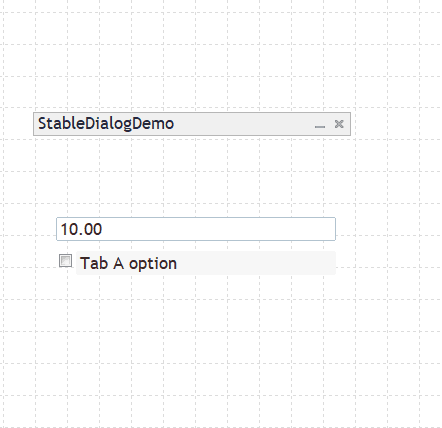
Figure 1. The initial demo behaviour after minimize — the edit field and checkbox remain visible outside the minimized title bar.
2. What Happens to the Dialog on a Timeframe Change
Changing the chart timeframe triggers deinitialization with REASON_CHARTCHANGE and subsequent initialization. The demo explicitly saves its UI state before destroying the dialog and restores that state when building the UI again.
The demo calls Destroy() inside OnDeinit(), removing the dialog objects. To recreate their position, minimized state and form values, it keeps a separate saved representation rather than relying on those objects to survive.
From this lifecycle, two practical rules follow:
- Save a final state snapshot on a timeframe change: If reason == REASON_CHARTCHANGE, store the dialog state in Global Variables. When the user removes the EA entirely (REASON_REMOVE), delete those variables; otherwise, the next time the EA is attached, it will load obsolete geometry.
- Pass the real reason to Destroy(): Always pass the uninit reason directly to CAppDialog::Destroy(reason) so that internal cleanup can complete properly.
In the demo, the state is stored in terminal global variables prefixed with the account number, chart ID, and symbol:
void OnDeinit(const int reason)
{
   if(reason == REASON_CHARTCHANGE)
      SaveAllStateOnDeinit();
   else if(reason == REASON_REMOVE)
      GlobalVariablesDeleteAll(GvPrefix());

   g_ui_ready = false;

   if(reason == REASON_REMOVE)
      g_dialog.Destroy(REASON_REMOVE);
   else
      g_dialog.Destroy(reason);
}
The g_ui_ready flag is set to true only after every single child control has been created. Any function reading values from controls checks this flag first. During the recreation phase, a control that has not yet been initialized returns an empty string, and converting an empty string to a double silently produces 0.0.
3. Minimize and Maximize: The Patches
Most development time went into handling the minimized state. While the native minimize button works fine in simple static tests, combining it with dragging and timeframe switches reveals several edge cases.
All patches live inside CStableDialog, a class derived from CAppDialog, giving us access to the protected members m_rect, m_norm_rect, m_min_rect, and m_minimized.
3.1 The First Minimize Jumps to the Top-Left Corner
- Symptom: The first time the user clicks minimize, the panel jumps to the upper-left corner of the chart, behind the terminal's quick trading buttons.
- Cause: During Create(), m_min_rect is initialized with default bounds (10, 10, 110, 36), and the first Minimize() uses them instead of the panel's current position.
- Fix: Build m_min_rect directly from the current bounding rectangle right before minimizing:
void PrepareMinimizedRect(void)
{
   m_min_rect.SetBound(m_rect);
   int minimized_width = m_norm_rect.Width();
   if(minimized_width <= 0)
      minimized_width = 220;
   if(minimized_width < 140)
      minimized_width = 140;
   m_min_rect.Width(minimized_width);
   m_min_rect.Height(CONTROLS_DIALOG_MINIMIZE_HEIGHT);
}
3.2 The Minimized Panel Narrows After Every Timeframe Change
- Symptom: Minimize the dialog, switch timeframes, and the minimized strip becomes narrower with each switch, eventually leaving only the title buttons.
- Cause: If you calculate the width using m_rect.Width(), you are querying a rectangle that is already minimized, copying an already reduced width into the next build cycle. Additionally, querying CHART_WIDTH_IN_PIXELS immediately after a timeframe switch can return an incomplete chart width (around 100 px in terminal logs) while the chart window is repainting.
- Fix: Always calculate minimized dimensions based on m_norm_rect (the maximized bounding rectangle), and avoid relying on dynamic chart dimensions during initialisation.
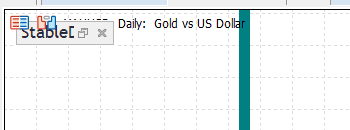
Figure 2. Before the fix — the minimized panel collapsed to a narrow strip after a timeframe change.
3.3 Restoring the Minimized State: Order Matters
- Symptom: If the panel was minimized before switching timeframes, it restores as an awkward ~100 px narrow box.
- Cause: Calling Minimized(true) before Create() causes CAppDialog::Create() to auto-minimize itself using standard defaults (CONTROLS_DIALOG_MINIMIZE_WIDTH = 100). It also sets m_minimized = true, preventing subsequent if(!m_minimized) blocks from executing.
- Fix: Create the dialog and all child controls completely in their normal maximized state first. Reset the internal flag and enforce the minimized state at the very end of OnInit():
void ResetMinimizedFlag(void) { m_minimized = false; }

bool ForceMinimizedState(const bool minimized)
{
   if(minimized)
   {
      PrepareMinimizedRect();
      SyncMinMaxPressed(true);
      if(!m_minimized)
         Minimize();
   }
   else
   {
      SyncMinMaxPressed(false);
      Maximize();
   }
   return true;
}

// in OnInit(), after all controls are created:
if(restore_minimized)
{
   g_dialog.ResetMinimizedFlag();
   g_dialog.ForceMinimizedState(true);
}
3.4 Controls Floating Outside the Minimized Panel
- Symptom: The dialog minimizes, but an edit field and checkbox remain visible on the chart canvas (Figure 1).
- Cause: While Minimize() hides the client area, custom tab or UI routines often call Show() on active controls. If this happens while the dialog is minimized, the child controls reappear as orphan objects on the chart.
- Fix: Never call Show() on child controls when the dialog is in a minimized state, and re-apply tab visibility only after maximizing:
void ApplyTabVisibility(void)
{
   // Never toggle child controls while the dialog is minimized.
   if(g_dialog.IsMinimizedState())
      return;

   // Apply normal tab visibility here...
}
(Note: Calling Hide() on child controls inside CHARTEVENT_CHART_CHANGE triggered internal recalculations in my tests that narrowed the panel width again, so that approach is avoided).
3.5 Button State Mismatch
- Symptom: After a timeframe change, the minimize button shows a "maximize" icon even while the panel is fully open, or requires an extra click to respond.
- Cause: Reading the state purely from window height can be unreliable, and the pressed state of the underlying CBmpButton can fall out of sync with restored variables.
- Fix: Read the state directly via IsMinimizedState() (which checks m_minimized), synchronise the button's pressed property explicitly, and process minimize clicks early in OnChartEvent().
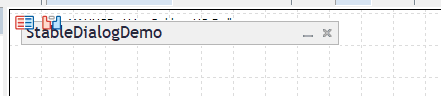
Figure 3. Before the fix — the panel is minimized, but the button still shows the "minimize" icon.
3.6 Panel Opens in the Wrong Place After Maximize
- Symptom: Minimize the panel, change the timeframe, then maximize — the panel opens 15–20 pixels away from where it was before.
- Cause: m_norm_rect, the rectangle Maximize() returns to, drifted during the minimize/rebuild cycle. Every attempt to keep it in sync while the panel was minimized moved the reference point a little further.
- Fix: Stop relying on m_norm_rect for the position. The demo keeps two independent anchors in global variables — one for the normal panel and one for the minimized strip — and after Maximize() it moves the dialog explicitly to the saved normal anchor. While minimized, nothing touches the normal anchor. This also lets users park the minimized strip in one corner and still get the full panel back in its usual place.
g_dialog.ForceMinimizedState(target_minimized);

if(!target_minimized)
{
   // Maximize must return to the saved normal anchor.
   g_dialog.Move(g_saved_left, g_saved_top);
} 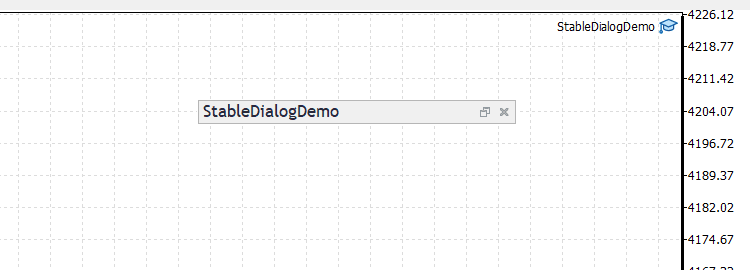
Figure 4. After the patches — minimized on D1, then switched to H1: full width, same position, correct button icon.
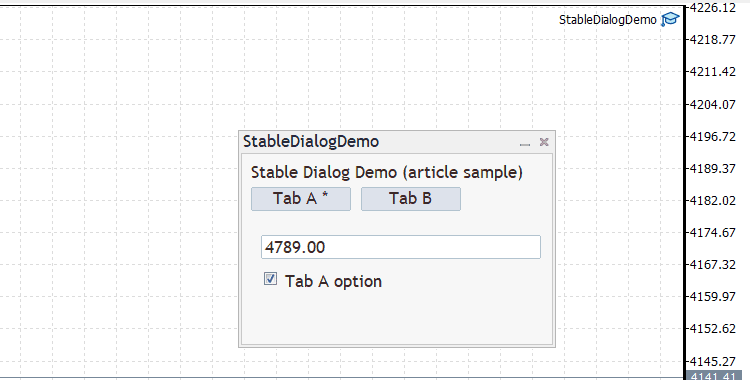
Figure 5. Maximized again with form data fully preserved.
4. Event Routing in OnChartEvent()
To support dragging, resizing, and control interactions, the dialog must receive chart events reliably. In early versions, bugs often occurred because custom event logic returned early or consumed events prematurely.
The demo follows three event routing rules:
- Handle the minimize/maximize button click first, ensuring the minimized state is toggled cleanly.
- Forward every other event directly to g_dialog.ChartEvent() without conditional guards.
- Allow standard chart object events (OBJECT_CHANGE, OBJECT_DELETE) to pass through without being blocked.
void OnChartEvent(const int id, const long &lparam,
                  const double &dparam, const string &sparam)
{
   if(g_ui_ready && id == CHARTEVENT_OBJECT_CLICK && IsMinMaxButtonObject(sparam))
   {
      bool target_minimized = !g_dialog.IsMinimizedState();
      if(!g_dialog.IsMinimizedState())
         SavePanelPositionSnapshot();

      g_dialog.ForceMinimizedState(target_minimized);

      if(!target_minimized)
         g_dialog.Move(g_saved_left, g_saved_top);

      ClampDialogIntoChart();
      SavePanelPositionSnapshot();

      if(!target_minimized)
         ApplyTabVisibility();

      ChartRedraw(0);
      return;
   }

   g_dialog.ChartEvent(id, lparam, dparam, sparam);
   // Custom event processing continues...
}
If the chart changes while the panel is minimized, re-minimize it using the saved coordinates rather than manually toggling individual child objects:
if(id == CHARTEVENT_CHART_CHANGE && now_minimized)
{
   g_dialog.ForceMinimizedState(true);
   if(g_has_min_pos)
      g_dialog.Move(g_saved_min_left, g_saved_min_top);
   ClampDialogIntoChart();
   SavePanelPositionSnapshot();
   return;
}
5. Composite Controls and Name Resolution
A control inside CAppDialog is not always a single chart object. For example, while CEdit is a single object, CCheckBox is a composite control built from several underlying chart objects with internal suffixes appended to the base name.
If you name your checkbox "sdCheckA", calling ObjectFind(0, "sdCheckA") returns -1. Any code that checks for object existence before reading values will fail to save the state.
Values should always be read directly through the class wrapper, protected by the readiness flag:
void SaveFormStateToGV(void)
{
   if(!g_ui_ready)
      return;

   g_value_a   = StringToDouble(g_edit_a.Text());
   g_checked_a = g_check_a.Checked();
   // ...
}
Similarly, when filtering events for composite controls, use prefix matching (StringFind(name, base) == 0) rather than exact equality.
6. Object Cleanup
Orphan objects — such as a stray caption or close button left behind after an EA rebuild — can occur if destruction is handled unevenly. The demo uses three cleanup practices:
- Always pass the genuine uninit reason into Destroy(reason).
- Allow controls to destroy their own sub-objects via their class Destroy() methods instead of manually deleting objects by string name.
- On REASON_REMOVE, clean up all persistent global variables associated with the panel prefix.
7. Form Persistence and Position Clamping
Users expect typed parameters to remain intact across timeframe switches. The demo saves form state whenever an edit completes (CHARTEVENT_OBJECT_ENDEDIT), on checkbox/tab clicks, and inside OnDeinit(). On startup, saved values are read before controls are built, allowing controls to initialize directly with user data.
To prevent panels from ending up outside the viewable chart area after screen resolution changes, coordinates are clamped:
void ClampDialogIntoChart(void)
{
   long cw = 0;
   long ch = 0;
   if(!ChartGetInteger(0, CHART_WIDTH_IN_PIXELS, 0, cw))
      return;
   if(!ChartGetInteger(0, CHART_HEIGHT_IN_PIXELS, 0, ch))
      return;

   int w = g_dialog.Width();
   int h = g_dialog.Height();
   int x = g_dialog.Left();
   int y = g_dialog.Top();

   int max_x = (int)cw - w;
   int max_y = (int)ch - h;
   if(max_x < 0) max_x = 0;
   if(max_y < 0) max_y = 0;

   int nx = x;
   int ny = y;
   if(nx < 0) nx = 0;
   if(nx > max_x) nx = max_x;
   if(ny < 0) ny = 0;
   if(ny > max_y) ny = max_y;

   if(nx == x && ny == y)
      return;

   g_dialog.Move(nx, ny);
}
In an earlier prototype of my panel, timer events and incoming ticks repeatedly reapplied saved positions, effectively pulling the panel back while the user was actively dragging it across the screen. Position updates should occur only when dragging ends or upon explicit chart layout events.
8. Practical Pitfalls
A few additional issues encountered during implementation:
- CComboBox inside dialogs: The standard combo box frequently closed immediately after opening due to redraws and timer updates. In complex layouts, replacing it with a simple custom dropdown (a CButton triggering a column of CLabel items) proved much more reliable.
- Underlying chart objects: Clicking or dragging over the dialog can accidentally select underlying chart objects (such as horizontal lines). Setting underlying objects to non-selectable while the mouse hovers over the dialog prevents this.
- Tab flickering: Creating controls with initial visibility set to false and performing layout updates before showing the dialog produces a clean, single-step display.
- Rendering details: CLabel does not render background fills (use CPanel), hex colors are treated as BGR (use the C'R,G,B' format instead), and OBJ_LABEL does not parse newline characters (\n).
9. Test Checklist
To ensure your panel handles state transitions correctly, run this manual test sequence:
- Attach the EA to the chart.
- Enter a custom value, toggle the checkbox, and switch tabs.
- Minimize the panel.
- Switch the chart timeframe three times (e.g. M1 -> M15 -> H1).
- Maximize the panel — verify all controls remain inside the window and input values are intact.
- Drag the panel, minimize it, drag the minimized strip, and maximize again.
- Change the timeframe again.
- Remove the EA (REASON_REMOVE) and confirm that no stray objects remain on the chart.
10. Conclusion
CAppDialog provides a clean, professional interface in MQL5, but synchronising internal coordinates, minimized states, and control visibility across timeframe changes requires deliberate handling.
Rather than continually redesigning the panel architecture, addressing each specific lifecycle behaviour with targeted subclassing produces a stable, predictable interface. The attached StableDialogDemo.mq5 implements these patches in roughly 500 lines, providing a starting point to adapt and test in your own projects.
Attached file: StableDialogDemo.mq5 (no trading logic). It compiles with 0 errors and 0 warnings on MetaTrader 5 build 6230 and passes the test checklist above.



