Position Tool Pro: Risk-Sized Market, Pending and OCO Straddle Orders From Chart Lines in MQL5

Introduction
The free Position Tool indicator draws a TradingView-style Long/Short position on a MetaTrader 5 chart, lets the trader drag the Entry, Stop and Target lines, and calculates the lot size, risk, reward, R:R and margin. It answers the question "how big should this trade be?", but it stops one step short of the goal: the trade still has to be entered by hand.
Entering it by hand in MetaTrader 5 means opening the New Order window, choosing the order type, typing the volume, the entry price, the stop loss and the take profit, and checking that nothing was mistyped. For a pending order with SL and TP that is five fields to fill while the price keeps moving. Every manual step is a chance to send 1.00 lot instead of 0.10, or a Buy Limit where a Buy Stop was intended.
In this post we turn the indicator into an Expert Advisor, Position Tool Pro, that sends the planned trade directly from the chart lines:
- Market mode: the entry follows the current price, the stop and target stay where they were drawn;
- Pending mode: the EA decides automatically whether the order is a Limit or a Stop, based on where the entry line is relative to the price;
- Straddle mode: a Buy Stop above and a Sell Stop below the price with a shared stop loss in the middle, linked as OCO (one cancels the other).
Every order is sent together with its stop loss and take profit, and the volume is already calculated from the trader's risk. A two-click confirmation protects against accidental orders.
OCO orders have been discussed on MQL5.com before, for example in "MQL5 Cookbook: OCO Orders" and in the "Developing a trading Expert Advisor from scratch" series. Here the focus is different: we combine OCO with risk-based position sizing and chart-based planning in one tool, make the OCO link survive a terminal restart, and show how to verify the OCO logic on a demo account with a small test script.
The complete source code of the Expert Advisor and of the test script is attached.
1. From Indicator to Expert Advisor
Indicators in MetaTrader 5 cannot send trade requests, so the first step is to move the code into an Expert Advisor. Almost everything from the indicator can be reused as is: the chart objects, the drag handling, the lot calculation with OrderCalcProfit() and the label placement. The changes are:
- OnCalculate() is replaced with OnTick(), which is needed for the market mode;
- a timer is added to expire the confirmation;
- OnTradeTransaction() is added for the OCO logic;
- the panel gets mode buttons and a Place button.
Trading is done through the standard CTrade class:
#include <Trade\Trade.mqh>
CTrade trade;

int OnInit()
  {
   trade.SetExpertMagicNumber(InpMagic);
   trade.SetDeviationInPoints(InpSlippage);
   trade.SetTypeFillingBySymbol(_Symbol);
   ...
  }
SetTypeFillingBySymbol() matters more than it looks. Brokers support different filling modes, and a market order sent with an unsupported mode is rejected. Letting CTrade read the allowed mode from the symbol settings removes a common source of "Unsupported filling mode" errors.
2. The Panel and the Two-Click Confirmation
The panel has three rows: Long/Short and Reset; the three mode buttons; and a wide Place button that always shows what will be sent, for example "Place: BUY LIMIT 0.10 @ 3973.39". The trader sees the order type, the volume and the price before anything happens.
A trading tool that sends an order on a single click is dangerous: a click intended for the chart can land on the button. Position Tool Pro uses a two-click confirmation. The first click "arms" the button, which turns orange and reads "CONFIRM: ...". The second click sends the order. If the second click does not come within five seconds, the button returns to its normal state. Dragging any line also disarms it, so a confirmation never applies to a plan that has changed.
      if(sparam == N_BSEND)
        {
         if(InpTwoClick && !gArmed)
           {
            gArmed   = true;
            gArmedAt = TimeCurrent();
           }
         else
           {
            gArmed = false;
            SendTrade();
           }
         UpdatePanel();
         ChartRedraw();
         return;
        }
The timeout is handled by a one-second timer:
void OnTimer()
  {
   if(gArmed && TimeCurrent() - gArmedAt > 5)
     {
      gArmed = false;
      UpdatePanel();
      ChartRedraw();
     }
  }
3. Market Mode: the Entry Follows the Price
In market mode the trade is opened at the current price, so a fixed Entry line makes no sense. Instead, the EA moves the Entry line to the Ask (for a long) or the Bid (for a short) on every tick, while the Stop and Target lines stay where the trader put them. The lot is recalculated on every tick as well, because the distance to the stop changes with the price.
void OnTick()
  {
   // in market mode the entry follows the price, stop and target stay where they are
   if(gMode == ENTRY_MARKET)
     {
      double px = gLong ? SymbolInfoDouble(_Symbol, SYMBOL_ASK) : SymbolInfoDouble(_Symbol, SYMBOL_BID);
      if(px > 0 && MathAbs(px - gEntry) >= _Point)
        {
         gEntry = NormalizeDouble(px, _Digits);
         Redraw();
        }
     }
  }
What this gives the trader: the stop is placed at a chart level (below a swing low, behind a zone), and the volume always matches the chosen risk at the moment of the click. If the price moves closer to the stop, the lot grows; if it moves away, the lot shrinks. The risk in money stays the same.
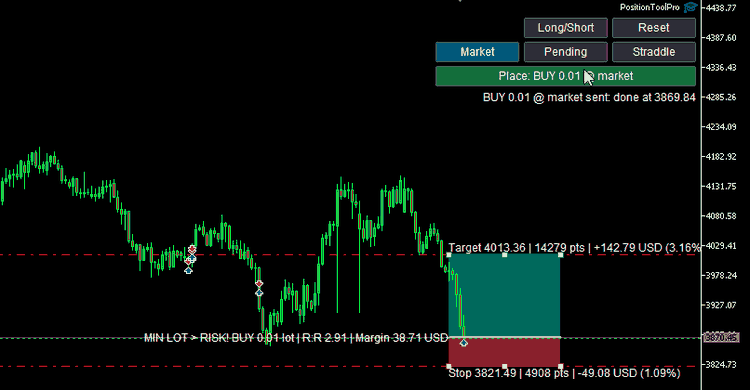
Fig. 1. Market mode: the entry follows the price; one click opened BUY 0.01 with SL and TP already set
4. Pending Mode: Limit or Stop Is Chosen Automatically
The most common manual mistake with pending orders is choosing the wrong type. A Buy Limit must be below the current Ask, a Buy Stop must be above it. If a Buy Limit is placed above the price, the server rejects it with "Invalid price", or, worse, the trader picks a Buy Stop when the plan was to buy a pullback.
In Position Tool Pro the trader only says "long" or "short" and drags the Entry line. The order type follows from where the line is:
ENUM_ORDER_TYPE PendingType()
  {
   double ask = SymbolInfoDouble(_Symbol, SYMBOL_ASK);
   double bid = SymbolInfoDouble(_Symbol, SYMBOL_BID);
   if(gLong)
      return(gEntry < ask ? ORDER_TYPE_BUY_LIMIT : ORDER_TYPE_BUY_STOP);
   return(gEntry > bid ? ORDER_TYPE_SELL_LIMIT : ORDER_TYPE_SELL_STOP);
  }
The result is shown on the Place button before sending, so a long with the entry below the price reads "Place: BUY LIMIT ..." and the same long with the entry dragged above the price reads "Place: BUY STOP ...". One click on the confirmed button places the pending order with its stop loss, take profit and the risk-based lot in a single request. There is nothing to type.
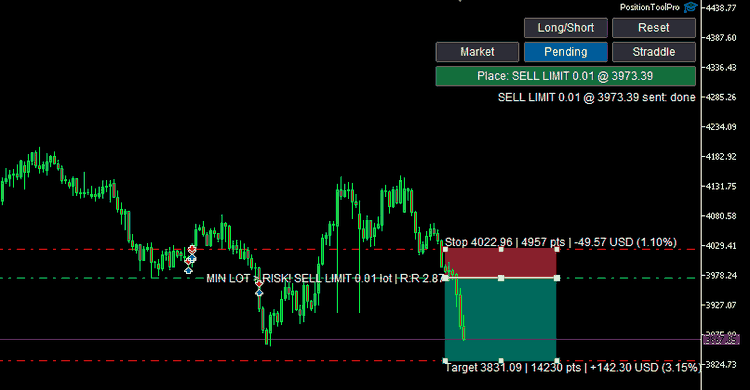
Fig. 2. Pending mode: the entry is above the Bid for a short, so the EA sends a SELL LIMIT with SL, TP and lot in one request
The lot calculation is the same as in the indicator. The money result of one lot moving from the entry to the stop is calculated with OrderCalcProfit(), with a fallback to tick value for symbols where that function fails, and the lot is rounded down to the volume step so that the actual risk never exceeds the planned one:
double CalcLot(const double lossPerLot, bool &minLotWarning)
  {
   minLotWarning = false;
   double step = SymbolInfoDouble(_Symbol, SYMBOL_VOLUME_STEP);
   double vmin = SymbolInfoDouble(_Symbol, SYMBOL_VOLUME_MIN);
   double vmax = SymbolInfoDouble(_Symbol, SYMBOL_VOLUME_MAX);
   if(step <= 0)
      step = 0.01;
   if(lossPerLot <= 0)
      return(0);
   double risk = (InpRiskMode == RISK_PERCENT) ? RiskBase() * InpRiskPercent / 100.0 : InpRiskMoney;
   double lot  = MathFloor(risk / lossPerLot / step + 1e-9) * step;
   if(lot < vmin)
     {
      lot = vmin;
      minLotWarning = true;
     }
   if(vmax > 0 && lot > vmax)
      lot = vmax;
   return(NormalizeDouble(lot, VolumeDigits(step)));
  }
When the stop is so wide that even the minimum lot exceeds the planned risk, the label starts with "MIN LOT > RISK!", so the trader knows before sending that the trade is larger than intended.
5. Straddle Mode: Two Stop Orders With a Shared Stop Loss
A straddle is used before news releases or at the edges of a tight range, when the trader expects a breakout but does not know its direction. Two orders are placed: a Buy Stop above the range and a Sell Stop below it. Whichever is triggered first opens the trade, and the other one must be cancelled.
In this mode the tool draws two entry lines, Buy and Sell, placed by default half an ATR above and below the current price. The stop loss for both orders is the midpoint between them. This is a natural choice: if the price breaks up and then comes back to the middle of the range, the breakout has failed.
double StraddleSL()  { return(NormPrice((gBuy + gSell) / 2.0)); }
double StraddleTPB() { return(NormPrice(gBuy + InpDefaultRR * (gBuy - StraddleSL()))); }
double StraddleTPS() { return(NormPrice(gSell - InpDefaultRR * (StraddleSL() - gSell))); }
The targets are set at the default R:R from the inputs. Since the stop distance is the same for both orders, a single lot is calculated and used for both.
Sending the straddle is two requests, and they must succeed or fail together. If the Buy Stop is placed and the Sell Stop is rejected, the trader would be left with a one-sided position they did not plan. So the EA removes the first order if the second one fails:
      if(!trade.BuyStop(lot, NormPrice(gBuy), _Symbol, sl, InpUseTP ? StraddleTPB() : 0, ORDER_TIME_GTC, 0, "PTP straddle"))
        {
         SetStatus("Buy stop failed: " + trade.ResultRetcodeDescription());
         return;
        }
      ulong tBuy = trade.ResultOrder();
      if(!trade.SellStop(lot, NormPrice(gSell), _Symbol, sl, InpUseTP ? StraddleTPS() : 0, ORDER_TIME_GTC, 0, "PTP straddle"))
        {
         string err = trade.ResultRetcodeDescription();
         trade.OrderDelete(tBuy);
         SetStatus("Sell stop failed (" + err + "), buy stop removed");
         return;
        }
      ulong tSell = trade.ResultOrder();
Before sending, the EA also checks that the Buy line is above the Ask and the Sell line is below the Bid. Otherwise one of the stop orders would be rejected, or would open immediately.
6. OCO That Survives a Restart
MetaTrader 5 has no built-in OCO link between two pending orders, so the Expert Advisor has to do it. The usual approach is to keep the two ticket numbers in variables and cancel one when the other fills. This works until the terminal is restarted, the EA is re-attached or the chart's timeframe is changed: the variables are lost and the remaining order is no longer cancelled. If the straddle was placed in the evening and the news comes out in the morning, a restart in between is not unusual.
Position Tool Pro stores the link in terminal global variables. Each order points to its partner:
      GlobalVariableSet(PFX + "OCO_" + IntegerToString((long)tBuy),  (double)tSell);
      GlobalVariableSet(PFX + "OCO_" + IntegerToString((long)tSell), (double)tBuy);
Global variables are saved by the terminal and live for four weeks after their last access, so the link is still there after a restart. A ticket is stored as a double, which is exact for integers up to 2^53, far beyond real ticket numbers.
The cancellation itself is done in OnTradeTransaction(). When a deal is added, the EA checks whether the order that produced it has an OCO partner. If it does, both keys are deleted and the partner order is removed:
void OnTradeTransaction(const MqlTradeTransaction &trans,
                        const MqlTradeRequest &request,
                        const MqlTradeResult &result)
  {
   if(trans.type != TRADE_TRANSACTION_DEAL_ADD || trans.order == 0)
      return;
   string key = PFX + "OCO_" + IntegerToString((long)trans.order);
   if(!GlobalVariableCheck(key))
      return;
   ulong partner = (ulong)GlobalVariableGet(key);
   GlobalVariableDel(key);
   GlobalVariableDel(PFX + "OCO_" + IntegerToString((long)partner));
   if(OrderSelect(partner))
     {
      if(trade.OrderDelete(partner))
         SetStatus("OCO: order #" + IntegerToString((long)partner) + " cancelled");
      else
         SetStatus("OCO: failed to cancel #" + IntegerToString((long)partner) + ": " + trade.ResultRetcodeDescription());
     }
  }
Reacting to TRADE_TRANSACTION_DEAL_ADD rather than polling the order list in OnTick() has two advantages. The partner is cancelled as soon as the terminal learns about the fill, not on the next tick. And the event carries the order ticket that produced the deal, so there is no need to guess which of the two orders was triggered.
The OrderSelect() check handles the case where the partner is already gone, for example because the trader deleted it by hand. Both keys are deleted in any case, so the global variables do not accumulate.
One limitation should be stated clearly: the OCO logic runs inside the Expert Advisor. If the terminal is closed at the moment when one order is filled, nothing cancels the other one until the EA is running again. On the first transaction after the restart the link is still in the global variables, but a fill that happened while the terminal was off does not generate an event. For unattended news trading, the EA should be run on a VPS.
7. Keeping the State Between Timeframes
A trading tool that forgets the plan when the trader switches from M5 to H1 is not usable. As in the indicator, the levels are stored in the chart objects themselves, and on initialization the EA reads them back instead of drawing new ones. Objects are deleted only when the EA is removed or the chart is closed:
void OnDeinit(const int reason)
  {
   EventKillTimer();
   if(reason == REASON_REMOVE || reason == REASON_CHARTCLOSE)
      ObjectsDeleteAll(0, PFX);
   if(gAtr != INVALID_HANDLE)
      IndicatorRelease(gAtr);
  }
The selected mode is saved in a global variable per symbol, so the EA comes back in the same mode after a restart.
8. Testing the OCO Logic on a Demo Account
Order logic must be tested on a live demo server, not only in the Strategy Tester, because the tester does not reproduce server-side rejections and the exact order of trade transactions. Waiting for a news event to see if the OCO works is slow, so a small script was written for this purpose. It is attached as PTP_OcoTest.mq5.
The script:
- refuses to run on anything except a demo account;
- places a minimum-volume straddle very close to the current price (a few dozen points), so that one side is filled within seconds;
- registers the OCO link in the same global variables that the EA uses;
- waits for one side to be filled and then checks for up to 10 seconds whether the partner order still exists;
- closes the test position and writes the result to a log file in MQL5\Files.
   if(AccountInfoInteger(ACCOUNT_TRADE_MODE) != ACCOUNT_TRADE_MODE_DEMO)
     {
      Log("ABORT: not a demo account");
      FileClose(fh);
      return;
     }
With Position Tool Pro running on the same symbol, the result on a MetaQuotes-Demo account with XAUUSD was:
RESULT: OK - partner #59311423046 was cancelled in 0 s
The partner order was removed in the same second the first order was filled.
9. How the Tool Helps in Practice
Summarized from the trader's point of view:
- The plan and the order are the same thing. The lines that were used to evaluate the trade are the lines from which the order is sent. There is no retyping of prices from the chart into the order window.
- One click places a complete order. A pending order is sent with its stop loss, take profit and risk-based lot already set. The trader does not open the order window at all.
- The order type cannot be wrong. Limit or Stop is chosen from the position of the entry line relative to the price.
- The risk is always the same. Whether the stop is 50 points or 500 points away, the lot is calculated so that the loss at the stop equals the chosen percentage or amount.
- Breakouts in either direction are covered by the straddle, with a shared stop and OCO cancellation that survives a terminal restart.
- Accidental orders are prevented by the two-click confirmation with a timeout, and the button always shows what will be sent.
Conclusion
In this post the Position Tool indicator became an Expert Advisor that sends the trade it has planned. The main ideas are applicable to any chart-based trading tool:
- keep the plan in chart objects and send orders directly from their prices;
- derive the pending order type from the price, instead of asking the user;
- send multi-order setups so that they either succeed together or are rolled back;
- store links between orders in terminal global variables, so that they survive a restart, and act on them in OnTradeTransaction();
- test order logic on a demo server with a dedicated script before relying on it.
The Position Tool indicator itself is free in the Code Base: Position Tool - TradingView-style Long/Short position calculator. If you would like the Expert Advisor version described here, write in the comments.