Safety First Trade Manager — Complete User Guide for MetaTrader 5

Safety First Trade Manager 1.02 — Complete User Guide for MetaTrader 5
Safety First Trade Manager is a manual trade planning and position management utility for MetaTrader 5.
It is designed to help traders prepare orders, calculate position size from a defined risk amount, review broker-aware checks before execution, and manage supported positions and pending orders from the chart.
The utility does not generate trading signals and does not decide when to enter or exit the market. Trading decisions remain under the user's control.
This guide covers version 1.02.
1. Installation and first launch
Install Safety First Trade Manager from MQL5 Market and attach it to the chart you want to trade.
Before using trading actions:
- Make sure Algo Trading is enabled in MetaTrader 5.
- Open the utility inputs.
- Set InpEnableExecution=true when you are ready to allow order execution and management actions.
Execution is disabled by default.
With execution disabled, the utility can still display and reconcile supported broker information, but it will not create, modify, close or cancel trades from the panel.
Testing the utility on a demo account before using it on a live account is recommended.
2. Main planning workflow
The normal planning workflow is:
- Select BUY or SELL.
- Select MARKET, LIMIT or STOP.
- Select the risk method.
- Enter the desired risk amount.
- Position Stop Loss and optional Take Profit.
- Position Entry when using a pending order.
- Review the calculated information.
- Execute only when the panel reports READY.
For MARKET orders, Entry follows the current market price.
For LIMIT and STOP orders, Entry represents the requested pending-order price.
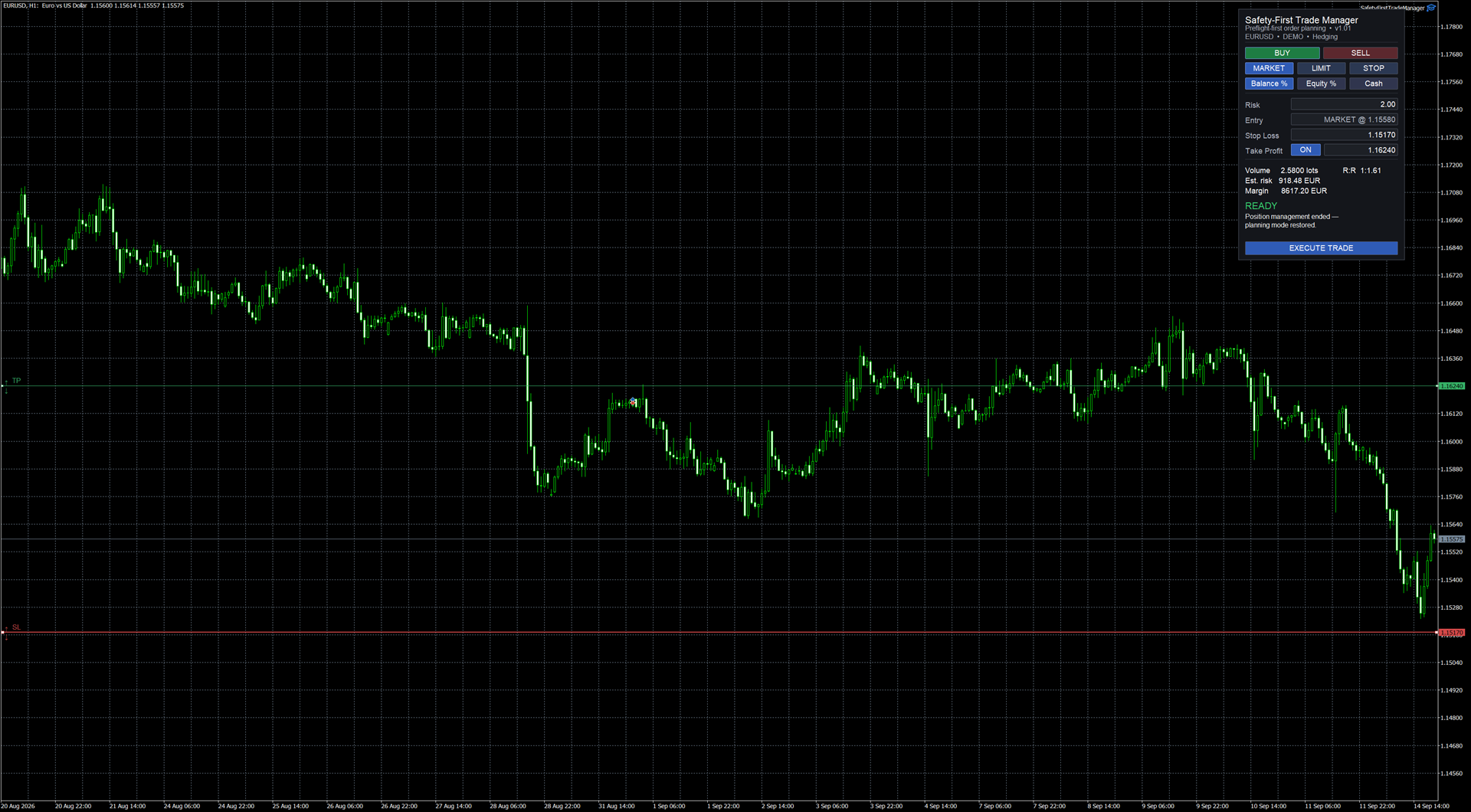
Safety First Trade Manager in READY state with risk-based sizing and chart levels prepared before execution.
3. Risk-based position sizing
Three risk modes are available:
- Balance %
- Equity %
- Cash
Balance % calculates the requested monetary risk from the current account balance.
Equity % uses the current account equity.
Cash uses a fixed amount in the account currency.
The panel displays information including:
- Calculated trading volume
- Estimated monetary risk
- Margin information
- Risk-to-reward ratio when Take Profit is enabled
Estimated monetary risk, margin values and position profit/loss are displayed in the account currency.
The calculation also takes broker-specific volume properties into account, including minimum volume and volume step.
For example, if the requested risk would require a volume below the broker's minimum tradable volume, Safety First Trade Manager rejects the plan instead of silently increasing the volume and therefore increasing the requested risk.
4. Chart levels
During trade planning, the relevant levels are displayed directly on the chart.
Entry
For pending orders, the Entry line can be moved to define the requested order price.
For MARKET orders, Entry follows the market and is not used as a manually fixed pending-order price.
Stop Loss
Stop Loss is used both for protection and for risk-based position sizing.
Moving the Stop Loss changes the distance at risk and therefore causes the trade plan and calculated volume to be refreshed.
Take Profit
Take Profit can be enabled or disabled.
When enabled, the TP line can be positioned visually and the panel displays the resulting risk-to-reward information.
Moving a planning level refreshes the preflight calculation. Dragging a planning line alone does not send an order.
5. Understanding READY, WARN and REJECT
Safety First Trade Manager performs broker-aware checks before an order or supported management action is sent.
The checks may use information such as:
- Symbol trading availability
- Minimum and maximum volume
- Volume step
- Stop-level requirements
- Current prices
- Margin availability
- Order type support
- Final trade-request validation
READY means that the current plan has passed the required checks for the available action.
REJECT means that the requested action is not currently valid. The panel displays a diagnostic explaining the reason.
WARN is used when an important condition needs attention.
Always read the diagnostic displayed by the panel instead of relying only on the color of the status.
A change in price or broker state can cause a previously valid plan to be recalculated.
6. MARKET, LIMIT and STOP orders
MARKET sends an order using the current market conditions after a fresh preflight.
LIMIT prepares a pending limit order at the Entry level.
STOP prepares a pending stop order at the Entry level.
Stop Loss and Take Profit are included when enabled and valid.
Safety First Trade Manager does not automatically retry a rejected or uncertain request.
If broker state becomes uncertain, the utility reconciles the current broker information instead of blindly sending the same request again.
7. Pending-order management
After a supported LIMIT or STOP order is accepted by the broker, the utility switches to pending-order management.
The panel displays broker-authoritative information such as:
- Order ticket
- Order type
- Order price
- Volume
- Stop Loss
- Take Profit
The Entry, Stop Loss and Take Profit levels remain visible on the chart but become read-only while the pending order is active.
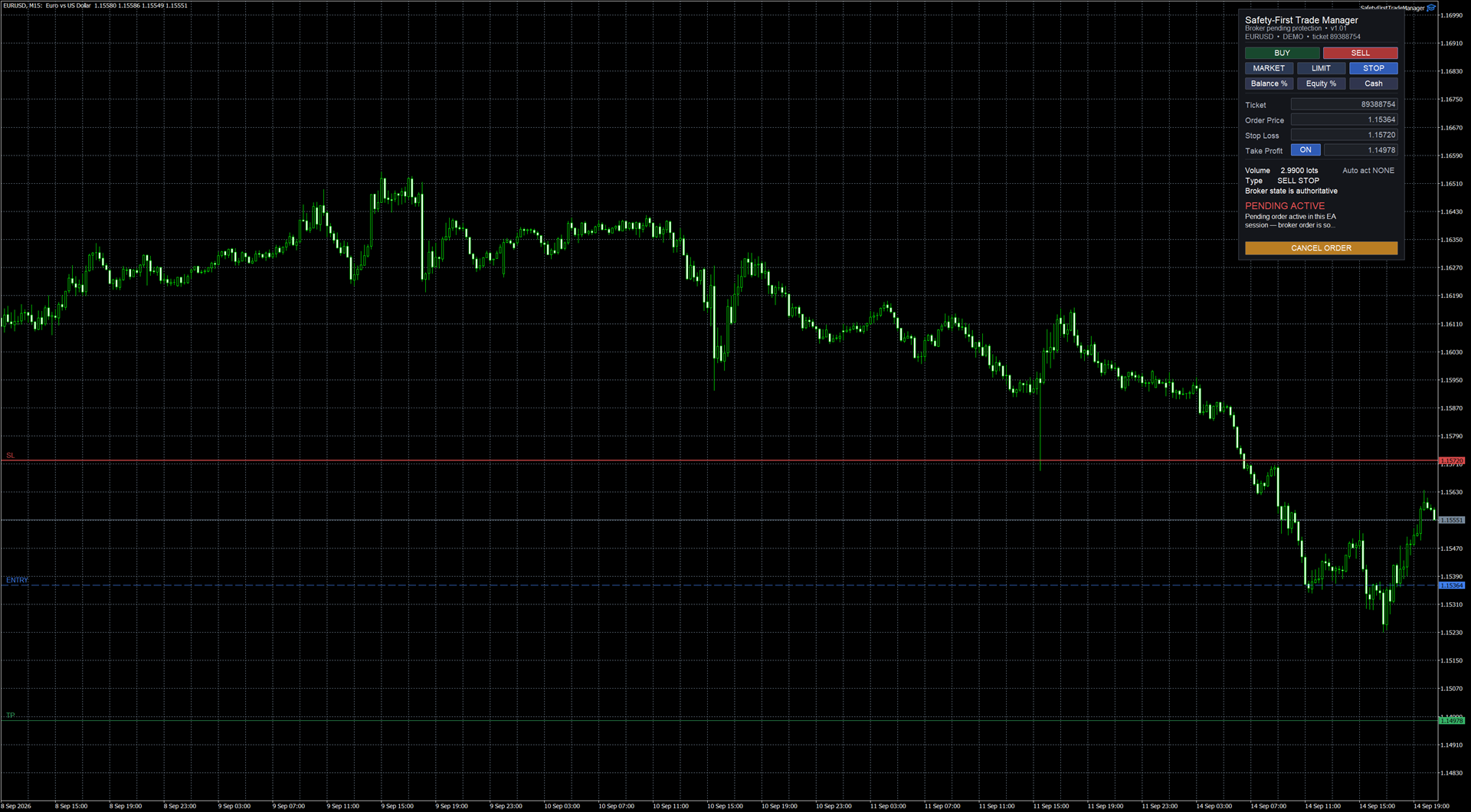
Active pending order with broker-authoritative levels and direct cancellation available from the panel.
8. Cancelling a pending order
Safety First Trade Manager supports direct cancellation of supported active and recovered pending orders.
Cancellation deliberately uses two steps.
First click:
CANCEL ORDER
No broker cancellation is sent yet.
The action changes to:
CONFIRM CANCEL
A second explicit click is required while the same pending order and broker state remain valid.
If the confirmation expires or the broker order changes before the second click, the confirmation is cancelled.
This prevents a single accidental click from removing a pending order.
After confirmed cancellation, Safety First Trade Manager waits for the broker state to reflect that the order is gone before returning to normal planning.
9. Position management
When a supported position is opened, Safety First Trade Manager switches to position management.
Available information includes:
- Position ticket
- Open price
- Current Stop Loss
- Current Take Profit
- Current volume
- Remaining volume
- Current profit/loss
Available management actions include:
- Partial close
- Breakeven when eligible
- Full close
- Stop Loss / Take Profit editing
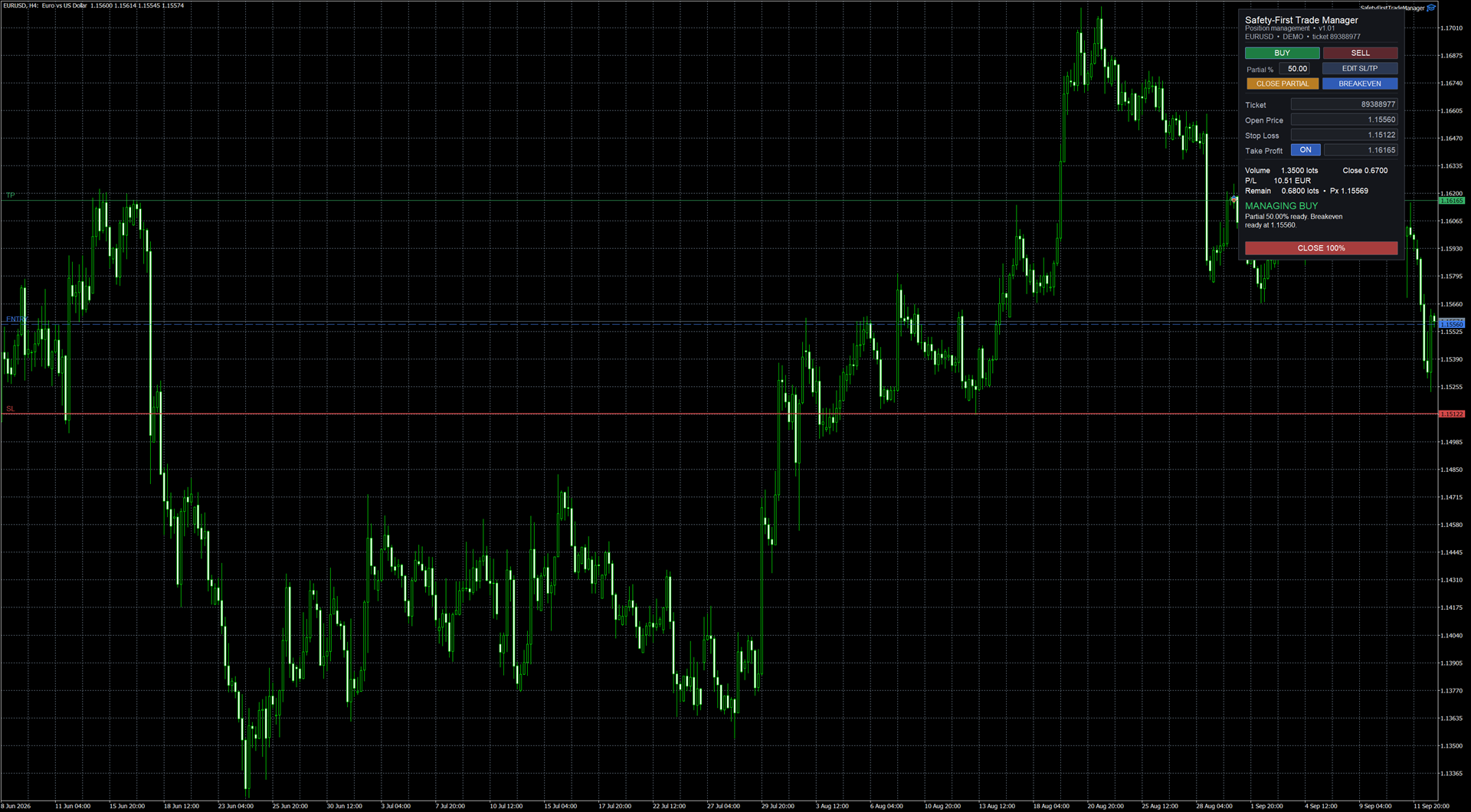
Position management with partial close, breakeven, full close and SL/TP editing from the same panel.
10. Partial close
The Partial % field determines the requested proportion of the current position to close.
Safety First Trade Manager calculates the corresponding volume while respecting the broker's volume constraints.
If the requested partial close would create an invalid volume or invalid remainder, the action is not considered ready.
The panel displays both current and remaining volume information before the action is sent.
11. Breakeven
BREAKEVEN becomes available when the current position and market conditions make the operation valid.
When applied, the utility requests a Stop Loss adjustment toward the position's entry price.
If current price or broker constraints do not allow the requested breakeven modification, the panel keeps the action unavailable rather than forcing an invalid request.
12. Editing Stop Loss and Take Profit
Safety First Trade Manager provides explicit SL/TP editing for an open supported position.
Click:
EDIT SL/TP
The utility enters local edit mode.
During this mode:
- Entry remains read-only.
- Stop Loss can be added, moved or staged for removal.
- Take Profit can be moved, enabled or disabled.
- Position-closing actions are disabled.
- Moving the chart lines does not immediately modify the broker position.
The edited levels are a local draft only.
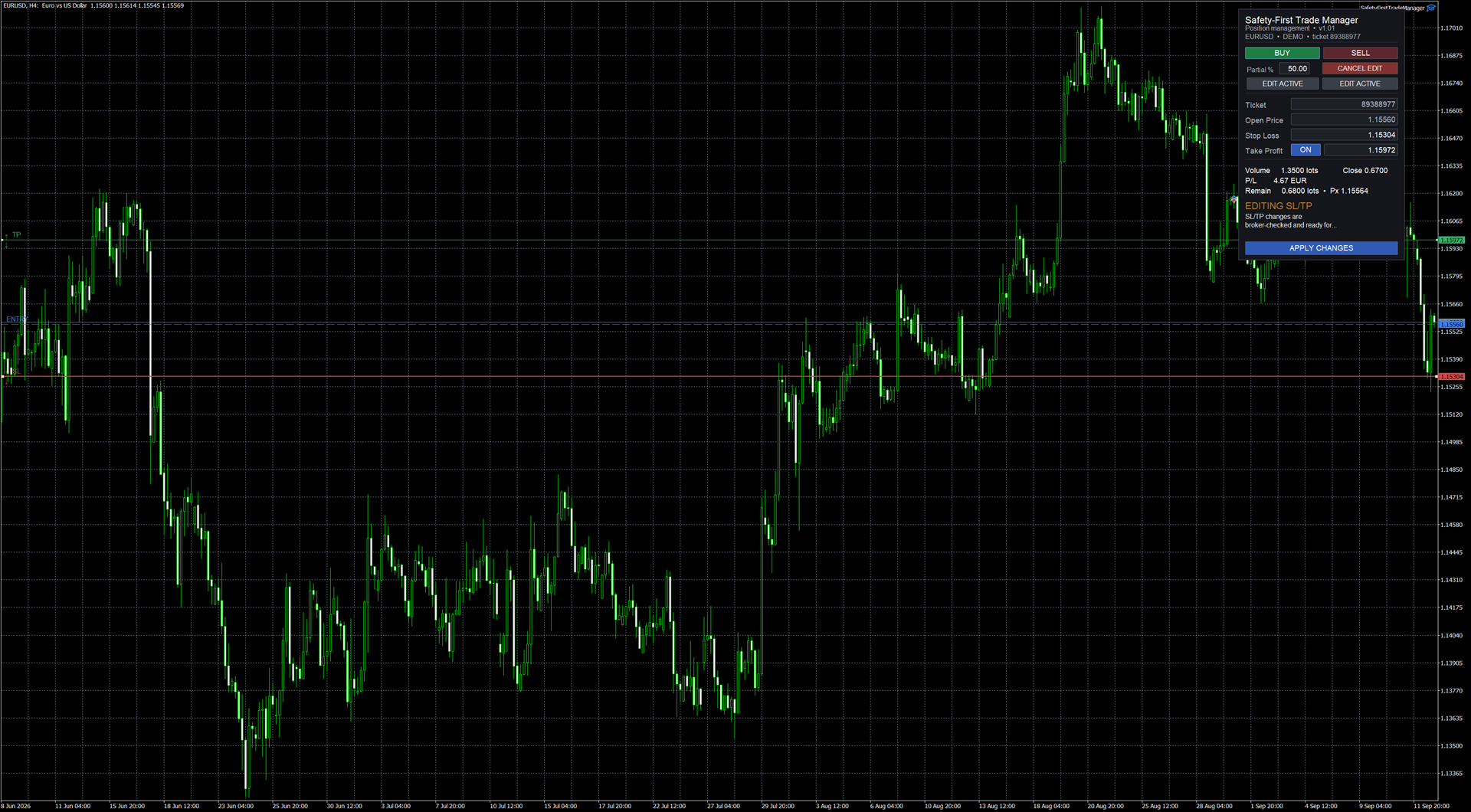
SL/TP edit mode. Changes remain local until APPLY CHANGES is explicitly selected.
When the draft passes the required checks, the main action becomes:
APPLY CHANGES
Only this explicit action is allowed to submit the prepared protection modification.
13. DONE and CANCEL EDIT
If you enter EDIT SL/TP but make no effective change, the main button displays:
DONE
DONE simply leaves edit mode.
No protection modification request is sent to the broker.
CANCEL EDIT is used when local changes exist and you want to discard them.
The chart then returns to the current broker-authoritative SL and TP values.
14. Risk-increasing Stop Loss changes
Moving a Stop Loss farther away from the position can increase the downside distance.
Safety First Trade Manager treats this as a more sensitive operation.
The first click on:
APPLY CHANGES
does not immediately send a risk-increasing Stop Loss modification.
Instead, the action becomes:
CONFIRM CHANGES
A second explicit confirmation is required on the unchanged draft.
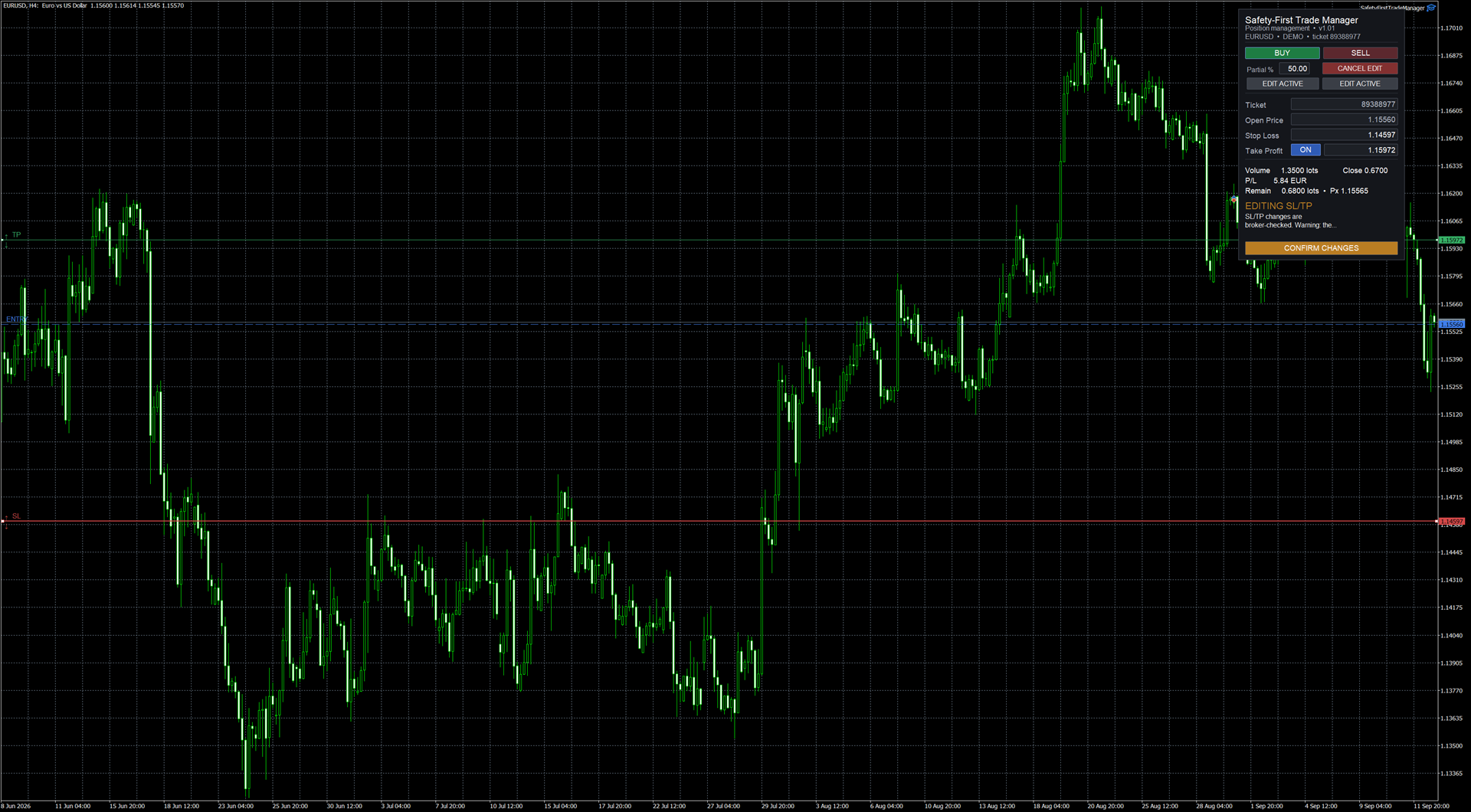
Additional confirmation required when a Stop Loss modification increases risk distance.
If the draft or broker state changes before confirmation, the confirmation becomes invalid.
15. Adding, moving and removing Take Profit
Take Profit can be:
- Added
- Moved
- Disabled and removed
If a position already has a Take Profit, TP OFF stages its removal locally.
The existing broker TP remains unchanged until APPLY CHANGES is used.
If TP is switched back ON before applying, the previously remembered draft value is restored.
When a position has no TP and Take Profit is enabled in edit mode, Safety First Trade Manager can propose a local initial TP when a usable Entry-to-Stop-Loss distance is available.
The initial proposal uses that distance as a price-distance reference.
The suggested TP is still only a local draft and may be moved before applying.
When broker or market constraints require it, the proposed level may be adjusted to remain valid.
16. Adding, moving and removing Stop Loss
Version 1.02 adds protected Stop Loss removal and visual Stop Loss creation for supported open positions.
If a position already has a Stop Loss, SL OFF stages its removal locally. The existing broker Stop Loss remains unchanged at this stage.
The main action becomes:
REMOVE SL
The first click does not remove the broker Stop Loss. Instead, the action becomes:
CONFIRM REMOVE SL
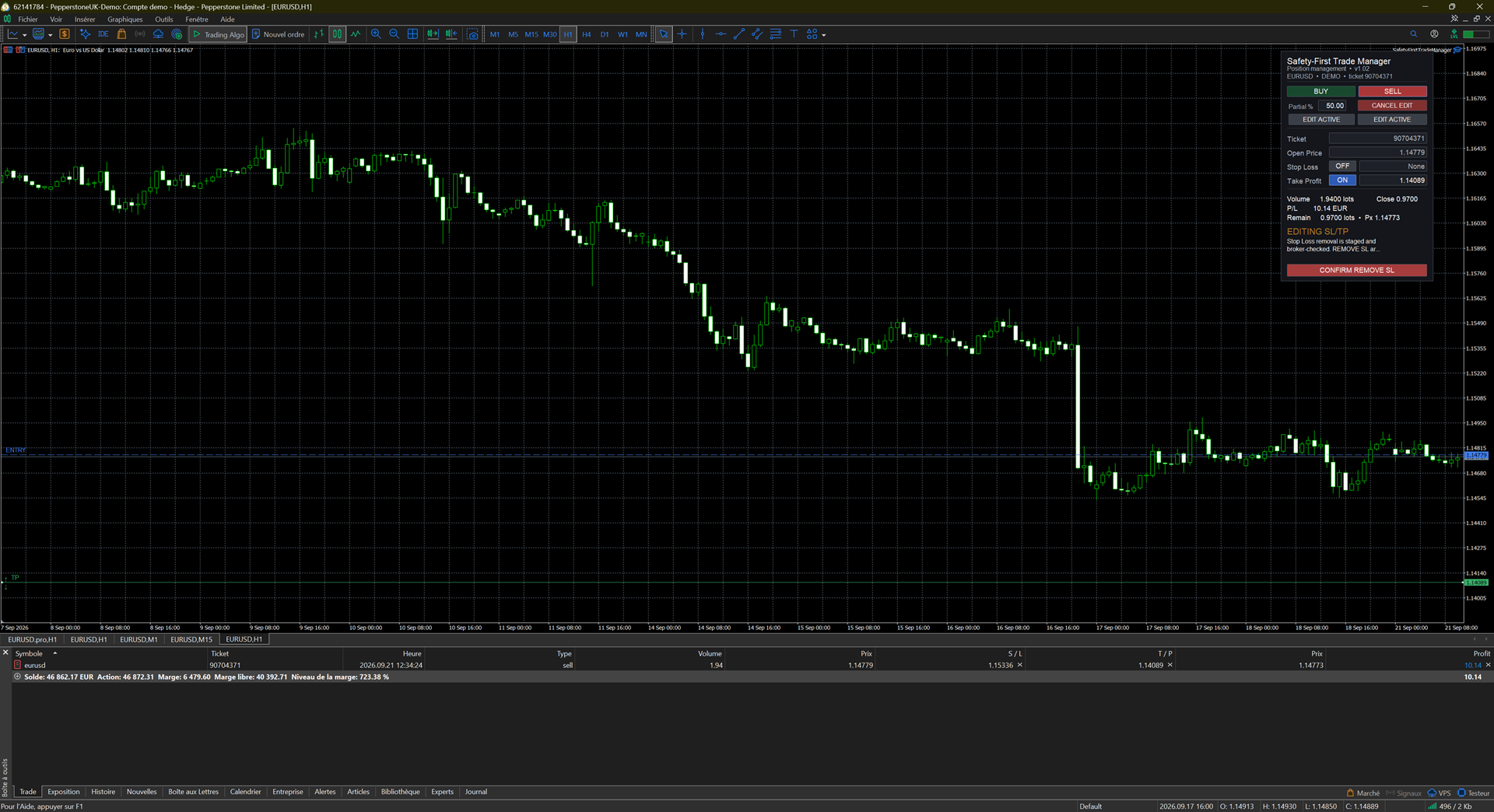
Protected Stop Loss removal awaiting the second explicit confirmation.
A second explicit confirmation is required while the same position and broker state remain valid.
If the confirmation expires or the broker state changes before confirmation, the armed confirmation becomes invalid and no delayed removal is sent.
If SL is switched back ON before removal is confirmed, the previous Stop Loss draft value is restored.
When a supported position has no Stop Loss, switching SL ON creates a local visual SL draft on the appropriate side of the market.
For a BUY position, the initial draft is created below the market. For a SELL position, it is created above the market.
The automatically created level is only a visual starting point. The panel remains on:
CHANGES NOT READY
until the user explicitly moves or edits the Stop Loss.
Once the user selects a valid level and the broker-aware checks pass, the action becomes:
APPLY CHANGES
Only then can the new Stop Loss be sent to the broker.
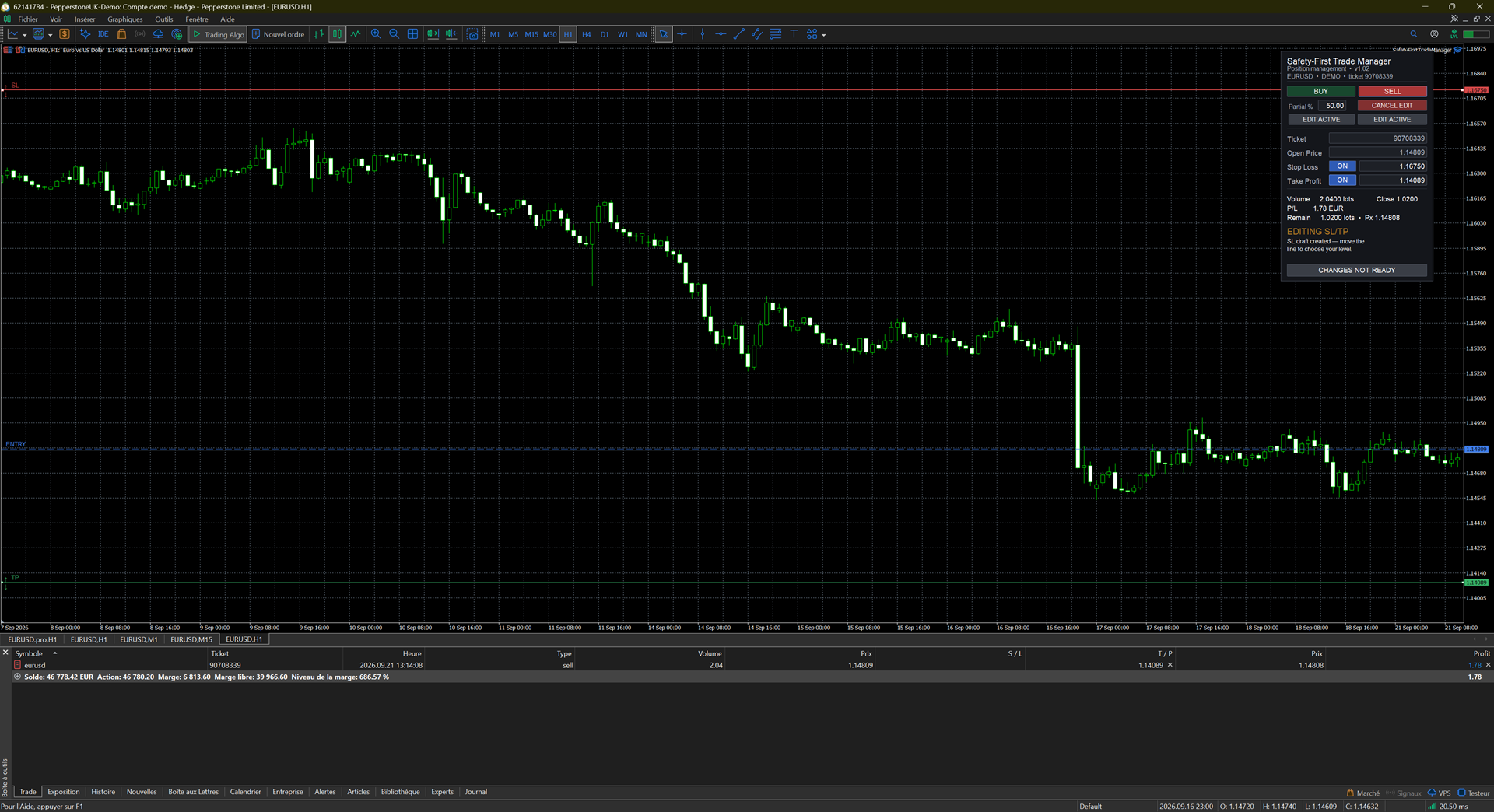
Visual Stop Loss draft created for a position without an existing Stop Loss. The level must be explicitly moved before it can be applied.
17. Restart and recovery
Safety First Trade Manager is designed to reconcile its interface with the current broker state after removal, restart or reattachment.
When a supported pending order is recovered, the panel reconstructs its broker values and displays:
PENDING RECOVERED
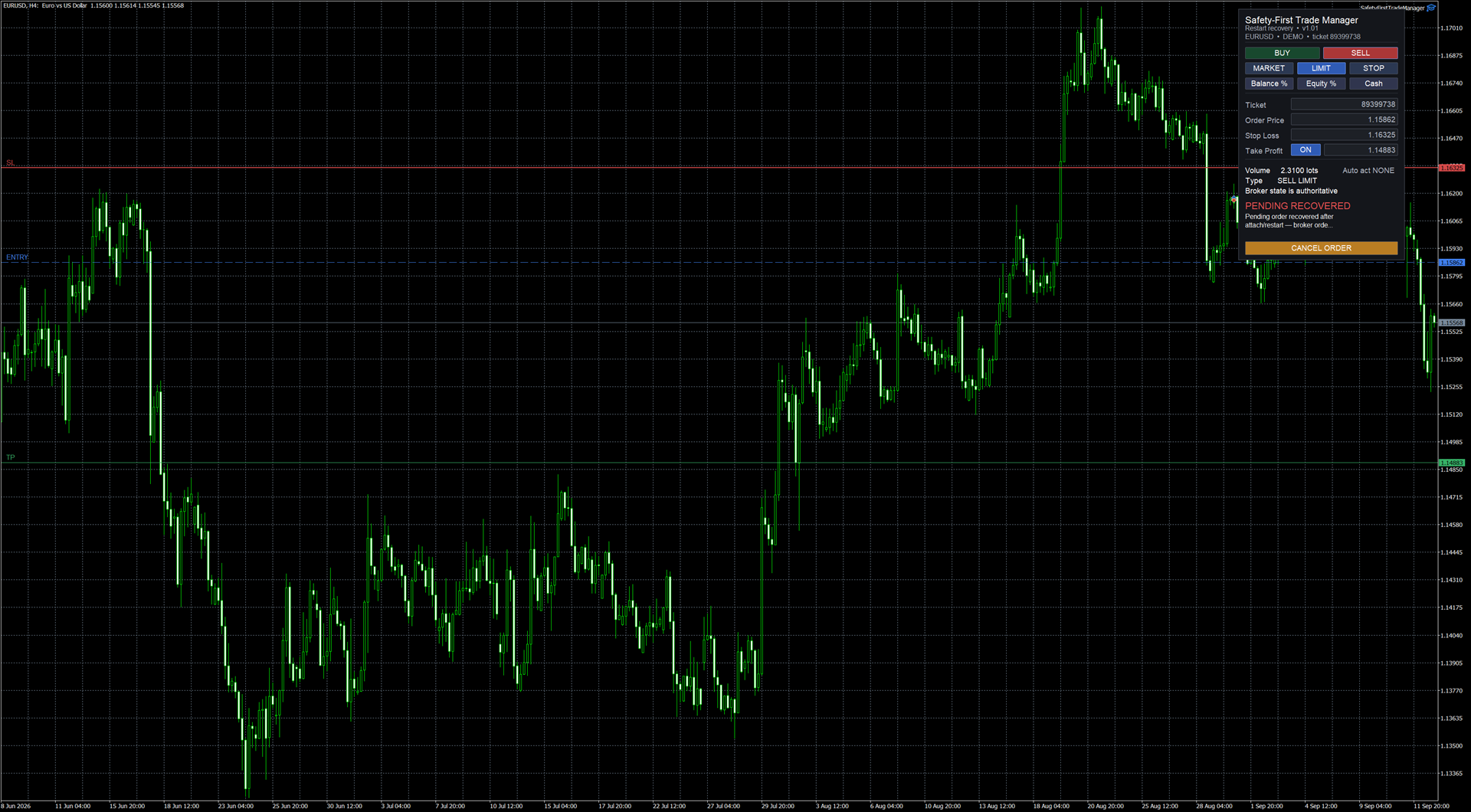
Recovered pending order after restart, reconstructed from the current broker state.
The recovered order can then be managed normally, including explicit cancellation when execution is enabled.
Supported open positions are also reconciled against their current broker values.
Broker information remains authoritative during recovery.
18. What happens to an unfinished SL/TP draft after restart?
An unapplied protection draft is deliberately not restored as though it were broker state.
For example:
- Enter EDIT SL/TP.
- Move the TP locally.
- Do not press APPLY CHANGES.
- Remove or restart the utility.
After reattachment, the old local draft is discarded.
Safety First Trade Manager displays the actual broker SL and TP instead.
No unapplied draft is automatically sent after restart.
19. External broker-state changes during editing
The utility continuously treats the broker as authoritative.
If the same position changes externally while an SL/TP draft or confirmation is active, Safety First Trade Manager refreshes the relevant broker values and invalidates any confirmation that was armed against the previous state.
A destructive action such as Stop Loss removal must therefore be armed and confirmed again against the current broker state.
Safety First Trade Manager does not blindly submit a request that was confirmed against outdated broker information.
20. Execution disabled mode
InpEnableExecution=false is the default safety state.
When execution is disabled, broker-changing actions are not available.
Depending on the current mode, the panel can display states such as:
- EXECUTION DISABLED
- CHANGES DISABLED
- CANCEL DISABLED
Stop Loss removal cannot be armed or confirmed while execution is disabled.
Recovery and information display can still operate, but no creation, modification, close or cancellation should be expected from the SFTM panel until execution is explicitly enabled.
21. Free MQL5 Market demo
MQL5 Market creates protected demo versions of Expert Advisors.
By platform design, an Expert Advisor Market demo cannot be attached to an online chart. Its trading functionality can only be evaluated in MetaTrader 5 Strategy Tester.
For testing the complete interactive workflow on an actual demo trading account, use an installed licensed or rented version and keep the account itself in demo mode before considering live use.
22. Common questions
Why does the panel show REJECT?
The requested plan currently violates a condition detected during preflight. Read the displayed diagnostic. Possible reasons can include invalid price relationships, broker volume limits, stop constraints, margin conditions or unsupported trading conditions.
Why is my calculated volume smaller than expected?
Volume depends on the selected risk amount, Entry/Stop Loss distance and broker symbol properties.
Why does SFTM reject a very small risk instead of using the minimum lot?
Automatically forcing the broker minimum could make the actual risk larger than the amount requested by the user. The utility therefore rejects the plan instead.
What currency is Est. risk displayed in?
The account currency.
The same applies to monetary margin and P/L information shown by the utility.
Why can I move a line without immediately changing the live position?
Position SL/TP editing deliberately uses a local draft. This prevents an accidental chart drag from immediately changing broker protection.
Why do I need CONFIRM CHANGES?
This additional step is used when a Stop Loss modification increases the risk distance.
Why does pending cancellation require two clicks?
The first click arms the cancellation. The second confirms it. This reduces the chance of accidentally deleting a live pending order.
What happens if the broker position changes while I am editing?
Safety First Trade Manager refreshes the current broker state. Any confirmation armed against the previous broker state becomes invalid and must be armed again before it can be sent.
Why is CANCEL ORDER or APPLY CHANGES disabled?
Execution may be disabled, the action may not pass the current broker checks, another request may still be unresolved, or the broker state may no longer match the draft.
Why does removing Stop Loss require two clicks?
Removing a protective Stop Loss is treated as a destructive management action. REMOVE SL stages the confirmation step, while CONFIRM REMOVE SL explicitly authorizes the broker modification. A single click cannot remove the broker Stop Loss.
Why can’t I immediately apply a newly created Stop Loss line?
When a position has no Stop Loss, the automatically created line is only a visual starting point. Safety First Trade Manager requires the user to explicitly move or edit the level before APPLY CHANGES becomes available.
23. Recommended usage
Before using the utility on a live account:
- Become familiar with the panel on a demo account.
- Test MARKET, LIMIT and STOP workflows.
- Test position management with small demo volumes.
- Test pending cancellation.
- Test SL/TP edit mode.
- Test protected Stop Loss removal using REMOVE SL and CONFIRM REMOVE SL.
- Test adding a missing Stop Loss and explicitly reposition the visual draft before applying it.
- Review how your broker handles minimum volume, volume step and stop distances.
- Always check the displayed plan before confirming an action.
Safety First Trade Manager is intended to assist execution and risk-management workflows. It does not remove the need to understand the orders being sent.
24. Support
For questions, bug reports or unexpected behavior, please use the Safety First Trade Manager product comments or MQL5 messaging.
When reporting an issue, useful information includes:
- Product version
- MetaTrader 5 build
- Broker
- Symbol
- Account type
- What action you attempted
- Panel status or diagnostic
- Screenshot if possible
Do not include account passwords, API keys or other sensitive credentials.
MQL5 Market rules require product support and necessary product information to remain within MQL5 rather than directing users to external messengers.
25. Final note
Safety First Trade Manager is built around explicit manual actions.
It does not provide entry signals, trading predictions or automatic strategy decisions.
Its role is to help the user prepare, review, execute and manage supported trades while keeping the broker state and the user's explicit confirmation at the center of the workflow.