
Version 1.0 (engine build) · MetaTrader 5 indicator · Author: Ahmed Hamed (ahradwan)
📢 Join my official MQL5 channel for the latest updates and new product releases:
Join Official MQL5 Channel
1. What TriZone Semafor Pro Does
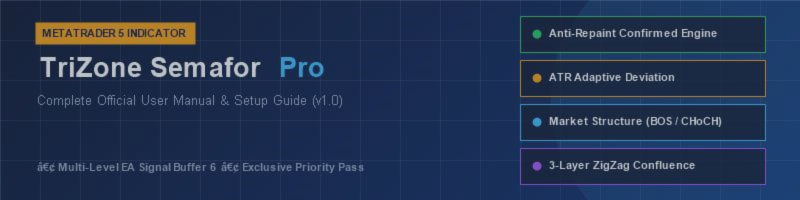
TriZone Semafor Pro plots confirmed swing points (semafors) on three independent ZigZag layers — Fast (L1), Medium (L2) and Slow (L3) — on a single chart. When two or more layers mark the same candle, the highest layer takes priority, so the chart shows one clean hierarchy of pivots instead of three overlapping indicators. Around this core, the indicator derives market structure events (BOS / CHoCH), supply-and-demand confluence zones, support/resistance rays, and a repaint-safe signal buffer for automated systems.
Everything you see is computed from closed, confirmed bars when Anti-Repaint mode is ON (the default). Signals published behind the safe shift are final and never revised.
2. Installation and First Load
- Copy the indicator into MQL5\Indicators\ (or install directly from the Market), then restart MetaTrader 5 or refresh the Navigator.
- Drag the indicator onto any chart. On first load the Dashboard shows Bootstrap... , then ATR Building... if ATR mode is active, then Ready . Signals are intentionally withheld until the status reads Ready .
- When you switch timeframes, the chart clears briefly while the new timeframe rebuilds. This is deliberate: stale arrows from the previous timeframe are wiped rather than shown in wrong positions.
First load on fast timeframes: A large ZoneHistoryBars value only slows the very first scan on M1/M5. Steady-state performance is unaffected.
3. Quick Start — Presets
The Preset input is the fastest way to a sensible configuration. Auto-Detect (default) reads the symbol class and applies the matching template automatically.
| Preset | What it does |
|---|---|
| Auto-Detect | Recommended. Matches the template to the symbol class (Forex / Gold / Indices). |
| Custom | Uses your individual Level 1-3 inputs below exactly as entered. |
| FX Adaptive | All three levels in ATR mode, tuned for Forex pairs. |
| Gold Adaptive | All three levels in ATR mode, tuned for XAUUSD. |
| Indices Adaptive | All three levels in ATR mode, tuned for US30 / SPX-type instruments. |
| Pure Manual | All three levels use fixed-point deviation (classic ZigZag behaviour). |
4. The Three ZigZag Levels
Each level is an independent ZigZag engine with its own inputs. Defaults follow a Fibonacci-style spread so the three timescales stay proportional.
| Input | L1 Fast | L2 Medium | L3 Slow | Range |
|---|---|---|---|---|
| Period (Depth) | 5 | 13 | 34 | 2 - 500 |
| Deviation (points, Manual mode) | 1 | 8 | 21 | 1 - 100000 |
| Backstep (min bars between pivots) | 3 | 5 | 12 | clamped to Depth-1 |
| ConfirmBars (bars to finalize) | 2 | 3 | 4 | 1 - 50 |
| ATR Period (ATR mode) | 7 | 14 | 28 | 2 - 200 |
| ATR Multiplier (ATR mode) | 0.015 | 0.12 | 0.315 | 0.001 - 10.0 |
- Depth: how many bars a candidate pivot must dominate. Larger = fewer, more significant pivots.
- Deviation: minimum price move required to accept a reversal. In Manual mode it is fixed points; in ATR mode it is ATR x Multiplier, so the filter breathes with volatility.
- Backstep: minimum spacing between consecutive same-side pivots. Note it is silently clamped to Depth-1; a warning is printed once if your input exceeds that.
- ConfirmBars: how many closed bars must pass before the pivot is published (Anti-Repaint ON).
- Arrow codes: Wingdings characters (159 = dot, 108 = circle, 116 = diamond) and can be changed per level and side.
Manual vs. ATR Adaptive deviation
Manual mode uses a fixed point distance — predictable, but a value tuned for a quiet market over-triggers in a volatile one. ATR Adaptive mode (per level, opt-in via DevMode) recomputes the filter from current volatility. When ATR history is still loading after a fresh attach or timeframe switch, the indicator quarantines all output rather than publishing signals that would change once ATR data arrives — this is the ATR Building... status.
5. Anti-Repaint and SafeArrows
| Setting | Behaviour |
|---|---|
| AntiRepaint = ON (default) | Signals are published only after the confirmation window closes. Values behind the safe shift are final. |
| AntiRepaint = OFF | Live mode: pivots appear instantly and may be revised while the ZigZag window is still open. For discretionary watching only. |
| SafeArrows = ON | Arrows and alerts use the same strict no-repaint floor as the EA buffer (slower to appear, never revised). |
| SafeArrows = OFF (default) | Arrows use ConfirmBars for faster visual response; they may still be revised inside the ZigZag correction window. |
For automated trading: Always keep AntiRepaint ON and read Buffer 6 at or beyond the published safe shift (see section 9). The chart short name shows it as EA>=N .
6. Reading the Chart
- Semafor arrows: dots (L1), circles (L2), diamonds (L3) at confirmed swing highs and lows. The highest level wins per candle.
- Supply / Demand zones: rectangles drawn where multiple levels agree within the confluence window, labelled with their strength (L1, L2+L3, or L1+L2+L3). A zone flips polarity after a confirmed breach (grey), and is removed after a second breach.
- Support / Resistance rays: horizontal lines from recent confirmed pivots. Style encodes the level — solid = Slow, dashed = Medium, dotted = Fast. SRMinLevel (default 2) hides the fast level lines to reduce noise.
- Structure labels: BOS (Break of Structure) and CHoCH (Change of Character) per level, tagged L1/L2/L3. Optional HH/HL/LH/LL labels are available via ShowHHHL (verbose; off by default).
Zone breaches are evaluated against the confirmed close of the previous bar, never the live forming bar, so a wick through a zone does not flip it.
7. Dashboard
The panel ( ShowDashboard = ON ) summarizes the current state: per-level signal with price and effective deviation, the zone at current price, the latest structure event, per-level trend direction, and the engine status ( Bootstrap... / ATR Building... / Ready ). Position, colors and font size are adjustable. The dashboard is display-only — it reflects exactly what survived the exclusivity pass, nothing more.
8. Alerts
| Input | Meaning |
|---|---|
| AlertMode | None / Popup / Push notification / All (popup + push + email) |
| AlertLevel1/2/3 | Enable alerts per level. Defaults: L1 off, L2 and L3 on. |
| PlaySoundOn / AlertSound | Optional sound on alert (Pro). |
- One alert per newly confirmed pivot — never per tick.
- Alerts fire only for signals that survived the exclusivity pass, so you are never alerted to an arrow that is not on the chart.
- Alerts are automatically suppressed in the Strategy Tester and during optimization.
9. EA Integration — Buffer 6
Buffer index 6 exposes Multi-Level Signal Strength for automated systems: +1.0 = BUY , -1.0 = SELL , 0.0 = neutral or conflict . It is the hierarchical grade after exclusivity (L3 > L2 > L1) — a reading of +1.0 means the highest level present signals BUY; it is not an independent agreement counter.
- MinLevels (default 2): how many levels must agree within the ConfluenceWindow (default 3 candles) before a non-zero value is published.
- StrictMode: requires the effective 3-level grade; a single L3 pivot qualifies by design, because L3 counts as L1+L2+L3.
- With AntiRepaint ON: read the buffer at shift >= the published safe minimum. It is exposed two ways: in the chart short name ( EA>=N ) and as a terminal Global Variable ending in _MinShift , alongside _MaxHistBars for the maximum useful history depth.
- HeadlessMode = ON: runs the pure calculation engine with no chart objects, dashboard or alerts — the recommended mode when feeding an EA via iCustom.
Contract stability: The v1.0 engine keeps the Buffer 6 contract byte-compatible with previous builds: values, MinShift and the discovery Global Variables are unchanged. No EA-side changes are required.
10. Running Multiple Copies
Each instance is isolated by a unique namespace built from symbol, timeframe, chart and the InstanceID input. To run two copies on the same chart, give the second one a different InstanceID (e.g. "B"). If you load a duplicate with the same InstanceID while the first is alive, initialization is refused with a clear message — this protects the chart objects of both copies. On removal, the indicator deletes all of its own objects and terminal Global Variables; leftovers from older builds are cleaned automatically on first run and after.
11. Troubleshooting
| Symptom | Explanation / action |
|---|---|
| Blank chart for a few seconds after attach or timeframe switch | Normal. The dashboard shows Bootstrap... / ATR Building... while history is prepared; arrows appear when it reads Ready. |
| No zones visible | Check ShowZones = ON and ZoneFill = ON. Zones also require multi-level agreement — a strongly trending chart may legitimately have none active. |
| Two same-direction arrows far apart | By design in rare cases: a pivot already published as confirmed is never erased, even if a later extreme supersedes it. Signals behind the safe shift stay final. |
| Labels crowd together when zoomed far out | Inherent to price-anchored text in MT5; accuracy is unaffected. Use standard zoom or reduce density via SRShowPrice / ShowHHHL / SRMinLevel / MSMinLevel. |
| Backstep behaves differently than entered | Backstep is clamped to Depth-1 per level; a one-time warning in the Experts log shows the applied values. |
| Duplicate-instance error on load | Another live copy uses the same InstanceID on this chart. Set a unique InstanceID. |
12. Input Reference (Groups)
| Group | Key inputs |
|---|---|
| Preset Templates | Preset (Auto / Custom / FX / Gold / Indices / Manual) |
| Level 1-3 ZigZag | Period, Deviation, DevMode, ATRPeriod, ATRMult, Backstep, ConfirmBars, arrow codes |
| Signal Strength (EA Buffer) | MinLevels, StrictMode, ConfluenceWindow |
| Instance Management | InstanceID, DebugMode, HeadlessMode |
| Anti-Repaint Control | AntiRepaint, SafeArrows |
| Alert System | AlertMode, AlertLevel1-3, PlaySoundOn, AlertSound |
| Dashboard | ShowDashboard, position, colors, font size |
| Confluence Zones | ShowZones, MaxZones, ZoneBreachBars, ZoneHistoryBars, colors, ZoneFill |
| Support / Resistance | ShowSRLines, SRLinesPerSide, SRMinLevel, SRShowPrice, colors, width |
| Market Structure | ShowBOS, ShowHHHL, MSMinLevel, MSTagLevel, colors, font size |
📢 Do not forget to join our MQL5 channel for upcoming releases and updates:
Join Official MQL5 Channel